
README file from
GithubObsidian only. The
rich-tablefenced code block is rendered by the plugin — it won't display in standard Markdown editors or GitHub previews.
Rich, interactive tables for Obsidian — with cell merges, inline editing, wikilink autocomplete, typed columns, drag-to-reorder, math formulas, lists, images, and more.
Why Rich Table?
A detailed comparison against Obsidian's native Markdown tables and several community table plugins (maintenance status varies). Based on each project's public README/docs as of 2026-09 — feature sets may change with newer releases.
Legend: 🟢 fully supported 🔴 not supported 🟡 partial support / limited
Installation
Community plugin browser (recommended):
- Open Settings → Community plugins → Browse
- Search for Rich Table and install
- Enable the plugin
Or: Open in Obsidian
Manual: copy main.js, manifest.json, styles.css to <vault>/.obsidian/plugins/rich-table/
Minimum Obsidian version: 1.8.7
Demo
⬆️ Upgrading from v0.x? — v1 → v2 migration: the upgrade banner on old-format tables, converting in one click or keeping the old format read-only.
1 · Quick start from template — or a blank table
Type ```rich-table yourself, or skip typing it: run Insert rich-table block from the command palette (bind it your own hotkey under Settings → Hotkeys), click the ribbon icon, or right-click in the editor and pick it from the context menu — all three drop an empty block at the cursor.
Already have a plain Markdown table? Run Convert to rich-table from the command palette (bind your own hotkey the same way) with the cursor on it — it's replaced in place, header row becoming column names and the rest becoming data. Also on the editor right-click menu, though Live Preview's own table-editing widget intercepts right-clicks made directly on the table itself; switch to Source Mode, or use the command palette, if the menu item doesn't show up there.
An empty rich-table code block shows one button per built-in template (currently a full-featured Demo and a Cornell Notes layout) plus Insert blank table, which opens a Word/Sheets-style size picker — hover an 8×6 grid to preview and click to confirm a row/column count, or type exact numbers for anything past the visible grid. Hovering any button live-previews that option below; with nothing hovered, the default template previews. Templates are auto-discovered from src/templates/*.yaml (same pattern as themes) — no code changes needed to add one.

2 · Merge cells — drag-select → Merge in popup
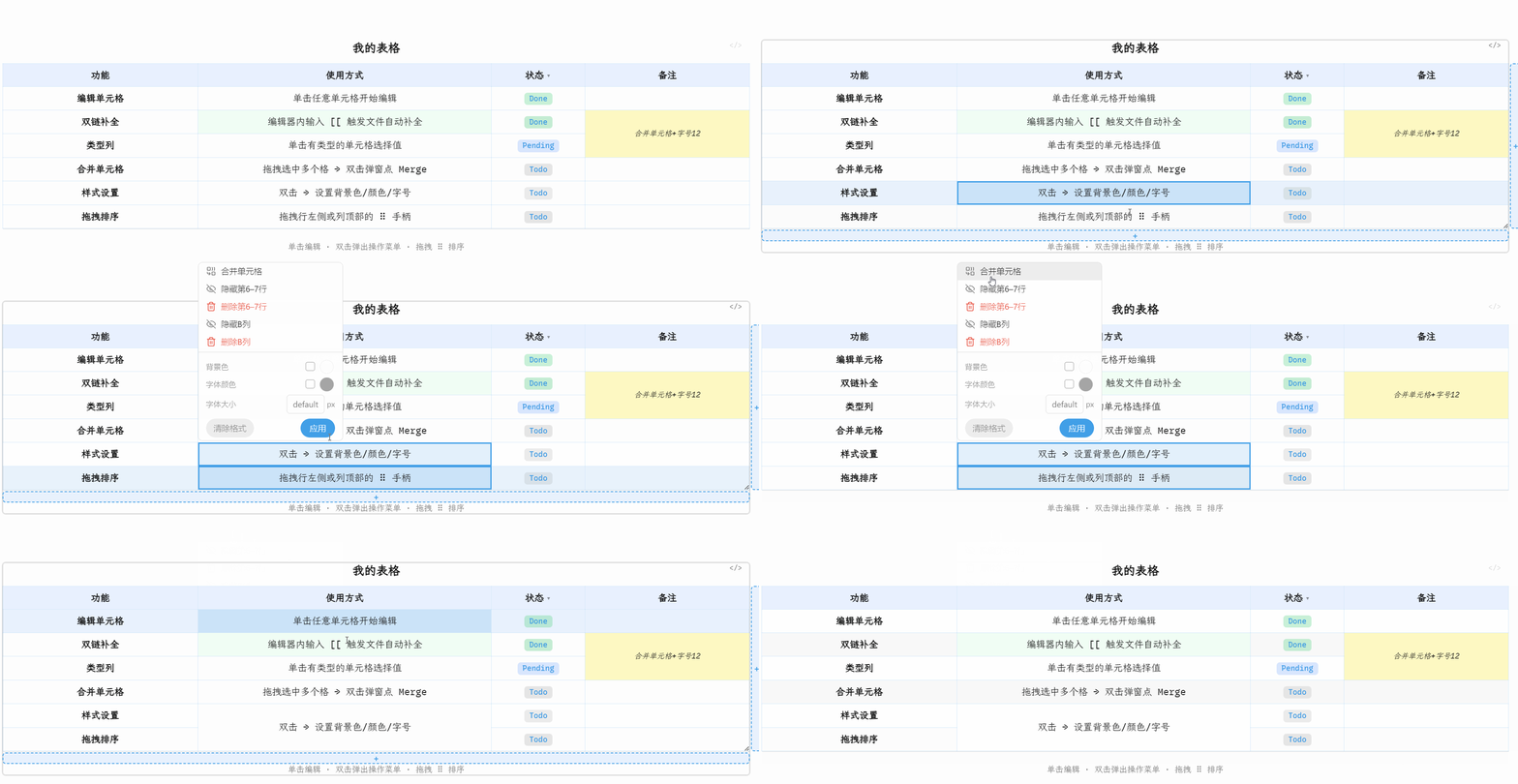
3 · Typed columns & cell style — click to pick value, double-click to set style
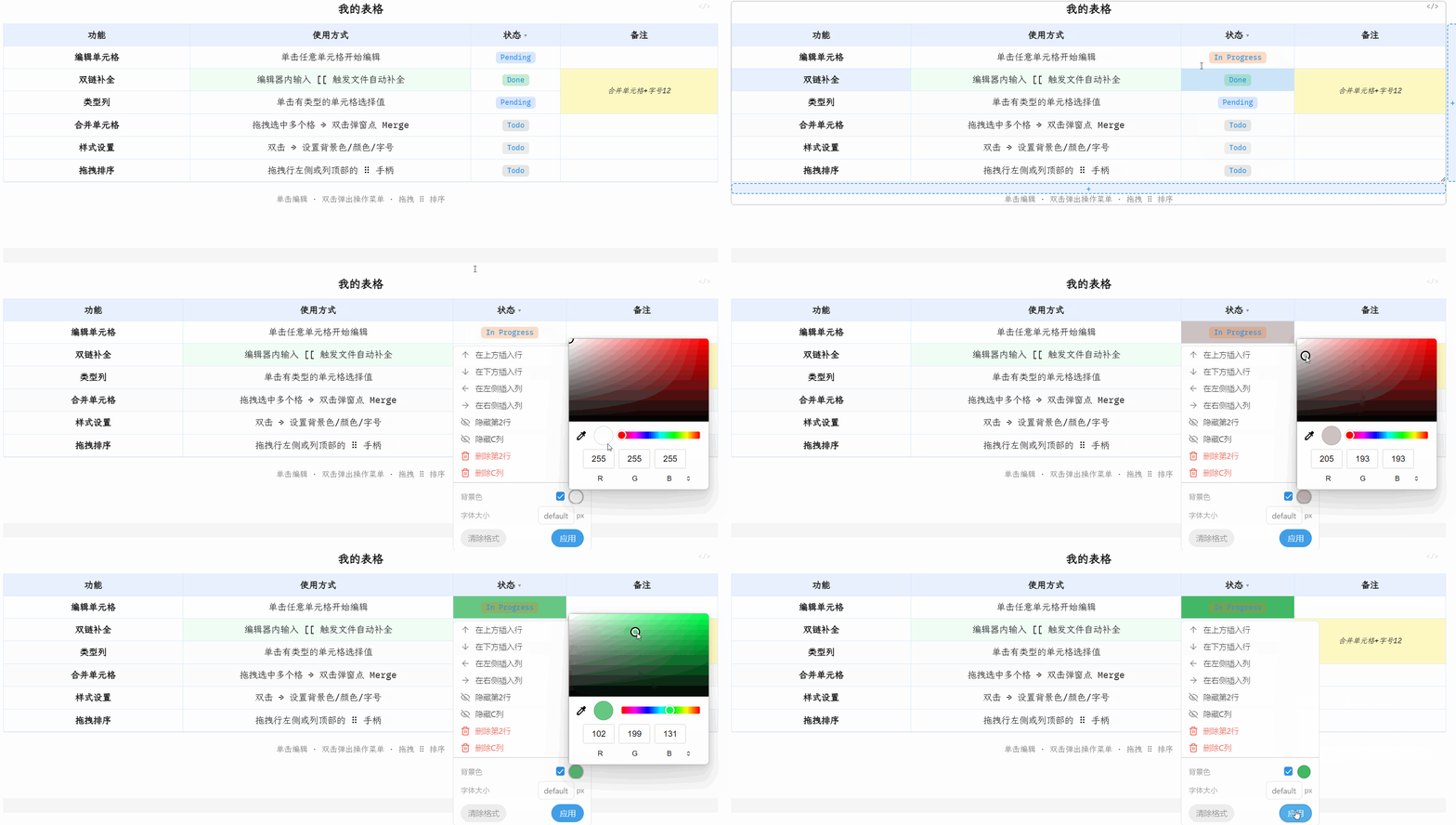
4 · Drag to reorder & row/column ops — ⠿ handle + double-click menu
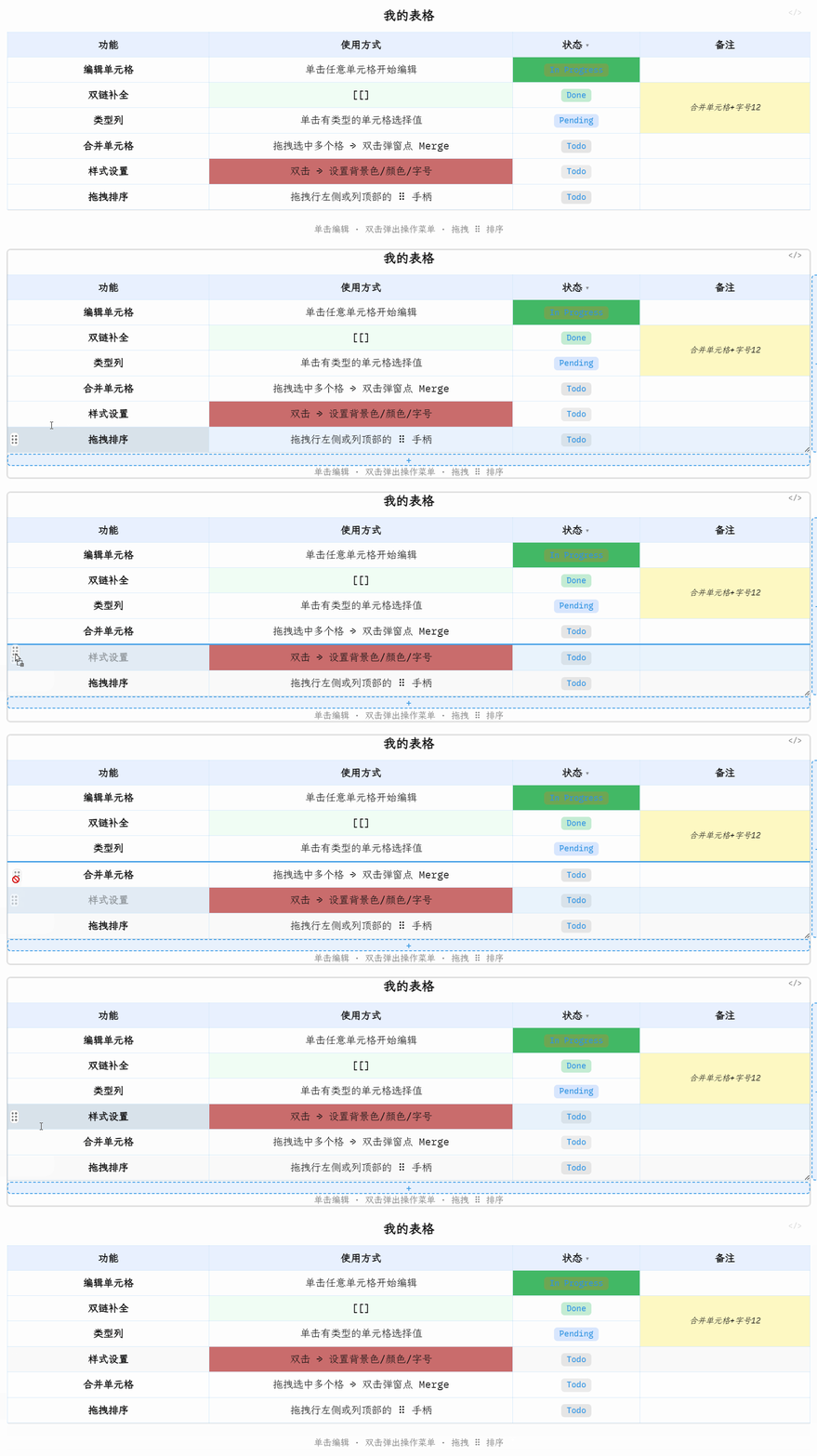
5 · Drag to resize — column header right edge · row bottom edge. Only the dragged column/row changes size; the table's overall width/height grows or shrinks to match, same as Excel. A column/row with no width/height of its own tracks its content automatically ("auto"); dragging pins it to a fixed size, and double-clicking the resize handle clears it back to auto

6 · Title & footer — click to edit, Shift+Enter for multi-line
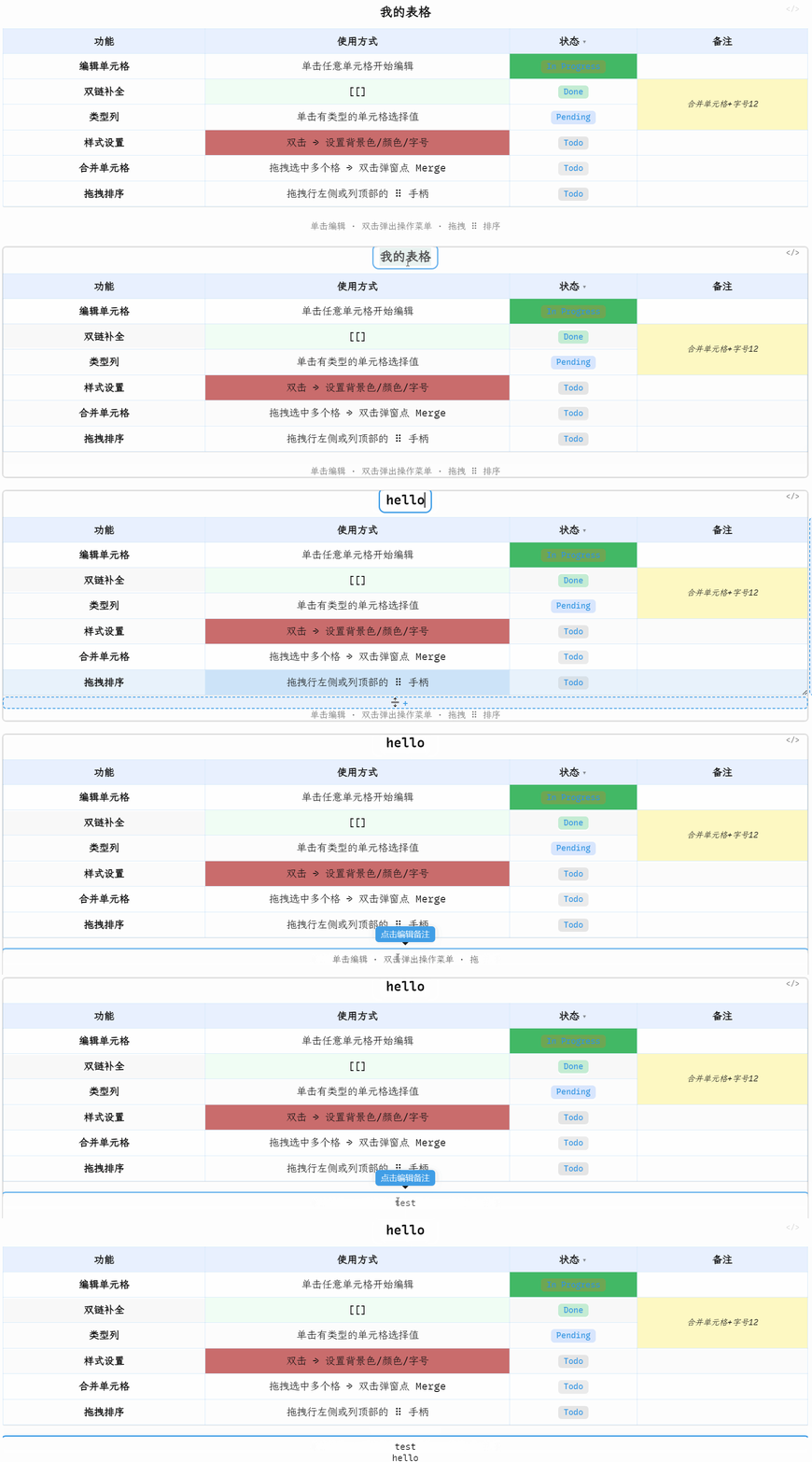
7 · Column filtering — filter rows to focus on what matters
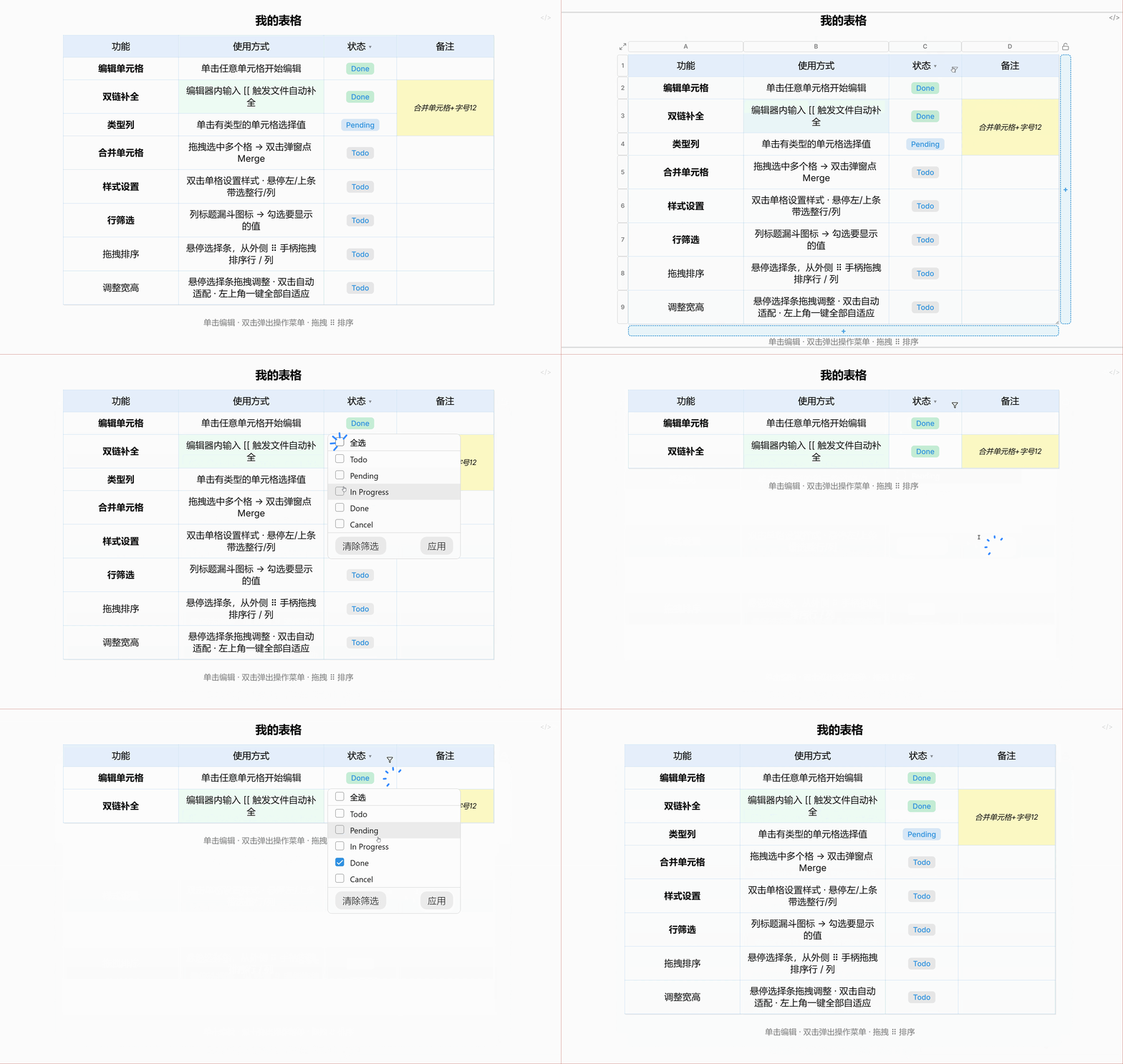
8 · Rich cell content — math · bold/italic · links · images · lists · multi-line
🎬 Demo GIF coming soon
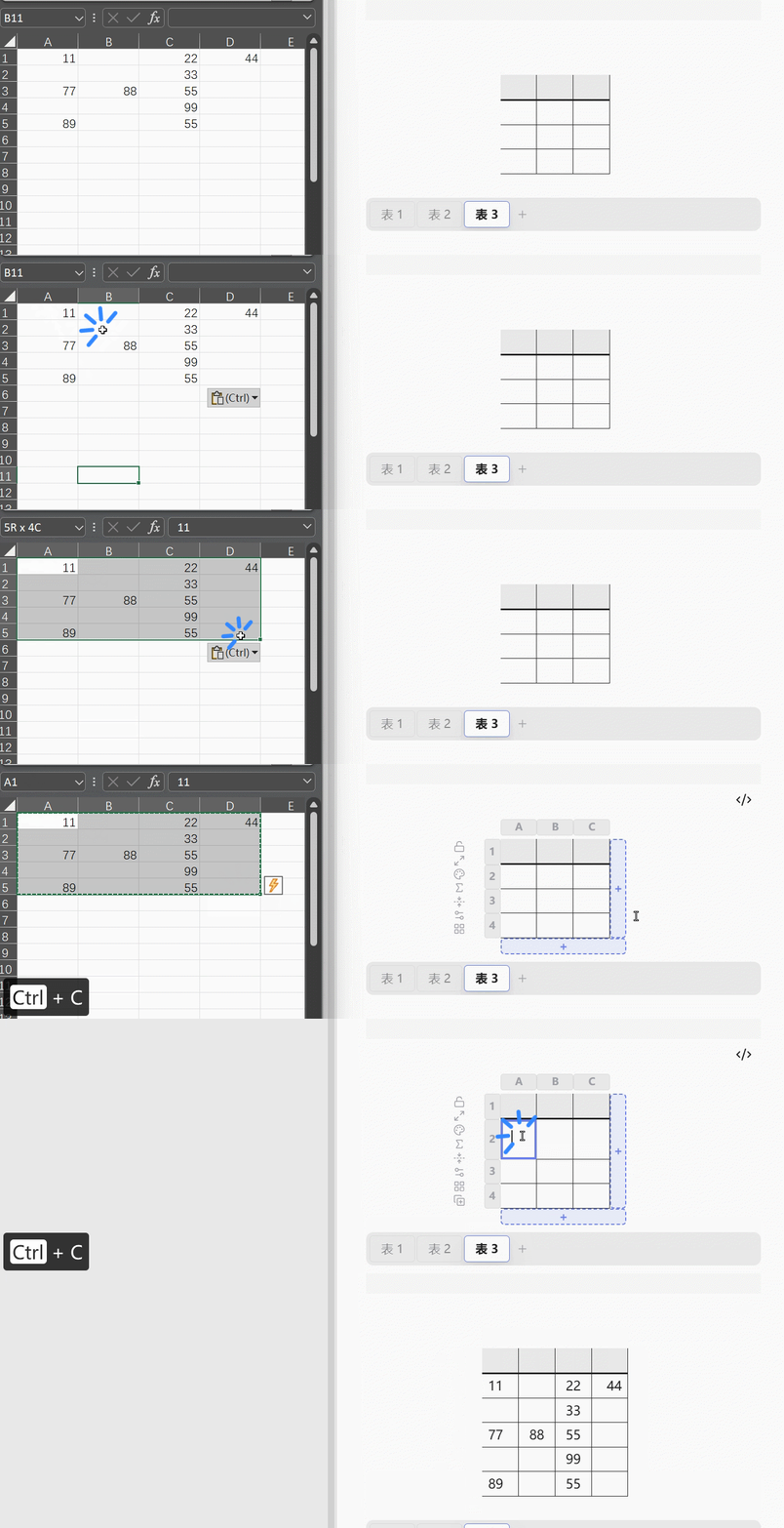
9 · Copy/paste interop with Excel & Markdown — paste a range from Excel/Sheets straight into a cell (detected via clipboard HTML), or a standard Markdown/GFM pipe table pasted as plain text (typed by hand, copied from another note, an LLM reply, GitHub, etc.); pasting onto a header cell instead converts the whole thing — the pasted header row becomes column names, the rest becomes data, table-format conversion in one paste. Copy a selection out as an Excel-compatible table or as a Markdown table, from the selection/cell/header menus — merged cells in the copied range carry over intact. Ctrl+V also works directly on a Selected cell or multi-cell range (no need to be editing), pasting starting at its top-left corner and reconstructing any merges the copied range had; a destination merge it collides with is absorbed rather than rejected
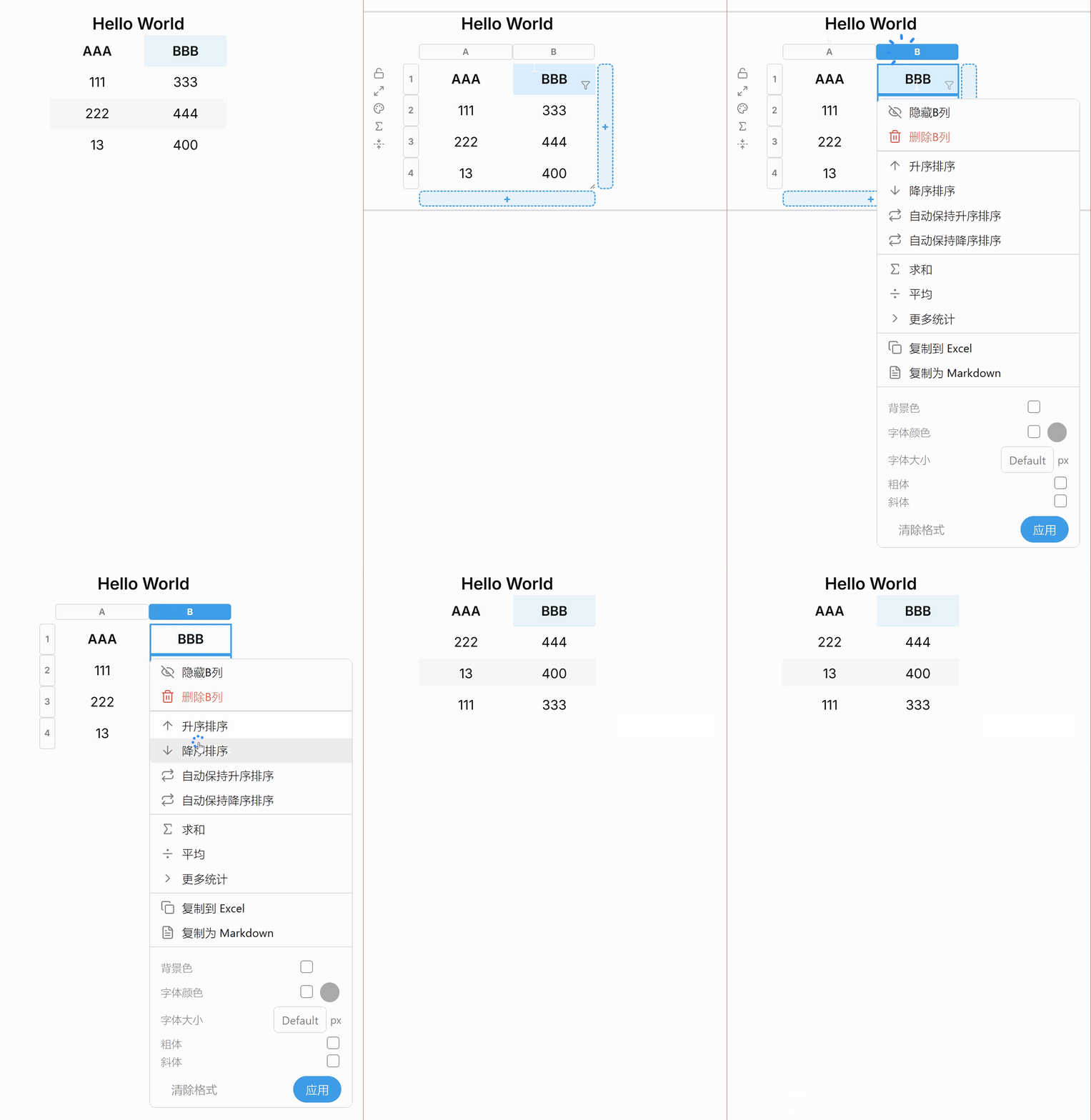
10 · Row sorting — column selector popup: one-time sort or live auto-sort with a header indicator
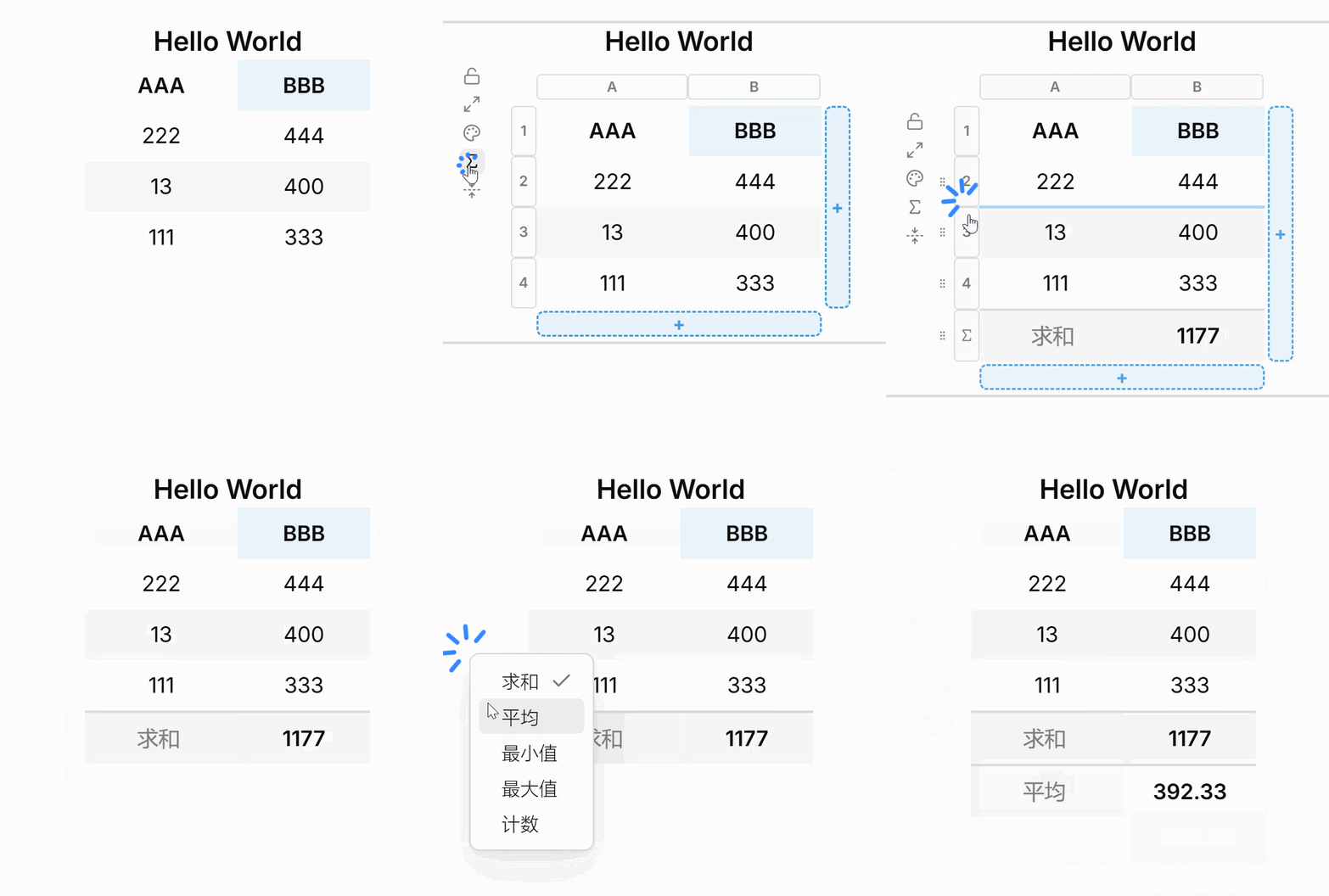
11 · Summary/aggregate rows — Sum/Average/Min/Max/Count via the Σ icon or column selector popup; per-row remove and reorder
12 · Collapse/expand table — fold-icon button hides/shows the body while keeping the title and header row visible
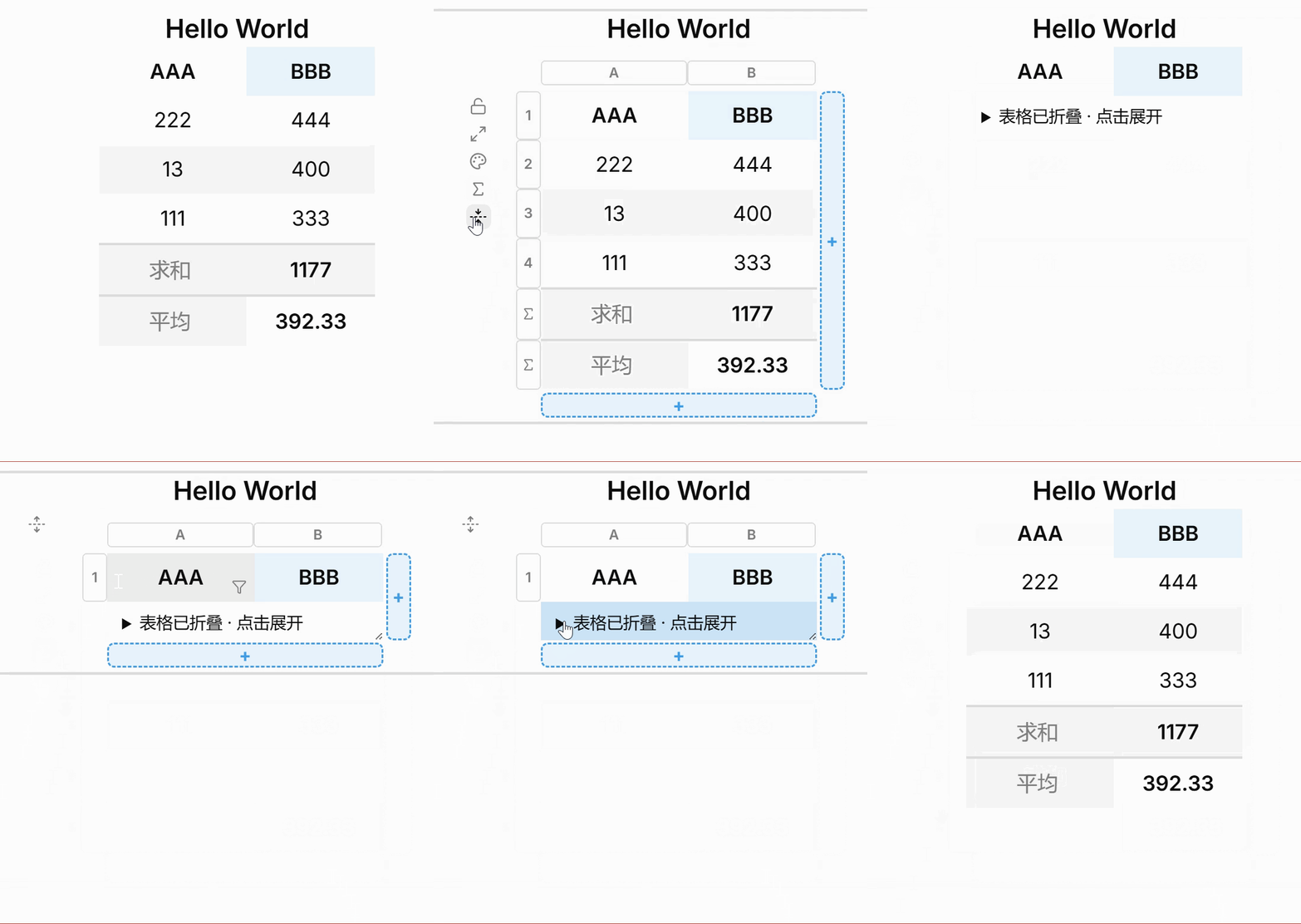
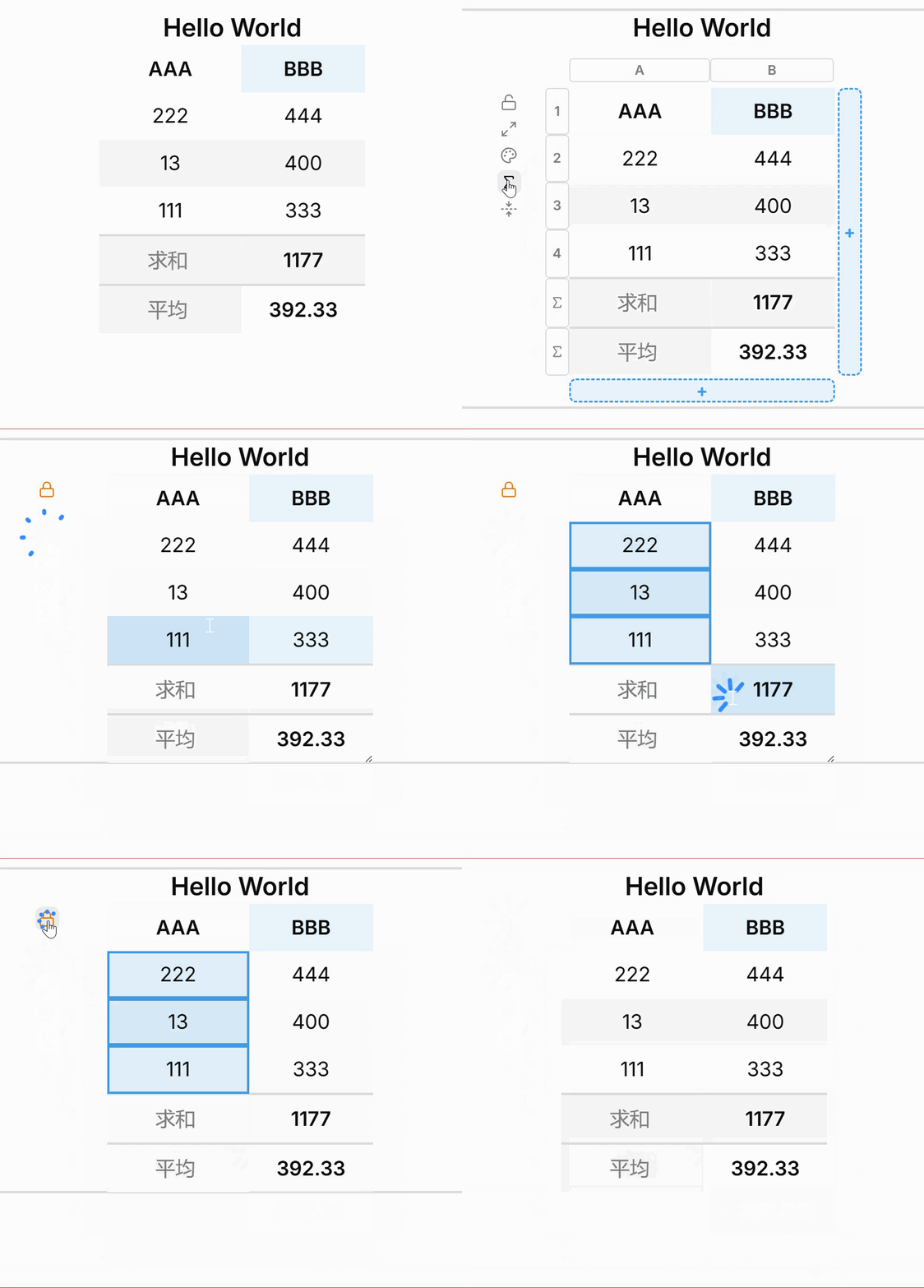
13 · Table lock — 🔒 icon disables all graphical editing for that table; a cell's text stays selectable by mouse drag and copyable with the browser's own Ctrl+C, same as any other page
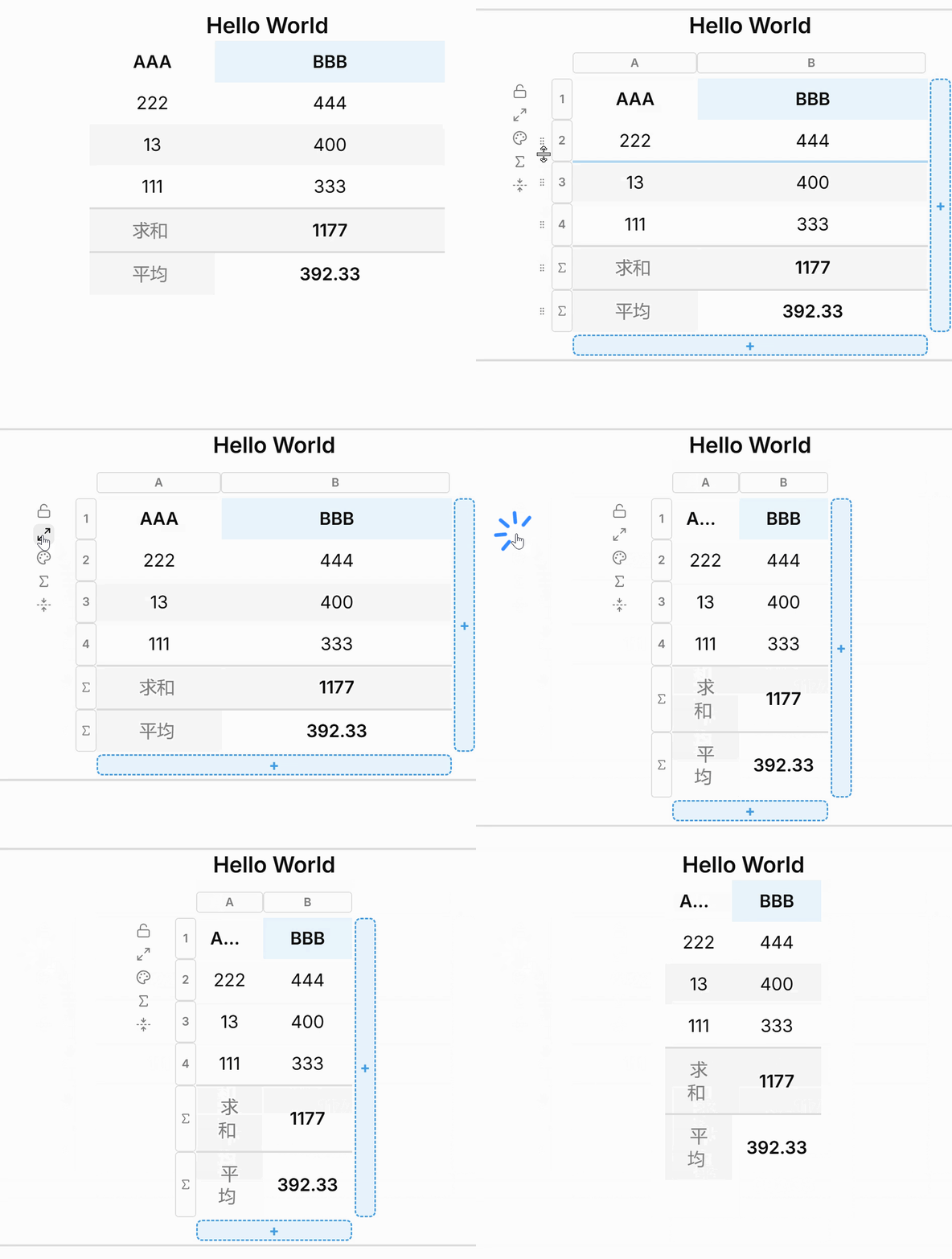
14 · Auto-fit all — ⊞ icon clears every column/row's own width/height back to auto, so they all track their content from then on rather than being fit once and pinned
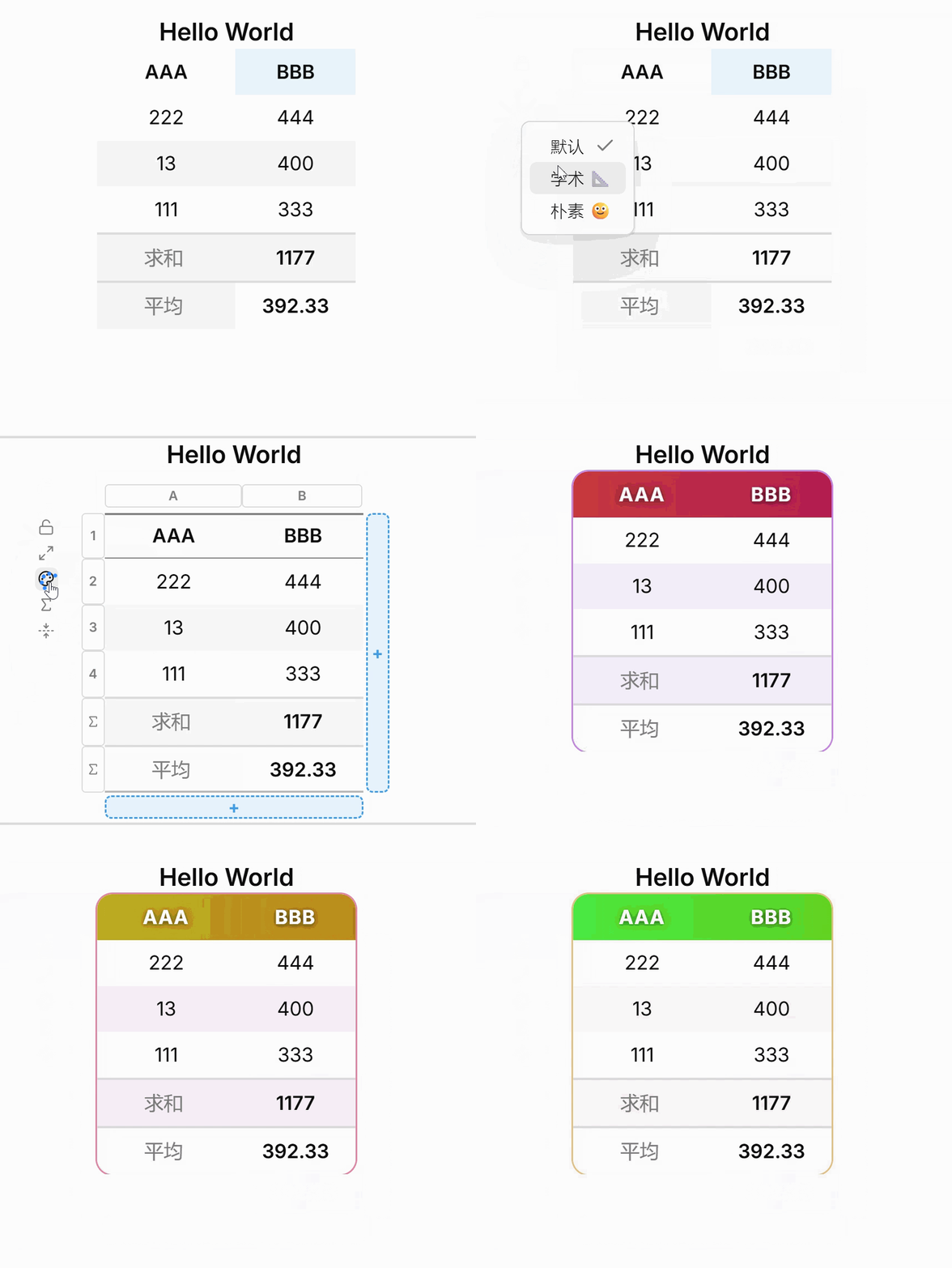
15 · Theme picker — 🎨 icon switches between built-in themes (academic, grid, plain)
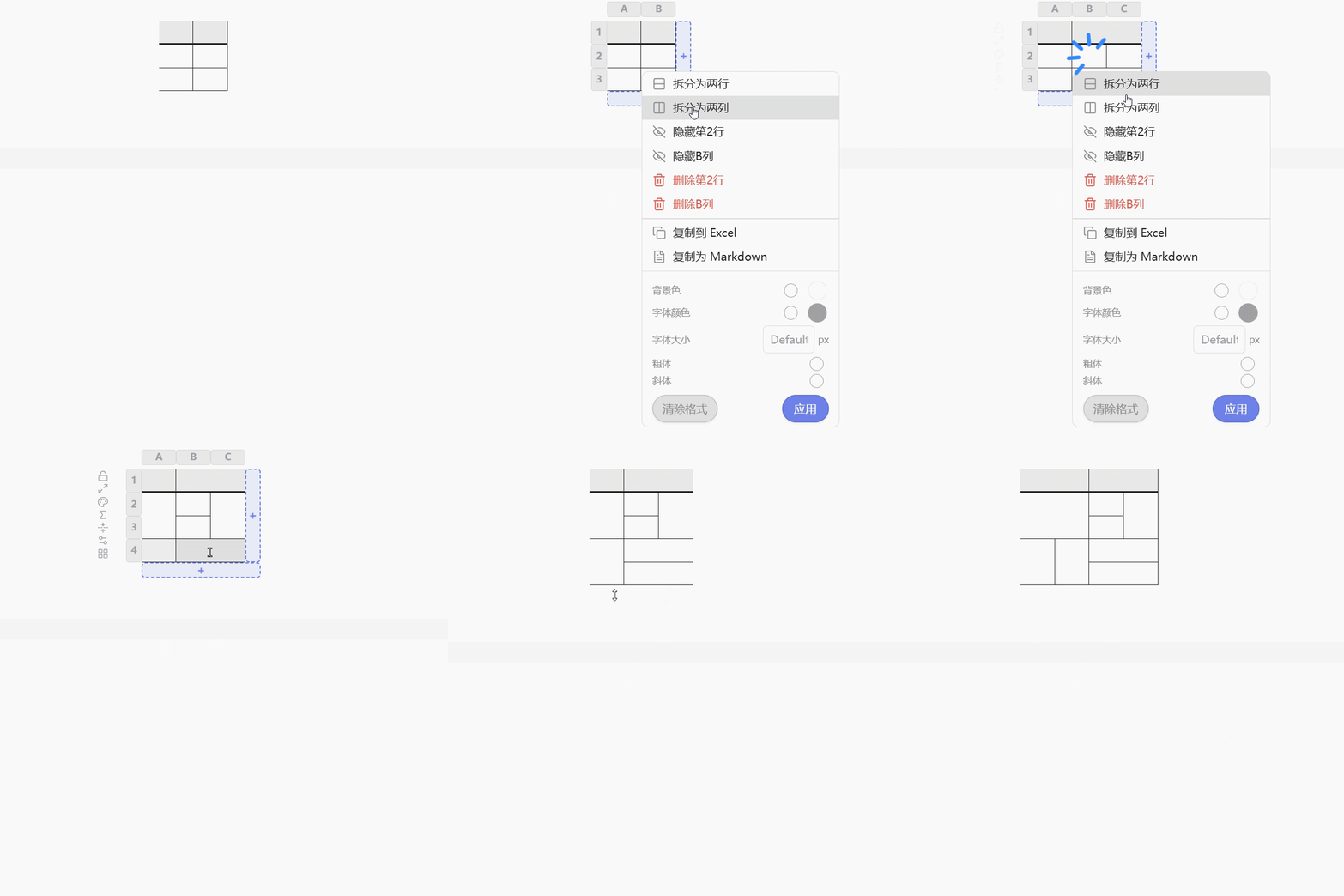
16 · Split cell — double-click a plain cell → split into 2 rows/columns; other cells in that row/column keep their current shape. The header row can split too, and merge downward into data rows, from the same panel
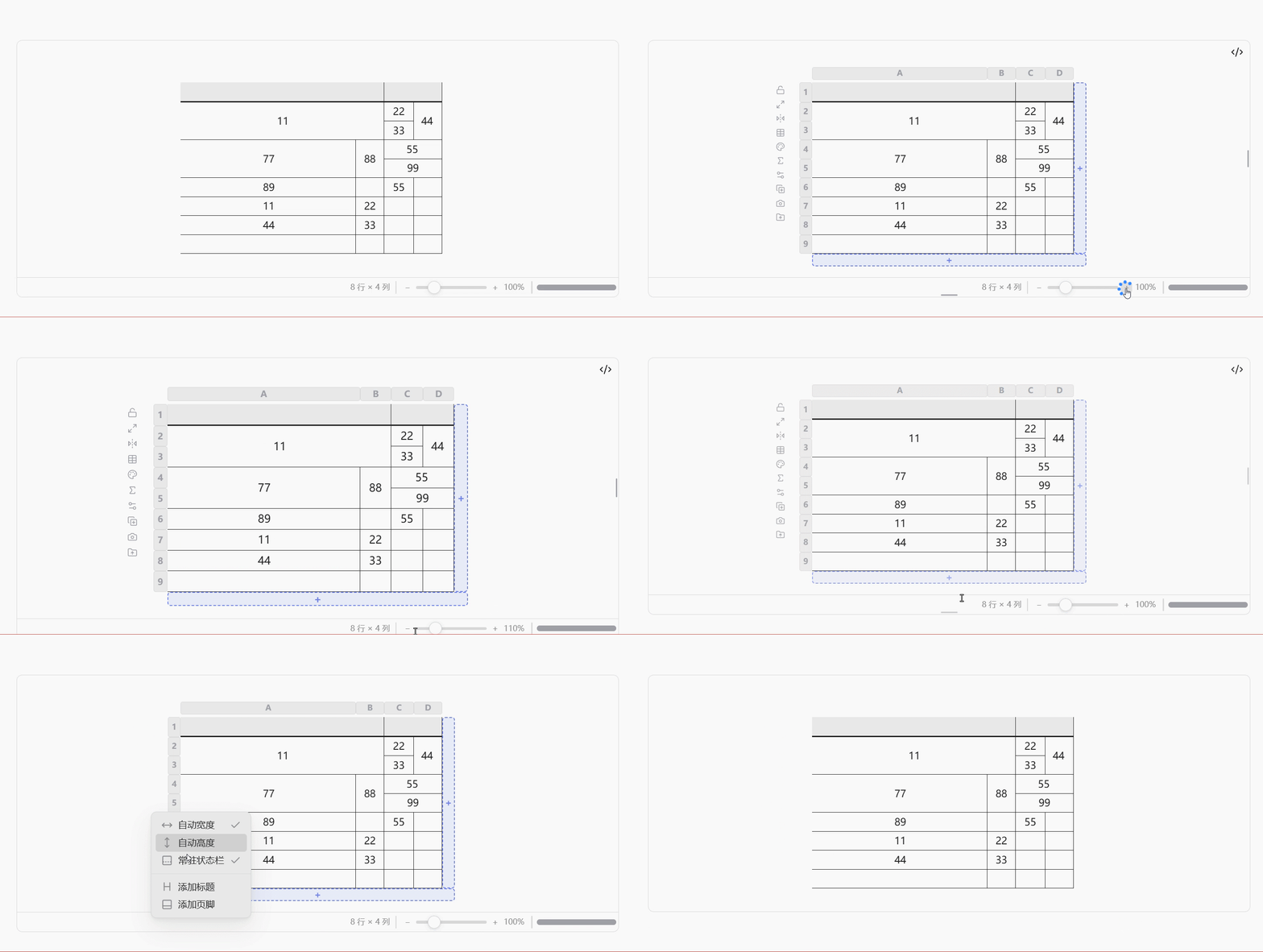
17 · Status bar — row/column totals, selection size and sum/average; drag the divider to resize its own scrollbar track; ⚙️ view settings to pin it or show only on hover
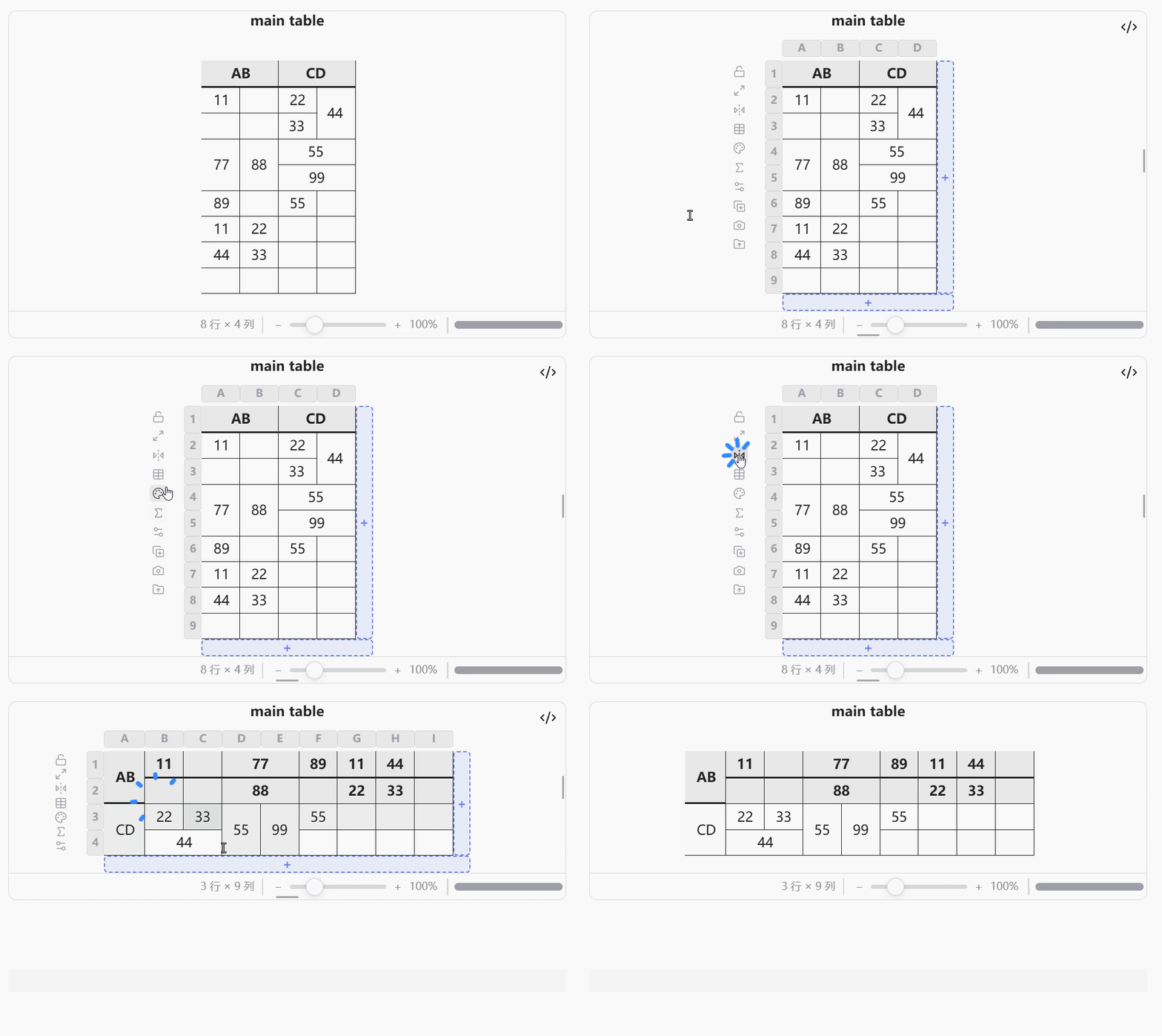
18 · Transpose — flip icon in the left control column swaps rows and columns; column type, formulas, sort and views don't carry across and are dropped
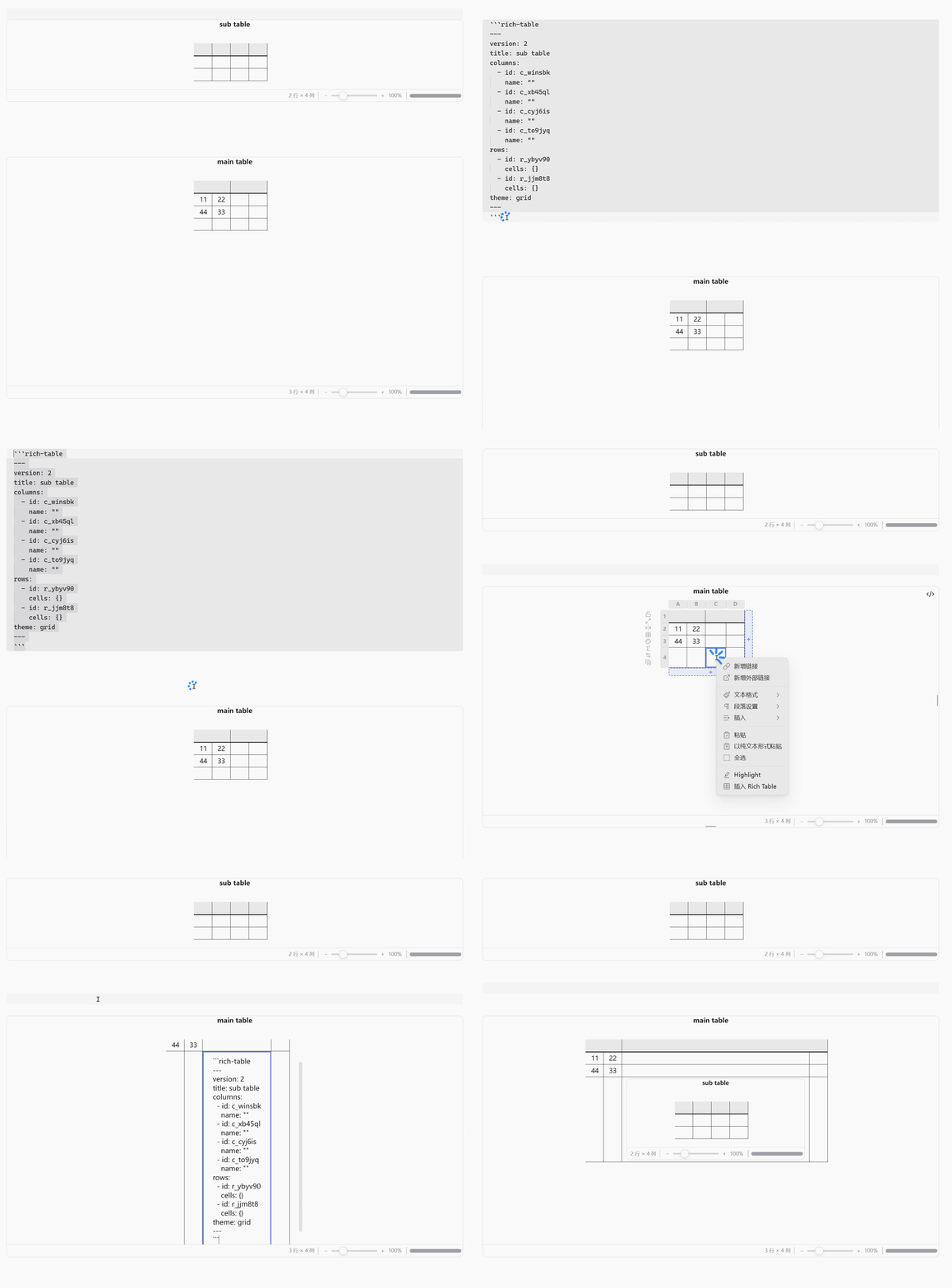
19 · Nested tables — a cell's content can itself be a rich-table block, rendered and fully interactive in place
20 · Select all — grid icon in the left control column selects every cell (header included) and opens the same range menu a corner-to-corner drag-select would
🎬 Demo GIF coming soon
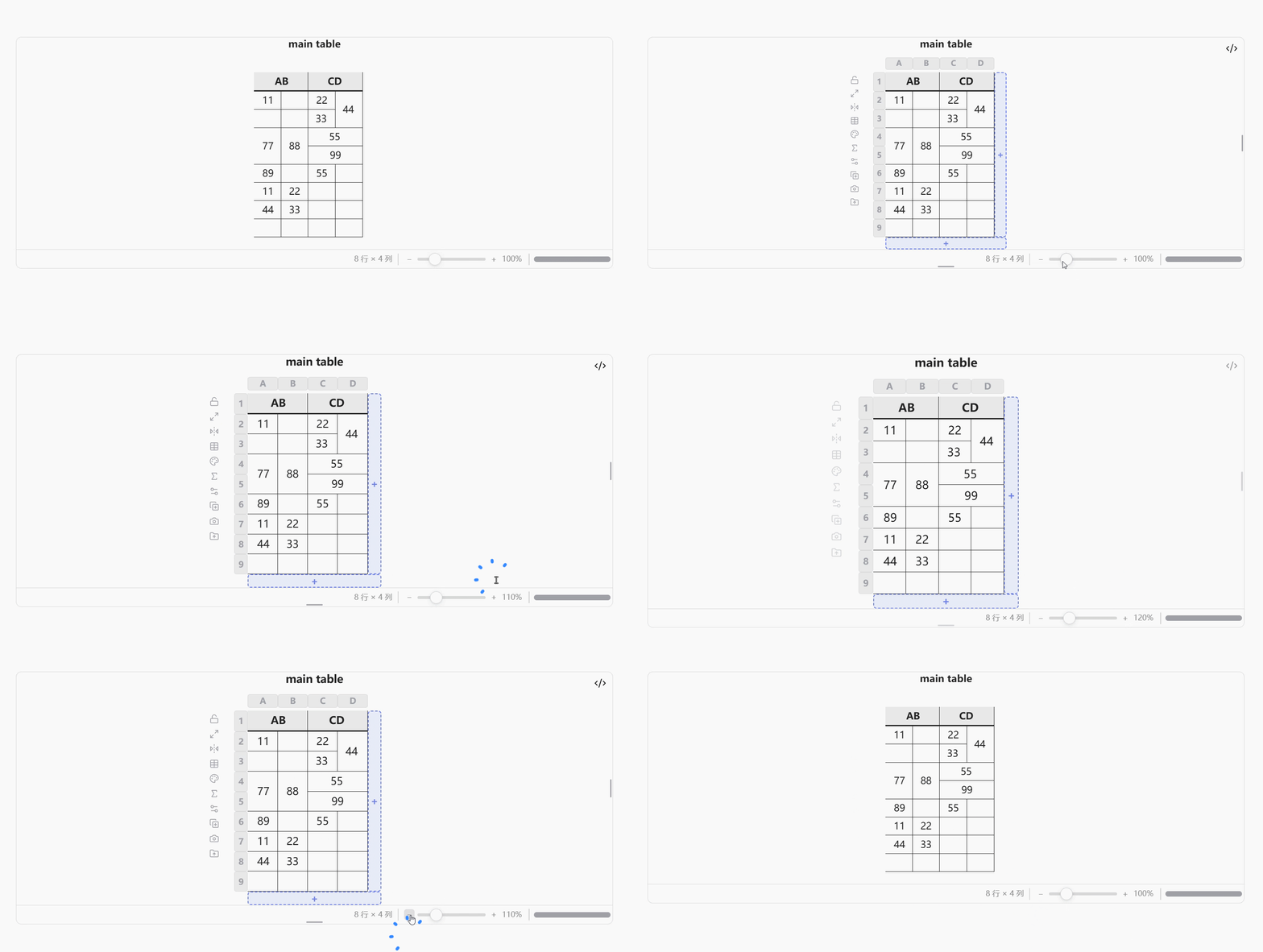
21 · Zoom — Excel-style −/slider/+ control in the status bar, between the row/column totals and the scrollbar; scales the whole table — content, images, cell sizes — from 25% to 400%, saved with the table
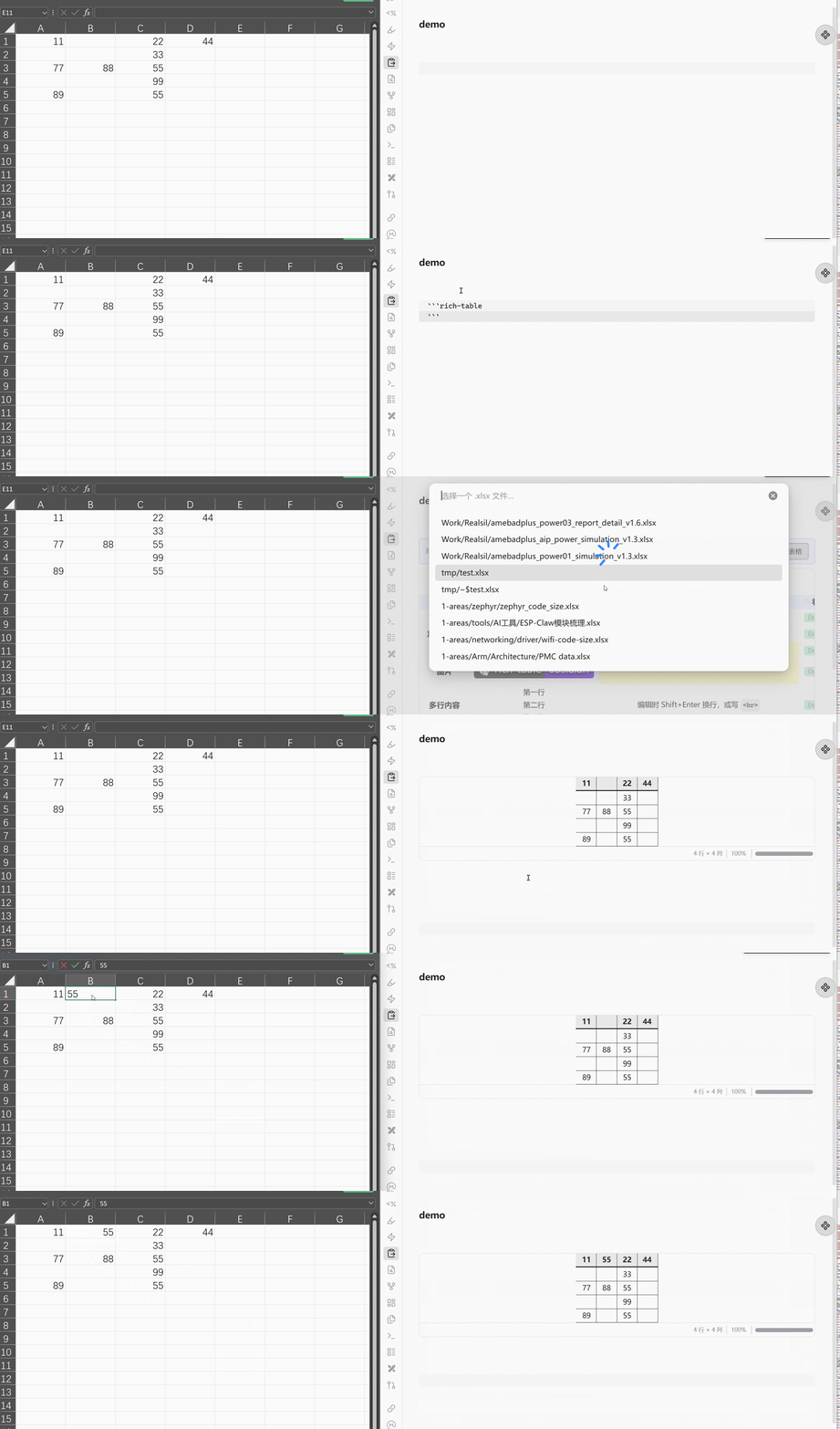
21 · Ref external excel file — View and Edit external excel file, Support multiple sheet and cell/merge edit.
Keyboard
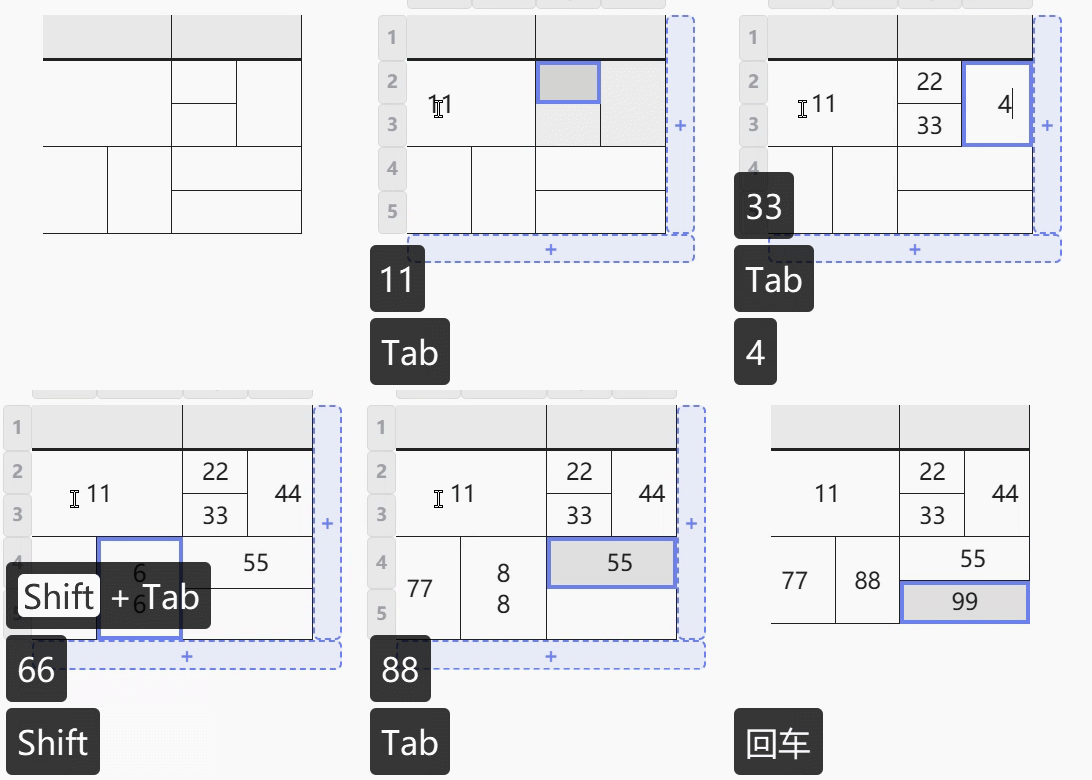
A cell is in one of three states, and every shortcut below follows from which one you're in.
Editing — an editor is open in the cell. This is where a click lands you.
| Key | |
|---|---|
Esc |
Discard the edit, keep the cell selected (like Excel — nothing is written) |
Enter |
Commit and keep the cell selected |
Tab / Shift+Tab |
Commit, then select the next / previous cell |
← → |
Move the caret. Once it's at the first/last character, commit and select the cell beside it |
↑ ↓ |
Jump to the start / end of the cell's content. Once there, commit and select the cell above / below |
Shift+Enter |
Line break inside the cell |
Selected — the cell is outlined but no editor is open. Reached with Esc or Enter above.
| Key | |
|---|---|
← → ↑ ↓ |
Move the selection. Left/right wraps to the next row at a row's end; up/down stops at the table's edge |
Tab / Shift+Tab |
Same as → / ← |
| Any character | Start editing, replacing the cell's contents with what you typed |
Enter |
Start editing, keeping the contents (fully selected, so one keystroke replaces them) |
Backspace / Delete |
Clear the cell without opening an editor |
Notes:
- The header row takes part — arrow up from the first data row to reach it; typing there renames the column.
- Merged cells are entered at their anchor, never at a position they cover; hidden and filtered-out rows and columns are skipped.
- Typed columns behave per type: a date cell opens the native picker, where the arrow keys step the day/month/year segments instead; a choice cell opens Obsidian's own value menu, which you navigate as any Obsidian menu.
Tabcommits and moves on from either.
Formulas
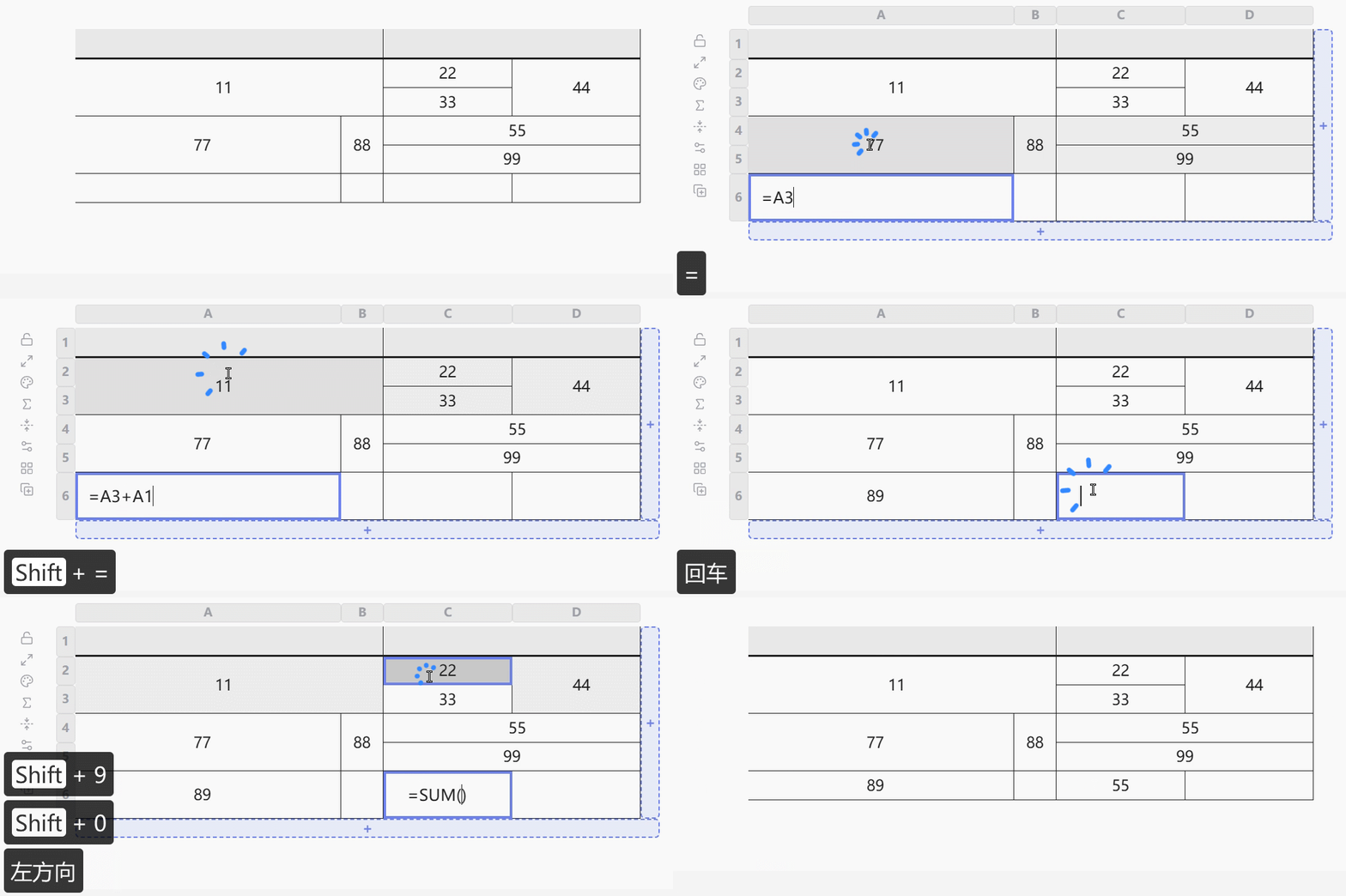
Type = into a plain cell to start a formula — same trigger as Excel/Sheets. Supports arithmetic (+ - * /, parentheses) and SUM / AVG / MIN / MAX / COUNT over a range. While typing, click another cell to insert a reference, or drag to insert a range — no need to type a cell address by hand.
A formula follows the row/column it references, not its position, so inserting or reordering rows/columns never breaks it. A deleted reference shows #REF!; other results are #CIRCULAR! (self-reference), #DIV/0!, and #VALUE!.
Claude Code Skill
A SKILL.md is included for use with Claude Code. Once installed, Claude agents can create and modify rich-table blocks directly in your vault — adding rows, applying styles, defining merges — without you having to remember the syntax.
cp SKILL.md ~/.claude/skills/rich-table/SKILL.md
Then ask Claude: "Create a project tracker table in my note using rich-table".
Settings
Open Settings → Rich Table to configure the plugin.
| Setting | Default | Description |
|---|---|---|
| Allow editing in reading view | Off | When off, all interactive behaviour (hover strips, click-to-edit, panels, dropdowns) is disabled in Obsidian's reading view. Live preview / source mode is always interactive. |
| Single-click to edit | Off | When on, a single click on a cell enters edit mode immediately (no delay), and the style panel opens with Ctrl/Cmd+click instead of double-click. When off (default), single click enters edit after a short delay and double click opens the style panel. |
| Left-toolbar buttons | All shown | Independently hide any of the left-toolbar (lock, auto-fit, theme, snapshot, export, …) buttons, separately for a locked table, an unlocked table, and a table backed by an external .xlsx file — each list only offers the buttons that actually apply to that scenario. |
| Custom types | — | Define custom choice-column types with labels and colors. |
| Changelog | — | Button to open the full release history at any time. It also opens automatically the first time the plugin loads after an update. |
Features & Roadmap
Status: ✅ shipped · 🔜 planned. Priority reflects how well something fits the current design — P1 fits as it stands · P2 fits but needs a new piece inside it · P3 needs architectural change, a heavy dependency, or more thought.
Format
```rich-table
---
version: 2
title: Project tracker
columns:
  - id: c_000000
    name: Task
    width: 200
  - id: c_000001
    name: Status
    type: task-status
    width: 110
rows:
  - id: r_000000
    cells:
      c_000000: "**Design** — architecture review"
      c_000001: done
  - id: r_000001
    cells:
      c_000000: Build
      c_000001: pending
  - id: r_000002
    cells:
      c_000000: |-
        - Write tests
        - Fix edge cases
      c_000001: todo
merges:
  - anchor: r_000000.c_000000
    end: r_000001.c_000000
styles:
  - target: header
    bold: true
    bg: "#e8f0fe"
  - target: r_000000.c_000001
    bg: "#f0fdf4"
footer: "Updated weekly · click any cell to edit"
---
```
The YAML front-matter is the only data source — everything is edited through the table UI, not by hand-editing this block.
Cell content supports full Obsidian Markdown: **bold**, *italic*, [[wikilinks]], [links](url), , - lists, $math$, <br> for line breaks.
width/height are both optional — a column/row with no width/height field is "auto": it renders at whatever size fits its content and keeps tracking that as content changes. Setting either to a specific number (by dragging) pins it; double-clicking a resize handle or clicking Auto-fit all removes the field again rather than writing a computed number.
Style targets (v2 ID-based):
| Target | Meaning |
|---|---|
header |
Entire header row |
header.c_xxx |
Single header cell |
r_xxx |
Entire data row |
c_xxx |
Entire column (including header) |
r_aaa:r_bbb |
Row range |
c_aaa:c_bbb |
Column range |
r_aaa.c_aaa:r_bbb.c_bbb |
Rectangle range |
r_xxx.c_yyy |
Single data cell |
Upgrading from v0.x? Tables written in the old format automatically show an upgrade banner. Click Convert to new format for one-click migration, or Keep old format to continue reading without converting.
Export as .xlsx
Any native table (one using the block's own columns/rows — not backed by an external file, see External .xlsx below for that case) can be exported to a real .xlsx file via the folder-with-an-up-arrow icon in the table's left toolbar. The modal has two independent ways to finish, pick whichever fits:
- In this vault — a folder field (with vault-folder autocomplete) and a file name (defaulting to the table's own title, or the note's name if it has none), then its own Export button.
- Custom location (desktop only) — one Choose location… button that opens your system's own save dialog; exporting happens the instant you confirm a location there, no separate Export click needed. This uses an Electron capability Obsidian doesn't officially document, so it's a best-effort convenience — the vault section above always works regardless, and is the only option on mobile.
A multi-sheet workbook exports every sheet into the one file, each becoming its own xlsx worksheet. Cell content, merges, background/text color, bold/italic, font size, and column/row sizing all carry over into the exported file. A column/row you've resized in Obsidian keeps that exact size; any column/row you haven't gets a width/height estimated from its own content (longest line, CJK counted double-width) instead of Excel's flat default, so cell text isn't clipped the moment you open the file. The note itself is never touched — the export writes only the new .xlsx file. Exporting to a path that already exists asks to confirm before overwriting it.
External .xlsx
A table can be backed by an external .xlsx file instead of the block's own columns/rows — useful for viewing a spreadsheet someone else maintains without duplicating it into the note:
```rich-table
---
version: 2
xlsxSource:
  path: data/budget.xlsx
---
```
path is resolved the same way a wikilink target is (relative to the note, or a full vault path). sheet is optional — omit it to show every sheet as a workbook (or the single sheet, if the file only has one); name a specific sheet to show just that one.
The easiest way to create one: insert an empty rich-table block, then click Import from .xlsx among the template buttons and pick a file already in your vault.
Editing cell content and merges writes straight back into the .xlsx file itself — never into the note, which only ever holds the xlsxSource reference. Click a cell to edit its text (including the header row) the same way as any other table; drag-select a range and choose Merge cells, or double-click/right-click an existing merge for Unmerge. Everything else (sort, style, freeze, row/column insert-delete, …) stays view-only for now — those actions aren't offered at all, rather than appearing and silently doing nothing. Editing preserves whatever else the cell already had (a number stays a number if the new text still parses as one, a boolean stays a boolean for TRUE/FALSE, otherwise Excel's own "General" auto-detect applies); a leading = makes it a formula, and clearing the text deletes the cell outright. If the file can't be saved (e.g. it's open and locked in Excel), a Notice reports the failure and the table reverts to the file's real (unchanged) content instead of leaving a stale-looking edit on screen.
- Auto-refresh — editing the file in Excel/LibreOffice/etc. and saving updates the table within about half a second, no reload needed. The same refresh picks up the plugin's own writes.
- Follows renames — moving or renaming the file updates
xlsxSource.pathin the block automatically. - Deleted-file handling — if the file goes away, the table shows an error instead of silently going stale.
- Open in default app and Convert to plain table — two buttons in the table's left toolbar. The first hands the file to whatever your OS associates with
.xlsx(desktop only). The second snapshots the file's current content into the block itself as ordinarycolumns/rows, permanently dropping thexlsxSourcereference — after that it's a normal, fully-editable rich-table. - Theme — defaults to
grid(no interactive picker, since theme switching isn't part of what this table can edit yet); addtheme: <id>to the block's own YAML alongsidexlsxSourceto use a different built-in theme instead.
Known gaps: no concurrency control (last write wins, same as the file itself); theme-relative/indexed colors, cell borders and number formats aren't carried over on read; formula cells show only their last-saved value (no formula engine); rich-text runs are flattened to plain text; the style panel hides background/text-color/size/bold/italic for an xlsx-backed cell (readable, not yet writable).
Themes
Add theme: to the YAML front-matter to apply a built-in visual theme:
theme: academic   # LaTeX booktabs style — three horizontal rules, no grid lines
theme: grid       # Excel "All Borders" style — full grid, bold outer frame + header rule
theme: plain      # Colorful gradient header + animated border
| Theme | Description |
|---|---|
| (none) | Default — no special styling |
academic 📐 |
Inspired by LaTeX's booktabs package: toprule / midrule / bottomrule, no vertical lines, no cell backgrounds |
grid 🔲 |
Full grid on every cell, a bolder outer frame, and a bolder rule separating the header from the data |
plain 🙂 |
Animated rainbow border, gradient header with breathing effect, cursor-reactive row glow |
Themes are purely visual — they never affect data or layout.
Quick customization without a theme: for a small tweak (not a full theme), set one of these CSS variables on .bt-render-root in an Obsidian CSS snippet — no selectors needed:
| Variable | Controls | Default |
|---|---|---|
--bt-border-outer |
Table's outer edge | none |
--bt-cell-border (+ -right/-bottom) |
Gridlines between cells | none |
--bt-cell-bg |
Data cell background | transparent |
--bt-header-bg |
Header cell background | theme default |
A cell draws only its right and bottom edge; the table's own
--bt-border-outersupplies the grid's top and left edge.--bt-cell-border-top/-leftare still accepted but no longer contribute to gridlines — with one border per edge, drawing all four would render every internal line at double thickness. This is what lets frozen rows/columns keep their gridlines while scrolling.
.bt-render-root {
  --bt-header-bg: #223;
  --bt-cell-bg: #fafafa;
  --bt-border-outer: 2px solid #888;
}
A manually-set per-cell style (via the style panel) always wins over both themes and these variables.
Known Issues
| Issue | Workaround |
|---|---|
Reading mode: v2 tables remain interactive — In Obsidian reading view, v2-format tables still show hover strips and allow editing. The allowReadingViewEdit setting has no effect on v2 tables. v1 tables (awaiting upgrade) are correctly read-only. |
Use the 🔒 lock button to prevent accidental edits in reading mode. |
License
AGPL-3.0 — derivatives must be open-sourced under the same license.
For commercial licensing: [email protected]
Acknowledgements
.xlsx parsing/writing is powered by @office-kit/xlsx.
Support the Project
Rich Table is free and open-source under the AGPL-3.0 license. If this plugin has improved your workflow, you can support its ongoing development with a voluntary donation. Every contribution helps fix bugs, add new features, and maintain compatibility with future Obsidian updates.
💳 PayPal

🧧 WeChat Pay / Alipay
| WeChat Pay | Alipay |
|---|---|
Thank you for your support! 🙏
Feedback
Issues and feature requests: GitHub Issues