
README file from
GithubRedNote for Obsidian
An Obsidian plugin to connect RedNote/Xiaohongshu (小红书) with Obsidian, with support for media downloads and categorizations.
How it Works
The flow below illustrates how a RedNote link is processed and converted into a formatted note in your vault:
sequenceDiagram
    actor User
    participant IM as Input Modal
    participant PM as Preview Modal
    participant ON as Output Note (Saved)

    User->>IM: Paste share text / URL
    IM->>PM: Fetch and parse content details
    User->>PM: Customize fields & toggle media download
    PM->>ON: Save and open the formatted note
Import Workflow Screenshots
Below is a step-by-step preview of the import process using the plugin:
Step 1: Input Modal
Paste the shared link or text containing the link to start fetching.
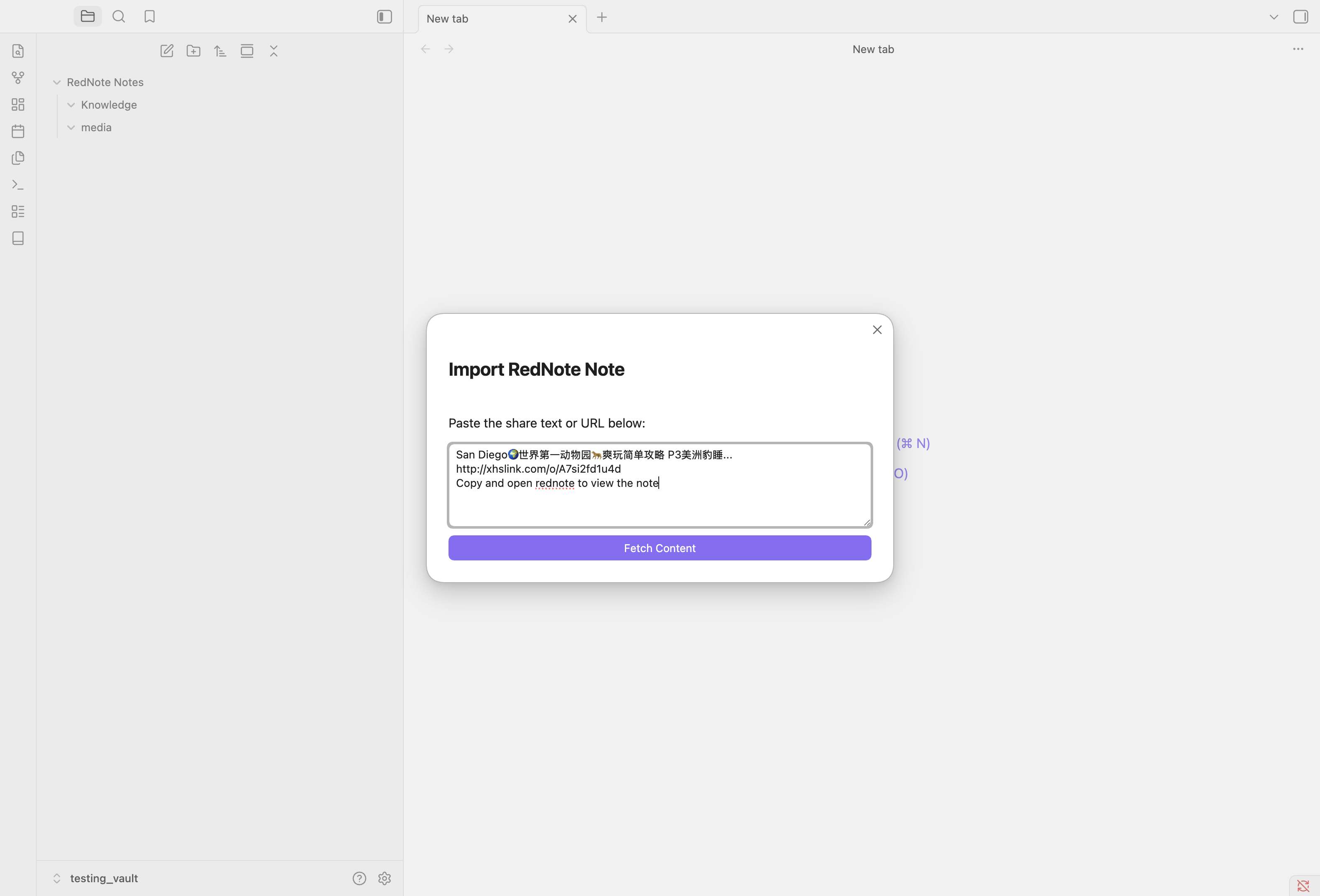
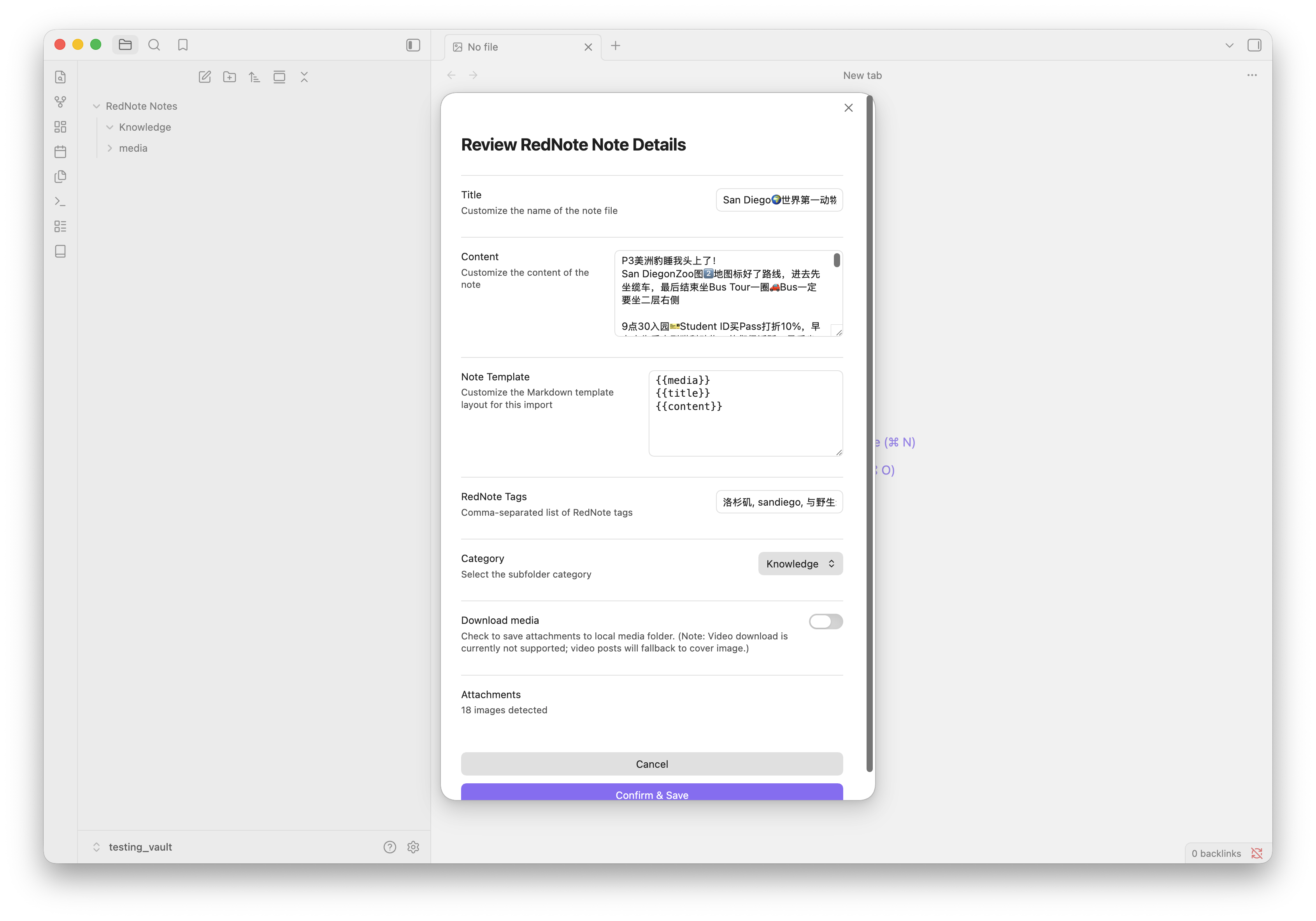
Step 2: Preview & Customize
Review the parsed title, content, template layout, category, and toggle local media download.
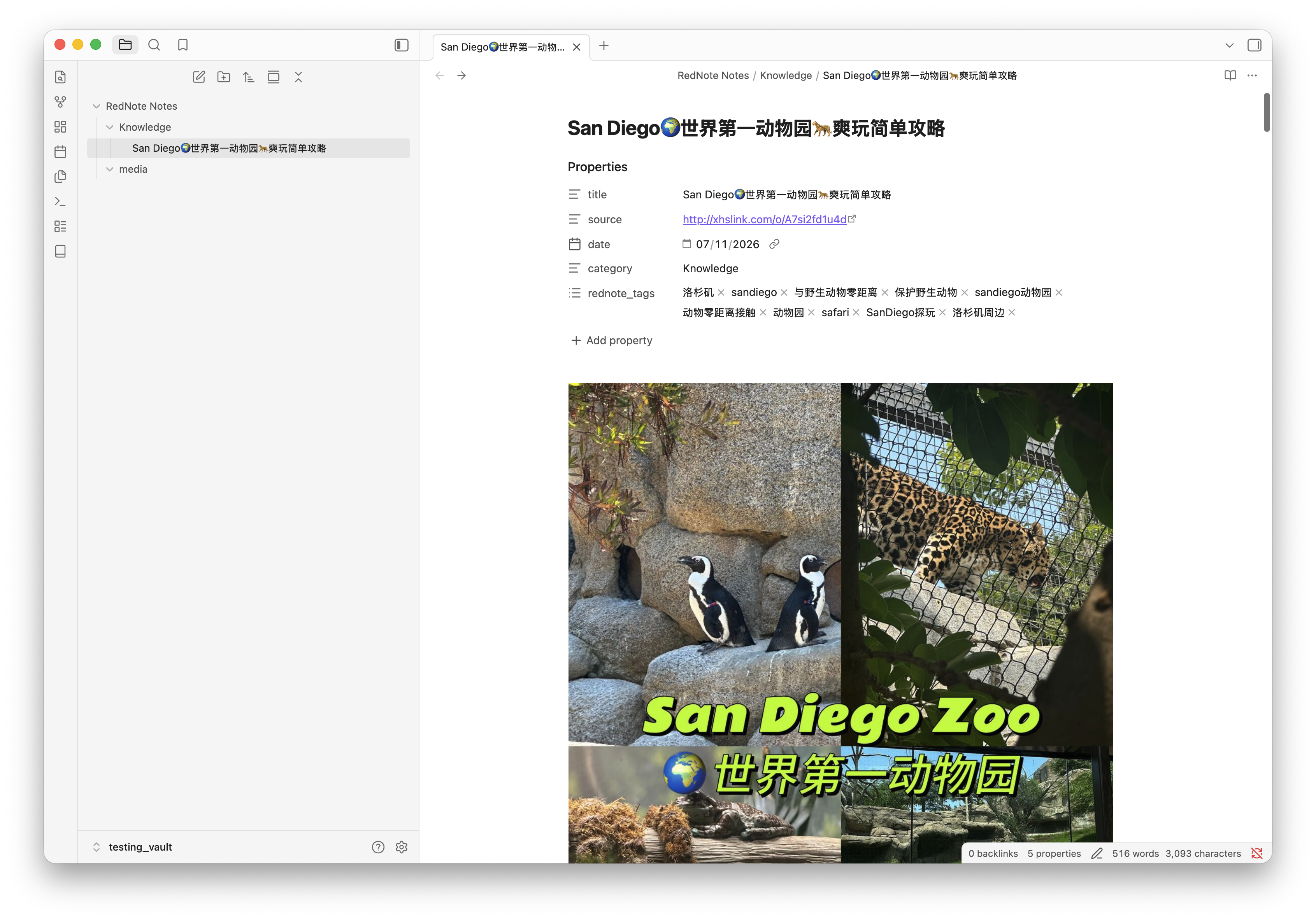
Step 3: Saved Markdown Note
The scraped content is formatted according to the template with all tags and local media embedded.
Features
- RedNote & Xiaohongshu Support: Handles links from both
xiaohongshu.comandrednote.comdomains, as well asxhslink.commobile short links. - URI Protocol Handler: Trigger imports from outside Obsidian via the
obsidian://rednote-importprotocol link. Excellent for iOS Shortcuts or Tasker on Android. - Media Download Support: Automatically download images locally into a dedicated media subfolder. Note: Currently supported media does not include video files (video posts will fallback to cover image or keep the remote video link).
- Filename Collision Protection: If a note with the same title already exists, the plugin automatically resolves the filename by appending
-1,-2, etc., avoiding data overwrite.
Usage
1. Manual Import
- Click the ribbon icon (book) or run the command
Import RedNote Notefrom the command palette. - Paste the shared link or text containing the link.
- Select a category and toggle media downloads if desired.
- Press Import.
2. Mobile / Protocol Trigger
You can open the following URI on your mobile device (e.g. from an iOS Shortcut share action) to trigger a background import:
obsidian://rednote-import?url=<REDNOTE_URL>&category=<CATEGORY>&downloadMedia=true
Templates & Placeholders
You can customize the structure of your note body and frontmatter properties in the settings tab.
Available Placeholders:
{{title}}: The title of the post (hashtags removed).{{content}}: The post body content description.{{media}}: Note media block (HTML video element, or Markdown images list). When used inside YAML properties, it renders the raw media path/URL (useful forcover:orthumbnail:fields).{{source}}/{{url}}: The source RedNote link.{{date}}: Current date in YYYY-MM-DD format.{{category}}: The selected note category.
Default Markdown Template:
{{media}}
{{title}}
{{content}}
Known Issues
- Media Timeout Fallback: If media file downloads time out (due to slow network connections exceeding the 10-second threshold), the note creation will fall back to using the raw remote URLs for those media assets instead of local paths. This ensures the note is always successfully saved.
- Video Downloads: Local video file downloading is currently not supported; video posts will fall back to displaying the cover image or use remote video links.
Installation & Local Development
To run and install the plugin in your local Obsidian vault:
- Clone this repository anywhere on your system.
- Create your local environment configuration file:
cp .env.example .env - Open
.envand setOBSIDIAN_VAULT_PATHto the absolute path of your Obsidian vault. - Install dependencies:
npm install - Build and deploy the plugin to your vault:
npm run install-local