
README file from
GithubReNotes — Recent Notes & Canvas Sidebar for Obsidian
Find the note. Keep the flow.
ReNotes is a visual Obsidian recent notes plugin that brings Markdown notes and Canvas boards into one focused sidebar. Browse recent work using preview cards, pinned notes, date navigation, search, and flexible sorting, with English and Traditional Chinese interface support.
Install from Obsidian · GitHub Releases · Features · Installation · FAQ · 繁體中文
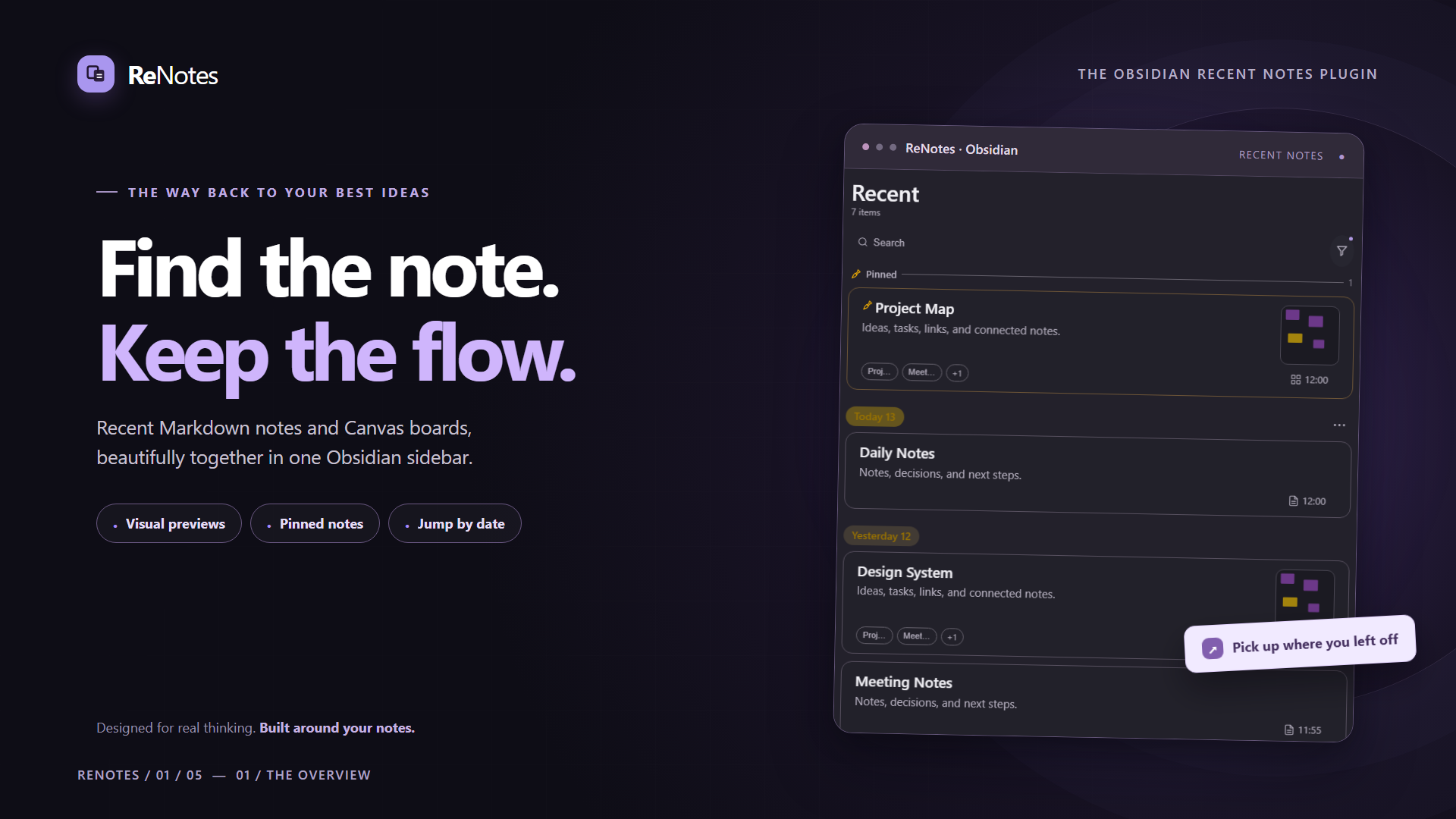
Mobile-first ReNotes interface showcase, rendered from plugin UI components with illustrative notes.
English — Obsidian Recent Notes & Canvas Sidebar
Find recently edited notes and Canvas boards faster
ReNotes is a visual Obsidian recent notes plugin that organizes Markdown notes and Canvas boards in one sidebar. Browse recent work with preview cards, pinned items, date groups, search, file-type filters, and flexible sorting—without navigating through folders every time you need an older note.
It is a useful companion for daily notes, Bullet Journaling, project notes, knowledge management (PKM), and Obsidian Canvas workflows.
Key features
- Recent Markdown notes and Canvas boards: Browse titles, snippets, file-type icons, timestamps and optional preview thumbnails in the same sidebar.
- Multiple sorting options: Use file modification time, effective edit time, recently opened time, local edit time and other available sorting modes.
- Jump to a date: Choose from up to seven recent dates with notes and see per-day counts; older dates can be expanded by month. Selecting a date scrolls to it without hiding other notes.
- Linked Canvas documents: Fine-outline chips below Canvas cards open linked
.mdand.canvasfiles, with short five-character labels and full-name tooltips. - Pinned notes, search and filters: Filter by note type, include or exclude folders, exclude selected tags, and search note text, file paths, or tags.
- Four list layouts: Choose Classic cards, Compact list, Slim cards or Two-column wall, with separate desktop/mobile preferences and density controls.
- Optional additional file types: Include PDFs, images, Bases, audio, video or custom extensions. These files use metadata only, without reading their contents as text.
- Optional cross-device sorting history: Share edit times through your existing Vault sync service. This is off by default; recent-open history is shared only when separately enabled.
- Traditional Chinese and English: Choose a language manually or follow Obsidian automatically. The main sidebar, dates, and settings are localized; a few secondary file-menu labels remain in Chinese in this release.
- Desktop drag-to-Canvas: Use a drag handle to add a Markdown file reference to an Obsidian Canvas board; compatibility may vary by Obsidian version.
Choose a list layout
Open Settings → ReNotes → Appearance → List layout to choose Classic cards, Compact list (two lines per note), Slim cards (preview, one tag and +N), or Two-column wall (left-to-right grid, Canvas covers). Desktop defaults to Classic cards; mobile defaults to Slim cards. Choose Mobile layout → Classic cards for the classic mobile appearance, or Follow desktop to use the desktop choice. Changes apply to an open sidebar immediately.
Compact list hides folders and tags; Slim cards show the first tag plus the remaining count. Wall falls back to Slim cards below 300px, uses more columns on desktop above 520px, and disables the drag handle. Density adjusts vertical padding in Compact list and Slim cards; Wall ignores it. Compact layouts omit linked-note chips and detailed Canvas statistics; these remain available in Classic cards.
Feature showcase
01 — Recent notes, one focused sidebar
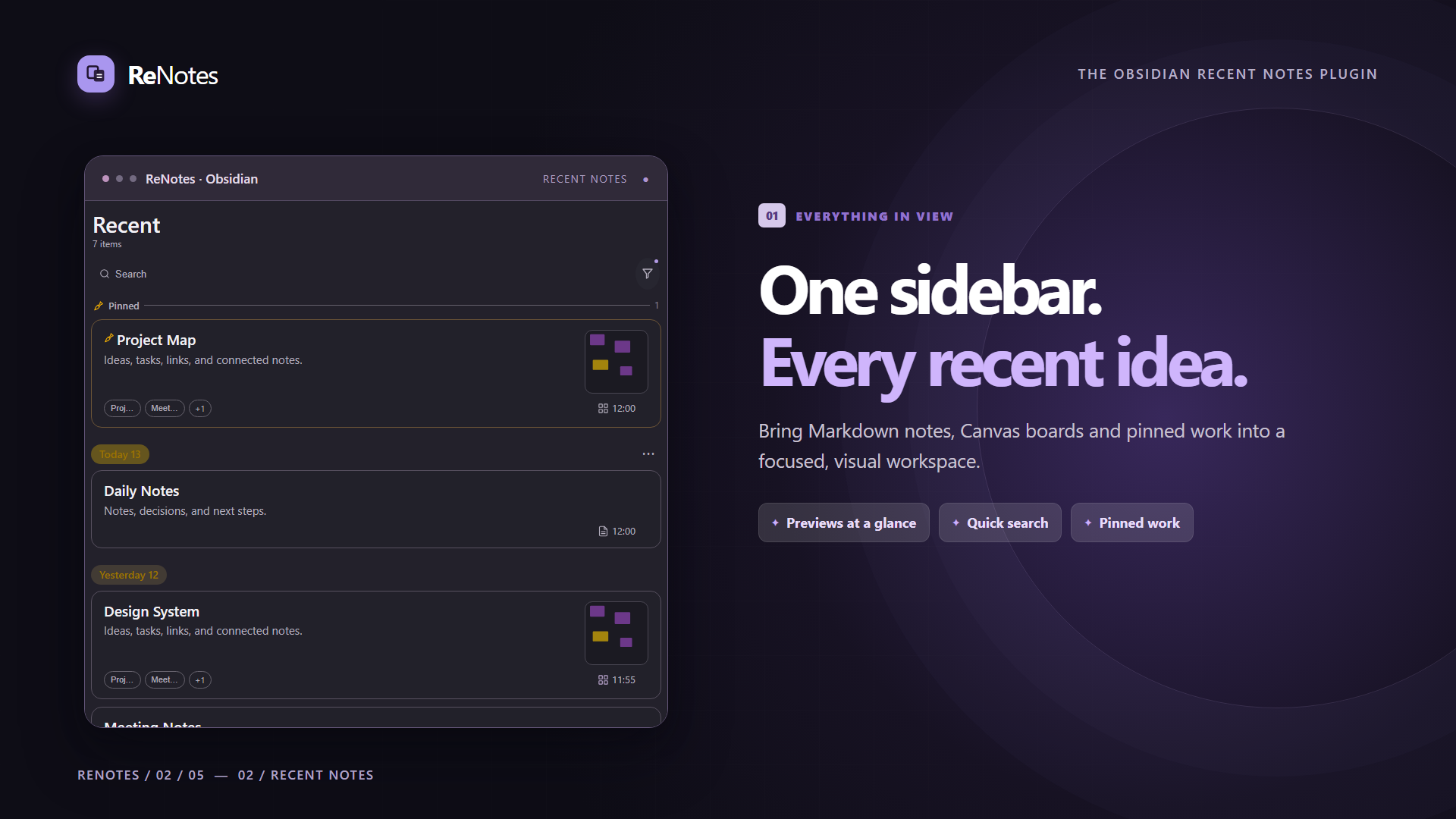
ONE SIDEBAR. EVERY RECENT IDEA. — Visual previews, pinned notes and quick search.
02 — Jump directly to a date
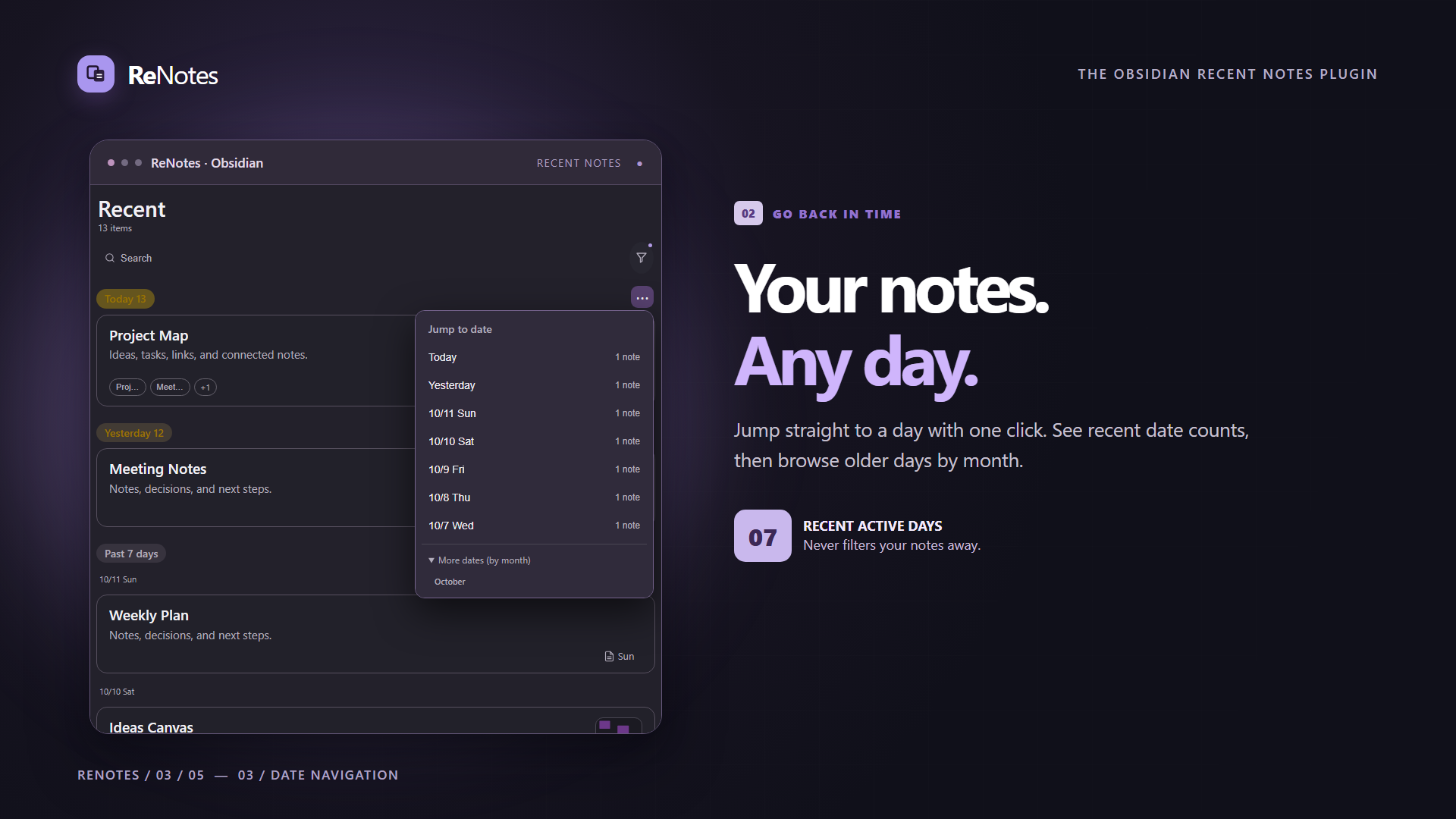
YOUR NOTES. ANY DAY. — Jump to the selected day without filtering the list.
03 — Follow Canvas connections
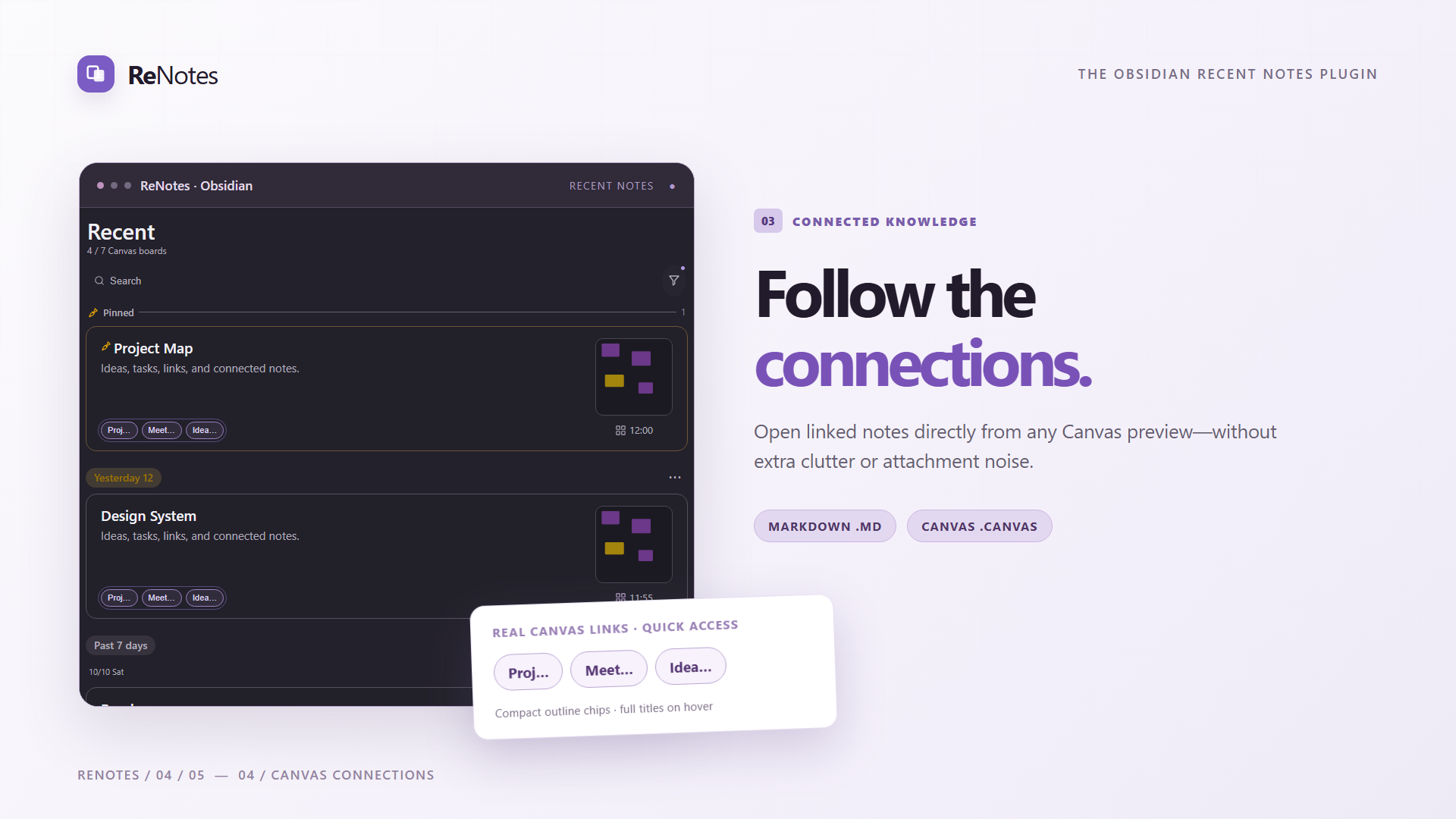
FOLLOW THE CONNECTIONS. — Compact links to Markdown notes and Canvas boards.
04 — English and Traditional Chinese

YOUR WORKFLOW. YOUR LANGUAGE. — Choose English, Traditional Chinese or automatic selection.
Mobile interface previews
Explore the redesigned English-first mobile-layout visuals (rendered at full desktop-banner resolution): hero, recent notes, date navigation, Canvas links, and bilingual interface. A 1280 × 640 social preview is also available.


The phone displays are illustrative mobile UI renderings using ReNotes components and sample notes, created with HTML, CSS and SVG (not AI-generated screenshots).
Installation
Install from Obsidian (recommended)
- In Obsidian, open Settings → Community plugins → Browse.
- Search for ReNotes, or open its official community plugin listing.
- Select Install, then Enable.
- To change languages, open Settings → Community plugins → ReNotes → Interface language.
Manual installation from GitHub
- Open the latest GitHub Release and download
main.js,manifest.json, andstyles.cssindividually. - Place the three files in
YOUR_VAULT/.obsidian/plugins/recent-notes-feed/. - Restart Obsidian, then enable ReNotes in Settings → Community plugins.
Frequently asked questions
What counts as an effective edit? Markdown body changes count by default; automatic frontmatter rewrites keep notes in place. Enable Count frontmatter changes as edits in advanced settings to include property changes. Earlier times already overwritten by older versions cannot be restored automatically. Resetting the baseline uses current file times, and files over the configured hash-size limit use mtime.
Does the date menu filter notes? No. It scrolls to the selected day and keeps the rest of the list available. Date counts reflect non-pinned items in the current filtered list; if only pinned items remain, those are counted instead.
Can linked Canvas cards open images? The linked-document chips are intentionally for Markdown notes and Canvas boards; Canvas thumbnail previews still work.
Can I use it on mobile? ReNotes includes mobile-friendly layouts. Dragging Markdown into Canvas is a desktop-oriented feature.
Is the plugin listed in Obsidian's Community Plugins directory? Yes. ReNotes is available in the official directory. You can also install it manually from GitHub Releases.
License
ReNotes is released under the MIT License. You may use, modify, distribute, and use it commercially, provided that the copyright notice and license text are retained in copies or substantial portions of the software.
繁體中文
ReNotes|Obsidian 近期筆記與 Canvas 白板側欄外掛
把最近編輯的筆記、Canvas 白板與重要內容,整理成隨手就能找到的側欄。
ReNotes 是一款 Obsidian 近期筆記外掛。無論你使用 Markdown 寫每日紀錄、以 Canvas 整理構想,還是在不同專案間切換,都能透過日期分組、視覺縮圖、釘選與快速搜尋,直接回到需要的筆記。
上方英文區塊包含完整功能圖文;以下為完整繁體中文介紹。
為什麼使用 ReNotes?
當 Obsidian 裡的筆記與 Canvas 愈來愈多,檔案總管適合管理資料夾,卻不一定適合快速回顧「我最近正在處理什麼」。ReNotes 把近期內容整理成可閱讀的卡片,讓你少翻找資料夾,把時間留給寫作、整理與思考。
特別適合 子彈筆記(Bullet Journal)回顧、每日紀錄、專案筆記、知識管理(PKM),以及頻繁使用 Obsidian Canvas 的工作流程。
功能圖文介紹
01|近期筆記一目了然:Markdown + Canvas 同一個側欄
以時間排序的卡片整合 Markdown 筆記與 Canvas 白板,保留標題、摘要、檔案類型、時間,以及可選的圖片或白板縮圖。重要內容可釘選於上方;可依筆記類型篩選、指定納入或排除的資料夾、排除特定標籤,也能搜尋筆記內容與標籤。
支援多種排序依據,包括檔案修改時間、有效編輯時間、最近開啟時間及本機編輯時間;可依使用情境選擇。
02|日期快速跳轉:回到某一天,不必篩掉其他筆記
點擊日期標題旁的 ⋯,即可查看最近 最多 7 個有筆記的日期與各日期筆數;更早的日期可以按月份展開。選擇日期後會捲動到該天,原本的近期筆記清單仍完整保留。
03|Canvas 連結筆記:用極細圓框快速開啟關聯文件
在 Canvas 卡片下方,以 A1 極細圓框顯示白板內連結的 .md 筆記與 .canvas 白板。每個連結最多顯示 5 個字元,滑鼠停留可閱讀完整名稱;圖片、PDF 等附件不會佔用連結圓框。
右下角的檔案類型圖示+時間與上方縮圖保持水平置中,讓卡片資訊更整齊,也減少視覺干擾。
04|釘選、搜尋與自適應卡片版面
ReNotes 提供釘選筆記、關鍵字搜尋、檔案類型篩選、資料夾納入/排除條件,以及排除指定標籤,以及精簡、標準、寬鬆等不同卡片密度。側欄變窄時也會自動調整布局;行動裝置提供適合觸控的操作方式。
在 設定 → ReNotes → 外觀 → 清單版面 分別選擇桌機與手機版面:經典卡片、緊湊清單、瘦身卡片、雙欄牆。桌機預設經典卡片,手機預設瘦身卡片;手機也可選回經典卡片,或跟隨桌機設定。開著的清單會立即更新,不需重載。
緊湊清單隱藏資料夾與標籤;瘦身卡片顯示第一顆標籤與其餘數量。雙欄牆低於 300px 退回瘦身卡片,桌機寬於 520px 自動增加欄數,並停用拖曳把手。緊湊清單與瘦身卡片可調整密度。新版面省略連結筆記晶片與 Canvas 詳細統計,經典卡片仍可使用這些功能。
在桌面版 Obsidian,Markdown 卡片另有拖曳把手,可將筆記引用拖入 Canvas。實際拖曳行為取決於所使用的 Obsidian 版本。
05|繁體中文與 English:跟隨 Obsidian 自動切換
支援 繁體中文(Traditional Chinese)與英文(English),可自動跟隨 Obsidian 語言,或在 ReNotes 設定中手動選擇。主要側欄、日期名稱、設定選項與常用操作提示都有對應翻譯;目前少數檔案右鍵選單文字在英文模式下仍顯示繁體中文。
安裝 ReNotes
從 Obsidian 社群外掛目錄安裝(推薦)
- 開啟 Obsidian 的「設定 → 社群外掛 → 瀏覽」。
- 搜尋 ReNotes,或開啟 ReNotes 官方社群外掛頁面。
- 按下「安裝」,完成後啟用 ReNotes。
- 如需切換語言,進入「設定 → 社群外掛 → ReNotes → 介面語言」。
從 GitHub Releases 手動安裝
- 前往 ReNotes 最新 GitHub Release,在 Assets 分別下載
main.js、manifest.json與styles.css。 - 將三個檔案放入 Vault 內的
.obsidian/plugins/recent-notes-feed/資料夾。 - 重新啟動 Obsidian,進入「設定 → 社群外掛」啟用 ReNotes。
介面語言可選「自動(跟隨 Obsidian)」、「繁體中文」或「英文」。
目前版本: 1.3.0 · 外掛 ID: recent-notes-feed · 最低版本: Obsidian 1.4.0
常見問題(FAQ)
什麼變動會算有效編輯?
預設只有 Markdown 內文改變才算,其他外掛自動改屬性不會讓筆記跳到最前面。可在進階設定開啟「屬性(Frontmatter)變更也算編輯」。舊版已覆寫的有效時間無法自動回溯;「重設有效編輯時間基準」會以目前 mtime 建立基準,不能還原更早時間。超過設定雜湊大小上限的檔案仍使用 mtime。
ReNotes 與 Obsidian 檔案總管有什麼不同?
檔案總管主要依資料夾顯示檔案;ReNotes 著重最近使用的筆記與 Canvas,並提供時間分組、縮圖、釘選和日期跳轉。
可以從 Canvas 卡片開啟關聯筆記嗎?
可以。下方圓框可開啟 .md 或 .canvas 文件,圖片與其他附件不會列入這組快捷連結。
選擇日期會把其他筆記隱藏嗎?
不會。日期選單只會捲動到對應日期,完整清單仍可往上、往下瀏覽。日期筆數以目前篩選結果中未釘選的近期卡片計算;若清單只剩釘選項目,則改計算釘選項目。
可以在手機使用嗎?
外掛包含行動裝置版面與觸控操作;Markdown 拖曳進 Canvas 的功能則主要針對桌面版 Obsidian。
可以直接從 Obsidian 社群外掛目錄安裝嗎?
可以。ReNotes 已上架 Obsidian 官方社群外掛目錄,可直接搜尋、安裝及啟用;GitHub Release 的三檔手動安裝方式仍可使用。
授權條款
ReNotes 採用 MIT License 開源授權,允許使用、修改、散布及商業使用。重新散布軟體副本或其主要部分時,請保留著作權與授權聲明。
宣傳圖片與下載
完整功能縮圖請參閱上方英文介紹,或瀏覽 英文宣傳圖。
Obsidian 社群外掛安裝 · GitHub 下載 · 更新紀錄 · 返回英文介紹