
README file from
GithubReading Ruler
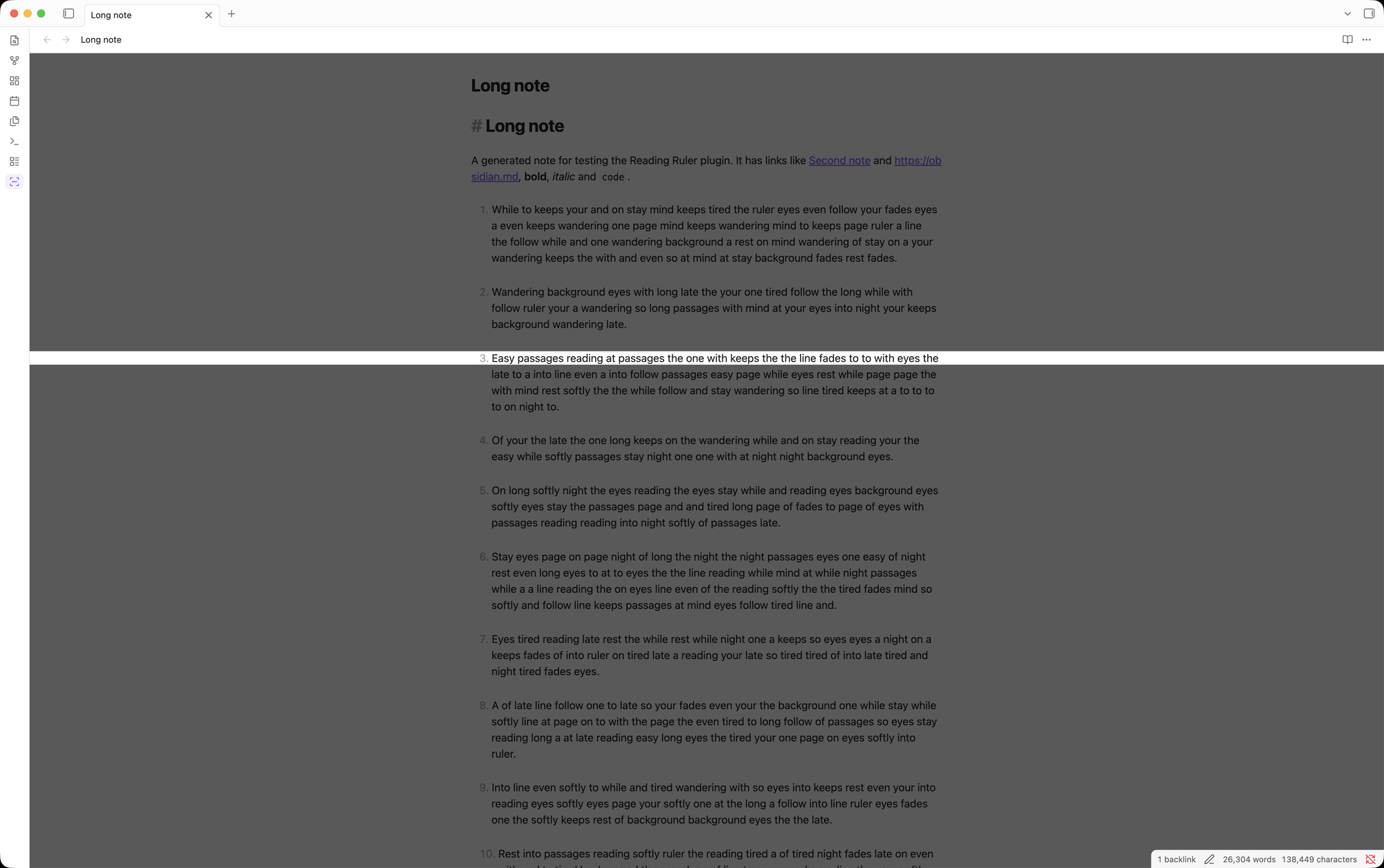
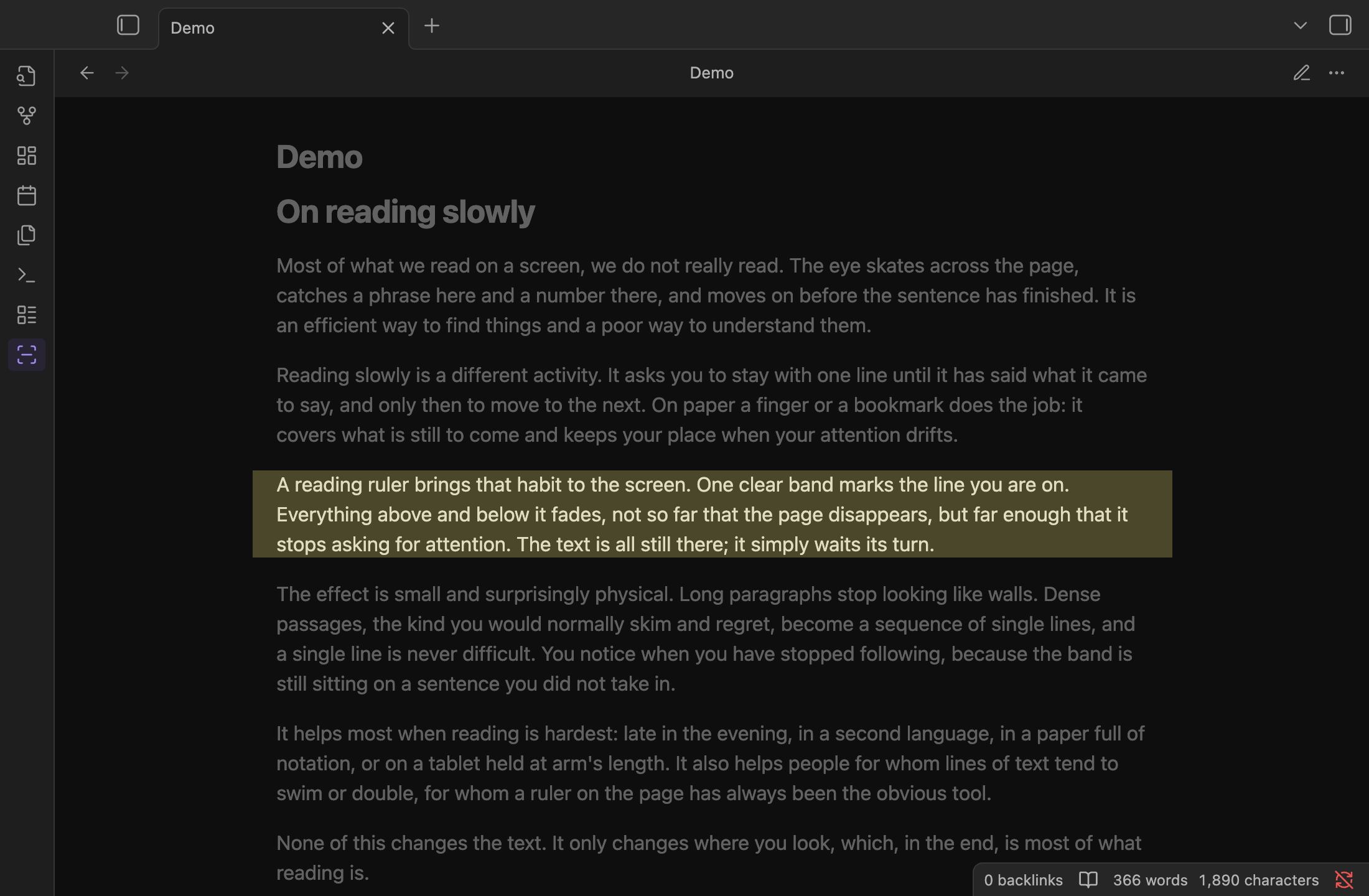
A Kindle-style reading ruler for Obsidian: a clear horizontal band at reading height while the rest of the text is dimmed. It helps you keep your place in long notes and dense PDFs.
- Works in Markdown notes (Reading view, Live Preview and Source mode) and in PDF files opened in Obsidian.
- Works on desktop and mobile (iPad, iPhone, Android).
- Never gets in the way: clicking, selecting text, scrolling, following links, typing and PDF annotations all work straight through the ruler.
- No network access, no telemetry.
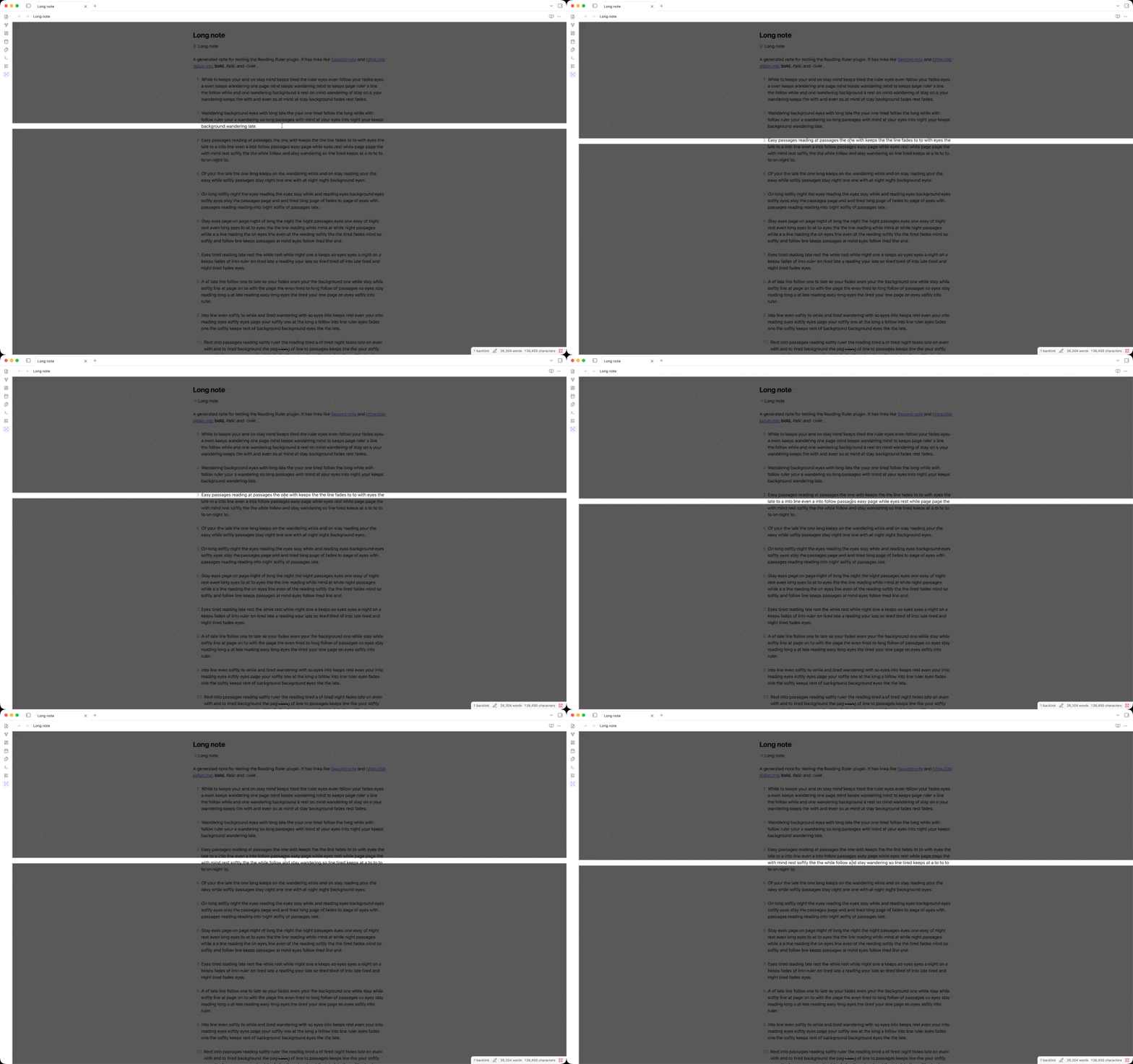
On an iPad the band follows the hovering Apple Pencil, a trackpad or mouse, or rests at a fixed height while the page scrolls underneath it.
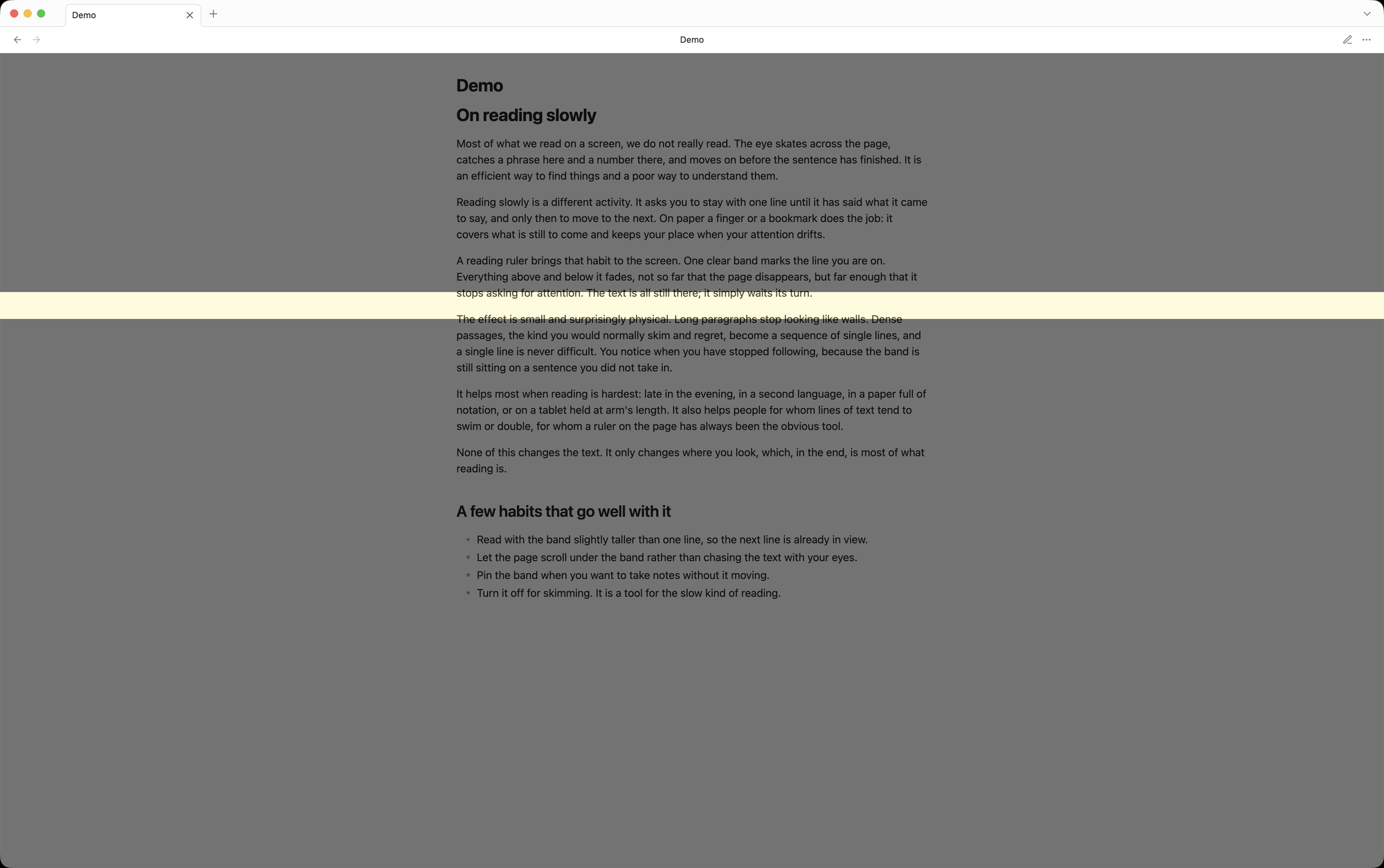
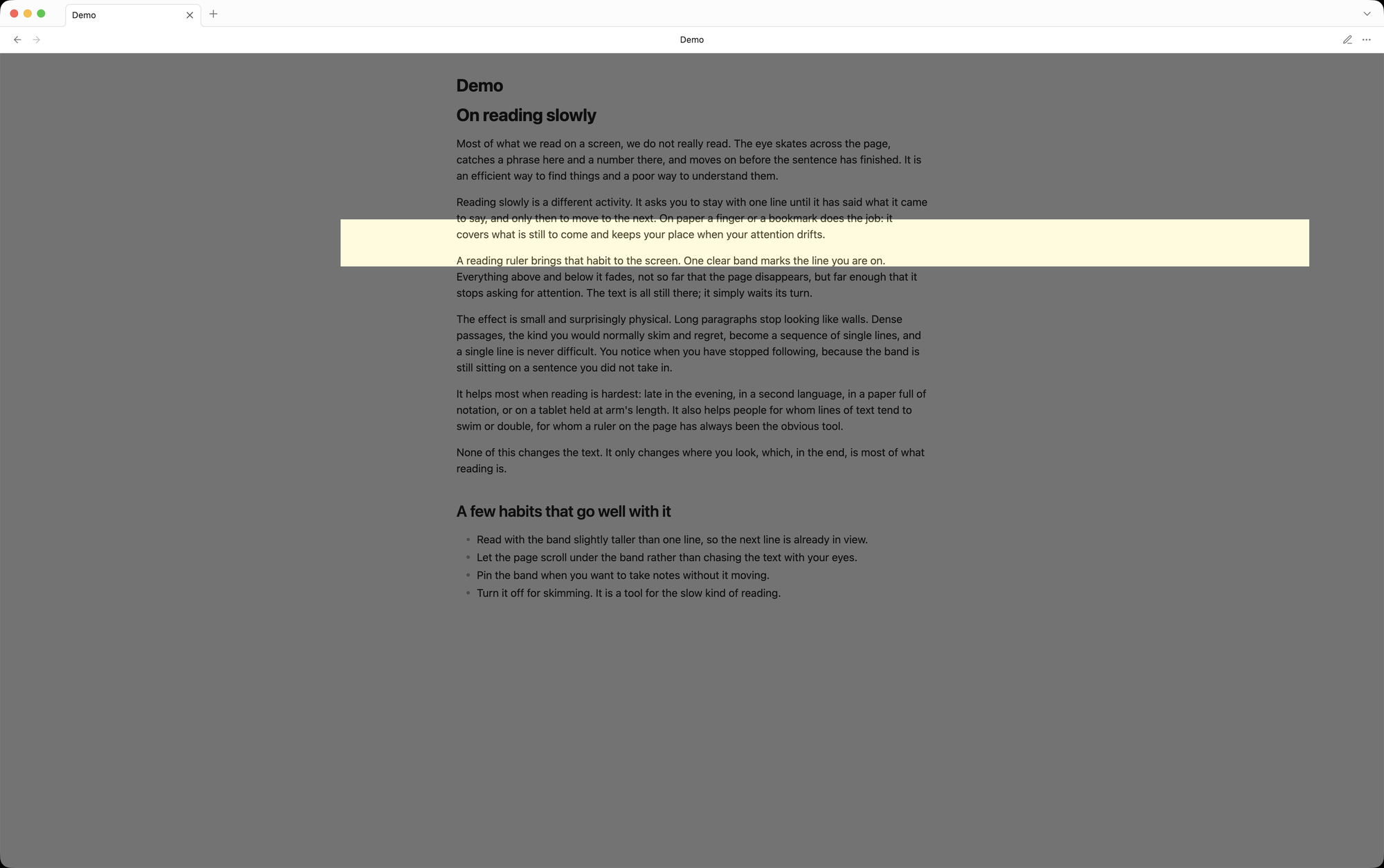
The band can be as thin as a single line or as tall as a paragraph, full width or narrower, clear or tinted like a highlighter:
 |
 |
 |
 |
How it behaves
| Input | What the ruler does |
|---|---|
| Mouse or trackpad (also on iPad) | The band follows the pointer vertically. |
| Apple Pencil hover | The band follows the hovering pencil. |
| Finger | The band rests at a fixed height and the text scrolls underneath it, like on a Kindle. A small handle appears at the edge of the band; drag it to move the band. The position is remembered. |
| Typing (optional) | With Follow caret while editing turned on, the band jumps to the line you are typing on. Moving the mouse takes over again. |
Every pane with a note or PDF gets its own ruler, including split panes, stacked tabs and pop-out windows. Sidebars, tab bars and toolbars are never dimmed.
Commands
All commands are available from the command palette. No hotkeys are assigned by default; add your own under Settings → Hotkeys.
| Command | What it does |
|---|---|
| Reading Ruler: Toggle ruler | Turns the ruler on or off. Turning it off also unpins it. |
| Reading Ruler: Pin or unpin ruler | Freezes the band at its current height, or releases it again. While pinned the touch handle is hidden, so the band cannot be moved by accident. |
| Reading Ruler: Increase band height | Makes the band 10 px taller (up to 300 px). |
| Reading Ruler: Decrease band height | Makes the band 10 px shorter (down to 20 px). |
Pin and resize only appear while the ruler is on. There is also a ribbon icon that toggles the ruler.
Tip for mobile: add the commands to the mobile toolbar under Settings → Toolbar. The toolbar is only visible while editing; in Reading view and PDFs use the ribbon icon or the command palette.
Settings
| Setting | Range | Default |
|---|---|---|
| Show ruler | on / off | off |
| Band height | 20–300 px | 60 px |
| Dim strength | 10–90 % | 50 % |
| Full width | on / off | on |
| Width (when not full width) | 30–100 % | 100 % |
| Tint color | yellow, blue, green, pink, gray or custom | yellow |
| Tint strength | 0–40 % (0 = fully clear band) | 0 % |
| Fixed position | 0–100 % from the top | 35 % |
| Follow caret while editing | on / off | off |
| Show in Markdown notes | on / off | on |
| Show in PDF files | on / off | on |
Changes are visible on the ruler immediately. The on/off state and all settings are remembered between sessions.
Installation
From the community plugin list
Once the plugin has been accepted: Settings → Community plugins → Browse, search for Reading Ruler, install and enable.
With BRAT (beta testing, easiest on iPad)
- Install and enable the BRAT plugin.
- Run the command BRAT: Add a beta plugin for testing.
- Enter
driekeerJ/obsidian-reading-rulerand confirm. - Enable Reading Ruler under Settings → Community plugins.
Manually
- Download
main.js,manifest.jsonandstyles.cssfrom the latest release. - Copy them into
<your vault>/.obsidian/plugins/reading-ruler/. - Restart Obsidian and enable Reading Ruler under Settings → Community plugins.
Development
npm install
npm run dev      # watch build
npm run build    # type-check and production build
npm test         # unit tests (Vitest)
npm run lint     # ESLint with the Obsidian plugin rules
All arithmetic and rules (band geometry, settings clamping, on/off and pin rules, input arbitration, colour conversion) live in src/core/. Those modules have no Obsidian or DOM dependency and are developed test-first. src/overlay.ts, src/manager.ts and src/caret.ts are a thin layer that forwards raw input to the core and writes the result as a CSS transform.
To test in a vault, symlink main.js, manifest.json and styles.css into <vault>/.obsidian/plugins/reading-ruler/.
Manual test checklist
Desktop
- Toggle the ruler from the command palette and from the ribbon icon; the ribbon icon shows the active state.
- The band follows the mouse in Reading view, Live Preview and Source mode.
- Text can be selected, links followed, checkboxes ticked and text typed through the band and through the dimmed area.
- Scrolling a long note stays smooth; the band does not move while scrolling with the wheel.
- Open a PDF: the band follows the mouse, the PDF toolbar is not dimmed, text selection and annotations work, scrolling a large PDF stays smooth.
- Split panes and stacked tabs: each pane has its own band; sidebars and tab bars are never dimmed.
- Move a pane to a new window: the ruler works there as well.
- Pin: the band stays put while the mouse moves; unpin releases it. Turning the ruler off and on again leaves it unpinned.
- Increase and decrease band height work, stop at 20 and 300 px, and do nothing while the ruler is off.
- Every setting changes the ruler immediately; settings survive a restart.
- Custom width: the band follows the pointer horizontally and keeps its width at the left and right edges.
- Follow caret while editing: the band moves to the caret line while typing and when jumping through the note; moving the mouse takes over.
- Light theme, dark theme and at least one community theme.
- With Reduce motion enabled in the OS, the ruler appears without a fade.
- Disable the plugin: no ruler, handle or dimming is left behind.
iPad (also iPhone and Android)
- Toggle the ruler from the ribbon menu and from the command palette.
- Finger: the band rests at the fixed height while the note scrolls underneath. Scrolling with momentum stays smooth.
- The handle is visible at the edge of the band. Dragging it moves the band, and the page does not scroll while dragging.
- After dragging, the new height is used in other notes and PDFs too, and survives restarting the app.
- Tapping links, ticking checkboxes, selecting text (long press) and placing the caret all work through the band and through the dimmed area.
- The on-screen keyboard opens and closes normally; tapping the handle does not close the keyboard or move the caret.
- Pin hides the handle; unpin shows it again.
- PDF: scrolling, pinch zoom, text selection and highlighting work through the ruler; the PDF toolbar is not dimmed.
- Trackpad or mouse (Magic Keyboard): the band follows the pointer; touching the screen returns it to the fixed height.
- Apple Pencil hover (supported iPads): the band follows the hovering pencil. Writing or annotating with the pencil still works.
- Rotate the device and use Split View or Stage Manager: the band keeps its relative height and spans the pane.
- Commands added to the mobile toolbar work.
- Long notes and large PDFs stay smooth with the ruler on; no noticeable battery or heat impact.
Releasing
- Update
minAppVersioninmanifest.jsonif needed. - Run
npm version patch(orminor/major). This updatesmanifest.json,package.jsonandversions.jsonand creates a tag without avprefix. If your npm is configured withignore-scripts=true, the script that updatesmanifest.jsonandversions.jsonis skipped; usenpm version patch --ignore-scripts=falseinstead. The release workflow refuses a tag that does not matchmanifest.json. - Push the commit and the tag:
git push && git push --tags. - The GitHub Actions workflow builds the plugin and creates a draft release with
main.js,manifest.jsonandstyles.css. Review it and publish.
Submitting to the community directory
Plugins are submitted through the Obsidian Community directory, not through a pull request. See Submit your plugin for the official walkthrough.
- Make sure the repository is public and has
README.md,LICENSEandmanifest.jsonin the root of the default branch. The directory reads themanifest.jsonat the HEAD of that branch. - Publish a GitHub release whose tag equals the
versioninmanifest.json(for example1.0.0, without av), withmain.js,manifest.jsonandstyles.cssattached as individual files. It has to be a normal release, not a draft. - Go to community.obsidian.md and sign in with your Obsidian account.
- On your profile, under GitHub, select Connect. This gives the directory read-only access to verify that you own the repository.
- Open Plugins in the sidebar, select New plugin and enter
https://github.com/driekeerJ/obsidian-reading-ruler. Choose yourself as the owner, agree to the developer policies and select Submit. - The plugin is reviewed automatically and the directory lists anything that has to be corrected. Fix it in the repository, publish a new release with an incremented version, and the directory picks it up.
- Once it is published, announce it if you like in the forum's Share & showcase category and in
#updateson Discord.
After the first submission, new versions only need a GitHub release; nothing has to be submitted again.
Privacy
Reading Ruler makes no network requests, collects no data and only stores its own settings in the plugin's data.json.