
README file from
GithubReading Rail Sidebar
Track reading progress in the sidebar, with a heading outline, a density rail, and per-file resume positions.


Reading Rail Sidebar puts everything you need to know about where you are in a long note into one panel on the right, and lets you get back to that spot later.
What's in the panel
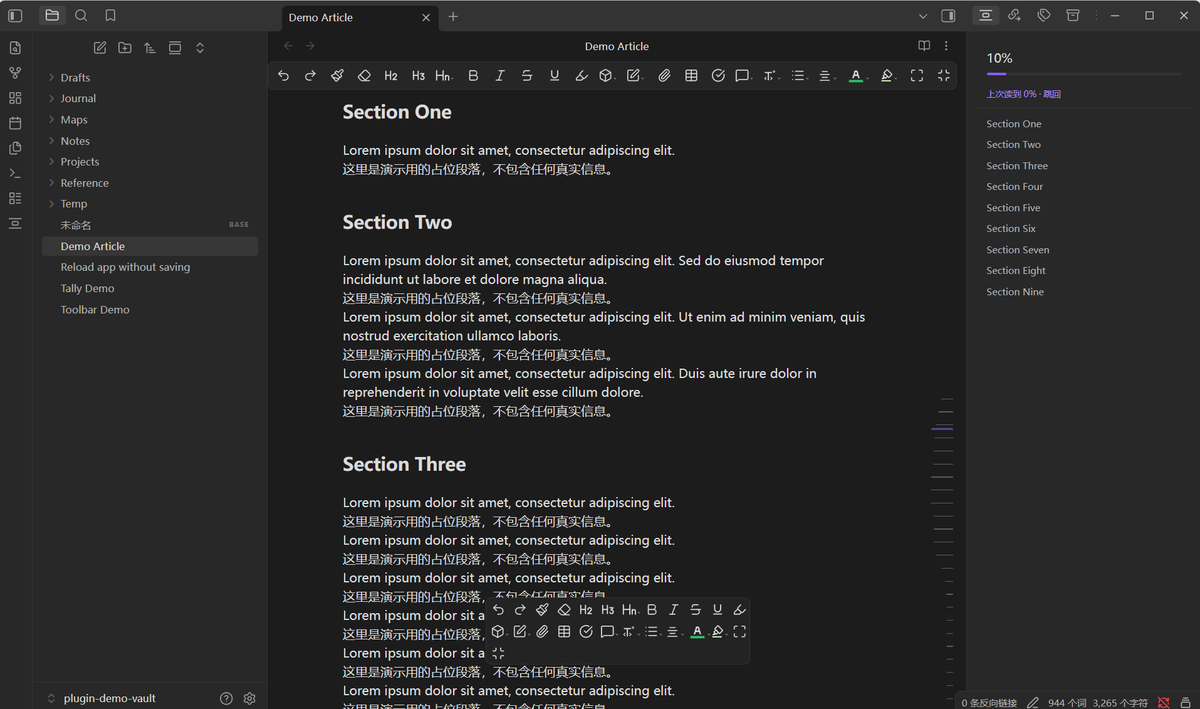
- Progress — percentage and a progress bar for the current note.
- Current heading — follows the section you are reading and shows
n / totalas you move through it. - Heading outline — click any heading to jump to it. The panel follows along as you scroll.
- Resume hint — when you reopen a note you were partway through, it offers a one-click jump back to where you stopped.
The rail
Along the right edge of the reading view there is a column of short ticks. It replaces the native scrollbar (which the plugin hides) and carries more meaning than one: each tick's length reflects how text-dense that part of the document is.
Dense stretches — long paragraphs, tables, code — grow into peaks, mirroring the heat-curve you'd see under a video player's progress bar. Sparse stretches stay short. Length combines local peaks with a fixed density scale, so an overall dense note is visibly longer than an overall sparse note. The curve is Gaussian-smoothed, so peaks rise and fall gradually instead of stepping.
Tick thickness is uniform; only length varies. The tick you are currently reading is highlighted.
Interaction: drag anywhere on the rail to scrub, or click a spot to jump there. It behaves like the scrollbar you replaced. The rail works in edit view too, following the same document.
Why
Obsidian's built-in outline tells you the structure; the scrollbar tells you a percentage. Neither tells you where the reading got dense — which is usually exactly the part you were in the middle of, and exactly the part you can't find again next session.
How it works
Headings come from Obsidian's metadataCache.getFileCache(). Scrolling and the
rail use the active Markdown view's edit or preview container; these view
adapters depend on Obsidian's DOM and may need maintenance after app updates.
Density is measured from the rendered blocks at paint time and cached per file.
Usage
Open the panel from the ribbon icon or the palette:
| Command | What it does |
|---|---|
| Open rail panel | Open the sidebar panel |
| Toggle rail panel | Open or close it |
| Jump to last position | Return to where you stopped in this note |
Settings cover the heading depth shown, whether to display the progress block, and whether to remember reading position per file.
Installation
Community plugins: search for "Reading Rail Sidebar" in Settings → Community plugins.
Manual:
- Download
main.js,manifest.jsonandstyles.cssfrom the latest release. - Put them in
<vault>/.obsidian/plugins/reading-rail-sidebar/. - Enable the plugin under Settings → Community plugins.
Beta builds: add yunmin311/reading-rail-sidebar-obsidian to
BRAT.
Language
The settings page, the panel itself, command names, the view title and every
notice are available in Chinese and English. Pick a language at the top of
the settings page: Auto follows Obsidian's own language, or pin it to
简体中文 / English explicitly.
To add another language, add an entry in locales.js, then regenerate the
inlined companion modules in main.js before packaging. The installed plugin
loads the translations from that self-contained file.
Privacy
No network access. No telemetry. No accounts. Reading positions are stored
locally in the plugin's data.json, keyed by note path — they never leave your
machine.
License
中文说明
把「阅读进度 + 标题导航 + 按文件记忆位置」做成右侧栏面板:进度百分比、当前标题跟随、 标题树点击跳转,以及下次打开时一键跳回上次读到的地方。
右侧那条刻度用长度反映正文的文本密度 —— 长段落、表格、代码这些密集处会鼓成峰, 像视频进度条底下的热度曲线;疏的地方保持短。曲线经高斯平滑,有起伏过渡而非突变。 长度同时参考一条固定密度标尺,所以整篇密集的笔记也会比整篇稀疏的笔记更长, 不再只比较同一篇内部的峰谷。阅读模式和编辑模式都显示刻度。 刻度粗细统一,只有长度变化。可在刻度条上拖动或点击来定位。
安装:在社区插件里搜 "Reading Rail Sidebar",或从 Release 下载三个文件放进
.obsidian/plugins/reading-rail-sidebar/。