
README file from
Github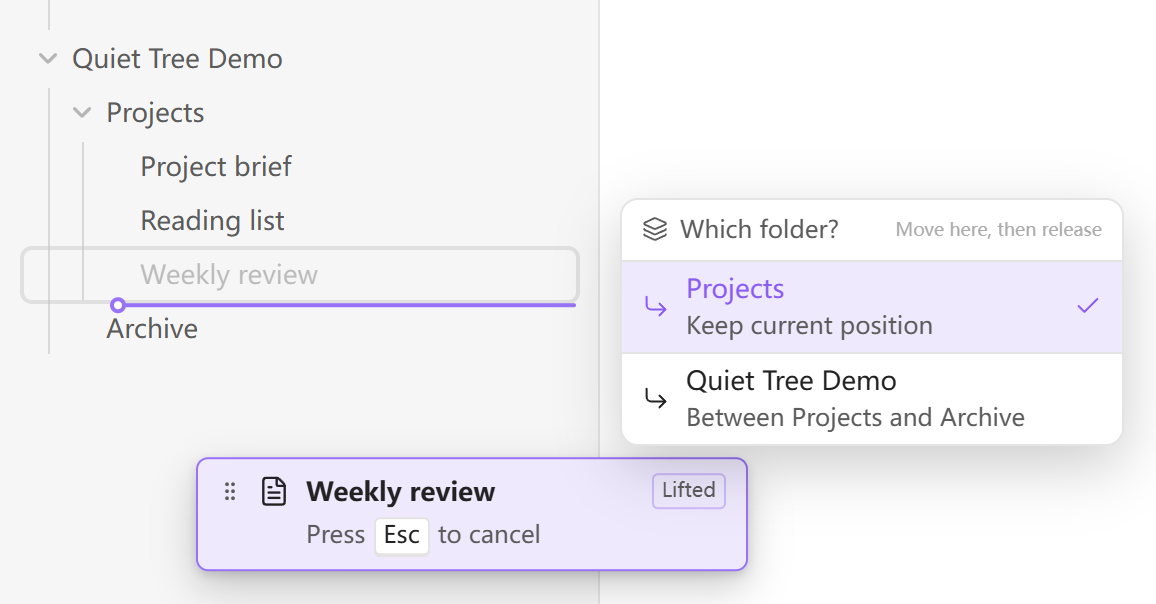
See both the position and the destination folder before you drop.
Features
- Arrange each folder your way. Drag files and folders into a custom order without renaming them.
- New items go last; renames keep their place. The first create or rename in a folder saves its current order, including folders you have never dragged into place.
- Choose exactly where to drop. An insertion line, its indentation, and a folder chooser make nested folder boundaries clear.
- Keep the explorer you know. Use Obsidian’s native file list and your theme. Choose whole-row dragging or a dedicated handle.
- Use a mouse or touch. Separate hold delays for desktop and mobile, with a cancel hint on desktop and a cancel area on touch screens.
- Carry your order across devices. Ordering travels with plugin settings when Obsidian Sync’s community plugin settings sync is enabled.
Get started
- Hold a file or folder to lift it. With a mouse, move slightly after holding.
- Move to the position you want. At a folder boundary, choose the destination folder.
- Release to drop. Change your mind? Press Esc, or drag into the touch cancel area.
Reordering within a folder changes only the saved order. Dropping into another folder moves the file or folder, with links handled by Obsidian.
Install
In Obsidian, open Settings → Community plugins → Browse, search for Quiet Tree, then install and enable it. Use Check for updates there for future releases.
- BRAT: add
elfmedy/quiet-treeas a beta plugin. - Manual: download
main.js,manifest.json, andstyles.cssfrom Releases into your vault’s.obsidian/plugins/quiet-tree/folder, then enable the plugin.
Make it yours
Choose English or Chinese, whole-row or handle dragging, and your preferred hold delay. On desktop, you can exclude folders such as assets; mobile uses the same saved exclusions.
Settings and ordering live together in the plugin’s data.json. For sync setup, data recovery, and compatibility details, see the usage and data guide (中文).
See Releases for changes in each version. Touch behavior has been checked in mobile emulation; physical-device testing is still in progress.