Quick Daily Note 快捷日记
English | 简体中文
A daily-journal and todo companion plugin for Obsidian: one-click daily notes, a calendar panel with per-day todos, scheduled reminders, and paste/rendering enhancements.
Features
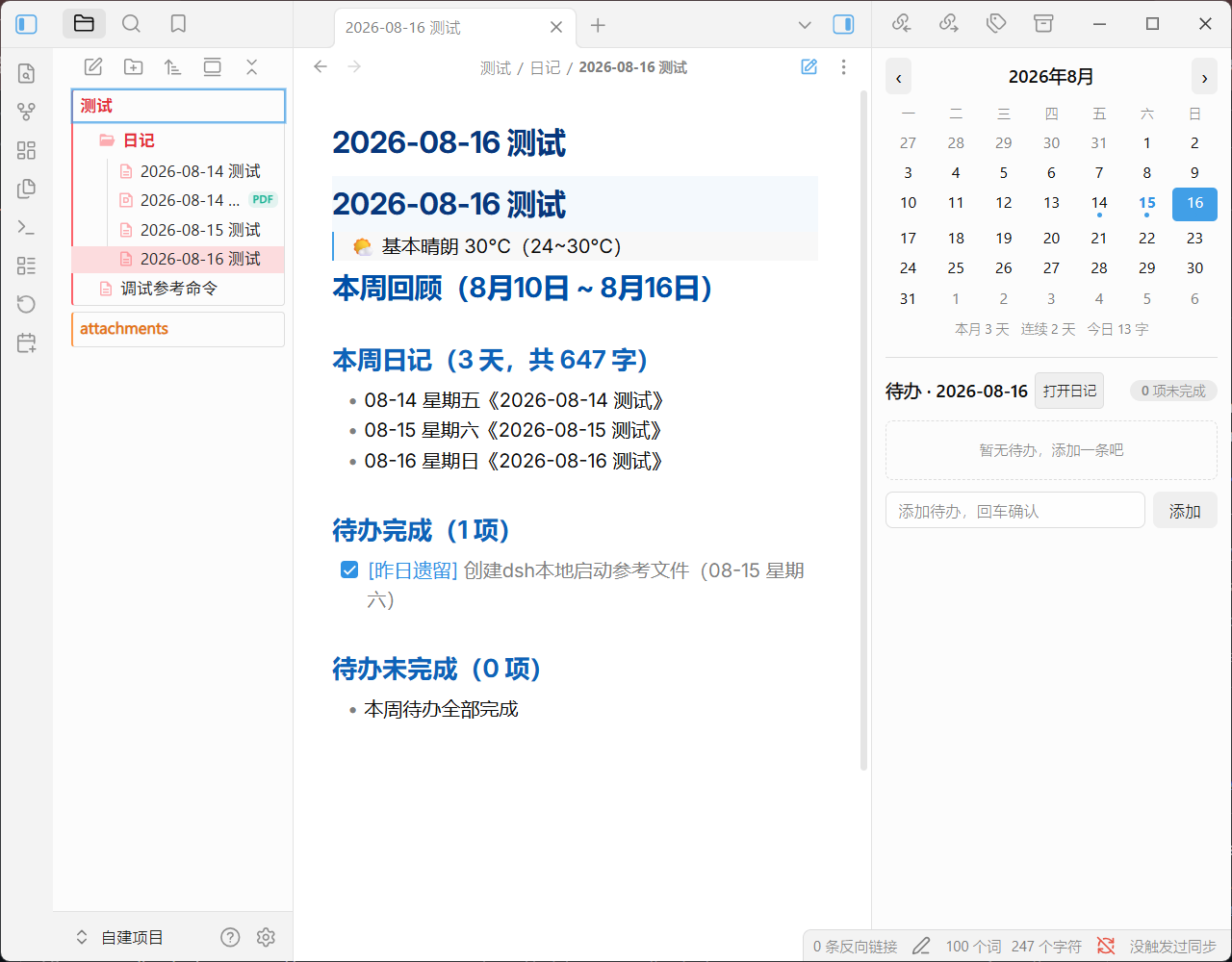
📝 Daily Notes
- Click the calendar icon in the ribbon, or run the command "New daily note (enter name)" to create a note titled "date + name" — the folder and date format are configurable. If a note with the same name exists, it opens directly.
- In the sidebar calendar panel, double-click a date to open or create that day's note.
- Weekly notes — the calendar has a "W" (weekly) column on the left of the day grid, separated by a divider, one cell per week row: double-click it to open that week's note (named by ISO week, e.g. "2026-W37 周记") or create it for a weekly study summary. A single click changes nothing — the selected date, the todo list and the day-note list stay untouched; weeks that already have a note show a dot. A command "Open/create this week's note" does the same from the command palette (handy on mobile, where double-click is unavailable).
- Monthly notes — double-click the calendar title (e.g. "2026年10月") to open or create that month's note (named "2026-10 月记"); months that already have one show a dot under the title. A command "Open/create this month's note" is available too.
- Separate folders — weekly and monthly notes can live in their own folders (settings: weekly / monthly storage location); when unset they are stored next to the daily notes.
- Templates — optionally apply a Markdown template when creating daily, weekly or monthly notes (toggle in settings, template file picked from the vault). Placeholders are replaced on creation:
{{title}}, {{date}}, {{time}}, {{date:FORMAT}}, {{week}} (weekly notes only, e.g. 2026-W37; there {{date}} is the week's Monday) and {{month}} (monthly notes only, e.g. 2026-10; there {{date}} is the 1st of the month). Notes that exist as an empty stub (just the auto-generated heading) get the template filled in when opened — so notes created before enabling a template pick it up too.
✅ Calendar & Todos
- The calendar panel manages todos per day: add with the input box (Enter), check off, double-click to edit text, or open the row-end ⋯ menu for edit / copy / delete.
- Multi-line todos — the add box and the todo editor are auto-growing text areas that wrap long text (no more moving the cursor horizontally through a single line): Enter confirms / saves, Shift+Enter inserts a newline, and multi-line todo text renders with line breaks preserved (the weekly review flattens them into single checklist lines).
- When yesterday has unfinished todos, a "Carry over to today" banner appears at the top — one click moves them to today, marked as "carried over".
- Below the calendar: stats for this month's diary days, consecutive diary days, and today's word count.
- Multiple daily notes per day — click a date in the calendar panel to list all daily notes created for that day; click a title to jump to that note, or use + New to create another one for the same day.
⏰ Reminders
- Scheduled prompts to add a todo, or to check the day's unfinished todos; clicking the notification opens the calendar panel.
- Email notifications — when a todo is added, or the daily unfinished-todo check finds pending items, an email is sent to your custom mailbox (via Web3Forms, free tier ~250/month). Toggleable in settings; configure the Access Key from web3forms.com and your recipient email there.
📊 Weekly Review
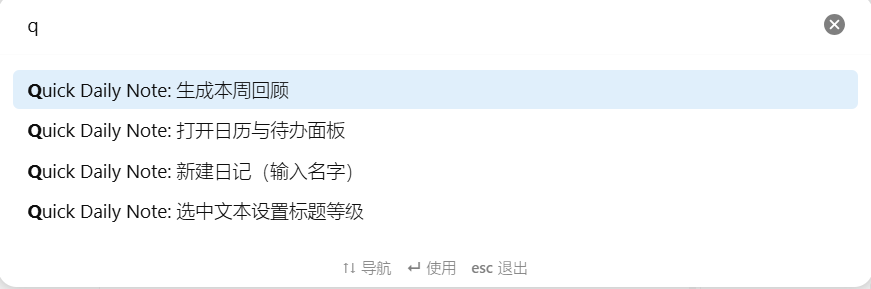
- The command "Generate weekly review" summarizes the week's diaries (days, word count, titles) and completed/uncompleted todos into Markdown, inserted at the cursor.
- The command "Generate weekly review for a chosen week" first shows a picker of the last 12 weeks (including the current one, searchable by week number or date) and generates the same summary for the selected week (titled e.g. "2026-W36 回顾").
⌨️ Paste Enhancements
- Auto-detect the language of pasted code (30+ languages, including Mermaid diagrams, zero dependencies) and wrap it in a fenced code block; plain text, single-line weak matches, and pastes inside code blocks are left alone.
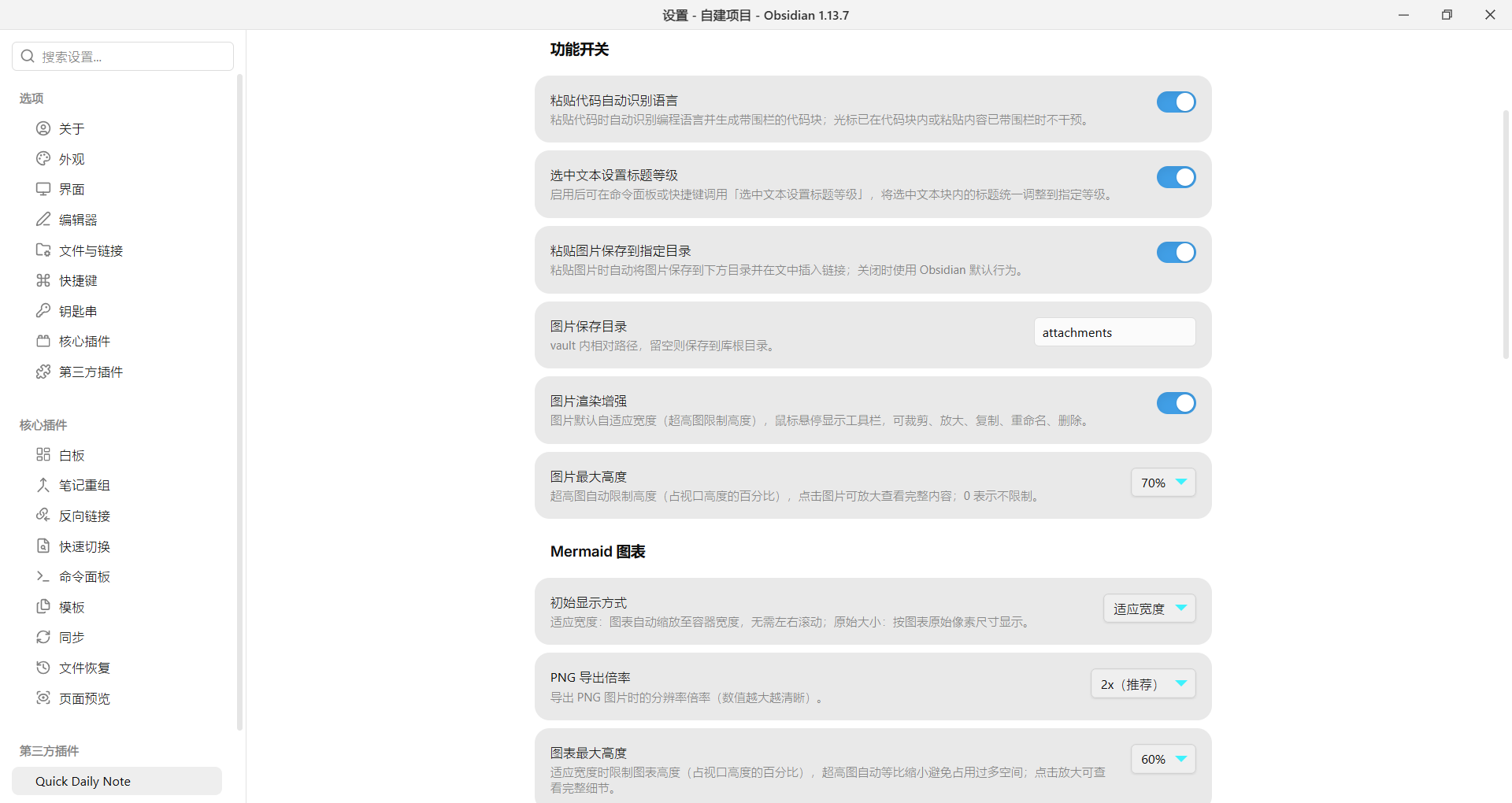
- Optionally save pasted images into a configurable folder (vault-relative path; empty = vault root) and insert the link at the cursor (off by default).
- File explorer copy/paste — with a file or folder selected in the sidebar file explorer,
Ctrl/Cmd+C / Ctrl/Cmd+X copy or cut it (folders included, copied recursively), and Ctrl/Cmd+V pastes it into the selected folder, or the folder of the selected file — even while that file is open — (duplicates get a numbered suffix); files copied from the system file manager can be pasted into the vault the same way. Copying/pasting text in the editor keeps its native behavior. Toggleable in settings.
- Code block delete — a delete button next to the native copy button on rendered code blocks (reading view & live preview) removes the whole block from the note.
- Inline code copy — click inline code in reading view to copy its content instantly (Alt/Ctrl+click in live preview/editor, so plain clicks still position the cursor); code blocks are unaffected. Toggleable in settings.
- Quick line copy — hold Alt and click anywhere on a line to copy the whole line without selecting it (live preview/editor copies the source line under the cursor; reading view copies the clicked paragraph/heading/list item, and lines inside code blocks are located by click position with indentation preserved). Plain clicks are unaffected and task checkboxes still toggle; Alt+click on inline code still copies the code itself. Off by default, toggleable in settings.
- Blank lines around media — pasted images and pasted code blocks are inserted with an empty line above and below; a command "Blank lines around images/code blocks" formats the current note the same way (fences of any length/type are respected, code block content is untouched).
- Sync-ready storage — plugin settings and todo data are saved to a single file
quick-daily-note.json in the vault root, so they sync across devices with vault sync tools (e.g. Remotely Save). The name intentionally has no dot prefix — Remotely Save skips dotfiles. Legacy data.json / .quick-daily-note.json configs are auto-migrated on first load, and changes synced in from another device reload automatically. Background settings are per-device (stored locally in the plugin's data.json, not synced), so each device can have its own wallpaper.
🖼️ Image Enhancements
- Images fit the note width automatically; overly tall images are height-limited.
- Hover a rendered image for a toolbar: crop, copy, rename, delete (deleting also removes the references in notes and moves the file to the system trash). Click the image to zoom.
- Click an image to view it enlarged, with crop and other actions in the modal toolbar.
📈 Mermaid Enhancements
- Diagrams fit the container width (or render at original size), with a configurable height limit for tall diagrams.
- Toolbar above the diagram (outside the rendered frame): zoom in/out, reset, download as SVG or PNG (export scale configurable); click a diagram to view it enlarged.
- Diagrams adapt to the page width when printing or exporting to PDF — never clipped.
🌤️ Weather Recording
- When enabled, the current day's weather is fetched and written below the note title after creating a daily note (data from Open-Meteo, no API key; failures never block note creation).
🖼️ App Background
- Set the whole interface background to a custom image or video from your vault — videos (mp4/webm/ogv) play as a dynamic wallpaper — with full adjustments: opacity, blur, brightness, contrast, position, scale and fit mode.
Screenshots
Installation
Settings → Community plugins → Browse, then search for Quick Daily Note.
BRAT (before listing)
- Install the BRAT plugin.
- Run the command
BRAT: Add a beta plugin for testing and enter 456-77/quick-daily-note.
- Enable Quick Daily Note.
Manual Install
Download the latest release from GitHub, and copy main.js, manifest.json, and styles.css into <vault>/.obsidian/plugins/quick-daily-note/, then enable the plugin in Settings.
Usage
Commands
| Command |
Description |
| New daily note (enter name) |
Create a note titled "date + name"; opens the existing note if present |
| Open calendar & todo panel |
Open the calendar and todo panel |
| Set heading level for selection |
Normalize headings in the selected text block (toggleable in settings) |
| Generate weekly review |
Summarize the week's diaries and todos at the cursor |
| Generate weekly review for a chosen week |
Pick one of the last 12 weeks, then summarize that week's diaries and todos at the cursor |
| Back to previous cursor (same note) |
Return to the previous cursor position in the current note; also triggered by the back shortcut (Alt+← / Cmd+Alt+←) |
Image Toolbar Buttons
| Button |
Action |
| ✂ |
Crop |
| ⧉ |
Copy |
| ✎ |
Rename |
| 🗑 |
Delete (removes note references; file goes to the trash) |
Settings
Daily Notes
| Setting |
Description |
| Storage folder |
Folder for diary files; empty = vault root |
| Date format |
moment format, e.g. YYYY-MM-DD |
Feature Toggles
| Setting |
Description |
| Auto-detect code language on paste |
On by default |
| Set heading level for selection |
On by default |
| Save pasted images to a folder |
Off by default |
| Save pasted files to a folder (pasting in the editor) |
Off by default |
| File explorer copy/paste |
Copy/cut files & folders with Ctrl/Cmd+C/X, paste with Ctrl/Cmd+V in the file explorer; also imports files copied from the system file manager; on by default |
| Show hidden files |
Show dotfiles/folders and file types Obsidian can't render; mirrors Obsidian's global setting (Files & Links); off by default |
| Email notifications |
Email your mailbox when a todo is added or the unfinished-todo check fires (Web3Forms); off by default |
| Image storage folder |
Defaults to attachments |
| Image rendering enhancements |
On by default |
| Max image height |
Percentage of viewport; 0 = unlimited; 70% by default |
Mermaid Diagrams
| Setting |
Description |
| Initial display mode |
Fit width / original size; fit width by default |
| PNG export scale |
1x / 2x / 3x; 2x by default |
| Max diagram height |
Percentage of viewport; 0 = unlimited; 60% by default |
App Background
| Setting |
Description |
| Enable background image |
Off by default; restores the theme background when disabled |
| Image path |
Vault-relative path; images (png/jpg/webp/gif) or videos (mp4/webm) |
| Opacity |
10% – 100%; lower values keep text readable |
| Blur radius |
0 – 30 px Gaussian blur |
| Brightness |
20% – 200% (100% = original) |
| Contrast |
20% – 200% (100% = original) |
| Horizontal / vertical position |
0% – 100% image alignment |
| Scale |
50% – 250% (100% = original size) |
| Fit mode |
Cover (fill the window, cropped) / contain (whole image visible) |
Weather
| Setting |
Description |
| Record weather when creating daily notes |
Off by default |
| City |
e.g. Beijing, Shanghai |
Reminders
| Setting |
Description |
| Add-todo reminder |
Off by default; 08:00 by default |
| Unfinished-todo check |
Off by default; 21:00 by default |
Data & Privacy
- All data is stored in your vault's
data.json; nothing is uploaded to any server.
- The only network request is weather data from open-meteo.com when weather recording is enabled (public API, no key, off by default).
Compatibility
- Requires Obsidian v1.7.2 or later.
- Works on desktop and mobile.
Development
npm install
npm run build   # tsc type check + esbuild bundle
Build output: main.js, manifest.json, styles.css.
Support & Feedback
Issues and suggestions are welcome at GitHub Issues.
License
MIT
