
README file from
GithubPublish to Git Repo
Translations: 中文
An Obsidian plugin that publishes vault notes together with their images to a GitHub repository. Incremental, atomic, and safe to re-run.
Flag a note with gh-publish: true and run Publish to Git Repo — the note (and any images it embeds) lands in your repo as clean Markdown + image files. It is pure file sync: it does not render or host a website. Pair it with any static-site generator (Jekyll, Hugo, Eleventy, Astro, …) or simply use the repo as a Markdown archive. It currently pairs smoothly with the Amytis digital garden setup.
- Co-located assets — a note with images becomes a folder (
index.md+images/); a plain-text note stays a single.mdfile. - Incremental — only new and changed notes are uploaded; unchanged notes are skipped, so re-running is cheap and idempotent.
- Atomic — every change in a run lands in a single commit. If a run is interrupted or fails, nothing partial is committed.
- Re-runnable — running the command again never duplicates or re-uploads unchanged content.
Design inspired by
oleeskild/obsidian-digital-garden, but lighter: it only syncs files from your vault to a GitHub repo.
Quick start
1. Create a target repository
Create a (public or private) GitHub repository to hold your published notes. Initialize it with at least one commit before publishing — for example tick Add a README when creating the repo, or push an initial commit yourself. The plugin publishes onto an existing branch and cannot bootstrap an empty repository.
2. Create a GitHub token
Create a token with Contents: Read and write permission for that repository.
- Fine-grained token (recommended): Repository access → your repo; Repository permissions → Contents: Read and write.
- Classic token: check the
reposcope.
3. Install the plugin
- From Community plugins (when available): Settings → Community plugins → Browse → search "Publish to Git Repo" → Install → Enable.
- Manually: copy
main.js,manifest.json, andstyles.cssinto<vault>/.obsidian/plugins/publish-to-git-repo/, then enable the plugin in Settings → Community plugins.
4. Configure the settings
Settings → Publish to Git Repo:
| Field | Example |
|---|---|
| GitHub token | your token from step 2 |
| Repository | owner/repo |
| Branch | main (default) |
| Base path | notes (optional) |
| Default storage path | posts (required) |
5. Flag a note and publish
Add this to a note's frontmatter:
---
gh-publish: true
---
Then run the Publish to Git Repo command (Command palette: Cmd/Ctrl+P). You'll see a preview of what will change before anything is uploaded.
That's it — your note and its images are now in your repo. Run the command again any time; only what changed gets uploaded.
Commands
| Command | What it does |
|---|---|
| Publish to Git Repo | Scans all gh-publish: true notes, shows a preview, and uploads the new/changed ones in one commit. |
| Mark/unmark for publishing | Toggles gh-publish on the active note. Marking also seeds an empty gh-path for you to fill in; unmarking removes both (a gh-path value you typed is kept). Only available when a Markdown note is open. |
You can assign hotkeys to both via Settings → Hotkeys.
Settings
| Setting | Required | Notes |
|---|---|---|
| GitHub token | ✅ | Needs Contents: Read and write (classic token: check repo) |
| Repository | ✅ | owner/repo |
| Branch | — | Defaults to main |
| Base path | — | Root prefix inside the repo, e.g. notes |
| Default storage path | ✅ | Relative to the base path, e.g. posts |
| Published base URL | — | When set, the plugin writes gh-published-url back into each note; left unset otherwise |
⚠️ The token is stored in plaintext in
<vault>/.obsidian/plugins/publish-to-git-repo/data.json. Don't share that vault or itsdata.jsonin public environments.
Frontmatter flags
---
gh-publish: true              # allow this note to be published
gh-path: essays/2024          # optional, relative to base path; overrides the default storage path for this note
gh-published: true            # managed by the plugin — written back after publishing
gh-published-url: https://... # managed by the plugin — publish link (only when Published base URL is set)
---
gh-publish— the master switch. Only notes where this is exactlytrueare published. Prefer the Mark/unmark for publishing command to set it: it writes booleantrue(not the string"true", which the plugin ignores) and also adds an emptygh-pathplaceholder.gh-path— optional per-note sub-folder. If empty or whitespace-only, the note uses the default storage path instead — an empty value does not publish to the repo root. The path must be relative and must not contain..(invalid values fail that note). The Mark/unmark for publishing command adds it as an empty placeholder when marking, so you can fill it in; unmarking removes that empty placeholder (a value you set is preserved).gh-published/gh-published-url— written back automatically by the plugin after each successful publish to record status. You don't need to set or edit them. Changing or removing them does not trigger or prevent a republish — republishing is driven by content comparison, not these flags.
Path layout
Whether a note becomes a folder depends on whether it embeds images or other assets:
| Case | Path in repo |
|---|---|
| Note without images/assets | {base}/{default path or gh-path}/{note name}.md |
| Note with images/assets | {base}/{default path or gh-path}/{note name}/index.md |
| Embedded images & assets | {...}/{note name}/images/{asset name} |
{base} is the base path if set. The note name is sanitized (path-illegal characters removed; CJK characters and spaces preserved). Two notes that sanitize to the same remote path (same name + same storage path) are reported as failures so neither overwrites the other.
For gh-published-url, the filename marker is the note name with the .md extension and any leading YYYY-MM-DD- date prefix removed — kept as-is, no slugification.
Example. With base path notes and default storage path posts, the note 2024-03-01-hello.md containing one image ![[pic.png]]:
notes/posts/hello/index.md
notes/posts/hello/images/pic.png
The same note with no images becomes a single file:
notes/posts/hello.md
Removing the last image from a note switches its layout from a folder (
hello/index.md) to a flat file (hello.md) on the next publish. The old folder is not deleted automatically — see Known limitations.
Link rewriting
| In your vault | In the repo |
|---|---|
![[pic.png]] |
 |
[[wikilinks]] |
Kept as-is (not processed) |
![[note]] note embeds |
Not processed |
Image embeds are resolved through Obsidian's metadata cache (not text matching), so a literal ![[...]] inside a code block is never touched. Embeds the plugin can't resolve are reported as failures — never silently dropped.
How it works
This section explains the publish flow and the guarantees behind it. (For the code architecture and internals, see README-developers.md.)
The publish flow
- Scan. Find every note with
gh-publish: true. - Read the remote. Fetch the repo's current file tree once (file paths and their hashes — no file contents downloaded).
- Classify. For each note, build exactly what would be published, compute its hash, and compare it with the remote. Each note falls into one bucket:
- new — not in the repo yet → will be uploaded
- changed — content differs from the repo → will be uploaded
- unchanged — identical to the repo → skipped
- failed — an embed couldn't be resolved → blocked, but doesn't stop the rest
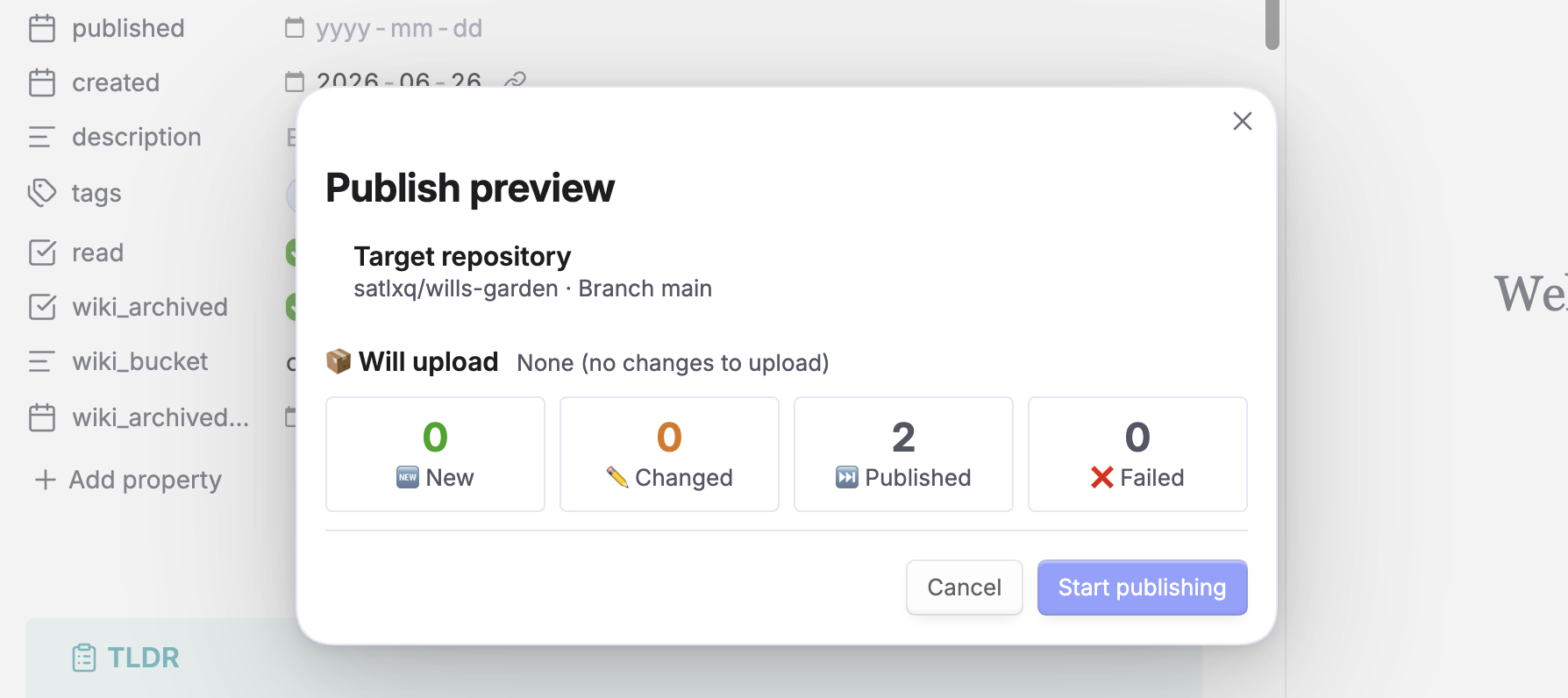
- Preview. A confirmation modal shows the buckets and the target repo/branch before anything is uploaded.
- Upload. After you confirm, a progress card runs: the new/changed files are uploaded, then everything is committed in one atomic commit.
- Write back. On success,
gh-published(andgh-published-url, if configured) is written back into each note's frontmatter. - Report. A summary modal shows what was published.
Guarantees
- Idempotent & incremental. The plugin hashes what would be published and compares it to the remote, so unchanged notes are never re-uploaded and running twice never duplicates content. Edits made to the repo outside the plugin are respected too — the plugin re-aligns to the real remote state on every run.
- Atomic. All changes in a run land in a single commit. If a step fails before the commit, nothing is committed — there's no half-uploaded state.
- Stable output. Published Markdown is produced deterministically: plugin-owned
gh-*frontmatter is stripped and embeds rewritten consistently, so a note's bytes don't drift between runs and its content hash stays stable. - Safe to cancel. The progress card's Stop button cancels between note/asset analysis and uploads, after the current operation finishes. The button is disabled when commit finalization starts. Already-uploaded, uncommitted blobs are ignored by Git.
- Conflicting filenames are blocked. Different assets in one note cannot share a remote filename:
a/pic.pngandb/pic.pngwould both becomeimages/pic.png. The preview reports the collision; rename the conflicting assets before publishing. Repeated references to the same file are allowed. - Local state can be repaired. If a local frontmatter write fails after publication, the report preserves remote success and shows a separate warning. Run publishing again and confirm the local-state repair; unchanged content is not uploaded again. Failed-note details are retained in the final report and copied report.
- Co-located images. Each note carries its own copy of the images it uses — no shared image folders, no broken links.
Known limitations
- Shared images are duplicated. The same image referenced by several notes is copied into each note's
images/folder (one copy per note). - Layout-switch leftovers. When a note loses its last image and switches from a folder to a flat file, the old folder stays in the repo. Clean it up manually.
- No delete sync. Removing
gh-publishor deleting a note does not remove the corresponding file from the repo. - Wikilinks & note embeds.
[[wikilinks]]are kept as-is, and![[note]]note embeds are not expanded. - Large images on mobile. Images are base64-encoded for upload; very large images are memory-heavy on mobile — compress them first.
- Token is plaintext. Stored in
data.jsonin your vault (the settings page warns about this). - Empty target repo. The plugin does not create the first commit. Initialize the repository (README or any commit) and confirm the branch name if publish fails with an uninitialized-repo error.
For developers
Build steps, architecture, and internals live in README-developers.md (English only).