
README file from
GithubProperty Hag
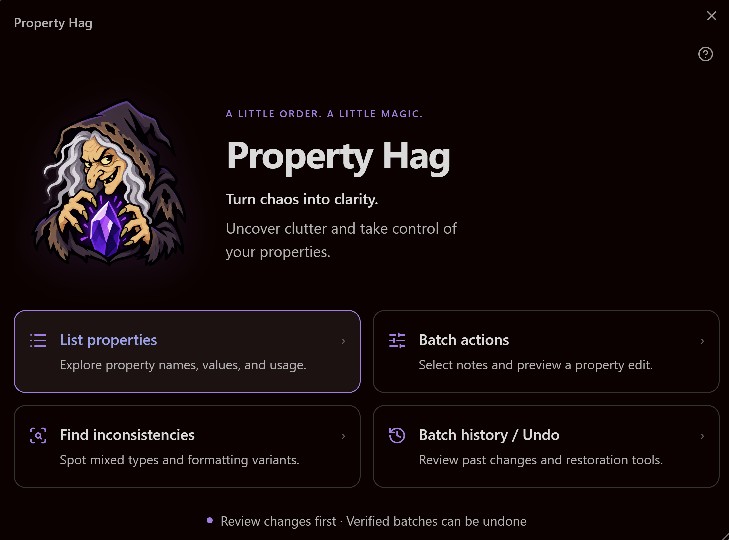
Turn chaos into clarity. Property Hag helps you clean up the details that keep your Obsidian notes organized—things like status, category, dates, and lists. See what you already use, spot inconsistencies, and update selected notes together instead of fixing them one by one.
Stay in control of every change. Choose the notes, review what will happen, and confirm when you're ready. Saved batch history lets you review the results and undo eligible changes later.
Features
- Bulk property editing — add, update, rename, and remove
- Vault-wide property browsing and usage counts
- List-item editing and empty-property cleanup
- Advanced search and multiple property filters — match all or any condition
- Existing property and value suggestions
- Typo, formatting, and consistency checks
- Before-and-after previews
- Automatic backups, verified saves, and batch Undo
- Desktop and mobile support
Installation
Requires Obsidian 1.5.7 or newer. Supports desktop and mobile.
-
Download main.js, manifest.json, and styles.css from the plugin release.
-
Create a property-hag folder inside your vault’s .obsidian/plugins folder.
-
Place the three files inside it:
main.js manifest.json styles.css -
Restart Obsidian, then enable Property Hag under Settings → Community plugins.
The logo and help are included in main.js; separate asset and help folders are not required to run the plugin.
Updating
Replace the three release files in your existing plugin folder and restart Obsidian. Keep data.json, history-backup.json, and backups/ together to retain saved history and Undo.
Getting started
Click the Property Hag ribbon icon or run Property Hag: Open property browser from the command palette.
Choose List properties to explore your vault. This screen lists unique property names, not individual notes. Select a property to see the notes using it, then choose Batch actions for this property to start an edit.
To work within a folder, open that folder’s context menu and choose Batch Edit Properties. You can include or exclude its subfolders.
Making a batch change
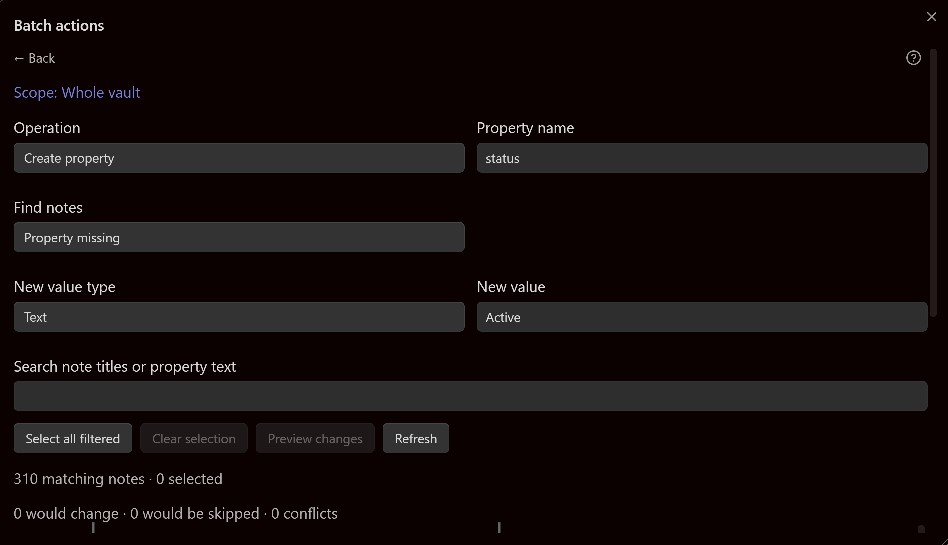
- Choose a change: select the operation, property name, and any required values.
- Choose notes: check the scope, add property conditions, and narrow with search. Choose All conditions (AND) or Any condition (OR).
- Review and apply: read the batch summary, select notes, and choose Preview changes. Review Before/After values, then confirm Apply.
Use + Add filter to combine as many property conditions as needed. Each condition has a property, a comparison, and a typed value where needed. Existing names and values are suggested. Remove a condition with its Remove button.
Filter value types are chosen automatically where possible. The type selector appears only for mixed or unknown types; conditions such as Exists and Is missing need no value.
For example, filter subcategory to peer-perspective, then choose Create property → status and enter your desired value. Create only changes notes missing status. You can also add status → Is missing under All conditions to make that requirement explicit.
Create property adds a property only where missing. Set property value updates only notes that already have it. These operation requirements, folder scope, and search always apply, even with Any condition. Removing a property never removes the note.
Unchecked notes are outside the batch. Changing filters clears selections that no longer qualify and explains the removal; newly matching notes are not selected automatically. Invalid or incomplete conditions match nothing. Preview and Apply recheck the property conditions before writing.
Searching
Searches ignore capitalization and match parts of words. Search fields use the information shown on their screen, rather than searching every note’s full contents.
In Batch actions, search matches note titles and the current value of the property being edited. Use the property condition cards to narrow by other properties.
| Search | Finds |
|---|---|
| study; research or study OR research | Either term |
| study AND notes or study notes | Both terms, in any order |
| study -archived or study NOT archived | Study matches without archived |
| "study notes" | That exact phrase, with the words together |
Exclusions apply first, then AND, then OR. To exclude a term from both alternatives, repeat it: study NOT archived OR research NOT archived. Operators also accept lowercase. Put literal operator words or semicolons inside quotes, such as "AND" or "a;b".
An invalid or unfinished search shows an error and matches nothing. Property/value suggestions and the Match value filter use literal values rather than these search operators.
History and Undo
Open Batch history / Undo, choose a saved batch, review its Undo preview, then confirm Undo ready notes.
Only saved and verified changes are eligible. Later edits to an affected property, unsaved notes, or missing/moved notes can prevent Undo. Unrelated changes are preserved. Use Original backup to inspect the saved original without restoring it.
Undo restores property values; the affected entries’ spacing or placement may differ from the original. Review the results after applying or undoing a batch.
Desktop and mobile controls
On desktop, drag a window’s title to move it, drag its bottom-right corner to resize it, and drag table dividers to adjust column widths. Click headings to sort.
On mobile, windows fit the screen and adjust for the keyboard and rotation. Forms stack vertically, controls are larger, and tables retain compact rows and columns, with horizontal scrolling when needed. Tap headings to sort; tablets retain scrollable tables.
Mobile layouts and Apply/Undo flows have automated coverage. Physical Android and iPhone validation is still pending.
Click or tap ? in any tool window for help. Use Back to return to the previous screen.
The Back/Help navigation row stays visible at the top while you scroll a tool window, on desktop and mobile.
File safety and limitations
Keep a separate vault backup and try a small batch first. Previews do not save changes. Apply and Undo require confirmation, back up notes before writing, and verify the saved results.
Only affected property entries are edited. Surrounding properties, comments, and note text are preserved; the changed entry’s own formatting may be adjusted. Complex or unsupported layouts are reported as conflicts when they cannot be edited safely.
Dates use text inputs. Possible spelling mistakes and other inconsistency findings are suggestions for your review, not automatic corrections.
Privacy and storage
Property Hag makes no network requests. History and backups are stored locally in its plugin folder.
Backups contain full note content. Keep data.json, history-backup.json, and backups/ private and together if you want to retain Undo. Do not include them when sharing or publishing the plugin. Release files contain no saved vault history or backups.
Version
Current version: 1.1.1. See CHANGELOG.md for release notes.
Author
Kempf
License
MIT License. See LICENSE. The bundled YAML library retains its separate ISC license in assets/yaml-LICENSE.txt.