
README file from
GithubPrompt Shelf
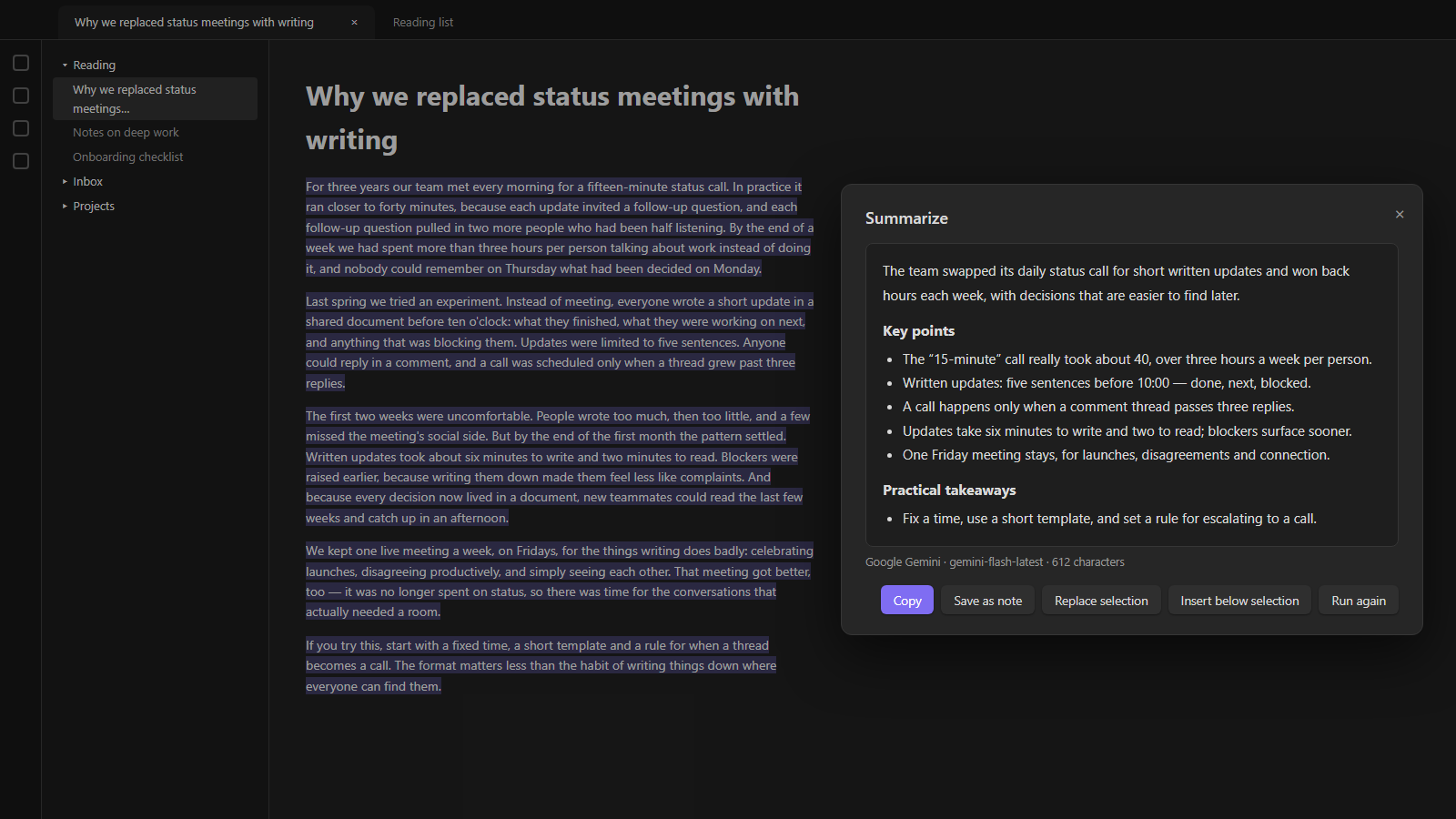
Keep your AI providers, API keys and reusable prompts in one place, and run them on any text — from the command palette, or from your own dataviewjs and plugin code.
An action is a named prompt such as Summarize, Translate or Clean up transcript. Write it once in settings, then use it anywhere.
Providers
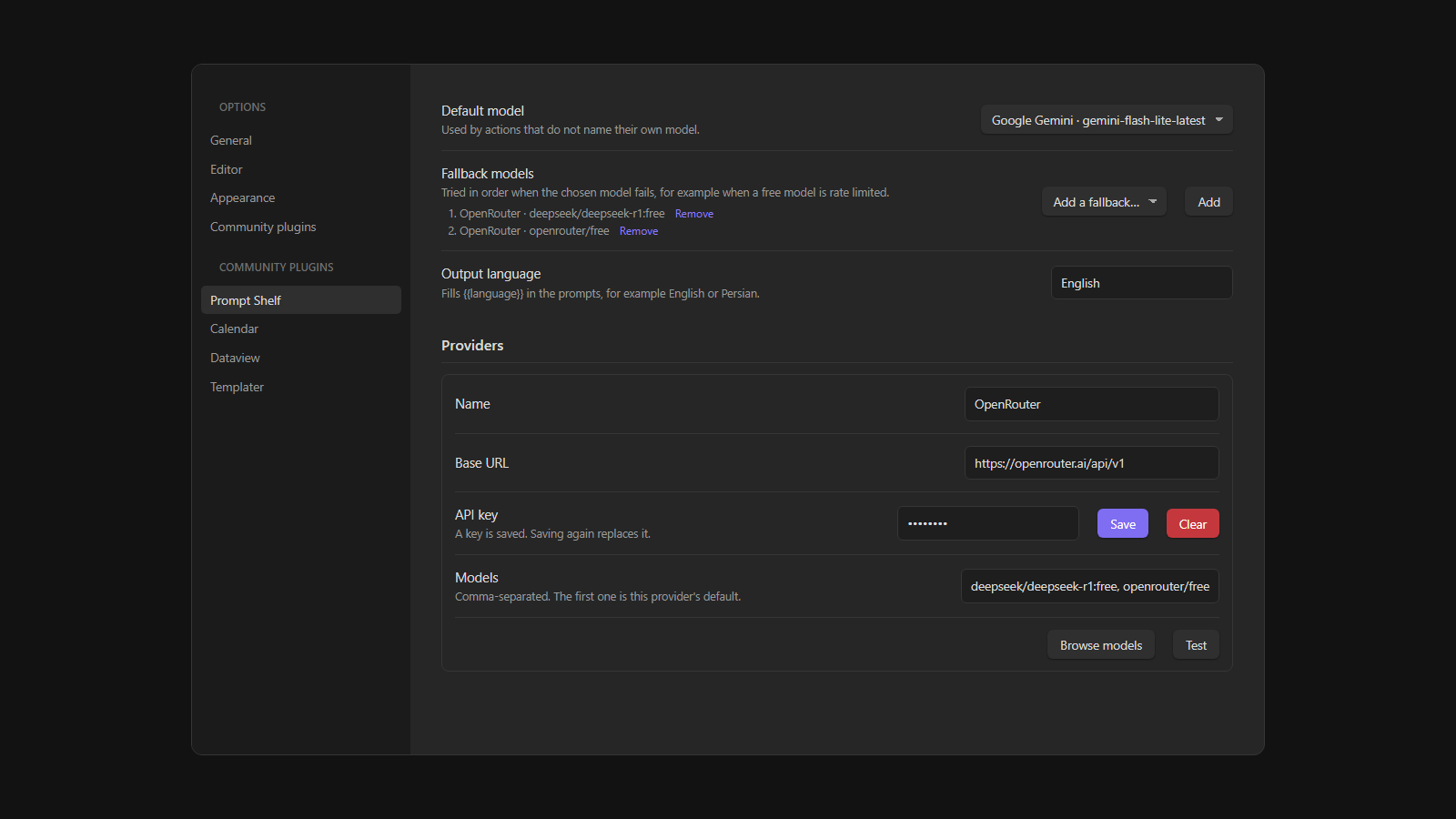
- OpenAI-compatible: OpenRouter (including its free models), OpenAI, DeepSeek, Groq, Ollama and LM Studio, and any gateway that speaks the OpenAI chat API
- Anthropic
- Google Gemini (a Google AI Studio key)
Each provider has a Browse models button that lists what the service offers (free OpenRouter models are marked) and a Test button.
Using it
Right-click or command palette — select some text (or nothing, for the whole note), then right-click and choose Run AI action on selection…, or run Prompt Shelf: Run an action on the selection or the whole note from the command palette. Pick an action; the answer streams into a window where you can copy it, save it as a note, replace the selection or insert it below.
Answers appear while they are being written, and a Stop button ends a run early. Providers that do not allow streaming from Obsidian fall back to waiting for the whole answer.
From a script — the plugin exposes an API. Here a note shows a video's transcript and summarizes it with a ready-made panel:
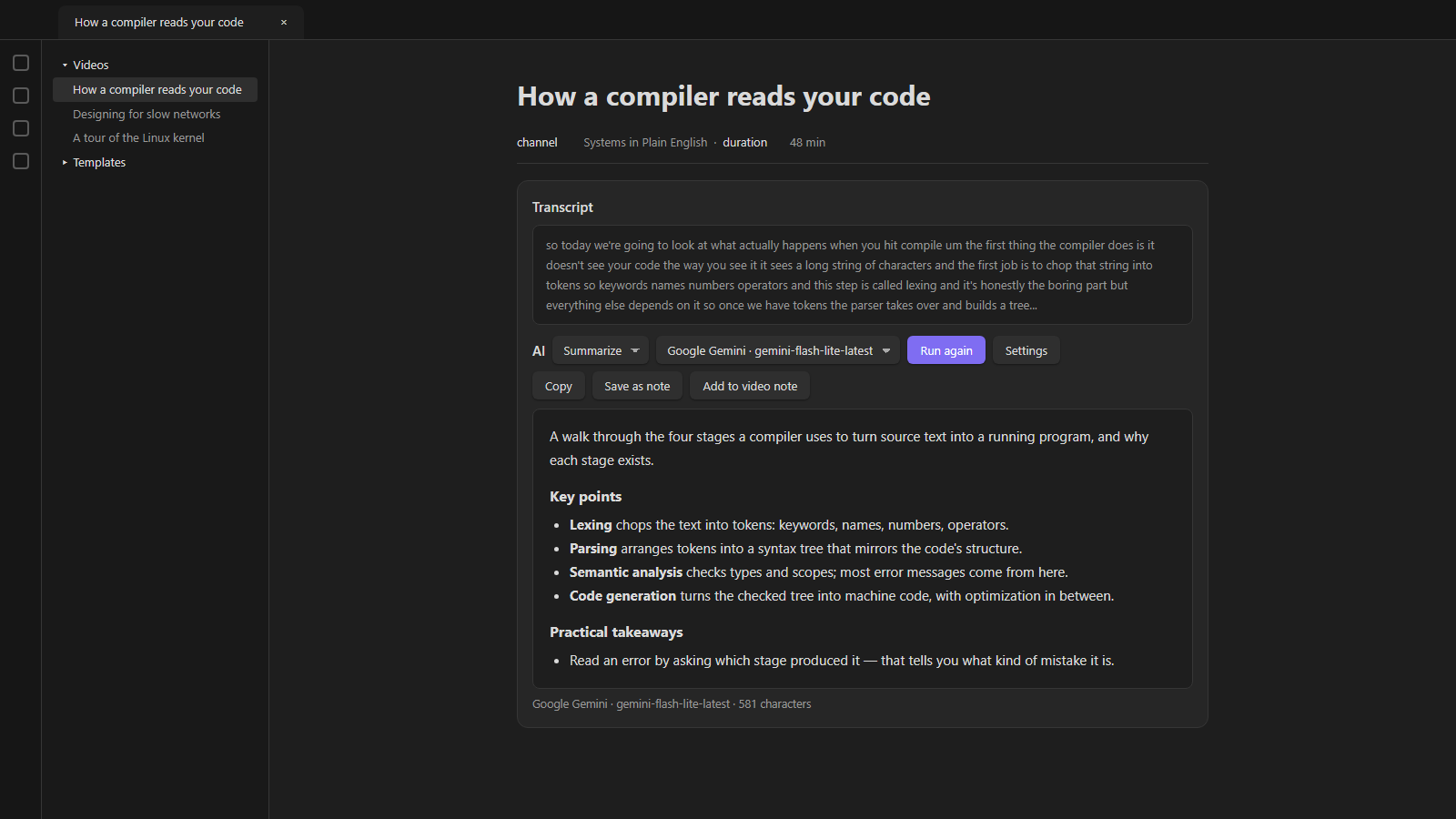
const ai = app.plugins.plugins["prompt-shelf"]?.api;

// A ready-made panel: action and model pickers, Run, the answer and Copy
const panel = ai.panel(dv.el("div", ""), {
  id: "my-note",                  // remembers the chosen action and model
  getText: () => myText,
  getKey: () => currentItemId,    // answers are cached per key for the session
  vars: () => ({ title: myTitle }),
  defaultAction: "summarize",
  buttons: [{ text: "Add to note", onClick: (answer, action) => { /* … */ } }],
});
panel.result();                   // the answer currently shown, or null
panel.refresh();                  // call after the text changes

// Without UI
const summary = await ai.run("summarize", text, { vars: { title } });
const reply = await ai.chat({ system: "…", prompt: "…" });
ai.saveNote(text, { action, vars }), ai.actions(), ai.models(), ai.ready(), ai.pick(text) and ai.openSettings() are also available.
Images, audio and JSON (API version 3)
ai.version is 3. Everything from version 2 works as before; a request without images or audio sends exactly the same body as it did.
A message can carry images and audio next to its text. data is base64 without the data: prefix. A photo of a receipt, for example, comes back as items you can put straight into a table:
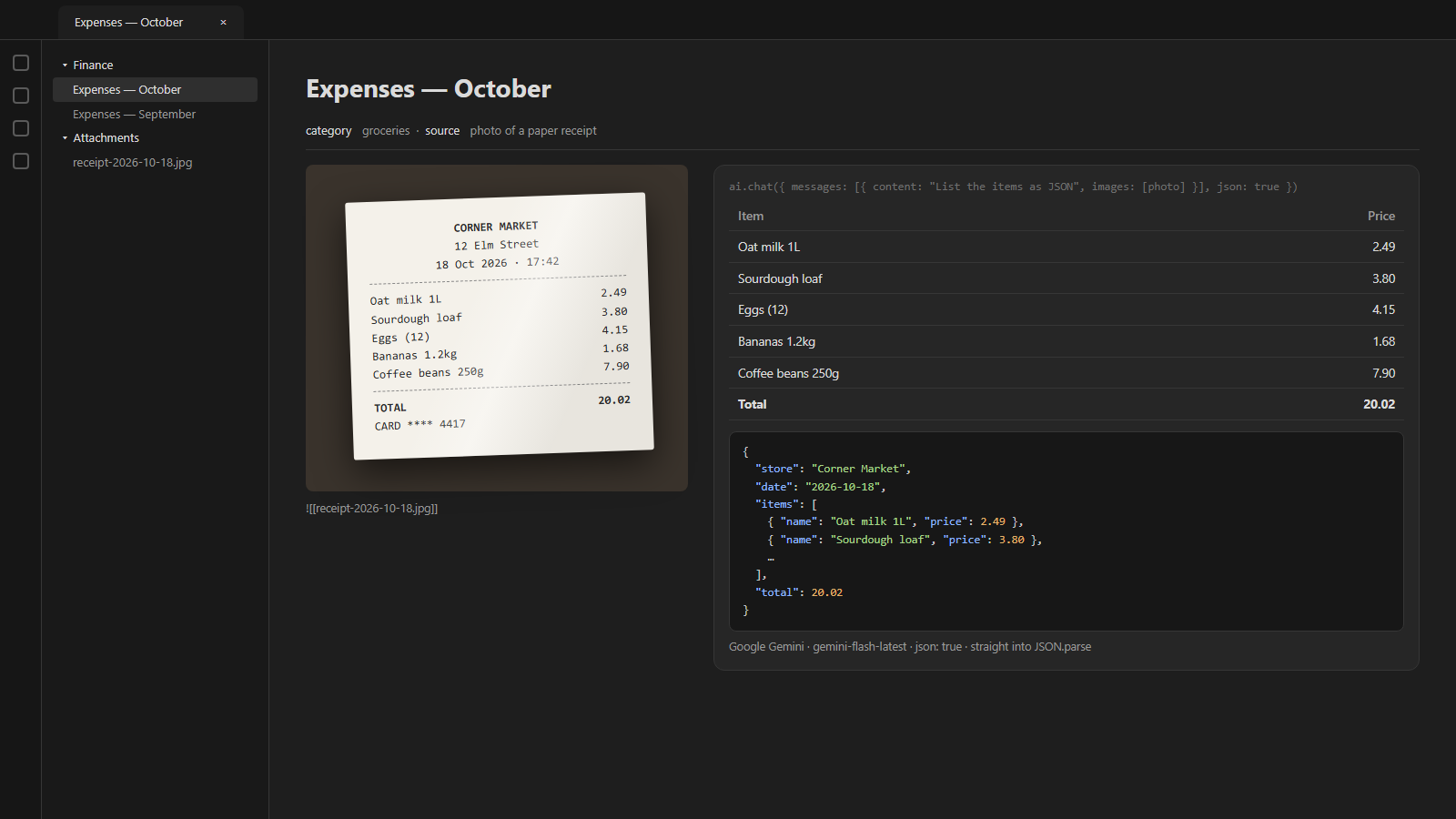
if (ai.version >= 3 && ai.capabilities().images) {
  const reply = await ai.chat({
    messages: [{
      role: "user",
      content: "List the items on this receipt as JSON: [{ name, price }]",
      images: [{ mime: "image/jpeg", data: base64Jpeg }],   // image/jpeg, image/png or image/webp
    }],
    json: true,
  });
  const items = JSON.parse(reply.text);
}

const transcript = await ai.chat({
  messages: [{ role: "user", content: "Transcribe this.", audio: [{ mime: "audio/mpeg", data: base64Mp3 }] }],
});
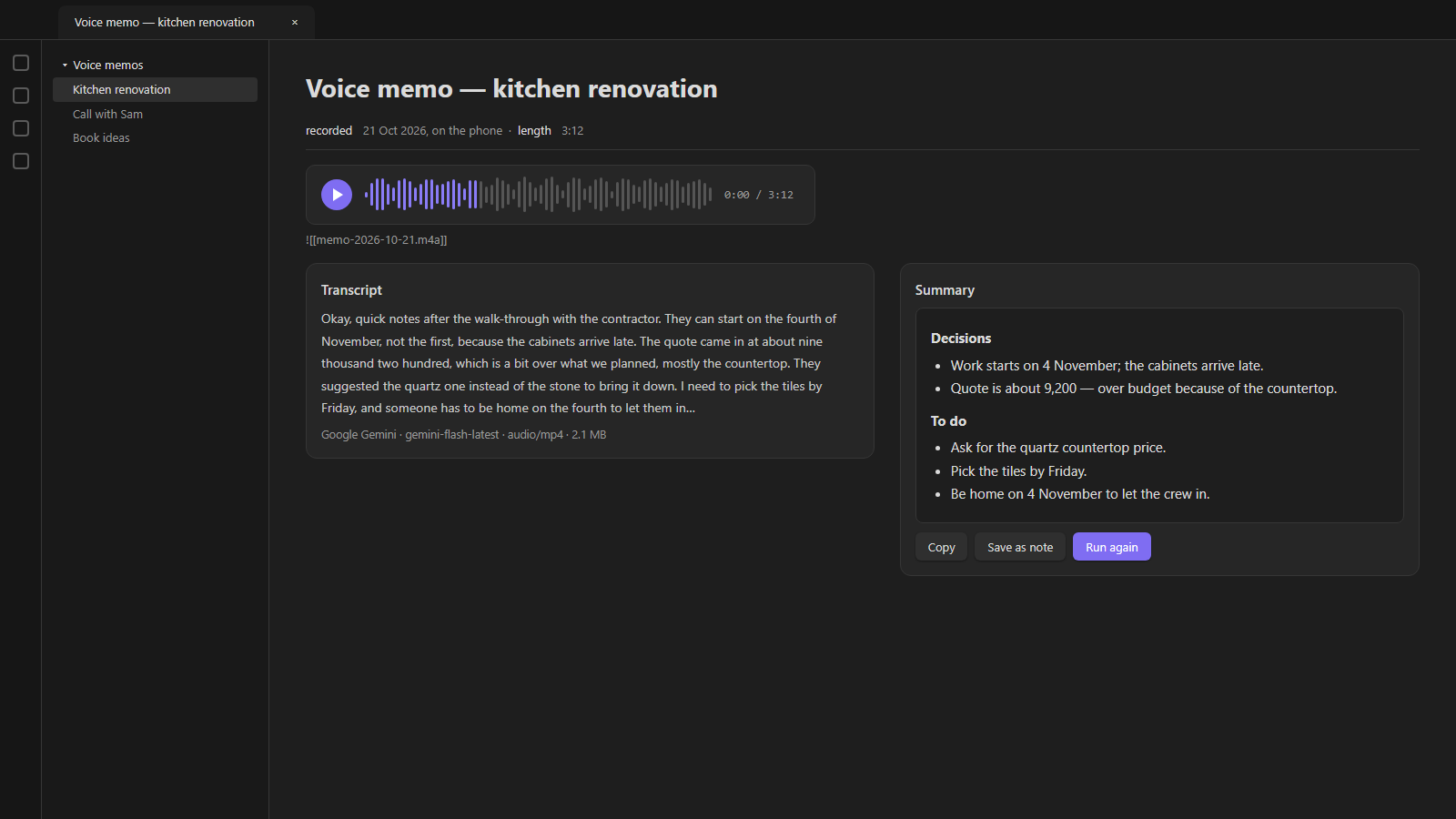
A voice memo can be transcribed and summarized the same way:
- Which models get them. Each model in settings has an Images and an Audio toggle. A request with images or audio skips every model in the default and fallback chain that is not marked for them, and fails with No model that accepts images is set up when none is left. The toggles start on for names containing
gemini,gpt-4o,gpt-4.1,claudeorvision(images) andgemini,audioorvoxtral(audio). Anthropic has no audio input.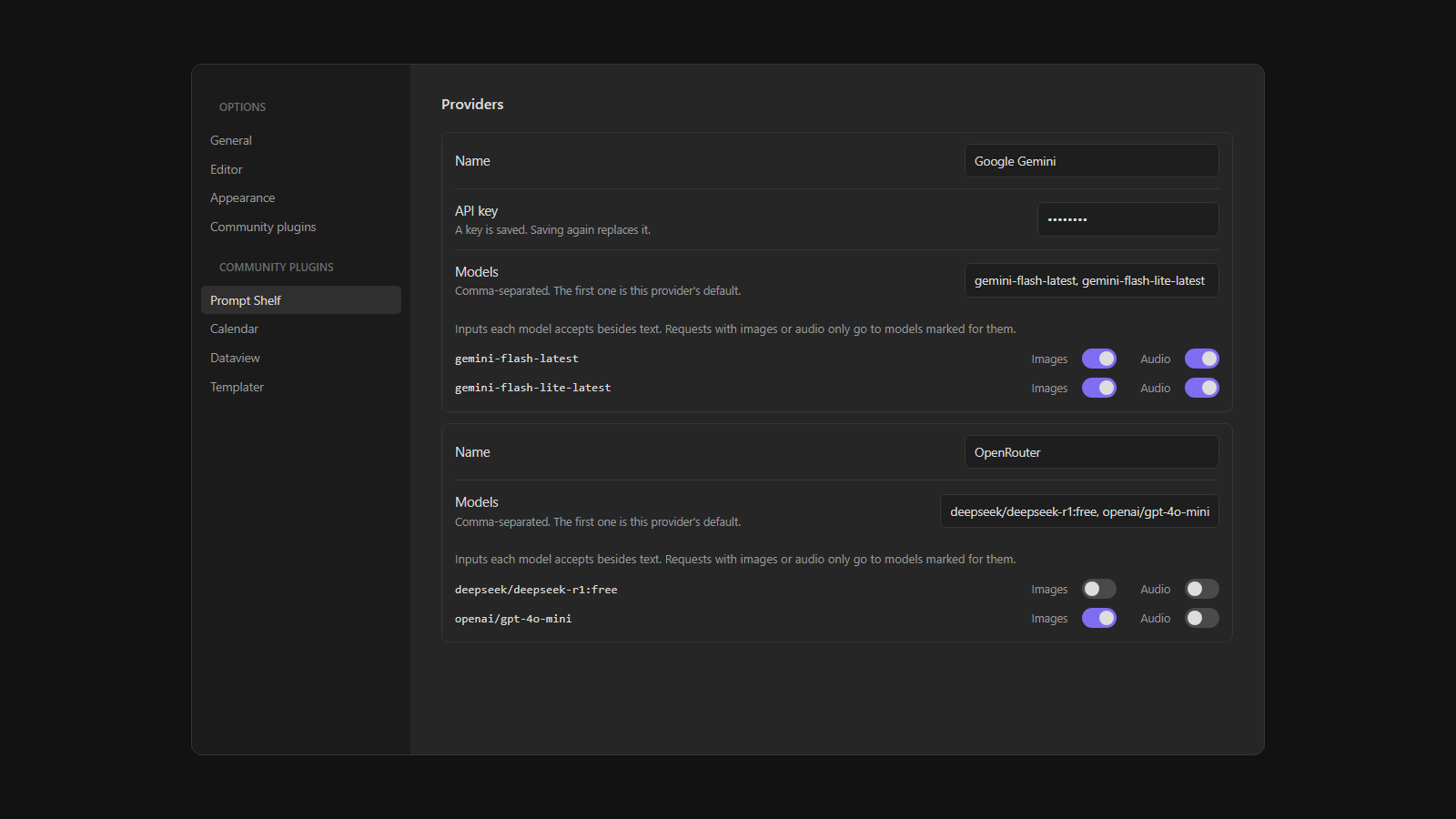
- How they are sent. Images go as
image_urlparts (OpenAI-compatible),inline_data(Gemini) or base64imageblocks (Anthropic); audio asinput_audioparts (OpenAI-compatible) orinline_data(Gemini). - Size. Images may add up to 8 MB of base64 per request, audio to 15 MB; larger requests are rejected before anything is sent. Downscale or compress first.
- JSON.
json: truesetsresponseMimeTypeon Gemini andresponse_format: { type: "json_object" }on OpenAI-compatible providers (retried once without it if the provider answers 400); Anthropic relies on the prompt. The returned text has any```fences stripped, so it can go straight intoJSON.parse. ai.capabilities()returns{ images, audio, json }: whether at least one model with a key accepts images, accepts audio, and is set up at all.- Privacy. Image and audio data, and request or response bodies that carry them, are never logged, saved or cached. Error details have long base64 runs replaced with
[data].
Read aloud
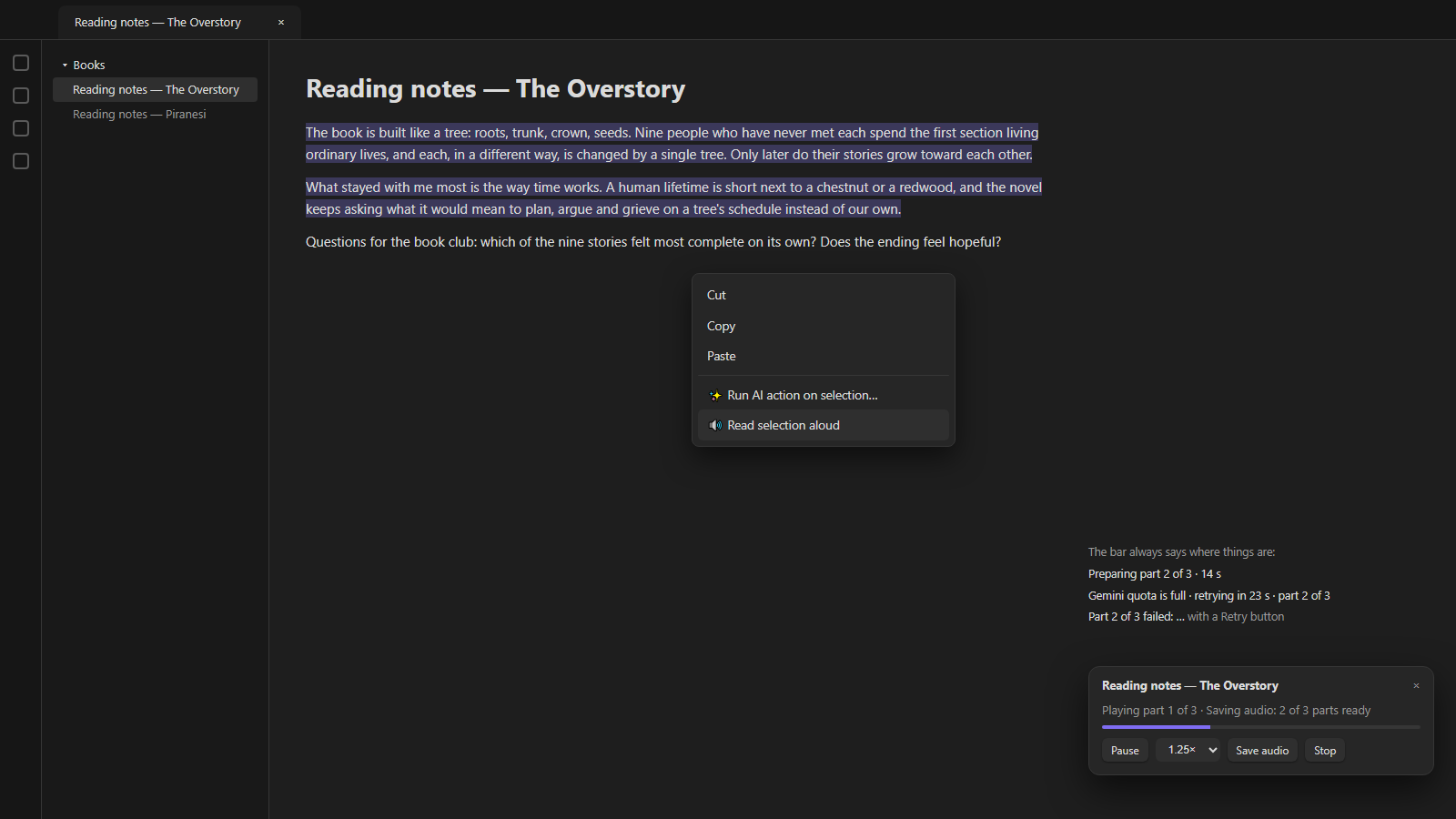
Select some text — or nothing, for the whole note — then right-click and choose Read selection aloud, or run Prompt Shelf: Read the selection or the whole note aloud.
- Voices come from your providers. Gemini speech models are used automatically when a Gemini provider has a key, and OpenAI's when an OpenAI provider does. Under Read aloud in settings you can list the models yourself, pick a voice and set the speed. Anthropic and OpenRouter have no speech models.
- It starts quickly. The text is split into parts that grow from about 500 to 2,000 characters; each next part is made while the current one plays.
- The player bar says where things are: which part is being prepared and for how long, a countdown while a provider's per-minute quota refills, which part is playing, or what went wrong. A daily quota or an unavailable model moves on to the next speech model by itself. After an error, Retry carries on from the part that failed.
- Save audio writes the whole text as one file to your attachments folder (WAV from Gemini, MP3 from OpenAI) and, when you started from the editor, puts a link to it below what was read.
- On a phone it works the same way. Keep Obsidian open while it reads: phones pause apps in the background, and the reading stops with them. API keys live on each device, so enter them on the phone too.
- From a script:
ai.speech.speak(text, { id, title }),ai.speech.stop(),ai.speech.state(),ai.speech.onChange(cb),ai.speech.setRate(1.5)andai.speech.synthesize(text)for the audio of a short text without playing it.ai.capabilities().speechtells whether a speech model is set up.
Saving answers
Save as note creates a note in the folder set in settings (Inbox by default), named from a template such as {{title}} - {{action}}. The action, model, date and the script's variables — a title or a URL, say — become note properties.
Thinking
Each action has a Thinking level: model default, off, low, medium or high. Lower is faster, and a summary rarely needs more than low. It maps to reasoning_effort (OpenAI), reasoning.effort (OpenRouter), a thinking budget (Anthropic, Gemini 2.x) or thinkingLevel (later Gemini models). A model that does not accept the setting says so, and the error tells you to switch it back.
Prompts
{{text}}is the input. If a prompt has no{{text}}, the text is appended to it.{{language}}is the output language from settings.- Scripts can pass any other variable, such as
{{title}}. A line whose variables are all empty is dropped, soTitle: {{title}}simply disappears when there is no title.
Long texts
Texts longer than Chunk size are sent in parts. If the action has a merge prompt, the parts' answers are combined with it — this is how Summarize turns a two-hour transcript into one summary. Otherwise the answers are joined. Set the chunk size to 0 for models with a large context window, such as Gemini.
When something goes wrong
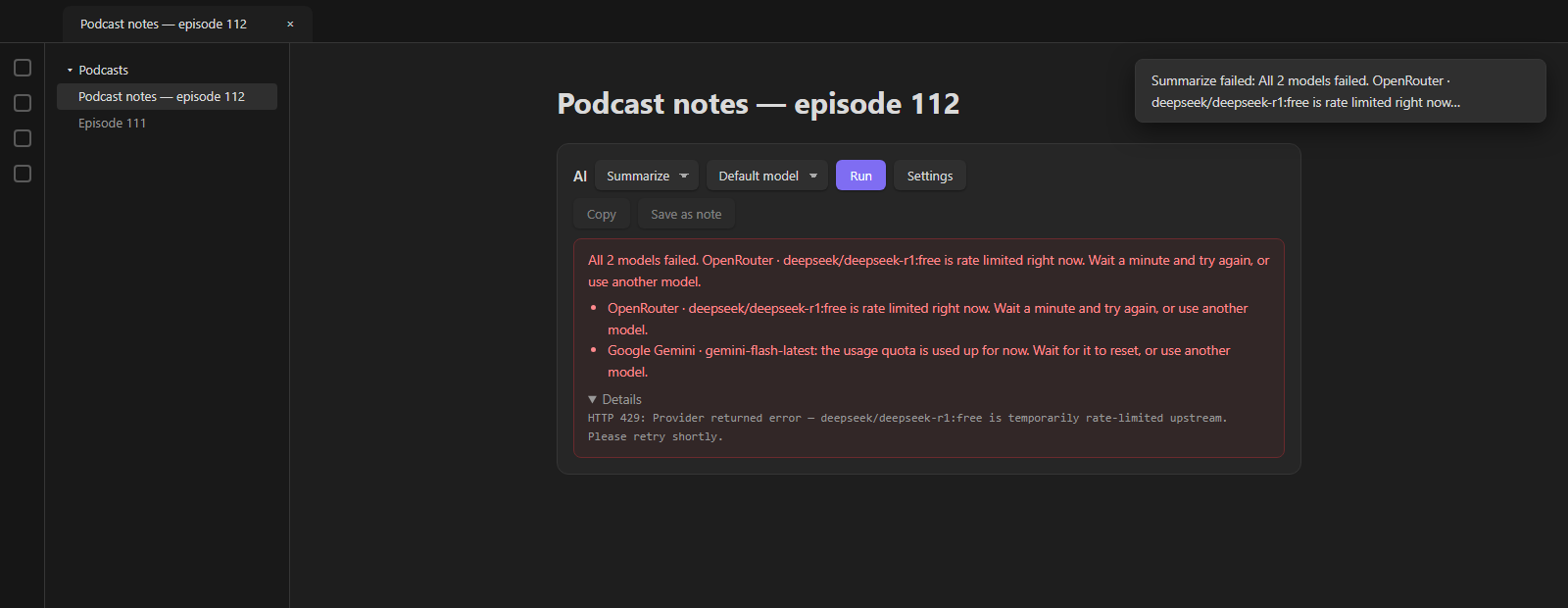
Errors say what happened in plain words — a rejected key, a rate-limited free model, a used-up quota, a model that does not exist, a text too long for the model, a region the provider does not serve, OpenRouter privacy settings that block free models — with the provider's own message under Details.
Add fallback models in settings and a failed request moves on to the next one, which is handy with free models that are often rate limited.
Network
Every request goes through Obsidian's requestUrl, except streamed answers: requestUrl cannot read a response as it arrives, so streaming uses fetch. When a provider does not allow that from Obsidian, the plugin falls back to requestUrl and waits for the whole answer. Streaming can be turned off in settings.
Nothing is sent anywhere except to the providers you configure, and only when you run an action.
About the keys
Keys are stored in the plugin's own secret.json, not in data.json, because many vaults commit data.json to git. The settings never show a saved key again; saving replaces it and there is a Clear button. Keys never appear in error messages.
The file is plaintext: a plugin has no OS keychain on mobile. Keep it out of git and other sync tools:
.obsidian/plugins/*/secret.json
Since the file does not sync, enter your keys once on each device.
Support
This project is offered for free so everyone can use it without restrictions. If you found this tool useful, you can support its continuous development and improvement through donations.
Licence
MIT — see LICENSE.