
README file from
Github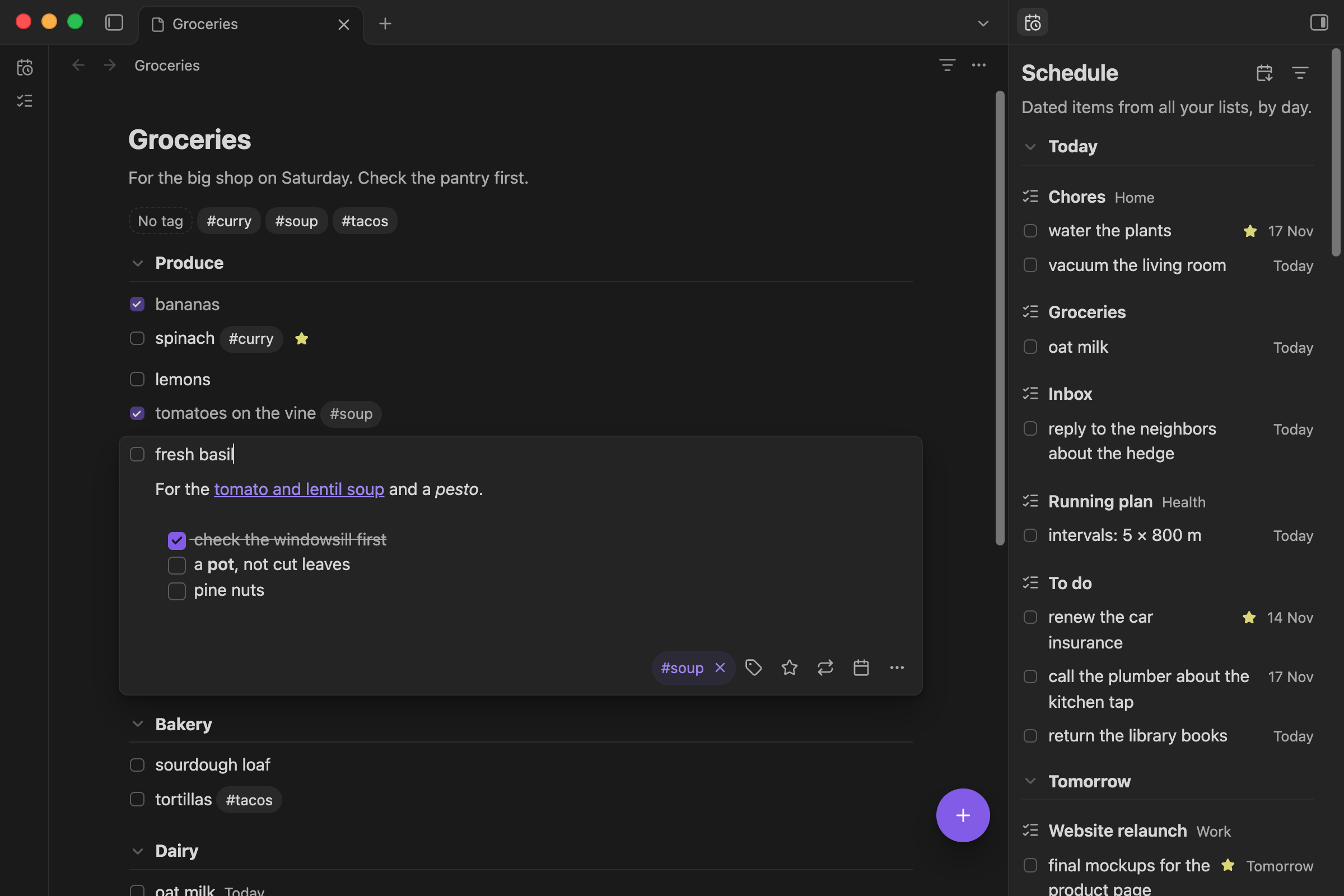
PrinceLists turns a note into a todo list, and the Schedule shows what's coming up across all your lists.
A quick tour
Lists
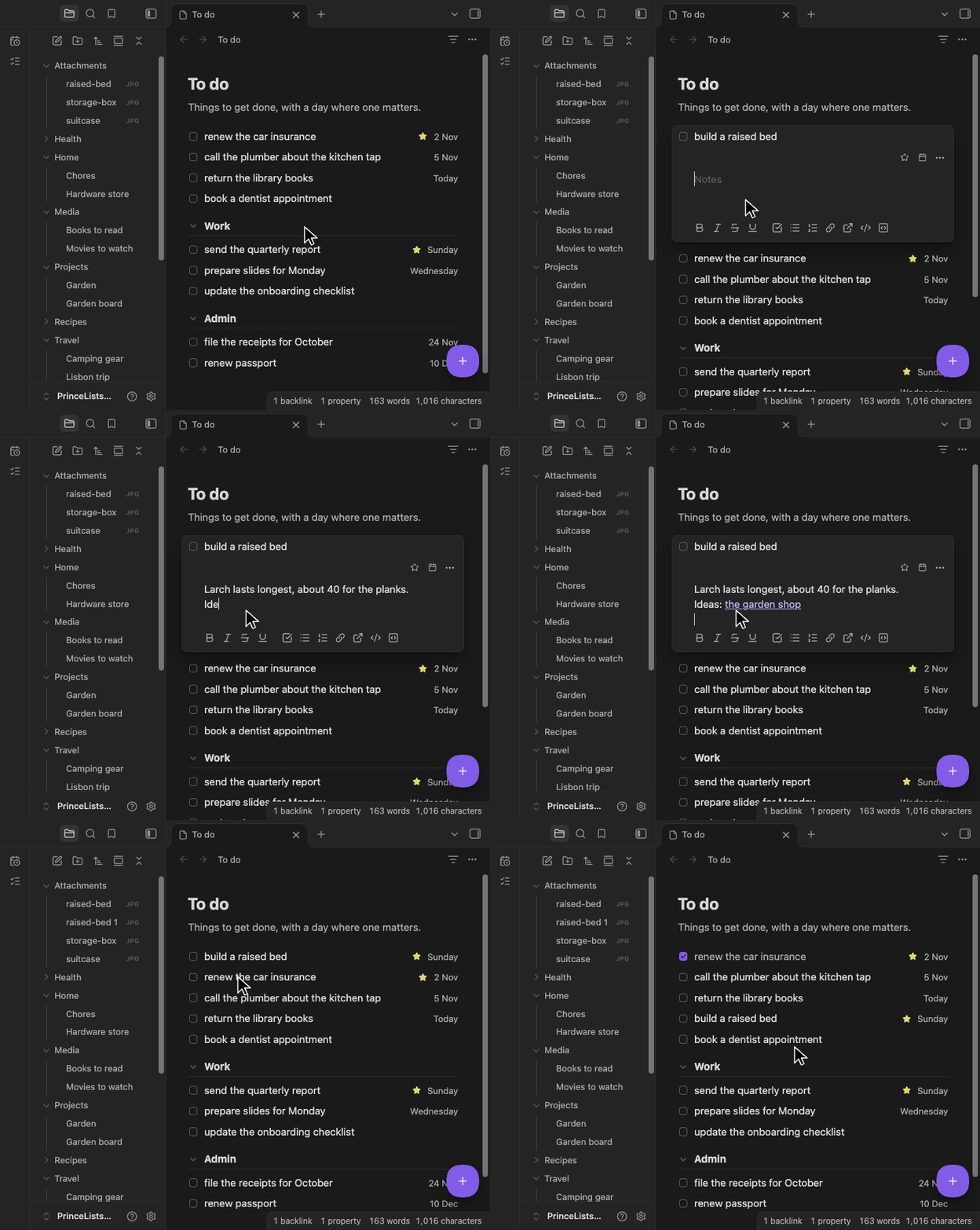
Tick, drag and add items right where they go.
Make a list
From the ribbon, a folder, or a note you already have.
| Click the list icon in the ribbon | Right-click a folder in the sidebar | Right-click a note to turn it into a list |
|---|---|---|
Find
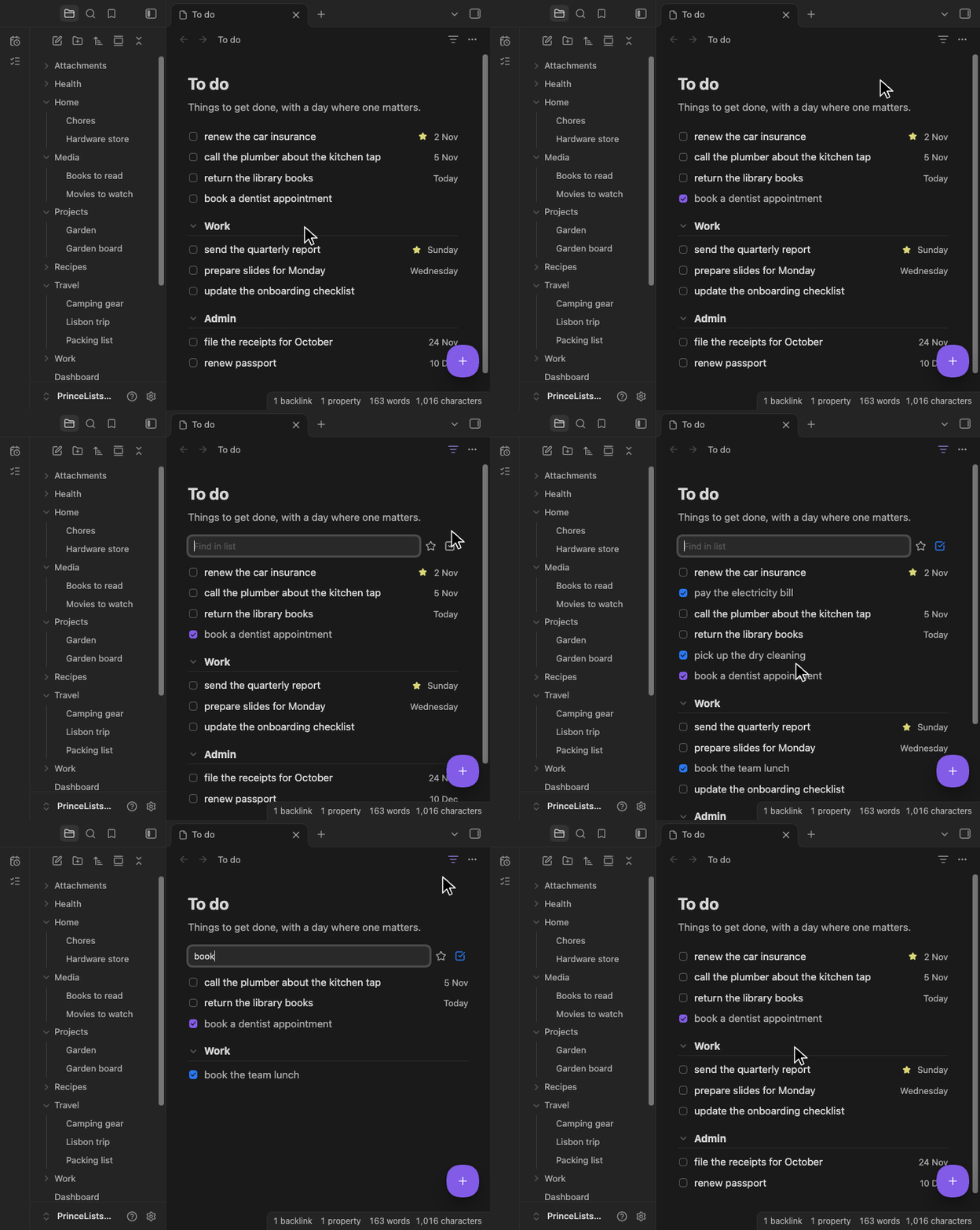
Filter a list by text, and bring back ticked items.
Tags
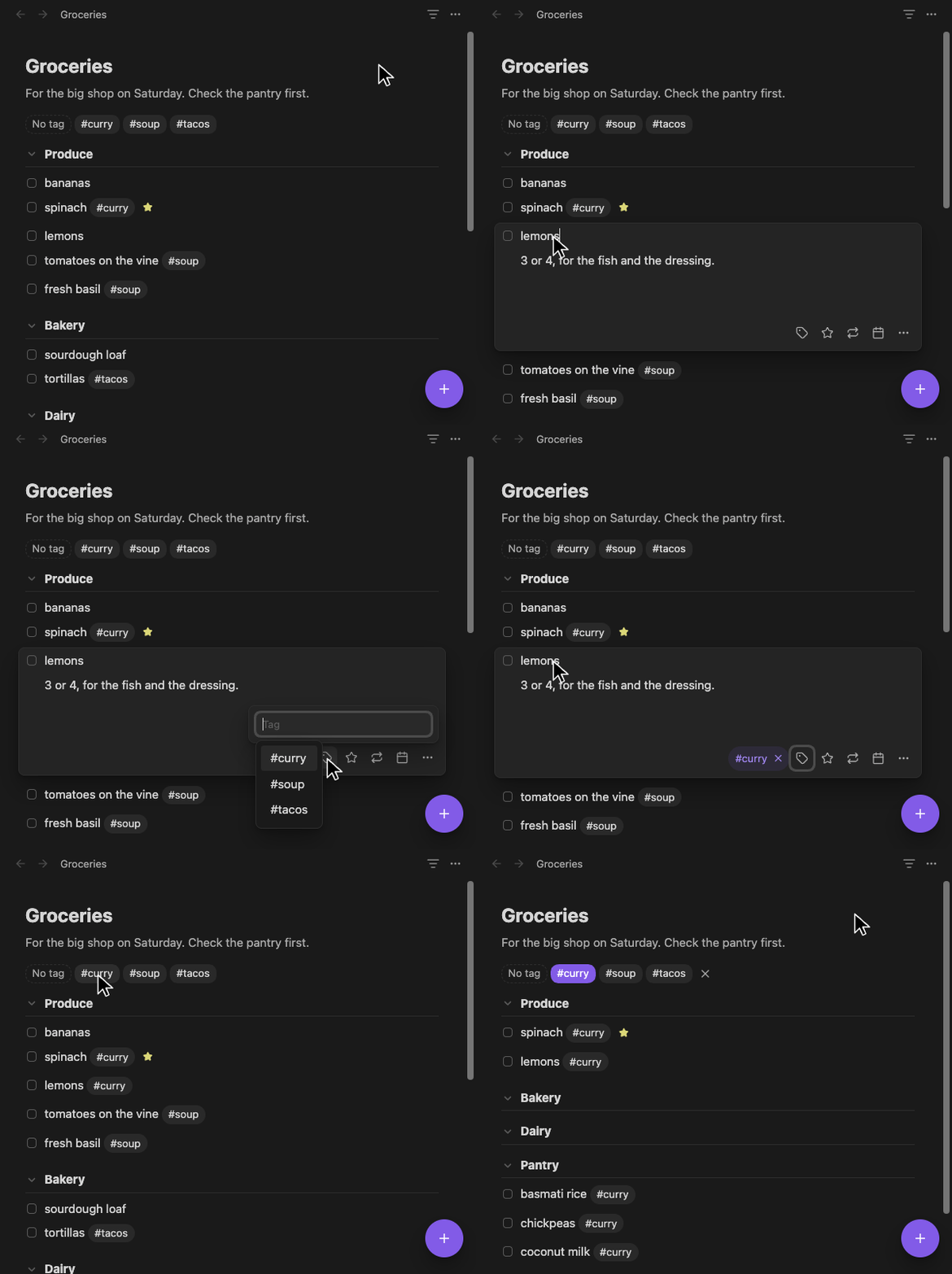
Tag items, then click a tag to see only those.
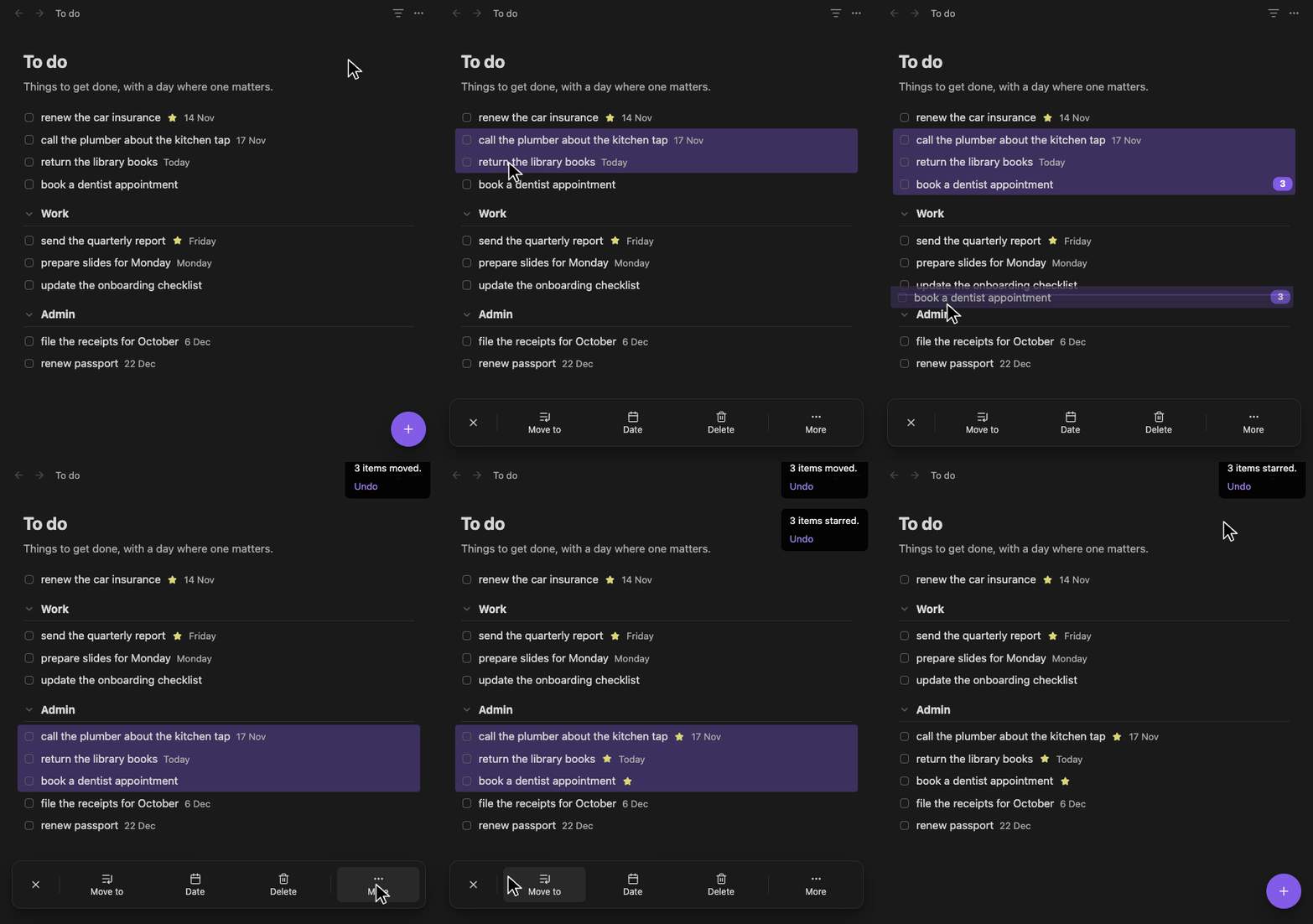
Select several
Hold an item, add others, and act on them all at once.
Notes
Every item has notes, with full Markdown and a toolbar.
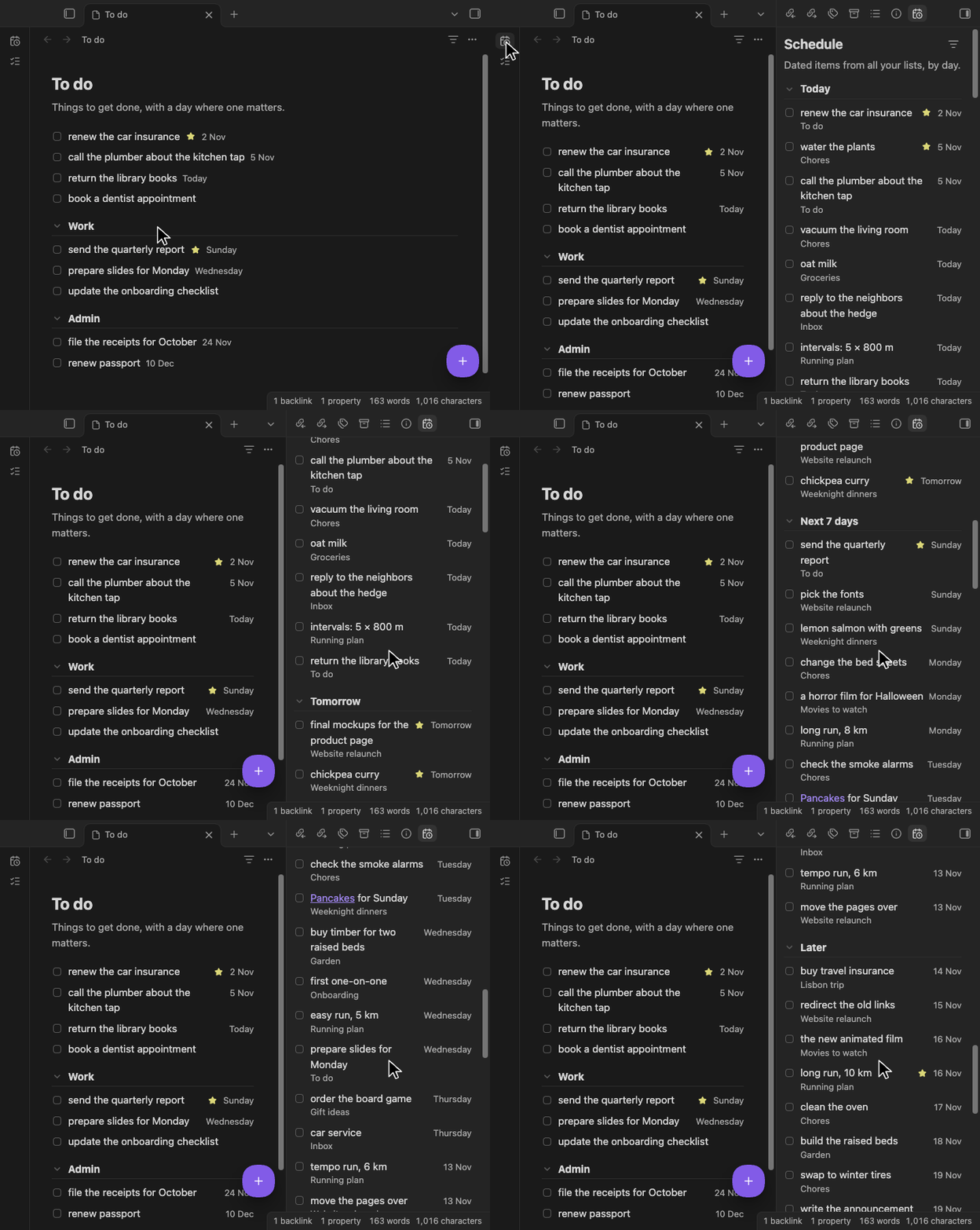
Schedule
Dated items from all your lists, in one sidebar.
On your phone
Made for touch, with the same lists.
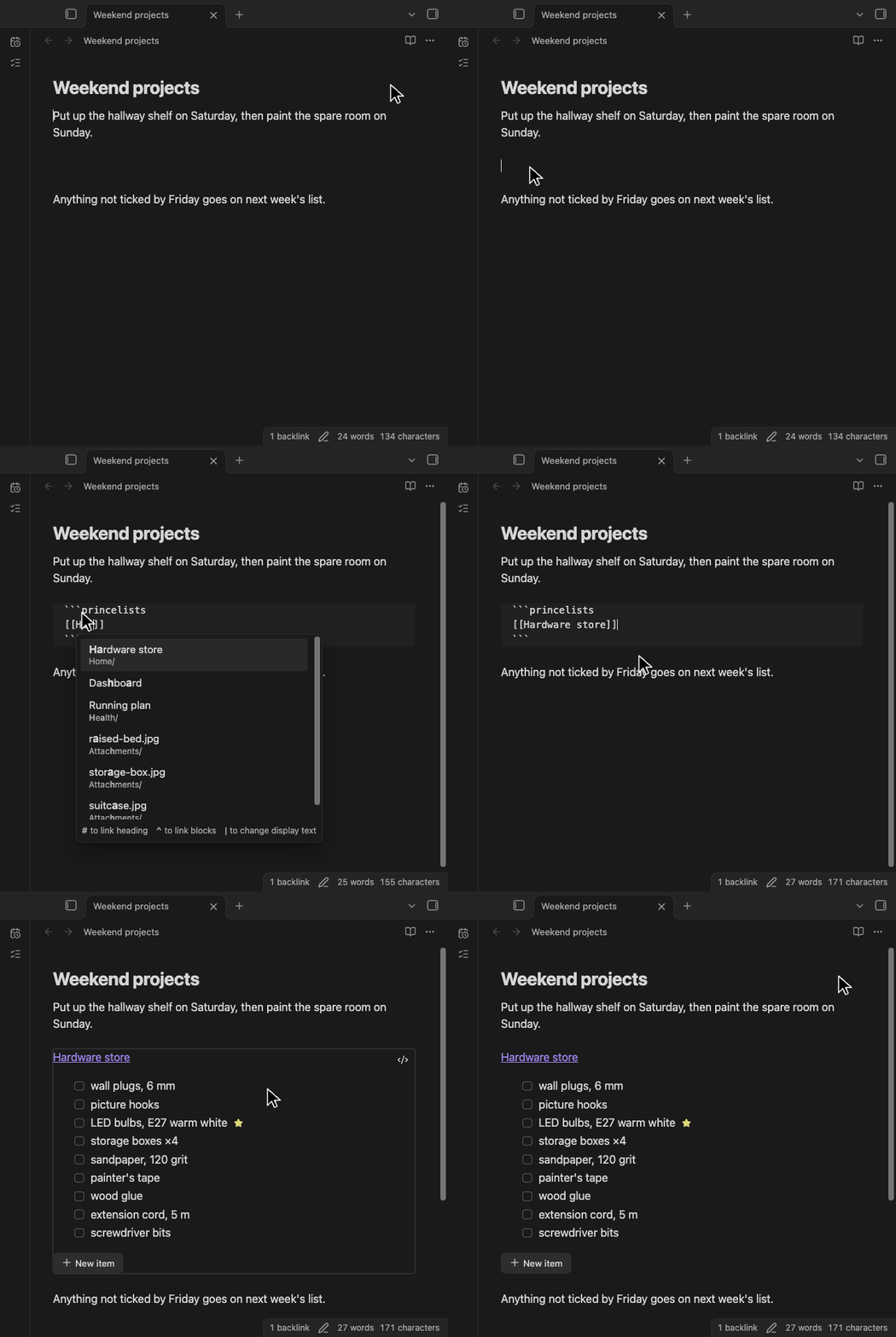
Lists inside notes
Embed a list in any note, and tick it there.
```princelists
[[Hardware store]]
```
Full feature list
Lists
- Any note can be a list: make one, or turn a note with checkboxes into one.
- Back to Markdown with Open as Markdown, or for good with Turn into note.
- Sections come from headings: drag them, or collapse one or all.
- A note for the list sits under its title.
Items
- Add with the floating +, or drag the + to where the item goes.
- Drag to reorder.
- Star an item and give it a date.
- Repeat every few days, weeks, months or years; a ticked item comes back open once its date has come and you next open its list or the Schedule.
- Tags on an item, from its card or right-click menu; a tag in a heading (
## Office #work) counts for its section, and one in the list'stagsproperty for every item. - Select several by holding an item, or with Cmd+click and Shift+click, to move, date, tick, tag, star, duplicate or delete them at once.
- Tick and forget: ticked items hide after a day, or the time you choose.
- Find items by title, notes or date, and show only starred items, or archived ones too.
- Filter by tag from the strip above the list, or show the items with No tag.
- Duplicate an item with its notes.
- Delete with Undo.
Notes on an item
- Edited like a note, with Markdown shown only where the cursor is.
- Any Markdown: links, checklists, tables and code, with a toolbar.
- Paste from the web as Markdown.
- Pictures: paste or drop them in.
Across lists
- The Schedule shows dated items by day and by list, or in date order with Sort by date. The ribbon icon opens it.
- A list inside another note can be ticked and edited there.
- Works with Tasks: dates use the Tasks plugin's format.
Keys and devices
- Shortcuts: Cmd+Enter adds an item, Cmd+F filters, Cmd+Shift+A shows or hides archived items, Cmd+Z undoes. Use Ctrl on Windows and Linux.
- Right-click menus on items, headings, pictures and the list.
- Made for touch: finger-sized buttons, and hold to select or drag.
- Fits your theme, light or dark.
- Settings: a folder for new lists, when ticked items hide, the tag strip, where the floating + shows, a Schedule button in each list's header, and the Schedule back in the sidebar if you closed it.
Quick start
- Install PrinceLists from Settings → Community plugins → Browse, and enable it. It's listed in Obsidian's community directory.
- Make a list with the list icon in the ribbon, or right-click a folder and choose New list.
- Add items with the +. Click one to add notes, a star or a date.
Already have a note with checkboxes? Right-click it and choose Turn into list. Items already ticked hide at once, and Show archived items shows them.
- Download
main.js,manifest.jsonandstyles.cssfrom the latest release. - Put them in
<vault>/.obsidian/plugins/princelists/, where<vault>is your vault's folder. - In Settings → Community plugins, turn on community plugins if Restricted mode is on, and enable PrinceLists under Installed plugins.
How a list is stored
---
princelists: true
---
Stuff for the new apartment.

## Kitchen
- [ ] cutting board
- [ ] freezer storage boxes ⏳ 2026-10-21 📅 2026-10-30

	Buy 6:
	- one for the freezer
	- five for the pantry
- [x] glass jars 1 l ✔ 2026-10-20 23:55
princelists: truemakes a note a list.tagsis the list's tags, as intags: [home, errands], set with Tag list… in the list's menu, in Obsidian's file properties sidebar (Show file properties) while the list is open, or with Edit in Markdown. Write the tags without a#, or quote it: an unquotedtags: #homeis a YAML comment and gives the list no tag. Every item counts them.- Headings are sections, checkboxes are items, and lines indented under an item are its notes.
- An item's date is the Tasks plugin's scheduled date, ⏳. Other Tasks fields, such as 📅, stay as they are, except that a repeating item's 📅 and 🛫 move with its ⏳ when it comes back.
✔with a time marks when you ticked an item. Tasks still sees it as done.- Only the lines you edit change. The rest of the note stays as you wrote it. The one exception is a repeating item coming back, which changes its own line and unticks the checklist in its notes.
The full format is in the design.
Good to know
- Private: PrinceLists works only on notes Obsidian opens: your vault's, and on desktop a note you open from outside it. No network requests of its own, no data collected, no account. A picture linked from the web loads as in any note. What Obsidian's plugin directory notes:
- Vault enumeration: to find your lists, the Schedule goes through your vault's list of notes, and reads only the lists.
- Clipboard access: only when you ask. Copy image, Copy text, Cut and Copy write to it. Paste and Paste as plain text in the right-click menu read it, and what you paste with Cmd+V is read from your paste. PrinceLists never reads the clipboard by itself.
- Obsidian Sync: turn on Sync's "Active community plugin list" and "Installed community plugin list" to get PrinceLists on your other devices. If two devices edit a list within seconds, Sync can drop one change, as in any note. Sync's "Create conflict file" setting keeps both, as extra lists.
- A repeating item stays ticked in the file until it comes back, so until then Tasks queries and other apps show it done.
- Renamed a list? Update the blocks that show it in other notes.
- On iOS, a picture dropped from Photos may not reach Obsidian; paste it instead.
- Made for Obsidian on macOS, iOS, Android and Windows. If something looks wrong, open an issue.
Contributing
Bug reports, ideas and pull requests are welcome.
- Start with CONTRIBUTING.md and the rules in AGENTS.md.
- Be kind: see the code of conduct.
- The designs listed in AGENTS.md say what the plugin does and why.
- To report a security problem, see SECURITY.md.
License
MIT. The built main.js includes commonmark.js, entities, mdurl, @codemirror/lang-markdown and @lezer/markdown, and adapts the Tasks plugin's field patterns, under their own licenses: see THIRD_PARTY_NOTICES.