README file from
GithubPower Desk
Your calendars and your mail, inside Obsidian. Connect Microsoft 365 (several accounts at once), Google Calendar, CalDAV (iCloud, Fastmail, Nextcloud), and ICS feeds, then see them in month, week, day, or agenda views with a mail inbox beside them and a note for every event.
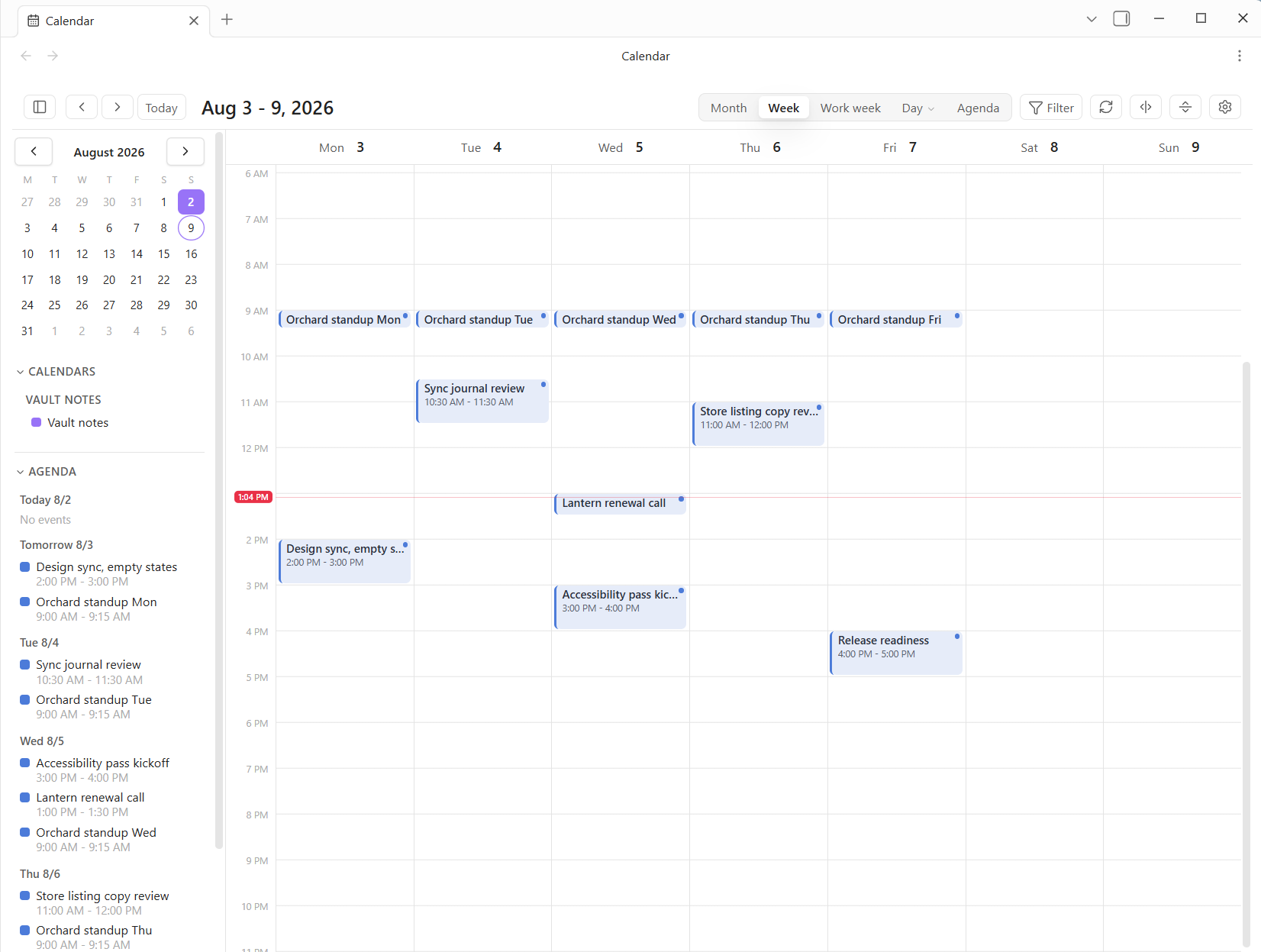
Microsoft 365 and Google events are fully editable: drag across empty space to create one, drag it to move it, edit or delete it from its card. CalDAV and ICS stay read-only.
Formerly Power Calendar. Settings migrate automatically, and the old power-calendar code block keeps working forever, so existing daily-note templates are untouched.
The calendar
Month is a classic grid, with all-day events as banners and a crowded day collapsing to "+N more". Week, Work week, and Day give you a timed grid with overlapping events side by side and a red line that knows what time it is. Agenda is the next few days as a readable list with join buttons.
Click any event for its card: time, location, organizer, attendees, description, RSVP buttons, and the actions. The card can be dragged and resized, and it remembers where you put it.
- Create by dragging across empty grid, double-clicking a slot, or pressing
C. - Move and resize by dragging. Times snap to 15 minutes, and Escape cancels.
- Invite people, set a repeat (daily, weekly, monthly, yearly), add an online meeting (a Teams meeting on Microsoft 365, a Google Meet on Google), RSVP to invitations, and set yourself Busy, Free, or Tentative.
- Check availability while drafting a Microsoft 365 meeting: free/busy bars for each invitee, with your draft slot overlaid.
- Editing or deleting a repeating event asks whether you mean this occurrence or the whole series, exactly like Outlook.
Find events searches words anywhere in an event, including its description, plus organizer, attendee, location, and date range. Results appear in the window rather than replacing the calendar, because "when did I meet Deanna about Kore" is usually a question you read the answer to.
Also here: a mini month navigator behind the title, an optional second time zone beside the hours, and Copy free slots, which reads your next five workdays and puts your open times on the clipboard as text you can paste into an email.
Print offers the two shapes a calendar has on paper: an agenda list, or the month grid in landscape. A timed week grid on paper turns an hour into a few millimetres, so the list is the default everywhere except month view.
Calendar and mail share the same accounts, so Power Desk carries a full inbox: every mail-enabled Microsoft account in one list, a reading pane, and compose.
Two bridges make mail belong in a vault:
- Make event turns an email into a prefilled new event, with the sender already invited.
- Save to note files the message in your vault as Markdown, headings, lists, links and inline pictures included, with a link back to the original. The pictures are written beside the note, so a saved-mail folder under Power Connect protection keeps them encrypted too.
Reading and triage
- A folder pane with every account's full tree and unread counts, exactly as in Outlook. Create, rename, and delete folders, and drag one onto a sibling to keep the folders you live in at the top.
- Unread Mail, the Outlook-style search folder: every unread message across the inbox and its subfolders in one list.
- Split inbox groups the list into Priority, Focused, Other, and Notifications, the way Spark and Shortwave bundle. Notifications sits above Other on purpose, because ticket and build mail is work.
- Conversations group a back-and-forth into one row. Search results are never grouped, since burying a match inside a collapsed thread would misreport what matched.
- New mail announces itself with a notice naming who wrote and what about, plus a desktop notification when Obsidian is not in front. It never announces on the first check after startup, never twice, and never mail you already read elsewhere.
- Mark-as-read behavior is yours to pick, exactly as in Outlook: on selection, after a delay, on change, or only by hand.
Acting on mail
Reply, forward, archive, delete, flag, categorize, and move, all writing back to the real mailbox so Outlook sees them too.
- Snooze parks a message until later today, tomorrow, the weekend, or a time you pick. It moves to a real Snoozed folder in your mailbox rather than hiding inside the plugin, so the worst case is a visible folder you can file by hand.
- Move to folder with a fuzzy picker over the whole tree, or by dragging. Recent destinations sit at the top, since the same three or four take almost everything.
- Categories are the mailbox's own, in Outlook's colors, and each account's tree carries a Categories branch: click one to see everything carrying that label, wherever in the mailbox it is filed. Pin the ones you use to Favorites, and drag one above another to set the order the branch reads in. Dragging a message onto a category tags it rather than moving it, because a label is not a destination, so the mail stays exactly where you filed it.
- Unsubscribe appears beside the sender's name on any message whose headers say how to leave, rather than in six-point grey at the bottom. It always asks first and names the exact destination, because those addresses come from the message itself.
- Inbox rules are the same rules Outlook shows, edited here. They run in the mailbox, so mail is filed whether or not Obsidian is open. "Create a rule from this" on any message opens the editor with the sender filled in.
- Report as junk, phishing, or not junk. The junk one uses a supported API; the other two are marked (preview) because they run on a beta endpoint Microsoft may change.
- Automatic replies set your out-of-office per account, with a band across the inbox while one is running, which is the part that stops an away message answering for a fortnight after you got back.
Writing mail
- Compose in a draggable, resizable window with a real formatting bar. From is an account picker when you have more than one mailbox, and changing it swaps the signature without touching what you typed.
- Signatures work the way Outlook's do: as many as you want, one for new messages and another for replies. Embedded images become proper inline attachments when sent, because Outlook and Gmail have blocked data-URL images for years and a logo sent that way simply does not appear.
- Attach files from your vault or your computer, with a warning past 30 MB. They upload when the message sends, so attaching is instant.
- Undo send holds a message for a few seconds while a notice offers Undo. Taking it puts the window back exactly as it was.
- Send later is genuinely server-side: Exchange releases it at the time you set, whether or not Obsidian is running.
- Recipient autocomplete ranks the people you actually correspond with, built from your sent mail, your received mail, and your calendar, so it needs no extra permission.
Searching
Typing runs against a local index of the mail already on this device and narrows on every keystroke, with no network at all. Pressing Enter runs the same words against the whole mailbox. The title says which you are looking at ("14 here" against "14 in the mailbox"), because those are different claims.
The search box speaks a small query language: bare words, from:name, subject:word, is:unread, is:flagged, has:attachment, after:2026-01-31, and "an exact phrase". An advanced search window builds the same query from fields and shows you what it built.
Extra windows
Each opens from the palette or either toolbar, and each remembers its own size and position.
- Tasks: your Microsoft To Do lists and your flagged mail in one place, which is what Outlook's To-Do bar shows and for the same reason.
- People: everyone you write to, hear from, or meet with, ordered by how much you actually deal with them rather than by whether anyone remembered to save them. Your saved contacts merge in, bringing job title and phone.
- Journal: a day at a time, showing the meetings you sat in, what you sent, what arrived, and the notes you touched. Add to the daily note writes it into your vault, appending rather than overwriting.
- Outlook notes: read, write, and delete the sticky notes in your mailbox, with no extra permission needed. Save to the vault turns one into a real note, which is the thing Outlook cannot do.
- Shortcuts: mail folders, saved searches, vault notes, and links, in groups you arrange. The folder you file into and the note you write in it, side by side.
- Folders: the whole tree of every account for looking after folders, including mark everything read.
Keyboard
The mail list is keyboard-first: J/K walk messages, ↵ opens, R replies, A replies all, F forwards, C composes, E archives, S flags, B snoozes, V files, Del deletes, / searches, and ? shows the whole card. Nothing fires while the caret is in a field.
Ctrl/Cmd+K opens a command palette covering every folder and every action that applies right now, so you never have to know whether what you want is a place or a verb.
With the calendar focused: T for today, M W D A for the views, 5 for the work week, arrows to page, C for a new event, / to find one, R to refresh.
Both toolbars are yours to arrange
The calendar and the mail view each have a toolbar you configure from the gear at its end: pick the buttons, drop the ones you never use, and drag them into order. Mail ships in Outlook's own order, which is what your hands already know, and anything left off keeps its keyboard shortcut and its palette entry, so a short toolbar gives up nothing.
The panel button folds the whole left sidebar away for these two tabs only. Step onto a note and it comes back. Nothing else ever moves your layout.
Your agenda inside any note
Put a code block in a note and the day's events render right there:
```power-desk
```
With no options it reads the day from the note's own filename, so a daily note named 2026-07-18 Saturday shows that Saturday. Add date: to pin a day or days: 3 to widen the span. Drop it into your daily-note template once and every day has its agenda.
Notes, people, and bases
Every event can carry a note, written with queryable frontmatter and the attendees as links. Events whose note already exists show a small dot.
Attendee names on an event card are links to that person's page, created on first visit. With Power Assistant installed it uses the same People folder, so meetings and meeting notes connect to the same person.
Create events base drops a ready-made table over your event notes, using Power Bases when it is there.
Connecting your calendars
Settings has a tab per source, each with its own Add account button. Several accounts of the same kind can be signed in side by side, and each calendar gets its own toggle and color.
Microsoft 365
Uses your own free Azure app registration, so your password never touches Obsidian. Press Show the steps in settings for a walkthrough with the exact value for every field. In short:
- At portal.azure.com, go to App registrations > New registration. Supported account types: any tenant plus personal accounts. Leave the redirect URI empty.
- Under Authentication, turn on Allow public client flows.
- Paste the Application (client) ID into settings and press Connect. Single-organization apps also need the Directory (tenant) ID.
You consent to the permissions at first sign-in. Sign-in uses a device code, so it works on phones and tablets too.
If Power Assistant is already connected to Microsoft 365, Power Desk borrows its registration and those three steps disappear.
Mail needs a one-time Reconnect to grant its permissions. Sender photos, saved contacts, and To Do each sit behind their own permission, so you only grant what you use.
Google Calendar
Google requires your own free Google Cloud project, because their terms forbid shipping shared credentials in an open-source plugin. About five minutes, once:
- At console.cloud.google.com, create a project.
- Enable the Google Calendar API.
- On the OAuth consent screen, choose External and press Publish app. Do not leave it in Testing mode: test-mode tokens expire every 7 days, which reads as being signed out weekly.
- Create an OAuth client ID of type Desktop app and paste its id and secret into settings.
- Press Add account, pick Google, and finish in your browser.
Sign-in runs on desktop; after that the connection syncs to your phone with the vault.
Vault notes
The source no other calendar can have: your own notes. Point it at a folder and a date property, and every matching note becomes an event beside your real calendars. Drag one and its frontmatter is rewritten, which makes deadlines reschedulable from the calendar. Entirely local, and updates appear as you edit.
CalDAV and ICS
iCloud, Fastmail, Nextcloud, Radicale, and anything else speaking CalDAV. iCloud and Fastmail need an app-specific password rather than your normal one. ICS feeds are read-only subscriptions: paste the URL and name it.
Network use
This plugin talks to the network only for the calendars you configure.
login.microsoftonline.comandgraph.microsoft.comfor Microsoft 365, only after you connect an account.accounts.google.com,oauth2.googleapis.com, andwww.googleapis.comfor Google, only after you connect one through your own project.- The CalDAV servers and ICS feed URLs you add.
open-meteo.comfor the optional weather strip, and only once you set a location for it. Leave it empty and neither host is ever called.
Calendars, inboxes, and folder trees are cached beside the plugin so both views paint instantly on launch and refresh in the background. That file holds data only, never tokens, and can be deleted freely. Mail syncs by delta, so a check that finds nothing is one small request per account, and only what you are looking at is polled.
What the catalog's scan reports
The community catalog scans a plugin for what it is capable of, which is not the same as what it does with it. Power Desk reports three things.
| What the scan reports | What it is | Where |
|---|---|---|
| Vault enumeration | Listing your notes, in two places: gathering events from a vault folder you nominated as a calendar source, and offering files in the attachment picker. Only the notes under a folder you chose are read. | src/main.ts vaultEvents, the attachment picker |
| Clipboard access | Writing, never reading. Eight places, each a button or a row you clicked: a message's text, an attachment's name, the day's agenda, a person's address, the two sign-in device codes, and two setup values. Nothing reads your clipboard anywhere in this plugin. | src/main.ts, the copy buttons |
| Local network listener | Google sign-in only. OAuth for a desktop app returns its result to a loopback address, so a server binds to 127.0.0.1 on an ephemeral port, catches the one redirect, and closes. Bound to loopback rather than every interface, so nothing outside your machine can reach it, and a timer closes it either way. Microsoft sign-in uses a device code and needs no listener. |
src/google.ts |
Mail is HTML written by whoever sent it, which is the one place this plugin handles content it did not author. Every message body goes through Obsidian's own sanitizeHTMLToDom before it reaches the page, in the reading pane, the print view, and the quoted original of a reply. That matters more than it looks: assigning HTML would not run a <script> tag, but it would run an inline handler like <img onerror=...>, and the sanitizer is what removes those.
There is no eval, no Function constructor, and no code fetched and run at runtime. Every network call goes through Obsidian's requestUrl; there is no fetch in the built main.js at all. No processes are started.
No telemetry of any kind exists. The only calendar writes are the ones you make yourself. Sign-in tokens and CalDAV credentials live in this plugin's data.json inside your vault, so if you sync your vault, they sync with it.
More Power Plugins
Each one works on its own, and they fit together when you have more than one.
- Power Assistant: record and summarize meetings, capture anything from a link, and ask your notes questions.
- Power Bases: board, calendar, timeline, chart, and gallery views for Bases.
- Power Connect: sync your vault through your own Dropbox, OneDrive, or Google Drive.
- Power Editor: a formatting toolbar, drag-and-drop blocks, and WYSIWYG editing.
- Power Explorer: arrange files by hand, and search a huge vault instantly.
- Power Extract: reads the text inside images so you can search it.
- Power Tables: colors, live formulas, and sorting for Markdown tables.
Power Desk stands alone and has no required companions. When a sibling is present it borrows quietly and works the same either way.
License
MIT
Support
Power Desk is built and maintained by one person. If it earns a place in your daily vault, you can buy me a coffee. Nothing in the plugin is held back either way.