README file from
GithubPower Assistant
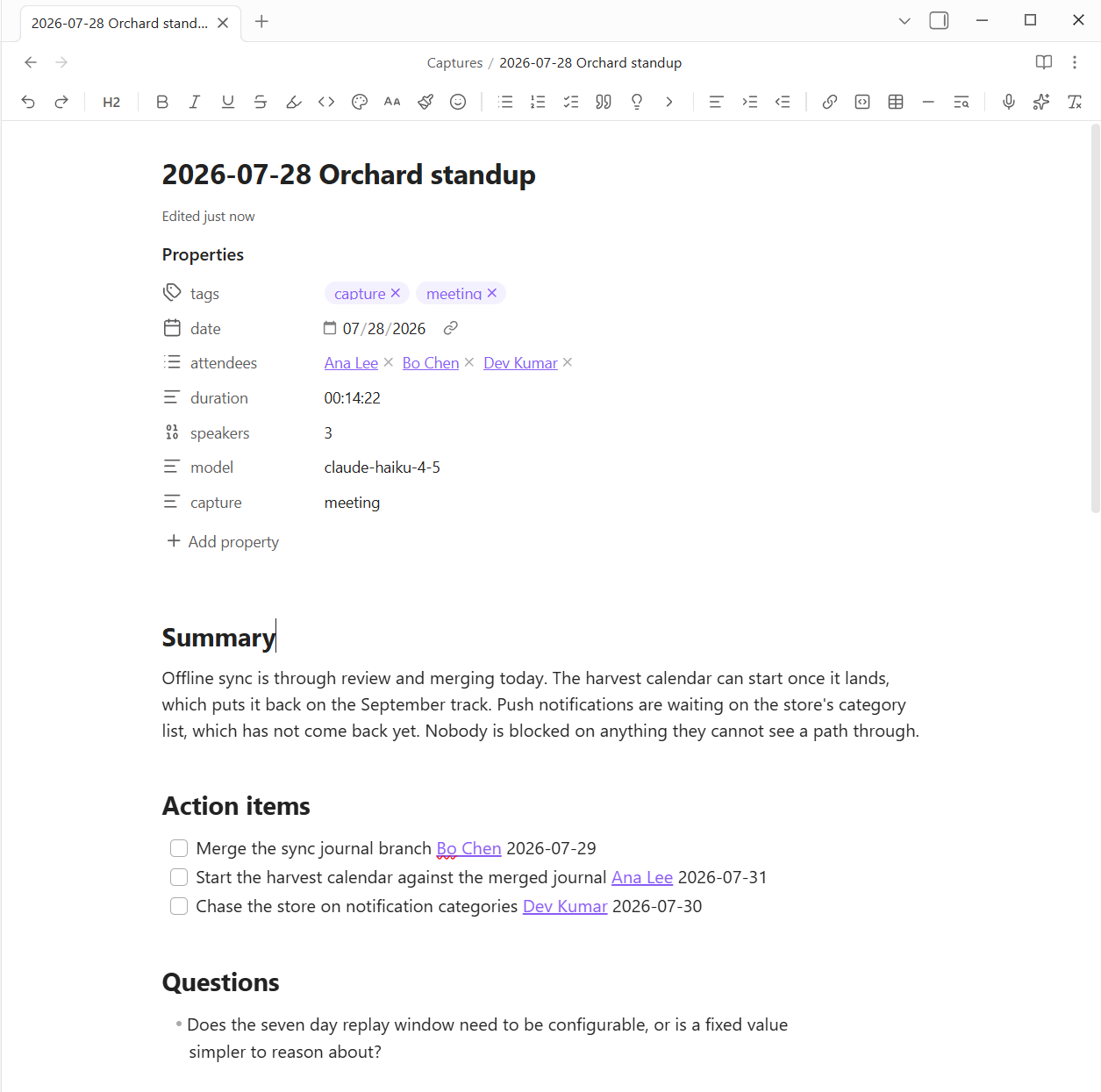
Turn meetings, voice memos, videos, and web pages into proper notes. Record a meeting and get back a summary, action items with owners and dates, decisions, and the full transcript, with the audio embedded so you can click a timestamp and hear the moment.
Then ask your notes questions and get answers with links back to where they came from.
Setup
You need two things: something to turn speech into text, and something to write the notes. Both have a test button in settings.
Transcription. Four choices. Whisper points at any OpenAI-compatible service (Groq is the default, and it is fast and cheap) but gives no speaker labels. AssemblyAI and Deepgram label speakers, so you can see who said what. WhisperX does speaker labels on your own machine: the server ships inside the plugin, and Show install steps gives you the one command that sets it up, so no audio leaves your network.
Writing the notes. Paste an Anthropic API key, or point the plugin at a server running on your own machine (Ollama, LM Studio, llama.cpp) and everything runs locally for free. Leave both empty and you still get transcripts, just no AI summaries.
Costs are not printed here, because a number baked into a plugin goes stale without anyone noticing. Check the provider's own page, and use the built-in usage meter to see what this vault is actually spending.
Recording a meeting
- Click the mic in the ribbon to record. A panel opens with a timer and a live level meter so you can see it is working. On desktop it also records system audio, so both sides of a Teams or Zoom call are captured.
- Prep a meeting first. The calendar ribbon icon creates a dated note with a title, attendees, and agenda. Choose Create and record and the summary and transcript land under your agenda.
- Fill it from an invite. Paste an Outlook invite, load an
.icsfile, or connect your Microsoft 365 calendar and pick from your next two weeks of meetings. - Or drop in audio you already have: Zoom recordings, phone voice memos, exported call audio.
- Pause and resume mid-meeting. The saved audio has no gap and the timestamps stay right.
- Crash-safe. Audio is written to disk as it records, so a crash mid-meeting loses nothing. Long sessions split into parts automatically so nothing hits a provider's size limit.
On a phone, turn Process on this device off. Record there, and your desktop does the work when the file syncs over.
What lands in the note
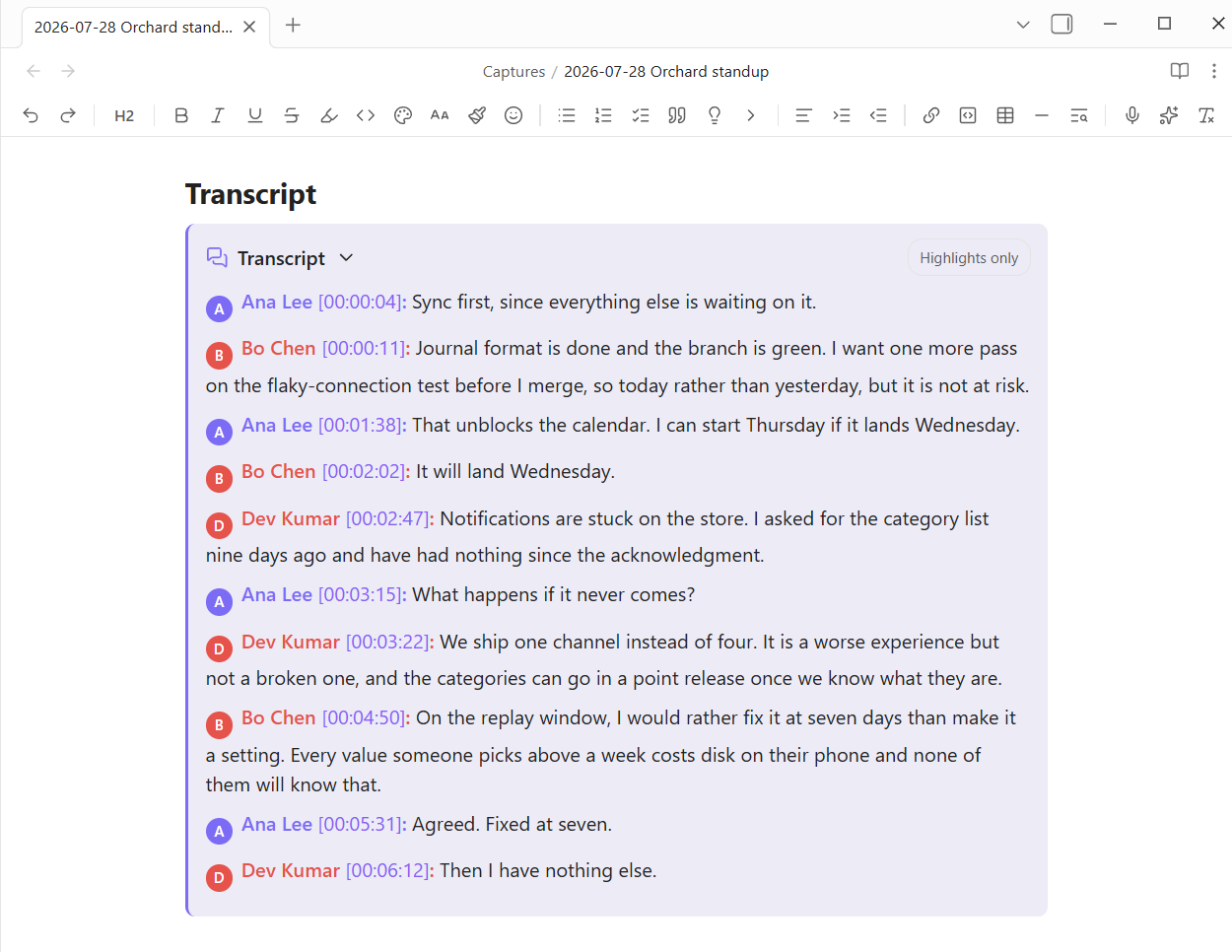
- Click a timestamp, hear the moment. Every
[12:34]in the note seeks the audio and plays. - Real names, not Speaker A. The AI reads the transcript for introductions and proposes who each speaker is, and a small dialog lets you confirm or fix it. Nothing is guessed from outside the transcript.
- Voices it remembers (opt-in). With WhisperX, name a speaker once and the next recording already suggests them. It also catches a "Speaker 2" that is secretly two people and splits them apart.
- Crosstalk is labeled honestly. When people genuinely talk over each other, the turn says so instead of quietly crediting whoever was loudest.
- Action items are real tasks:
- [ ] Task [[Owner]] 📅 2026-07-18. They show up in any todo dashboard with a link back to the meeting, and "by next Friday" resolves to an actual date. - Recurring meetings remember. When a meeting matches an earlier one, the note gets a Carried over section listing what is still open, each item linking back.
- Who did the talking: a Speakers line with each person's share, plus a keywords line so vault search can find the meeting later.
Capture more than meetings
- Capture from a link. Paste any URL and the plugin works out how to read it: a YouTube video uses its free captions, a video or social post is downloaded and transcribed, and anything else is read as an article. It tells you which it picked, and you can override it.
- Video and social: X, TikTok, Instagram, Facebook, Reddit, LinkedIn, Bluesky, Vimeo, Twitch, and about 1,750 more. These need a transcription key and the free
yt-dlpprogram. An X post that is only words needs neither. - Web pages are fetched, reduced to the article, and summarized, with the full text kept underneath. No audio, so no transcription cost at all.
- Bills and receipts. Right-click an image or PDF and choose Process document, or drop it into a watched folder. The vendor, date, amount, and type are pulled out, the file is renamed and filed by year, and a note lands beside it. Filing rules can route them your own way.
- Transcripts you already have. Import Otter, Teams, and Zoom exports and get the same first-class note, with no transcription cost.
Ask your notes
- Ask your vault answers questions like "what did we decide about the Q3 roadmap?" with links into the notes it used. It searches your notes first and answers only from what it found, so nothing is invented.
- Sidebar chat keeps a running conversation grounded in your vault, and survives closing the panel. Save summary writes a good conversation up as its own note.
- Ask about one meeting. Right-click a meeting note for a chat scoped to just that meeting, with starter questions.
- With Power Explorer installed, Ask uses its vault-wide index instead, which covers PDF pages and text inside screenshots.
- Semantic search (opt-in) finds a note by meaning even when you do not recall its exact words. Point it at local Ollama and it stays on your machine.
Follow-up and review
- Morning briefing: today's meetings with join links, commitments due or overdue, bills coming up, and recent open questions. It can open itself once a day.
- Draft from a meeting: a follow-up email, status update, or recap, grounded in that meeting's decisions, in the tone you pick.
- Email any page from your own Microsoft 365 mailbox. You see it rendered as they will read it before anything sends. Your
%%comments%%and the note's frontmatter never leave. - Export as a Word document: a formatted recap with a title block, styled headings, and an Owner / Task / Deadline table, produced entirely on your machine.
- Person reports and 1:1 prep: a hub for anyone you meet with, showing their open commitments, the decisions they were part of, and your meeting history.
- Weekly digest: the week's decisions, commitments by owner, and anything going stale.
- Redaction for sharing masks emails, phone numbers, and card numbers in a copied summary or an export. It never touches the note itself.
Connect Microsoft 365 (optional)
Only needed for importing your calendar and emailing a page. Pasting invites and .ics files works with no setup at all.
It uses your own free Azure app registration, so nothing goes through a third party and your password never touches the plugin. If you have the Azure CLI, run tools/entra-app-setup.ps1 and it does the whole thing in one pass, then prints the two ids to paste into settings.
By hand, in the Azure portal:
- Microsoft Entra ID > App registrations > New registration. Name it anything and register.
- On Authentication, set Allow public client flows to Yes.
- On API permissions, add Microsoft Graph delegated Calendars.Read and Mail.Send.
- Copy the Application (client) ID and Directory (tenant) ID into Power Assistant's settings.
- Click Connect, open the sign-in page, enter the code, and approve.
Tokens are stored locally in this vault. Disconnect removes them.
Privacy and network use
Power Assistant talks to outside services only when you use the feature that needs it, always with your own keys, stored locally in your vault. No telemetry, no analytics, and nothing running in the background beyond the folder watchers you set up.
- Transcription: your audio goes to the provider you chose. Point Whisper or WhisperX at a machine on your own network and it never leaves. No key means no upload.
- AI extraction, speaker naming, drafting, Ask, and chat: transcripts, note excerpts, and your questions go to the model you configured. Point it at your own server and nothing reaches Anthropic. With neither set, no AI calls happen and you still get transcripts.
- Voice identity (opt-in, off by default): a voiceprint is biometric data, which is why this is a deliberate choice. Voice vectors are computed by your own WhisperX server, never a cloud provider, and the library is a plain file in your vault that you can open and delete. You are fingerprinting other people's voices: check what consent your workplace or jurisdiction expects before enrolling colleagues or customers.
- Live transcript (optional, off by default): audio streams to AssemblyAI in real time.
- Microsoft 365 (optional): sign-in happens in your browser against your own Azure app. Tokens stay in the vault; your password never touches the plugin.
- Email this page (optional): the only feature that sends anything to another person. Nothing goes anywhere until you fill in a recipient and press Send, and you see the mail first. It goes from your own mailbox and files in your Sent Items.
- Semantic search (optional, off by default): indexed notes and each query go to the embeddings endpoint you set. Point it at local Ollama and nothing leaves your machine.
- Video and social capture (optional, desktop only): runs
yt-dlp, a program you install yourself, to fetch the post and its audio, which then goes to your transcription provider. The audio is downloaded outside the vault and deleted afterwards. - Cookies from browser (optional, off by default): off, nothing reads your browser. Set it and
yt-dlpreads that browser's cookies at download time so sites needing a login see you as signed in. Nothing is copied into the vault or the settings. - Web page capture: the page is fetched and reduced to its article on your machine. Its text goes to the AI only if you have a key set. Treat what you capture the way you would any clipping, and mind the source's terms.
- Documents: text is read locally, then sent to the AI for the vendor and amount, like any other note.
- The MCP server (optional): a separate local, read-only process you run yourself. It makes no network calls.
What the catalog's scan reports
The community catalog scans a plugin for what it is capable of, which is not the same as what it does with it. Everything it reports is listed here, with where in the source to check it.
| What the scan reports | What it is | Where |
|---|---|---|
Shell execution via child_process |
One program: yt-dlp, which you install yourself and can point at explicitly. It runs only when you capture a video or social post. There is no shell in between, so nothing is ever parsed as a command line, and every argument is built by the ytDlp*Args functions, which refuse anything but an http/https link in the URL position. Without yt-dlp installed, nothing is ever started. |
src/main.ts runYtDlp, src/pipeline.ts urlArg |
| Vault enumeration | Listing your notes, which is most of what this plugin is for: finding the people and commitments a meeting mentions, matching a recording to its note, indexing for Ask, and the file pickers. The list stays inside Obsidian. Note contents reach an AI provider only through the features above, and only with a key you set. | src/main.ts, getMarkdownFiles call sites |
| Clipboard access | Writing: a summary you asked to copy, the Microsoft device code at sign-in, the WhisperX install command, and a draft you generated. Each is a button you just pressed. Reading: one button, From clipboard, in the meeting-invite dialog, which puts what it read into the textarea next to it so you can see exactly what was taken. Nothing reads the clipboard on its own, on a timer, or in the background. | src/main.ts copySummary, MeetingCaptureModal |
| Filesystem access outside the vault | Temporary files, all deleted in a finally: audio yt-dlp downloads before transcription, subtitle files, and a YouTube cookie file that lives for one download because it holds a live login. The one direct write inside the vault is the partial recording, written through the filesystem rather than Obsidian so a crash mid-meeting still leaves the audio. |
src/main.ts transcribeMediaAudio, youtubeCookieArgs, openPartial |
Both Node capabilities are desktop only. node:fs, node:child_process, and node:os are imported lazily behind a desktop check and every accessor returns nothing on mobile, so on a phone those paths are unreachable rather than merely unused.
There is no eval, no Function constructor, and no code fetched and run at runtime. That holds for the built main.js and not just the source, because the release build refuses to publish a bundle containing either. That check is how the last Function constructor was caught: not ours, but a string-to-function coercion inside a scheduling polyfill buried in a bundled library, unreachable under Obsidian and now rewritten out at build time.
This plugin's own code sets no innerHTML. Two assignments survive in the built main.js, both inside the bundled Mozilla Readability: one restores a cached copy of a page when the first parse is too short to trust, the other lifts an image out of a <noscript> wrapper. Both act on the detached document Readability is reducing, never on Obsidian's UI, and neither is reachable outside a page capture you started.
Every network call this plugin's own code makes goes through Obsidian's requestUrl. Two fetch calls appear in the built main.js: they belong to the bundled @anthropic-ai/sdk, and run only when you have an AI key configured and use a feature that needs it.
Paid keys are optional end to end. Self-host WhisperX for speaker labels, point the AI at your own Ollama endpoint, and use local embeddings for search, and the whole pipeline runs on machines you own.
The MCP bridge
A standalone Model Context Protocol server in mcp/ exposes this vault to Claude Desktop and Claude Code, so you can ask about your meetings and bills without Obsidian open. See mcp/README.md to connect it.
More Power Plugins
Each one works on its own, and they fit together when you have more than one.
- Power Bases: board, calendar, timeline, chart, and gallery views for Bases.
- Power Connect: sync your vault through your own Dropbox, OneDrive, or Google Drive.
- Power Desk: your calendars and your mail, inside your vault.
- Power Editor: a formatting toolbar, drag-and-drop blocks, and WYSIWYG editing.
- Power Explorer: arrange files by hand, and search a huge vault instantly.
- Power Extract: reads the text inside images so you can search it.
- Power Tables: colors, live formulas, and sorting for Markdown tables.
Support
Power Assistant is built and maintained by one person. If it earns a place in your daily vault, you can buy me a coffee. Nothing in the plugin is held back either way.