
README file from
GithubPaipa Gallery
Many images and videos in one tidy, swipeable block — instead of a long column of pictures.
Features
- Browse: arrows or ← / → to step through; click the main image for the full-size viewer, which has its own arrows and keeps the same size while you page.
- Zoom in the viewer: Ctrl + scroll (or pinch on a trackpad) zooms around the pointer, drag to pan. Zoom snaps at the fitted size.
- On phones: the viewer is just the picture. Swipe to the next / previous image with a sliding animation, pinch to zoom, drag to pan, tap outside the picture to close.
- Reorder by dragging thumbnails. Drag a thumbnail out to put the image back in the note; drag images in from the note or your file manager.
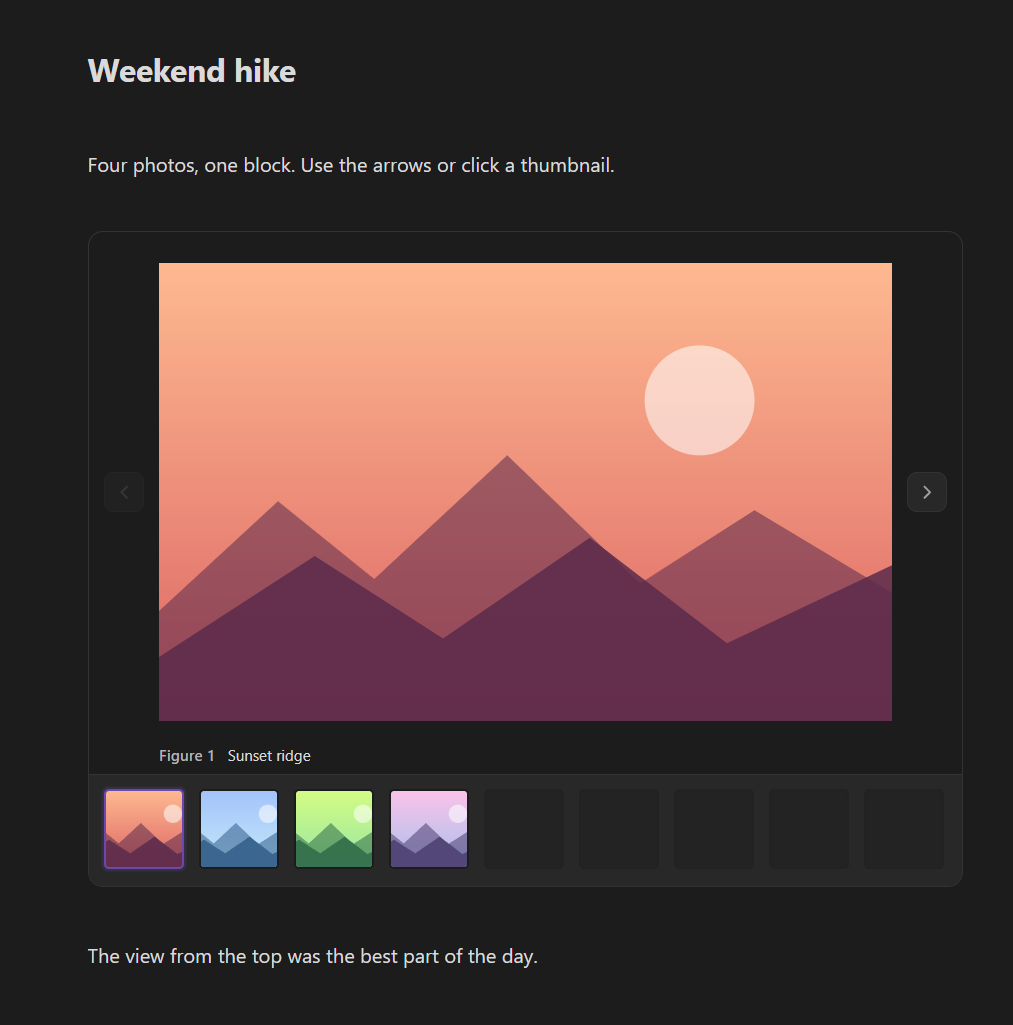
- Figures and captions: items are numbered
Figure 1, 2…automatically. Double-click the label to add a caption. - Figure references: right-click a thumbnail → Insert reference adds a button at the end of the gallery's section (above the next heading) that jumps to that figure. Numbers update when you reorder. The same menu has Show in system explorer.
- Videos (mp4, webm, mov…): play / pause, seek, volume, speed.
- Fast with large photos: the block shows small copies made on the fly; the original loads only in the full-size viewer.
- Safe to edit from outside: changes made to the note by another app, a script or Sync show up while the note is open. Accidentally deleting a whole gallery in the editor is blocked.
Quick start
- Select some image or video links in a note.
- Right-click → Gallery, or run the command Create gallery.
- Drag thumbnails to reorder; double-click
Figure 1to add a caption.
Coming from Lite Gallery? Put the cursor in a litegal block and run Convert Lite Gallery at cursor.
Settings
| Setting | What it does |
|---|---|
| Fit images to the viewer (off by default) | The full-size viewer fills its frame with every image, enlarging small ones; applies to existing galleries immediately. Large images dropped into a gallery are saved at the size the viewer needs on your largest screen (shown in the setting) — only the smaller copy is stored. JPG, PNG and WebP only; never enlarges files. Phones never re-encode: images added there are shrunk the next time a desktop shows the gallery. |
| Language | Follow Obsidian, English or 中文. |
Command Downscale images in this note's galleries shrinks large images already in the note's galleries to the same size. It asks first, then overwrites the original files (other notes embedding them change too).
Your data
A gallery is a fenced code block holding a small JSON list:
```gallery-view
{"v":1,"id":"gal-hike","images":[{"id":"a","link":"![[ridge.jpg]]","caption":"Sunset ridge"}]}
```
Images stay ordinary files in your vault. Without the plugin you just see the code block.
Works on
Desktop, iPhone / iPad and Android. On touch screens: tap a thumbnail to select, long-press to drag; in the viewer, swipe and pinch.
Works well with (optional)
- Editor Enhancer: drag the whole gallery like any other block.
- Section Blocks: dropped files go to a
<note name> mediafolder next to the note.
Install
Settings → Community plugins → Browse, search Paipa Gallery, Install, Enable.
Changelog · MIT License · UI inspired by Lite Gallery.