
README file from
GithubPagewise
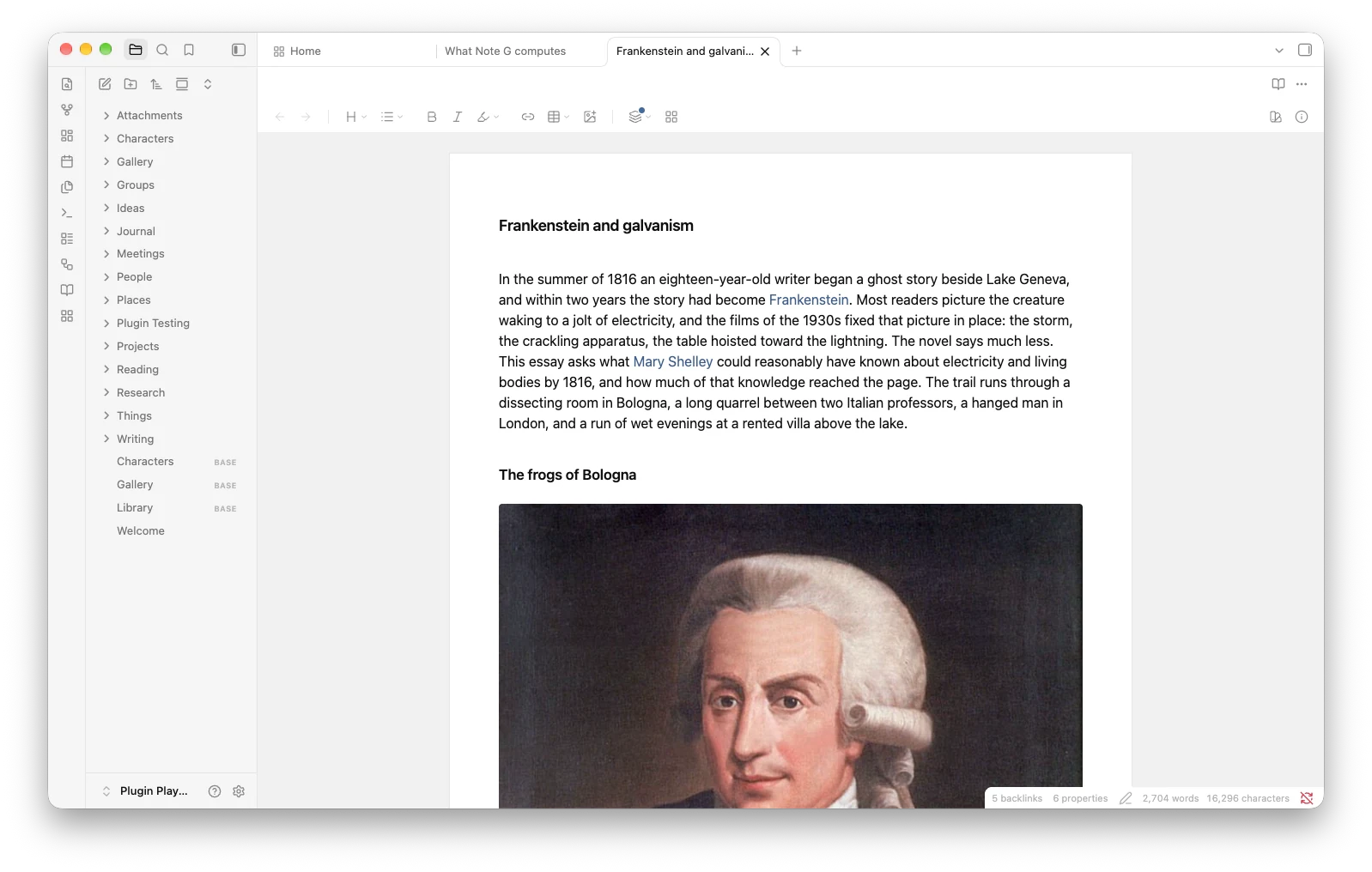
Pagewise lays out your notes as pages, the way a word processor does. Turn it on for a note, and Reading view becomes a stack of tidy sheets with page breaks and page numbers. A document toolbar comes too, so the formatting you use most sits right above your writing.
Pagewise works with any theme and keeps your notes as plain Markdown. Turn it off, and every note looks just as it did before.
Get started
- Open Settings → Community plugins → Browse, search for Pagewise, then install it and turn it on.
- Open a note and click the book icon in the ribbon, or run "Toggle paginated view for this note" from the command palette.
- Switch to Reading view to see your note as pages. In Live Preview and Source mode, your note shows as one long sheet, so you can keep writing.
Pagewise runs on desktop with Obsidian 1.13.1 or later.
Set up your pages
Settings → Pagewise lets you choose:
- whether pagination covers just the note in front of you or every note at once. "This note only" resets when you close the note, and "All notes" stays on after a restart;
- the page size (A4, A5, US Letter or US Legal), the margins in millimeters, and the gap between sheets. A margin of 25.4 mm matches Word's one inch;
- what happens to a note's properties: move them to the sidebar, fold them away on the page, or leave them as they are;
- how callouts look: as neat Pagewise cards, or just as your theme draws them.
Printing and PDF export stay with Obsidian. When you export a paginated note, Obsidian sets the PDF's page breaks from its own export settings.
The toolbar
The toolbar sits at the top of every paginated note. Prefer it everywhere? Set "Show the toolbar on" to "All notes".
- Back and Forward come first. On a pane with the toolbar, they take over from the pair in the tab's title bar.
- Next come headings, lists, quotes and code blocks, bold, italic, highlight in six colors, links, tables and images.
- The table menu adds and removes rows and columns and sets alignment, and it keeps every cell you have typed.
- The Properties button opens the note's properties in the sidebar.
- Add any command from the command palette as a button with its own icon, and hide any built-in button you never use. Right-click the toolbar and choose "Customize toolbar…" to get there fast.
On a narrow pane, buttons tuck themselves into the More menu, so every one stays within reach.
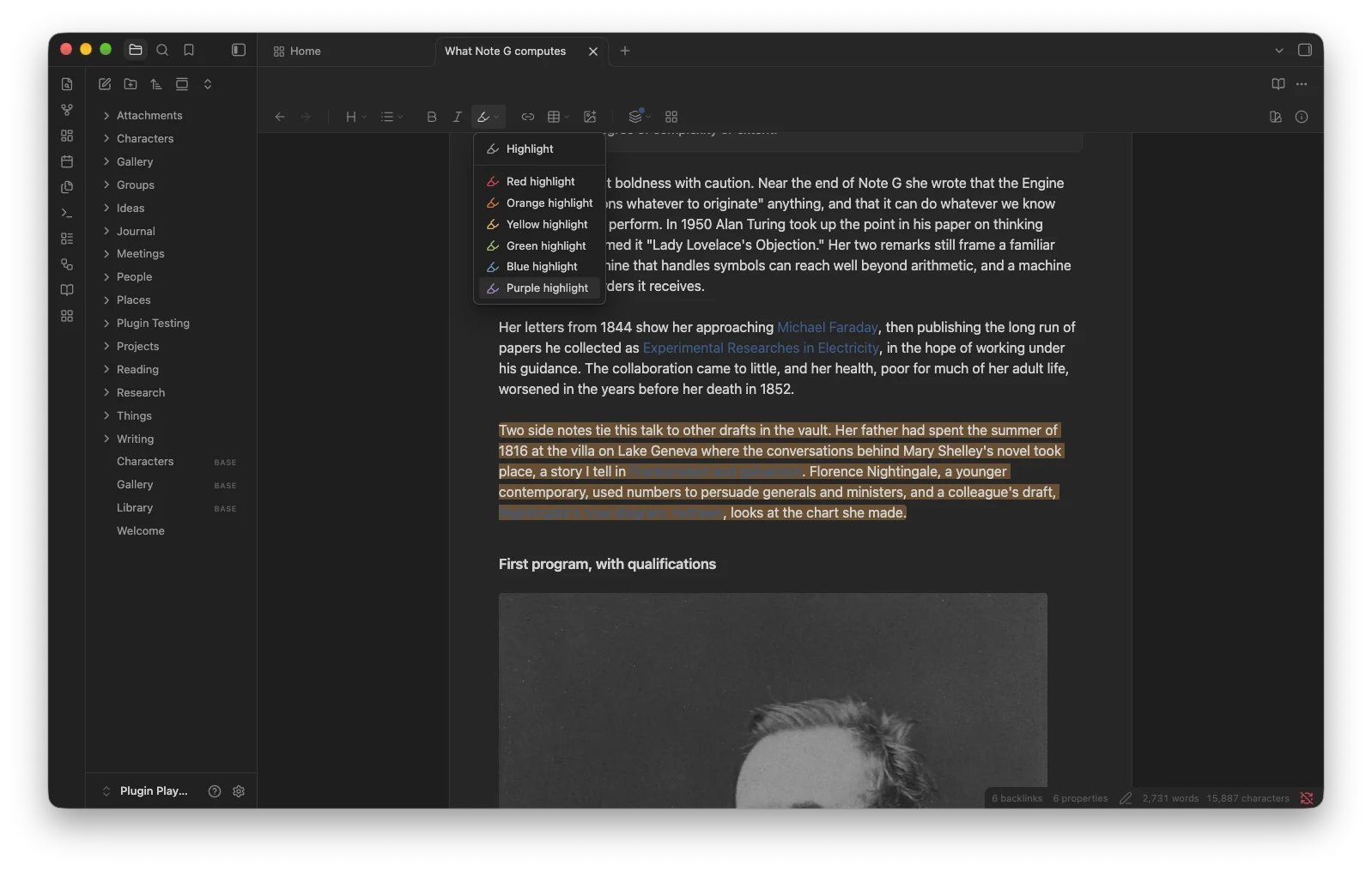
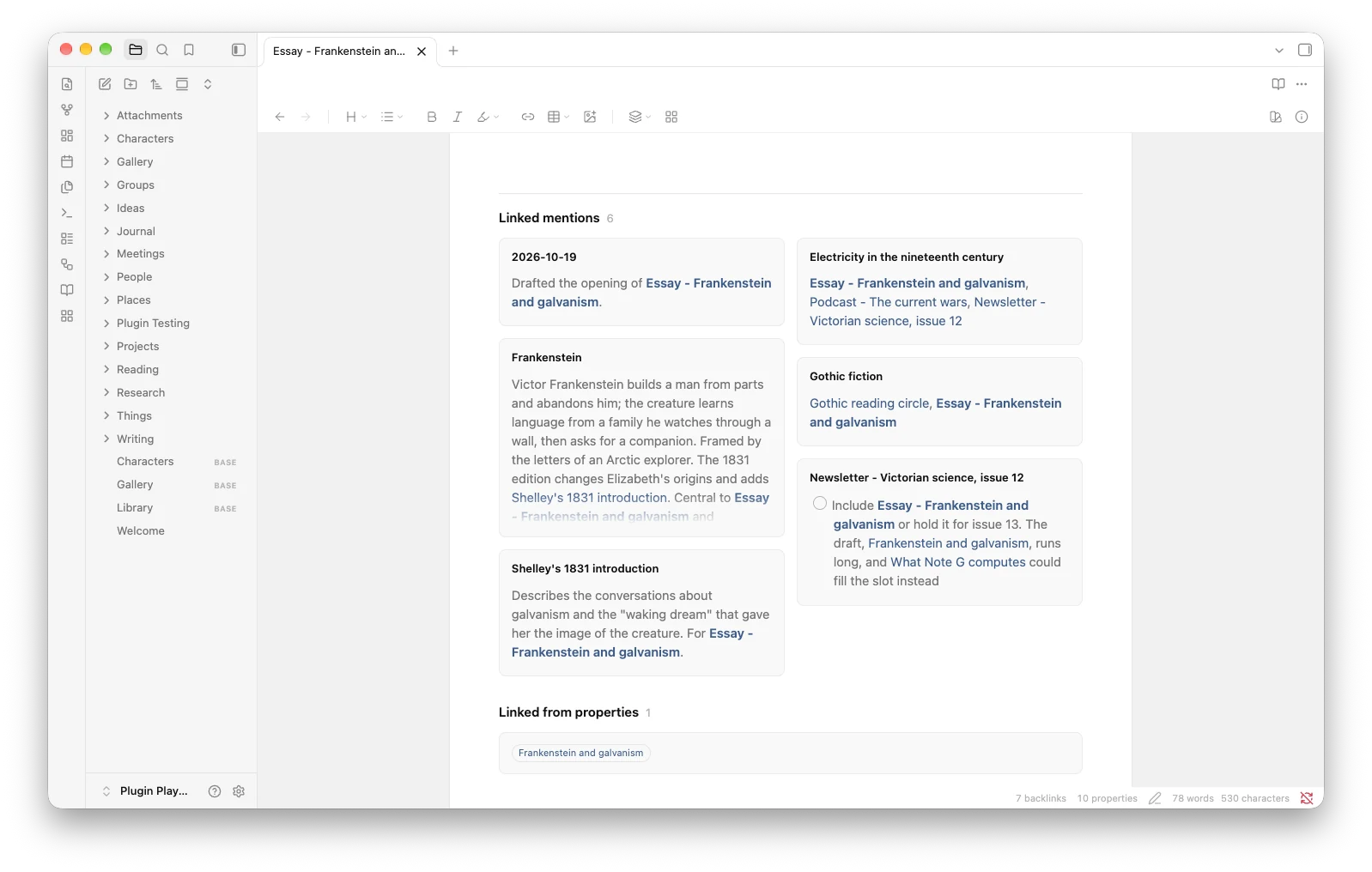
Linked mentions at the foot of the page
If you have Obsidian's "Backlinks in document" option on, Pagewise gives each paginated note a friendlier ending. Under "Linked mentions", every note that links here gets a card with the passage around the link, so you can read what it says in place. Notes that link only from their properties appear as small labels underneath. Click a passage to open that note right at the link, or hover over a link for a preview.
Plays well with others
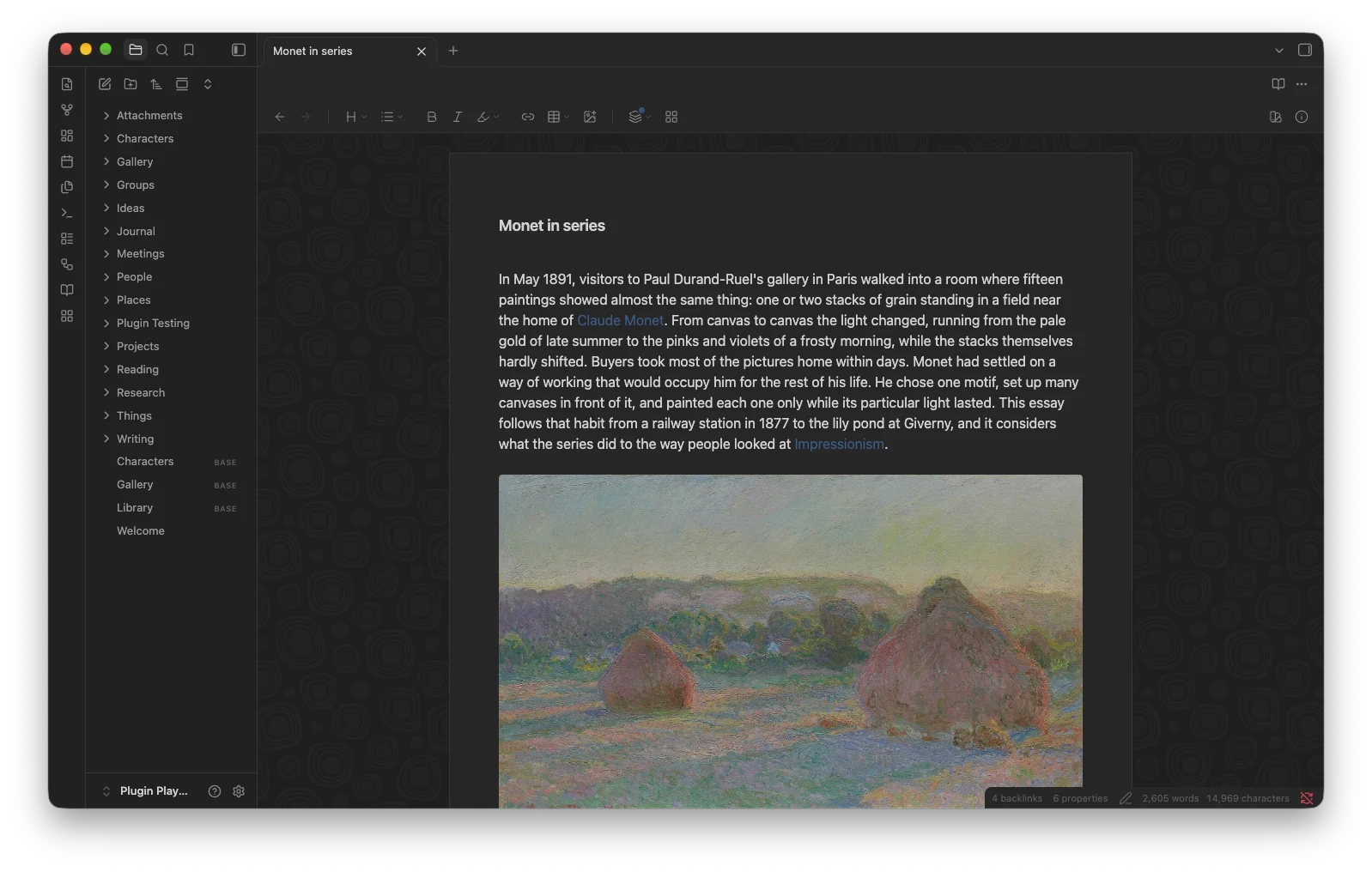
- Home Cards. With Home Cards installed, a Background button paints the space around your pages with any of Home Cards' patterns, or with an image you added there. An "Open Home Cards page" button shows the note's neighbors as cards.
- Relate, my plugin for two-way links between notes. Relate keeps its links in ordinary properties, so the notes that link here through Relate appear as labels under the page's linked mentions.
- Suggested buttons. If you use Templater, Dataview, Tasks, Excalidraw, Longform, Linter, Citations, Pandoc or Better Export PDF, Pagewise's settings offer a ready-made button for the command you will reach for most. One click adds it.
- Content that draws itself late, such as Dataview and Tasks results, Mermaid diagrams, Excalidraw drawings and images, moves the page breaks below it once it has finished drawing.
- Style Settings lets you pick the colors of the sheets, the background, the cards and the page numbers, or hide the page numbers. The colors you leave alone follow your theme.
Every one of these is optional, and Pagewise does its whole job on its own.
Your privacy
Pagewise works entirely on your computer. It never connects to the internet, collects no data and needs no account. It changes a note only when you use a formatting or table button, and then it writes ordinary Markdown.
For plugin developers
Your plugin can add its own buttons to Pagewise's toolbar: a plain button, a menu or an on-and-off toggle, with an optional progress ring or dot. Copy one small file into your plugin, and a few lines connect you. Your plugin keeps working whether or not Pagewise is installed.
import { Notice, Plugin } from "obsidian";
import { connectPagewise } from "./pagewise-api";

export default class WordCountPlugin extends Plugin {
  onload(): void {
    connectPagewise(this, (pagewise) =>
      pagewise.registerToolbarItem({
        id: "word-count:count",
        label: "Count words",
        icon: "hash",
        onClick: ({ editor }) => {
          new Notice(`${editor.getValue().split(/\s+/).filter(Boolean).length} words`);
        },
      })
    );
  }
}
The toolbar guide walks you through every kind of button, with examples.
Install by hand
Copy main.js, manifest.json and styles.css from the latest release into <your vault>/.obsidian/plugins/pagewise/, reload Obsidian, and turn Pagewise on.
Build it yourself
npm ci
npm run build
The build creates styles.css, checks the types, runs Obsidian's review rules and the tests, and bundles main.js. npm test runs the tests on their own.
License
MIT. api/pagewise-api.ts carries the MIT No Attribution license, so you can copy it into your own plugin with or without credit.