
README file from
GithubOutline Mindmap
English · 中文 · 插件介绍(可在 Obsidian 里直接打开的演示笔记)
Turn a Markdown note’s outline into a mindmap with live two-way editing, click-to-locate navigation and customizable styles. The note remains the source of truth; settings stay in the plugin’s data.json, without adding frontmatter, tags or hidden markers.
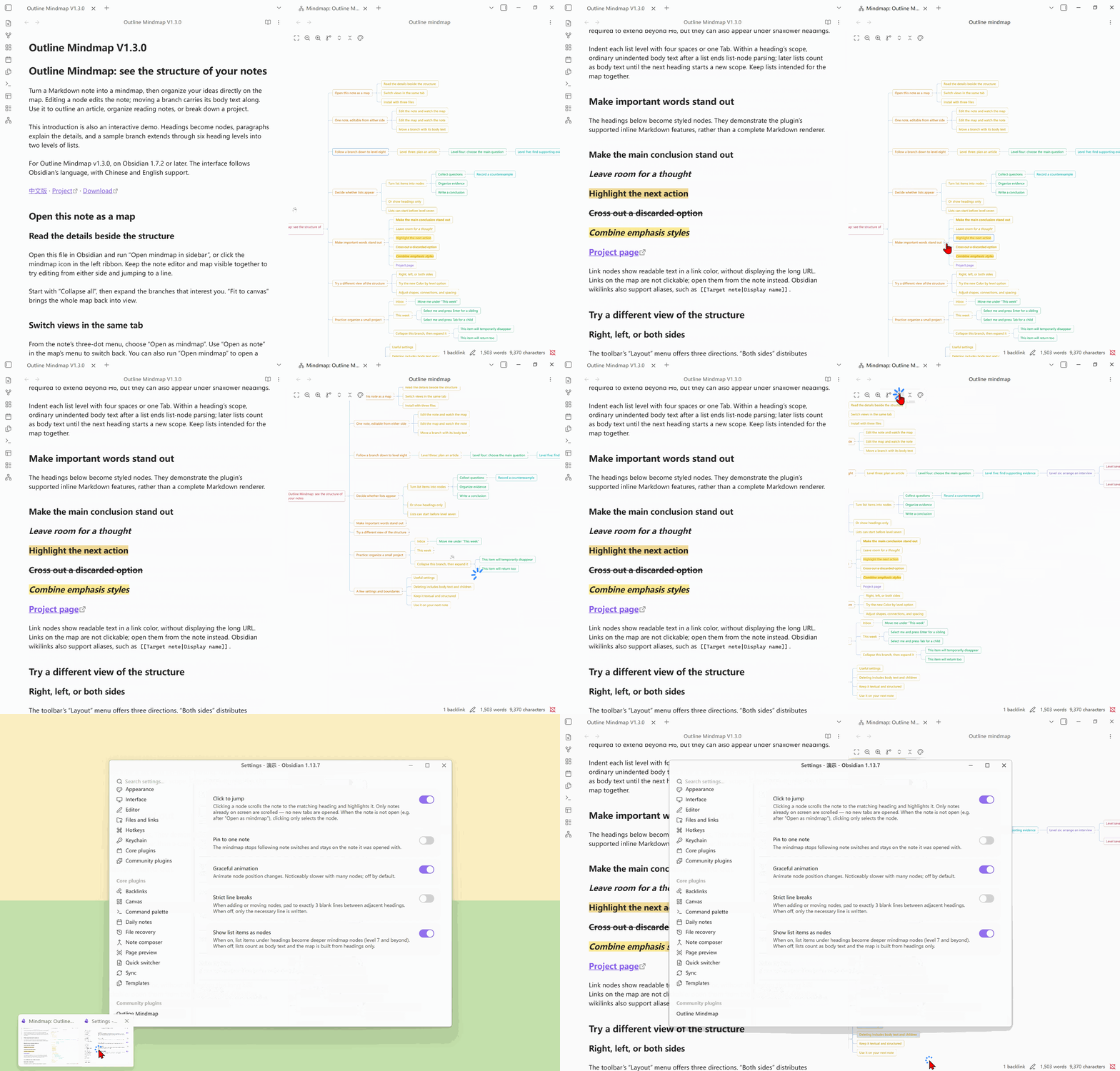
Demos were recorded with an earlier version; in 1.3.4, layout direction is in Style settings.
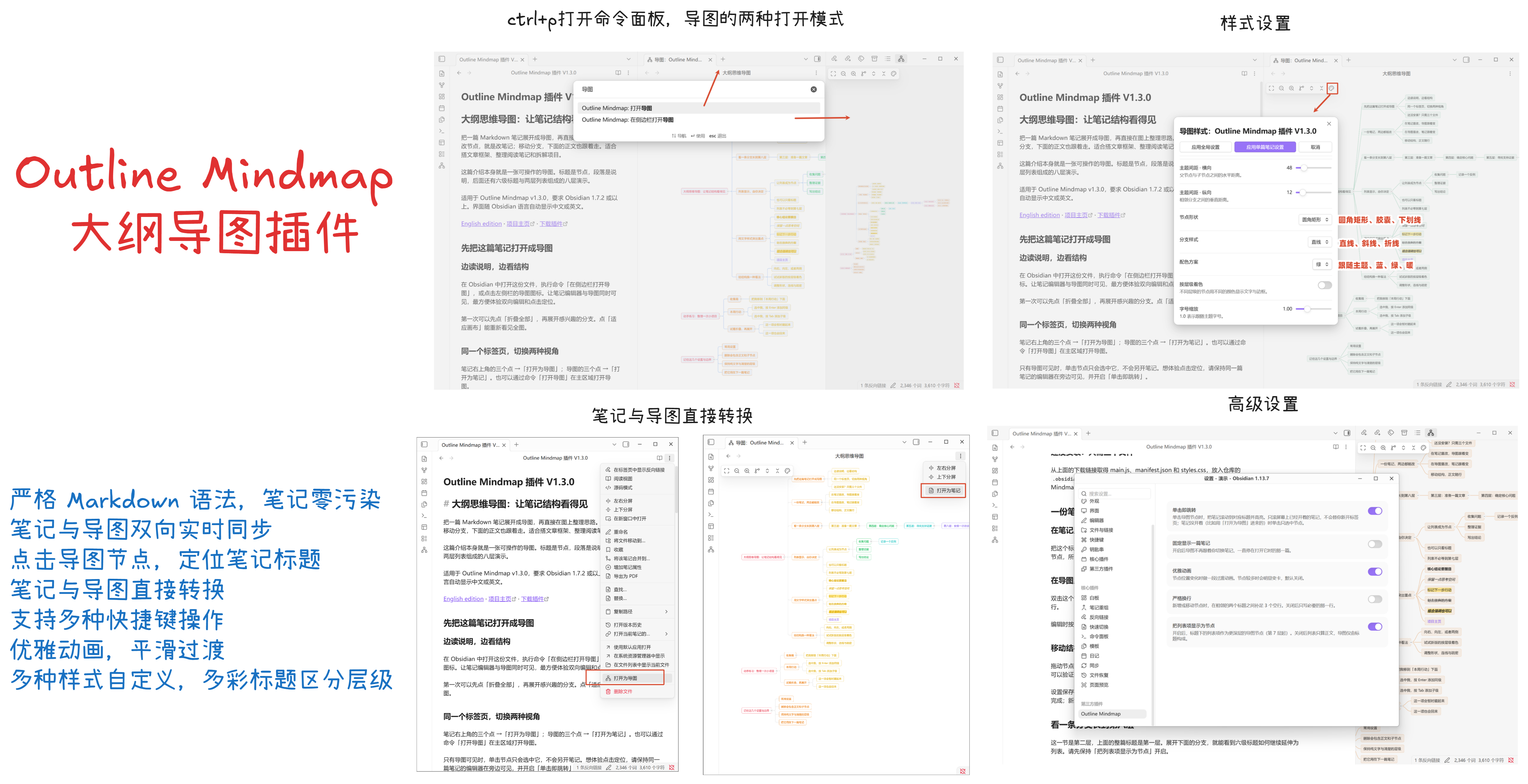
- Obsidian 1.7.2+ · desktop and mobile · v1.3.4
- The interface follows Obsidian's language: 中文 / English, no setting to touch.
Features
- Two-way editing: Add, rename, delete and rearrange nodes. Body text moves with its heading; write-back replaces only the affected line range and preserves surrounding content and formatting.
- Navigation: Locate nodes in a visible note, including Reading view. Search results reveal and highlight matches; undo/redo also works in map-only mode.
- Note ⇄ map: Switch within the same tab and optionally remember how each note opens.
- Flexible content: Show headings by default or enable list nodes, with inline formatting, link labels and math.
- Styles and layout: Customize shapes, colors, fonts, spacing, edges and branch direction, with global/per-note settings, live preview and Cancel.
- Convenient controls: Keyboard shortcuts, smooth animation, per-note locking, zoom and position memory, and touch pinch/pan.
One map action is one undo. Open editors use native history; map-only views use bounded session history and refuse to overwrite external changes.
Install
Not in the community plugin browser yet, so install manually:
- Download
main.js,manifest.jsonandstyles.cssfrom the Releases page — those three files are the whole plugin. - Put them in
<your vault>/.obsidian/plugins/outline-mindmap/ - Enable Outline Mindmap under Settings → Community plugins
main.js is a build artifact and is not committed here, so cloning the repository is not a
shortcut to installing — build it, or take the release.
Building from source:
npm ci
npm run build     # type-check + bundle into main.js
Usage
Four ways to open the map:
- The mindmap icon in the left ribbon → opens in the right sidebar
- Command palette → 打开导图 (Open mindmap) → opens as a tab in the main area
- Command palette → 在侧边栏打开导图 (Open mindmap in the sidebar)
- A note's ⋯ menu → 打开为导图 (Open as mindmap): the current tab turns into a map in place (right-clicking a note in the file explorer offers the same item)
Use Open as note in the map’s menu to return within the same tab, restoring the previous Reading/Editing mode.
- Following maps: Maps opened from the ribbon or command palette follow the active note. Enable Always show one note to keep them on one file.
- Per-note maps: Open as mindmap converts the note’s tab in place and stays on that note. The opening form can be remembered; form changes do not enter tab history.
In map-only mode, a node click selects it without opening a note. To read prose alongside the map, use the sidebar or a split pane. Click-to-locate only scrolls a note that is already visible.
How a note becomes a map
| In the note | Level in the map |
|---|---|
# Heading … ###### Heading |
Levels 1–6 |
- list item (one level = 4 spaces or one tab of indent) |
Level 7 and deeper (can be turned off — see Show list items as nodes) |
| Body paragraphs under a heading | Not shown, but move together with their heading |
A # inside a fenced code block |
Not a heading, never appears in the map |
Inline markup in node text — **bold**, *italic*, ***bold italic***, ==highlight==,
~~strikethrough~~ — is rendered as such and nests freely. An unpaired * (as in 2 * 3) is
plain text and is never swallowed.
Inline math written as $...$ is rendered by Obsidian's own MathJax engine. Math can sit next
to ordinary text and other inline markup; malformed expressions fall back to their editable
source instead of breaking the map. Display-math blocks ($$...$$) remain note body content.
Links show only the readable part, so paths and URLs cost no node width:
| In the note | Shown in the map |
|---|---|
[[Some note]] |
Some note |
[[folder/target|alias]] |
alias |
[[note#section]], [[#section]] |
section |
[text](https://…) |
text |
Link text is tinted with the theme's link colour but is not clickable — a click in the map already means "jump to the matching line in the note", and competing for the same click would only make it unpredictable.
Keyboard
| Key | Action |
|---|---|
↑ ↓ |
Previous / next node: siblings first, then out to the enclosing level |
→ (the "go in" direction) |
Expand a collapsed branch, or enter its first child if already expanded |
← (the "go back" direction) |
Collapse an expanded branch, or go to the parent if already collapsed |
Enter |
Add a sibling after the current node |
Tab |
Add a child to the current node |
F2 / double-click a node |
Rename |
Delete / Backspace |
Delete the selected node and its whole subtree |
Ctrl/⌘ + Z |
Undo (also works with only the map open) |
Ctrl/⌘ + Shift + Z / Ctrl + Y |
Redo |
Esc |
Abandon the current edit or drag — not a single character is written |
| Double-click empty space | Create a new free root node |
Ctrl/⌘ + click |
Add to / remove from the selection (for deleting a batch) |
| Drag a node | Reorder: drop on a node's top/bottom edge = insert before / after, drop in the middle = become its child, drop on empty space = become a new root |
| Wheel | Pan; hold Ctrl/⌘ to zoom around the pointer |
Left and right on the arrow keys are interpreted relative to the direction the node grows:
when a branch runs leftwards, ← is the key that takes you into its children.
Toolbar
Fit to canvas · Zoom out · Zoom in · Expand all · Collapse all · Lock · Style settings.
Layout direction (branches right / left / both sides) is in Style settings, with the same global and per-note saving, live preview and Cancel behavior as other styles.
The lock remembers your manual choice for each note. A locked map still follows changes made in the note, and allows navigation, pan, zoom, fold/unfold and style changes. It cannot rename, add, delete or rearrange nodes, or undo/redo changes. Reading view forces the map to lock; returning to Editing view restores your manual choice. A visible Reading view of the same note takes precedence if that note is open in several panes. Converting a Reading tab to a pure map keeps its Reading mode; use Open as note to change the note's mode.
Each note remembers its zoom and viewing position, including after a restart. The saved point stays centered when the viewport changes size. If changed content leaves that region empty, the map shows a nearby node at the saved zoom. Folded state remains session-only, so changed layouts are not guaranteed to put the same node in the same place.
On touch screens, use two fingers to zoom and pan. A second finger cancels an unfinished node drag; finishing a gesture does not also click or edit a node. In a locked map, one finger can pan from a node as well as empty space; tapping still selects or locates it.
Branches on both sides splits the root's branches into two balanced columns by subtree size.
Settings
| Toggle | Default | What it does |
|---|---|---|
| 单击即跳转 (Click to jump) | On | Clicking a node scrolls the visible note to the matching heading or list item and highlights it in both Editing and Reading view (focus stays on the map); after you create / rename / delete / drag a node, the note also stays at that node. It only scrolls a note that is already visible on screen — it never opens a tab, never splits a pane, never pulls a background tab to the front. Turn it off and a click only selects |
| 固定显示一篇笔记 (Always show one note) | Off | The map stops following the active note and stays on the one it was opened with |
| 优雅动画 (Smooth animation) | On | Nodes and edges move together. Disabled above 250 visible nodes or when the system requests reduced motion |
| 严格换行 (Strict blank lines) | Off | When enabled, adding / moving nodes pads adjacent headings to 3 blank lines apart |
| 把列表项显示为节点 (Show list items as nodes) | Off | Turn it off and the map shows headings only: list items go back to being body text under their heading. The note itself is not touched; switching back restores every list node. While it is off, adding or dragging past level 6 is blocked with a notice — a level-7 heading has no visible syntax to write |
| 记住每篇笔记的打开方式 (Remember how each note opens) | On | A note converted with Open as mindmap opens as a mindmap next time, in whichever tab it appears; Open as note restores it, in the Reading / Editing mode it had when converted. The record lives only in the plugin's data.json and is migrated or cleaned up when the note is renamed, moved or deleted. Switching form does not enter tab history, so Back / Forward move between notes only |
Styles — shape, colour scheme, colour by level, font size, horizontal and vertical gaps, branch style (straight / diagonal / elbow) — come in two levels, global and per-note: a note with no style of its own uses the global one. While the style window is open, dragging a slider previews live, and Cancel restores. Per-note styles are keyed by file path and are migrated or cleaned up automatically when you rename, move or delete a note.
Performance
Pan and zoom update a single container transform; edges share one path and node events are delegated. Animation is disabled above 250 visible nodes or when reduced motion is requested.
The repository includes a 1000-node stress note. Automated tests cover parsing, layout and editing; use Performance self-check in Obsidian to measure actual rendering, or Follow self-check to diagnose note-following issues.
Known limitations
- Text-only maps: no summaries, no free-form connections, no images, no notes.
- Collapsed state is not persisted; switching notes resets it.
- Task list items
- [ ]are treated as plain text; ordered lists are read fine but written back as-. - Multi-select (
Ctrl/⌘ + click) is for batch deletion only, not batch drag.
Development
npm run dev        # watch build
npm run typecheck  # strict type-check
npm test           # unit + integration tests
core/ and layout/ contain pure logic without Obsidian imports; doc/ handles document I/O and note-view integration, view/ manages map interaction, and settings/ owns settings, styles and preferences.
To install a dev build into a vault without copying three files by hand every round:
npm run deploy "D:\your vault"   # remembers the target in deploy.json (git-ignored)
npm run deploy                   # afterwards: build + install into the remembered vaults
It overwrites only main.js, manifest.json and styles.css — never data.json, never a note.
If the vault already has this plugin under a differently-named folder, it reuses that folder
rather than creating a second copy with the same plugin id.
Before publishing, run npm test and npm run build. Keep manifest.json,
package.json, package-lock.json and versions.json in sync, then attach
main.js, manifest.json and styles.css to the 1.3.4 GitHub release.
The tag carries no v prefix — Obsidian looks releases up by the bare version number.
What's new
v1.3.4
- Map locking: Remember manual locks per note; Reading view forces locking. Locked maps prevent editing while still showing live note changes.
- Layout settings: Move branch direction into Style settings, with global/per-note saving, live preview and Cancel.
- Viewport memory: Restore each note’s zoom and position; show a nearby node if the saved region is empty.
- Touch improvements: Add pinch zoom and two-finger pan, reduce drag conflicts and accidental clicks, and enlarge toolbar/fold touch targets.
v1.3.3
- Add map-only undo/redo and search-result navigation/highlighting; refine level colors and node/edge animation.
- Update default styles and options while preserving existing settings and per-note styles.
v1.3.2
- Remember how each note opens, distinguish following and pinned maps, and fix stale content after switching notes.
- Improve in-place conversion and tab history without opening duplicate tabs.
v1.3.1
- Improve click-to-locate in Reading view and add inline math rendering.
v1.3.0
- Add Chinese/English UI, optional list nodes and level colors.
See Releases for earlier versions.
License
MIT — see LICENSE.