
README file from
GithubBooxidian is an Obsidian plugin that watches a folder for Onyx Boox exports - reading-note highlights, handwriting PDFs, and annotated PDFs - and imports them into your vault automatically, without the manual rename-and-move dance.
Desktop only (it uses Node's filesystem to watch folders outside the vault). The plugin's UI and the notes it writes are available in English and German (auto-detected, overridable).
Why this exists
The Onyx Boox export flow is tedious: tap through the table of contents, export to local storage, rename .txt to .md, move it into the vault, then trigger an extractor by hand. Booxidian removes the last three steps - point it at a folder, and every new export that lands there becomes notes.
What it imports
| Boox export | What Booxidian makes of it |
|---|---|
📑 Reading-note highlights (.txt / .md) |
Clean highlight notes - one per book, or one per book page in a subfolder. Handles both firmware layouts (V1 and V2). |
| ✍️ Handwriting PDFs | The pen strokes reconstructed to a lossless SVG vector, plus an optional text transcription (four engines - see below). |
| 🖍️ Annotated PDFs | The PDF copied into the vault + a companion note quoting each highlight verbatim, with #page=N deep-links back into the document. |
| 📝 Plain text notes | Imported as-is. |
Everything is deduplicated by content hash, so re-scanning a folder never creates duplicates.
Screenshots
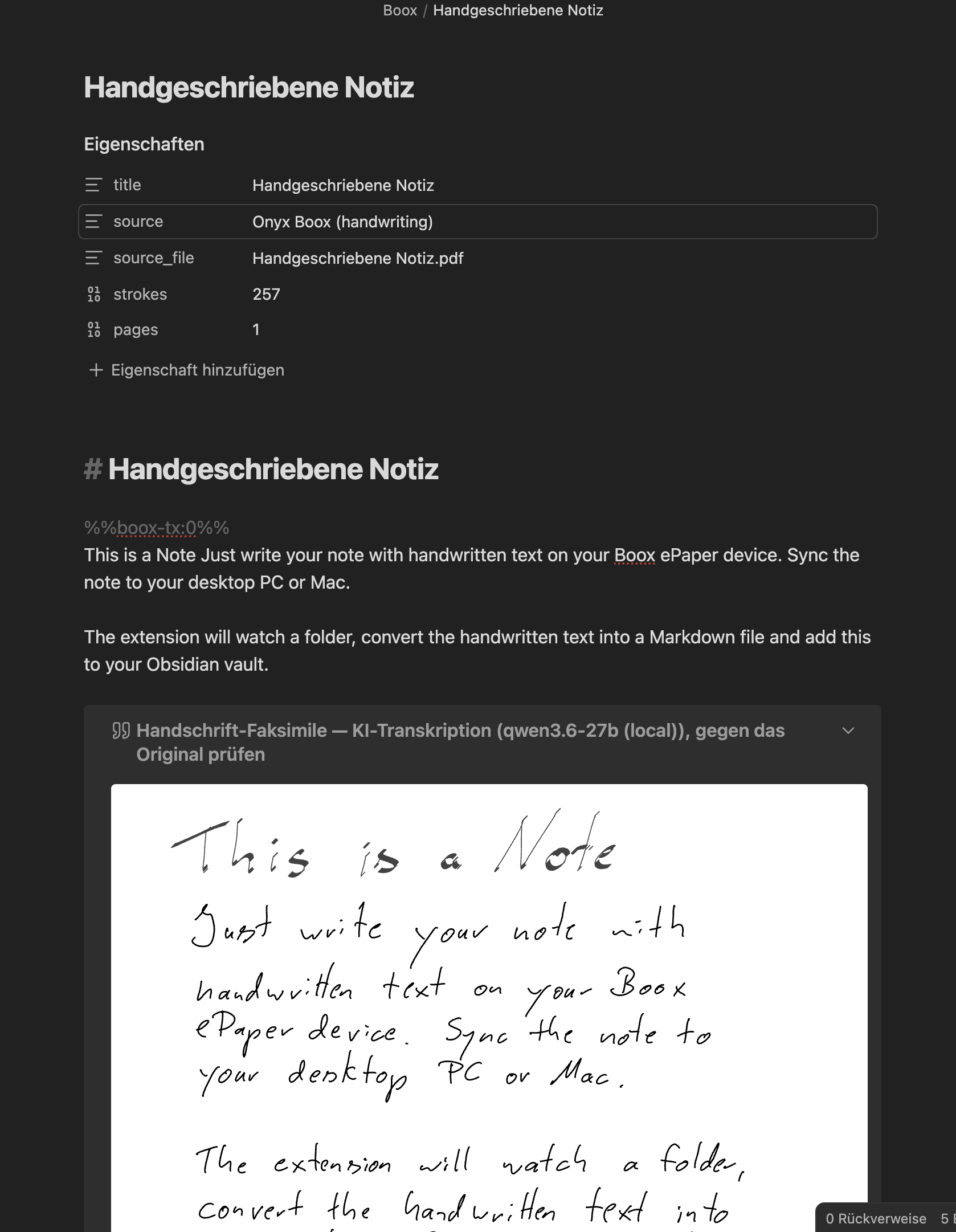
Handwriting → lossless SVG + optional AI transcription. The pen strokes are kept as a vector faksimile; the transcription sits above it for quick reading.
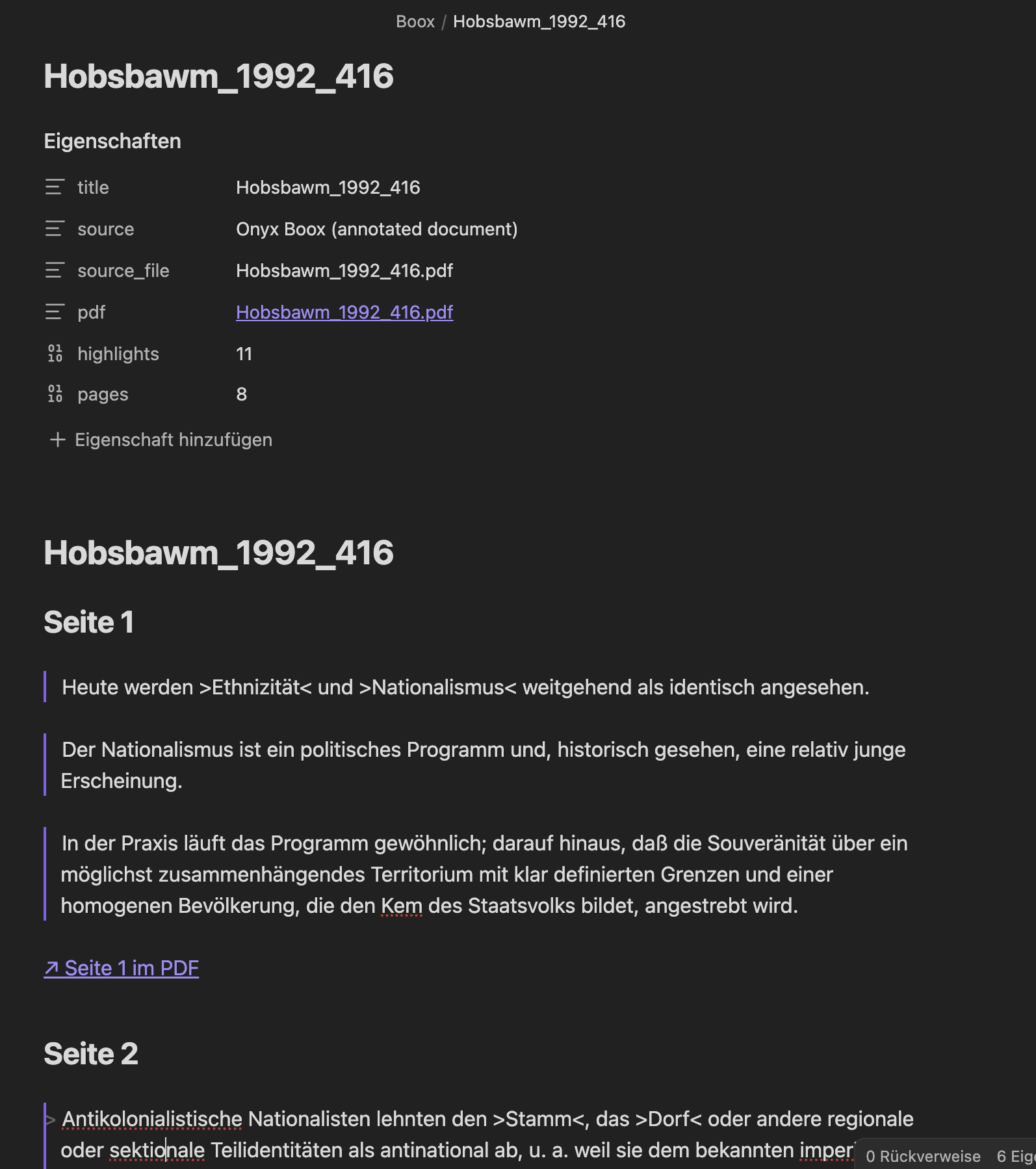
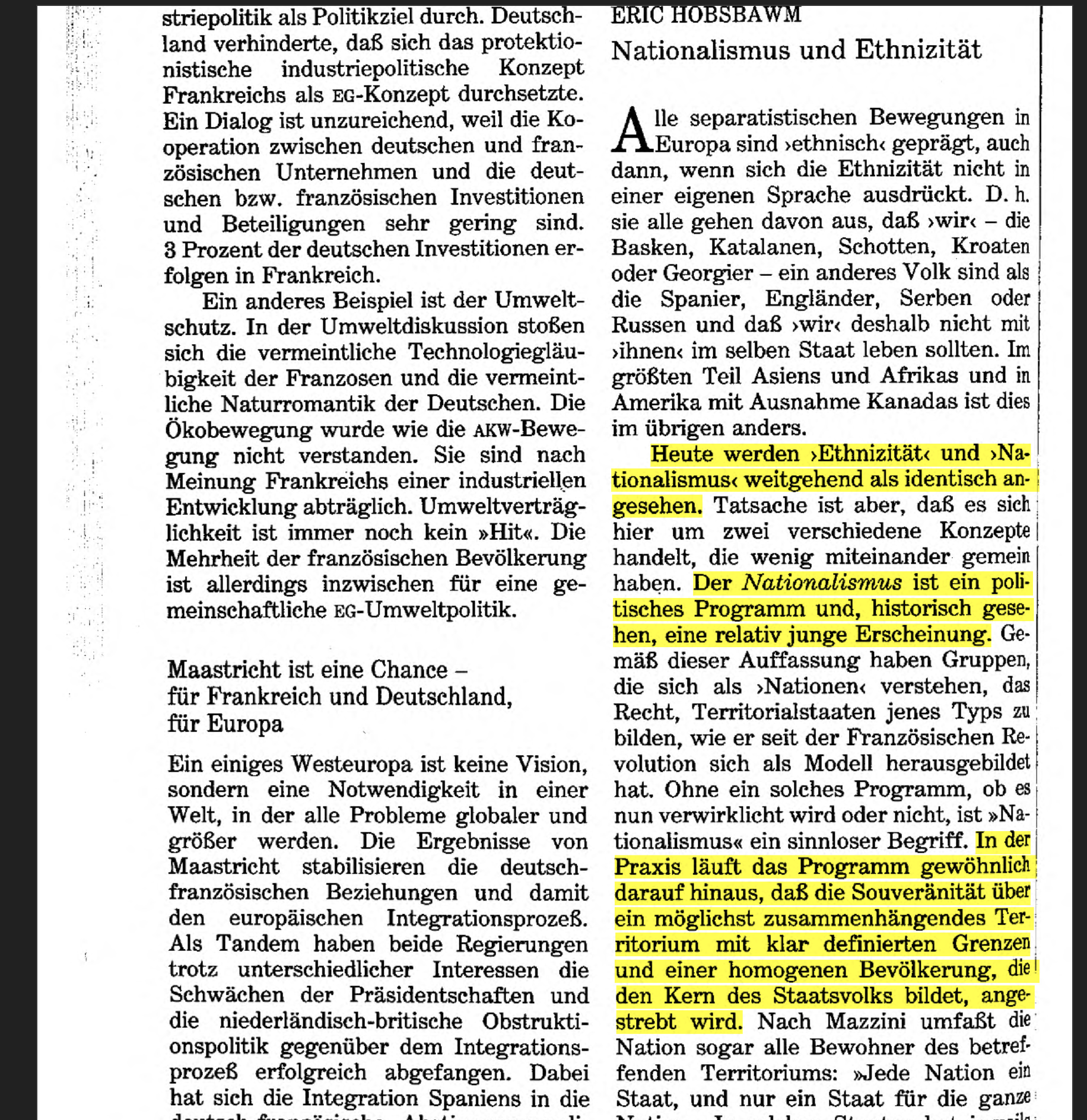
Annotated PDFs become verbatim notes with page deep-links. Each highlight from the source page (right) is quoted in the companion note (left), linked back with #page=N.
| Companion note | Source page |
|---|---|
 |
 |
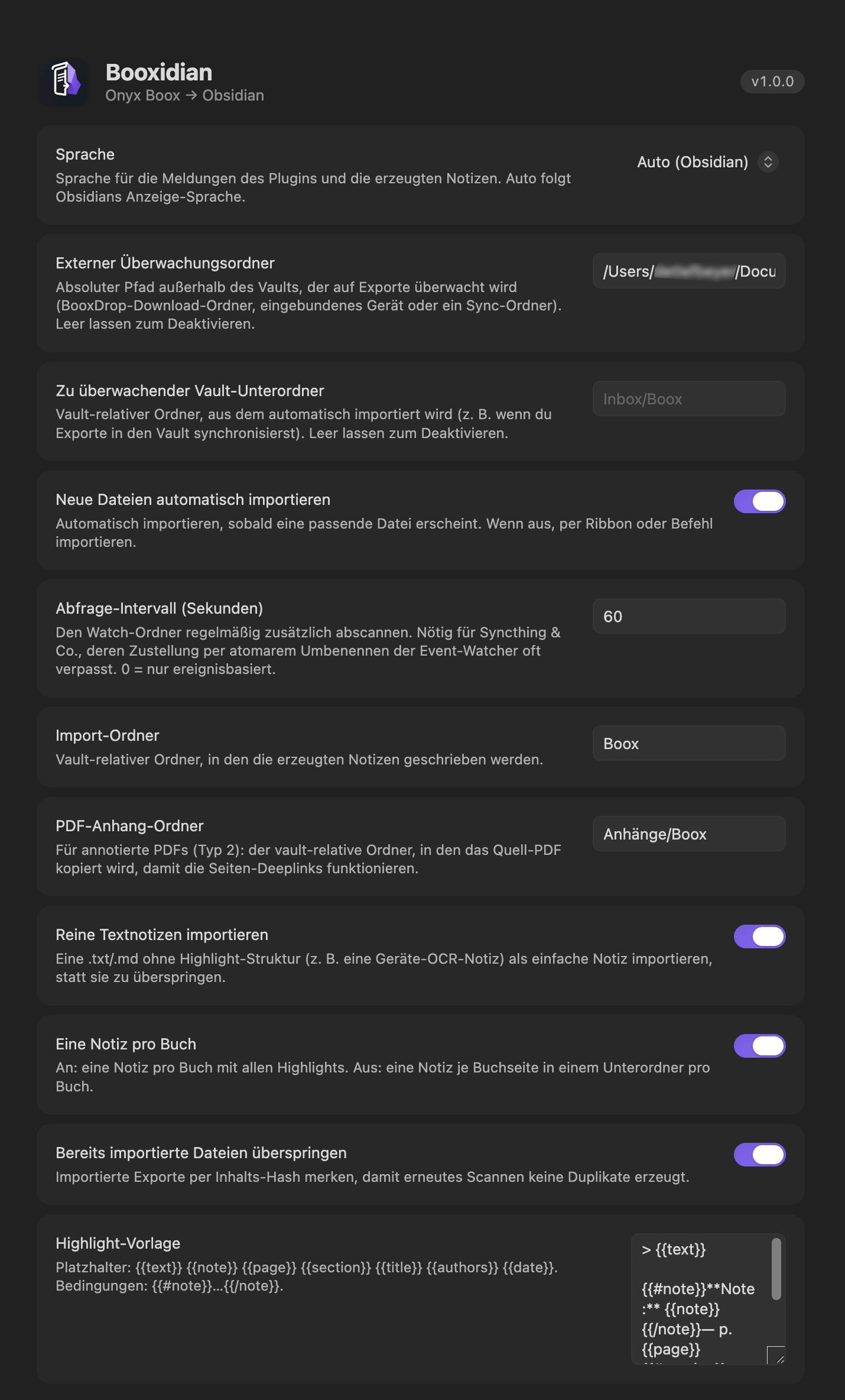
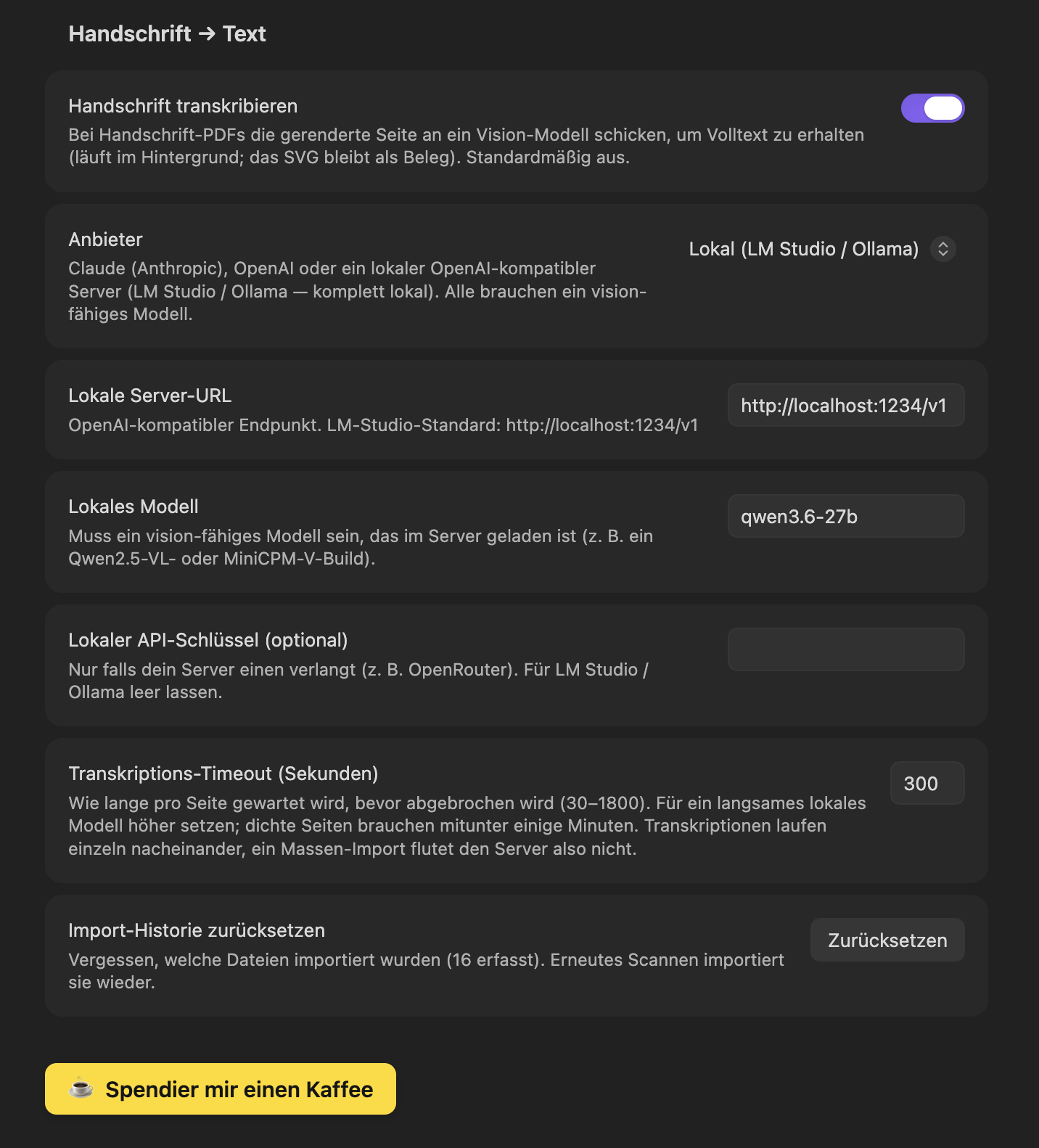
Settings - watch folder, auto-import and highlight template (left); handwriting provider, local endpoint and timeout (right).
| General | Handwriting → text |
|---|---|
 |
 |
Install
From the Community Plugins browser (once accepted): Settings → Community plugins → Browse → search Booxidian → Install → Enable.
Manually: download main.js, manifest.json and styles.css from the latest release into
<vault>/.obsidian/plugins/onyx-boox-sync/, then enable the plugin in Settings → Community plugins.
(The PDF engine — including pdf.js's worker — is bundled into main.js.)
Exporting a note from the Boox
Booxidian works on the exported PDF, so the one manual step is exporting your handwritten notebook in the right format. On the device, in Notes (Notizen):
- Long-press the notebook (or open it) and choose Share and Export (Teilen und Exportieren).
- Format → Vector PDF (Vektor-PDF). This is the choice that matters: a vector PDF carries the pen strokes as real vectors, which Booxidian reconstructs into a lossless SVG. Do not pick Bitmap-PDF (a flat raster image), Single page (PNG), TXT, or .note — none of those can be turned back into vector handwriting or into highlight text.
- Layers (Ebenen) → Visible (Sichtbar) is the normal choice; it exports the layers you see. Pick All (Alle) only if you also want hidden layers.
- Size (Größe) → Original — keep the note's native page size; don't rescale to A4/A3.
- Export it into the folder Booxidian watches (or Share it straight there).
The
.noteformat (Boox's own notebook format) is deliberately not supported — Booxidian reads the vector PDF instead.
Annotated reading PDFs and reading-note highlights are exported from the reader app, not the Notes app; drop those into the same watch folder.
Getting your files from the Boox to your Mac
Pick whichever fits you and set it as the external watch folder:
- Syncthing - P2P, no cloud, two-way; the Boox writes exports straight into a folder that lands on the Mac. (Recommended.)
- BooxDrop - push files from the device to your Mac's browser, saving into a fixed download folder.
- Cloud / sync folder - have the Boox write exports into a Dropbox / iCloud folder that also syncs to the Mac.
- USB / mounted device - watch the mount point directly.
Alternatively, if you sync exports into your vault, set a vault subfolder to watch instead.
Handwriting → text (optional, opt-in)
Handwriting is always saved as a lossless SVG. On top of that, Booxidian can transcribe it to text with one of four engines - off by default, and it only contacts anything once you enable it and provide your own key/endpoint. The plugin never ships a key.
- Claude or OpenAI - cloud vision models (your key).
- Local - an LM Studio / Ollama server on your own machine (OpenAI-compatible endpoint).
- Apple Vision - entirely on-device on macOS, no API key, nothing leaves your Mac.
Transcription runs in the background so it never stalls the import.
Local models: speed, accuracy & reasoning
Local vision models vary a lot, and two knobs (under Advanced, collapsed by default) matter most:
- Reasoning models (e.g. Qwen3) can time out. They may think for minutes before answering - long enough to hit the per-page timeout. Booxidian suppresses this by default (Advanced → Suppress thinking, local only). For the model's best accuracy you can turn it off, but then raise Advanced → Transcription timeout to match. Most reliably, disable reasoning in the server itself - in LM Studio, load the model with thinking/reasoning off - since some models only partly honour the request-level flag.
- Image detail is the biggest accuracy lever. The page is vector, so a sharper render costs nothing but legibility. Advanced → Image detail (max edge) defaults to
2048; raise it if a local model misreads messy handwriting. For cloud providers the opposite holds - they downscale past ~1568 px anyway, so a smaller value there simply saves tokens.
Apple Vision & PDF2MACMD
[!NOTE] Optional - nice to have. Booxidian works fully without this. It only adds a free, on-device transcription option on macOS. Skip it if the cloud or local engines already suit you.
Booxidian doesn't ship the on-device engine itself; it delegates to the companion PDF2MACMD plugin, which manages the signed native binary for you.
PDF2MACMD is not in the Community Plugins directory yet, so install it one of two ways:
- Via BRAT (recommended) - install the BRAT plugin from Community Plugins, then in BRAT → Add Beta plugin paste the repo:
BRAT installs it and keeps it updated.webline/pdf2macmd-obsidian - Manually - download the release assets from
webline/pdf2macmd-obsidianinto<vault>/.obsidian/plugins/pdf2macmd/.
Then:
- Enable PDF2MACMD (macOS). It downloads its own signed binary - no separate installer.
- In Booxidian's settings, under Transcribe handwriting → Provider, pick Apple Vision. The option only appears when PDF2MACMD (0.2.0 or newer) is detected, with a status line telling you whether the engine is ready.
On Windows/Linux the option simply doesn't show - the other three providers work as before.
Trade-off: Apple Vision is fast, free and private, and excellent for clean handwriting and print; for messy handwriting a cloud vision model may still read ambiguous words better from context.
Privacy & network
Out of the box, Booxidian makes zero network requests. Watching folders, parsing exports, and writing notes all happen locally on your machine - nothing is uploaded, and the plugin phones no home. There is no telemetry, no analytics, and no crash reporting.
The only thing that ever leaves your machine is optional handwriting transcription, and only when you enable it (off by default) and pick a cloud provider. Each request sends one rendered PNG image of the handwriting page, the model id you chose, and your own API key (as the authorization header) - nothing else. One request is made per transcribed page; an idle plugin sends nothing.
| Provider | Where the image goes | Data sent |
|---|---|---|
| Apple Vision | Nowhere - on-device (macOS) | Nothing leaves your Mac |
| Local | Your own server, default http://localhost:1234/v1 |
Stays on your machine / LAN, unless you point it at a remote endpoint |
| Claude | https://api.anthropic.com/v1/messages |
Page image + model id + your Anthropic key |
| OpenAI | https://api.openai.com/v1 (or your Azure / proxy override) |
Page image + model id + your OpenAI key |
Your API keys are stored in the plugin's own settings (data.json in your vault) and are sent only to the provider you configured. The plugin never ships a key of its own. If you never enable transcription, or you use Apple Vision or a local server, no data ever leaves your machine.
[!NOTE] A static scan of the bundle counts ~12 potential network call sites - these are the request paths for the cloud providers above (Anthropic and OpenAI-compatible), not calls that fire on their own. They only execute when you actively transcribe a page with a cloud engine.
The export format
Two firmware-dependent layouts, both handled:
- V1 - blocks split by a dashed line; each carries
Time:,【Original Text】,【Annotations】,【Page Number】. Chapter is the block's first line. - V2 - a header line with
<<Title>>Author; each block starts with<date> | Page No.: <n>; chapter titles sit on their own blocks; the annotation follows【Note】.
The parser is pure and framework-free (src/parser/), so it can be unit-tested without Obsidian.
Template placeholders
Used in the Highlight template setting:
| Placeholder | Meaning |
|---|---|
{{text}} |
the highlighted passage |
{{note}} |
your annotation (may be empty) |
{{page}} |
page number |
{{section}} |
chapter / section |
{{title}} |
book title |
{{authors}} |
author(s) |
{{date}} |
highlight timestamp |
{{#note}}…{{/note}} |
block shown only when a note exists |
Development
npm install
npm run dev     # watch build → main.js
npm run build   # type-check + production bundle
npm test        # parser unit tests
To try it in Obsidian, symlink or copy main.js, manifest.json and styles.css
into <vault>/.obsidian/plugins/onyx-boox-sync/, then enable it.
Support
If Booxidian saves you the export dance, you can say thanks:
Credit
The Boox export format handling is a modernized, rewritten take on the parsing logic in Akos Balasko's Onyx Boox Annotation & Highlight Extractor (MIT).
License
MIT © Detlef Beyer - see LICENSE.
The plugin bundles two permissively-licensed libraries for its PDF work: pdf-lib (MIT) reads
the document structure and annotations, and pdf.js (Apache-2.0) extracts the positioned text
under highlights (its worker is inlined into main.js). Both are attributed in NOTICE.
Onyx and BOOX are trademarks of their respective owners. Booxidian is an independent, unofficial project and is not affiliated with or endorsed by Onyx International or Obsidian.md.