
README file from
GithubOMM MindMap
An Obsidian plugin that renders any Markdown outline as an interactive mindmap, and turns a mindmap back into a clean Markdown bullet list.
Features
- Multiple trees per file — every first-level bullet is its own tree, stacked top to bottom. Each tree has its own layout.
- Two layouts — top-down and left-right, toggled per tree from the toolbar. Layouts are stored as a per-tree list in front-matter (
mindmap-layout). - View switching — open a Markdown file as a mindmap, or jump back to the Markdown editor, without leaving the leaf.
- Markdown is the source of truth — the document is a nested bullet list plus a small front-matter block. Edits in either view stay in sync.
- Interaction — pan (drag), zoom (wheel), collapse/expand branches, select a node, and edit structure with the keyboard.
- Space-efficient layout — siblings and levels are packed by each node's actual size, so one wide node no longer spreads the whole tree apart. Node boxes size to their text, including full-width CJK characters.
- Multi-line nodes — a node can hold several lines; line breaks are stored in Markdown as
<br>. - Links shown as labels —
[[Folder/Note|Alias]]renders as an underlined Alias (or the note's basename — never the full path);[Label](url)renders as Label. The raw Markdown is preserved for editing and storage. - Open links — on a selected node, clicking again opens its link. Nodes with several links show a picker; internal notes open in a new tab, external URLs open in the browser.
- Undo —
Cmd/Ctrl+Z(or the toolbar) reverts the last change (rename, add, delete, layout toggle). - Export — save the current mindmap as PNG or PDF next to the note.
- Desktop and mobile — pan/zoom with touch, and edit structure from the toolbar buttons (no keyboard required).
Mouse
| Action | Result |
|---|---|
| Click a node | Select it (shows its collapse/expand toggle) |
| Click a selected node | Open its link, if any (picker when there are several) |
| Double-click a node | Edit its text |
| Click the toggle (○) | Collapse / expand the node's children |
| Drag background | Pan · wheel zooms · click background to deselect |
A collapsed node is drawn with a faint "stacked card" behind it to signal hidden children. The collapse/expand toggle appears only on the selected node.
Keyboard
| Key | Action |
|---|---|
Tab / Insert |
Add child to the selected node |
Enter |
Add a sibling after the selected node (a sibling of a root starts a new tree) |
Delete / Backspace |
Remove the selected node (deleting a root removes that whole tree) |
F2 / double-click |
Edit the selected node |
Shift+Enter |
Insert a line break while editing (Enter commits) |
Cmd/Ctrl+Z |
Undo the last change |
Document format
---
mindmap-layout: [top-down, left-right]
---

- Project
  - Research
    - Interviews
    - Surveys
  - Design
  - Build
    - Build 1
    - Build 2
    - Build 3
- Backlog
  - Bugs
  - Ideas
…renders as two trees — Project (top-down) and Backlog (left-right):
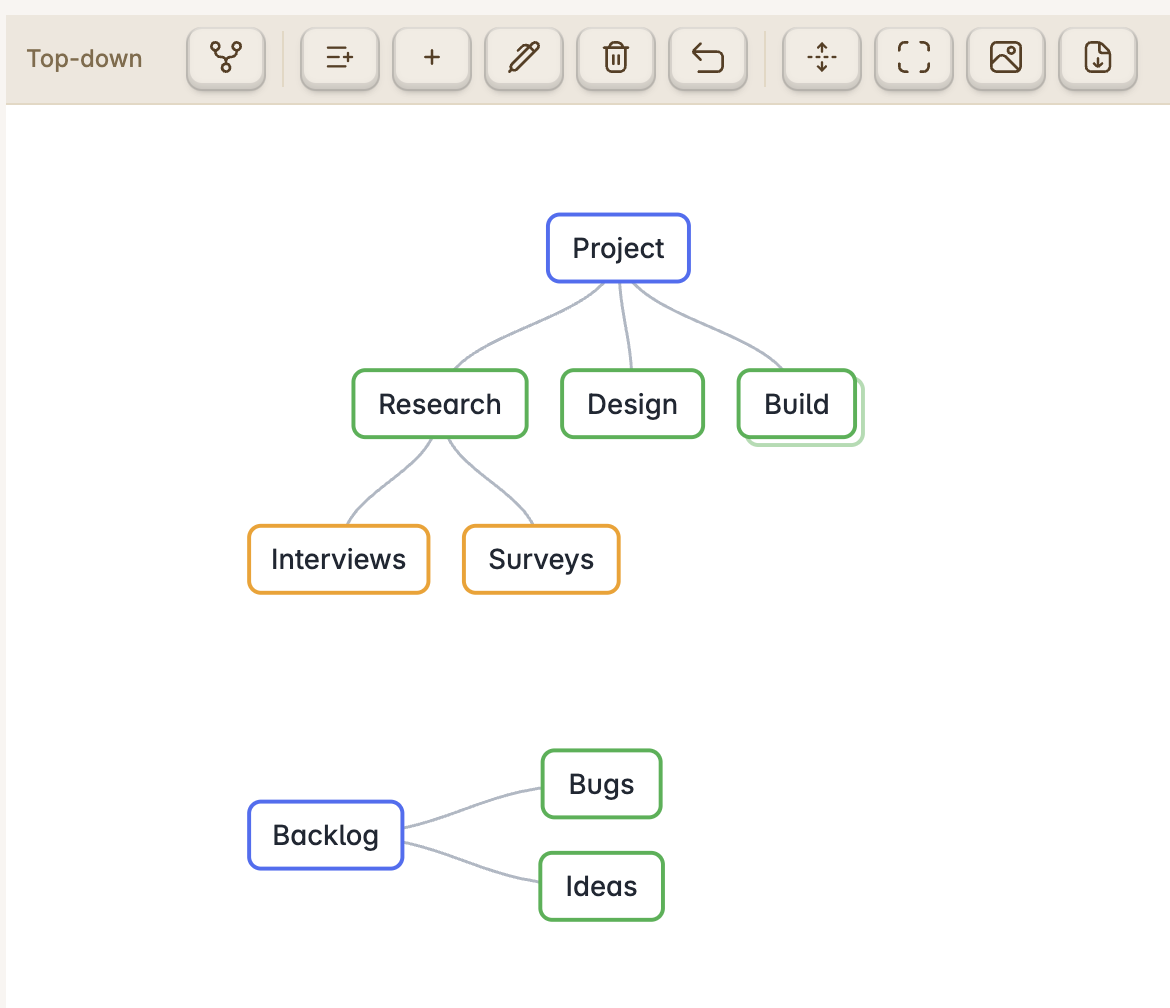
- Each first-level bullet is a separate tree, rendered top to bottom (the example above has two: Project and Backlog). There is no file-name root.
mindmap-layoutis a list with one style per tree, in order. If there are more trees than entries, the extra trees use the default (left-right). A bare value likemindmap-layout: top-downis accepted for a single tree.- Toggling a tree's layout (toolbar) updates its entry in the list.
- Unknown front-matter keys are preserved on save.
Usage
- Ribbon icon Open as OMM mindmap, the command "Open current file as OMM mindmap", or the file's right-click menu.
- In the mindmap toolbar: toggle the selected tree's layout; add child / add sibling / edit / delete the selected node; undo; expand all; fit to view; export PNG/PDF; and Open as Markdown. The label shows the selected tree's layout.
- On mobile, tap a node to select it, then use the toolbar buttons to edit (no keyboard needed). Exports are written next to the note instead of downloaded.
- Set the default layout for new files in the plugin's settings tab.
Development
npm install
npm run dev      # watch build → main.js
npm run build    # typecheck + production bundle
node test-model.mjs   # model tests (round-trip, links, display labels)
To try it in a vault, copy main.js, manifest.json, and styles.css into
<vault>/.obsidian/plugins/omm-mindmap/, then enable the plugin in
Obsidian's Community Plugins settings.