
README file from
GithubNotebase
Project status, wiki pages and databases for your notes. Local and private.
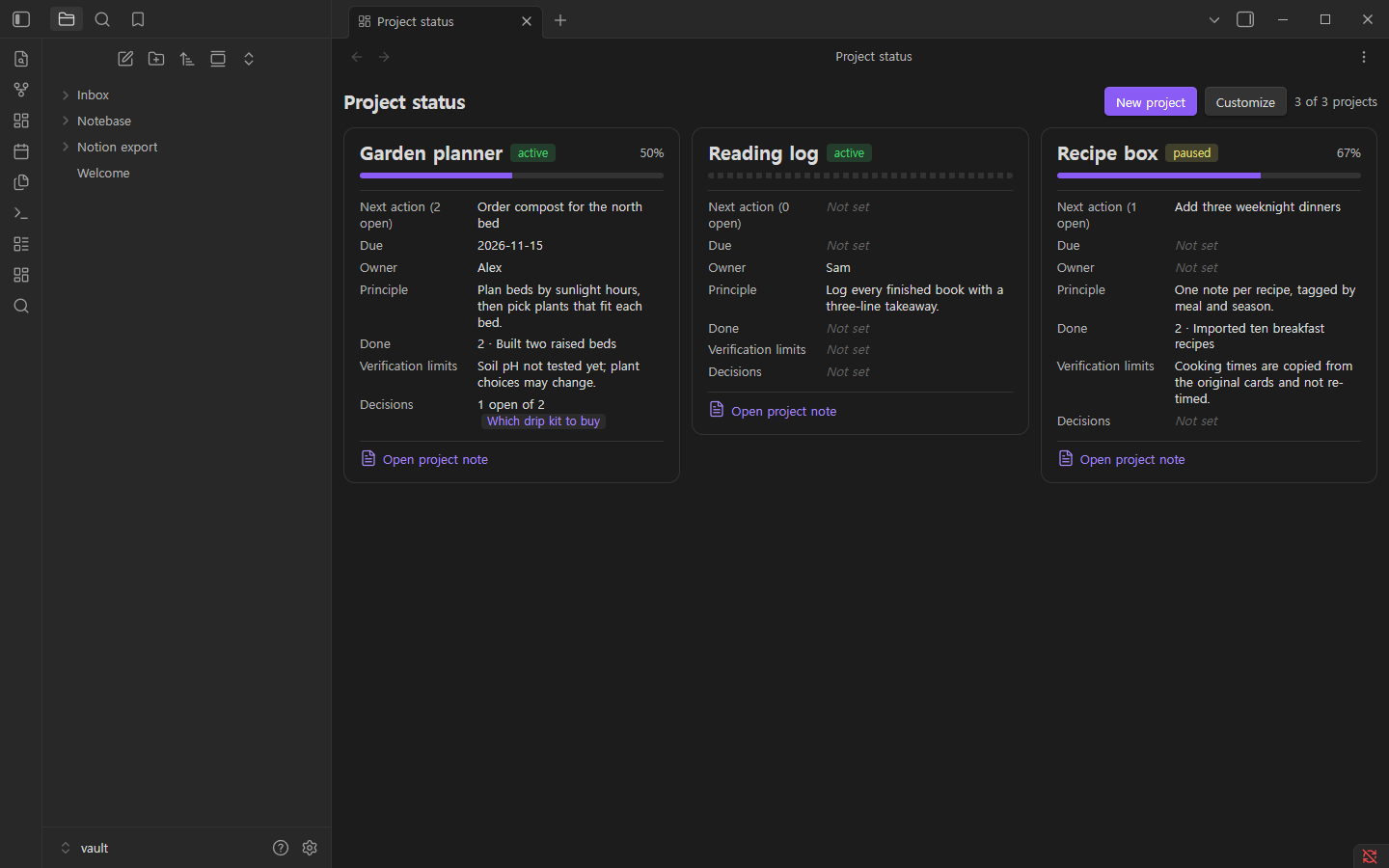
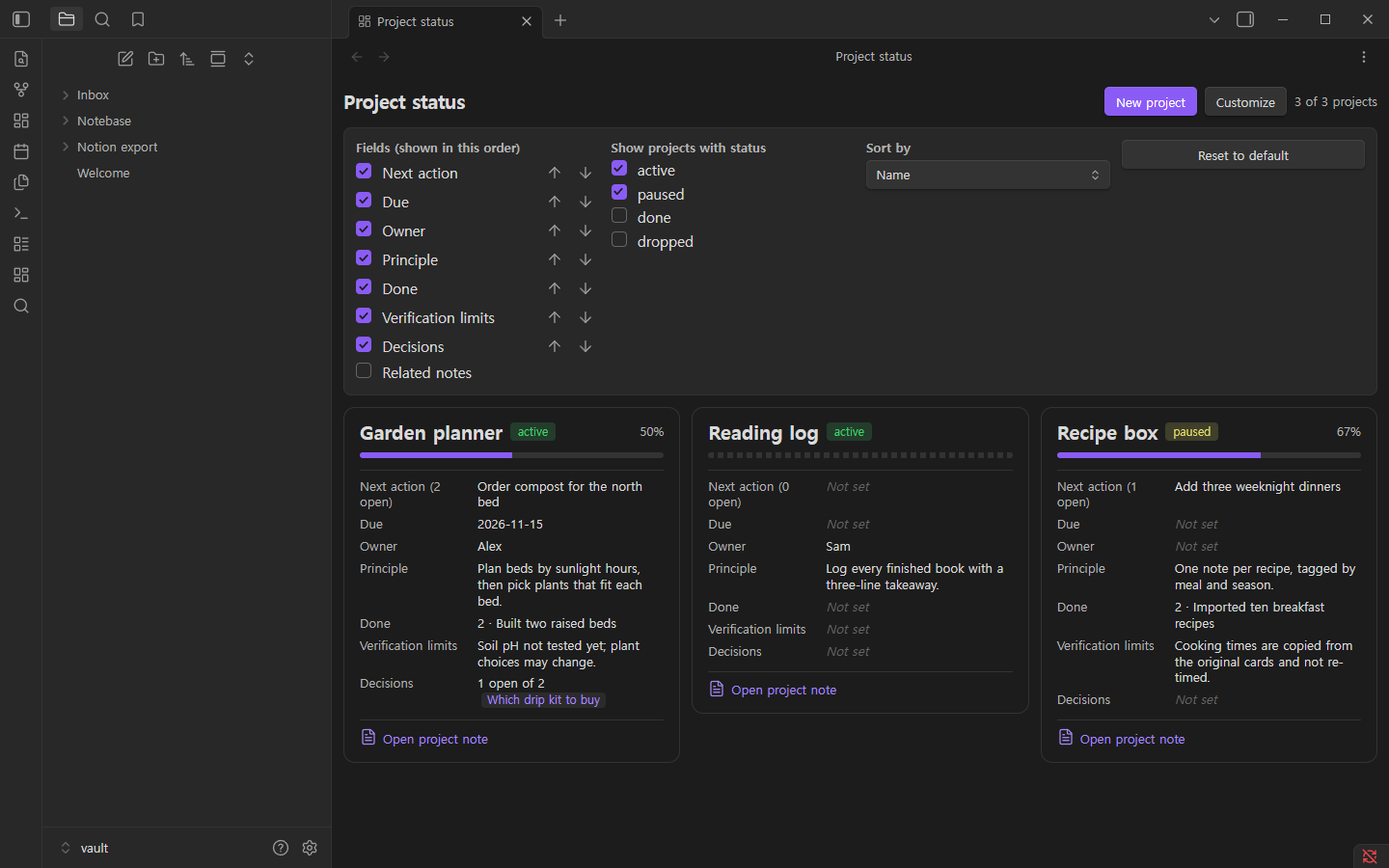
Notebase shows every project's principle, open tasks, finished work and verification limits at a glance, and adds workspace-style pages, databases, templates, relations, quick find and CSV/Markdown import and export, all as plain Markdown in your own vault.
 Illustration. Real screenshots below.
- Opt-in: only notes you mark with
kit: <kind>inside one workspace folder you choose (defaultNotebase/) are read or changed. - People first: next action, due date, owner, status, decisions, related notes and verification come first. Internal bookkeeping (AI, session, token or log properties) stays hidden unless you turn it on.
- Never invents data: a missing owner, due date or verification shows as Not set.
- Your view, your way: show or hide fields, reorder them, filter and sort. Choices are saved.
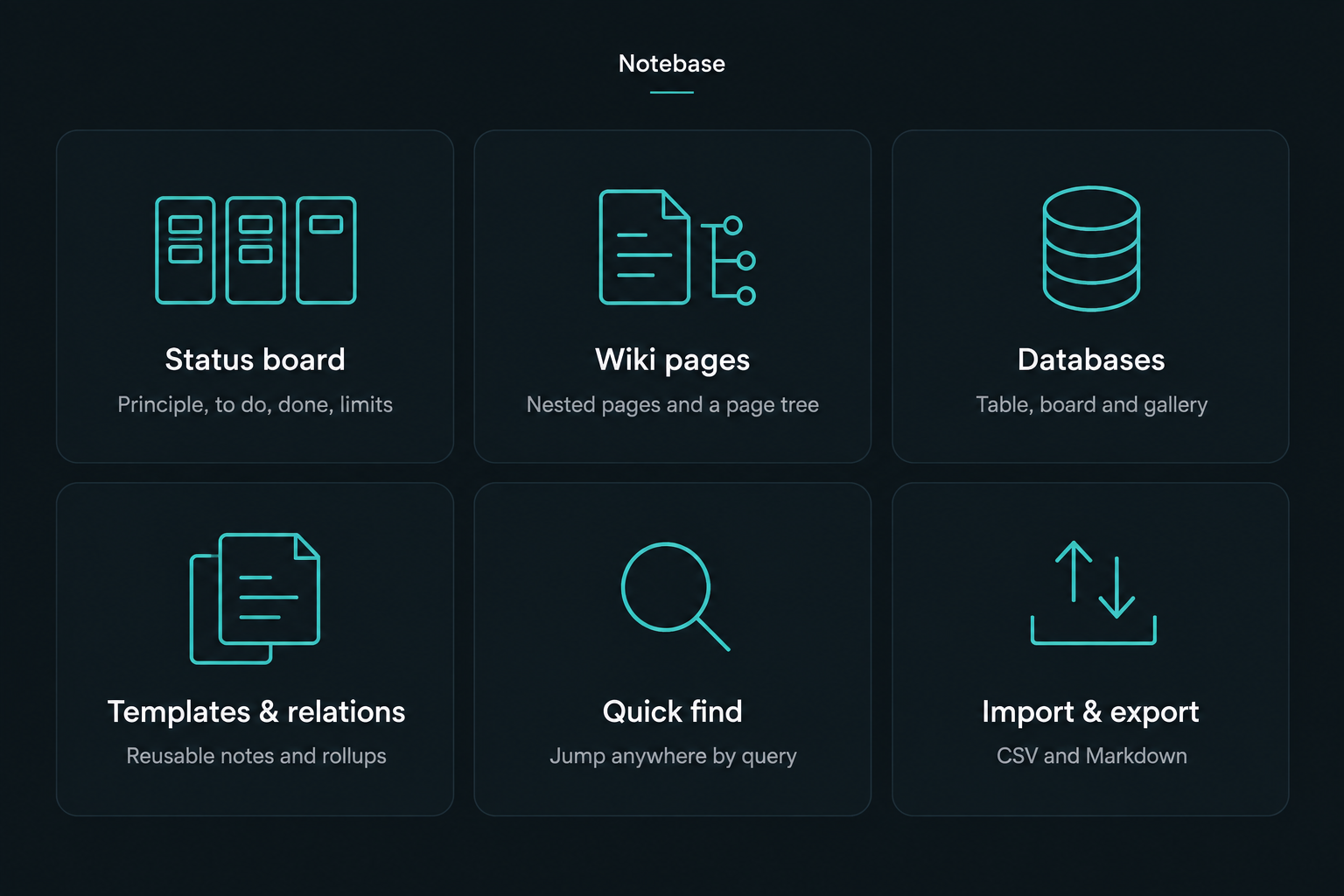
Screenshots
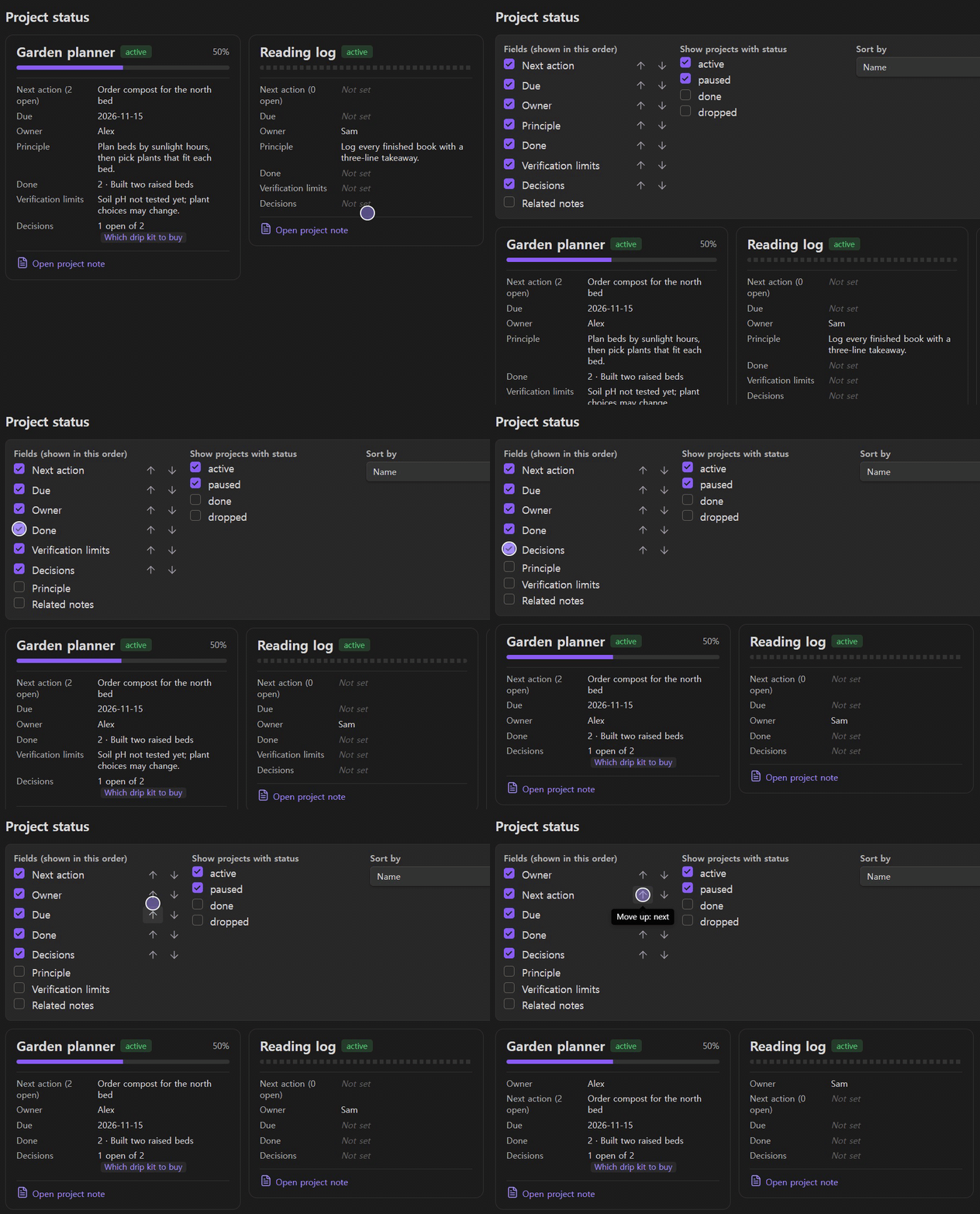
| Status board | Customize |
|---|---|
 |
 |
| Wiki pages and page tree | Relations and rollup |
|---|---|
 |
 |
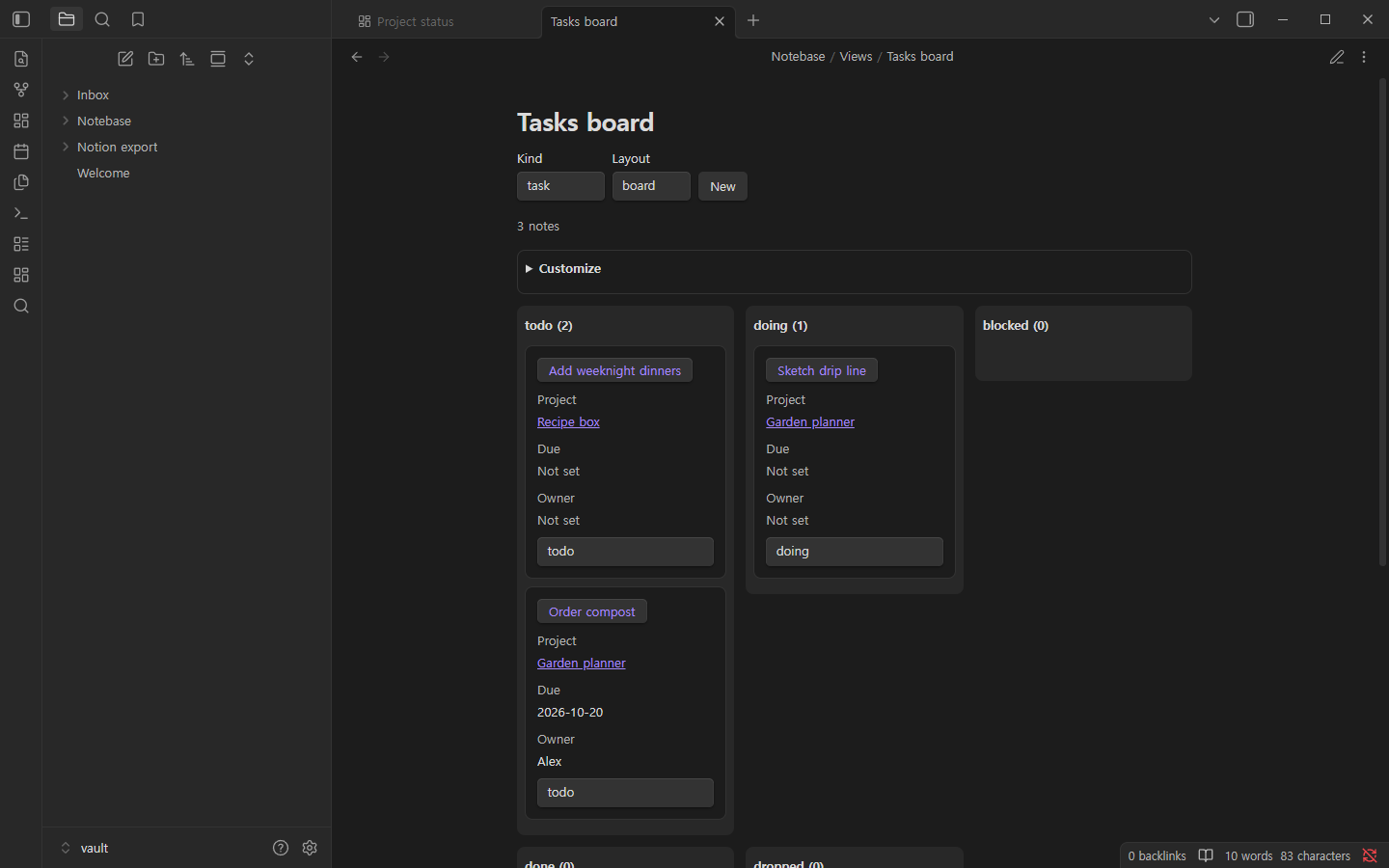
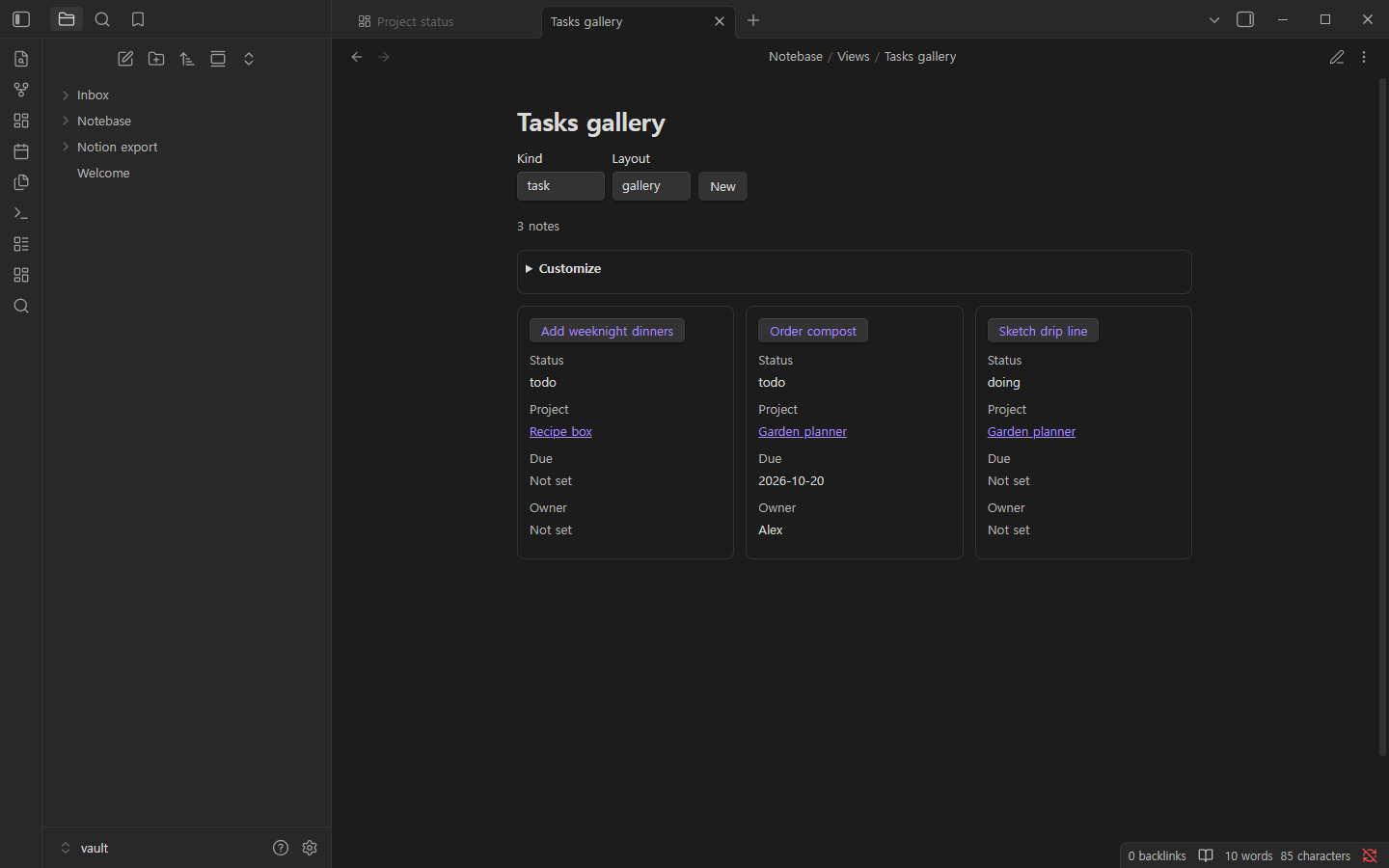
| Database: table | Database: board | Database: gallery |
|---|---|---|
 |
 |
 |
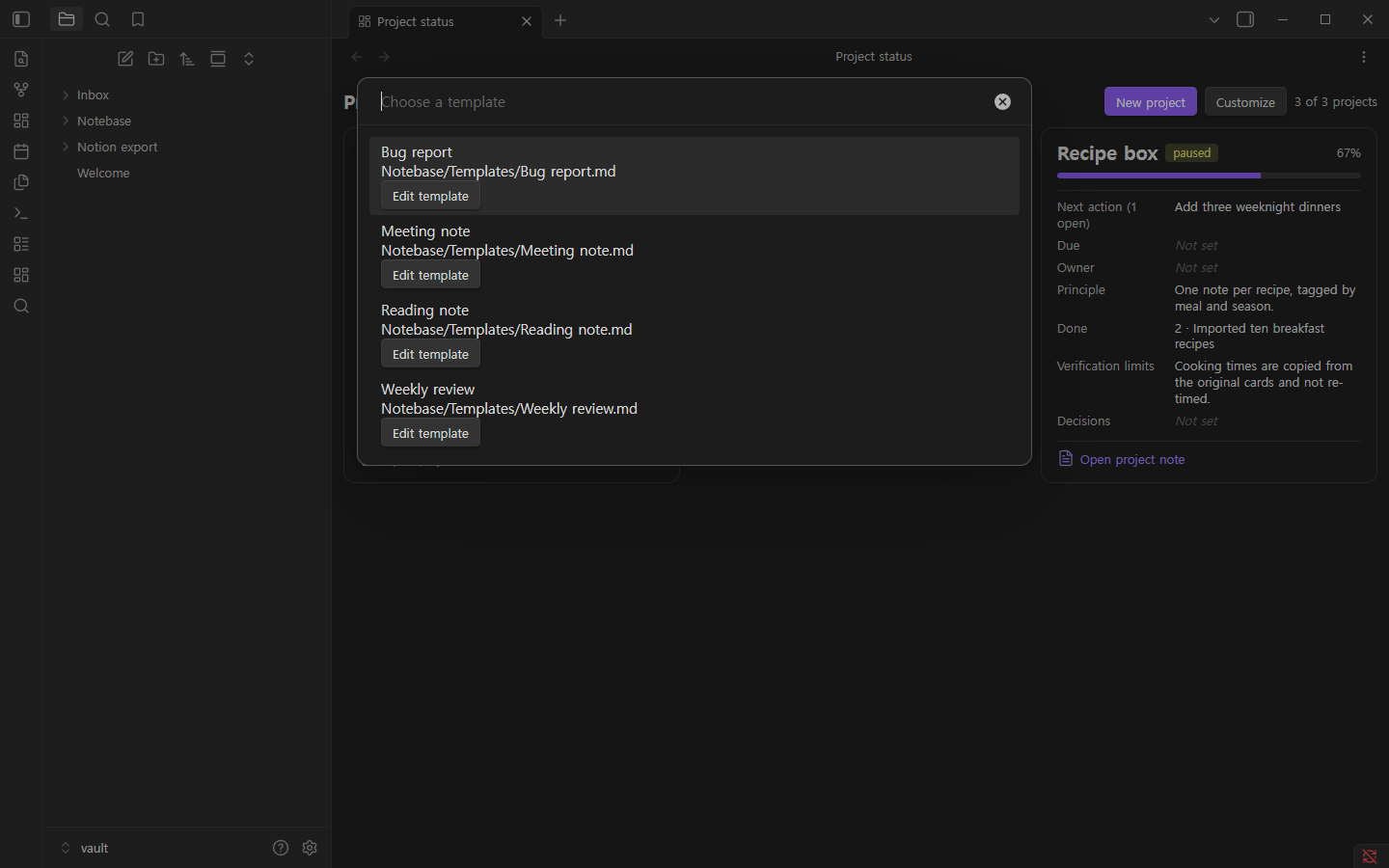
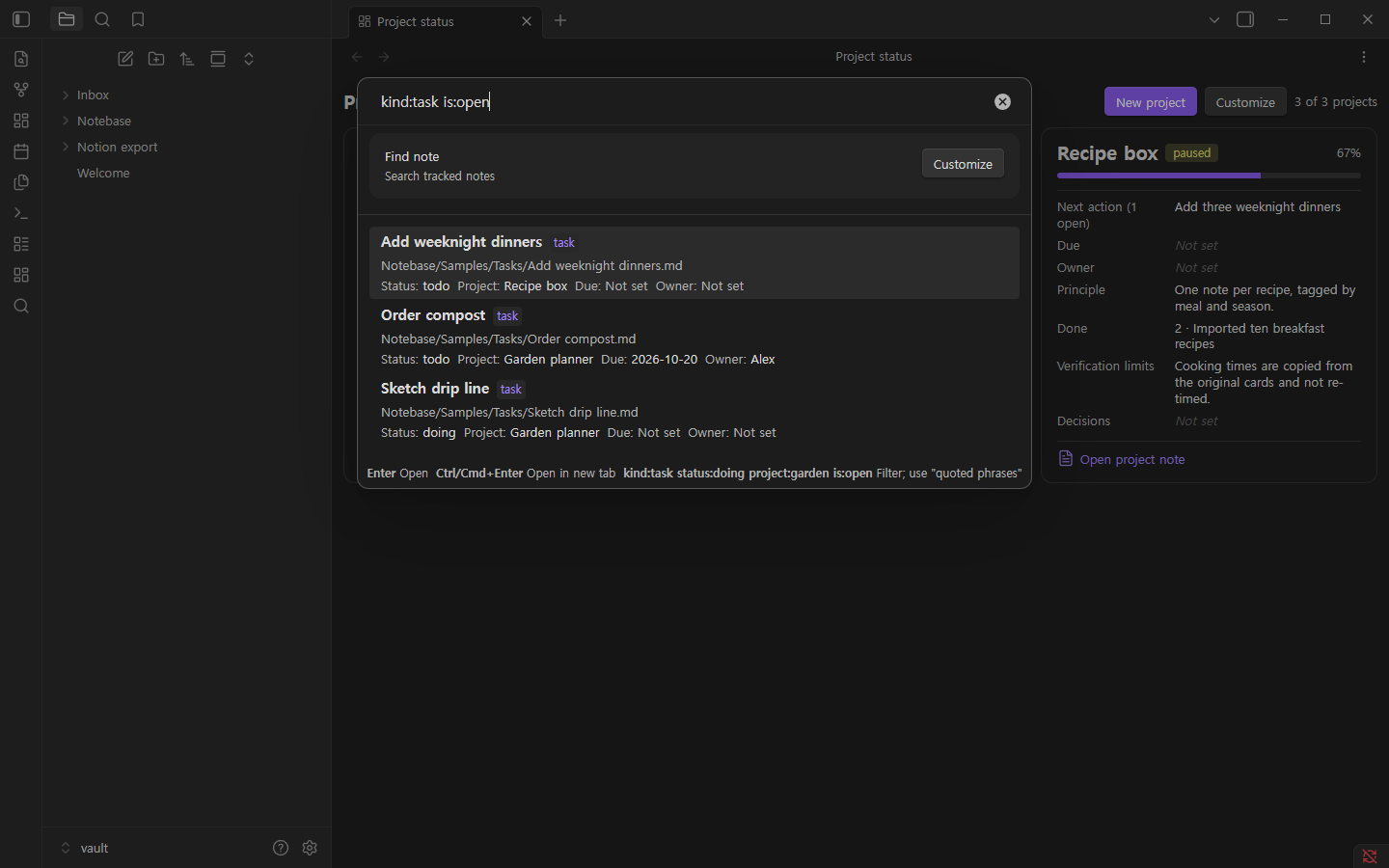
| Templates | Quick find |
|---|---|
 |
 |
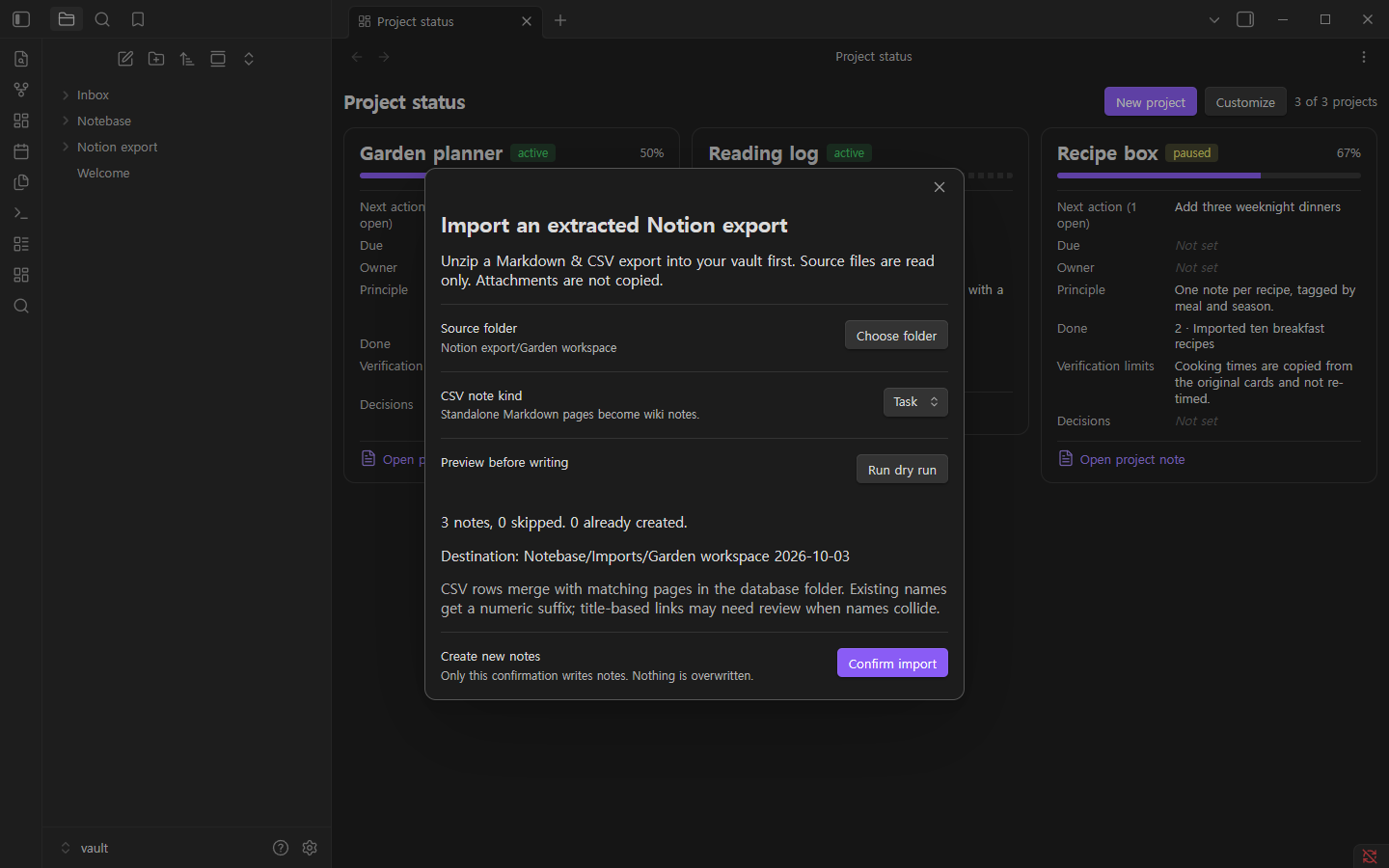
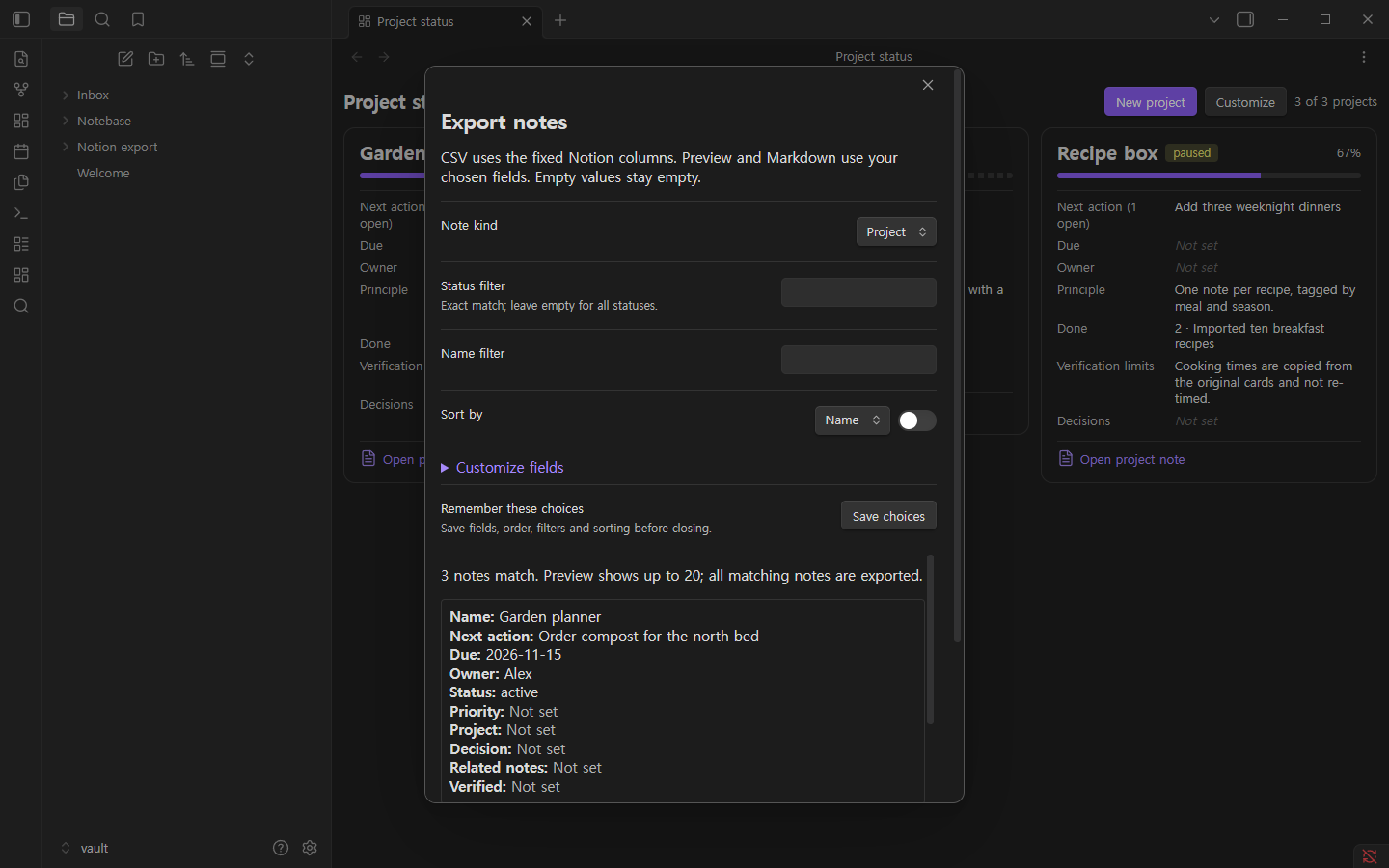
| Import a Notion export | Export |
|---|---|
 |
 |
Install
- Manual: download
main.js,manifest.jsonandstyles.cssfrom the latest release into<vault>/.obsidian/plugins/obtion/, then enable Notebase under Settings → Community plugins. - BRAT (beta): add
Hakubisual/notebasein the BRAT plugin. - Community plugins: Notebase in the community directory.
The plugin id is obtion (the project's earlier name), so the plugin folder is .obsidian/plugins/obtion/. Code
blocks written for 0.1.0 (obtion-status, obtion-db, obtion-children, obtion-breadcrumb, obtion-rollup) still
render. If you used 0.1.0 without changing settings, your existing Obtion/ workspace folder keeps being used.
Requires Obsidian 1.7.2 or later.
Quick start
- Command palette → Notebase: Insert sample projects to explore with sample data (written to
Notebase/Samples/), or Notebase: Create project. - Command palette → Notebase: Open project status board (or the dashboard ribbon icon).
- Click Customize to choose fields, their order, which statuses to show and how to sort.
How notes are structured
An Notebase note is a normal Markdown note with frontmatter:
---
kit: project        # project | task | decision | wiki | record
status: active      # project: active, paused, done, dropped
owner: Alex         # optional; empty stays "Not set"
due: 2026-11-15     # optional
---
Tasks and decisions link to their project with project: "[[Garden planner]]". A project note has four sections
(headings can be renamed in settings):
## Principle
- How this project works.
## To do
- [ ] Next action
## Done
- What is finished, and where the evidence is
## Verification limits
- What has not been verified yet, and why
Features
Status board
One card per project with status, progress (done vs. open items; a dashed bar when nothing is recorded) and the fields
you choose. Embed the board in any note with an notebase-status code block. Commands: Open project status board,
Create project, Create task, Create decision (pre-selects the current project), Insert sample projects.
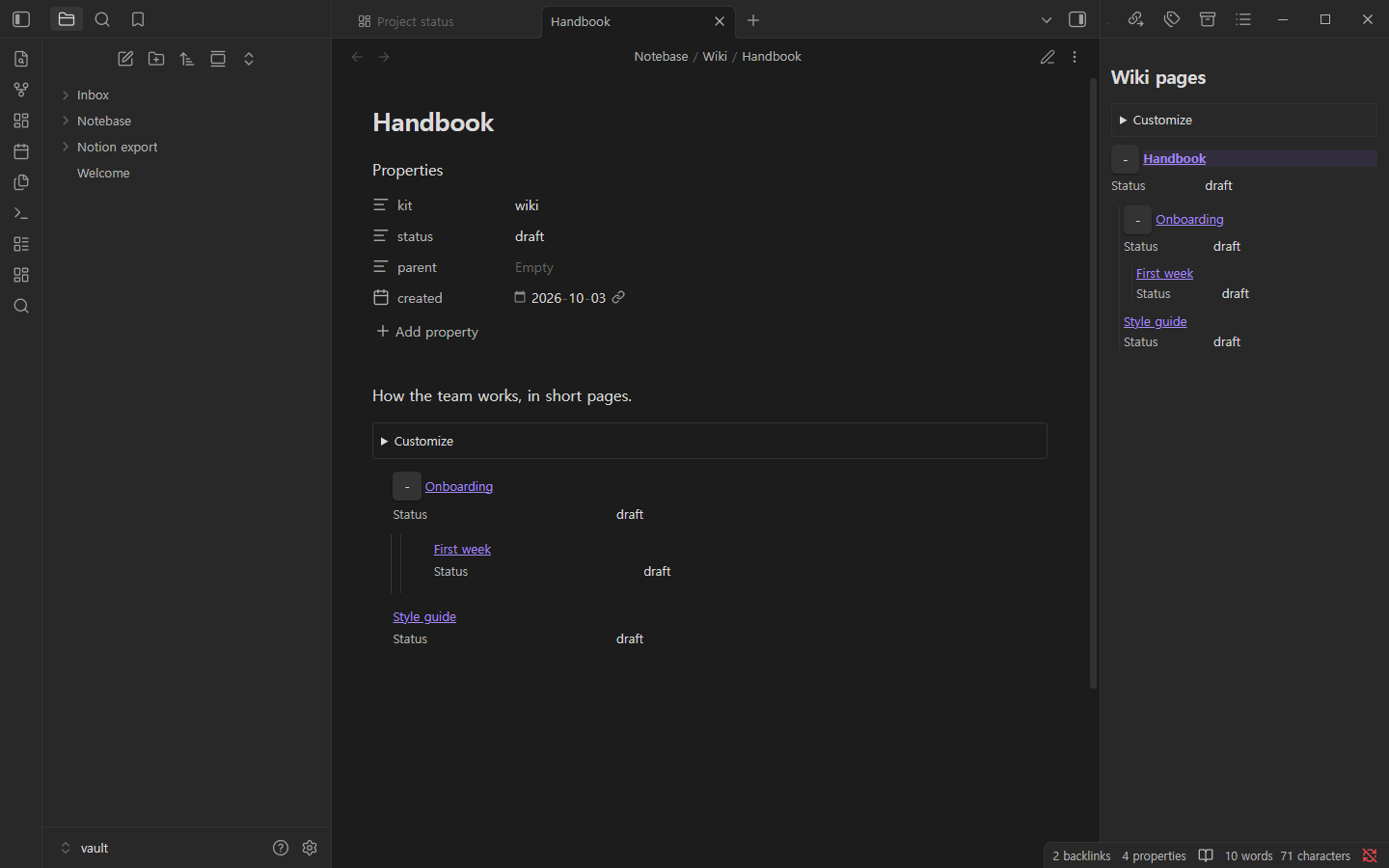
Wiki pages
Create wiki page and Create wiki subpage (adds a parent link). The Wiki pages side view shows the page
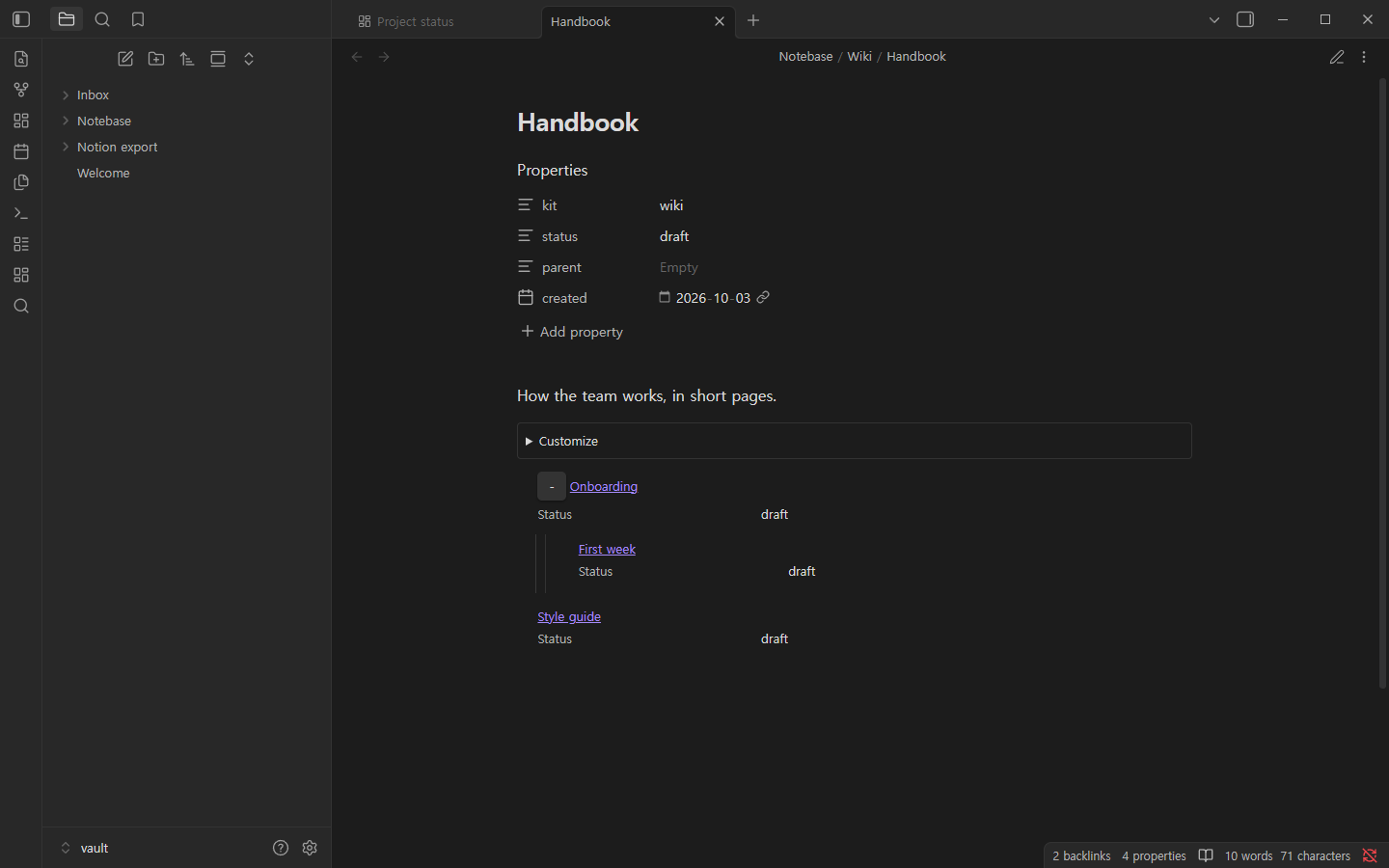
tree. Code blocks: notebase-children lists sub-pages (depth: 2 for two levels); notebase-breadcrumb shows the path to
the top page.
Databases
Add a code block to any note:
```notebase-db
kind: task          # project | task | decision | wiki | record
layout: board       # table | board | gallery
filter:
  - property: status
    op: in          # equals | in | contains | empty
    value: [todo, doing]
sort:
  - property: due
    direction: asc
columns: [status, project, due, owner]
```
Change status inline, edit text properties, create a new note with New, and save your field choices with Customize. Open database view opens the same database in its own tab.
Templates and relations
A templates folder inside the workspace folder (default Templates). Install starter templates adds a meeting
note, weekly review, bug report and reading note. New note from template fills {{title}}, {{date}},
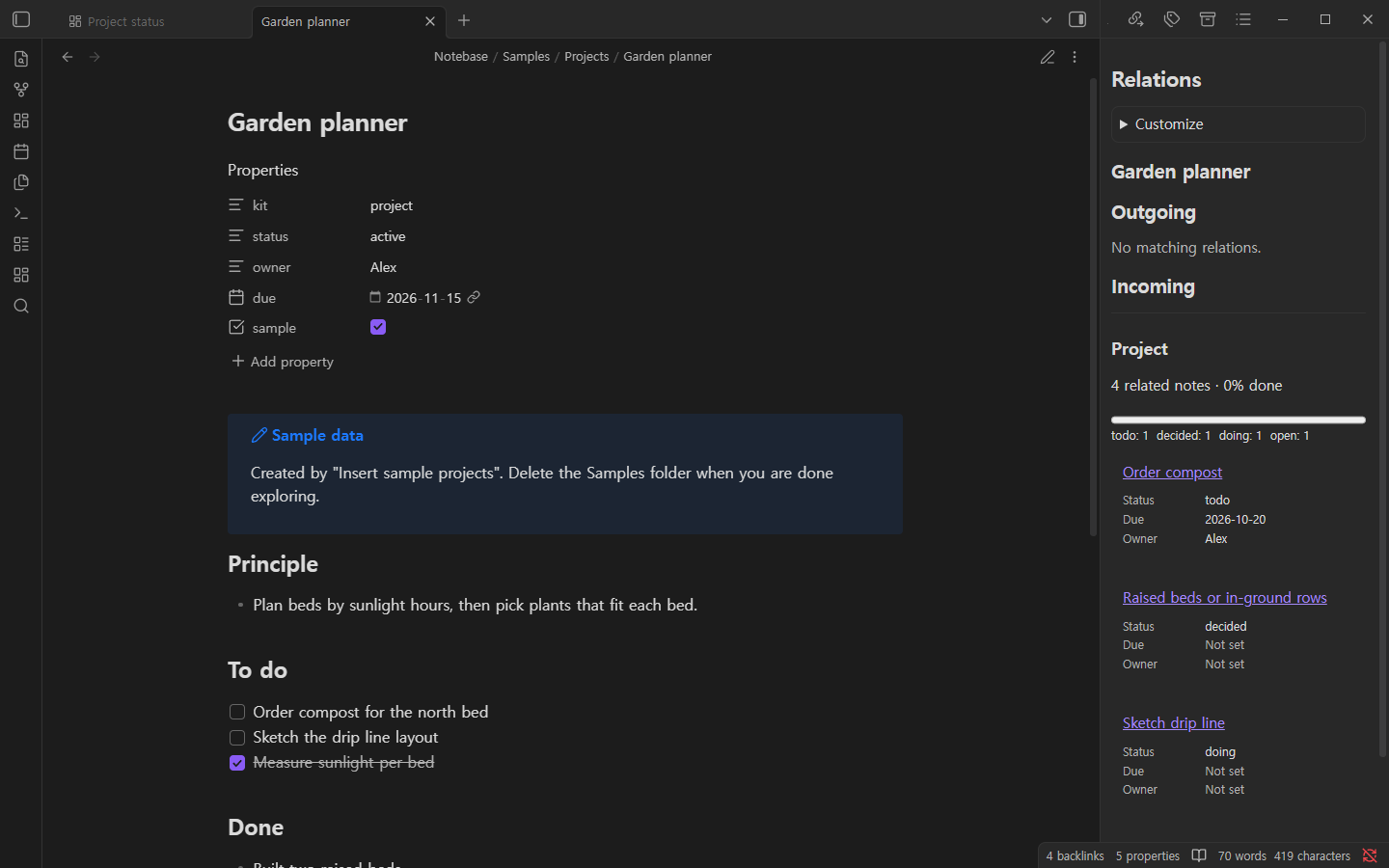
{{time}}, {{project}}, {{parent}} and {{folder}}. The Relations side view shows links in and out of the
open note with a rollup (count by status, percent done); an notebase-rollup code block shows the same inside a note.
Quick find
Find note with filters kind:task, status:doing, project:garden, is:open and "quoted phrases"; Enter
opens, Ctrl/Cmd+Enter opens in a new tab. Also Go to project, Next open task, Find in project and
Recent notes.
Import and export
- Import Notion export: unzip a Notion "Markdown & CSV" export into your vault, pick the folder, preview with a
dry run, then confirm. New notes go to
Notebase/Imports/<folder> <date>/; the source files are never changed. - Export notes: writes a CSV (UTF-8 with BOM) and a Markdown table to
Notebase/Exports/.
The templates/notion folder contains a sample import pack (CSV and Markdown) for recreating the layout in a
Notion workspace with Notion's own importer.
Works better with an AI assistant
Notebase keeps everything in plain Markdown with a small, strict frontmatter contract. Any assistant that can read and edit files in your vault (Codex, Claude, Cursor, Copilot, local models) can create projects, keep statuses current, write weekly summaries and suggest next actions, while the boards stay readable for people.
- Give the assistant the rules in
examples/ai/AGENTS.md: copy it to your vault root (save a copy asCLAUDE.mdfor Claude Code), or useexamples/ai/notebase.mdcas a Cursor rule. - Ready-made prompts:
examples/ai/prompts.md. Full guide:docs/AI-GUIDE.md.
The key rules: use the defined statuses; fill human fields (owner, due, project, verified) only with known
values and leave the rest empty; never mark something done or verified without evidence the person can open; never
overwrite, rename or delete notes; keep the assistant's own bookkeeping in internal fields (session, model,
tokens, log), which Notebase hides by default; propose bulk changes before applying them.
Privacy and safety
- No network access, no telemetry, no account, no ads.
- Reads and writes only inside your vault, and only inside the workspace folder. The whole vault, hidden folders and
paths with
..cannot be chosen. - New files get a free name ("Reading list 2") and never overwrite an existing file.
- Frontmatter is edited only in notes that opted in with a known
kitkind. Notes are never deleted or renamed. - Disabling or uninstalling leaves all notes untouched. Uninstalling also removes Notebase's saved view preferences.
Limits
See docs/FEATURE-MATRIX.md. Not included: real-time collaboration, comments, sharing,
API sync, formulas, timeline/calendar views, ZIP import. Not yet tested on mobile devices or light themes.
Development
npm install
npm run dev        # watch build
npm run typecheck && bun test && npm run build && npm run lint
npm run package    # validates manifest/versions and writes dist/<version>/ release assets + zip
Architecture: docs/ARCHITECTURE.md. Releasing: docs/RELEASING.md.