
README file from
GithubNote Zoom
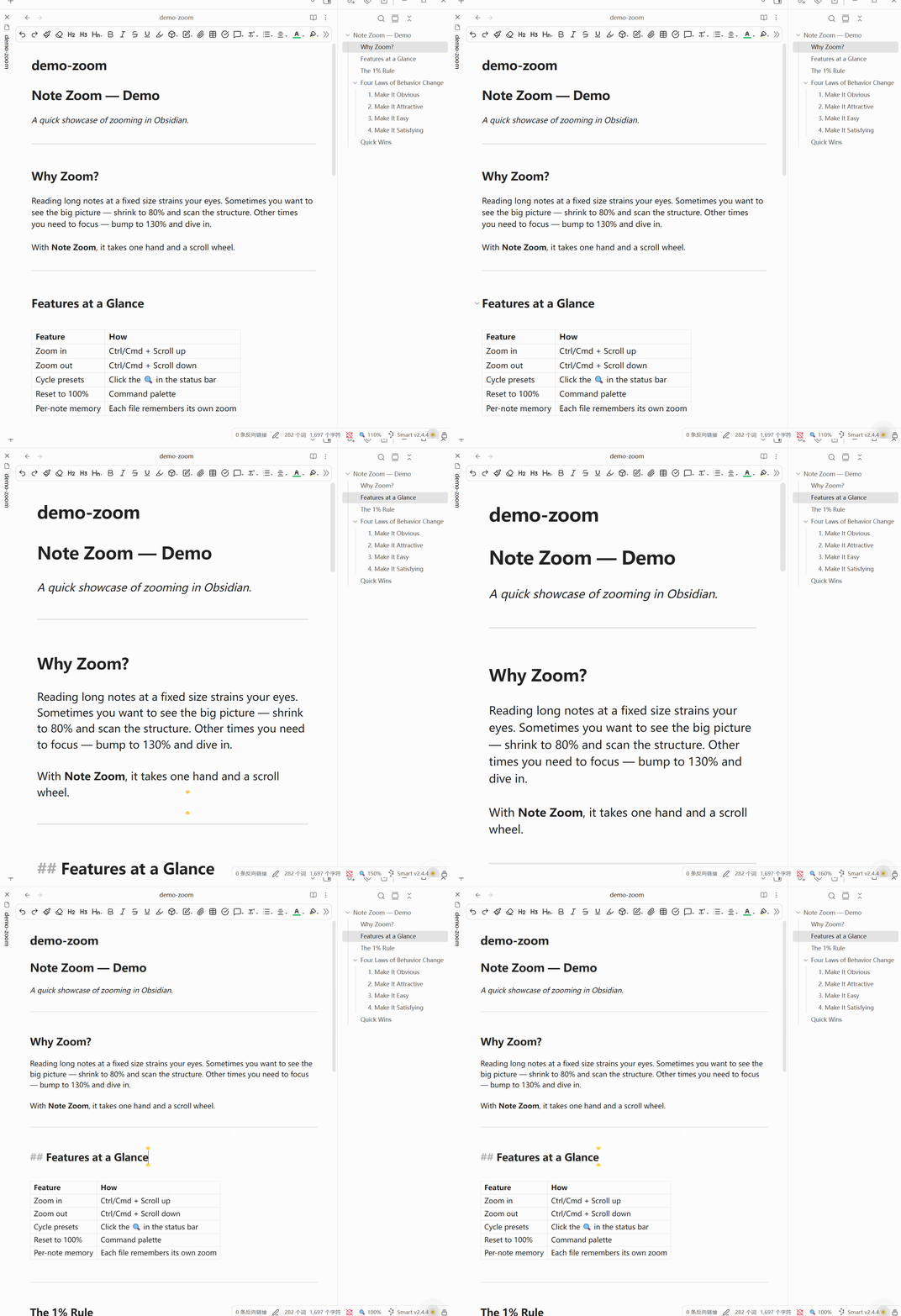
Hold a modifier key + scroll to visually zoom notes in and out. Lightweight, instant — each tab remembers its own zoom, sidebar stays untouched.
Mac auto-detects ⌘ Cmd, Windows/Linux defaults to Ctrl. Everything configurable.
✨ Features
- Ctrl/Cmd + Scroll to zoom in/out — lightweight, instant visual scaling
- Pinch-to-zoom — two-finger pinch on Precision Touchpads
- Pop-out window support — zoom works in notes opened in separate windows
- Zoom feedback bubble — a % indicator appears at your cursor while zooming
- Per-tab memory — every tab remembers its own zoom level independently
- Per-note mode (optional) — each note file remembers its zoom, persists across tab switches
- Double-click slider — double-click the 🔍 in the status bar to open a draggable zoom slider
- Sidebar & UI unaffected — only the note content scales, toolbar and panels stay sharp
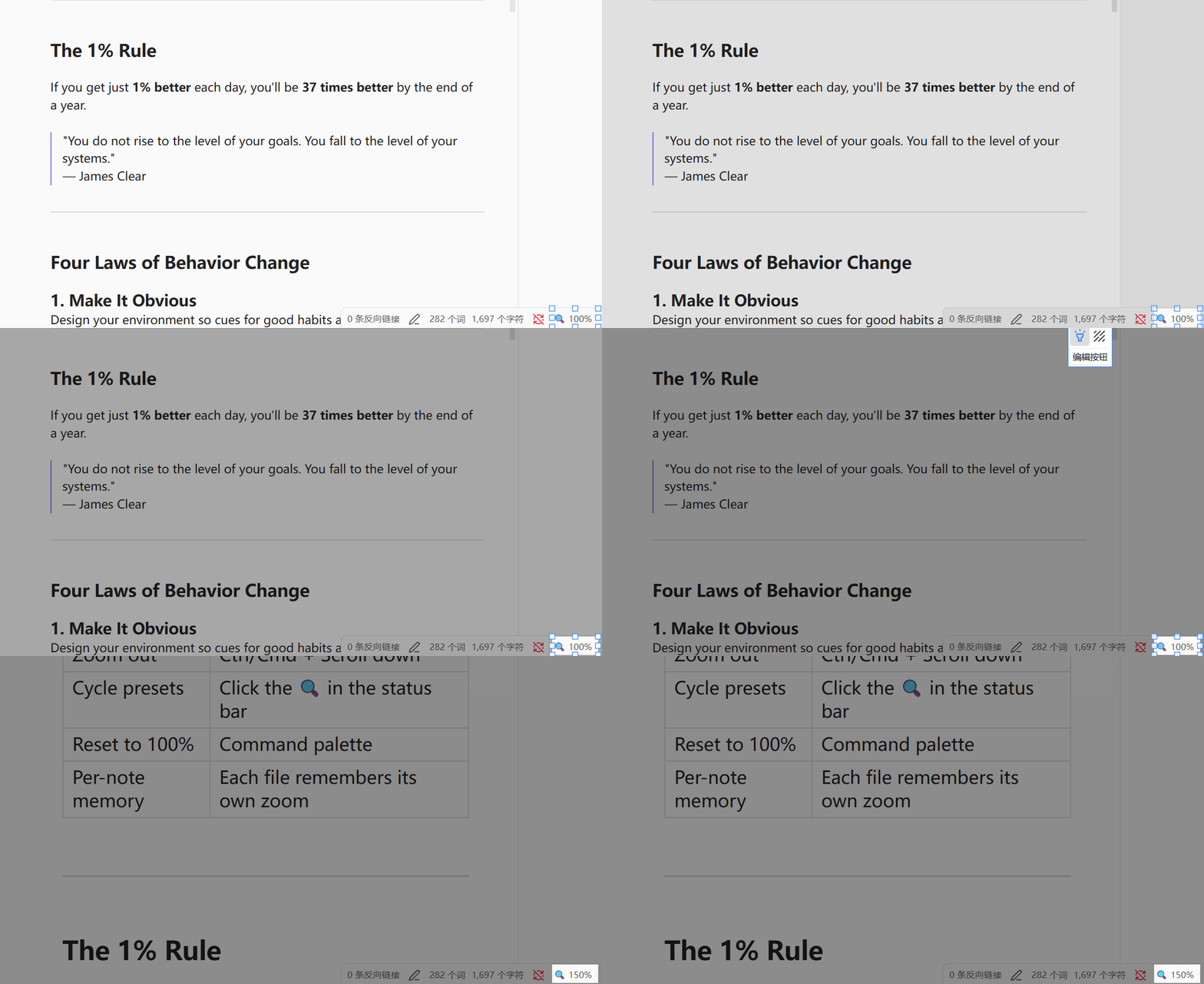
- Status bar indicator — shows current zoom %, click to cycle presets, double-click for slider
- Reset all zoom — one click or hotkey clears every saved zoom level
- 4 commands — Zoom in, Zoom out, Reset zoom, Reset all zoom (hotkey-friendly)
- 5 languages — English, 简体中文, 繁體中文, 日本語, 한국어
- Fully configurable — modifier key, step size, range limits, presets, zoom mode
🎬 Demo
Ctrl/Cmd + Scroll to zoom:
Click status bar to cycle presets:
📦 Installation
Manual
- Download
main.jsandmanifest.jsonfrom the latest release - Create a folder:
<vault>/.obsidian/plugins/note-zoom/ - Drop both files in
- Settings → Community plugins → enable Note Zoom
- Reload Obsidian
From Source
cd <vault>/.obsidian/plugins
git clone https://github.com/FusionC0rn/obsidian-note-zoom.git note-zoom
cd note-zoom
npm install
npm run build
Then enable the plugin and reload.
🕹️ Usage
| Action | How |
|---|---|
| Zoom in | Hold modifier key + scroll up |
| Zoom out | Hold modifier key + scroll down |
| Open zoom slider | Double-click 🔍 in the status bar |
| Cycle presets | Click 🔍 in the status bar |
| Reset to 100% | Ctrl+P → Reset zoom |
| Reset all zoom | Ctrl+P → Reset all zoom levels |
All four commands are bindable to custom hotkeys in Settings → Hotkeys.
⚙️ Settings
| Setting | Type | Default | Description |
|---|---|---|---|
| Language | Dropdown | English | 5 languages: English / 简体中文 / 繁體中文 / 日本語 / 한국어 |
| Modifier Key | Dropdown | Ctrl (Win) / ⌘ Cmd (Mac) | Which key to hold while scrolling |
| Zoom Step | Slider | 0.1 | How much each scroll tick changes zoom |
| Pinch Sensitivity | Slider | 0.1 | How fast pinch-to-zoom responds |
| Min Zoom | Slider | 0.3 | Smallest allowed zoom ratio |
| Max Zoom | Slider | 3.0 | Largest allowed zoom ratio |
| Zoom Mode | Dropdown | Per Tab | Per Tab: tab-based memory. Per Note: file-based memory |
| Preset Zoom Levels | Text | 0.8,0.9,1.0,1.1,1.2,1.5 | Comma-separated; click status bar to cycle |
⚠️ Known Limitations
- Desktop-only — this plugin targets the desktop app; mobile is not supported yet.
📄 License
MIT © 2026 Fusioncorn