
README file from
GithubNote Visit Tracker
Find the notes worth summarizing next.
Progressive summarization works best when you add a layer each time you come back to a note, so the notes you use most become the most distilled. The hard part is knowing which notes those are. Note Visit Tracker records how often each note is opened and how long it stays actively in view, then ranks your notes over any date range you choose. The ones at the top are your candidates for the next pass.
You can also roll the numbers up by tag to see which topics you spend your time in.
Features
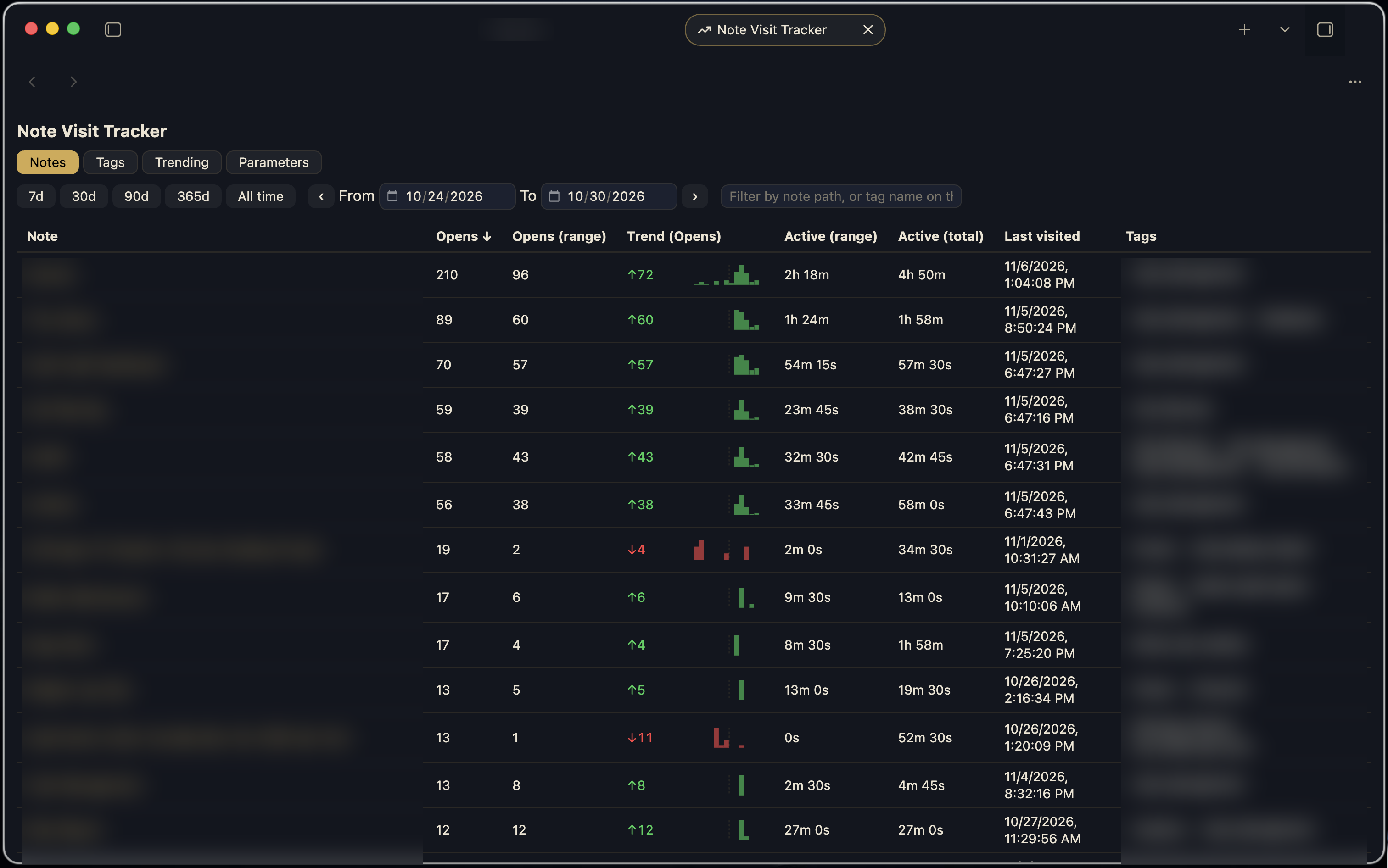
- Notes tab: opens and active time for every note over any date range. Pick a preset (7d, 30d, 90d, 365d, All time) or set the dates yourself, and step the range back and forward by its own length. The Trend column compares the range with the period before it and draws a sparkline across both. Click a column header to sort, and filter by path.
- Tags tab: the same numbers rolled up by each note's current tags. Click a tag to filter the Notes tab to notes carrying it.
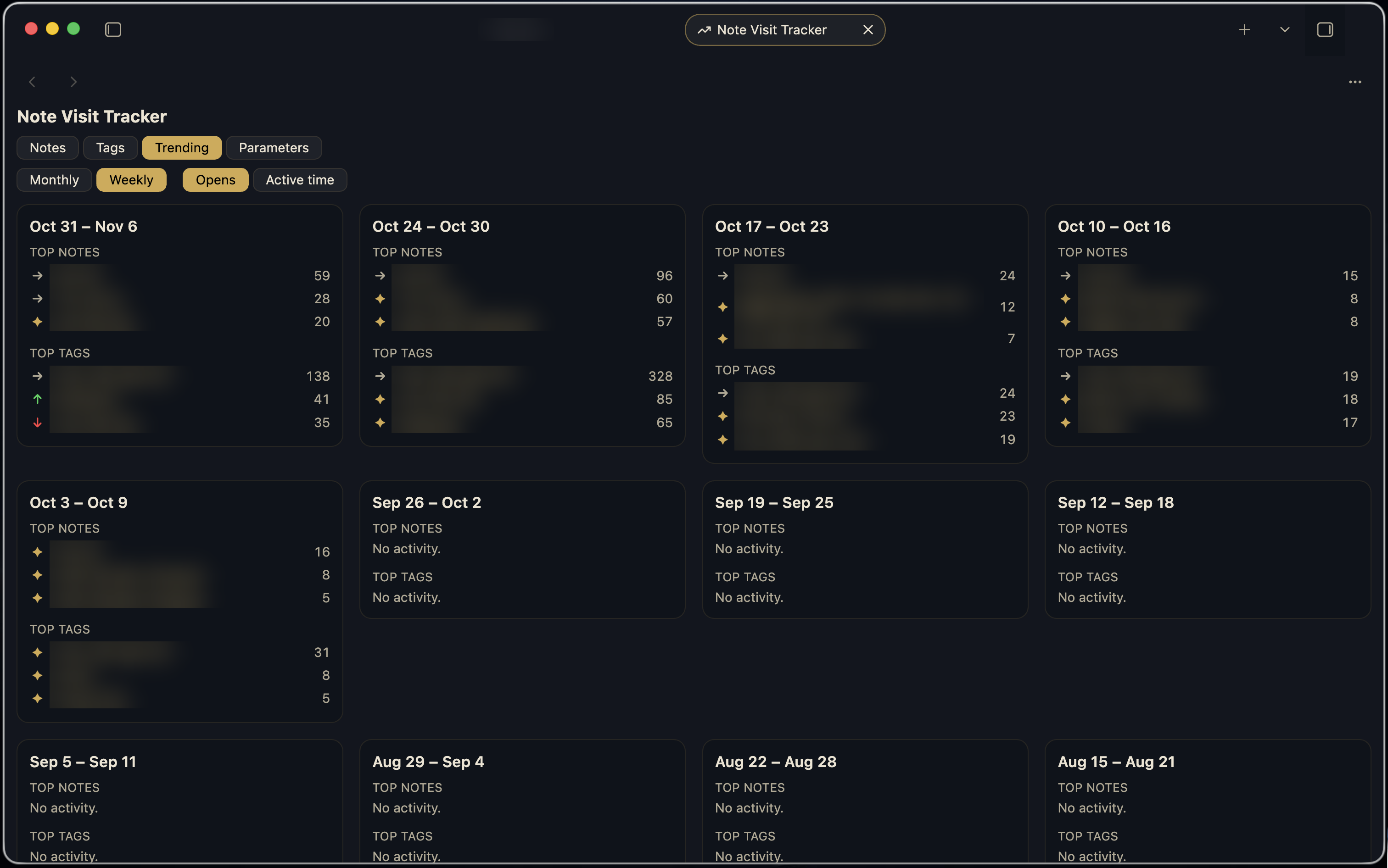
- Trending tab: weekly or monthly cards, each showing the top three notes and top three tags for that period, switchable between opens and active time. The icon next to each entry shows how it moved against the previous period's top three: a sparkle means it was not in the list before, a green up arrow means it climbed, a red down arrow means it dropped, and a right arrow means it kept its rank.
- Parameters tab: tune the tracker without leaving the view. Set the visit cooldown, idle threshold, default range and minimum visits to display, choose whether the Trend column compares opens or active time and whether it shows a count difference or a percent change, and reset all tracked data with a two-step confirm.
- Import from the Note Open Tracker Plus plugin, so switching does not cost you your history. Point the plugin at that plugin's event log in Settings and click Import.
Why the rankings are accurate
Clicking past a note does not count as a visit. Reopening the same note within the visit cooldown (default 5 minutes) is ignored, so bouncing between two notes or following a chain of links does not inflate the counts.
Leaving a note open while you walk away does not count as reading it. Active time accrues in 15-second ticks only while there has been mouse, keyboard, scroll or touch activity within the idle threshold (default 3 minutes). Sleep is handled the same way: no activity fires while the machine is asleep, so the gap reads as idle the moment it wakes, however long it slept.
Both thresholds are adjustable in the Parameters tab and in Settings.
Your history is safe
Renames and moves inside Obsidian carry the note's history to its new path. If the target path already has an entry, the two are merged.
Moves made outside Obsidian (scripts, Finder, sync) show up as a delete plus a create. Instead of dropping the entry, the plugin parks it as pending for 30 days and re-attaches it when a matching file appears. Matching goes in order of confidence: the same path is back; exactly one file has the same creation time (recorded per note, and kept across moves); exactly one untracked file has the same name. Ambiguous matches stay pending rather than being guessed. The check also runs at startup, so moves made while Obsidian was closed are caught.
Daily backups are written next to the plugin's data file as data_YYYY-MM-DD.json, at startup
and when the date rolls over. The newest two are kept. The command "Back up tracker data now"
forces one. Empty data is never backed up, so a wiped data file cannot overwrite a good snapshot.
Installation
From Obsidian: Settings -> Community plugins -> Browse, search for "Note Visit Tracker", then install and enable it.
Manually: download main.js, manifest.json and styles.css from the latest
release into
<vault>/.obsidian/plugins/note-visit-tracker/, then enable the plugin.
Privacy and data
- Everything stays on your device. The plugin makes no network requests and collects no telemetry.
- Visit data is stored in the plugin's own
data.json, not in a note. Daily backups (data_YYYY-MM-DD.json) are written in the same plugin folder. - The optional import reads one file inside your vault, at the path you set in settings. Nothing outside the vault is read or written.
Settings
Configurable from Obsidian's Settings -> Note Visit Tracker:
- Track non-Markdown files (PDFs, images and other files opened in the editor)
- Default range (days) for the view
- Visit cooldown (minutes)
- Idle threshold (minutes)
- Minimum visits to display
- Excluded folders, one vault-relative path per line
- Prune missing notes, which removes entries for notes deleted outside Obsidian
- Import visit history from the Note Open Tracker Plus plugin: set the vault-relative path
to its
.note-open-events.ndjsonlog, then click Import. Run it once; a second run double-counts overlapping events.
The Trend column's metric and comparison mode, and the Reset tracked data button, live in the view's Parameters tab.
Commands: Open view, Back up tracker data now, and Prune tracker entries for notes that no longer exist.
Development
npm install
npm run build    # bundles src/main.js into main.js
npm run dev      # rebuilds on change
npm run lint     # Obsidian's plugin review rules (eslint-plugin-obsidianmd)
./deploy.sh /path/to/vault   # build and copy into a vault for testing
deploy.sh also reads OBSIDIAN_VAULT_PATH if no path is given. It only copies
manifest.json, main.js and styles.css, and never touches the vault's data.json.
Releasing
Run npm version patch (or minor/major) to bump manifest.json, package.json and
versions.json, then git push --follow-tags. The Release workflow builds the plugin and
creates a draft GitHub release with the three plugin files attached; publish it from GitHub.