
README file from
GithubNote Inspector
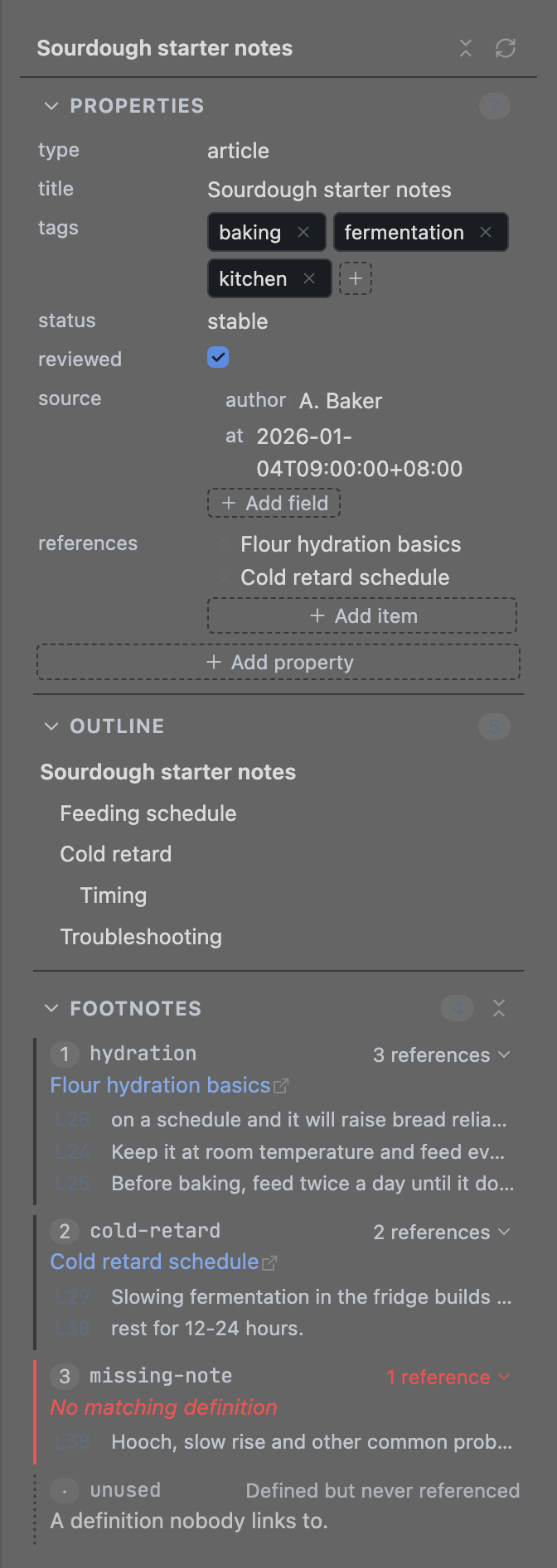
Obsidian's File properties, Outline and Footnotes views stacked in a single side panel for the note in focus. Every section folds on its own, and the panel remembers what you folded.
Why
Note Inspector grew out of a personal LLM wiki, whose notes are built to the
Open Knowledge Format (OKF). That is why their frontmatter is structured
rather than free-form: OKF has a note record its own provenance, so
generated says which actor produced the content and when. Add long outlines
and plenty of footnotes, and checking one note meant hopping between three
views — so all three now live in one panel.
Install
Requires Obsidian 1.13.0 or newer.
From the community directory
Search for Note Inspector in Settings → Community plugins → Browse once the plugin is listed there.
Manually
Download main.js, manifest.json and styles.css from the
latest release, put
them in <vault>/.obsidian/plugins/note-inspector/, and enable the plugin in
Settings → Community plugins (with restricted mode off). Reload Obsidian if
it does not show up.
Using the panel
The panel lives in the right sidebar (or run Open note inspector from the command palette) and follows the note you are working on — clicking the panel itself never hides its content. The header shows the current note and two buttons: collapse/expand all sections and refresh.
Properties
Shows the note's frontmatter in YAML order, nested objects included.
- Click a value to edit it inline; booleans are checkboxes. Enter saves, Esc cancels.
- Arrays of plain values are chips: click one to rename it,
×to remove it,+to add one. Arrays of records (likereferences) show one line per record — click to expand — and+ Add itemadds a record with the same fields as the previous one. + Add propertyadds a top-level property; choose Text, List or Dict first.+ Add fieldadds a key inside a dictionary, even an empty{}.- Links in values are clickable. Click a property key to reveal that line in the note; hover a row to delete it.
- Editing a property behaves like the built-in property editor, which may rewrite
the formatting of the frontmatter block (
tags: [a, b]can become a block list). Hand-crafted YAML is best edited in the note itself — click the key to jump there.
Outline
Heading tree with configurable depth. Click a heading to jump to it: cursor and
scroll in source mode, scroll in reading mode. Optional H1–H6 badges and a
highlight of the heading the cursor is currently in.
Footnotes
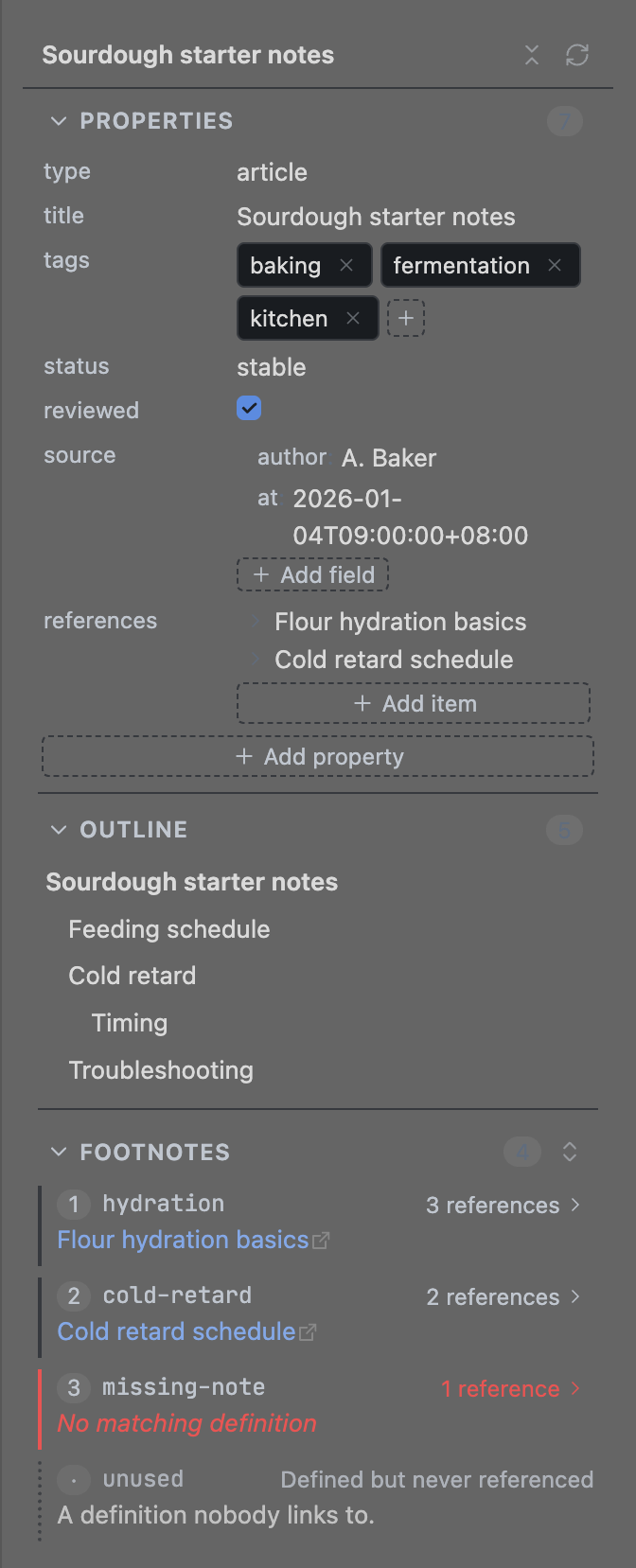
- Numbered in reference order, with the definition text (links included) and the number of times each footnote is referenced.
- Click a definition to edit it in place: Cmd/Ctrl+Enter or ✓ saves, Esc or ✗ cancels, and clearing the text deletes the definition. Saving is undoable with Cmd/Ctrl+Z.
- By default a footnote shows its definition and a reference count. Click the count to see where it is used, or use the section header button to open or close every footnote at once. What you opened resets after restarting Obsidian; turn on Show footnote context to have the lines visible from the start.
- Click a footnote's number or id to select its whole definition in the editor;
click a reference line to select that exact
[^id]. - References without a definition are marked No matching definition (
+writes one at the end of the note); definitions nobody links to are marked Defined but never referenced. Long definitions are clamped to three lines until you press Show more.
Settings
| Setting | Default | Description |
|---|---|---|
| Show item counts | on | Show how many items each section holds |
| Outline depth | 6 | Deepest heading level shown in the outline |
| Show heading level badges | on | Prefix outline entries with H1–H6 |
| Highlight current heading | on | Highlight the heading of the section the cursor is in |
| Show footnote context | off | List the line each footnote is referenced from; when off, click a count to peek |
| References shown per footnote | 3 | Longer lists collapse behind “Show more” |
| Reset panel state | — | Restore default settings and fold state |
Labels follow the Obsidian UI language (Chinese for zh*, English
otherwise); there is no separate language setting.
Good to know
- Headings and footnotes come from Obsidian's metadata cache, so they refresh a moment after you stop typing — the same behaviour as the built-in Outline view.
- The plugin only reads and writes the note's frontmatter and footnote lines. No network access, no telemetry, no ads.
Development
Contributor guide: CONTRIBUTING.md. Design and implementation notes for maintainers and agents: AGENTS.md.