
README file from
GithubNote Compass
English · Español · 简体中文 · 繁體中文 · 日本語 · 한국어
Move between related notes, set properties, fill in forms and process tasks, all from keyboard pickers that work anywhere in Obsidian.
What it does
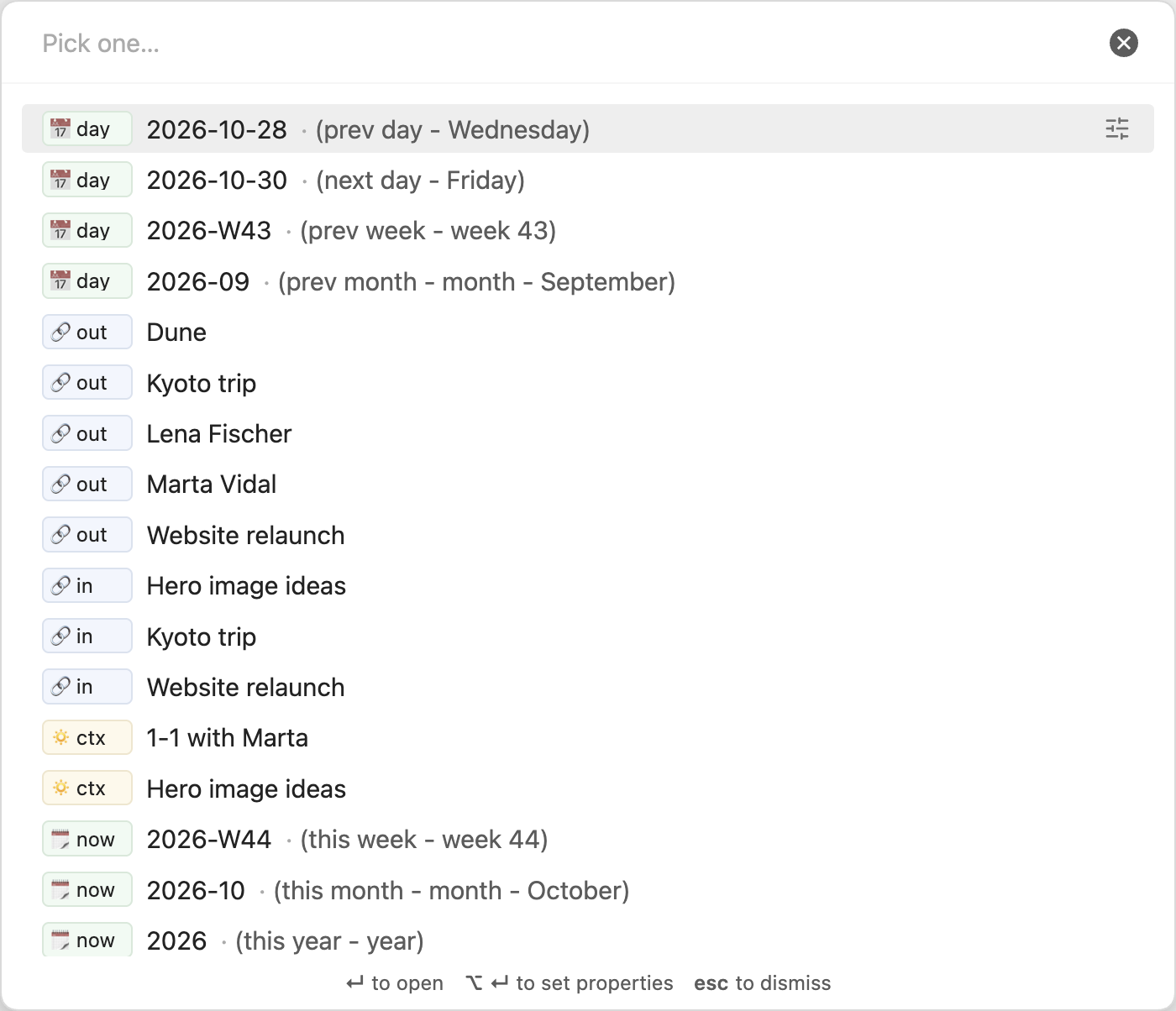
Note Compass adds keyboard pickers for navigation, properties, forms and your own task commands. Type a few letters and press Enter to choose.
Navigation
Move to the notes related to the note in focus, or to any list you define. Group your lists into named navigation pickers, each with its own command.
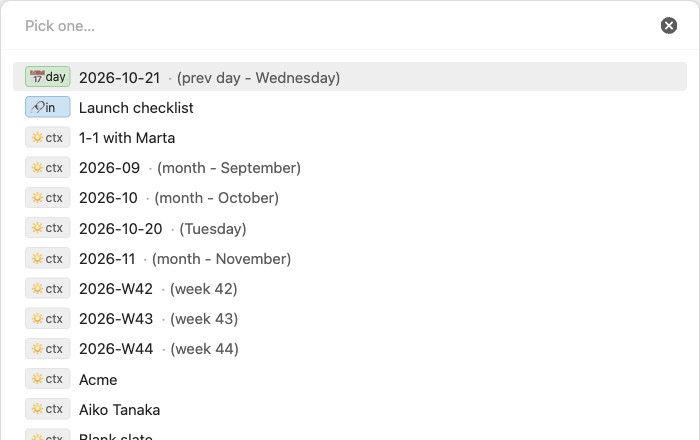
- See the adjacent date notes, outbound links, inbound links and notes from the same day in one list.
- Add your own lists with Bases-style filters on properties, file name, path, folder, tags, links, backlinks and dates.
- Edit a row's properties without opening the note.
- Type a trigger such as
@while writing to insert a link to any note a picker lists, with its own trigger for each picker.
Set properties
Edit the properties of the note in focus from one picker, and save every change at once.
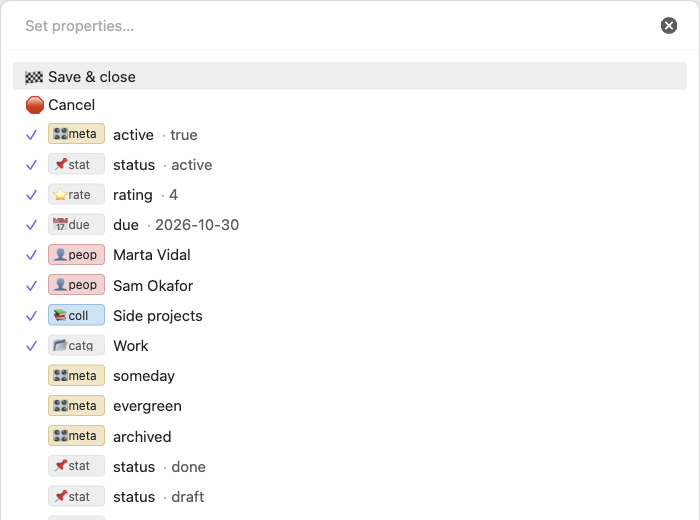
- Pick links to people, projects or any notes you choose, and set checkboxes, text, numbers and dates.
- Offer preset values and the values your vault already uses.
- Set several properties with one choice, such as marking a note done and archived.
- Nothing is written until you choose "Save & close".
Read more about Set properties
Fill form
Answer a few questions and get one new note with its name, text and properties filled in.

- Build forms such as a reading log or a meeting note, with fixed values and asked questions.
- Each form is also a command, so you can give it a hotkey.
- Review every answer before the note is created.
Process tasks
Complete, cancel, migrate or schedule tasks in the active note, or in the notes you choose, from a command you define.
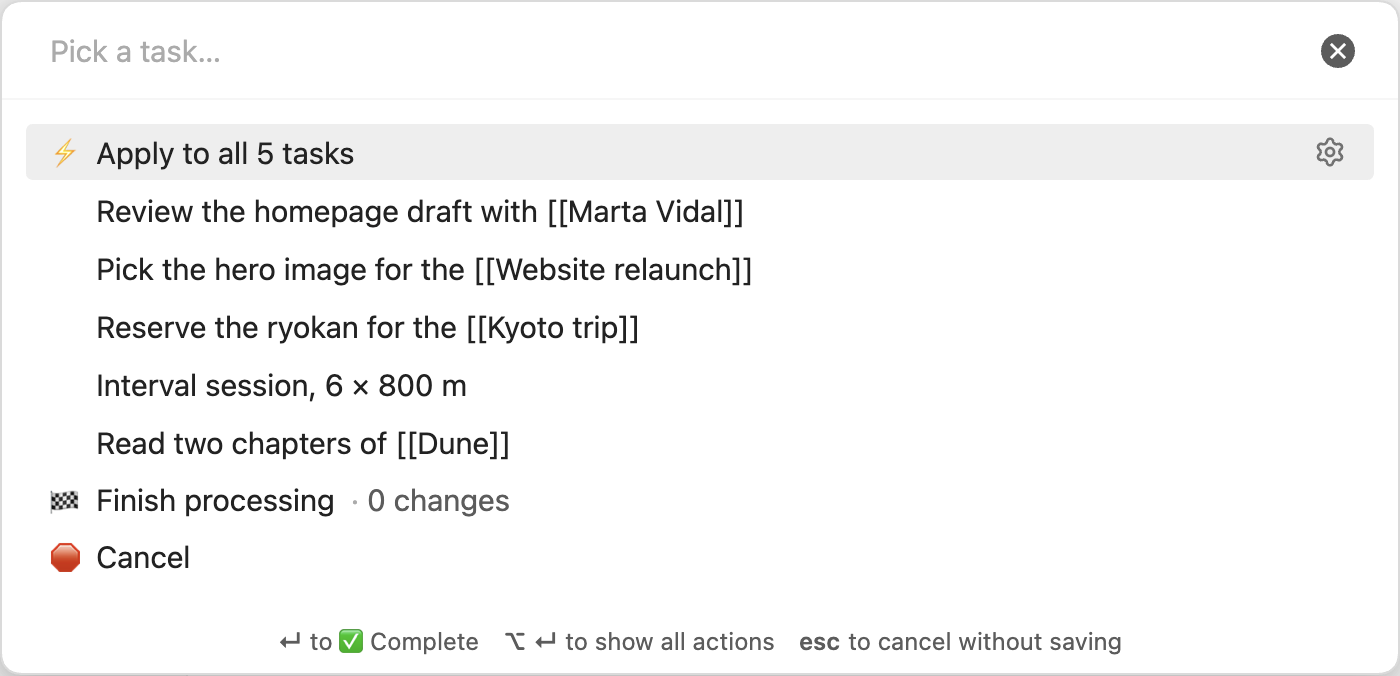
- Choose which task statuses to list or skip.
- Change status, add a completion date, or copy tasks to periodic or specific notes.
- Stage a batch and finish when ready, or cancel without writing.
Installation
Once Note Compass is listed in the community plugins browser, open Settings → Community plugins → Browse, search for "Note Compass", then install and enable it.
To install it by hand:
- Download
main.js,manifest.jsonandstyles.cssfrom the latest release: https://github.com/carlesba/obsidian-note-compass/releases/latest - Put the three files in
<vault>/.obsidian/plugins/note-compass/. - Reload Obsidian and enable Note Compass under Settings → Community plugins.
Note Compass needs Obsidian 1.13.0 or later and runs on both desktop and mobile.
Quick start
- Open Settings → Hotkeys, search for "Note Compass", and assign keys to "Navigation: Default", "Set properties" and "Fill form". "Select navigation picker" lists every navigation picker you create. You can also run them from the command palette.
- Open today's daily note and press the "Navigation: Default" hotkey to move to yesterday's note or to a note you linked from it.
- On a note you are working on, press the "Set properties" hotkey, type a few letters of a person's name, pick them, and choose "Save & close".
- Open Settings → Note Compass to switch off what you do not use, point the link properties at your own folders and notes, and add a form for the notes you create often, such as people.
- Add a command in Settings → Note Compass → Tasks, open a note with unchecked tasks, and run "Process open tasks". Enter stages completion;
🏁 Finish processingsaves.
The defaults give you the four relation lists in the "Default" navigation picker and a set of common checkbox and link properties in "Set properties".
Manual
- Navigation: lists, relation lists, date notes and filtering.
- Set properties: picker rows, value pickers, presets and checkboxes.
- Forms: running a form, form settings, fields, custom fields and placeholders.
- Task commands: status filters, actions, destinations and batch processing.
- Settings: the main page and its Navigation, Properties, Forms and Tasks pages, rows, prefixes, list filters and property pages.
- Tips and known behaviour
- Development
Languages
Note Compass follows the language you choose for Obsidian: English, Spanish, Simplified Chinese, Traditional Chinese, Japanese or Korean, and English for any other. The translated readmes are linked at the top, and this English manual is the reference.
Development
npm ci
npm run dev
npm run build
npm test
npm run lint
See Development for what each command does and how to try the plugin in a test vault.
License
MIT, see LICENSE.