
README file from
GithubNN Bridge
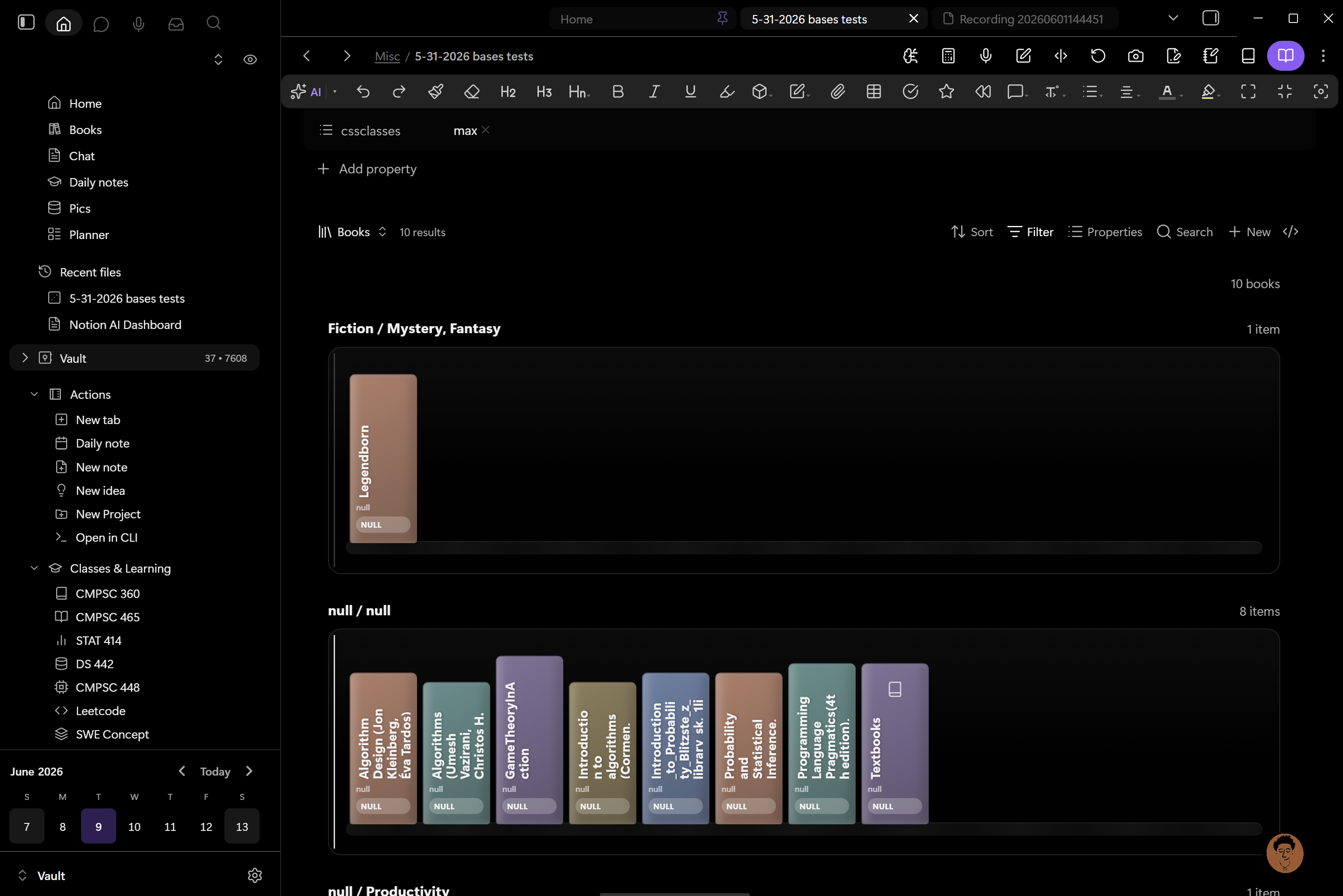
NN Bridge is a companion plugin for the Notebook Navigator plugin for Obsidian. It layers visual tweaks, extra shortcuts, recents filtering, and custom collapsible sections on top of Notebook Navigator's navigation pane, without you having to fork or edit Notebook Navigator itself.
Requires Notebook Navigator. NN Bridge does nothing on its own. Install and enable Notebook Navigator first.
Features
Visual hide toggles
Instant, reversible toggles to declutter the navigation pane:
- Hide shortcut labels (icon-only shortcut bar)
- Hide the "Shortcuts" section header
- Hide the entire shortcuts section
- Hide the vault title
- Hide note / file count badges
- Hide the navigation banner image
- Hide section header icons
- Hide navigation separator lines
- Hide chevrons (expand / collapse arrows)
Layout overrides
- Custom indent distance (px) for nested folders and tags
- Custom chevron size (px)
- Custom chevron color
Command shortcuts
Pin any Obsidian command directly into Notebook Navigator's shortcuts list. Pinned commands reorder from the Navigator UI like native shortcuts, and each one gets a custom label and Lucide icon. Command shortcuts are tracked per Notebook Navigator profile.
Recents filtering
Keep the Recent Notes list clean by excluding files at the data level (no blank rows in the virtualized list):
- Hide pinned / shortcut files from Recent Notes
- Manually exclude specific files by name
Sidebar markdown embed
Render arbitrary Markdown inside the navigation pane, including Buttons plugin code blocks. Configure the section title, top / bottom placement, top spacing, and an advanced "insert after CSS selector" option.
Sidebar tabs (Notion-like)
- Override the icons on Obsidian's native left sidebar tabs
- Inject custom command buttons into the sidebar tab container
Custom sections
Build your own collapsible sections that hold note shortcuts and command shortcuts:
- Fuzzy pickers for vault files and commands
- Per-section title and Lucide icon
- Placement control (below shortcuts, or after a custom CSS selector)
- Note paths auto-update on file rename / delete
- Styled to match Notebook Navigator's native look
Installation
From the Community Plugins browser
- Open Settings → Community plugins in Obsidian.
- Search for NN Bridge.
- Install and enable it.
- Make sure Notebook Navigator is also installed and enabled.
Manual
- Download
main.js,manifest.json, andstyles.cssfrom the latest release. - Copy them into
<your-vault>/.obsidian/plugins/nn-bridge/. - Reload Obsidian and enable NN Bridge in Settings → Community plugins.
How it works
NN Bridge applies most visual changes through body-class CSS toggles (the same approach as the Hider plugin). Recents filtering works by patching Notebook Navigator's recents service at the data level so excluded files never reach the virtualized list. Command shortcuts, the sidebar embed, sidebar tab tweaks, and custom sections are injected into Notebook Navigator's DOM and kept in sync on layout changes.