
README file from
Github✦ Neon Work
A command centre for an Obsidian vault: a dashboard, projects, tasks, time tracking, research notes and a few writing touches, in a neon look with live background patterns, now with project planning: Gantt charts, a kanban board and reports. By Kevin Mulholland, built on Neon Deck by Yobzs.
[!NOTE] 1.5.6: a tidier report: Project details starts straight with your project note, without repeating its title, and its headings sit under Project details. See the release notes.
1.5.5: the quick capture panel in your theme's colours, with Obsidian's menu and several lines of text; inbox notes named with the time and date of creation, listed by their first line; 'New note' can create a new file in the current folder; Planning's report comes concise or full; folders starting with
_(such as_claude) are left out like excluded folders. See the release notes.1.5.4: links from your notes to the plugin's tabs (
obsidian://neon-work?open=projects), and page previews when hovering a note in its lists. See the release notes.1.5.3: a tidy-up after Obsidian's automated review (styles without
!importantor:has()); needs Obsidian 1.7.2 or later. See the release notes.1.5.2: a new note opens in its own tab with the cursor in it, and tabs keep their names after a restart. See the release notes.
1.5.0: Planning knows about holidays and time off (UK public holidays built in, closures, any country's dates, people's leave, per customer or Area), has its own calendar in the task editor, and makes a report for other people: a summary, then the project note itself. Also editing on the Gantt chart, steps under a task, tasks that run alongside, and cancelling or deleting tasks. See the release notes.
Planning arrived in 1.4.0: a lightweight project planner over the tasks in your project notes (1.4.0 release notes).
Neon Work sits on top of a vault you already have:
- Read-only by default. It reads your notes and changes nothing until you switch read-only off, and even then only when you act (tick a task, set a status, create a note).
- It never moves your files, and creates nothing until a feature needs it.
- It reads your own conventions: notes tagged
project,#tasklines, astatusproperty, customer folders (1.Customers/<customer>/…), your templates and your daily (or weekly) note settings.
Everything runs 100% locally: no network calls, no telemetry, no remote fonts or code, no eval. FORK.md lists everything that differs from the original plugin; docs/architecture.md describes how it is built.
What it does
The plugin has six parts (Planning is part of Projects). Each can be switched off in the settings, and the others keep working. A list at the top of the left sidebar (Dashboard, Cards, Inbox, Tasks, Projects, Time, Research, Graph) switches what the main pane shows; notes open in the same pane, and Back / Forward move between them. The ? button at the top of each tab opens this guide inside Obsidian, at the part you are in, with links to the pictures here.
Dashboard
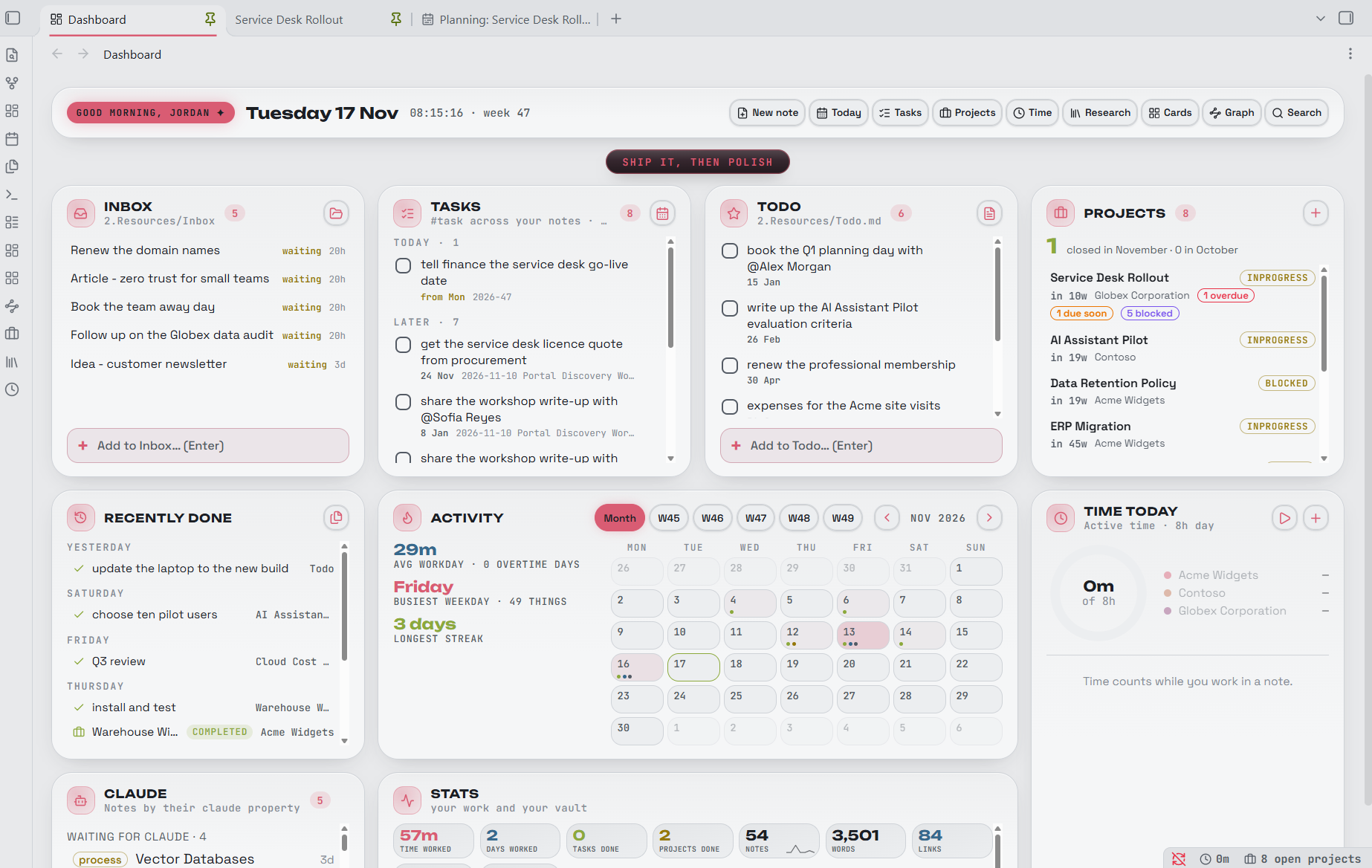
- Cards on one page: Totals, Vault pulse, Recently done, Activity (a month calendar, and this week with two weeks either side), Inbox (open inbox notes, by first line, with an Add box), Tasks, Todo, Projects, Time today and the Claude card (notes whose
claudeproperty asks for Claude's work, and notes Claude changed for you to review). - Recently done: the last 14 days of finished work, read from your notes: tasks ticked with a ✅ date (in the editor, the Tasks plugin or these cards) and projects with a
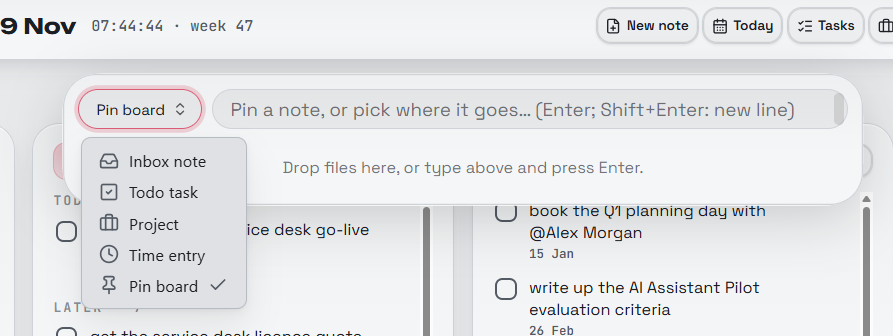
completedorcancelleddate. Works in read-only mode. - Ticker and pin board: a live line of facts at the top that opens into a pin board. Drop a note, a file or some text on it to pin it; pins live in one note, one line each.
- Quick capture: type a thought and send it to an Inbox note (a new note in your inbox folder named by the time,
20261119_093015, holding what you typed, below your inbox template if you have one), the Todo note, a new Project, a Time entry or the pin board. Enter sends; Shift+Enter starts a new line (on the pin board, each line becomes a pin). The Inbox card's Add box works the same way, and the card lists each inbox note by its first line (or itstitle), as much as fits. - Card explorer (sidebar or tab): your folders and notes as cards, coloured by customer, with filter chips per customer.
- Note graph (desktop): your notes as clusters of linked topics. Its Gaps list shows topics that ought to connect but barely do ("What connects [[A]] with [[B]]?"); Bridge note makes a note in the Bridges folder with that question and links to both sides, to help you think it through. Its Structure scale rates how your notes cluster, from Biased (one topic dominates) through Focused and Diversified to Dispersed (many loosely linked islands), from how cleanly they split into topics (modularity) and the share of the largest topic; hover over a level for its meaning.
- Weekly review (Create / open this week's review): a note from your review template with the week in numbers and the notes you created or edited.
- Themes and patterns: nine themes, each in light and dark, with a live pattern behind the dashboard; chosen in Settings → Dashboard.
Tasks
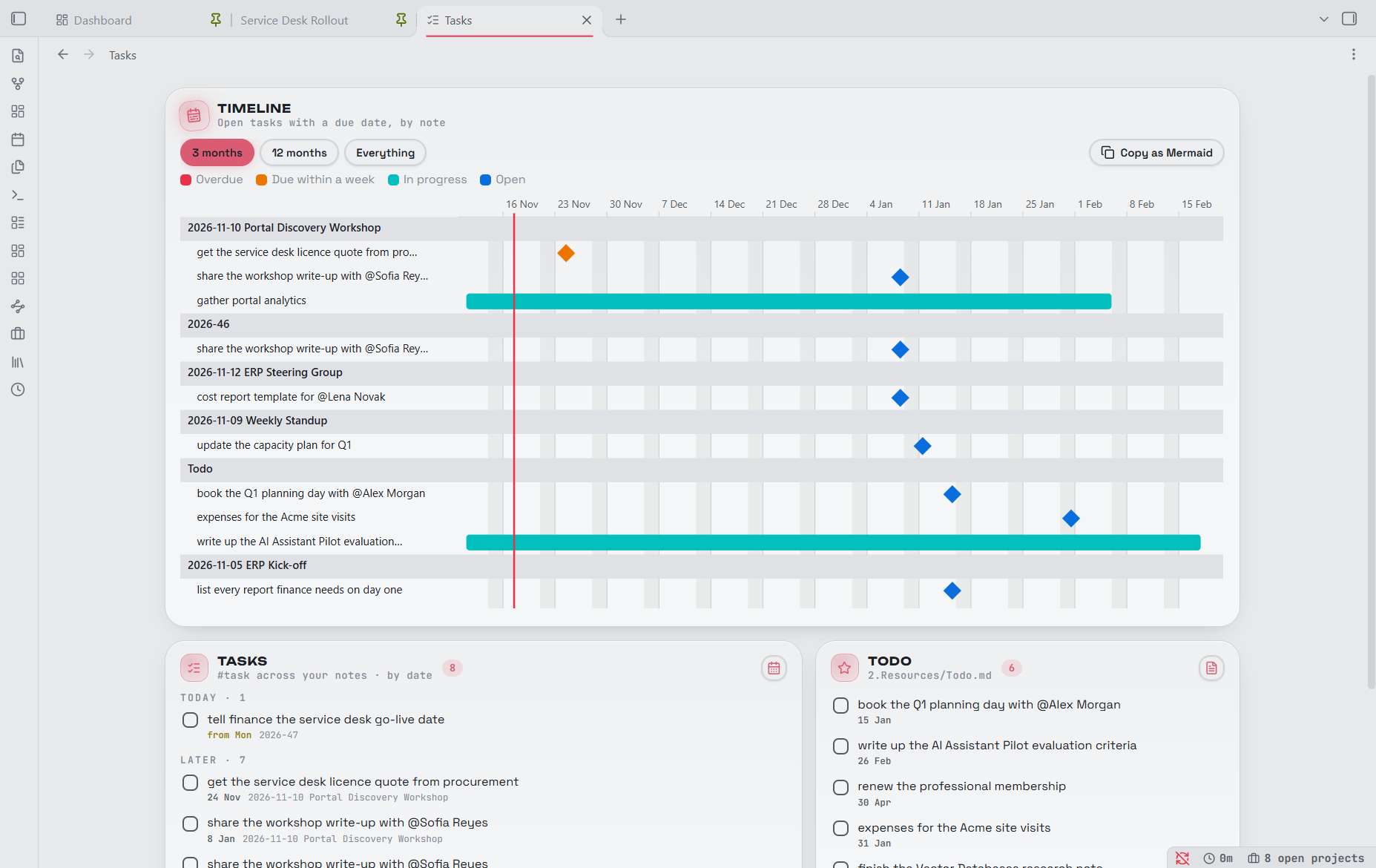
- Tasks tab and card: every open
#taskline across the vault ([ ]and[/]), grouped Overdue · Today · Later by 📅 due or ⏳ scheduled date. Tasks in project notes belong to their project's plan and stay off this list (setting Tasks in projects). Tick, edit or open each one in place; the date and note sit on a small line under the task text. Notes taggedtasksand recent daily or weekly notes count every checkbox. - Todo card: the open tasks of your Todo note in file order. New tasks go at the head of that note as
- [ ] #task … ➕ date; ticking writes[x] … ✅ date, as the Tasks plugin does. - Timeline: a card on the Tasks tab draws dated tasks as a Gantt chart, one section per note: a bar from 🛫 start to 📅 due, otherwise a diamond on the due date; overdue red, due within a week orange, in progress cyan, the rest blue. A click opens the task. Zoom (3 months, 12 months, all). Can be switched off in settings.
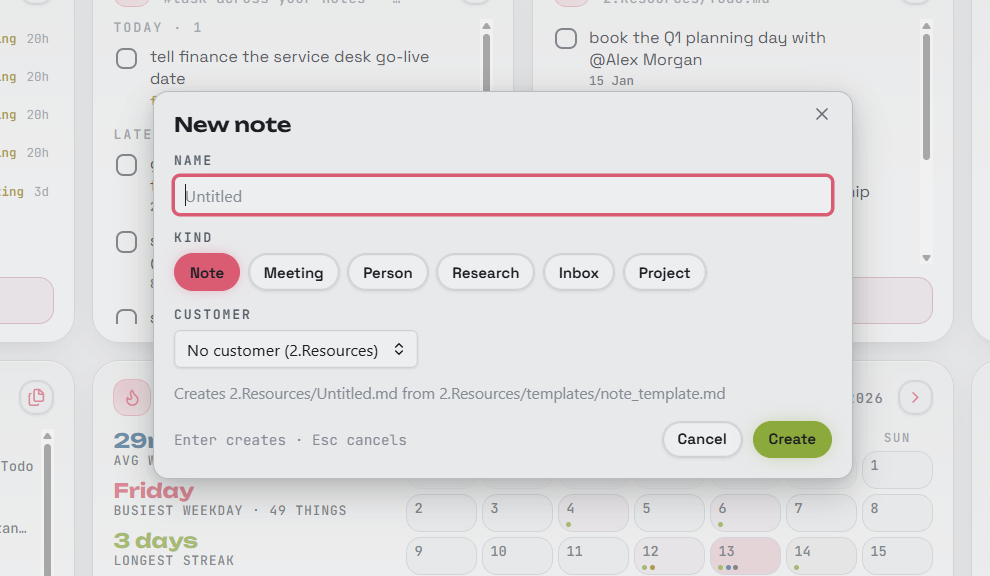
- New note: pick a customer and a kind (note, meeting, person, project, research); the note goes in
<customer>/<Meetings | People | Research>/from that kind's template. People notes are named@Namewith analiasesproperty. Tick Put it in this folder to keep the note in the folder you opened New note from (the sidebar's folder, or the open note's) instead; the tick is remembered.
Projects
- Projects tab and card: notes with
projectin their tags, grouped by customer (or status, due date and more). The customer is thecustomerproperty, else the customer folder the note is in. - Your status values in four groups: not started (
init), active (inprogress,ongoing), on hold (paused,blocked) and closed (completed,cancelled). Changing a status only updates properties:status, plus today's date incompleted(orcancelled). - Each row shows the status, customer,
stage, start date,note, a due-date bar and, for projects with a plan, how its tasks stand and the forecast finish. Postpone, set the due date or a reminder, or edit the note property from the row's menu. - Timeline: all projects in one view above the list on the Projects tab (the Timeline button or a setting hides it), one section per customer: a bar from
startedto the plan's forecast finish (elsedue, orcompletedonce closed), a diamond on the due date, coloured late, needs attention, in progress, not started, on hold or closed, and a line for today. A click opens the project's Planning view. Zoom (3 months, 12 months, all). - New project: a name and a customer; the note goes in
<customer>/Projects/from your project template. - Reminders appear inside Obsidian, once a day per project, when a project is overdue, due soon or past its remind date.
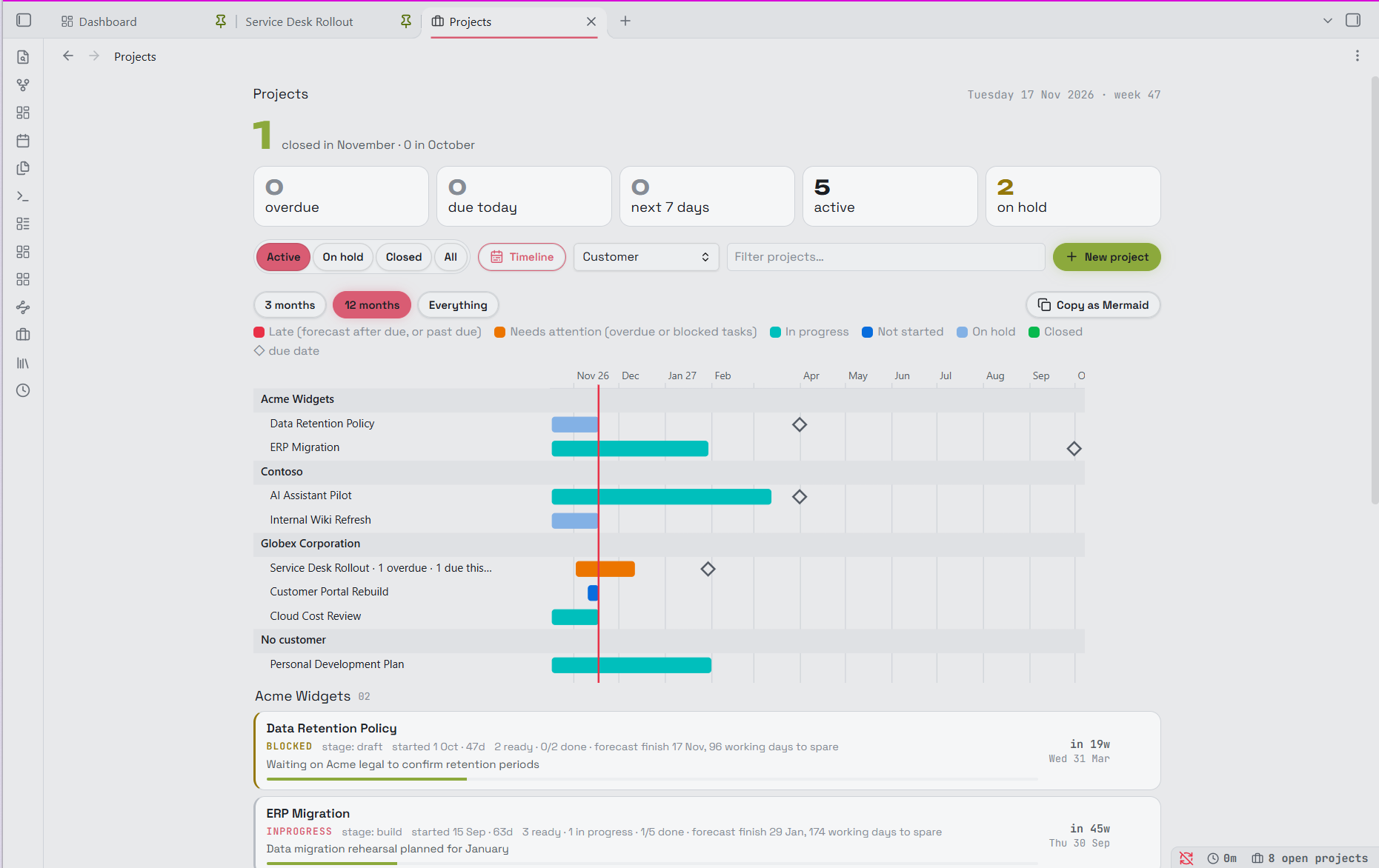
Links to the plugin's tabs
A note can open any of the plugin's tabs with a link: [Projects](obsidian://neon-work?open=projects). open can be dashboard, projects, tasks, research, time, inbox, cards, graph, or planning with &project= and the project note's name or path (and &mode=board, graph or list). The command Copy a link to this tab copies a ready-made link for the tab in front. Hovering a note's name in the Projects, Research, Tasks and Inbox lists shows Obsidian's page preview (with Ctrl / Cmd, or without: Settings → Page preview).
Planning
A lightweight planner over the tasks already in a project note (or a project folder). Open it with the Planning button in the note's header, the project's menu, or Project: open Planning.
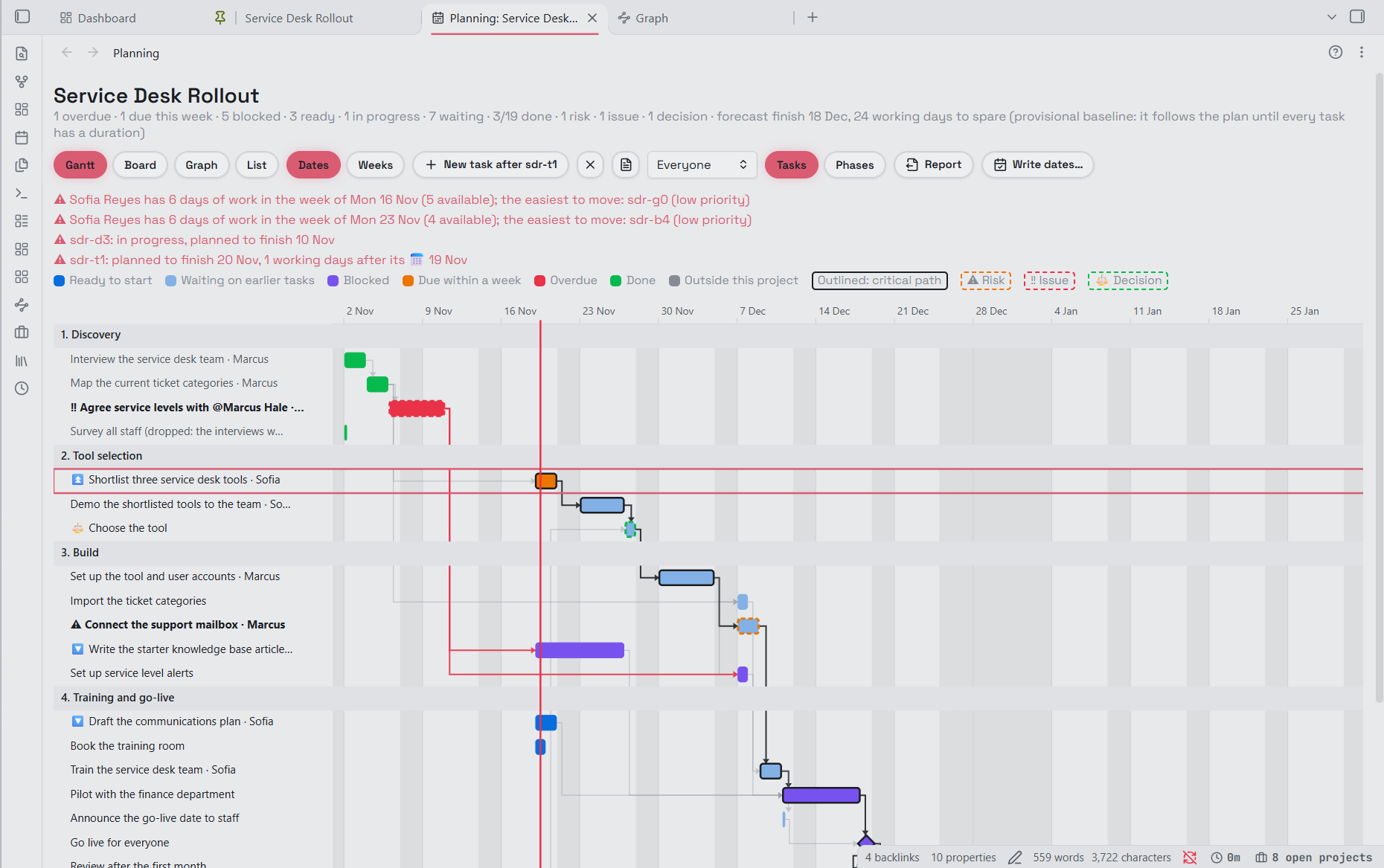
- In the task line, next to what the Tasks plugin uses: an id
🆔 sdr-4, what it waits for⛔ sdr-2,sdr-3, tasks it runs alongside[starts-with:: sdr-2](starts no earlier than that one starts) and[ends-with:: sdr-3+2d](finishes no earlier than that one finishes, here two working days after), an estimate in working days[duration:: 3d](or1w), owners[owner:: [[@Sam Taylor]]], and the tags#milestone,#blocked,#risk,#issue,#decision. The phase is the heading the task sits under. - Gantt, Board, Graph and List in one tab, in the same colours: ready, waiting (earlier tasks open but on time), blocked (something upstream is overdue or
#blocked), in progress, due soon, overdue, done. The critical path is outlined; risks and issues are bold with a dashed outline. - Editing on the Gantt (desktop and tablet): arrows show what waits for what (faint, strong on the critical path or when the task waited for is late; hover a task to pick out its own). Drag a bar's right end to change its length, drag the bar to start it later (writes 🛫, "not before": what waits for it moves too; it can't go before what it waits for), and Alt-drag from one bar onto another to link them by the ends you use: right end to its left end, it waits; left end to left end, it starts with it; right end to right end, it ends with it (dashed arrows). Click an arrow to remove that link. Undo puts the last change back.
- Priority (the Tasks plugin's 🔺 ⏫ 🔼 🔽 ⏬) shows on cards, Gantt rows and in the List, highest first on the board; it doesn't change the schedule.
- Board: drag a card to change its checkbox; rows by phase or by person. List: − / + to change a duration, slip against the baseline (saved automatically when the project starts, provisional — following the plan — until every open task has a duration, then locked; lock it early or re-baseline from the tab's ⋯ menu), a filter for risks, issues and decisions.
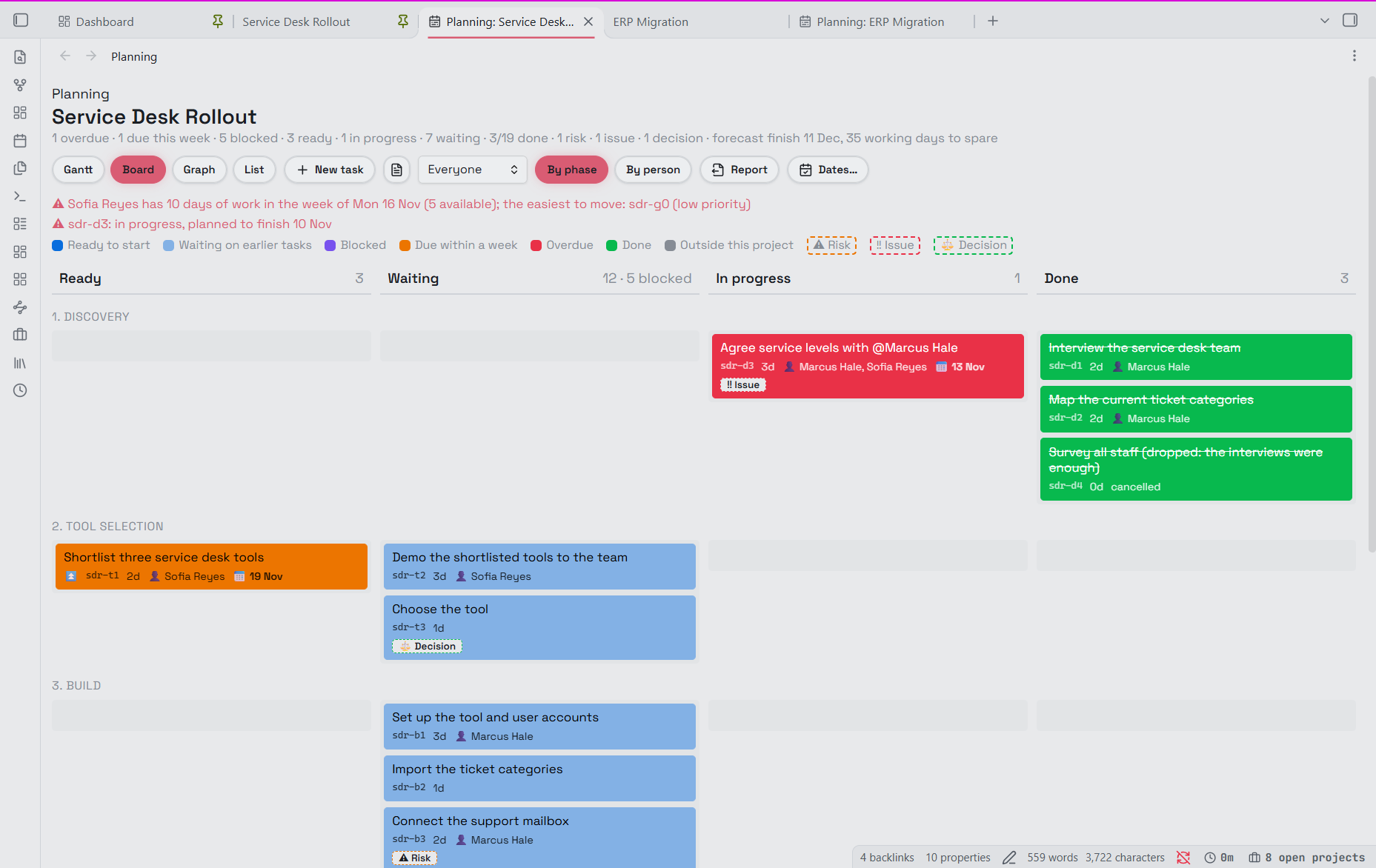
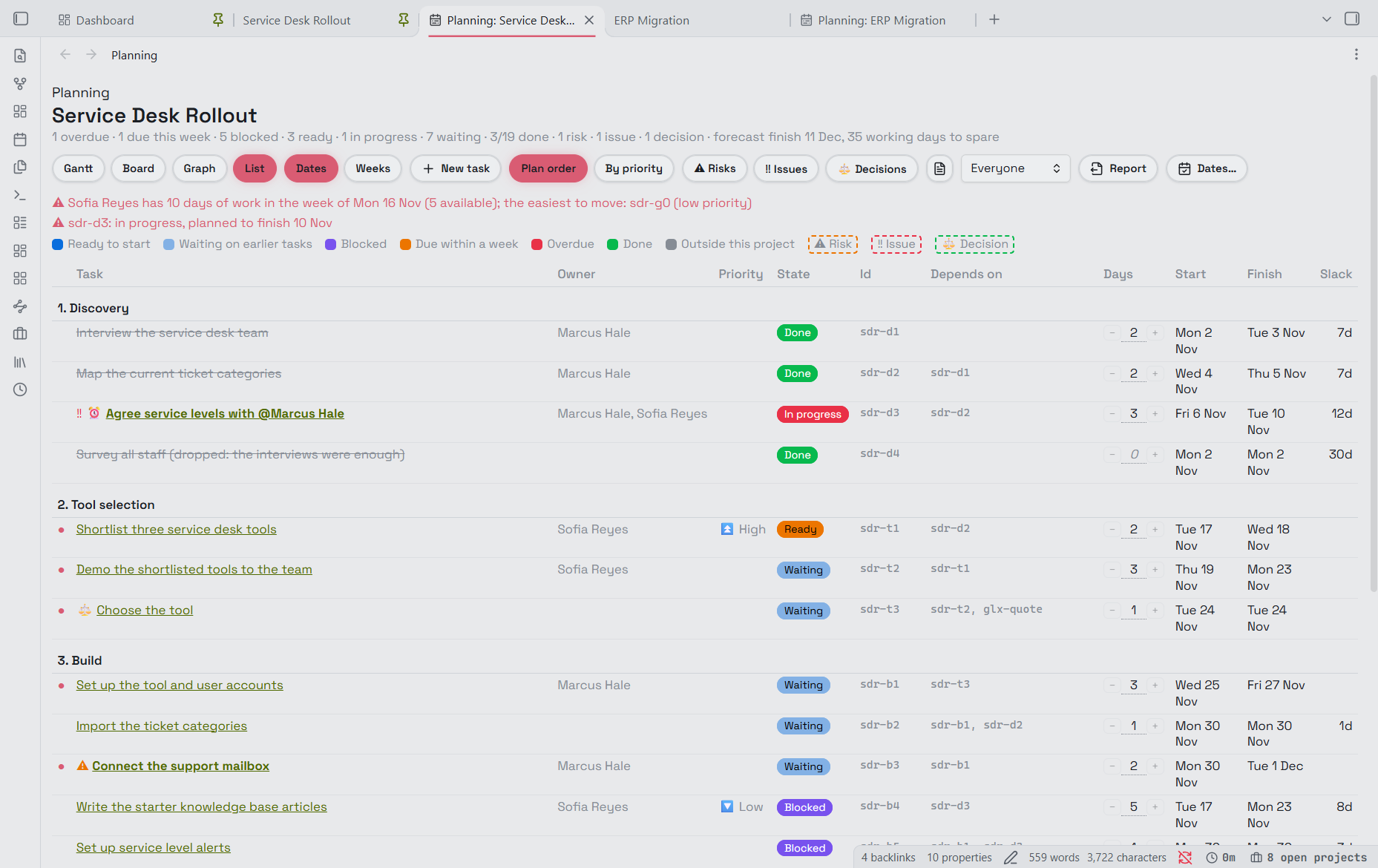
-
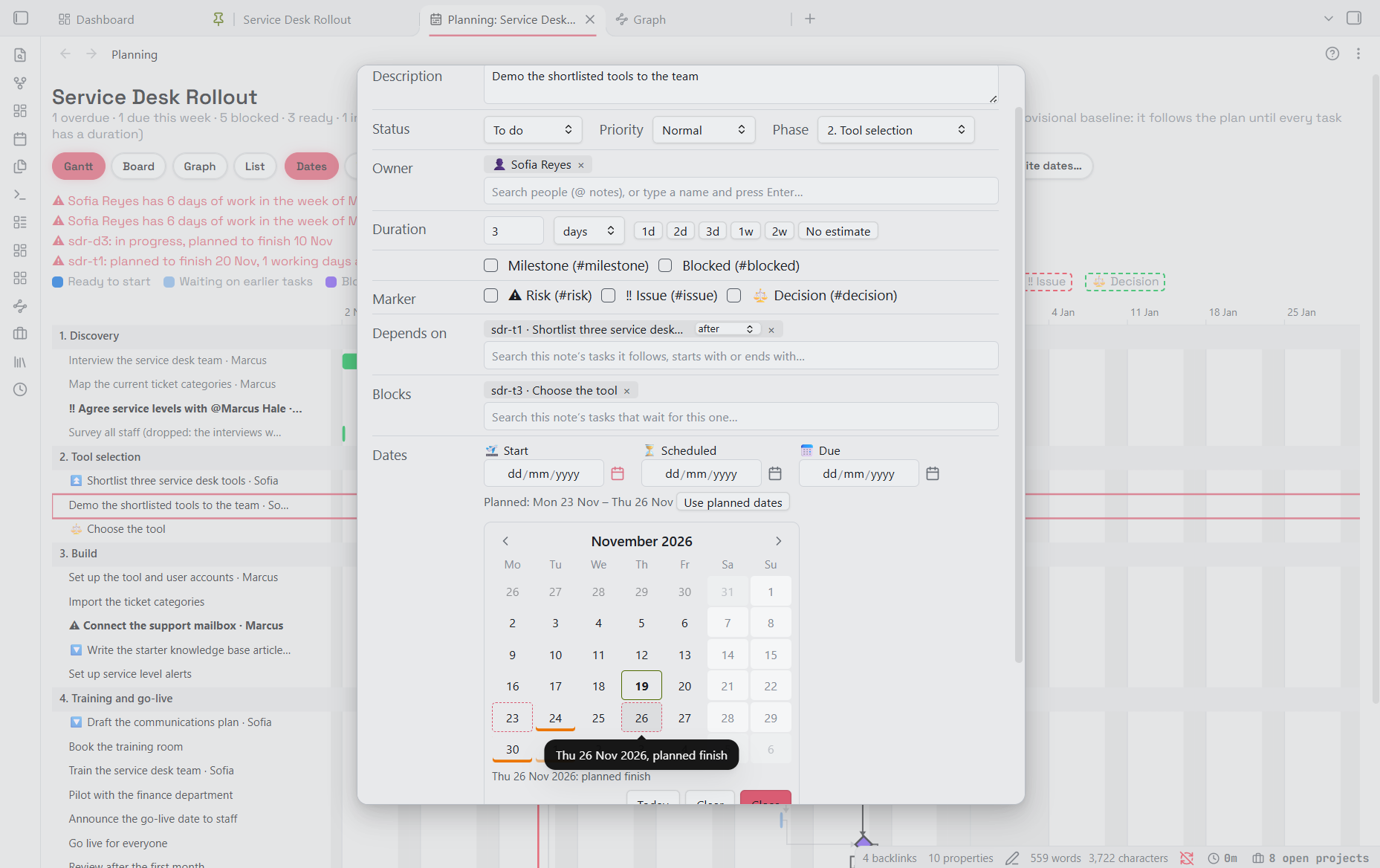
Task editor: click any task (or right-click in the note: Planning: edit this task; also a command, so it can have a hotkey). Description, status, priority, phase, owners, duration or milestone, markers, depends on / blocks (loops can't be made), dates (type them, or pick from the plugin's calendar with the button beside each: weekends, holidays and closures greyed, your own time off striped on your tasks (set You in Settings → Projects) and anyone else's underlined in orange, named on tap, the plan's own start and finish outlined, the reason shown on hover or tap; any day can still be picked; on phones and tablets the field opens this calendar too), and an id given automatically; a preview shows exactly what will be written. New task follows the selected task. Cancel task marks it ❌ (it stays in the note); Delete task… removes it and its steps, takes its id out of the tasks that depend on it, and asks first, listing all of that.
-
Report saves a printable note of the plan (a summary first: forecast, the Gantt chart, phases, people, what needs attention, risks, workload; then the project note itself up to its last task, without the plan's ids and links, so research kept below the plan is left out) in the reports folder. Its menu has Report: concise (that) and Report: full, which keeps the whole project note and is saved as
… (full); print it with Export to PDF. Write dates… records today's planned dates in the tasks you tick (🛫 start, 📅 due): a snapshot that then holds the plan. To have the current plan show in the Tasks plugin and calendars instead, turn on Keep ⏳ scheduled dates in step with the plan in the tab's ⋯ menu (per project, stored asplan-scheduled: truein the project note): Planning then updates each open task's ⏳ whenever the plan moves it, and never touches 🛫 or 📅. Forecast finish against the project'sduedate, a baseline to see slip, a person filter with a warning when someone has more than five days of work in a week, and weekend dates flagged.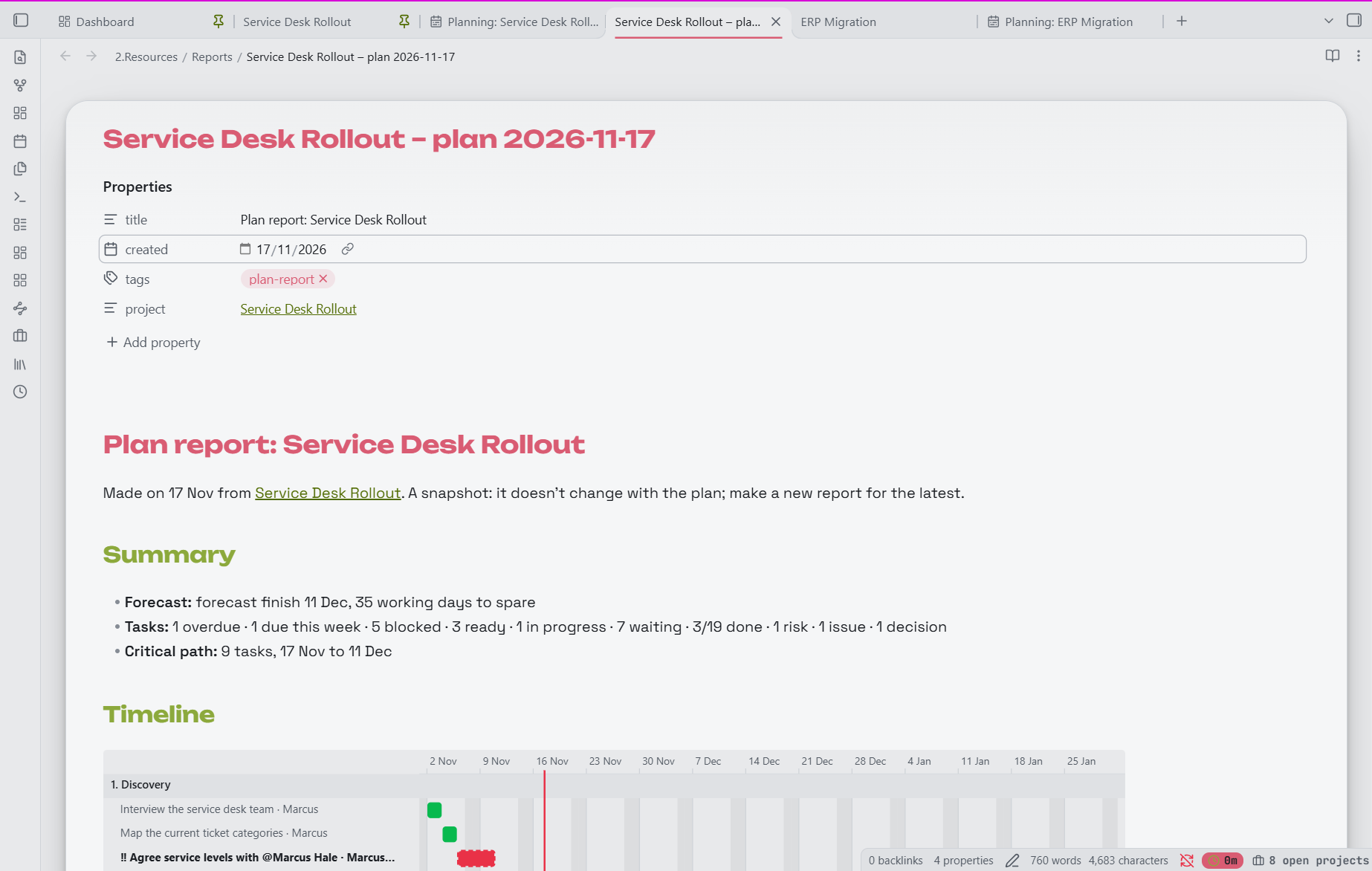
-
Steps: the checkboxes directly under a task (
- [ ]/- [x], or- ( )/- (x)) are its steps, shown as 2/4 on its bar (with a progress line), in the List and on its card; cancelled ones ([-],(-)) and notes such as[?]don't count. When every step is done but the task isn't, Planning offers to tick it (it never does so by itself). A task tagged#task(or with a 🆔) inside another task is flagged: make it a plain checkbox or its own task. -
Holidays and time off: Planning reads working days, holidays and time off from a Holidays note (the name is a setting in Settings → Projects). It looks in the project's folder, then each folder above it, then the project's customer or Area folder (also when a property names it, as in a PARA vault:
area: [[Work]]), then the base folder, so a customer or Area can have its own (say, another country, or Work but not Home) and the base folder holds the shared one:## All - public holidays: England and Wales - working days: Mon-Fri - 2026-12-29 to 2026-12-31 Office closed ## People - [[@Kevin Mulholland]] - 2026-12-24 to 2027-01-02 - every TuesdayAll is for everyone: public holidays built in for England and Wales, Scotland or Northern Ireland (worked out each year, substitute days included), the working week, and any dated day off with its name: closures, one-off bank holidays, or another country's public holidays, which you add each year (Planning warns when a plan runs past the last year listed). The calendar comes from the nearest Holidays note with an All section; people's time off is gathered from all of them and from a project note's own
## Holidayssection. Write a person as in[owner:: …](or just their first name). Planning skips days off in every date it works out and shades them on the Gantt; a task takes longer when its owner is off (with several owners, a day counts when all of them work); the workload warning counts each person's own days available that week; the report lists the plan's holidays and each person's time off. Dates are always YYYY-MM-DD. Weeks view has no dates, so it keeps plain Monday to Friday. -
Plan problems: a ⛔ id no task has (say, after folding tasks into a holding task), an id used twice or a dependency loop is listed at the top of the Planning view, naming the task (click to open the note at that line), in the report's Needs attention, as a pill on the project's card and row, and underlined in the note itself while you edit it (hover for the reason; nothing is written).
-
Plan template:
project_plan.md(in the sample vault's templates) gives four phases of example tasks with ids filled in by New project.
Planning writes only when you act (a drag, a save, a menu choice), only the task lines involved, and never with read-only on. The Tasks plugin's is blocked means what Planning calls waiting.
Research
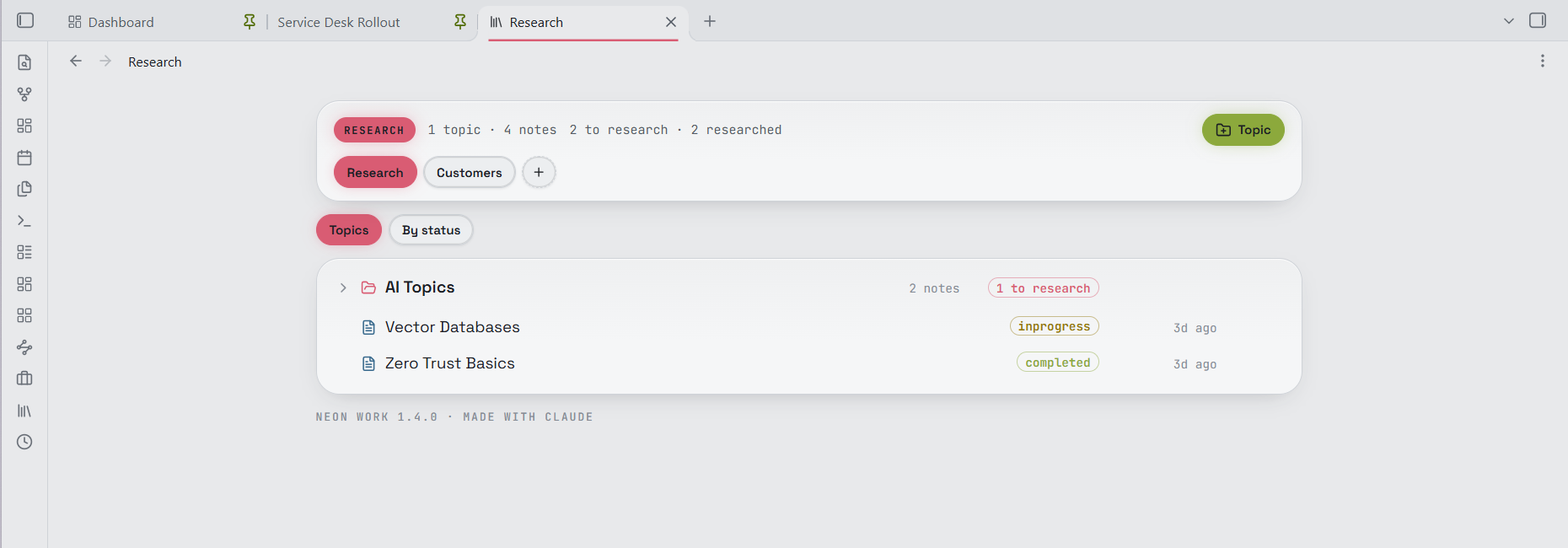
- Research tab: each section is a folder shown as a topic tree. A pattern such as
1.Customers/*/Researchgathers every customer's research folder into one section, labelled by customer. - By status: the section's notes grouped by their
statusproperty, with "N to research · N researched" in the header. - Link suggestions: the status bar offers to link words that match the titles of other research notes.
- New research notes start from your research template.
Time
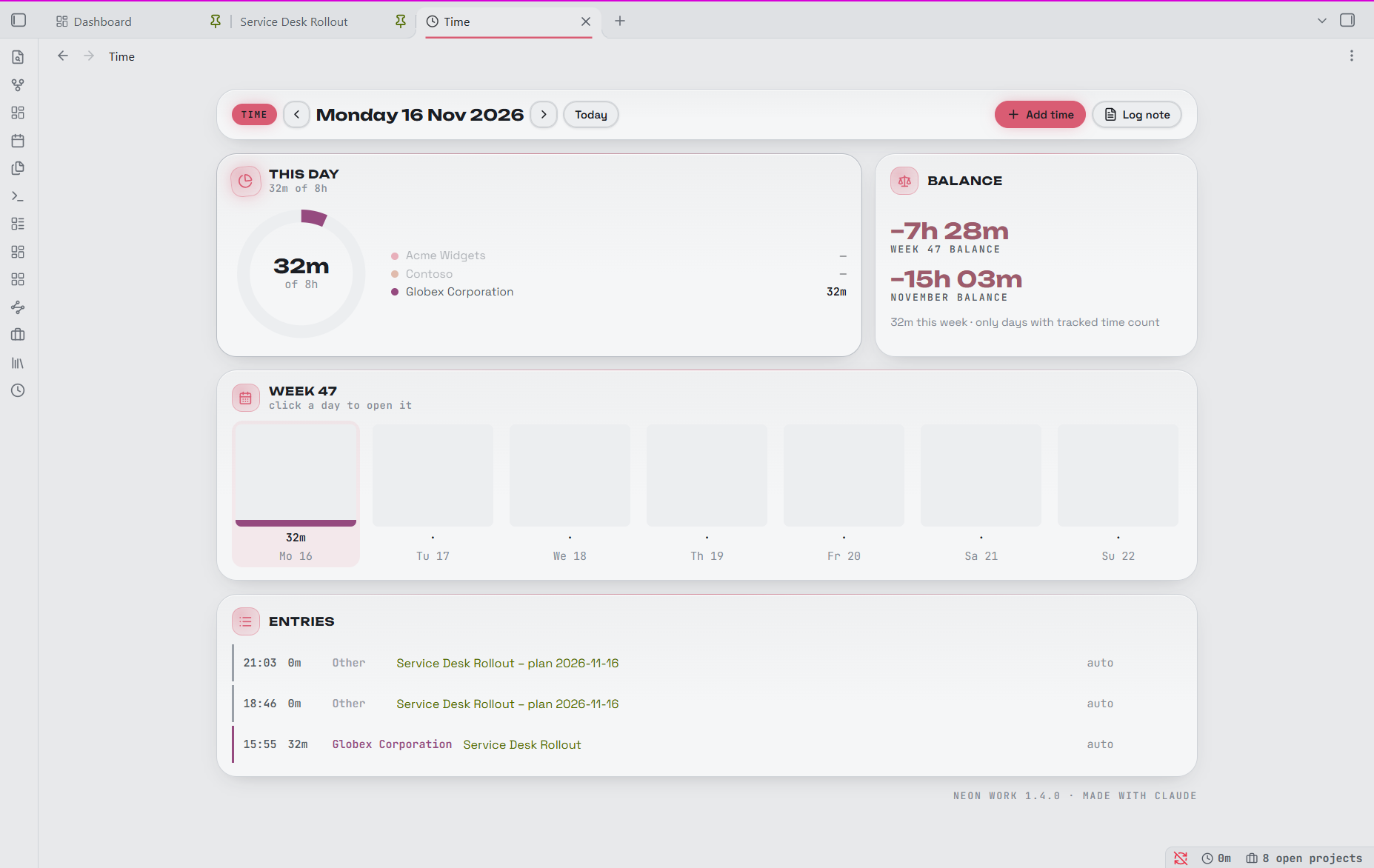
- Automatic time per customer while you work in a note, plus manual entries, breaks, a workday timer and overtime.
- Time tab and a Time today card; Wrap up the day at the end.
- An optional daily time log note with totals per customer and a table of entries, for you or an AI agent to read. Nothing is sent anywhere.
Write
- Table picker (
Insert table…), merged table cells, styled tables, lime dividers, sub-titles and page breaks for PDF export. - Locked callouts and maths blocks: lock one so it can't be edited by accident.
- Lifted writing window: the note sits on a raised card over the dashboard pattern (full width when Obsidian's Readable line length is off).
Other vault layouts
Neon Work started with a vault organised by customer, but the customer is just a group: rename it (Area, Client, Team…), choose the property it's read from and the folder whose subfolders are the groups, in Settings → Neon Work → Projects. For a PARA vault, for example: group name Area, group properties area, parent (names or links such as [[Photography]]), groups folder 2.Areas, project tag projects, project folders 1.Projects (each folder there is a project too), New note types for area notes and resources, and the Areas card on the dashboard (projects, tasks and recent notes per area, quietest first). Several task tags (#task, #todo) and ignored tags (e.g. vault_index folder index notes) help with vaults that have many checklists or generated notes. Folders whose name starts with _ (such as _claude, for tools and scripts) are left out of stats, Recently touched, the Activity calendar, tasks, projects and the graph, like excluded folders (Settings → Dashboard → Leave out folders starting with _).
On phones and tablets
Dashboard, Tasks, Projects and Research also run on mobile: one column on a phone held upright, two on a phone turned sideways or a tablet, and long press for the menus that right-click opens on the desktop. Time tracking, Write, the card explorer and the note graph are desktop-only. To preview the mobile layouts on the desktop, run app.emulateMobile(true) in the developer console.
Settings
Everything is on one page, Settings → Neon Work, with a section per part:
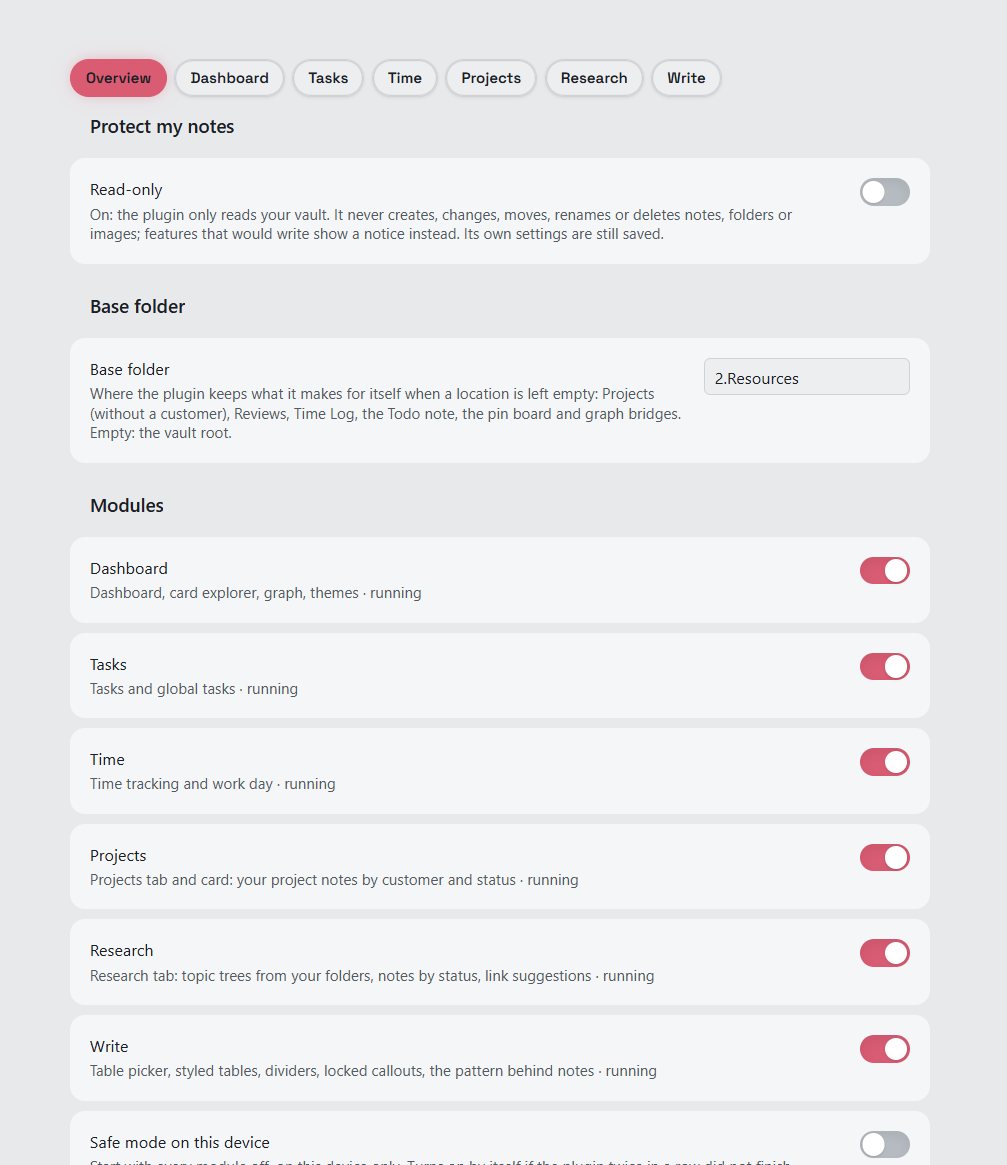
- Overview: read-only, the base folder, the switches for each part, and safe mode.
- Dashboard, Tasks, Projects, Research, Time, Write: that part's options. Folder and file fields suggest matching vault paths as you type.
The base folder (asked on first start) is where the plugin keeps what it makes for itself when a location is left empty: Projects without a customer, Reviews, Time Log, Todo.md, the pin board and graph bridges.
Try it first
The repo includes a sample vault (sample vault/) with made-up customers, projects, meetings, people, research and tasks (open Service Desk Rollout and press Planning to try the planner), and the plugin already installed and set up (read-only off). In Obsidian choose Open folder as vault, pick the sample vault folder, and trust its plugins when asked. Your own vaults are not touched.
Install
- Build it (
node tools/build.mjs) or take the three files from a release:main.js,manifest.json,styles.css. - Put them in
<your vault>/.obsidian/plugins/neon-work/(create the folder if needed). - In Obsidian, open Settings → Community plugins, turn off Restricted mode if needed, and enable Neon Work.
- On first start it asks for a base folder (for example
2.Resources). Read-only stays on until you switch it off in Overview; commit or back up your vault first, so you can see exactly what changes.
Updating: copy the three files over the ones in .obsidian/plugins/neon-work/ and switch the plugin off and on. Keep the folder: it also holds your settings.
Safe mode: if the plugin fails while starting, the next start keeps every part off; switch them back on in Overview.
Hotkeys: none by default (community plugin rule); set them in Settings → Hotkeys. Project: open Planning is a good one to give a key (for example Ctrl/Cmd+Shift+G), and so are the task editor's Planning: edit this task, Planning: new task here and Planning: new task after this (in a project note, on the line under the cursor). Commands are listed as "Neon Work – Tasks: …", "… – Projects: …" and so on.
For developers
- Sources are in
src/(one job per file);MAP.mdlists every file with its functions,docs/architecture.mdexplains the design andCLAUDE.mdhas the working rules. - Build:
node tools/build.mjs→dist/neon-work/(no dependencies). - Check:
node --test test/*.test.mjs(unit tests) andnode tools/check.mjs dist(local-only rules, cleanup, timers, writes, CSS…). - Saved data (
data.json,modules.json) is personal and isn't in this repo.
License
CC BY-NC-SA 4.0, as the original: you may use, share and fork it with credit, but not sell it or use it commercially, and forks keep the same licence. See LICENSE. The bundled fonts keep their own licence.
Credits
Original Neon Deck made by Yobzs with Claude. Fork changes by Kevin Mulholland with Claude.
Planning takes ideas from the Project Planner plugin (Harrison Milburn, MIT); no code taken.
Bundled fonts (in src/deck/fonts/, embedded in styles.css): JetBrains Mono, Space Grotesk and Unbounded, all under the SIL Open Font License 1.1. See src/deck/fonts/OFL.txt.