
README file from
Githubmv-AIDE
把 Obsidian 变成面向写作、研究与开发的 AI IDE。 mv-AIDE 让 Agent 感知你正在阅读和编辑的内容,并把 AI 编辑、源码工具、终端、Vim 与桌面文件工作流放进同一个界面。
仅支持桌面端,要求 Obsidian 1.7.2 及以上。
为什么是 mv-AIDE
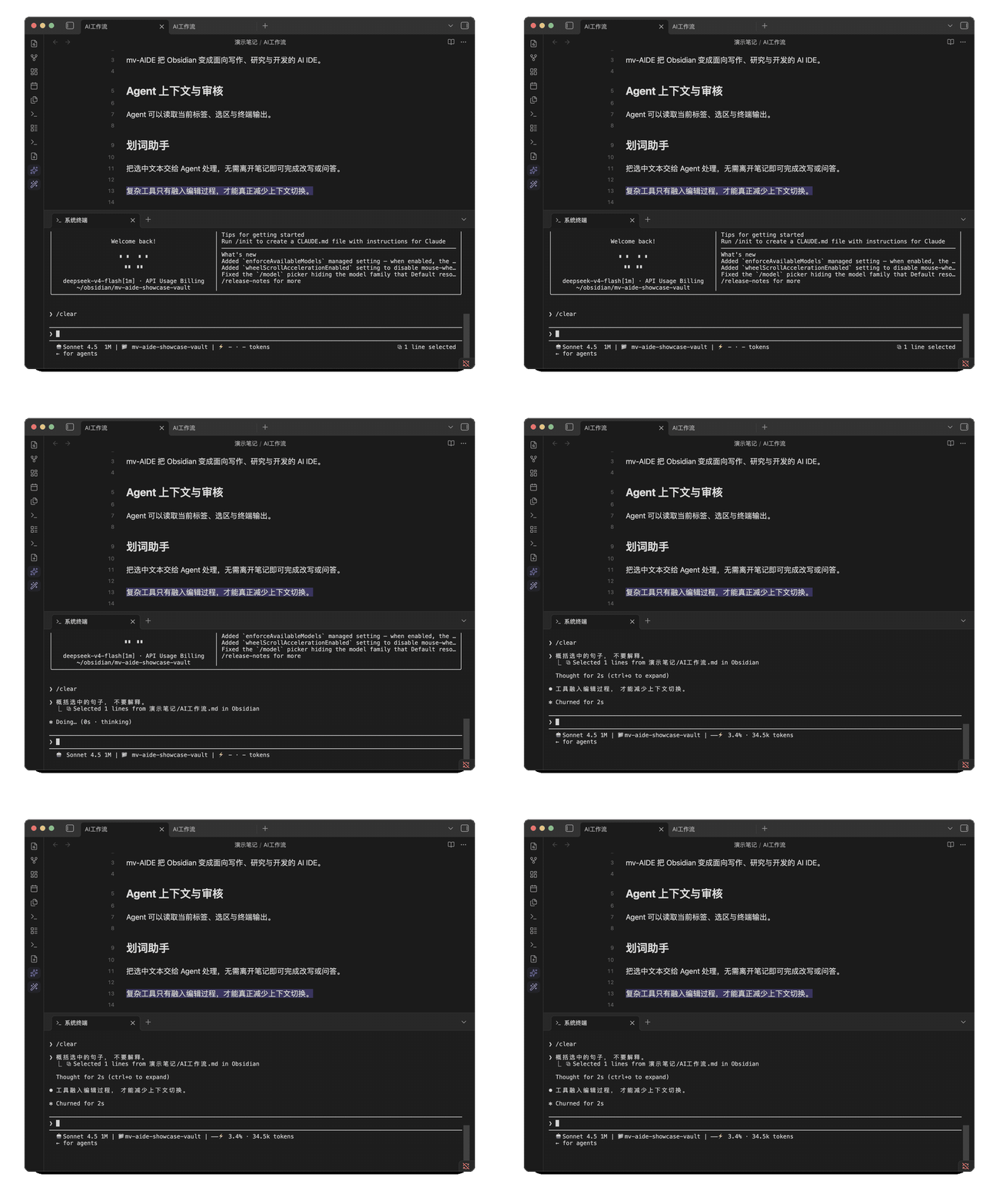
Agent 不再脱离现场
Claude Code、Codex CLI 和任意 MCP Agent 可以读取当前标签、选区、诊断、终端输出和笔记关系。Agent 提出的修改回到 Obsidian 中,以可编辑 Diff 交给你确认。
AI 是编辑器的一部分
「文件内AI助手」统一收纳 API 提供商、划词助手和行内补全。划词助手负责明确的局部任务,行内补全安静地延续当前文字;两者共用提供商,但开关和运行周期仍彼此独立。
从文字到源码与桌面工作流
同一插件内可以编辑 TeX 等源码、运行终端、使用独立 Vim 引擎、浏览电脑文件,并让库外文件由指定 Obsidian 仓库打开。每个模块都能单独关闭。
九个设置分区
以下顺序与 设置 → mv-AIDE 一致。具体默认值、平台边界和排障见完整功能手册。
1. IDE 桥接
当前文件、选区和编辑器状态会被动同步给 Agent:选中文字后直接提问即可,不需要先要求 Agent 调用工具读取现场。支持 Claude Code、Codex CLI、通用 MCP 客户端和 DeepSeek Harness(DSH)。开启「启用 dsh IDE 功能」后,DSH 内的 mv-AIDE 插件经同一本地桥接获得现场上下文、IDE 工具、被动通知与 Diff 审核。
2. mv-agent
[!NOTE] 维护说明 最近科研上事情比较多,DSH 频繁的破坏性更新无法保证 mv-agent 可以适配所有版本。如果遇到问题可以提交 issue,并开启「IDE 桥接」后使用 DSH 的官方 UI 感知 Obsidian。
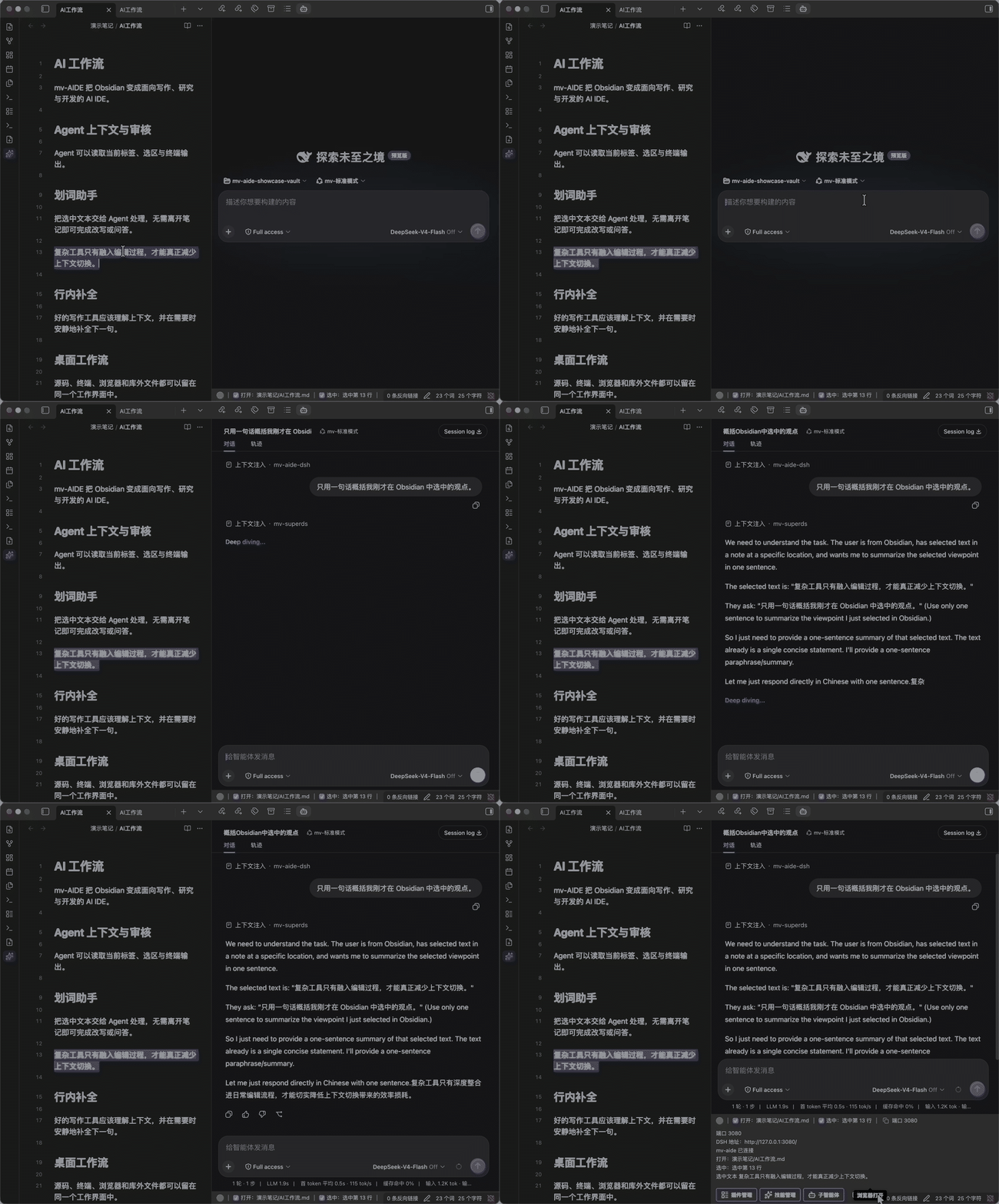
mv-agent 把 DSH Web 界面直接放进 Obsidian。视图底部状态栏显示真实桥接状态、当前页面或文件、选区、端口和可展开的现场详情;命令面板提供「打开 / 停止 / 重启 mv-agent」。
设置页按 Node.js、DSH、pnpm、插件注入四层检测环境,可安装到当前 Vault 或全局位置,也能识别、验证并管理 DeepSeek Harness 源码仓库。注入后 DSH 获得 /mv-aide 命令和 mv_aide__* IDE 工具,并支持:
- 每个 DSH 对话独立选择、记忆和恢复 Vault;
- 用 Obsidian 可编辑 Diff 审核需要权限的文件写入;
- 把 Vault 内或电脑上的文件、文件夹直接拖进对话:图片作为附件,普通文件作为实时
@file引用,文件夹作为 DSH 原生目录引用; - 七个可选终端增强工具,包括可靠命令执行和关闭真实终端标签;
- 上传前图片缩放,以及模型图片输入、思考等级和兼容参数设置;
- 默认关闭、可按通道开放的库外工具与被动上下文。
mv-AIDE 完整注入会管理 mv-agent、mv-dsh-manager 和独立的 mv-dsh-subworkspace 三个 DSH 插件。DSH 原生「插件配置」中显示三者的配置卡;0.1.7 起该插槽不再存在,改由侧栏 ⚙️「mv-aide插件设置」页承载同一组开关与目录管理。子工作区还可从工作区行内管理,不依赖 IDE 桥接。文件拖入与 IDE 桥接也保持独立,桥接关闭时仍可向当前 DSH 草稿添加本机文件。
三个 DSH 插件共用两个内部库:@mv-aide/mv-dsh-compat 把版本专属的 Host/Client 接口集中到一处,@mv-aide/mv-dsh-settings 承载三者共享的设置文档与命名空间注册表。两者都不是第四个 DSH 插件,不增加设置卡;未识别的接口只会关闭对应增强,不影响 DSH 和其他功能。
需要 Web 鉴权的 DSH 会把登录 Cookie 交给系统安全存储加密,仅用于重开 Obsidian 后接回同一个本机实例;启动 URL 中的 token 不落盘。系统安全存储不可用或登录态失效时,mv-agent 会要求重新授权,不会另起同数据目录的后台争抢会话。
注入的 DSH 插件支持自动更新对齐到当前 mv-AIDE 版本(默认关闭),可选地在更新完成后自动重启 mv-agent;Obsidian 原生状态栏可在 mv-agent 分区一键隐藏。
3. 文件内AI助手
展开后依次是「API提供商」、「划词助手」、「行内补全」三个默认折叠的子区。展开状态只在当前设置页会话中记忆,不会新增持久化设置。
API提供商
统一管理 OpenAI-compatible 或 Anthropic 类型的端点、密钥和模型,供两个助手共用。
划词助手
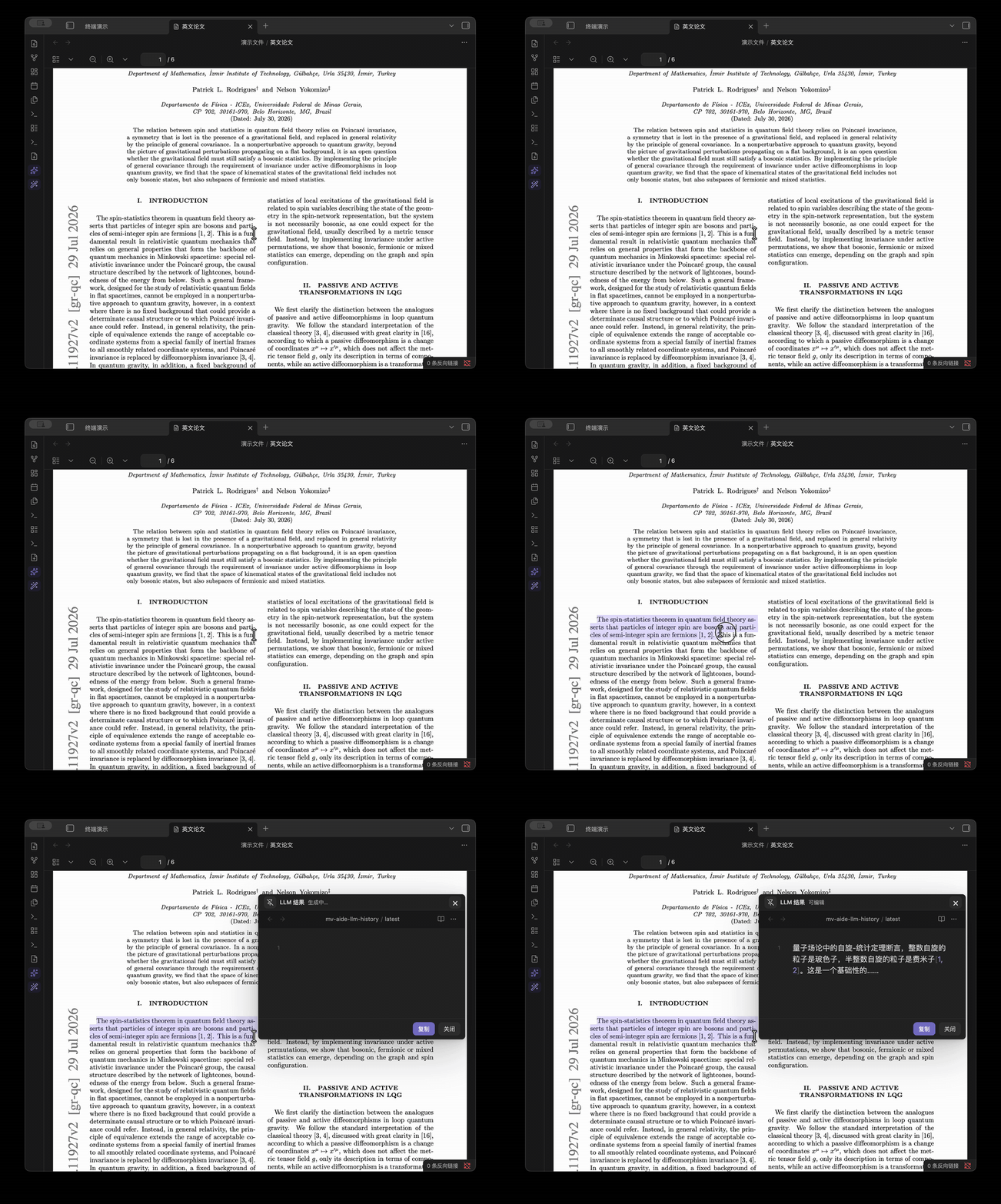
在 Markdown、PDF 或网页中选中文字,调用自己的提示词模板,流式结果可以继续编辑、插入或替换原文。网页视图(Web Viewer)受跨域隔离,可开启注入式右键菜单(实验性);关闭时插件会把已绑定的「LLM: xxx」快捷键同步注入网页。下面是在英文 PDF 中划词并用 DeepSeek 翻译。
行内补全
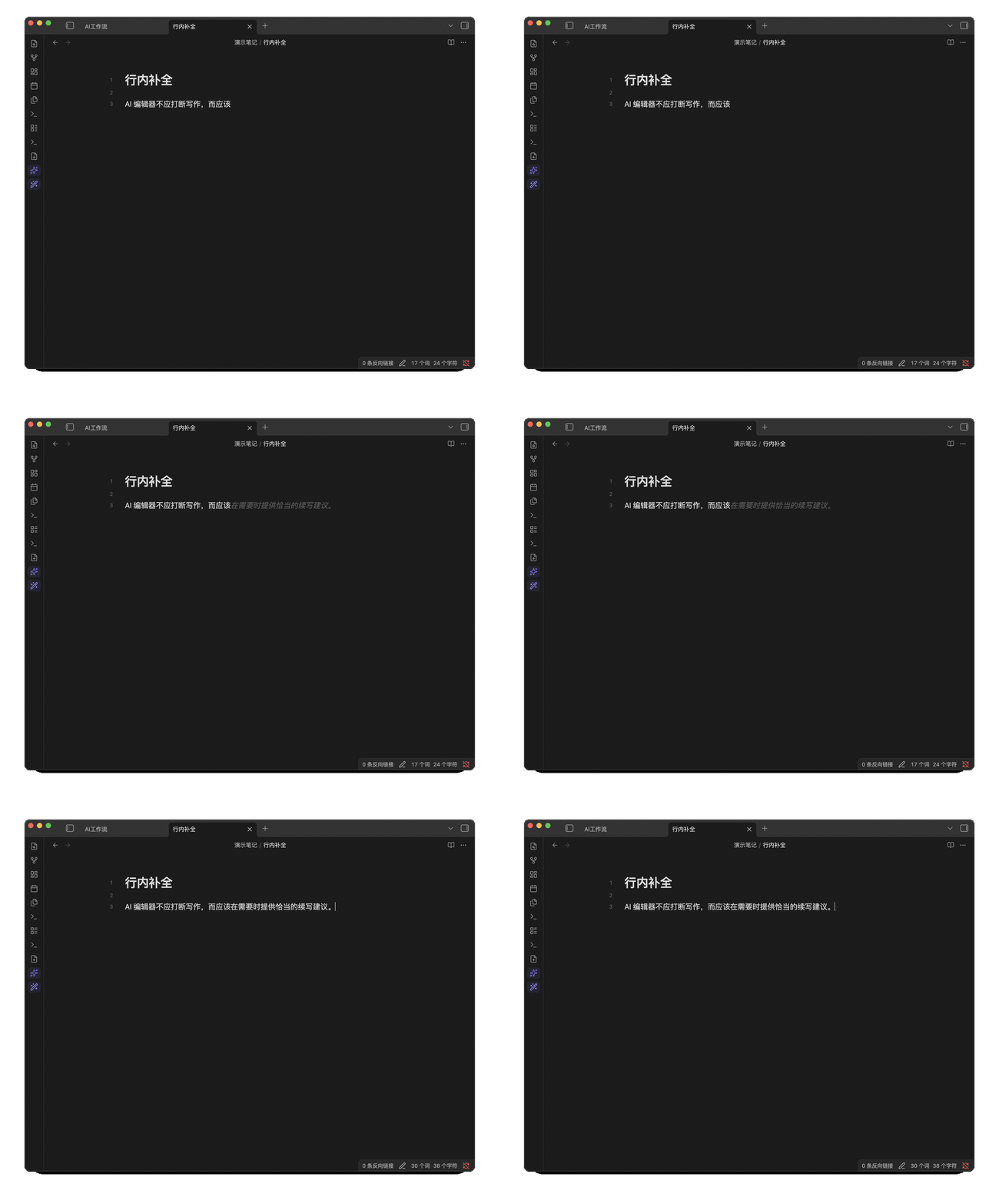
在 Markdown 中输入时生成灰色 ghost text,用 Tab 接受后才写入正文,也可以取消、拒绝并请求另一版。
4. 终端
在 Obsidian 的主栏、侧栏或底部分栏运行真实系统终端,让命令行和编辑器保持在同一个工作区。终端设置把“打开位置”和“新终端打开方式(分屏 / 新建标签页)”分开控制。mv-run: <命令> 会发送到最近活跃的 mv-AIDE 终端(没有时自动新建),mv-run -n: <命令> 则始终新建终端执行。开启 mv-agent 的「终端感知增强」后,DSH 还能按终端 ID 读取、输入、运行命令、聚焦或关闭标签。
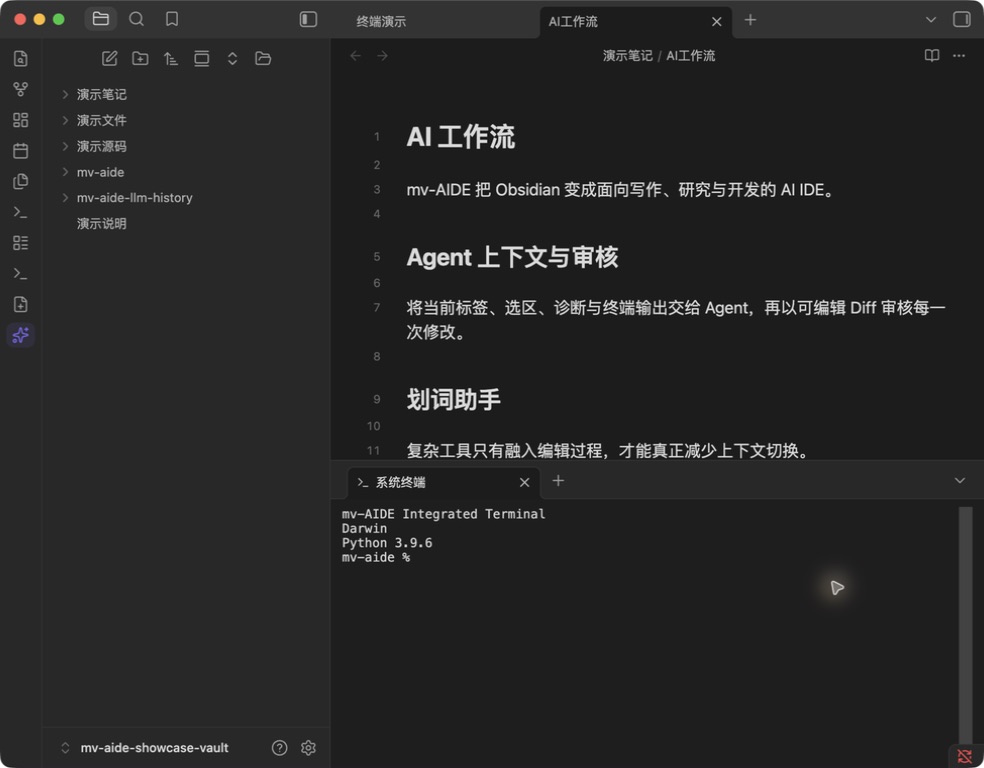
mv-run 顺序执行:在命令面板选择「运行 mv-run 指令」,直接回车按文件顺序执行未受保护的命令;也可选「指定执行」,输入 pdf,@refs -p,pdf。文件内支持 --name 命名、--group 分组和 --protect 默认跳过;每一步真正结束后才执行下一步,失败即停止。语法与示例
5. 源码编写辅助
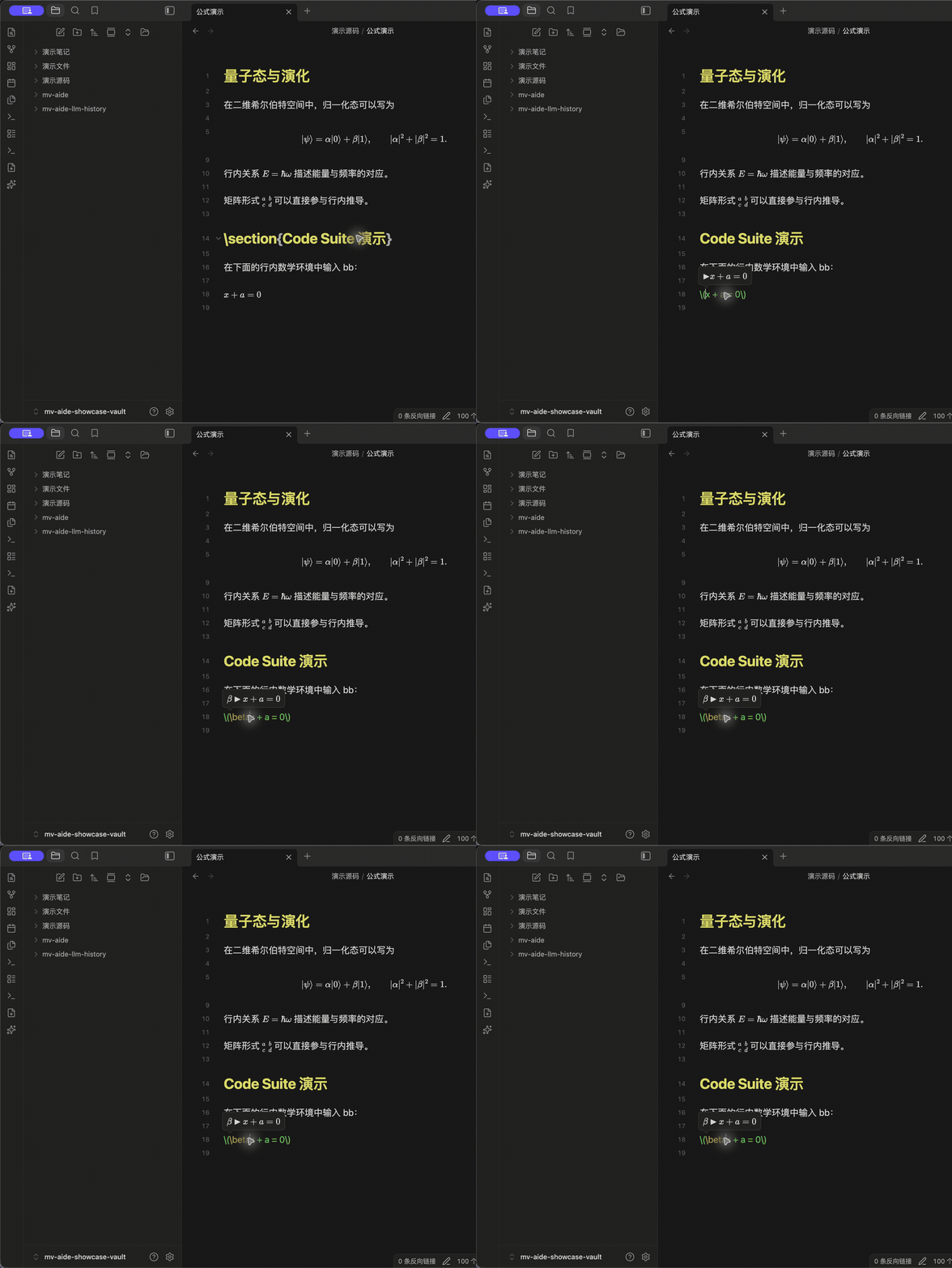
按后缀注册非 Markdown 源码,配置高亮、Lint、正则替换、mv-run、Code Suite 和可选 TeX 数学增强。Markdown 视图顶部状态栏也可在此分区一键设为自动收起。
6. Vim 增强
独立实现的 Vim 编辑核心支持主要模式、motion、operator、text object、寄存器、宏、搜索、Ex 命令和仓库级 .vimrc。隐藏 Obsidian 原生状态栏时,Vim 模式徽章自动切换为编辑器内悬浮显示。
支持 clipboard=unnamed,unnamedplus 双向系统剪贴板、Unicode 字符边界、次数重复和常用 Vim 搜索语法;不是完整 Vimscript 或第三方 Vim 插件运行环境。具体支持边界见能力清单。
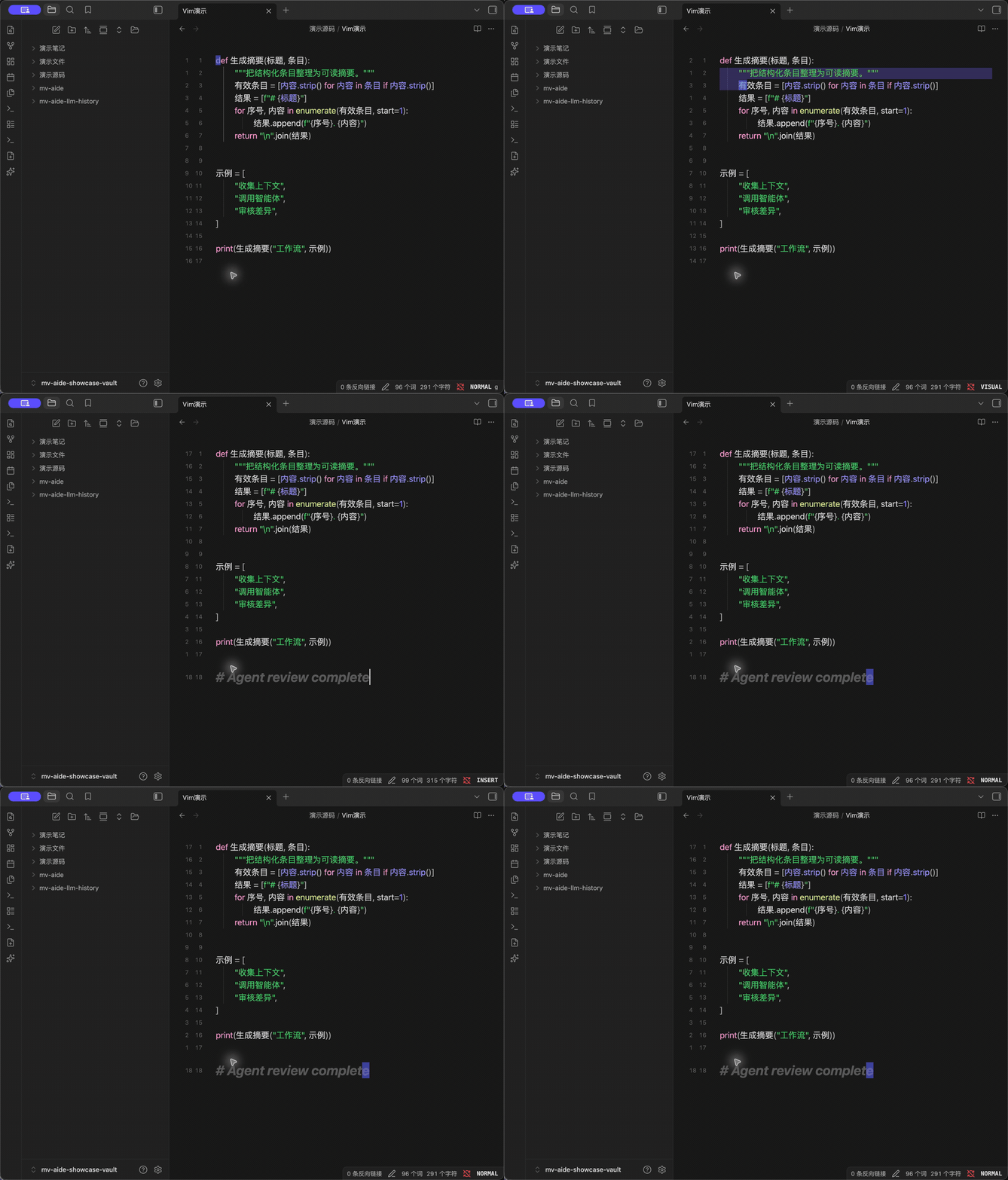
图例: NORMAL 中以 motion 移动;VISUAL 中选区与光标同步;INSERT 中输入正文。左侧行号演示 .vimrc 的 number + relativenumber。
7. 默认文件打开器
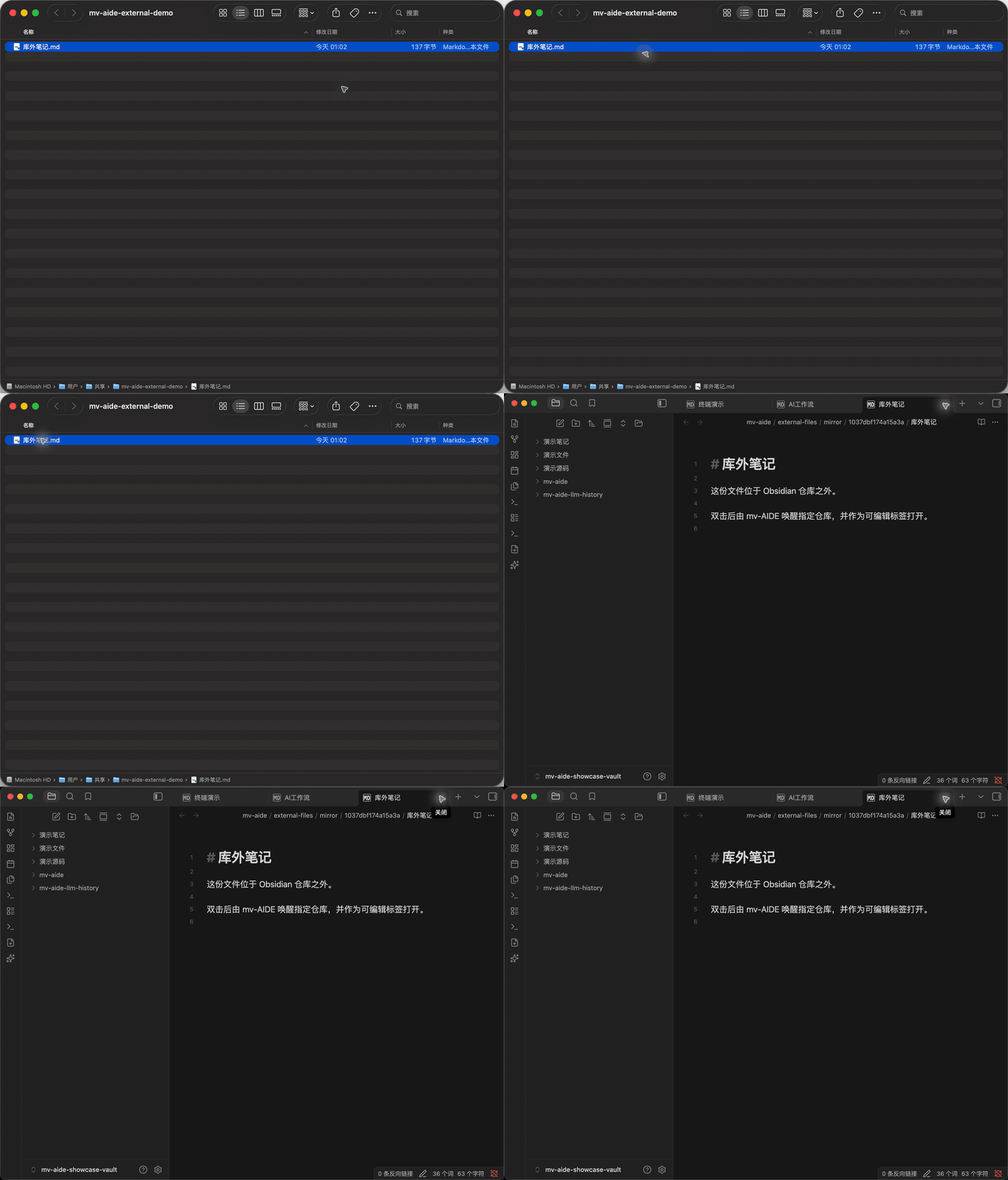
把 Markdown、PDF 及选定源码后缀交给指定 Obsidian 仓库。即使 Obsidian 已关闭,双击库外文件也能唤醒目标仓库并打开它;Windows 上的库外 PDF 会使用短生命周期镜像,关闭最后一个对应标签后自动清理。
8. 文件系统与浏览器
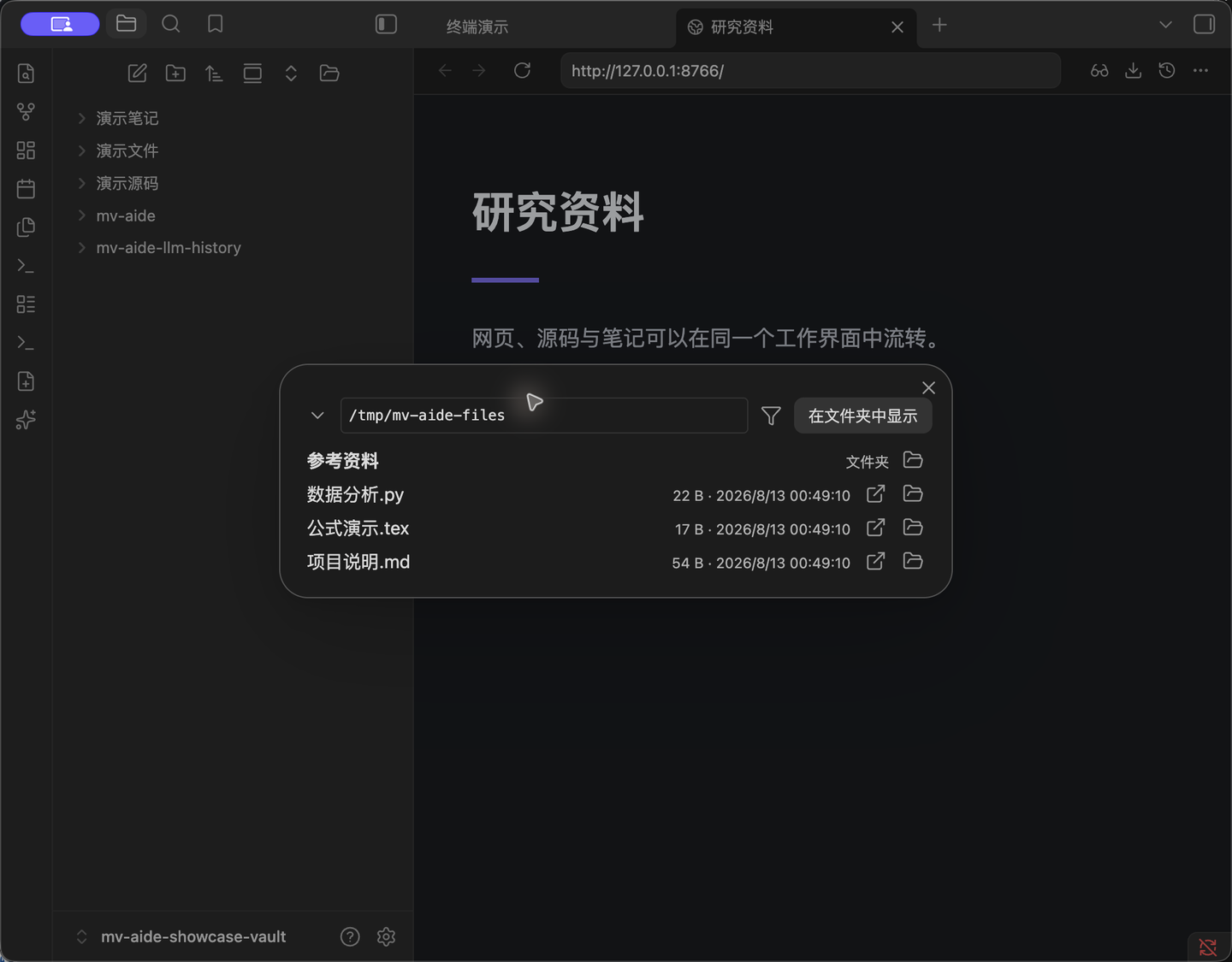
从 Obsidian 直接浏览任意目录、打开下载文件,并给内置网页浏览器补充下载与历史入口。三个独立的「自动收起」开关可分别精简网页顶栏、Markdown 顶栏与标签页栏;自定义网页按钮把常用网址注册成 Ribbon 图标或命令面板命令,在左 / 中 / 右任一区域一键用内置浏览器打开。
9. Git
调用本机安装的 Git 管理当前 Vault 所属仓库,不内置 Git 引擎,不自动提交、同步或联网。工作区面板(暂存区/工作区/未跟踪/冲突分组、提交拓扑图、分支/标签/stash 引用区)与命令面板共用同一套动作注册表,逐项双端可达;diff 视图支持并排/行内布局、行/差异块级暂存与可编辑的工作区一侧;三方冲突编辑器按真实来源标注(rebase 时 ours/theirs 语义正确互换)。也可以把当前 Vault 原地初始化为仓库,再配置远程并完成首次推送。
安装
社区插件市场
- 打开 设置 → 第三方插件 → 社区插件 → 浏览。
- 搜索
mv-AIDE,安装并启用。
从 Releases 下载 main.js、manifest.json、styles.css,放入:
<vault>/.obsidian/plugins/mv-obcc/
然后在 设置 → 第三方插件 中启用 mv-AIDE。
npm install
npm run verify
npm run deploy:local
npm run package 会在 release/ 中生成发布产物。
数据与权限
- IDE 桥接、通用 MCP 和默认打开器服务只监听
127.0.0.1。 - API Key 以明文保存在当前仓库插件目录的
data.json中;请保护仓库及其备份。 - Vim 配置、库外文件镜像和其它仓库级数据位于当前仓库的
mv-aide/;跨进程状态位于~/.mv-aide/,其中 IDE discovery 在ide/、dsh bridge selection 在dsh/,默认打开器的当前 authority 为file-opener/(升级时保留失败安全的 legacy 兼容)。 - mv-agent 的环境安装只在用户点击对应按钮后联网。仓库安装的 Node.js、DSH 和 pnpm 运行时位于
<vault>/mv-aide/dsh/,可在设置中独立选择<vault>/mv-aide/dsh/home作为 DSH 数据目录;该选择不改变 DSH 是仓库安装、全局安装还是源码目录。关闭时保持 DSH 官方$DSH_HOME/~/.dsh行为。三个独立管理的 DSH 插件及其内部兼容库位于当前选中的 DSH web profile;mv-AIDE 启动的进程还会在同一DSH_HOME/.mv-aide/runtime-owners/下写入不含密钥的 PID/端口/身份指纹,仅用于防止误接管或停止另一个 DSH。兼容库无 Cordis 入口、无单独 patch row,不会作为第四个插件加载。下载、npm 缓存和安装脚本仅使用临时工作区并在操作结束后删除。选择全局安装或原位升级时,插件会显示系统管理员授权,不会静默改装到仓库。 - Windows 默认应用必须由用户在系统设置中确认;插件只写当前用户注册表,不申请管理员权限,也不修改受保护的
UserChoice。 - 各模块都有独立开关。所有后缀都关闭 Vim 后,Vim 运行模块、监听器与编辑器扩展不会加载。
文档
致谢
行内补全的 CodeMirror 架构参考了 obsidian-github-copilot 的公开思路;终端进程桥接参考了 obsidian-claude-sidebar 的公开设计。Source Assist 的 Code Suite 内核基于 obsidian-latex-suite 1.11.5,保留 MIT 声明。Vim 的兼容目标与配置体验参考了 obsidian-vimrc-support 和 Vim Motions 的公开文档与用户可见思路,核心引擎依据 Vim/Neovim 行为和 CodeMirror 6 API 独立实现。
Git 集成的命令设计与测试思路参考了 Obsidian Git(MIT),提交节点/分支/标签/stash 的菜单组织参考了 VS Code 内置 Git 扩展(MIT)的公开菜单定义;两者的功能缺口均不继承。Git 前端为独立实现,未复制两者源码,底层始终调用本机 Git。
DSH 兼容层的 adapter/capability 边界参考了 dsh-std 的公开思路,版本矩阵与 conformance 门禁参考了 dsh-ecosystem-spec 的公开思路。mv-AIDE 的适配层为独立实现,未复制两者源码、不引入其运行时依赖,也不声明通过任何第三方规范认证。