
README file from
GithubMultiFolio



MultiFolio: Multicolumn Workspace — a continuous multi-column workspace for seamless reading and editing in Obsidian.
- Dual Pane Mode: current view + next screen, synchronized scrolling
- Triple Pane Mode: previous + current + next screens, full context while editing
- Works in Edit, Preview, and Source modes
🌐 Languages
Folio's interface supports 9 languages, auto-detected from your Obsidian settings:
English | 简体中文 | 繁體中文 | 日本語 | 한국어 | Français | Deutsch | Español | العربية
✨ Features
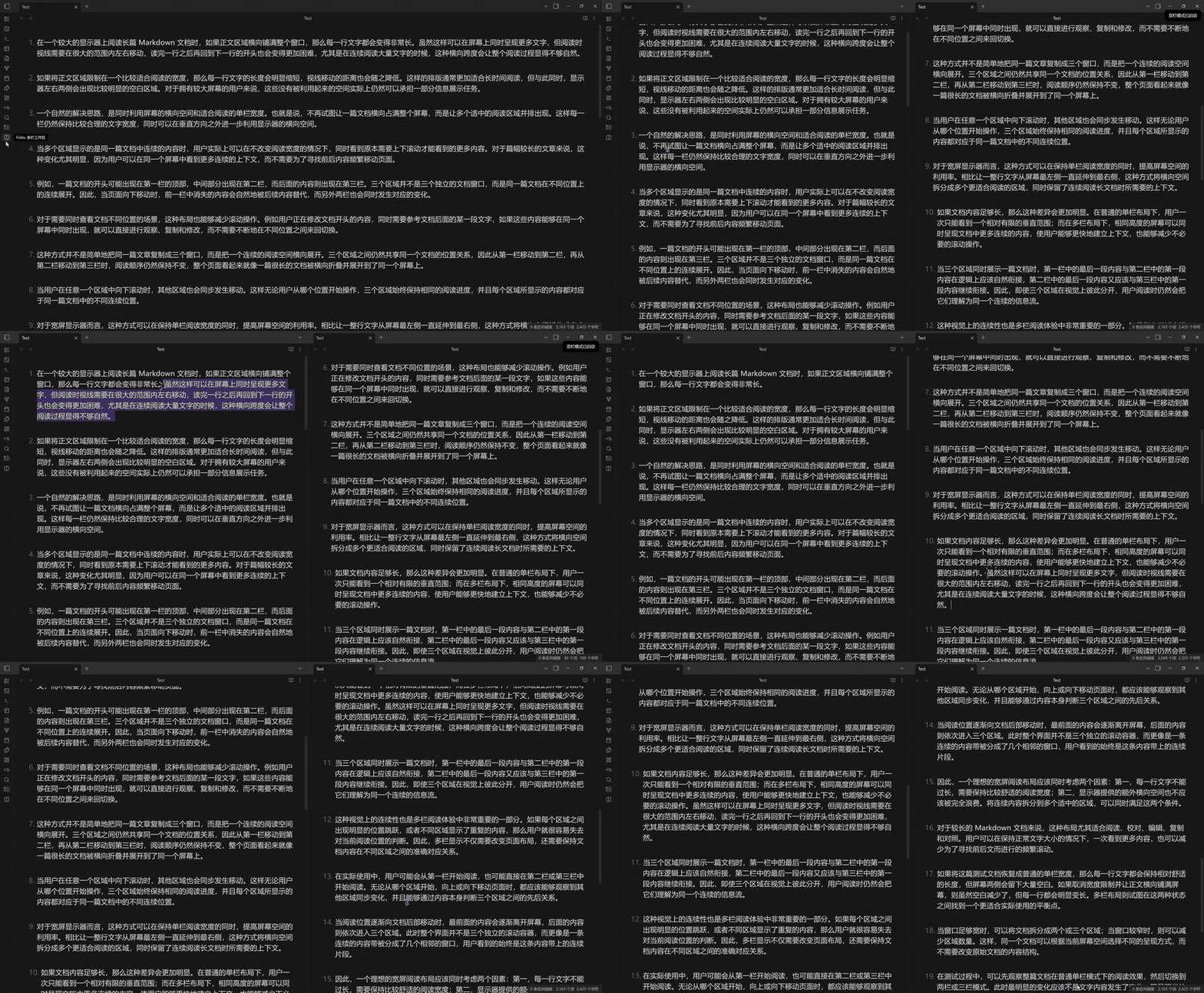
📖 Dual Pane Mode
- Primary View on the left, Next Screen on the right
- Synchronized scrolling
- Perfect for continuous reading
📚 Triple Pane Mode
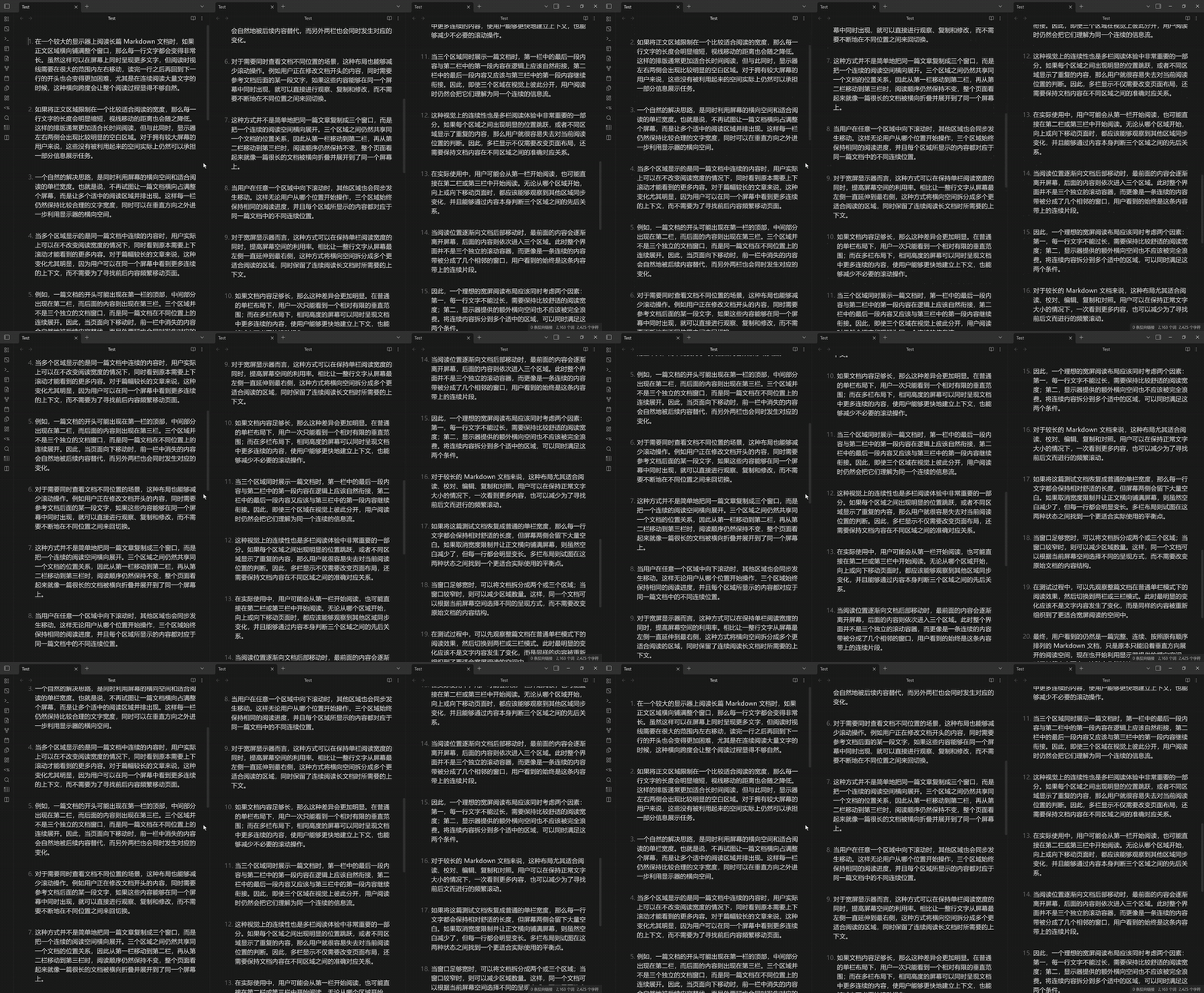
- Previous Screen on the left, Primary View in the center, Next Screen on the right
- See what comes before and after your current position
- Complete context awareness while editing
⚡ Smart Synchronization
- Real-time bidirectional scroll sync
- Supports Edit, Preview, and Source modes
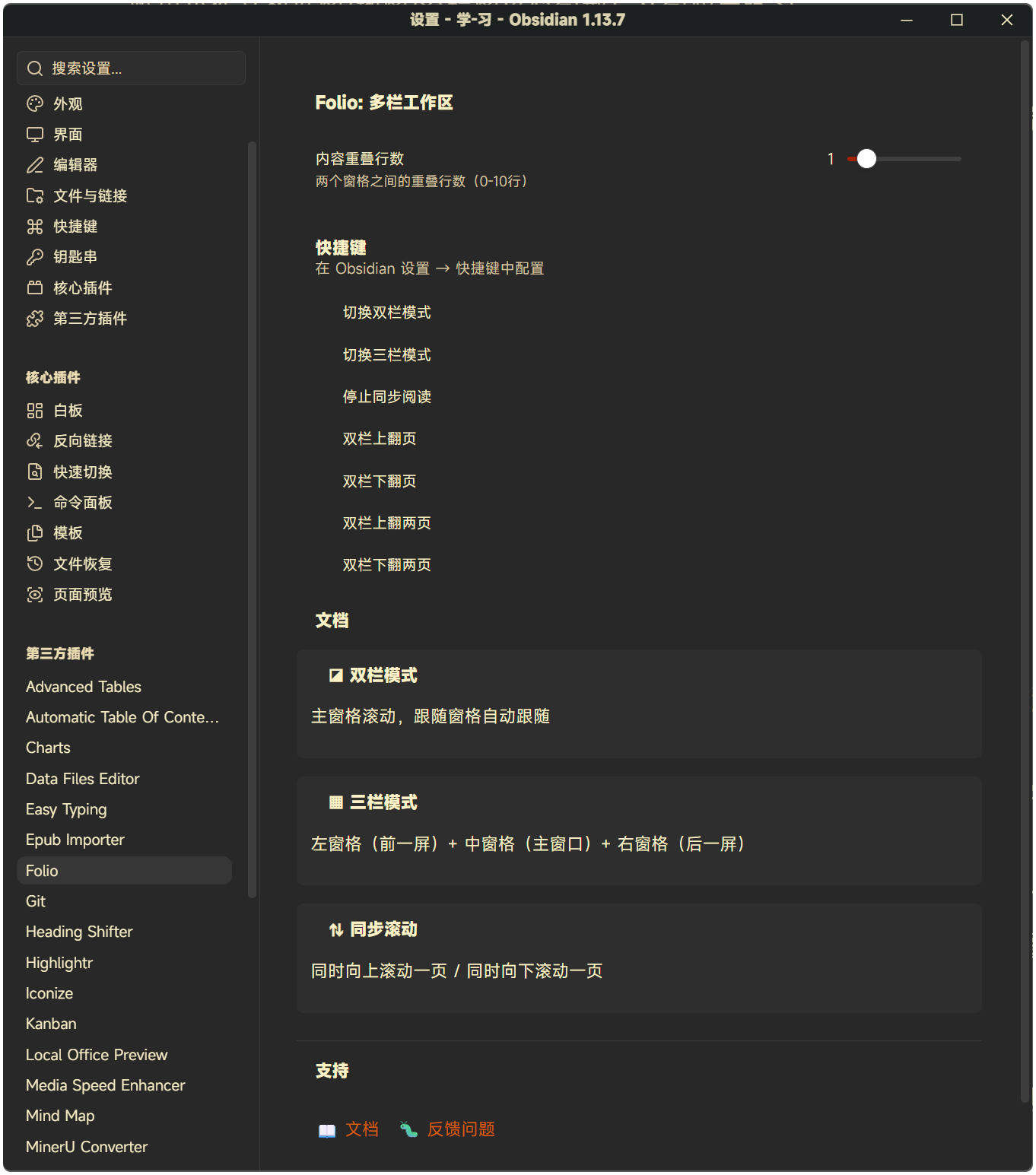
- Adjustable overlap between panes (0–10 lines)
- Seamless mode switching
🎮 Easy Controls
- Toolbar icon with mode selection menu
- Quick keyboard shortcuts
- One-click mode switching
- Automatic cleanup when closing panes
📦 Installation
From Obsidian Community Plugins
- Open Settings → Community Plugins
- Search for "MultiFolio"
- Install and Enable
Manual Installation
- Download the latest release from GitHub Releases
- Extract to
.obsidian/plugins/ - Enable in Settings → Community Plugins
🚀 Usage
Toolbar Menu
Click the ◪ icon in the left toolbar to open MultiFolio's mode selection menu:
- Dual Pane Mode — main + right follower
- Triple Pane Mode — left + main + right followers
- Stop — close all follower panes
Commands
All commands can be found in the Command Palette (Ctrl/Cmd + P):
| Command | Description |
|---|---|
| Toggle Dual Pane Mode | Enable/disable dual pane workspace |
| Toggle Triple Pane Mode | Enable/disable triple pane workspace |
| Stop Synchronized Reading | Close all workspace panes |
| Page Up | Scroll up by one page |
| Page Down | Scroll down by one page |
| Double Page Up | Scroll up by two pages |
| Double Page Down | Scroll down by two pages |
Recommended Hotkeys
- Dual Pane Mode:
Ctrl/Cmd + Shift + D - Triple Pane Mode:
Ctrl/Cmd + Shift + T - Stop synchronized reading:
Ctrl/Cmd + Shift + Q - Page Up:
Ctrl/Cmd + ↑ - Page Down:
Ctrl/Cmd + ↓
⚙️ Settings
Content Overlap
Adjust the number of overlapping lines between panes (0–10 lines):
- 0: No overlap, clean page breaks
- 2–3: Recommended for smooth reading
- 5–10: More context continuity
Language
Interface language is automatically detected from Obsidian settings (English, 简体中文 / 繁體中文, 日本語, 한국어, Français, Deutsch, Español, العربية).
🎯 Use Cases
For Writers
- See previous context while writing
- Preview upcoming sections
- Maintain narrative flow across long documents
For Readers
- Read without page-turning interruptions
- Seamless scrolling experience
- Perfect for novels and long articles
For Translators
- Source text on the left, translation on the right
- Reference the next section while working
For Reviewers
- Compare sections side by side
- Full document context
- Efficient proofreading workflow
🔧 Compatibility
- Obsidian v1.8.7+
- Desktop: Windows, macOS, Linux · Mobile supported (
isDesktopOnly: false) - Supports Edit, Preview, and Source modes
- Works with all Markdown content
🤝 Feedback & Support
- 🐛 Report Issues
- ⭐ Star the repo if you find it useful!
🙏 Credits
This plugin is based on the original Folio plugin by adeyahya. Thanks to the original author for the great idea and implementation.