
README file from
GithubObsidian Motto Code Block
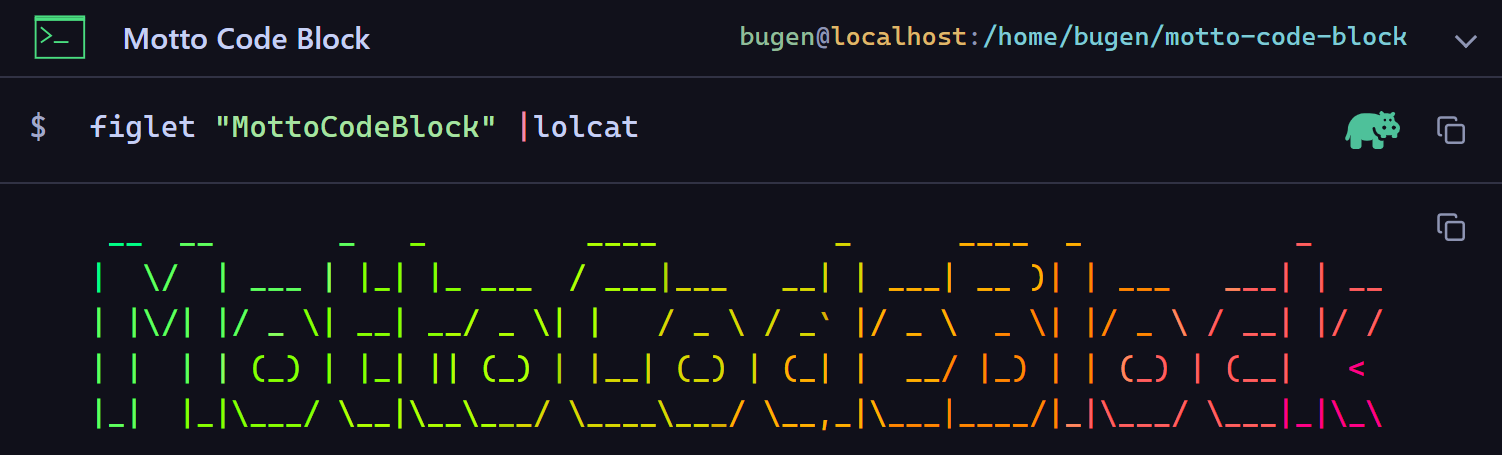
Motto Code Block makes code blocks easier to read in Obsidian with theme-aware headers, line numbers, and folding. It also displays shell commands and their output in a terminal-style layout.
Features
- Code block headers with language icons and custom titles.
- Line numbers, folding, and partial previews.
- ⭐ Command Block - Terminal-style command blocks with collapsible output.
- ANSI colors for terminal output.
- One-click copying for code, commands, and output.
- Theme-aware styling in Live Preview and Reading view.
Code block enhancements
Code blocks adapt to your active Obsidian theme's colors and styling, in both light and dark modes.
| Light mode | Dark mode |
|---|---|
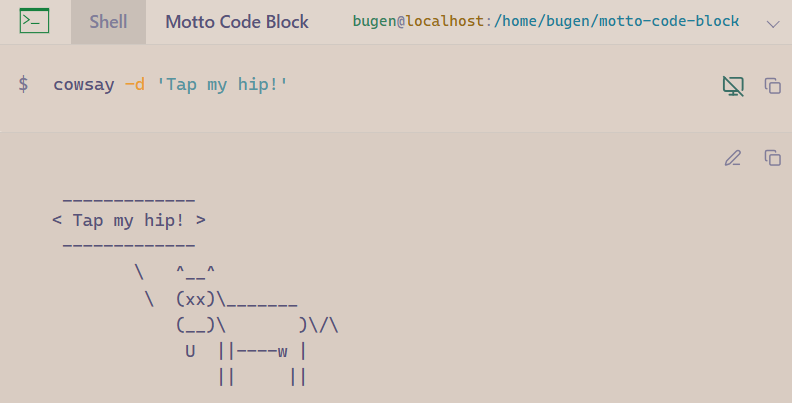 |
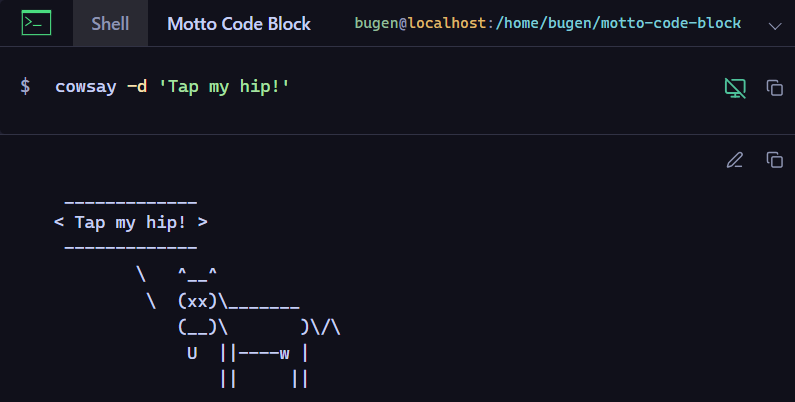 |
- Headers display language icons, language names, and optional custom titles. By default, they appear only when supported options such as
title:orfile:are present. Set Header display to Always in settings to show them on all eligible blocks. - Line numbers make code easier to follow, while preserving existing line wrapping.
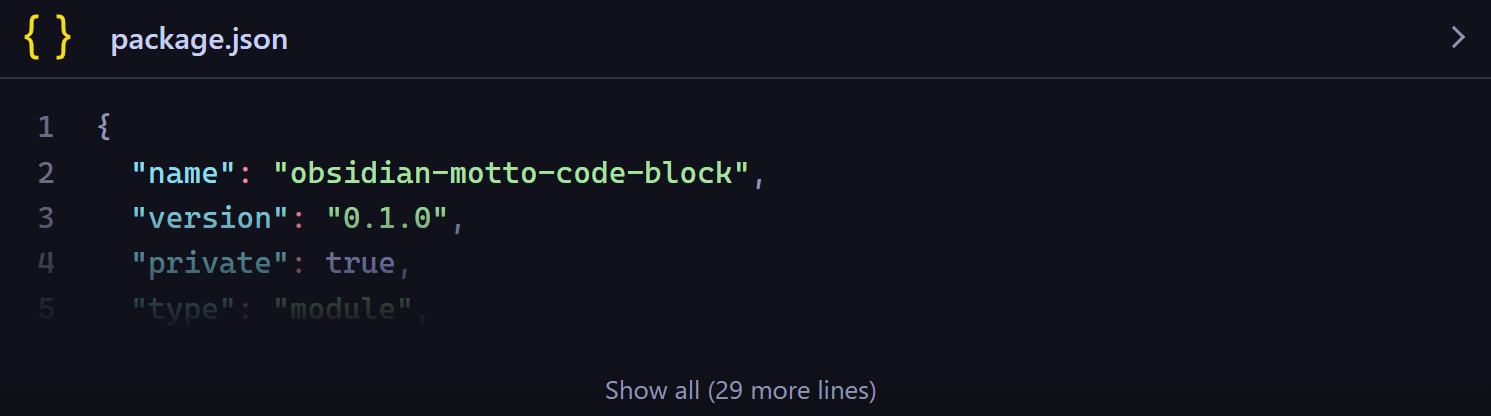
- Folding keeps long blocks compact. Click the header to fold or expand a block, or use a partial preview to show only the first few lines. Click Show all to reveal the rest.
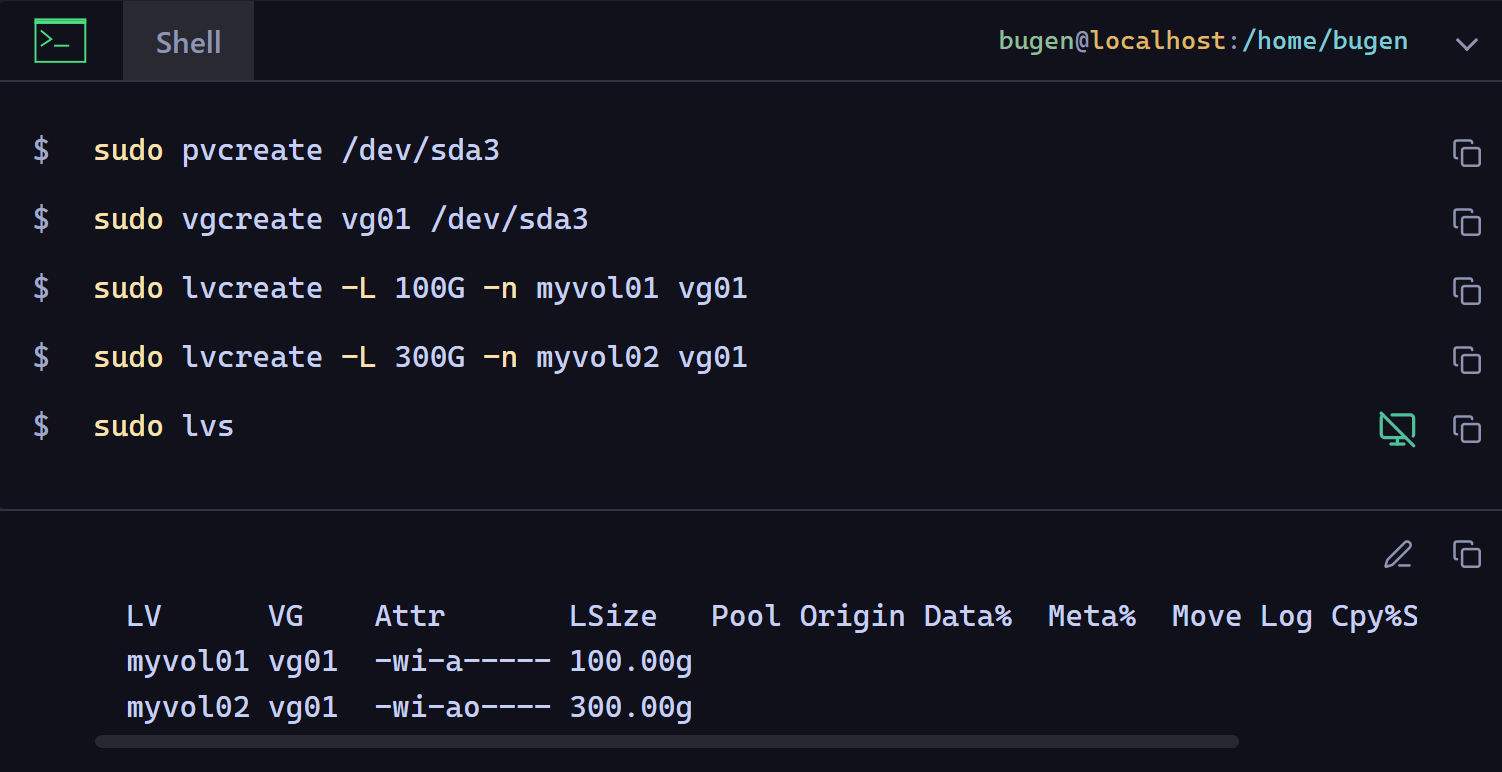
Command Block
Command Block presents shell commands and their output in a terminal-style layout. Copy individual commands without prompts, show or hide output with a click, and display ANSI-colored output. Commands are displayed, not executed.
Extended syntax
Add options after the language name on the opening code fence. Quote values that contain spaces.
| Option | Description |
|---|---|
title:"My code" or file:example.py |
Set the header title. |
fold / expand |
Start folded / fully expanded. |
expand:5 |
Show a partial preview of the first five lines. |
header-style:info |
Color the header using an Obsidian callout type. |
cmd |
Render a sh, bash, zsh, csh, or fish block as a Command Block. |
prompt:"user@host:~/project" |
Show the user, host, and working directory in a Command Block header. |
user:, host:, cwd: |
Set the prompt fields individually. |
exclude |
Disable this plugin's enhancements for the block. |
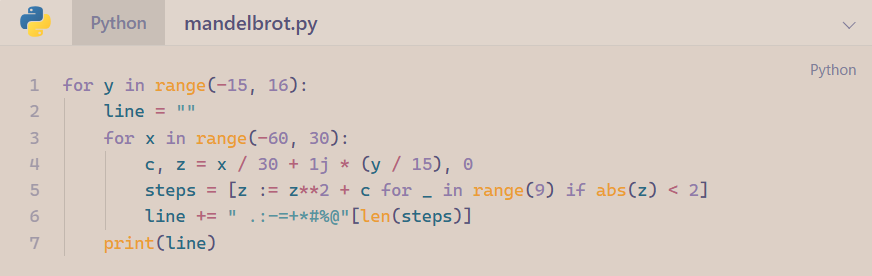
For example, ```python file:mandelbrot.py adds a file name to a Python block's header:
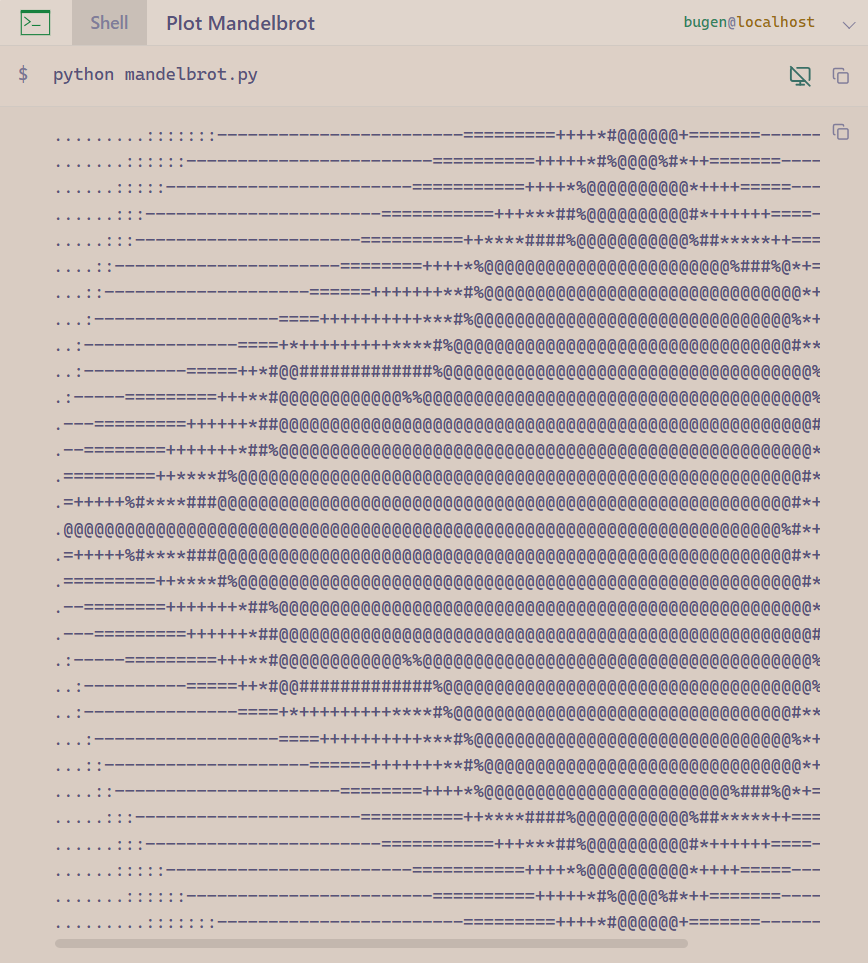
For a Command Block, combine cmd with an optional title and prompt. To include output, paste it into an ansi block directly after the shell block, with no blank line between the blocks:
```bash cmd title:"Plot Mandelbrot" prompt:"user@localhost"
python mandelbrot.py
```
```ansi
... pasted output ...
```
Theme and plugin compatibility
Code blocks retain Obsidian's syntax highlighting and use your active theme's colors by default, rather than a separate plugin color scheme.
Use Language include list and Language exclude list in settings to choose which languages are enhanced. Exclude languages handled by other plugins to help avoid rendering conflicts. Mermaid is excluded by default.
Acknowledgements
Thanks to these projects and their contributors:
- Codeblock Customizer and Code Styler for serving as key references for this plugin's implementation.
- vscode-icons and Devicon for their icon collections.
- Anser and ansi-regex for ANSI parsing.
- Font Awesome for an output toggle icon.
See THIRD_PARTY_NOTICES for attribution and license details.
