
README file from
GithubMini Notes
Your quick thoughts, beautifully displayed, without worrying about organization. Review them later in a colorful Google Keep-style card-based view, where you can pin, tag, and arrange what matters.
- view your notes in a google keep-notes similar layout
- change the bg color of your notes!
- pin your most important notes
- filter your notes based on their tags, folder, color, type.
- Example:
folder:projectscolor:yellowtag:cs
- Example:
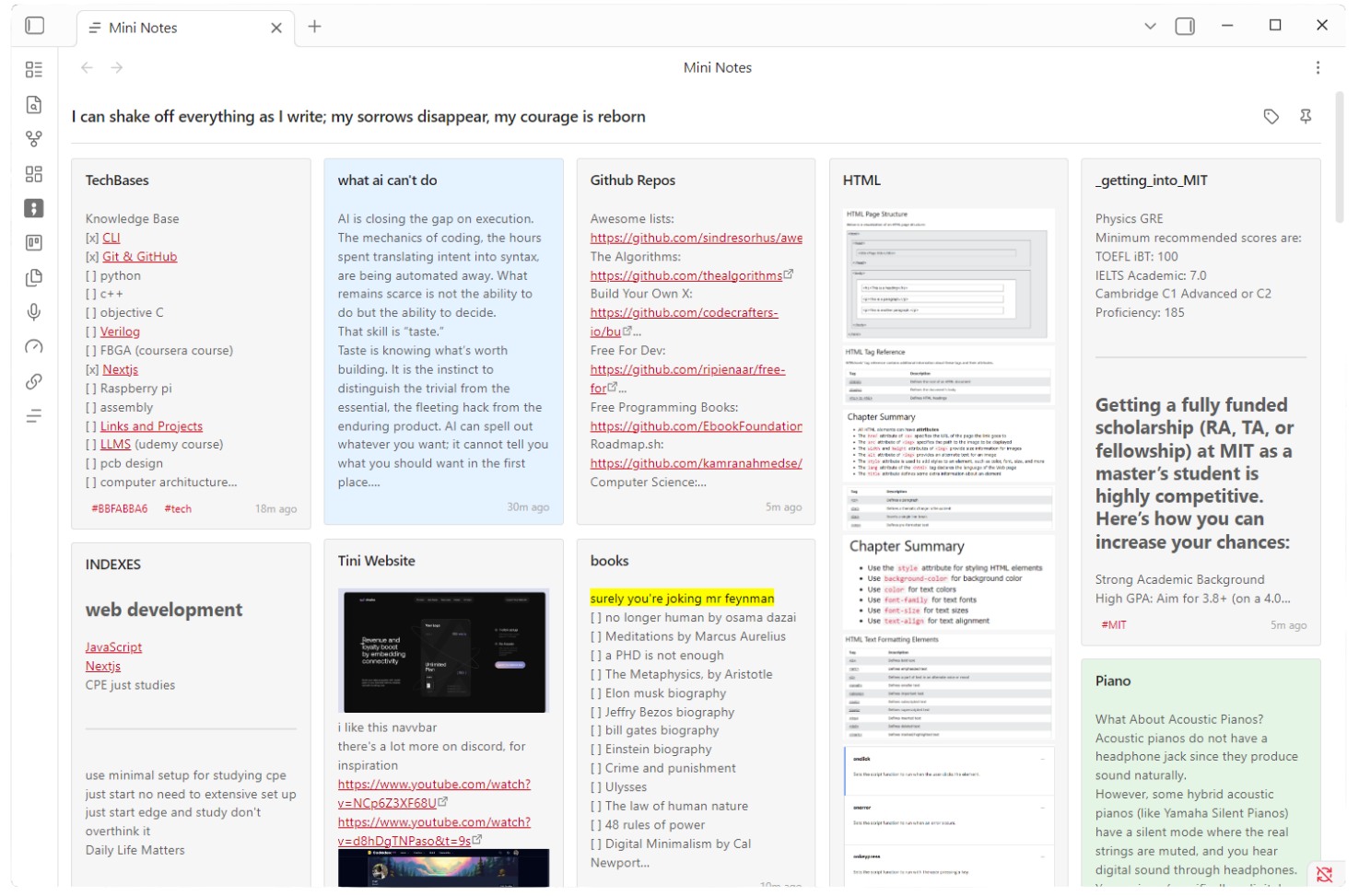
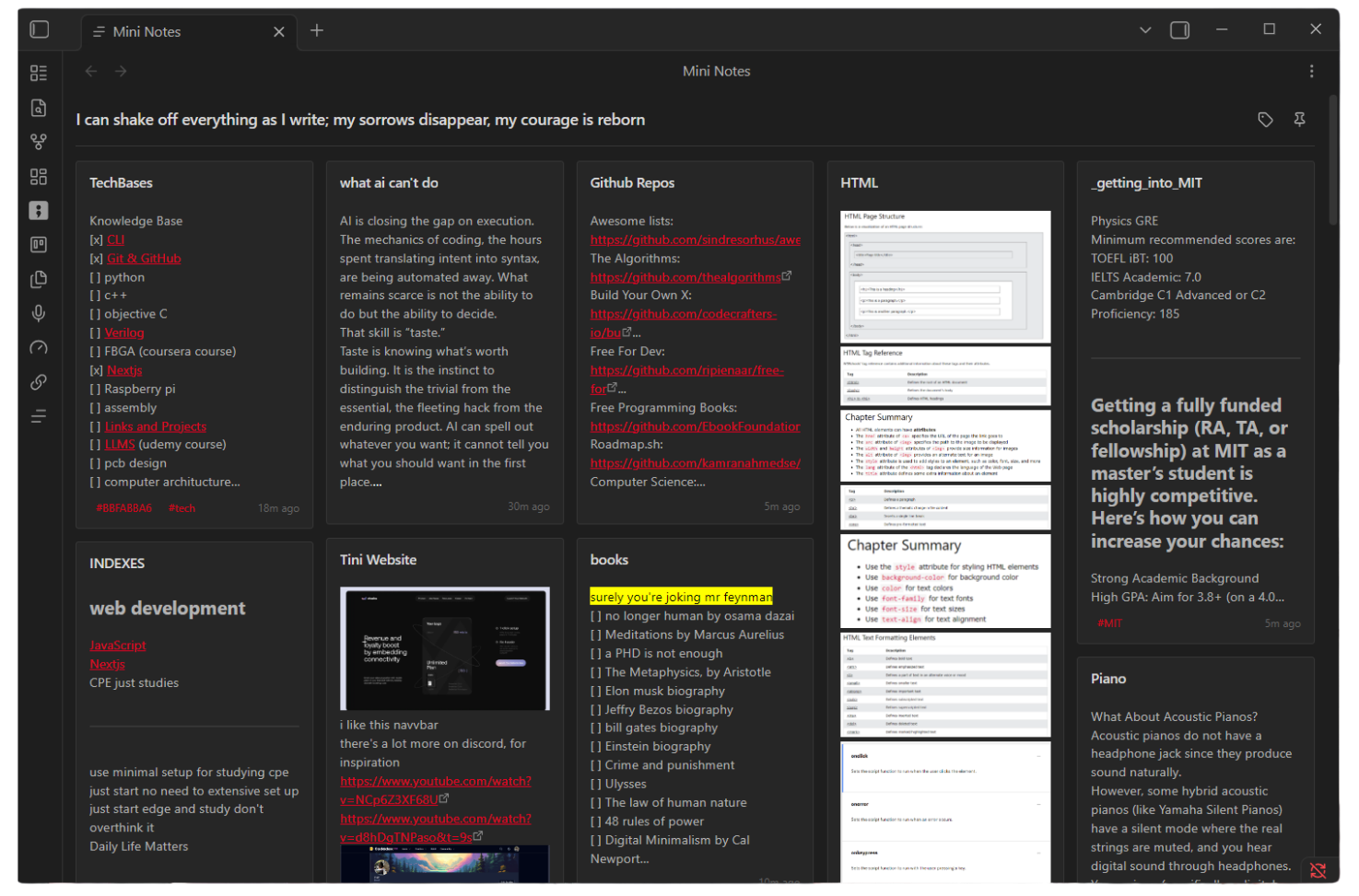
Hover Editing Overlay!
- Left Click the note to edit!.
- Right Click the note to open it in a seprate full screen tab.
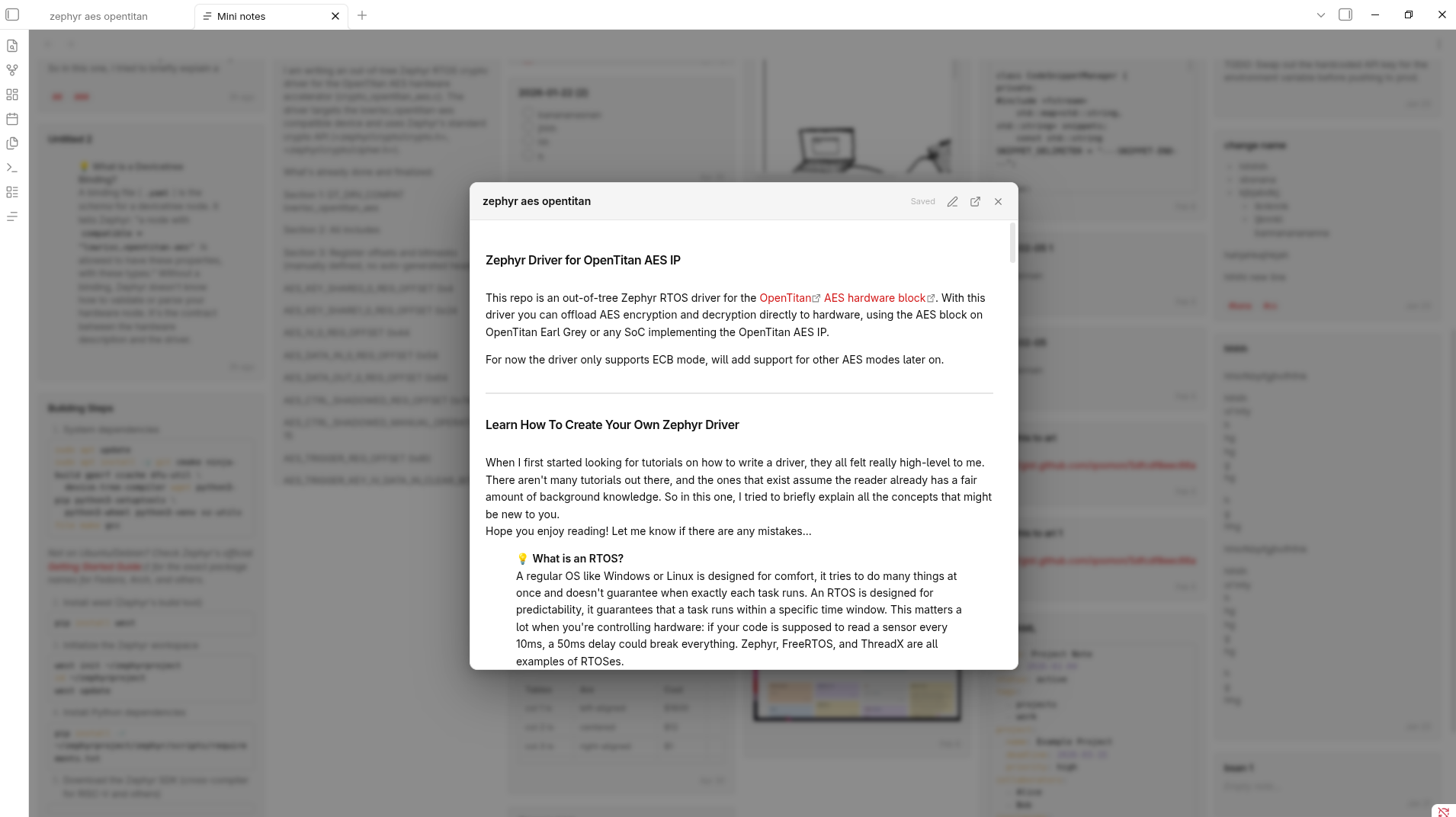
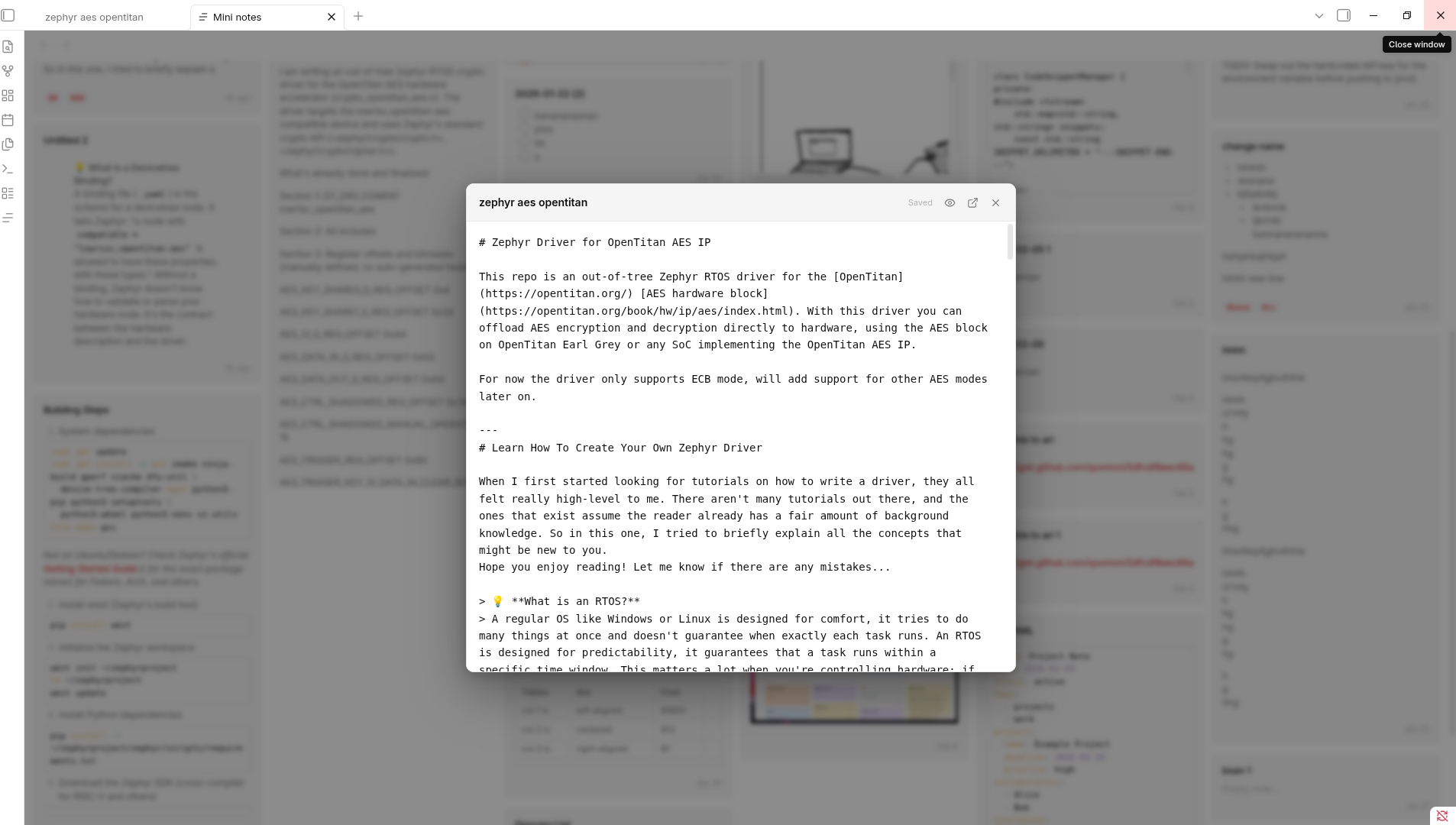
Coloring Notes: Hover on a note >> select the color you want.
Creating a New Mini Note
- Click on the icon in the cards view
- Search for "Mini Notes: Create new mini note"
- Notes are created in the "Mini Notes" folder by default (configurable in settings)
- Recommended Hotkey:
Ctrl + [
Opening the Cards View
- Click the grid icon in the left ribbon, or
- Search for "Mini Notes: Open view"
- The view will intially load all notes (configurable in settings)
- Recommended Hotkey:
Ctrl + ]
Customizing the View
- Edit the title by clicking on it directly
- Drag cards to reorder them
- Settings → Mini Notes to configure:
- Source folder (where notes are fetched from)
- Create folder (where new mini notes will be saved)
- Maximum notes to display (default: 150)
- Theme color preferences
Filtering: within the search bar
- search for normal text, using the smart search or
- filter by: (folder:, tag:, color:, type:, is:, has:)
folder:and see all available folderstag:and see all available tagscolor:and see all color optionstype:and see all content type optionsis: is:pinned or is:unpinned
Don't forget to give it a ⭐ on GitHub to help others discover it!
If you find Mini Notes helpful, please consider supporting my work!

