README file from
GithubMini Calendar
中文: Mini Calendar 在 Obsidian 原生文件列表底部嵌入一个紧凑的单周日历,目录树和日历始终显示在同一个侧边栏页面。单击日期即可打开或创建日记,并支持彩虹日期、周号和每周起始日设置。
English: Mini Calendar embeds a compact one-week calendar below the built-in file explorer, keeping the folder tree and calendar in the same sidebar tab. Click any date to open or create its daily note, with optional rainbow dates, week numbers, and configurable week starts.
English
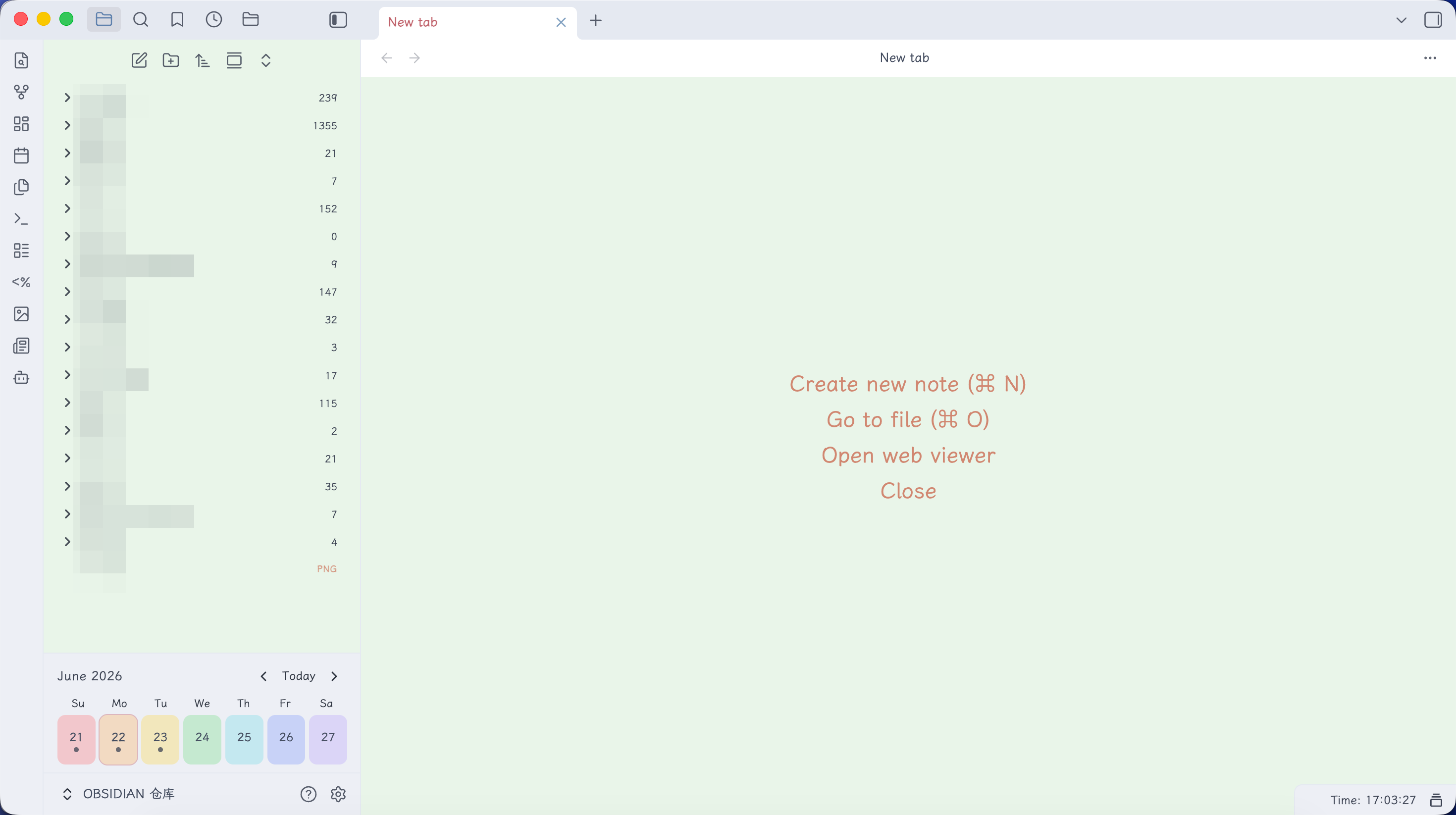
Mini Calendar adds a compact one-week calendar below Obsidian's built-in file explorer. The folder tree stays scrollable above the calendar, so both remain available in the same sidebar tab.
Features
- Embeds directly below Obsidian's built-in file explorer—no separate calendar tab.
- Shows one week at a time, from Monday through Sunday.
- Lets you follow the locale default, Monday, or Sunday as the first day of the week.
- Navigate to the previous week, next week, or return to today.
- Click a date to open its daily note or create it when missing.
- Optionally shows the ISO week number in the header.
- Optionally gives all seven date cards distinct rainbow backgrounds.
- Optionally highlights today's weekday label in red in the header row for quick recognition.
- By default, asks before creating past or future notes; today's note is created without confirmation.
- Uses the folder, filename format, and template configured by Obsidian's core Daily Notes plugin.
- Shows a solid dot when a daily note exists.
- Shows an outlined dot when that daily note contains unfinished tasks.
- Adapts to Obsidian light and dark themes using native CSS variables.
- Works on desktop and mobile without network access.
Requirements
- Obsidian 1.8.7 or later.
- Enable the built-in File explorer core plugin.
- For customized daily note paths and templates, configure the built-in Daily notes core plugin.
If Daily Notes has no custom format, Mini Calendar uses YYYY-MM-DD.md.
Mini Calendar asks you to enable the Daily Notes core plugin instead of silently creating notes in the vault root when it is disabled.
Installation
From Obsidian Community Plugins
Once the plugin is accepted into the Obsidian Community directory:
- Open Settings → Community plugins → Browse.
- Search for Mini Calendar.
- Select Install, then Enable.
Manual installation
- Download
main.js,manifest.json, andstyles.cssfrom the matching GitHub release. - Create
<vault>/.obsidian/plugins/mini-calendar/. - Copy the three files into that folder.
- Reload Obsidian and enable Mini Calendar under Community plugins.
Usage
Open Obsidian's built-in File explorer. The calendar appears at the bottom of the same sidebar tab, below the folder tree.
- Select a date to open or create its daily note.
- Use the arrow buttons to move by one week.
- Select Today to return to the current week.
Settings
- Start week on: Locale default, Monday, or Sunday.
- Confirm past and future notes: Enabled by default. This never prompts for today's note or an existing note.
- Show week number: Shows the ISO week number in the header. Disabled by default.
- Rainbow dates: Gives the seven date cards low-saturation red, orange, yellow, green, cyan, blue, and violet backgrounds. Enabled by default.
- Highlight today's weekday: Colors today's weekday label red in the header row for quick recognition. Disabled by default.
- About: Shows the author's GitHub profile and blog.
Privacy and security
Mini Calendar works entirely offline. It does not make network requests, collect telemetry, display advertisements, access files outside your vault, or include an auto-update mechanism.
About the author
Mini Calendar is made by RanceLee. Visit the GitHub profile or the author's blog for more Obsidian tutorials, practical AI workflows, and independent software.
Acknowledgements
The compact calendar presentation was inspired by Notebook Navigator, created by Johan Sanneblad. Thank you for the thoughtful calendar design and for making it available to the Obsidian community.
Mini Calendar is an independent implementation built from scratch for Obsidian's built-in File explorer. It is not affiliated with, endorsed by, or derived from Notebook Navigator's source code.
Development
npm install
npm run verify
To sync a build into a development vault:
OBSIDIAN_PLUGIN_DEV_DIR="/path/to/vault/.obsidian/plugins/mini-calendar" npm run build
License
中文
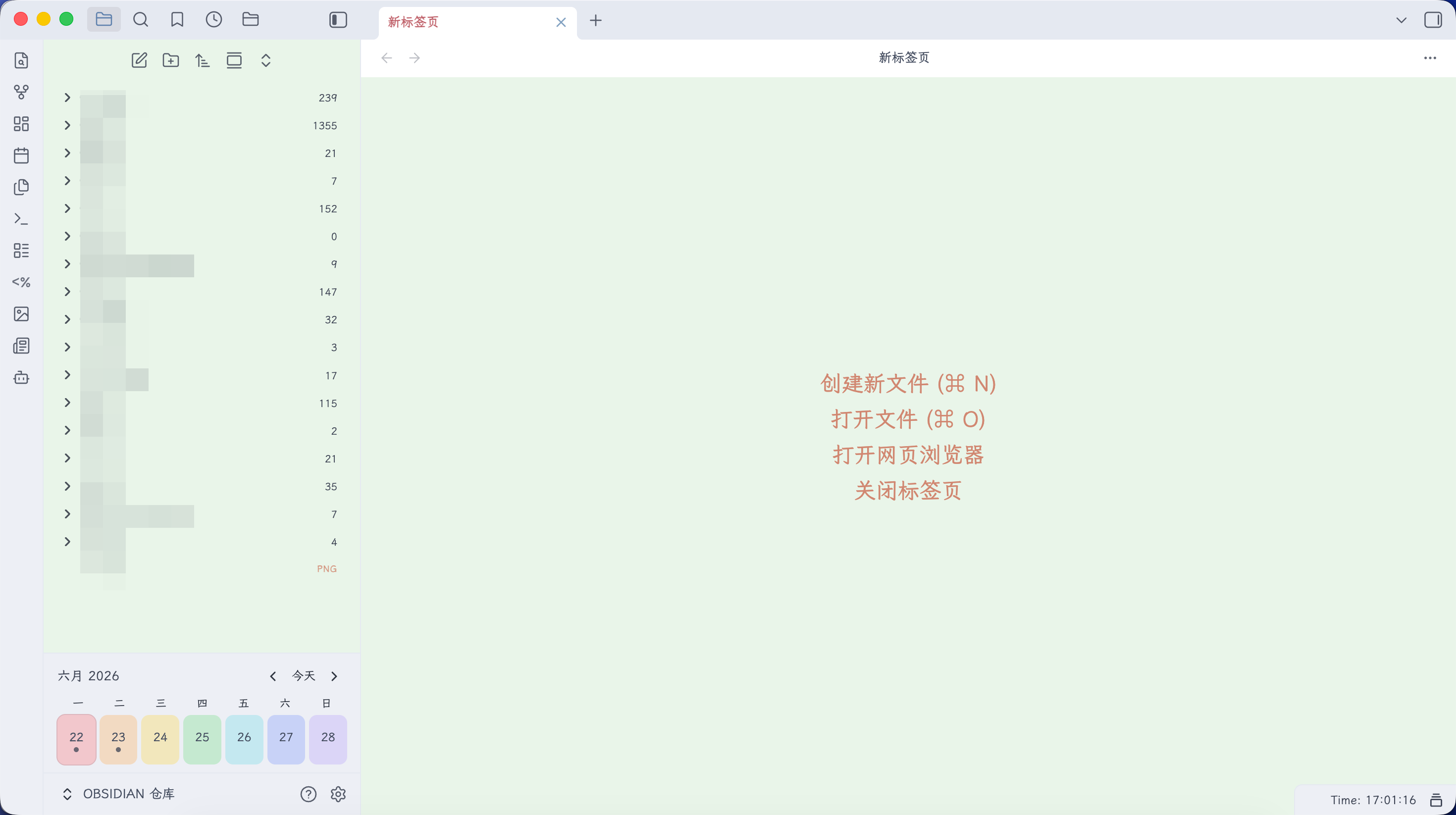
Mini Calendar 在 Obsidian 原生文件列表底部嵌入一个紧凑的单周日历。目录树在上方正常滚动,日历固定在下方,两者共用同一个侧边栏标签页。
功能
- 直接嵌入 Obsidian 原生文件列表底部,不创建独立日历标签页。
- 显示从周一到周日的单周视图。
- 每周第一天可选择跟随系统、周一或周日。
- 支持上一周、下一周和返回今天。
- 点击日期可打开对应日记;不存在时自动创建。
- 可选择在标题中显示 ISO 周号。
- 可选择为一周七个日期卡片启用低饱和彩虹背景。
- 可选择将今天对应的星期文字标红,便于一眼定位当日。
- 默认仅在创建过去或未来日期的日记前确认;创建今天的日记无需确认。
- 遵循 Obsidian 核心「日记」插件配置的目录、文件名格式和模板。
- 实心圆点表示该日期已有日记。
- 空心圆点表示该日记存在未完成任务。
- 使用 Obsidian 原生 CSS 变量,自动适配明暗主题。
- 支持桌面端和移动端,全程离线工作。
使用要求
- Obsidian 1.8.7 或更高版本。
- 启用 Obsidian 核心「文件列表」插件。
- 如需自定义日记目录、文件名和模板,请配置核心「日记」插件。
如果核心「日记」插件没有设置日期格式,Mini Calendar 默认使用 YYYY-MM-DD.md。
如果核心「日记」插件未启用,Mini Calendar 会提示用户启用,不会静默在仓库根目录创建日记。
安装
从 Obsidian 社区插件市场安装
插件通过 Obsidian 社区审核后:
- 打开「设置 → 第三方插件 → 浏览」。
- 搜索 Mini Calendar。
- 点击「安装」,然后启用插件。
手动安装
- 从对应的 GitHub Release 下载
main.js、manifest.json和styles.css。 - 创建
<仓库>/.obsidian/plugins/mini-calendar/文件夹。 - 将三个文件复制到该文件夹。
- 重启或重新加载 Obsidian,在「第三方插件」中启用 Mini Calendar。
使用方法
打开 Obsidian 原生「文件列表」,日历会显示在同一侧边栏标签页的目录树下方。
- 点击日期可打开或创建对应日记。
- 点击左右箭头可切换上一周或下一周。
- 点击「今天」可返回当前周。
设置
- 每周开始于: 跟随系统、周一或周日。
- 确认创建非当日日记: 默认开启;今天和已有日记始终不会弹出确认。
- 显示周号: 在标题中显示 ISO 周号,默认关闭。
- 彩虹日期: 为七个日期卡片依次使用红、橙、黄、绿、青、蓝、紫背景,默认开启。
- 高亮今天的星期: 在表头将今天对应的星期文字标红,便于一眼定位当日,默认关闭。
- 关于: 查看作者的 GitHub 主页与个人博客。
隐私与安全
Mini Calendar 完全离线运行,不发起网络请求、不收集遥测数据、不显示广告、不访问 Obsidian 仓库以外的文件,也不包含自行更新机制。
关于作者
Mini Calendar 由 RanceLee 独立开发。我长期分享 Obsidian 教程、AI 实践与效率工具,也提供系统化 Obsidian 教程和开箱即用的预设仓库。欢迎访问作者博客了解更多内容,或在 GitHub 查看我的开源项目。
致谢
本插件的紧凑日历展示方式受到 Johan Sanneblad 开发的 Notebook Navigator 启发。感谢它为 Obsidian 社区提供了出色的日历设计与使用灵感。
Mini Calendar 是针对 Obsidian 原生文件列表从零独立实现的插件,与 Notebook Navigator 不存在隶属或官方关联,也没有使用或派生自 Notebook Navigator 的源代码。
开发
npm install
npm run verify
同步构建到开发仓库:
OBSIDIAN_PLUGIN_DEV_DIR="/path/to/vault/.obsidian/plugins/mini-calendar" npm run build
许可证
交流与反馈 / Community and feedback
欢迎加入 Obsidian 交流聊天反馈群。你可以在群里反馈插件问题,也欢迎吹牛聊天、交流 Obsidian、公众号写作和 AI 使用经验。
Join the Obsidian community and feedback group to report plugin issues or discuss Obsidian, writing for WeChat, and practical AI workflows.
二维码会定期更新;如果图片中的群码失效,请点击图片打开最新的群聊入口页。