
README file from
GithubEnglish | 中文
🧠 MindMap Studio
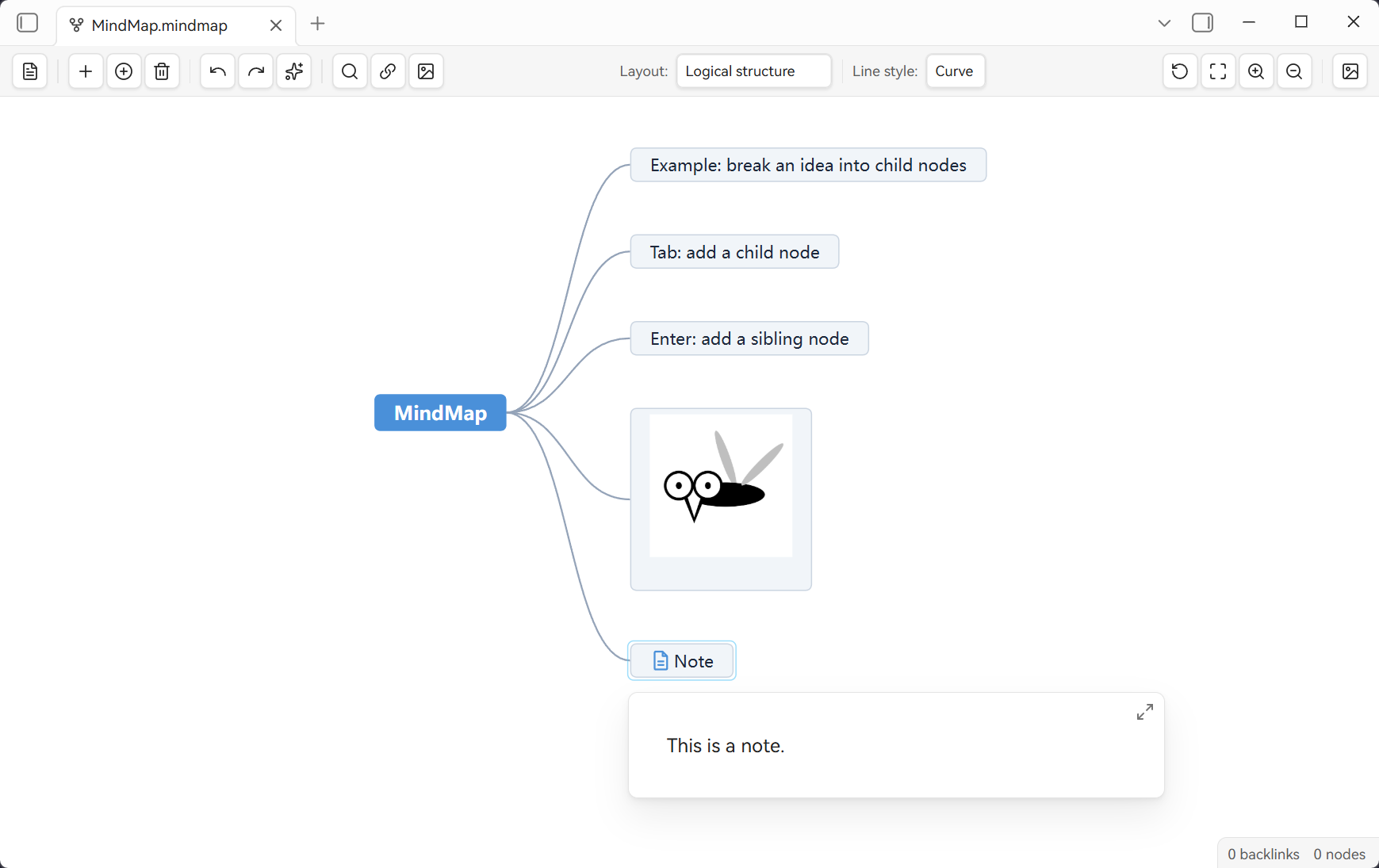
Mind map rendering for Markdown inside Obsidian. Open
.mindmap.md— a normal Markdown file — and edit it as a mind map; the Markdown outline round-trips. Powered by the simple-mind-map engine, developed by WinterMosquito.
🚀 Quick start
- Create: run Create new mind map (command palette or ribbon) — name it (default = prefix + date); the
MindMap2026-09-06.mindmap.mdfile is created and opens as a mind map. - Edit: the file is ordinary Markdown, so its outline becomes the map — add/edit/delete nodes, drag to rearrange, attach images or links.
- Back & save: use Switch to Markdown to return anytime; edits are written back to the file (layout & viewport live in the plugin's
data.json).
✨ Why MindMap Studio
The plugin is a rendering layer, not a file-format converter. .mindmap.md files are 100% standard Markdown — your notes, links, backlinks, search and Git all work as usual. A Markdown outline is parsed into a mind map; when you edit the map, the changes are written back as Markdown.
🚀 Features
- Markdown-native:
.mindmap.mdis ordinary Markdown (headings + lists). No proprietary format. - Round-trip fidelity: unedited lines are written back verbatim (frontmatter preserved; blank lines between paragraphs and standalone
---separators are normalised); headings#–######map to node levels 1–6, nested lists to deeper levels. - Obsidian-native wikilinks:
[[note]]shows as its link text, with hover preview and graded modifier clicks (matching Obsidian): plain click = current tab,Ctrl/Command+click = new tab,+Alt= new tab group, plusShift= new window; the add-link dialog searches notes and other documents (.canvas/.base) plus non-image vault files (attachments); images go through Add image. Links whose target does not exist yet render in a muted colour (like Obsidian's reading view), resolved by the plugin from Obsidian's metadata cache; hover/click is left to Obsidian core (no pre-check on that path). New document links follow Obsidian's own settings: with Use [[Wikilinks]] on (the official default) they are written as[[wikilinks]](keeping the dedicated document icon); with it off they are written as[label](path.md), and the path form follows New link format. Attachments and images always keep the wikilink embed form (![[report.pdf]]/[[archive.zip]]). A node shows the alias (the note name when there is none); editing the text of a pure wikilink node edits that alias and writes back[[note|new alias]]. Attaching a wikilink — dropping a vault file (notes / images / attachments, any type) onto the node, or picking one in the add-link dialog — turns a completely empty node into a pure wikilink by writing the link's display name as its text; a node that already has any content (text, an image or an existing link — a pure-wikilink node included) keeps it, and the new link becomes a child node. A URL on its own node stays icon-only (no text). - Rich node content (clickable links + inline syntax): links inside a node render as clickable text — click to open,
Ctrl/Command+click for a new tab (+Altfor a new tab group, plusShiftfor a new window); every link on a line is clickable (no longer only the first one). Hover preview has two levels: hovering a specific link text previews that link (important for multi-link lines and when the first link is an external URL), while hovering anywhere else on the node previews the link the node carries (vault targets only). A URL mixed with other content is shown as a clickable address instead of a bare icon. Inline syntax renders inside nodes the way Obsidian's reading view shows it:**bold**/__bold__,*italic*/_italic_,`inline code`(including double-backtick spans),~~strikethrough~~,==highlight==,***bold italic***; inline math$…$renders via MathJax and a single-line$$…$$renders as a block (centred) formula (falls back to the literal text until loaded; multi-line block math stays literal);\*escaped\*/\$consume the backslash and show the literal character, and%%comments%%are hidden inside the node (kept in the file; a line that is nothing but a comment stays literal). The raw text stays verbatim in the file; links inside paragraph (multi-line) nodes are clickable too. Very long nodes (> 2000 chars) show the beginning plus…(with a hover explanation) — the full text stays in the file, which also keeps oversized text from slowing the canvas down. Double-clicking such a node edits the actual line from the file (wikilink, URL and inline syntax stay visible and editable). - Images: vault image suggestions, uniform sizing,
![[path]]round-trip; drag the corner handle to resize a node image — the size is written back as Obsidian's official embed syntax (![[img.png|300]]width-only,|300x150explicit,for external images); clear a node's text and the node becomes image-exclusive — an image-exclusive node has no text, so node search never matches it. Inline images also render in text/paragraph nodes (its first line; links inside a paragraph are clickable too, see above). - Opens at 100% with the whole map centred; Fit to canvas zooms out for an overview and Reset zoom returns to 100% while keeping the visible content in place (auto-arrange ends with fit-to-canvas); six layouts (switching a layout auto-arranges and fits the map) with per-file connector styles (Auto follows the layout; curve / direct / elbow — switchable for Logical structure / Mind map / Organization chart; the other three are fixed-straight and show Auto), node search, auto-arrange, performance mode for large maps, fast text node rendering (every text node is rendered by the plugin — large maps open several times faster; double-click then opens the edit dialog, see Settings), PNG export; assisted drag reparenting — drop near a node's center to nest as its child, or between two siblings to insert in between (with live highlight).
- Persistence: layout, viewport and "open as" preference are kept per file (in plugin data), surviving reopen, rename, and view switching.
- Central node ↔ filename: editing the central node renames the
.mindmap.mdfile (Obsidian updates links/backlinks).
📖 Usage
1) Create & open a mind map
- Run Create new mind map (command palette or ribbon) → a naming dialog appears (default = prefix + date; duplicates get a numeric suffix) → the
MindMap2026-09-06.mindmap.mdfile is created and opens in the mind-map view. - Any
.mindmap.mdfile opens from its context menu → Open as mind map (or the same command), and goes back via Open as Markdown. The view you chose is remembered. - The command palette also lists Create mind map in current folder, Search nodes, Fit to canvas, Arrange mind map and Export as PNG — the same actions as the toolbar.
2) How Markdown becomes a map
Every .mindmap.md is 100% standard Markdown — the plugin renders it as a mind map and writes your edits back:
# Project plan              ← central node (= file name)
## Goals                    ← first-level child node (#)
- Milestone 1               ← child node (list)
- Milestone 2
###### Details              ← level-6 heading
- Seventh-level item        ← list nested under a heading → level 7
#–######→ node levels 1–6 · nested lists go deeper ·[[note]]/[[note|alias]]→ clickable link (the node shows the alias) · bare URLs → clickable address · inline syntax renders inside nodes (**bold**/__bold__,*italic*/_italic_,`inline code`,~~strikethrough~~,==highlight==,***bold italic***;$…$inline math and single-line$$…$$block formulas render via MathJax;\*escaped\*/\$show literally and%%comments%%are hidden — a comment-only line stays literal) ·![[img]]→ image (|300sets the size) · paragraphs & fenced code stay as text (links inside paragraphs are clickable too).Non-image embeds such as
![[report.pdf]]on a node of their own are shown as an attachment icon: click the icon, orCtrl/Command+click the node, to open it (PDF, audio, video); hovering the node triggers Obsidian's native preview as well. Mixed with other descriptive text, they render as a clickable text link instead. Neither is rendered inline — a mind-map node cannot host Obsidian's inline media view.Files dragged in from your system (images / PDFs / audio & video / notes / any other file) need a selected node first (a notice appears otherwise): they are copied into the "default location for new attachments" and attached to that node (embeddable types are written as embeds
![[report.pdf]], everything else as links[[archive.zip]]); holdingCtrl(Windows/Linux) /Option(macOS) instead skips the copy and inserts an absolute link to the original location[file name](file:///…)(wrapped in<…>only when the path contains spaces or brackets; clicking opens it in your system's default app) — the same behaviour as Obsidian's drag & drop.
3) Everyday actions (in the mind-map view)
| Want to | Do |
|---|---|
| Edit a node's text | Double-click the node (or press F2; text inputs keep F2; with no node selected F2 belongs to Obsidian = rename the file). With Fast text node rendering on (the default) every text node is plugin-rendered, so double-click opens a plugin dialog: a pure wikilink node edits its alias (saving writes [[note|new alias]]); any other node edits the actual line from the file — [[wikilink]], URL and **bold** syntax stay visible and editable, with a live "the node will show" preview — and saving writes that line back verbatim. Turn the setting off to get the engine's inline editor back for plain text nodes (nodes with links / inline syntax / very long text keep the dialog) |
| Follow a link in a node | Click the link text (current tab); Ctrl/Command+click (new tab — anywhere on the node works, falling back to the node's own link), add Alt for a new tab group, add Shift for a new window; hover that link for Obsidian's native preview (unresolved targets are not previewed) |
| Add a child / sibling | Right-click the node → Add child node / Add sibling node (siblings also via Enter) |
| Delete a node | Right-click → Delete node |
| Add a link | Select a node → toolbar/menu Add link (pick a vault note or paste a URL). A wikilink fills a completely empty node (text = display name); a node with any existing content (text, image or link) gets a linked child node; a URL on its own node stays icon-only |
| Add an image | Select a node → Add image (from vault, clipboard, or a file) |
| Attach by drag & drop | Drag any vault file from the file explorer onto a selected node — it becomes the node's link (completely empty node: text becomes the display name; a node with any existing content: a linked child node is created); dragging an image sets the node image. With nothing selected, a linked node is created under the root (images need a selected node) |
| Drag files in from your system | Select a node first, then drop system files onto the canvas (otherwise a notice asks you to): images become the node image, other files are copied into the vault and attached by type (notes → wikilink, everything else → attachment; embeddable types are written as ![[report.pdf]]). Hold Ctrl (Win/Linux) / Option (mac) to skip the copy and insert an absolute link [file name](file:///…) instead (wrapped in <…> only when the path contains spaces or brackets) |
| Rearrange | Drag near another node's center to nest as its child; drag between two siblings to insert in between (the drop target highlights — override its colour with the CSS variable --mm-drag-target-color, defaults to orange) |
| Resize a node image | Hover the image, drag its bottom-right handle (aspect ratio preserved) |
| Make a node image-only | Clear the node's text: double-click → empty, or right-click → Remove text |
| Clean the layout | Toolbar: Auto arrange, Reset zoom (100%), Fit to canvas, zoom in/out |
| Find a node | Toolbar search box |
| Split a node's links | Editing such a node splits automatically: document/attachment links mixed with text move into child nodes (the node keeps its text; images and external URLs stay) — turn it off in settings. Command Split all mixed links in document batch-processes the whole file, including untouched notes — the whole batch counts as one step, so one Ctrl/Command+Z undoes it |
| Export | Toolbar Export PNG |
| Back to Markdown | Switch to Markdown (restores source/preview mode) |
Keyboard shortcuts (in the mind-map view)
| Keys | Action | When it is not intercepted |
|---|---|---|
Ctrl/Cmd+F |
Open the search box | — |
Ctrl/Cmd+Z |
Undo | — |
Ctrl/Cmd+Shift+Z |
Redo | — |
Ctrl+Y |
Redo | Windows/Linux only — macOS leaves Cmd+Y alone |
F2 |
Edit the selected node | With no node selected F2 belongs to Obsidian (rename the file); inside a text input F2 is left alone |
Delete / Backspace |
Delete the selected node | Inside a text input, while a node is being edited, or with no node selected |
Shift+1 |
Fit to canvas | Inside a text input |
Shift+2 |
Zoom to the selection (falls back to fit-to-canvas when nothing is selected) | Inside a text input |
Tab / Enter |
Add a child / sibling node | Handled by the engine, not by the plugin |
Undo/redo go through the engine's own history. Very large maps keep fewer undo steps, because the history is capped by a fixed memory budget rather than a fixed step count.
4) Saving & persistence
- Unedited lines are written back verbatim (frontmatter preserved; blank lines between paragraphs and standalone
---separators are normalised); editing a pure wikilink node (the whole line is one wikilink) edits its alias, written back as[[note|new alias]](clearing the text drops the alias and keeps the link; nodes that mix text and a link still round-trip as "text + link"). - Layout, viewport and "open as" are kept per file in the plugin
data.json; node image sizes go into the note itself as official embed syntax (![[img|300]]). - Editing the central node renames the
.mindmap.md(Obsidian updates links/backlinks). - Only one mind-map editing instance per
.mindmap.md(Obsidian itself lets you open the same file in as many tabs as you want): opening it in a second tab shows a notice and hands the view back, so two copies can never overwrite each other's saves. The note's reading view can still be open next to the mind map. - If the file is changed outside Obsidian (sync folder, another window), auto-save skips that round with a one-time notice instead of overwriting the other change; after repeated write failures auto-save is suspended with a notice (manual save still works).
- Config is local; no telemetry, and the plugin makes no network requests — nothing is sent anywhere.
- Files outside the vault are only ever touched when you ask for it: an absolute
file:///link (created by holdingCtrl/Optionwhile dropping a file) is handed to your system's default app when you click it. The plugin does not read, copy or upload those files.
5) Deliberate differences from Obsidian
The mind-map view is a third kind of view (neither reading nor editing view), so a few interactions follow this view's semantics. All of them are registered (see AGENTS.md K56 ⑤; the second-tab and side-button rows are K102 / K111):
| Item | Obsidian | This plugin |
|---|---|---|
F2 |
Renames the current file | Same: with no node selected F2 goes to Obsidian (rename the file); with a node selected it edits that node (selecting the central node amounts to renaming the file, since its text is the file name) |
| Auto-update links on rename | Setting "Automatically update internal links" (on by default) | Same: setting "Automatically update internal links" (on by default); turning it off leaves links untouched and skips reference cleanup on delete |
| Link syntax for new links | Follows the "Use [[Wikilinks]]" / "New link format" settings | Same, for document links only: with Wikilinks on (the official default) it writes [[wikilinks]]; with Wikilinks off it writes [label](path.md); rewrites keep your existing path prefix. Attachments and images always keep the wikilink embed form (![[report.pdf]] / [[archive.zip]]) |
[[ suggestions |
Inline suggestions in the editor | The source-line dialog is a plain textarea (no inline suggestions) → use the vault-file suggestions in the Add link dialog |
| Backlinks / Outgoing links / Unlinked mentions panes | Core plugins | Not duplicated — Obsidian's own panes act on the current file and work while the mind-map view is open |
| Clicking a non-renderable vault file (zip / docx / …) | Opens in the default system app | Same |
| Same file in a second tab | Allowed — "open as many tabs as you want"; Ctrl+clicking a link to a file that is already open makes a new tab |
A notice appears and the view is handed back to the existing tab: one mind-map editing instance per .mindmap.md (two instances = two engines + two save pipelines, whose interleaved saves lose edits). The note's reading view can still be open alongside |
| Mouse side-button back / forward | Follows the navigation history | Same: side buttons follow Obsidian's navigation history in the mind-map view; switching views is not a navigation point — back goes straight to the previous navigation point (usually the previous note). Use Switch to Markdown (toolbar button or command palette), or Open as Markdown from the file context menu, to return to the note's Markdown view |
The full Markdown ↔ mind-map mapping rules live in docs/markdown-mindmap-standard.md.
⚙️ Settings
Everything lives in Settings → MindMap Studio (stored locally in the plugin's data.json):
| Setting | Default | Notes |
|---|---|---|
| Default layout / line style / theme | Logical structure / Auto / Default | Used when creating a new mind map |
| Auto-save | On | Writes edits to the note while you work |
| Enable node dragging | On | Drag nodes to change hierarchy and order |
| Auto-split mixed links | On | An edited node that mixes links with description text moves document/attachment links into child nodes (images and external URLs stay) |
| Automatically update internal links | On | Mirrors Obsidian's setting of the same name — vault renames/deletes update references in maps |
| Performance mode / Node count threshold | On / 500 | Above the threshold only in-view nodes are drawn — large maps stay responsive |
| Fast text node rendering | On | All text-bearing nodes are rendered by the plugin (skips the engine's per-character text measuring) — opening large maps is several times faster; double-click then opens the edit dialog (see above). Applies to maps opened afterwards |
| Export image scale | 2 | PNG export resolution multiplier |
| Language | 中文 | UI language |
📦 Install
- Community plugins (once listed): Settings → Community plugins → search MindMap Studio.
- From GitHub releases (recommended): download the latest release assets (
main.js,manifest.json,styles.css) from the repo Releases page, copy them into<vault>/.obsidian/plugins/mindmap-studio/, reload Obsidian, then enable the plugin in Settings → Community plugins. (Each release also attachesLICENSEandTHIRD-PARTY-NOTICES.mdfor licence compliance — no need to copy those into the plugin folder.) - Build from source:
npm install && npm run buildproducesmain.js; copy it together withmanifest.jsonandstyles.cssinto the plugin folder.
Requires Obsidian 1.13.0 or later. Desktop only (Windows, macOS, Linux). Config is stored locally (plugin
data.json); no telemetry and no network requests.main.jsis built in CI and attached to each GitHub Release (it is not committed to the repo).
🛠 Development
npm install
npm run dev      # watch mode
npm run build    # type-check + production bundle (main.js)
npm test         # regression suite (vitest)
npm run lint     # ESLint (the official obsidianmd ruleset, warnings are errors)
npm run lint:css # stylesheet rules — mirrors the community-directory scanner's stylelint set
npm run check:release   # release metadata guard (versions.json / manifest / README)
npm run verify:visual   # headless-Chrome render & contract checks (add `-- --perf` for a real-clock baseline)
The engine (vendor/simple-mind-map.cjs) is vendored and must not be hand-edited; rebuild from upstream source when upgrading. Bundled third-party licences are listed in vendor/THIRD-PARTY-NOTICES.md.
⚖️ License
MIT — see the LICENSE file in the repository root. The plugin bundles the simple-mind-map engine and its dependencies under their own licences (MIT / BSD-3-Clause); those notices live in vendor/THIRD-PARTY-NOTICES.md and are attached — together with LICENSE — to every GitHub release, so the declarations accompany each distributed copy of the bundle.