
README file from
GithubMind map editor
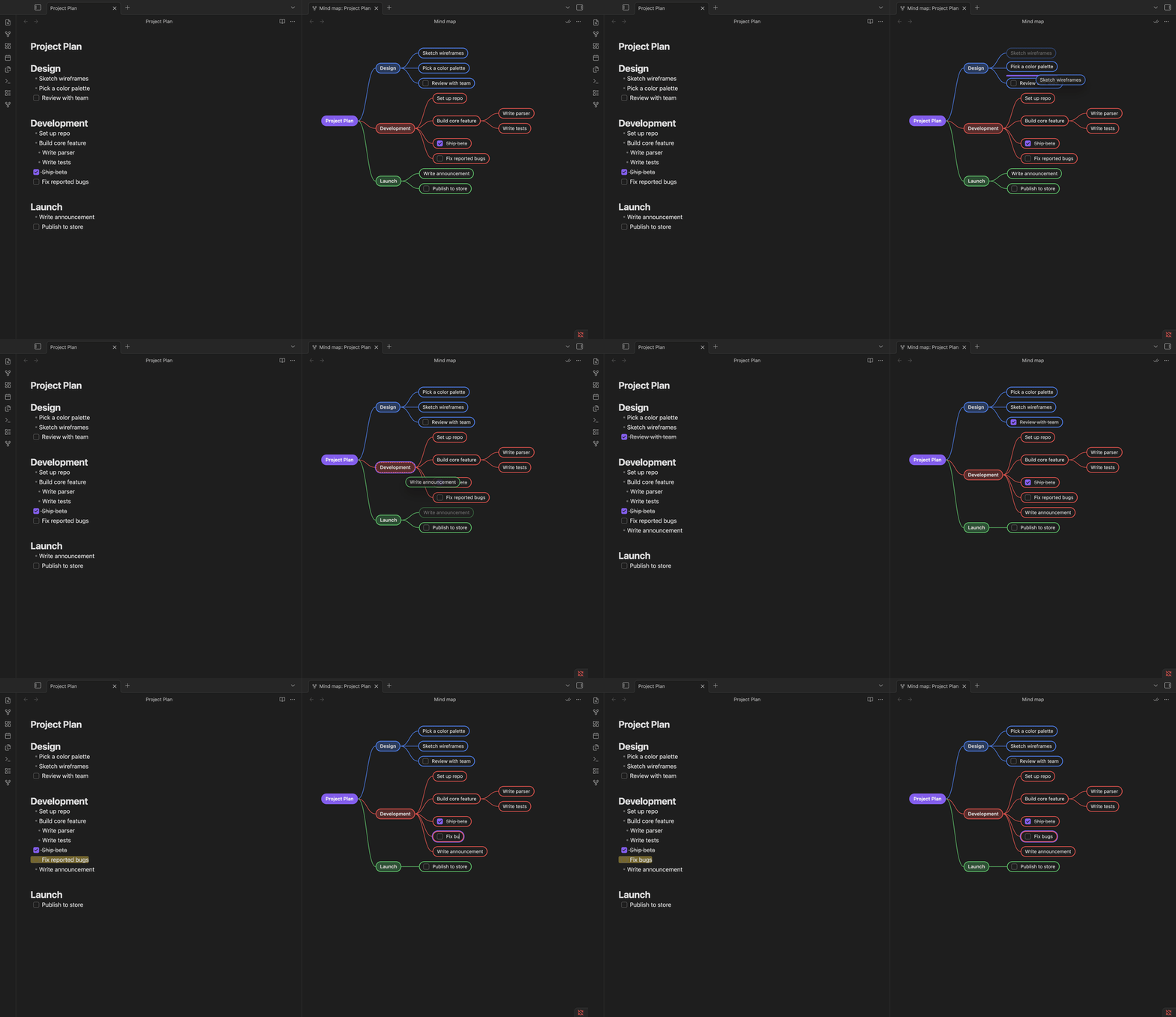
Edit your outline as a mind map, synced to Markdown. No new file format, no markup to add.
Usage
- Open a Markdown file.
- Press Ctrl+P (Cmd+P on macOS) and run
Open mind map for the active file(or click the ribbon icon). Any note's map also opens fromOpen mind map linked to this noteon its right-click menu, in the file explorer or on its tab. - The map opens beside the note on desktop, or in another tab on mobile.
Features
- Markdown-native maps - Headings and lists form the map; edits write back to the same note.
- Direct editing - Add, rename, delete, multi-select, and drag nodes with undo/redo support.
- Tasks and folds - Add task notes, track and sync subtasks, collapse branches, and optionally hide completed tasks.
- Rich node text - Show body text with inline Markdown, links, and image previews.
- Map/editor sync - Selection, cursor position, folds, and wikilinks stay in sync.
- Flexible views - Zoom, pan, fit, and reopen each map at its saved position.
- Link and Auto-open - Link a map to a Markdown tab, or reopen it automatically with a note.
- Node bookmarks - Save important nodes and jump back from the map header. The plugin follows identifiable edits made in Obsidian even while the map is closed.
- Visual hierarchy - Depth, headings, and neighboring branch colors remain easy to distinguish.
Keyboard shortcuts
Active while the mind map pane is focused.
| Key | Action |
|---|---|
↑ / ↓ |
Select previous / next sibling, or walk the node's text line by line |
← / → |
Select parent / first child |
Ctrl/Cmd + ←/→ |
Collapse / expand the selected branch (also in the right-click menu) |
Shift + ↑/↓ |
Move the node among its siblings |
Enter |
Add a sibling (a child on the root) |
Tab |
Add a child |
F2 |
Rename the node |
Shift + F2 |
Add or edit the node's note |
Space |
Toggle the selected task's checkbox |
Ctrl/Cmd + B |
Add or remove a bookmark for the selected node |
Delete / Backspace |
Delete the selected node(s) and their subtrees |
Ctrl/Cmd + Z / + ⇧Z |
Undo / redo, through the Markdown pane's history - or one step of the map's own when the note is only open for reading |
Esc |
End an edit, then clear the body-line and node selections |
Back/forward use Obsidian's own Navigate back / forward command:
Ctrl + Alt + ←/→ (Cmd + Option + ←/→ on macOS).
Commands
None of these come with a hotkey; bind the ones you want in Settings → Hotkeys.
| Command | What it does |
|---|---|
Open mind map for the active file |
Same as the ribbon icon |
Open mind map linked to the active file |
Desktop: opens a map tied to the active Markdown tab |
Fit mind map to viewport |
Fits the whole map in the viewport and centers it |
Toggle focus between mind map and Markdown editor |
Jumps between the two panes |
Collapse all branches / Expand all branches |
The ⌄⌃ header button, one direction at a time |
Fold all node text / Unfold all node text |
The ≡ header button, likewise |
Show or hide node text on the map |
The ¶ header button |
Refresh the mind map from the Markdown |
The ⟳ header button: rebuilds the map from its file |
Settings
Settings → Mind map editor:
- Hide completed tasks by default / Show node text by default - What a map starts with; each one is
then switched on its own from its header (
✓✓,¶). - Sync collapse state with Markdown folding (default on) - An editing pane folds both ways; a reading pane follows along by its headings. List folding also follows Obsidian's Editor → Fold settings.
- Split direction - Side by side / stacked, for any pane the plugin splits open. A map that can join one already there opens as a tab instead, wherever that pane sits.
- Remember linked maps (default off) - Enable Auto-open when explicitly linking a map.
- Close linked map with source (default off) - Close a linked map with its Markdown tab.
- Remove all node bookmarks - Remove every saved node bookmark from every note.
- Branch colors - Custom family palette, one CSS color per line.
Building, testing and releasing the plugin: docs/DEVELOPMENT.md.