
README file from
GithubMermaid Viewer
English · 简体中文
Introduction
Mermaid Viewer makes diagrams easier to read in Obsidian. Open a diagram on a spacious fullscreen canvas, zoom into the details, and move around without losing your place in the note.
A warm, light surface keeps diagrams readable in both light and dark vaults. Text stays stable while zooming, and the original note remains unchanged.
Screenshots
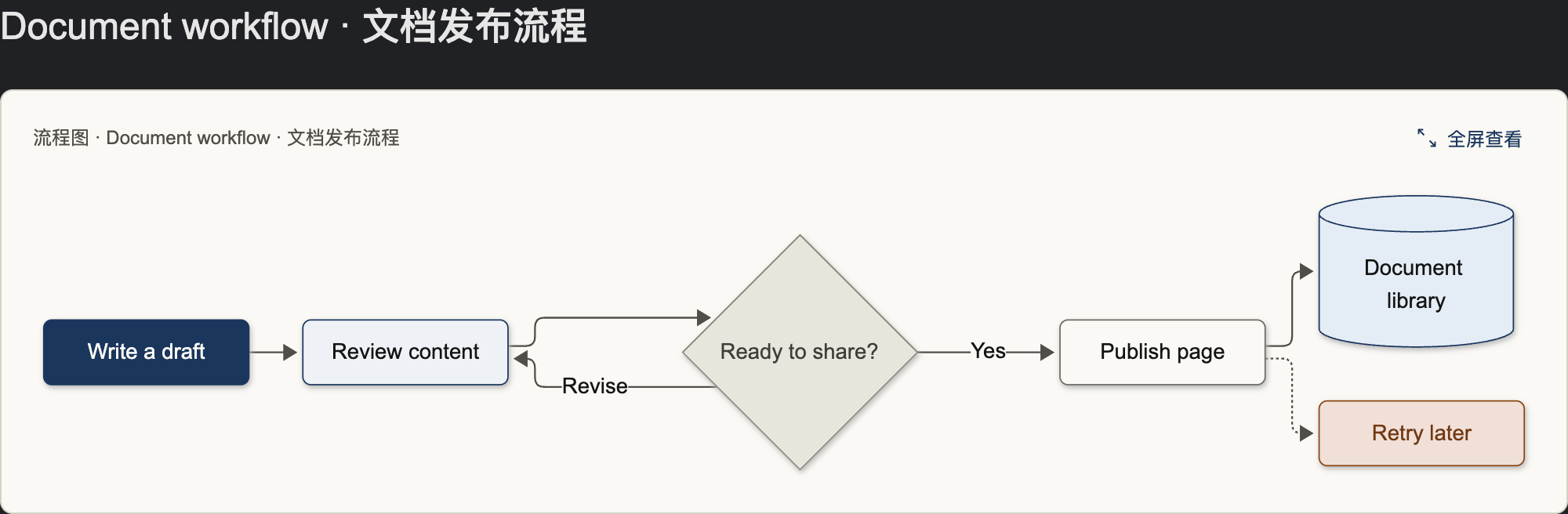
Inline diagrams
A light diagram card with a compact header and a fullscreen action.
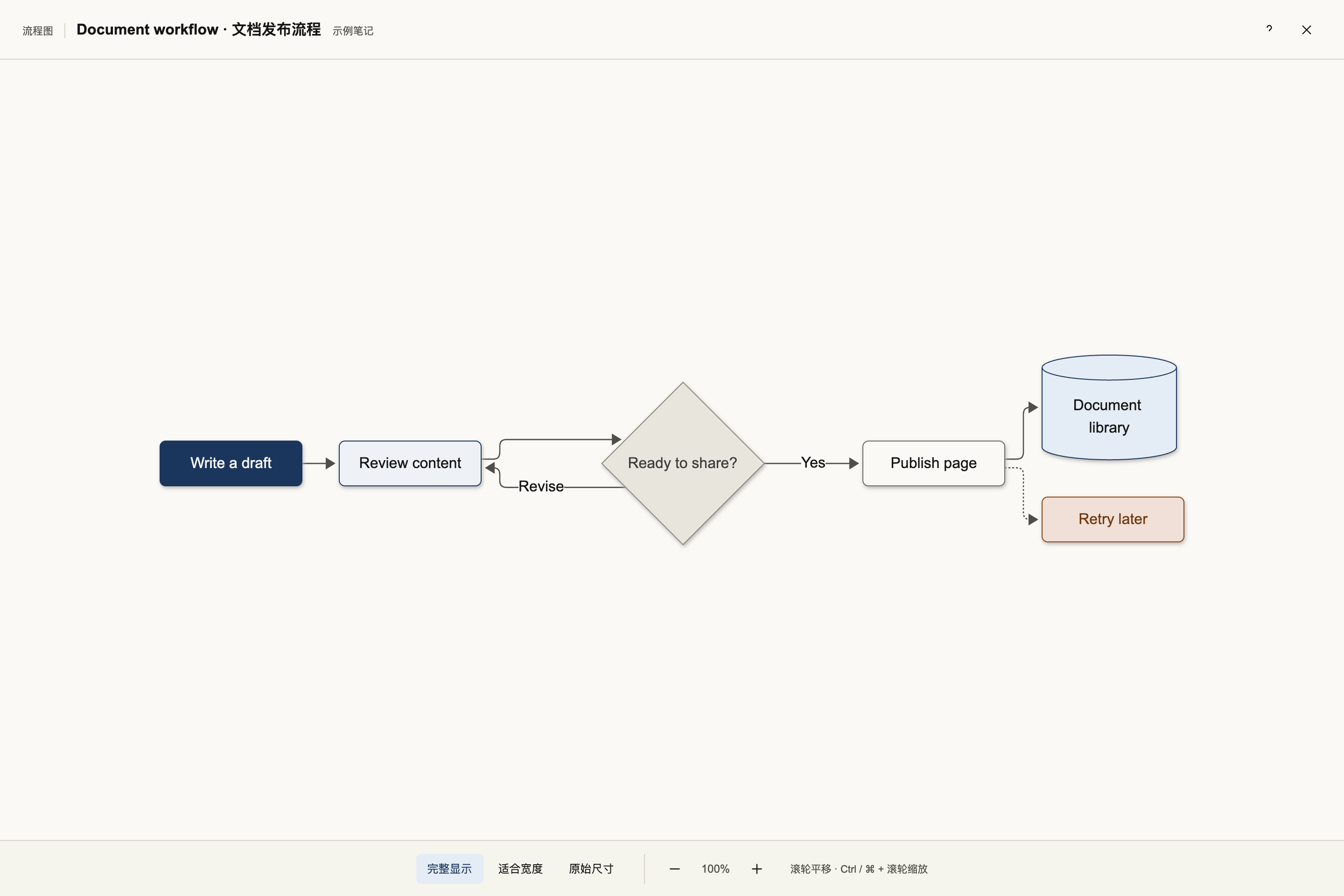
Fullscreen flowcharts
View the whole process, then zoom and pan to inspect individual steps.
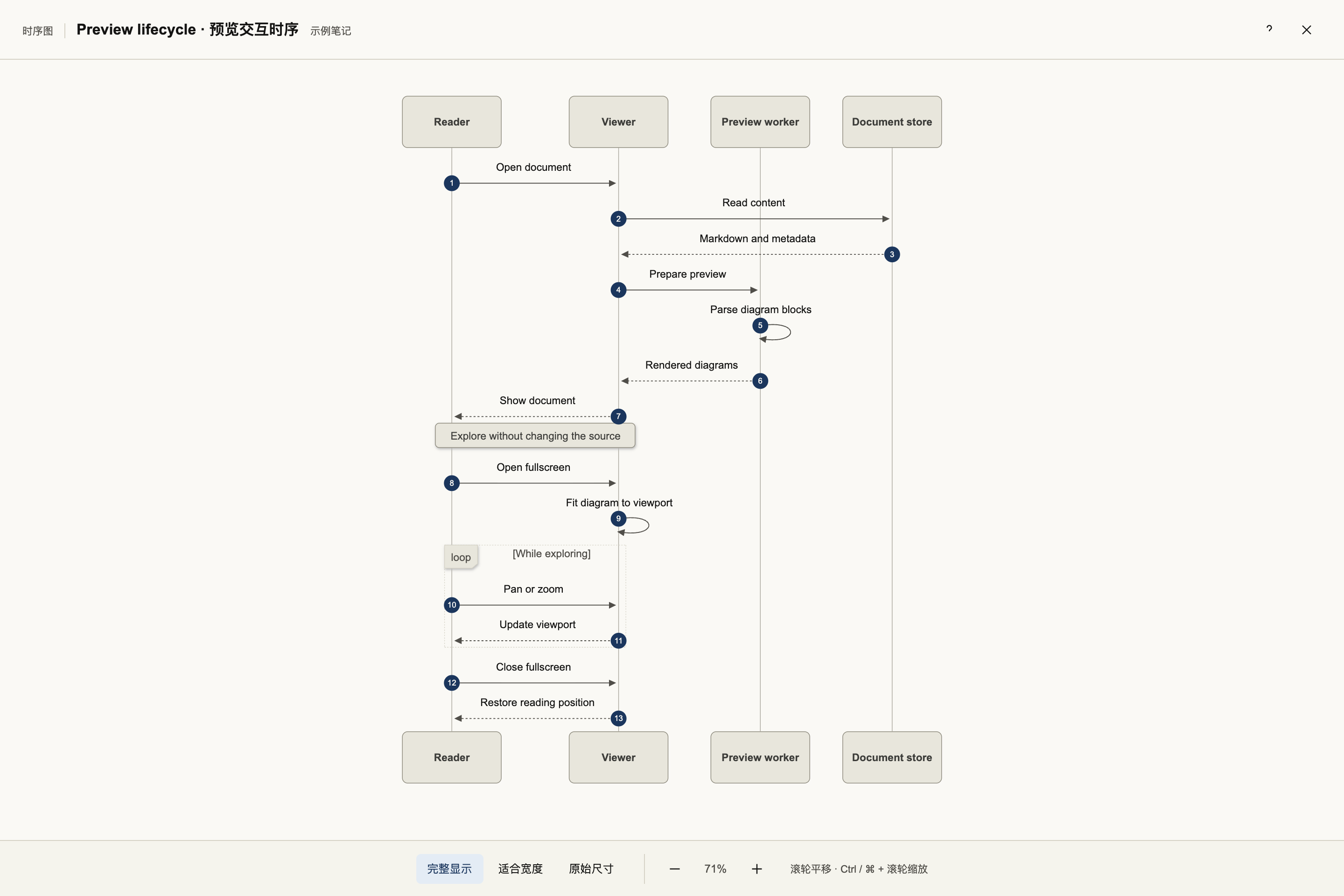
Fullscreen sequence diagrams
Read interactions on a larger canvas, with thin lifelines and controls for fitting the diagram to the available space.
The previews use fictional document workflows and contain no personal notes.
Features
- Fullscreen viewing — give large diagrams more room than the note column allows.
- Stable vector zoom — enlarge details without making labels jump or reflow.
- Flexible navigation — pan with dragging, the wheel or arrow keys; zoom with the wheel modifier, buttons or pinch gestures.
- Three view modes — fit the whole diagram, fit to width, or use the original size.
- Consistent light canvas — keep diagrams readable even in a dark vault.
- Clean inline controls — open fullscreen from the header; keep Obsidian's source-edit action in Live Preview.
- Configurable scope — apply to all notes or only notes carrying a chosen CSS class.
- Semantic colors — distinguish important nodes, steps, storage, branches, external systems and errors.
- Local viewing — no network requests, telemetry or changes to note content.
Usage
1. Install and enable
For a manual installation, copy main.js, manifest.json and styles.css from the plugin package into:
<your-vault>/.obsidian/plugins/mermaid-viewer/
Reload Obsidian, then enable Mermaid Viewer in Settings → Community plugins.
2. Open a diagram
Add a Mermaid code block to a note. For example:
```mermaid
flowchart LR
  draft[Write a draft]:::focus --> review[Review content]:::step
  review --> library[(Document library)]:::store
```
Render the note in Reading view or Live Preview, then click 全屏查看 in the diagram header. You can also use the Mermaid Viewer: 全屏查看当前笔记的 Mermaid 图 command from Obsidian's command palette.
The interface currently uses Chinese labels. The main view buttons are 完整显示 (Fit all), 适合宽度 (Fit width), and 原始尺寸 (Original size).
3. Navigate
| Action | Result |
|---|---|
| Wheel, drag, arrow keys | Pan |
| Shift + wheel | Pan horizontally |
| Ctrl / ⌘ + wheel | Zoom around the pointer |
| Pinch gesture | Zoom around the gesture |
| Double-click / Shift + double-click | Zoom in / out |
+ / − |
Zoom around the center |
F / 0 |
Fit the whole diagram |
W |
Fit to width |
1 |
Original size |
Esc |
Close help first, then the viewer |
Use 适合宽度 for a long diagram, then scroll vertically to read it. Open 操作说明 in the top-right corner for controls and the color legend.
4. Choose which notes to include
Open Settings → Mermaid Viewer → 图表应用范围.
- Leave the field empty to include all notes.
- Enter one class name, such as
mermaid-notes, to include only notes with that class. Omit the leading dot.
Add the corresponding property at the top of each selected note:
---
cssclasses:
  - mermaid-notes
---
The scope updates when you leave the setting field. Disabling the plugin removes the controls and styles it added.
5. Add semantic colors
In flowcharts, append :::className to a node, as shown in the example above:
| Class | Meaning |
|---|---|
focus |
Important node |
step |
Processing step |
store |
Data storage |
branch |
Branch or supporting node |
ext |
External system |
err |
Error or exception |
Nodes without a recognized class use neutral colors. Flowcharts and sequence diagrams have the broadest support; styling for other diagram types may vary.