
README file from
GithubMarkdown to CHM
An Obsidian plugin that compiles one or many notes — with their attachments —
into a single offline Compiled HTML Help (.chm) file.
CHM is a self-contained documentation format: one file, with a table of contents, a keyword index and full-text search, that opens in Windows without a browser or a server. That makes it a good fit for shipping user guides, API references and internal runbooks.
Screenshots
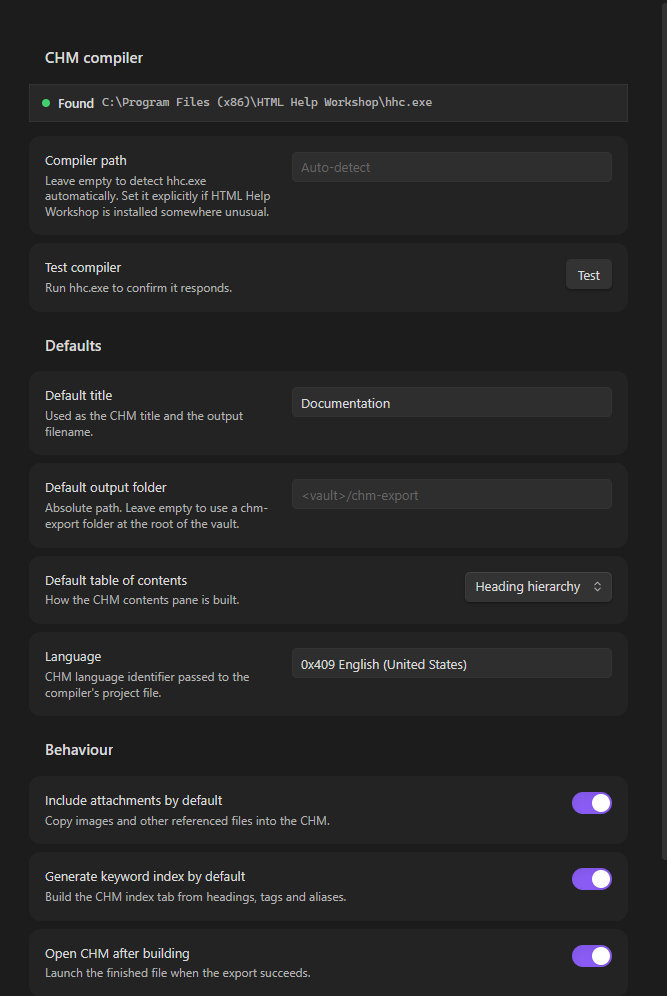
The settings tab detects the CHM compiler for you and holds the defaults used by the export dialog:
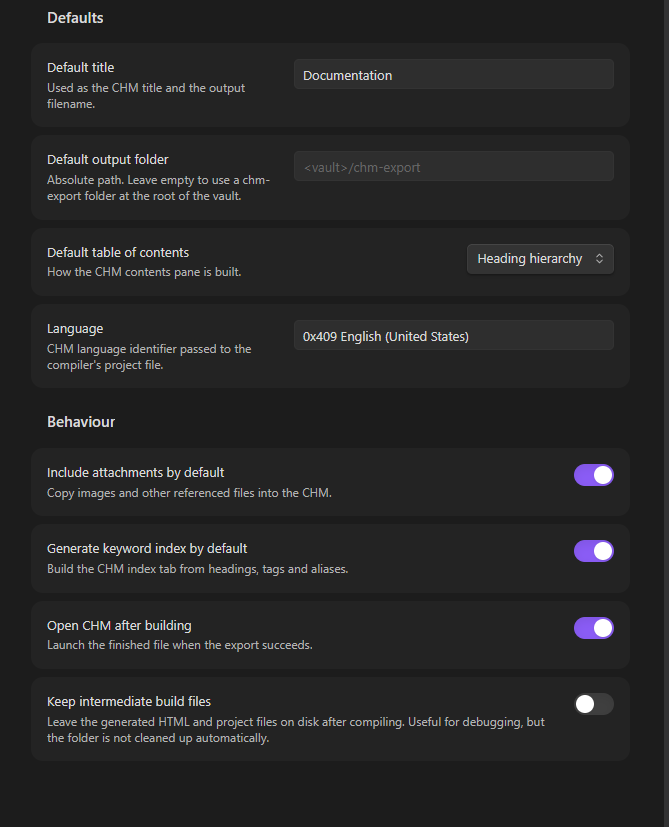
The build behaviour toggles sit below, including the option to keep the intermediate build files for debugging:
Install
- Download
main.js,manifest.jsonandstyles.cssfrom the latest release. - Create the folder
<vault>/.obsidian/plugins/md-to-chm/and put all three files in it. - Reload Obsidian, then enable Markdown to CHM under Settings → Community plugins.
The plugin is not in the community catalogue, so it is installed by hand. To build it yourself instead, see Development.
Requirements
Windows only, and it needs HTML Help Workshop — Microsoft's CHM compiler
(hhc.exe). It is not bundled with the plugin.
Microsoft no longer distributes it. The download page was retired and the installer pulled from Microsoft's servers — the link has returned 404 since 2021, and no replacement has been published. The plugin cannot ship the installer itself, because Microsoft's licence does not permit redistributing it.
-
Download Microsoft's original installer (3.4 MB) from the Internet Archive's copy of it: https://web.archive.org/web/20200918004813id_/https://download.microsoft.com/download/0/A/9/0A939EF6-E31C-430F-A3DF-DFAE7960D564/htmlhelp.exe
Check it before running it. The copy above is genuine if its MD5 is
53899be5da83419d772d5b97e653da7cand its Authenticode signature isValid, signed by Microsoft Corporation:Get-FileHash .\htmlhelp.exe -Algorithm MD5 Get-AuthenticodeSignature .\htmlhelp.exe | Select Status, SignerCertificateIf either check fails, delete the file — it is not Microsoft's installer.
On Chocolatey,
choco install html-help-workshopfetches the same archived installer and verifies its checksum for you. -
Install it (the default location is fine).
-
In Obsidian, open Settings → Markdown to CHM. The compiler should be detected automatically and shown as Found.
-
If it is not detected, paste the path to
hhc.exeinto the Compiler path field. It is usually at:C:\Program Files (x86)\HTML Help Workshop\hhc.exe -
Press Test to confirm the compiler responds.
Usage
Open the export dialog from the ribbon icon, the command palette (Export to CHM…), or Export current note to CHM.
- Source — choose what to export:
- Current file — the note you have open.
- Active folder — every note in the open note's folder, including subfolders. Good for exporting a whole section of a vault.
- Choose notes — pick individual notes from a searchable list.
- Details — set the title and the output folder. The folder picker suggests locations inside your vault; any absolute path works.
- Options — choose how the table of contents is built, and whether to include attachments and generate the keyword index.
- Press Export. Progress and the compiler log appear in the dialog, and the
finished
.chmopens automatically.
Table of contents
| Mode | Behaviour |
|---|---|
| Heading hierarchy | Nests H2–H6 from each note under its title. Produces a natural reading order, and works best when your notes use consistent heading levels. |
| Folder structure | Mirrors the vault's folder tree. Predictable, and matches how you organised the files. |
| Single flat list | An alphabetical list of every page. |
Keyword index
The index tab is built from note headings plus tags. Both frontmatter tags
and inline #tags in the body are picked up, including nested tags such as
#project/alpha. Frontmatter aliases are also indexed, so notes stay findable by
their alternate names.
Features
- Uses Obsidian's own renderer, so wikilinks, embeds, callouts, math and syntax highlighting all come through.
- Internal links are rewritten to point at the exported pages. Links to notes that are not part of the export are flattened to plain text so the CHM has no dead ends.
- Images and other referenced files are copied in and embedded, not linked.
- The generated stylesheet is written for the CHM viewer's old rendering engine, so pages look consistent rather than relying on modern CSS it ignores.
Limitations
- Windows only. The plugin is marked desktop-only and needs
hhc.exe. - Math renders as static markup. The CHM viewer cannot run MathJax, so complex expressions may look plainer than they do in Obsidian.
- CSS is constrained. The CHM viewer uses an IE-era engine: no flexbox, no grid, no CSS variables. The bundled stylesheet avoids all of these.
- JavaScript does not run inside a CHM. Interactive elements and Dataview query results will not be live — export a note that contains the rendered output if you need it.
- Canvas files and Excalidraw drawings are exported only as far as they render to images in a note.
How it works
hhc.exe is unusually picky about paths: it fails on paths containing spaces and
cannot handle any folder whose name begins with a dot — which every Obsidian
vault has (.obsidian). It can also exit successfully after a failed build.
So the plugin never compiles in place. It renders the notes to HTML, stages
everything in a short, space-free temporary directory under a resolved 8.3 path,
compiles there and copies the finished .chm to your chosen folder. Success is
decided by checking that a non-empty .chm was actually produced and that no
HHC####: Error codes were reported — not by the exit code.
Enable Keep build files in the options (or in settings) to inspect the generated HTML and project files. Nothing is cleaned up automatically in that mode.
Development
npm install
npm run dev     # watch build
npm run build   # type-check + production bundle
npm test        # smoke tests for path handling and project-file generation
To try it in a vault, copy main.js, manifest.json and styles.css into
<vault>/.obsidian/plugins/md-to-chm/ and enable the plugin in
Settings → Community plugins.
Releasing
Bump version in manifest.json, add the same version to versions.json, then
push a matching tag:
git tag 1.0.2
git push origin 1.0.2
The release workflow then builds the plugin,
publishes main.js, manifest.json and styles.css as release assets, and
signs them with a build-provenance attestation. Anyone can verify a download
with gh attestation verify main.js --repo Stef4678/Markdown_to_CHM.
License
MIT © 2026 Kerekes Stefan