
README file from
GithubMath Chords is an Obsidian writing toolkit built around mathematical Markdown. Its name comes from its chord-like leader shortcuts, but the plugin now covers the full path from entering a formula to reusing larger pieces of a note:
- type common LaTeX structures with short, memorable key sequences;
- browse and insert formulas from a searchable sidebar;
- save frequently used equations as titled templates and insert them by click or drag;
- store any reusable Markdown in the same template tree—definitions, derivations, callouts, tables, or complete document sections are all valid;
- normalize LaTeX delimiters copied from AI tools, papers, or TeX sources without touching protected Markdown regions;
- optionally render fenced TikZ with the self-contained WASM backend, including live preview and SVG, PNG, JPEG, or PDF export; use local TeX when broader compatibility is needed;
- preview inline math, move between brace fields, toggle math wrappers, and wrap display math in environments.
Math remains the primary workflow, but templates are deliberately not limited to formulas. They store raw Markdown in plugin settings and insert that source into the active note, so a template can be a Maxwell equation block, a proof scaffold, a lab-report section, or any other repeatable Markdown content. These templates are an insertion library, not vault files and not a replacement for Obsidian's file-based core Templates feature.
Default shortcuts are inspired by LyX math-mode bindings.
Current release: v0.5.13. See CHANGELOG.
Requires Obsidian 1.7.2+. Keyboard-heavy; desktop recommended.
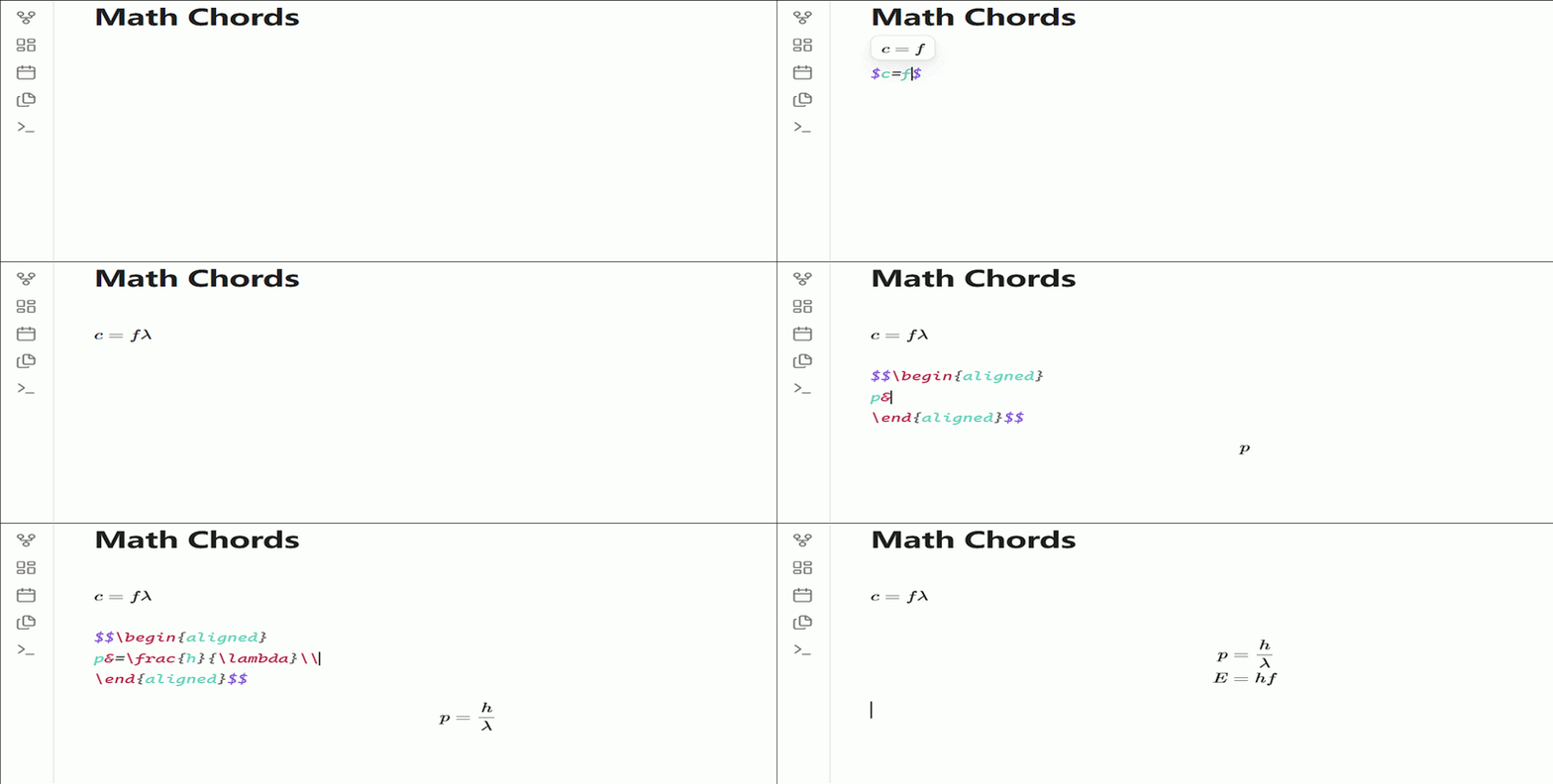
Table of contents
- What Math Chords does
- Installation
- Quick start
- Formula panel
- Shortcut reference
- Display-math environment wrap
- Configuration
- LaTeX delimiter conversion
- TikZ rendering
- Settings
- Updating shortcuts
- Project structure
- Architecture
- Development
- AI assistance
- License
What Math Chords does
Math Chords is an authoring layer for math-heavy Markdown notes: it speeds up structured LaTeX input, keeps recurring source reusable, normalizes imported math, and optionally renders TikZ without turning notes into a plugin-specific format. The built-in path is designed for everyday work; Obsidian's MathJax and an optional local TeX installation remain available where their broader compatibility matters.
| Feature | Description |
|---|---|
| Structured input | Press a configurable leader key, then a key sequence to insert common LaTeX structures and symbols. |
| Formula and template panel | Browse shortcuts or organize an unlimited tree of reusable math and Markdown templates, then click or drag content into a note. |
| Caret placeholder | $$ in a command template marks where the cursor (or selection) is placed, e.g. \frac{$$}{}. |
Auto $…$ wrap |
Optional: when inserting outside math, wrap the snippet in inline math delimiters. |
| Inline live preview | While the caret is inside $…$, a floating panel above the formula renders with Obsidian's native MathJax (on by default). |
| Brace navigation in math | Jump between {…} fields inside $…$ / $$…$$ with configurable keys (default Alt+→ / Alt+←; on by default). |
| Display-math environments | Wrap block content with \begin{…}…\end{…} via a fuzzy-search picker; inserts $$…$$ when needed. |
| Built-in math commands | Wrap selected text, insert inline/display math, or remove a matching wrapper; optional smart toggle enables conversion between inline and display math. |
| LaTeX delimiter conversion | Convert \(...\) / \[...\] to $...$ / $$...$$ in a selection, the current file, or optionally on paste, while excluding protected Markdown regions. |
| Optional TikZ rendering | Render fenced TikZ with the self-contained WASM backend, preview edits in a separate window, and export SVG, PNG, JPEG, or PDF; local TeX remains an advanced compatibility option. |
| YAML + UI config | Edit shortcuts.yaml or use the settings tab; changes rebuild the shortcut trie immediately. |
| Localized UI | All 72 locale bundles are included in main.js. Ten primary languages are maintained end to end; current English fallback text covers the remaining official Obsidian locales until reviewed translations are available. No language download is required. |
| Non-destructive merge | On load, missing default shortcuts are merged in; your custom key bindings are never overwritten. |
Installation
Community plugins (recommended)
In Settings → Community plugins → Browse, search for Math Chords and install.
Obsidian's installer downloads main.js, manifest.json, and styles.css. Those three files contain every plugin feature and all 72 locale bundles; no second download is required.
Manual install from a release
Download main.js, manifest.json, and styles.css from Releases into .obsidian/plugins/math-chords/ inside your vault (create the folder if needed). Copy shortcuts.yaml from the repo only if you want the default shortcut catalog on disk.
From source
git clone https://github.com/ichenh/obsidian-math-chords.git
cd obsidian-math-chords
npm install
npm run build
Copy main.js, manifest.json, styles.css, and optionally shortcuts.yaml into .obsidian/plugins/math-chords/.
Quick start
Choose the workflow that matches what you are doing.
Type a formula
- Place the caret in a Markdown note and press the leader key (default
Alt+M). - Continue with a sequence:
Finserts\frac{}{},GAinserts\alpha, andDinserts a display-math block. - The
$$marker inside a configured snippet determines where the selection or caret lands. Enable shortcut hints if you want a which-key guide after pressing the leader.
Reuse a formula or Markdown block
- Open the formula panel from the sigma (Σ) ribbon icon or the Open formula panel command.
- Under Templates, use the file-plus button to create a template at the root, or the folder-plus button to organize a nested library.
- Give the template a title and enter its Markdown body—for example a Maxwell equation system, a theorem skeleton, or a complete recurring note section.
- Click the rendered template to insert it at the current selection, or drag its handle into the editor.
Clean up imported LaTeX
- Select text containing
\(...\)or\[...\]and run Convert LaTeX Delimiters in Selection; use the current-file command for the whole note. - Optionally enable conversion on paste. The converter changes delimiters only and skips frontmatter, code, HTML comments, HTML code blocks, and existing Markdown math.
For display environments, press Shift+E after the leader or run Wrap display math with environment. With only a caret inside math, the matching inline/display command removes that wrapper; with Smart math toggle enabled, the other command converts between inline and display math. A non-empty selection is always wrapped by the requested command.
Note: Shortcut tables list keys after the leader. The default leader is
Alt+M. Built-in commands do not register default hotkeys; assign them under Settings → Hotkeys if desired.
Formula panel
Select the sigma (Σ) ribbon icon or run Open formula panel. The optional right sidebar is enabled by default; disabling it removes the ribbon action, closes the panel, and makes the command unavailable until re-enabled.
Shortcuts and math environments
The Shortcuts section uses the same catalog as leader input. Search matches keys, names, LaTeX commands, groups, folder names, template titles, and template content. Click a rendered shortcut to insert it at the editor's current selection, or drag the card to insert it at the exact Markdown editor position under the pointer. Math Chords handles the editor drop directly, so shortcut expansion, auto-wrap, and caret placement still apply. The Math environments group reads the editable environment list from settings; aligned, matrix, cases, and gathered show representative previews and can likewise be clicked or dragged into the editor in one undoable transaction.
Reusable Markdown templates
The Templates section is a general reusable-content library optimized for math notes:
- The folder-plus and file-plus buttons create a folder or template directly at the root. Every folder repeats both controls, so nesting has no fixed depth.
- A new folder is empty. Add templates explicitly with the clearly separated file-plus action.
- Every template has a title and a Markdown body. Obsidian renders the body—including display math, headings, lists, links, tables, callouts, and other supported Markdown—as a preview. Template and folder headers include a delete action with confirmation.
- Click the title or preview to insert the original Markdown at the current selection. Drag the title or preview into the editor to insert at the displayed drop cursor; the left handle remains dedicated to reorganizing the template tree.
- Use the star action to pin important templates. Favorites and up to 12 recently used templates appear in compact quick-access rows above the full tree; click and drag insertion both update the recent list.
- Drag any folder or template handle before or after a sibling, into another folder, or back to the root. Empty folders remain empty; moving or deleting the last template does not create a placeholder.
A template can be as focused as one Maxwell equation system or as broad as a reusable Markdown document section. Content is stored in Math Chords settings rather than as files in the vault.
Organizing the panel and settings
Drag the left handles to reorder shortcut groups, the two main sections, template folders, or templates. Use the chevrons on the right to collapse individual sections and nodes; the summary action collapses or expands all shortcut groups, template folders, and template blocks together. Order and collapsed state persist across restarts.
Settings → Math Chords → Template management mirrors the panel tree. It supports search, root-level and nested creation, title/content editing, folder renaming, deletion, keyboard arrow reordering from a focused drag handle, and the same free drag-and-drop placement before, after, or inside folders. Shortcut management, template management, and their internal groups can all be collapsed so a long settings page remains navigable.
Panel insertion uses the same selection replacement, $$ caret marker, auto-wrap, display-math action, and cursor-placement rules as leader shortcuts. Reloading, merging, adding, editing, or deleting shortcuts refreshes open formula panels automatically. If no Markdown note is open, the plugin leaves the workspace unchanged and shows a notice.
Shortcut reference
Structures
| Keys | Inserts | Description |
|---|---|---|
F |
\frac{}{} |
Fraction |
S |
\sqrt{} |
Square root |
Shift+R |
\sqrt[]{} |
Nth root |
^ |
^{} |
Superscript |
Shift+_ |
_{} |
Subscript |
Operators & symbols
| Keys | Inserts | Description |
|---|---|---|
U |
\sum |
Sum |
I |
\int |
Integral |
Shift+I |
\int_{}^{} |
Integral with limits |
Y |
\oint |
Contour integral |
P |
\partial |
Partial derivative |
D |
\mathrm{d} |
Derivative |
Shift+P |
\prod_{}^{} |
Product |
L |
\lim_{} |
Limit |
8 |
\infty |
Infinity |
' |
' |
Prime |
+ |
\pm |
Plus-minus |
= | |
\neq |
Not equal |
Accents
| Keys | Inserts | Description |
|---|---|---|
" |
\ddot{} |
Double dot |
H |
\hat{} |
Hat |
\ |
\grave{} |
Grave |
/ |
\acute{} |
Acute |
& |
\tilde{} |
Tilde |
- |
\bar{} |
Bar |
. |
\dot{} |
Dot |
Shift+V |
\breve{} |
Breve |
Shift+U |
\check{} |
Check |
V |
\vec{} |
Vector arrow |
_ |
\underline{} |
Underline |
B |
\overline{} |
Overline |
A W |
\widehat{} |
Wide hat |
Delimiters
| Keys | Inserts | Description |
|---|---|---|
( |
\left(\right) |
Parentheses |
[ |
\left[\right] |
Square brackets |
{ |
\left\{\right\} |
Curly brackets |
< |
\left\langle\right\rangle |
Angle brackets |
> |
\left)\right( |
Reverse parentheses |
| |
\left|\right| |
Vertical bars |
B N |
\left|\right| |
Norm |
B F |
\left\lfloor\right\rfloor |
Floor |
B E |
\left\lceil\right\rceil |
Ceiling |
Greek letters — lowercase (G + key)
| Keys | Inserts | Keys | Inserts |
|---|---|---|---|
G A |
\alpha |
G N |
\nu |
G B |
\beta |
G O |
\omega |
G C |
\chi |
G P |
\pi |
G D |
\delta |
G Q |
\vartheta |
G E |
\epsilon |
G R |
\rho |
G F |
\phi |
G S |
\sigma |
G G |
\gamma |
G T |
\tau |
G H |
\eta |
G U |
\upsilon |
G I |
\iota |
G V |
\theta |
G J |
\varphi |
G X |
\xi |
G K |
\kappa |
G Y |
\psi |
G L |
\lambda |
G Z |
\zeta |
G M |
\mu |
Greek letters — uppercase & variants (G Shift+ + key)
| Keys | Inserts | Keys | Inserts |
|---|---|---|---|
G Shift+D |
\Delta |
G Shift+S |
\Sigma |
G Shift+E |
\varepsilon |
G Shift+T |
\varsigma |
G Shift+F |
\Phi |
G Shift+U |
\Upsilon |
G Shift+G |
\Gamma |
G Shift+V |
\Theta |
G Shift+L |
\Lambda |
G Shift+O |
\Omega |
G Shift+P |
\Pi |
G Shift+X |
\Xi |
G Shift+Y |
\Psi |
Extensions
Arrows (W prefix): W R \rightarrow, W L \leftarrow, W Shift+R \Rightarrow, W Shift+L \Leftarrow, W M \mapsto
Operators (O prefix): O T \times, O C \cdot, O D \div, O E \equiv, O L \leq, O G \geq, O A \approx, O I \in, O U \cup, O Shift+U \cap, O Shift+N \nabla
Fonts (T prefix): T B \mathbf{}, T C \mathcal{}, T R \mathrm{}, T Shift+R \mathbb{}, T T \text{}
Matrices (M prefix): M P pmatrix, M B bmatrix, M C cases. Their UI previews use compact 2-by-2 matrices or a two-row cases example; insertion still places the caret in an empty environment.
The full list lives in shortcuts.yaml (103 default shortcuts).
Display-math environment wrap
With the caret inside $$…$$, or anywhere else in the note (a block is created first if needed):
-
Press the configured shortcut after the leader (default
Shift+E), or run Wrap display math with environment from the command palette. -
Choose an environment from the fuzzy-search list.
-
The plugin wraps the entire block content (not only the selection) and keeps delimiters and environment markers on separate lines.
$$
\begin{aligned}
\alpha+\beta
\end{aligned}
$$
Creating a display block when needed and adding the environment are committed as one editor transaction, so one Undo reverts the command. Cancelling the picker does not modify the note.
Configure environments (name / \begin{…} / \end{…}) and the trigger keys under Display-math environment wrap in Settings → Math Chords, or assign a hotkey to the command in Settings → Hotkeys. On narrow settings panes, the environment table scrolls horizontally; compact order and name columns remain visible when space permits and are released on very narrow panes.
Default environments: aligned, matrix, cases, gathered.
Configuration
shortcuts.yaml
Shortcuts are a YAML array. The leader key is global (settings), not per entry.
- keys: "F"
  command: "\\frac{$$}{}"
  name: "Fraction"
  group: "Structures"

- keys: "G A"
  command: "\\alpha"
  name: "alpha"
  group: "Greek"
| Field | Required | Description |
|---|---|---|
keys |
yes | Key sequence after the leader. Space-separated tokens; modifiers use + (Shift+S, G A). |
command |
yes | LaTeX snippet. Use $$ once for the caret/selection position. Write \frac not \\frac in the settings UI (auto-normalized). |
name |
no | Label in the settings table and which-key popup. |
group |
no | Grouping label in the settings table. |
Special command __DISPLAY_MATH__ inserts a $$…$$ block and can be assigned to a custom shortcut.
Key normalization
- Keys are canonicalized to lowercase
mod+baseorder:ctrl→alt→shift→meta. - Letters are lowercase unless
Shiftis explicit (Shift+A). - A literal
+is a valid base key. For punctuation produced with Shift on the current keyboard layout, an explicitShift+symbolbinding takes precedence; otherwise the printable-symbol binding is used.
LaTeX delimiter conversion
Math Chords can replace standard LaTeX math delimiters while preserving the formula contents, whitespace, and line breaks:
\(...\)→$...$\[...\]→$$...$$
Use Convert LaTeX Delimiters in Selection for selected text, or Convert LaTeX Delimiters in Current File for the active Markdown note. The whole-file command reports the number of display and inline formulas converted. Each command uses one editor transaction, so one Undo reverts the complete operation.
The converter leaves delimiters unchanged inside YAML frontmatter, fenced code blocks, inline code, HTML comments, HTML <pre> / <code> blocks, and existing $...$ / $$...$$ math. Existing Markdown math is recognized using delimiter rules that distinguish it from ordinary currency text. Multiple editor selections are processed in one transaction.
Enable Automatically convert pasted LaTeX math delimiters to apply the same context-aware conversion on paste. This setting is off by default. Paste conversion does not take over an event that another editor extension has already handled.
TikZ rendering
TikZ rendering is optional and disabled by default to avoid taking over code blocks
already handled by another plugin. Enabling it immediately registers fenced blocks
using the configured identifier (default: tikz) in Reading view. The separately
opt-in editor preview never replaces or inserts content into CodeMirror layout:
clicking a TikZ block opens an independent draggable and resizable live-render
window, while clicking elsewhere closes it. Source remains visible until the first
diagram is ready, and the previous successful frame remains in place during edits.
The floating diagram fits its window without scrollbars, while Reading-view diagrams
follow their SVG content height without creating an internal scrolling region. On
desktop, the export button opens the system save dialog directly; the chosen
.svg, .png, .jpg/.jpeg, or .pdf filename extension selects the output
format.
Reading view starts work only for diagrams near the viewport. Completed artifacts are kept in a bounded in-memory cache (up to 24 entries / 16 MiB) and a bounded persistent cache (up to 96 entries / 32 MiB), so revisiting unchanged diagrams usually avoids a new compile. Print-oriented Markdown exporters trigger and wait for every TikZ block, including blocks that were never scrolled into view. The settings page can copy a compact diagnostic report, clear these caches, or restart the render engines without adding a status-bar item.
\begin{tikzpicture}
  \draw[->] (0,0) -- (2,0);
  \node at (2.3,0) {$\rho$};
\end{tikzpicture}
TikZ is part of the same source-first workflow as formula input: the fenced source remains ordinary Markdown, and changing the backend does not rewrite the note. Math inside built-in-renderer nodes is typeset by Obsidian's MathJax, so formulas match ordinary Markdown math.
- Built-in WASM (default and recommended): uses Math Chords' original Rust vector core, starts quickly, requires no TeX installation or runtime download, and renders away from the main editing thread. Its output remains vector SVG in Markdown and print exports. It is the primary renderer and is expanded directly as more TikZ syntax is supported.
- Local TeX (advanced compatibility): slower and desktop-only because it launches an installed TeX toolchain. Keep it for packages such as
pgfplotsorcircuitikz, document-specific macros and styles, full TeX text boxes, specialized OpenType/CJK font work, and cases where output must match a formal TeX build. Ordinary diagrams prefer the DVI-to-SVG path for crisp Markdown and print output. PDF-producing engines also convert to path-based SVG when the installeddvisvgmhas PDF support, while retaining the original vector PDF for direct export. Math Chords detects TeX Live, MiKTeX, MacTeX, TinyTeX, Tectonic, and compatible executables through PATH or an override path. - Automatic: uses the same built-in WASM instance and cache for supported diagrams, then selects local TeX for syntax the capability check cannot reproduce faithfully or when WASM fails. This preserves the fast path without returning a plausible but incorrect diagram.
The built-in publication subset covers the common vocabulary used by STEM
diagrams: Cartesian and polar coordinates, bounded numeric macros and
\foreach loops, relative and named coordinates, lines and Bézier curves,
circles, ellipses, rectangles, grids, closed polygons, circular arcs, bounded
function and coordinate plots, standard line/color/opacity styles,
Latex/Stealth arrows, inline path labels, and rectangular or circular nodes.
Specialized libraries and constructs—including pgfplots, circuitikz,
matrices, graph drawing, calc coordinates, patterns, decorations, clipping,
shading, 3D coordinates, and scoped transformations—remain explicit
Automatic/local-TeX territory instead of being approximated silently.
This division keeps the common path fast and installation-free without removing the full TeX ecosystem as an explicit escape hatch. Math Chords does not download an engine or silently install TeX. Changing the backend immediately refreshes TikZ in every open Markdown view and the selected editor preview; source blocks do not need to be reopened individually.
Only render TikZ source you trust. Although the native backend disables shell escape and restricts TeX file access, TeX is a complex interpreter. The WASM backend stays inside Obsidian's renderer process and does not invoke local executables.
On desktop, choosing local TeX allows Math Chords to inspect configured and common TeX executable paths, create bounded work files under the system temporary directory, and launch the selected executable directly without a command shell. Export writes only to the path selected in the system save dialog. Clipboard access is limited to user paste events and the explicit copy-diagnostics action.
For screen readers, add a concise first-line description such as
% alt: Gravitational field around a point mass. The comment remains valid TikZ source
and becomes the rendered diagram's accessible name.
Settings
Open Settings → Math Chords. The settings UI follows your Obsidian display language when a translation is available. On Obsidian 1.13.0 and later, individual Math Chords settings are also indexed by Obsidian's settings search.
All 72 locale bundles are included in main.js, so community-plugin and manual
installations never need a separate language download. Ten primary translations are
maintained end to end; other Obsidian locales use current English fallback text where
a reviewed translation is not yet available.
| Setting | Default | Description |
|---|---|---|
| Enable plugin | on | Master switch for leader shortcuts. |
| Leader key | Alt+M |
Global prefix before shortcut keys; keys in YAML are what follows it. |
| Show shortcut hints | on | Which-key panel after the leader. |
| Auto-wrap outside math | on | Auto-insert $…$ around snippets when not in math. |
| Smart math toggle | on | Allow inline/display commands to convert an existing block to the other kind. Matching commands always remove their wrapper. |
| Inline math live preview | on | MathJax preview above $…$. |
| Enable TikZ rendering | off | Register TikZ fenced-code rendering immediately; restart after disabling only when the processor must be fully released for another plugin. |
| TikZ live preview while editing | off | Opening a TikZ block starts its first render immediately. Later edits render after a configurable pause, 250 ms by default, while the previous successful frame remains visible. |
| TikZ code-block identifier | tikz |
Text after the opening code fence; change it only when another renderer already uses tikz. |
| TikZ backend | Built-in | Use recommended self-contained WASM, explicit local TeX compatibility mode, or Automatic, which keeps supported diagrams on WASM and falls back only when faithful output cannot be promised. |
| Local TeX installation | auto-detect | Detect TeX from the system and common installation locations. An executable or distribution directory can override detection. |
| TikZ custom fonts | off | Automatic language-aware selection is used by default. Enable this advanced section to specify Latin, Simplified Chinese, Traditional Chinese, Japanese, or Korean families. |
| TikZ diagnostics | — | Copy backend availability and recent-render details, clear bounded caches, or restart render engines. |
| Enable formula panel | on | Show the searchable shortcut/template sidebar, including persistent favorites and a bounded 12-item recent-template row. Disabling it removes the ribbon action, closes the panel, and disables the command. |
| Brace navigation in math | on | Jump between {…} inside math; defaults Alt+→ / Alt+←. |
| Next / previous brace keys | Alt+→ / Alt+← |
Chords for brace navigation (when enabled). |
| Automatically convert pasted LaTeX math delimiters | off | Safely convert \(...\) / \[...\] in pasted text. |
| Enable environment wrap | on | Environment picker; creates and wraps $$…$$ in one transaction when needed. |
| Environment wrap keys | Shift+E |
Keys after the leader for the picker. |
| Math environments | 4 built-ins | Editable list for the picker. |
Built-in commands (assign or reassign under Settings → Hotkeys): Open formula panel, Insert inline math, Insert display math, Wrap display math with environment, Convert LaTeX Delimiters in Selection, Convert LaTeX Delimiters in Current File.
No built-in command registers a default hotkey. Assign any desired bindings under Settings → Hotkeys.
Insert inline math: wrap a non-empty selection in$…$; with only a caret, insert inline math outside math, remove an existing inline wrapper, or convert display math when Smart math toggle is on.Insert display math: wrap a non-empty selection in$$…$$; with only a caret, insert display math outside math, remove an existing display wrapper, or convert inline math when Smart math toggle is on.
When cross-kind conversion is disabled, invoking the other math command inside an existing block leaves the note unchanged and shows a notice instead of creating invalid nested delimiters. Converting display math to inline math removes one wrapper-adjacent line break and replaces remaining internal line breaks with spaces, because inline Markdown math cannot span lines reliably.
Shortcut management: shortcuts are grouped into compact, container-responsive sections. Each row keeps the readable name and raw LaTeX command while adding a derived MathJax preview and keycap-style sequence; narrow panes move keys and actions onto dedicated rows instead of clipping them. Visible previews render on demand so opening settings does not eagerly typeset the entire catalog. Search matches keys, names, commands, and groups without rebuilding the settings page. Add and edit operations use aligned native dialogs; deletions require confirmation. Reload re-reads YAML, and Merge defaults appends missing built-in shortcuts without overwriting yours. Formula previews are presentation-only and are never written to shortcuts.yaml.
Template management: templates use the same recursive tree and free reordering as the formula panel. Drag a handle to reorder siblings, move an item into another folder, or return it to the root; focus a handle and use the arrow keys for same-level reordering. Root and folder toolbars distinguish new folder from new template. Empty folders are allowed, and search matches template titles and Markdown bodies. Titles, source content, tree order, and collapsed state are saved in plugin settings.
Updating shortcuts
When the plugin loads (or you click Reload or Merge defaults):
- Your existing YAML entries are kept as-is (same
keys→ same binding). - Any default shortcut whose key sequence is not yet present is appended.
- The updated file is written back to
shortcuts.yaml.
To reset completely, delete shortcuts.yaml and reload the plugin (a fresh default file will be seeded).
Regenerate the repo's default YAML from TypeScript:
npm run seed
Project structure
math-chords/                  # Plugin id; install folder .obsidian/plugins/math-chords/
├── src/                    # TypeScript source
│   ├── main.ts             # Plugin entry
│   ├── leader.ts           # Leader shortcut state machine
│   ├── braceNav.ts         # Brace-pair navigation inside math
│   ├── delimiterConverter.ts # Pure, protected LaTeX delimiter conversion
│   ├── delimiterEditor.ts  # Obsidian editor transactions for conversion
│   ├── formulaPanel.ts      # Searchable Obsidian formula sidebar
│   ├── formulaPanelModel.ts # Pure panel grouping and filtering model
│   ├── markdownProtection.ts # Shared Markdown protected-region parser
│   ├── mathToggle.ts       # Pure inline/display toggle and conversion planning
│   ├── mathEnvPlan.ts      # Pure single-transaction environment planning
│   ├── defaults.ts         # Default shortcut catalog
│   ├── config.ts           # YAML load/save/merge
│   ├── shortcutPreviewRenderer.ts # Shared lazy MathJax preview rendering
│   ├── l10n/               # compressed offline locale bundles
│   ├── tikz/               # scheduling, backends, preview, safety, export
│   └── …                   # math, templates, settings UI, etc.
├── crates/
│   └── chord-tikz-core/    # original dependency-free Rust/WASM renderer
├── tests/
│   ├── unit/               # Vitest unit and regression tests
│   └── performance/        # Opt-in parser performance baselines
├── vitest.config.ts
├── shortcuts.yaml          # Shipped default shortcuts (103 entries)
├── styles.css              # Preview & settings styles
├── manifest.json           # Obsidian plugin manifest
├── scripts/                 # Generation, shared utilities, and validation
├── .github/                 # CI, release, Dependabot, and contribution templates
├── AGENTS.md                # Canonical Codex, engineering, and workflow rules
├── ARCHITECTURE.md          # Runtime, renderer, cache, and trust boundaries
├── CONTRIBUTING.md          # Contributor workflow and submission requirements
├── SECURITY.md              # Private vulnerability reporting policy
├── CODE_OF_CONDUCT.md       # Community participation standards
├── eslint.config.mts        # Obsidian-aware lint configuration
├── .editorconfig            # Editor encoding and whitespace defaults
├── .gitattributes           # Repository line-ending and binary-file rules
└── esbuild.config.mjs       # Build config
Development
Development requires Node.js 20.19+ or 22.12+, as declared in package.json.
npm install
npm run dev    # watch build
npm run lint   # ESLint + Obsidian plugin rules
npm run build  # typecheck + production bundle
npm test       # Vitest unit tests
npm run bench  # opt-in parser and delimiter-conversion benchmarks
npm run seed   # rewrite shortcuts.yaml from src/defaults.ts
npm run check:shortcuts # verify shortcuts.yaml matches src/defaults.ts
npm run seed:locales  # bundled TS locales from scripts/locale-catalog.json
npm run check:locales # verify locale schema and generated artifacts
npm run check:release # verify metadata, changelog, and README version references
npm run check  # complete build, test, generated-artifact, and metadata verification
Canonical Codex guidance and module, safety, generation, and release rules:
AGENTS.md. The repository does not define .codex/config.toml
because it currently needs no project-specific Codex runtime overrides.
Pull requests welcome. Follow CONTRIBUTING.md, run npm run check
before submitting, and perform relevant manual Obsidian testing for editor-integrated
behavior.
Community participation follows the Code of Conduct. Report security vulnerabilities privately using the Security Policy.
Potential future work and its design constraints are tracked in ROADMAP.md.
Releasing
- After the maintainer approves a release, update the version consistently in
package.json,package-lock.json, andmanifest.json; add its minimum-app mapping toversions.json. - Replace the
Unreleasedchangelog section with a dated release section and create a new emptyUnreleasedsection above it. Update the current-release line in both READMEs; the release badges track the latest GitHub release automatically. - Run
npm run check, review the release assets, and complete the relevant manual Obsidian acceptance checks. - Commit, then tag with the exact version (no
vprefix), e.g.git tag 0.3.0 && git push origin 0.3.0. - The release workflow reruns the complete verification path, builds and attaches
main.js,manifest.json, andstyles.css, and creates artifact attestations for every asset. Existing releases are not deleted or recreated.
AI assistance
This repository has used AI-assisted development tools, including Cursor and large language models, and is now maintained primarily with OpenAI Codex. These tools support tasks such as drafting, refactoring, test design, documentation, and consistency checks. Project decisions, accepted changes, and releases remain the maintainer's responsibility.
- The use of AI does not replace code review, automated checks, or relevant manual testing in Obsidian.
- Contributors remain responsible for correctness, licensing, provenance, and the protection of private or confidential information.
- Scope, verification practices, and contribution requirements: AI-ASSISTANCE.md.