
README file from
GithubRead in your language: English • Português (Brasil)
Markdown Quick Insert
Insert and format Markdown in Obsidian through a searchable menu. Choose from 52 entries, format selected text, and find notes and attachments from your vault without remembering Markdown syntax.


1 Installation
- Install Obsidian — Download and install from obsidian.md.
- Enable community plugins — Go to Settings → Community plugins and turn on community plugins.
- Install Markdown Quick Insert — Click Browse, search for Markdown Quick Insert, then select Install → Enable.
2 How to use
- With the plugin enabled, open a Markdown note in Source mode or Live Preview.
- Press Ctrl + . on Windows/Linux or Command + . on macOS. You can also run Markdown Quick Insert: Open Markdown quick insert from the command palette.
- Type to search or choose a category.
- Click an entry, or use the arrow keys and press Enter.
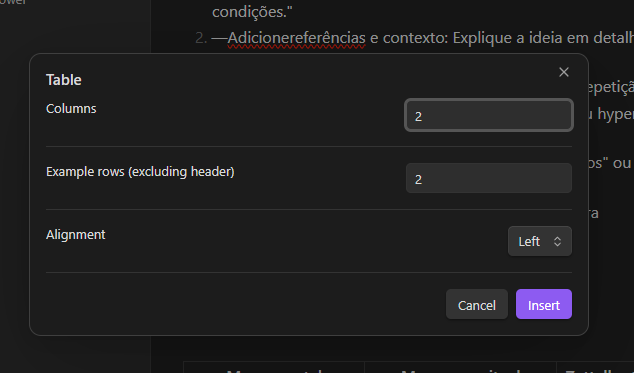
- Complete any options, such as table dimensions or a target note.
Select text before opening the menu to format it. Without a selection, entries insert editable examples or vault references. Cancelling leaves the note unchanged.
3 Features
Searchable menu with previews
Browse entries by category or search by name. Switch between Markdown and Preview card views to see source syntax or rendered formatting.
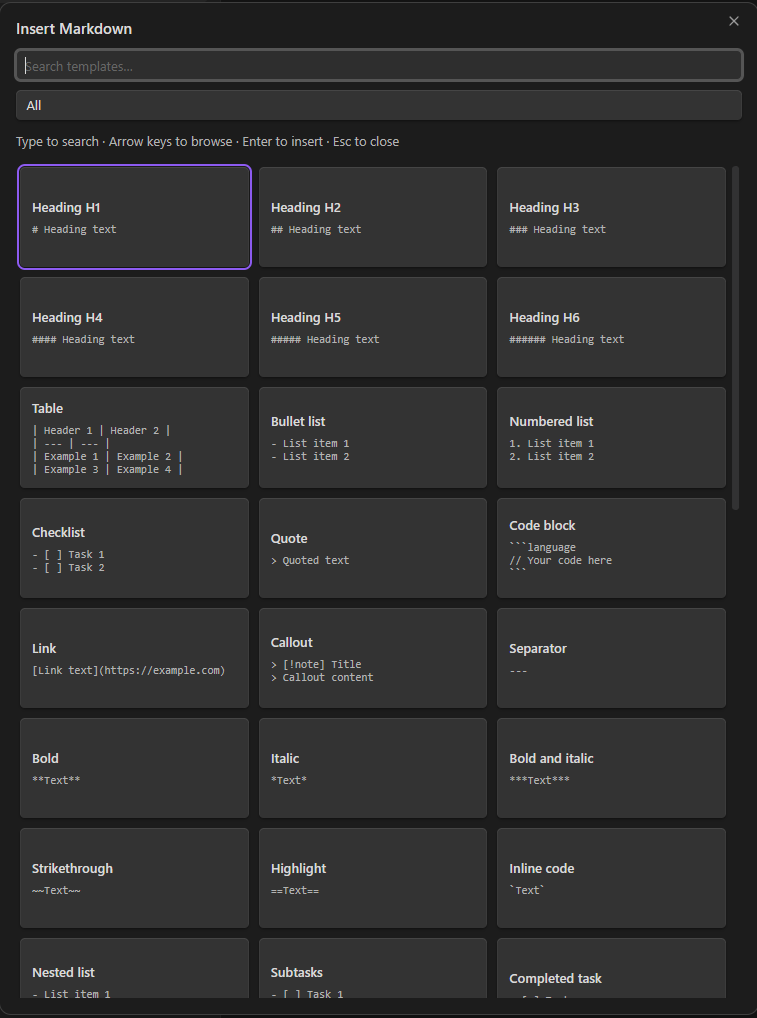
Format selected text
Apply headings, lists, checklists, quotes, callouts, code, links, and inline formatting to existing text. The menu shows compatible choices and previews your selection.
Configurable tables
Choose 1–12 columns, 1–50 example rows, and left, center, or right alignment before inserting a table.
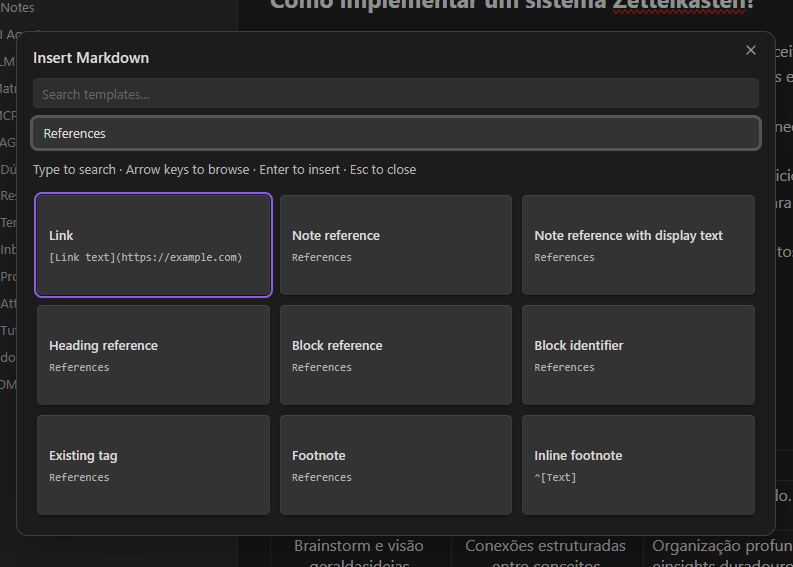
References from your vault
Insert note, heading, and block links, embeds, existing tags, and footnotes. Search notes by filename, full path, or alias. Links follow your Obsidian link preferences.
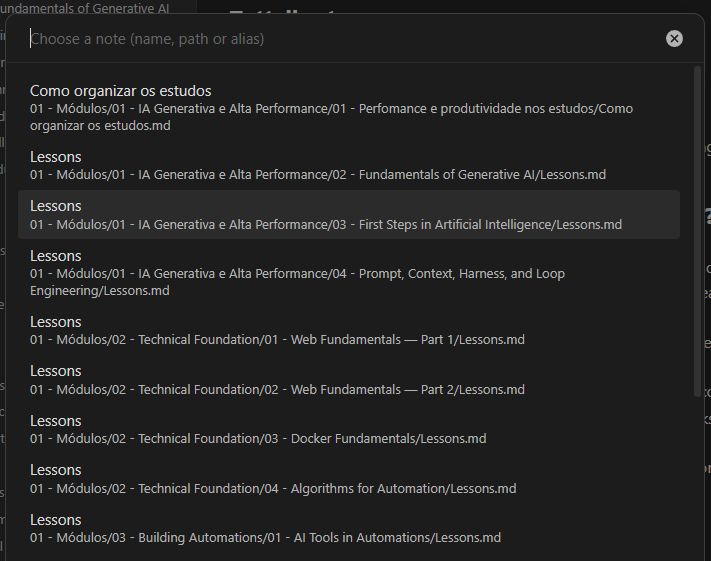
Attachments and more
Choose existing images, audio, video, PDFs, and Canvas files from your vault. Set an optional image width or PDF page. The catalog also includes math, Mermaid examples, comments, separators, and collapsible HTML.
See the detailed guide for the full catalog, options, and limitations.
4 Keyboard shortcuts
| Key | Action |
|---|---|
| Ctrl + . / Command + . | Open the menu. |
| Arrow keys | Navigate cards. |
| Enter | Choose an entry or confirm table options. |
| Tab | Move between controls. |
| Esc | Close or cancel. |
If the opening shortcut conflicts or does not work, go to Settings → Hotkeys, search for Markdown Quick Insert, and check or change it.
5 Settings and languages
- Card view: choose Markdown source or rendered Preview in the menu. The choice is saved; Markdown is the default.
- Language: choose Automatic, English, or Brazilian Portuguese in Settings → Markdown Quick Insert.
Automatic follows Obsidian's language: pt-BR uses Brazilian Portuguese; other languages fall back to English. Reopen the menu after changing language. Reload the plugin to refresh the registered command name.
6 Compatibility
Available for Obsidian on desktop, version 1.8.7 or newer (declared minimum). Use Source mode or Live Preview. Reading view selections are not supported.
7 Privacy
Your notes are processed locally. The plugin makes no network requests and includes no advertising, analytics, or telemetry. No account is required.
Opening external links or displaying remote images inserted into notes can contact external services through Obsidian or your browser. Read the Privacy Policy (Brazilian Portuguese).
8 Help and feedback
Report a bug or suggest a feature. Include your plugin and Obsidian versions and describe how to reproduce the problem. Remove personal information from reports and screenshots.
For more detail, see the usage and manual installation guide and release history. Development and release instructions are also in the guide.
This is a community plugin and is not an official Obsidian product.
9 License
Licensed under GPL-3.0-only. See LICENSE for the full terms and warranty disclaimer.