
README file from
GithubMagpie
An activity timeline for your Obsidian vault. Magpie records what you create, edit, capture and finish, and keeps the exact lines that changed, so you can look back at any day or any note and see what you did.
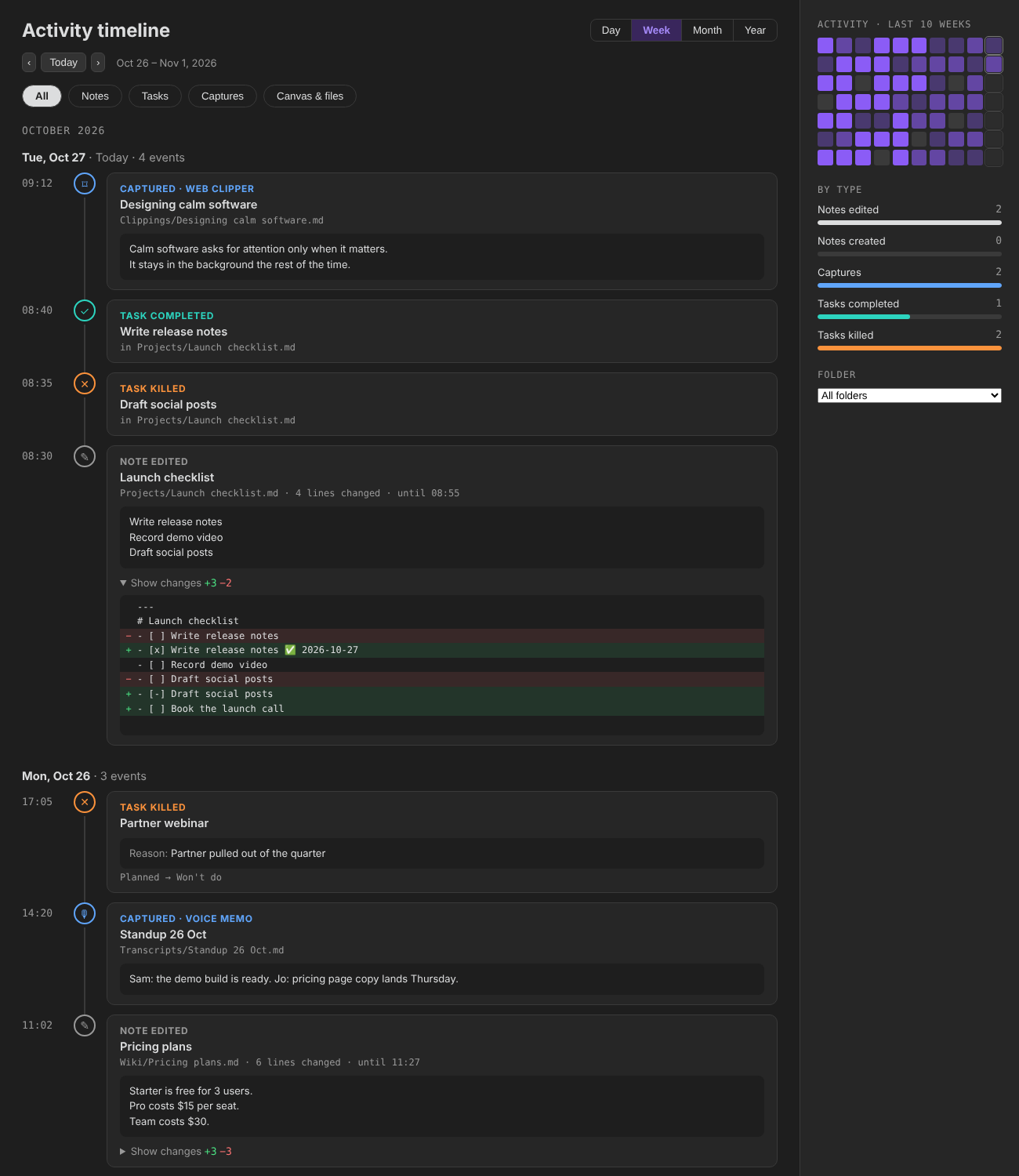
Open it
- Click the bird icon in the left ribbon, or run Magpie: Open activity timeline.
- In any note, click the history icon next to the edit button at the top right to see that note's history. You can also use Show history in the file menu, or the command Magpie: Show history of this note.
The timeline
- Day / Week / Month / Year switches the period. The arrows and Today move through it.
- Chips filter by type: Notes, Tasks, Captures, Canvas & files.
- Sidebar: a heatmap of the last 10 weeks (click a day to open it), counts by type for the period, and a folder filter.
- Click a title to open the note. Ctrl/Cmd-click opens it in a new tab.
- On an edit, click Show changes to see the added lines in green and the removed lines in red.
What gets recorded:
| Entry | When |
|---|---|
| Note created | A new note or file. Its first lines are shown. |
| Note edited | Edits to one note within 10 minutes (configurable) are grouped into one entry, with the number of lines changed and the full change. |
| Captured · source | A new note in a capture folder you set, for example Clippings = web clipper or Transcripts = voice memo. |
| Task completed / killed | A checkbox ticked ([x]) or cancelled ([-]), or a note's status moved to a done or killed status. The reason field is shown for killed tasks. |
| Status changed | A note's status field changed. |
| Renamed / Moved / Deleted | File operations. |
Note history
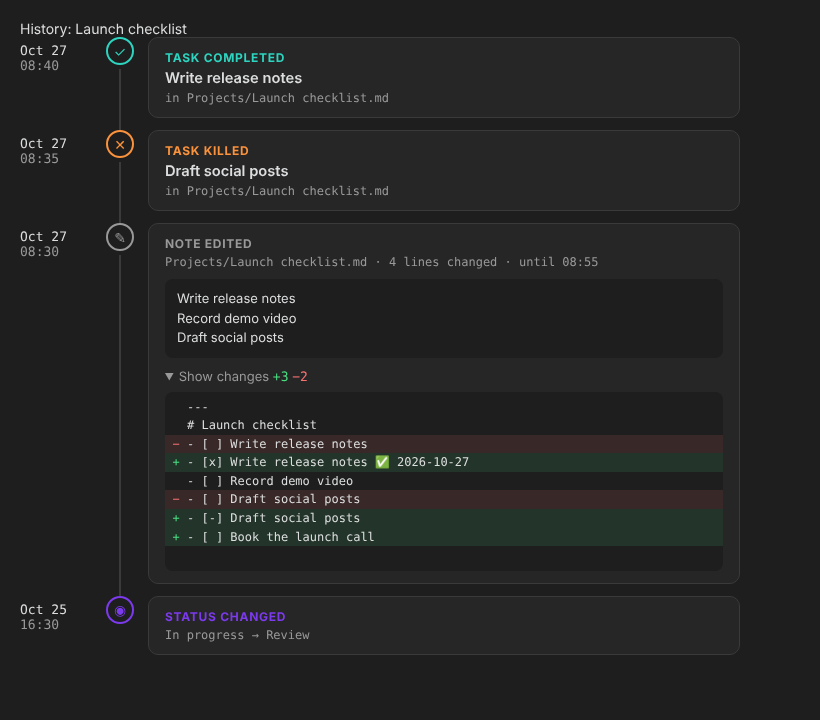
Every note has its own history: status changes, ticked checkboxes, renames and each edit with its diff. The newest change opens expanded. History follows a note through renames and moves.
How it is stored
- Recording starts when Magpie is on. Obsidian does not keep an edit history, so earlier days stay empty.
- Magpie keeps a copy of each note when you open it, to compare against when you edit it. Edits to notes you have not opened in this session (for example from sync) show their first lines instead of a diff.
- The log is plain JSON lines, one file per month per device (
log/2026-10.<device>.jsonlin the plugin folder). Separate files per device mean synced vaults never clash. Set Log folder to a vault folder if you want the log to sync with your notes. - A change to the status field alone is shown as a status change, not as an edit.
- Nothing leaves your vault. Magpie makes no network requests.
Settings
- Record activity, Icon in the left ribbon, History button in notes, First day of the week.
- Edits: keep what changed (diffs on or off), longest change kept, how long to group edits.
- Folders: capture folders, folders to skip, log folder.
- Tasks: status field, done statuses, killed statuses, reason field.
Install by hand
Copy main.js, manifest.json and styles.css from the latest release into <vault>/.obsidian/plugins/magpie-activity/, then enable Magpie in Settings → Community plugins.
Build
npm install
npm run build
npm test
License
MIT © Divyaraj Murugan