
README file from
GithubObsidian Live PDF Preview


An Obsidian plugin that lets you edit Markdown documents while viewing a real-time, print-formatted A4 preview in the sidebar, and exports them into high-quality PDFs with interactive navigation bookmarks in one click.
It streamlines your writing workflow by combining document editing and publication layout design into one seamless process.
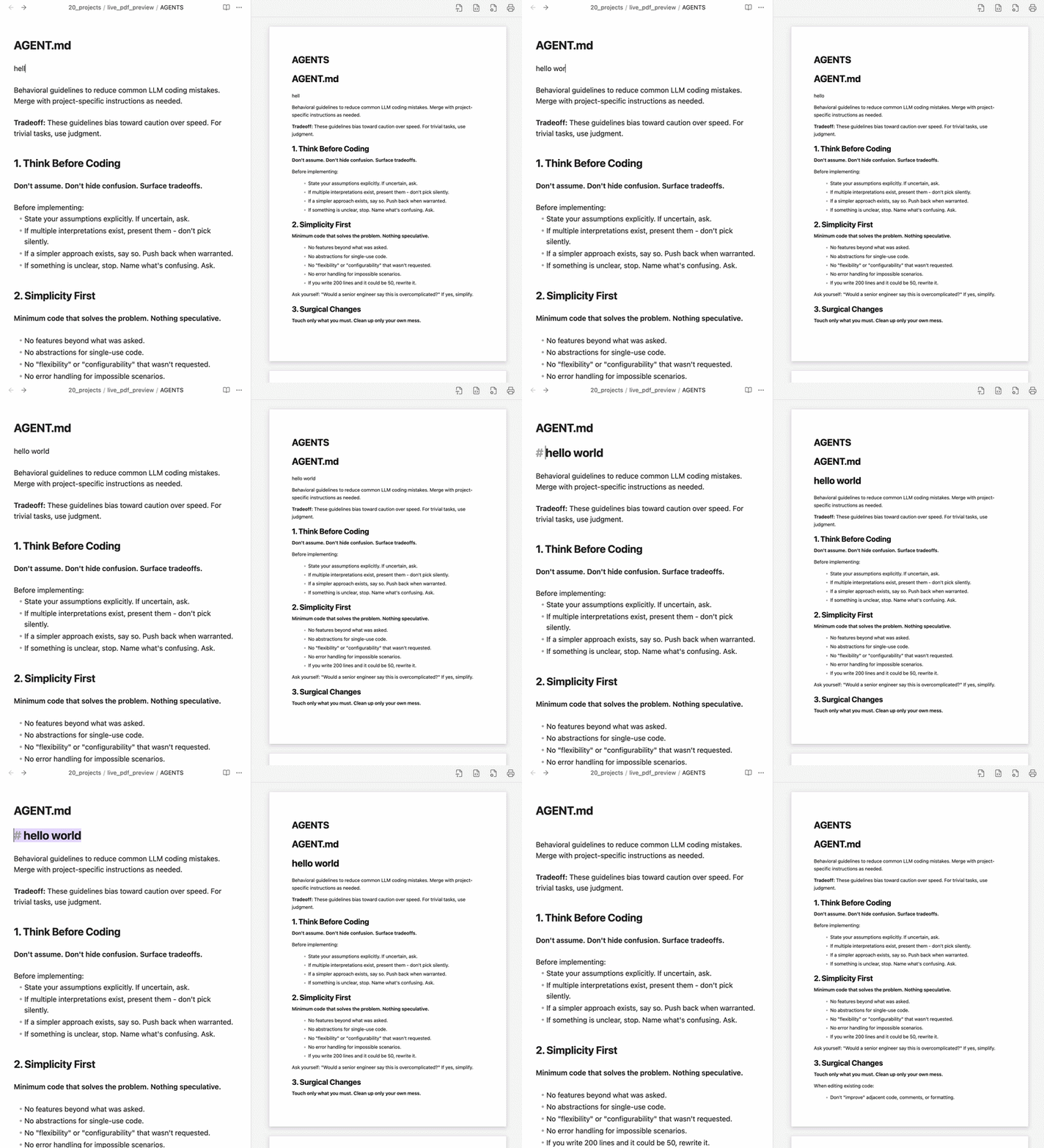
Who is this for?
- Writers composing print-ready documents like reports, resumes, proposals, and essays directly in Obsidian.
- Publishers who want to verify line wraps, margins, and page breaks in real-time before exporting.
- Readers who want exported PDFs to automatically feature click-navigable outlines/bookmarks for easy reading.
Key Features
1. Real-Time Print Preview
- Live Page Rendering: Renders your edits instantly on a virtual print page (supporting A4, Letter, A3, etc.).
- Responsive Scaling: The preview automatically scales to fit when you resize the sidebar panel.
2. Cursor Scroll Sync
- Auto-Scrolling: Automatically scrolls the preview page to match your active cursor position in the editor, keeping your edits in view.
3. Smart Pagination & Formatting
- Clean Transitions: Paragraphs, lists, tables, and code blocks that overflow the page boundary split cleanly onto the next page instead of cutting off mid-line.
- Continuous Lists: List items split across pages preserve continuous numbering and omit duplicate bullet points.
4. Print Layout Commands (// Commands)
The plugin provides native layout commands written on their own lines:
-
//page(Page Break): Forces content onto a new page. Inside a column, it splits only that column.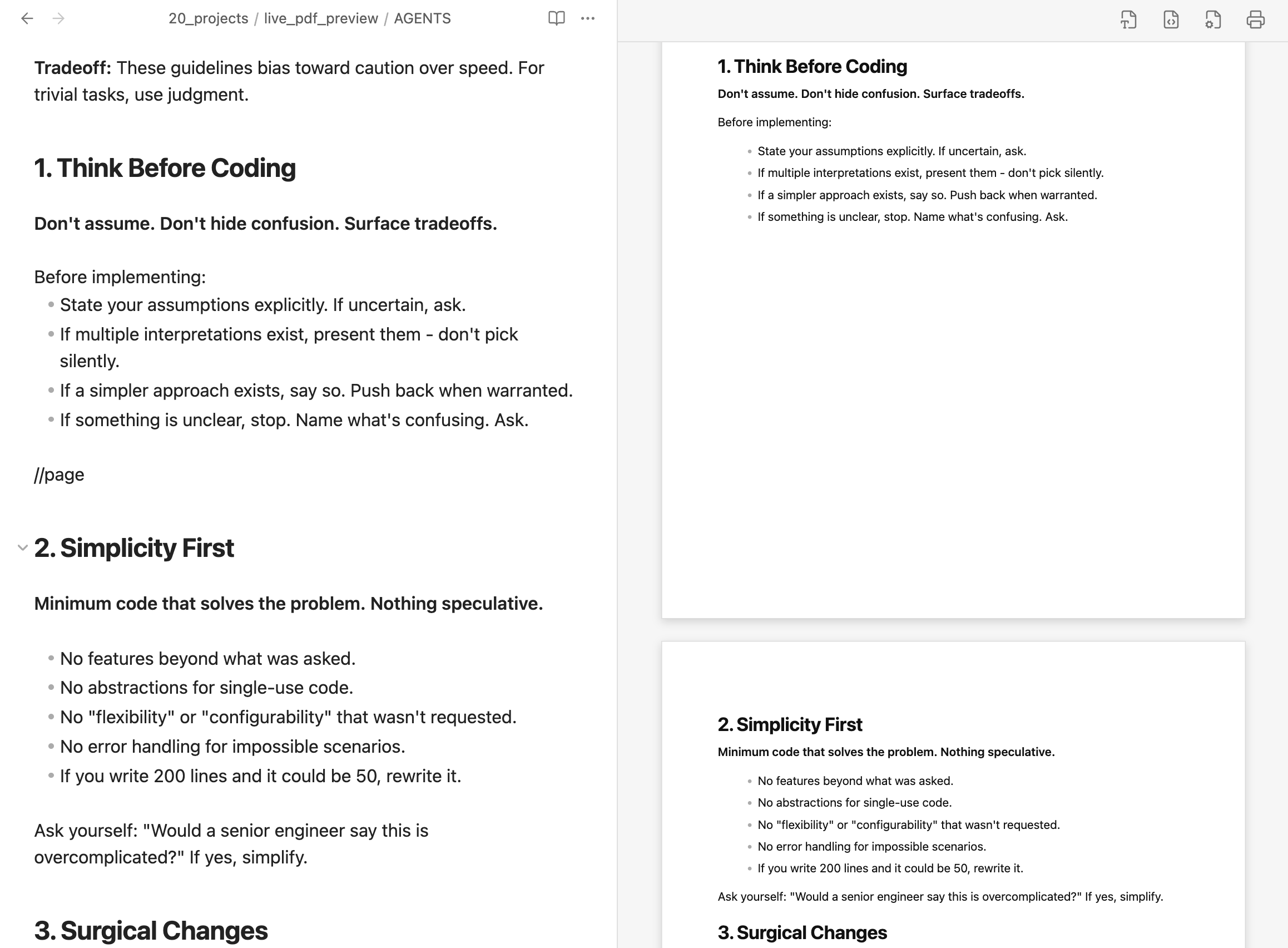
-
//column(Multi-Column Layout): Creates side-by-side columns (up to 3 columns using//column-1,//column-2,//column-3). Includes smart autocomplete for closing tags.- Custom Widths: Specify ratios in brackets, e.g.,
//column[30, 70]to set custom column width ratios.
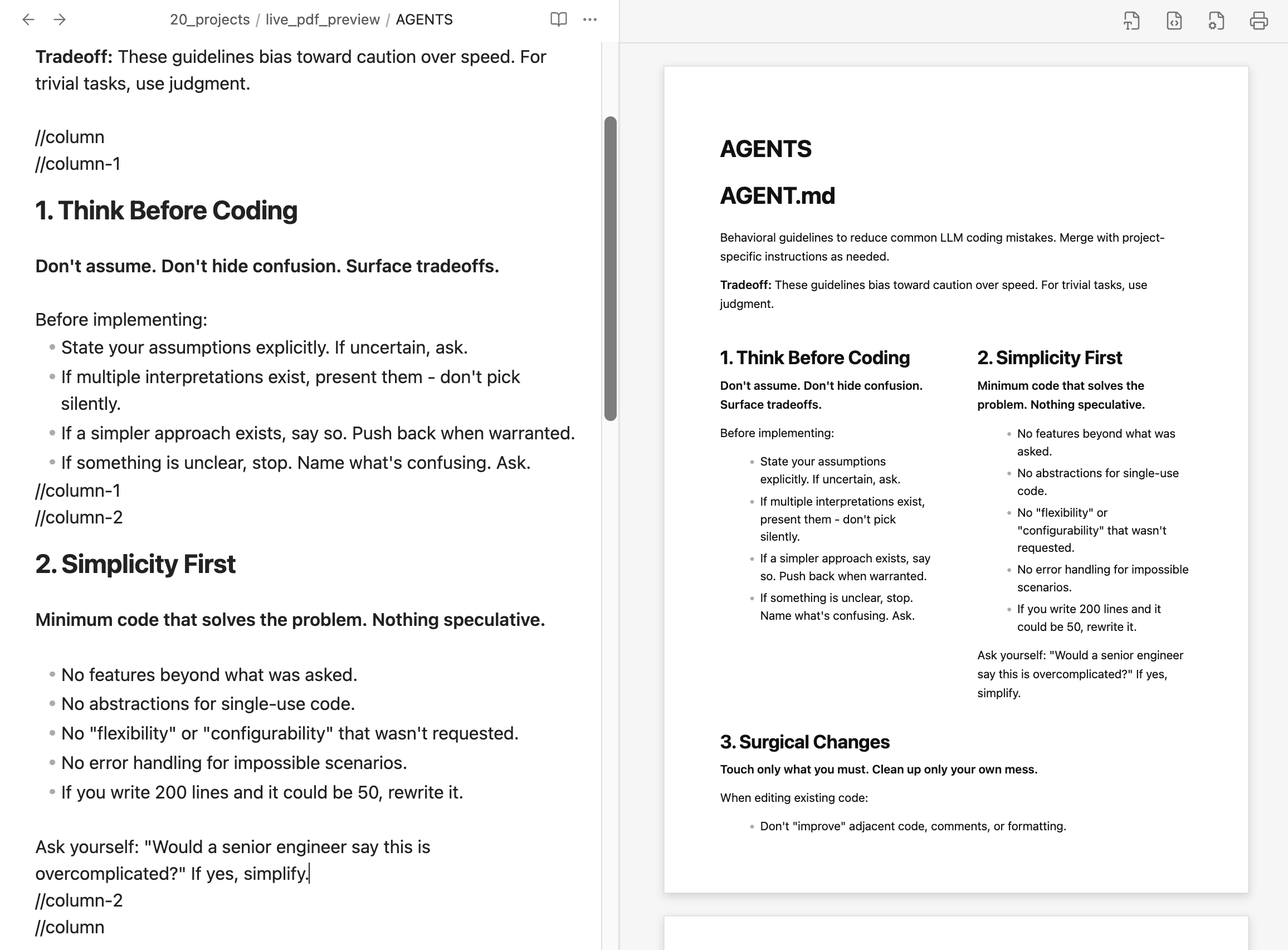
- Custom Widths: Specify ratios in brackets, e.g.,
-
//center(Center Alignment): Centers text, lists, tables, code blocks, and images, while keeping list items left-aligned for readability. Includes smart autocomplete.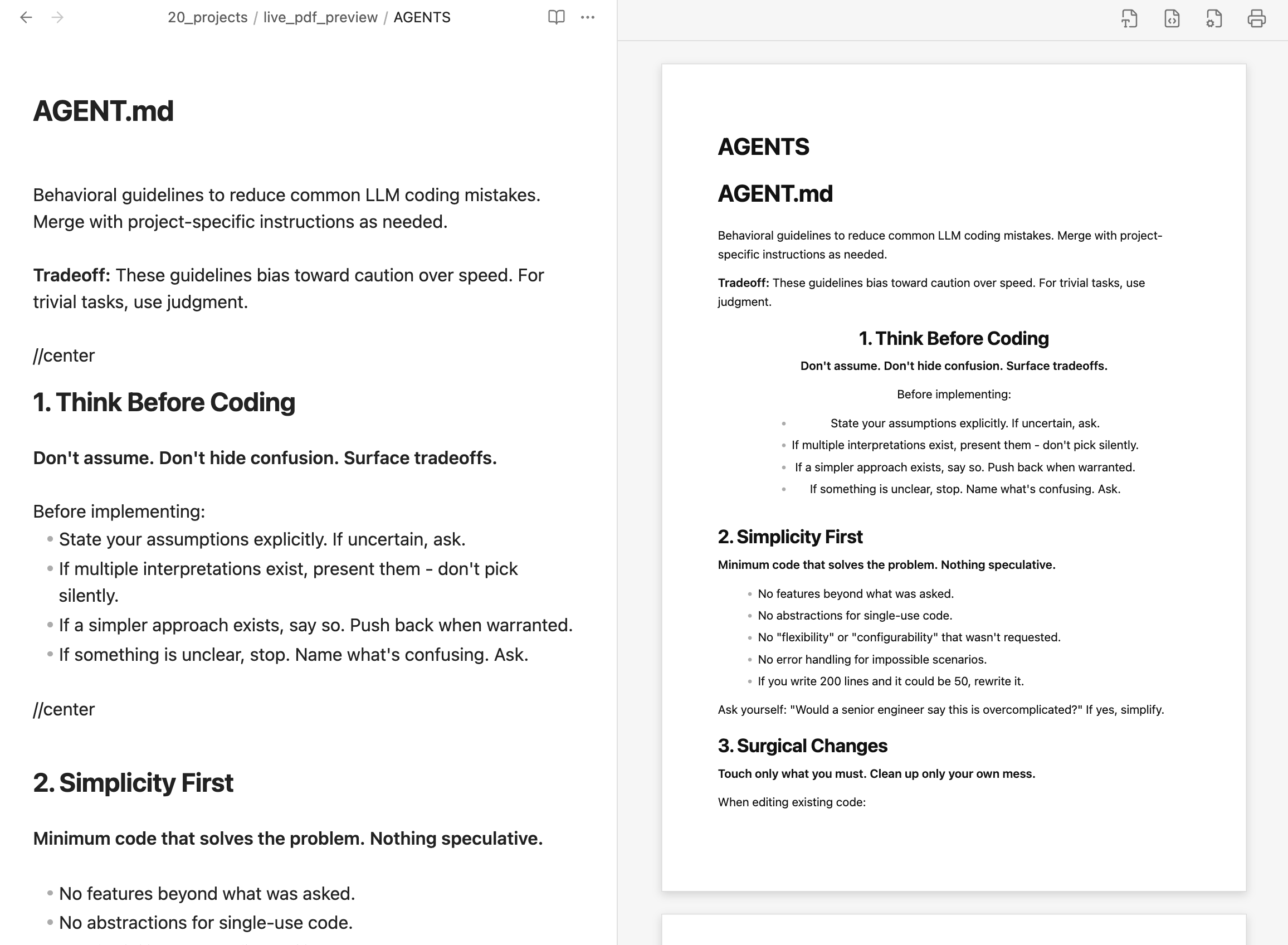
5. PDF Export with Bookmarks
- One-Click Export: Click the printer icon (🖨️) to save your document as a print-ready PDF.
- Interactive Outlines: Document headings (
# H1to###### H6) automatically become interactive PDF outlines/bookmarks with full Unicode (Korean, CJK, etc.) support. - Polished Output: Automatically hides temporary interface items like code copy buttons in the exported document.
How to Use
1. Launching the Preview
- Open the Obsidian Command Palette (
Cmd/Ctrl + P). - Search for and select the
Open Live PDF Previewcommand. - The print preview tab will open in the right sidebar.
2. Customizing the Page Layout
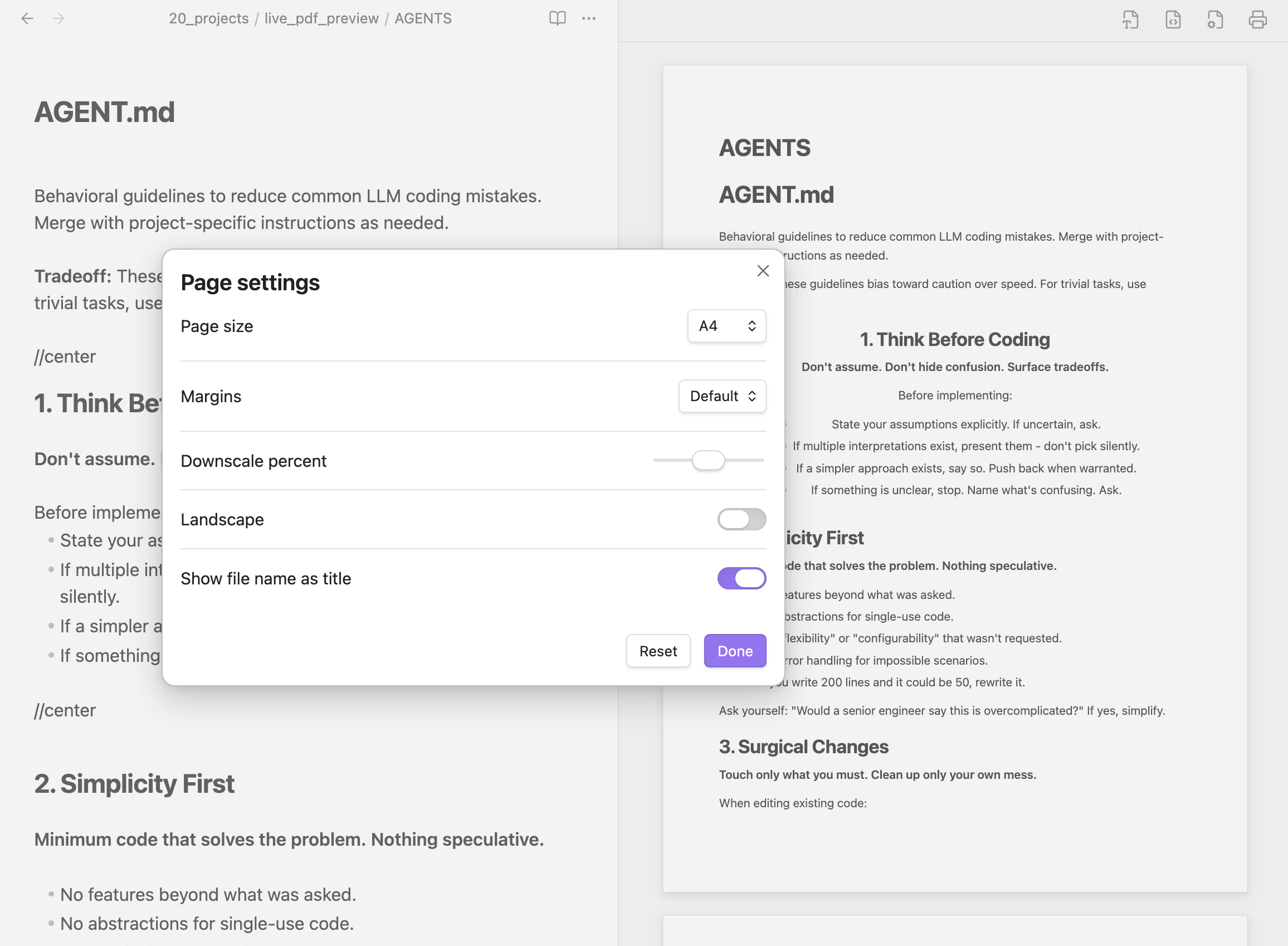
Click the gear icon (⚙️) on the top right of the preview header to open the page settings:
| Setting | Description | Options |
|---|---|---|
| Page size | Set the physical dimensions of the virtual page. | A4, Letter, A3, A5, Legal, Custom |
| Margins | Choose the outer padding margins for the A4 sheet. | Default (20mm), None (0mm), Small (10mm) |
| Downscale percent | Adjust the zoom/scale factor of the preview text and layout. | 50% to 150% (Default: 100%) |
| Landscape | Toggle between Portrait (vertical) and Landscape (horizontal). | Toggle ON/OFF |
| Show file name as title | Render the file name as the document's main heading. | Toggle ON/OFF |
3. Custom CSS Stylesheet
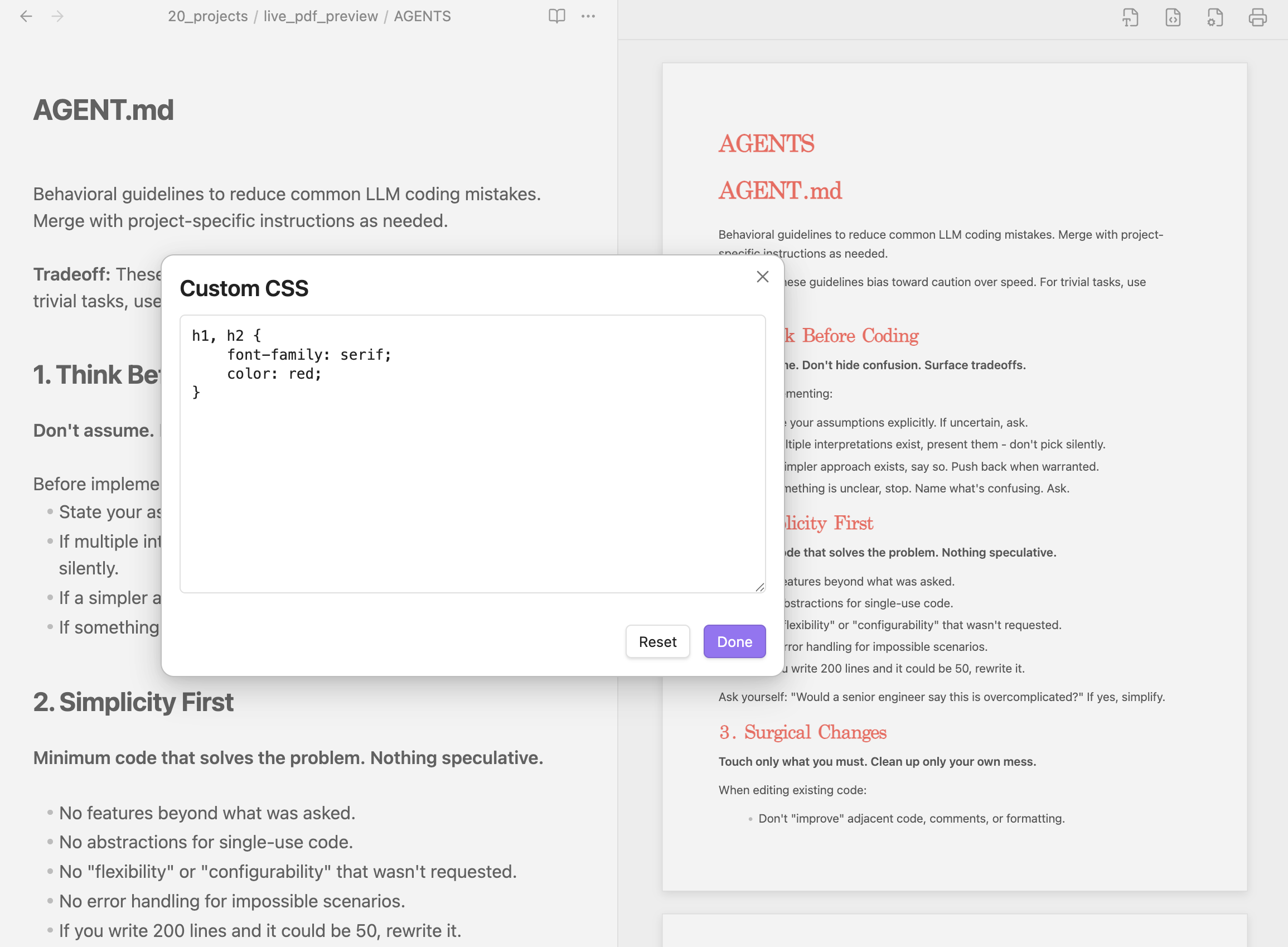
Click the palette icon (🎨) next to the settings gear on the preview header to apply custom CSS
License
This project is licensed under the MIT License.
Contributing
Contributions, issues, and pull requests are welcome!