
README file from
GithubLive Image Editor
Non-destructive image editing for Obsidian. Crop, rotate, flip, resize, and apply CSS filters — all live, without modifying the original file.
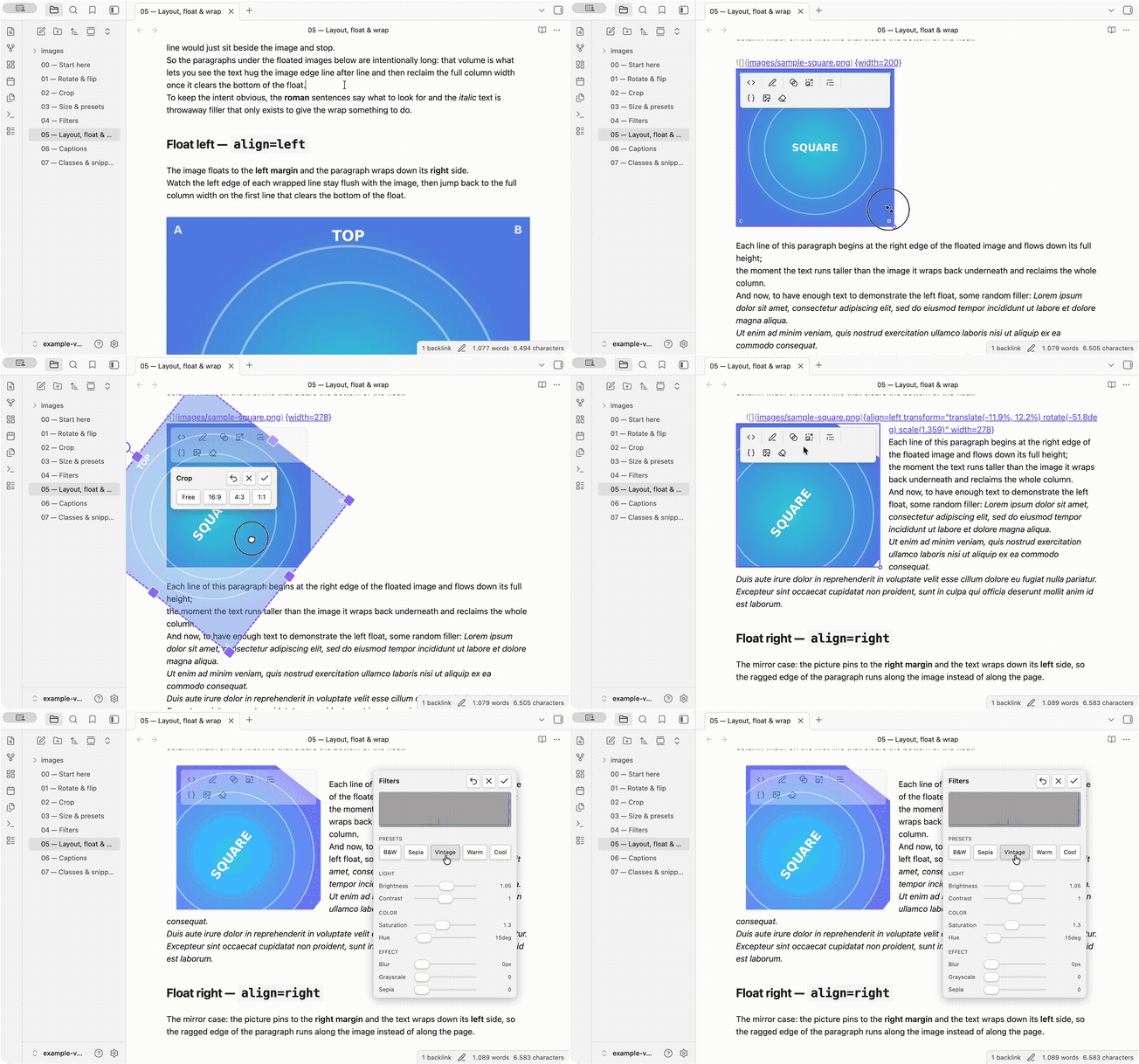 { .lie-usage-gif }
Features
- Toolbar on selection — appears when you click an image, same trigger as Obsidian's native resize handles
- Crop with free rotation — fixed frame, freely move/rotate/scale the image underneath
- CSS Filters — brightness, contrast, saturation, hue, blur, grayscale, sepia with a side panel and live histogram
- Filter Presets — one-click looks (B&W, Vintage, Warm, Cool, Sepia, ...)
- Resize — scale up/down, custom dimensions, or predefined size classes
- Flip & Rotate — horizontal/vertical flip, 90° steps or free rotation via crop
- Inline/Block toggle — switch between text-wrapping and standalone display
- CSS class management — auto-detects classes from your vault's CSS snippets
- Export — render all edits to a new image file (original stays untouched)
- Editing Toolbar integration — optionally registers commands as buttons in Editing Toolbar
- Multilingual — follows Obsidian's language setting
How it works
Edits are stored as a small, portable attribute block after the image embed — standard Markdown/wiki syntax, never the alt text or the file. The original image is never touched.
{rotate=90 width=420}
![[photo.png]]{align=left filter="sepia(0.8)"}
{transform="translate(-50%,-50%) scale(2)" aspect-ratio=1/1 width=260 .rounded}
The block uses bare keys (align, width, rotate, flip, transform, filter,
aspect-ratio, .class) — the same portable format MkDocs-Material / Python-Markdown / Pandoc
understand. Open the note without the plugin and the image still shows: align/width carry
through any renderer, and the rest fall back to the original, untransformed image. Obsidian's native
wiki-link size (![[image.png|300]]) continues to work and is preserved.
Example vault
vault-image-toolbar/ is a self-contained Obsidian vault that demonstrates every
feature on synthetic, committable images (corner labels A/B/C/D + a TOP marker make
rotate/flip obvious). To try it:
- In Obsidian, Open folder as vault → pick the
vault-image-toolbar/directory. - Enable Live Image Editor in Settings → Community plugins (install it first if needed — see Installation).
- Open
00 — Start hereand work through the numbered pages (Rotate & flip, Crop, Size, Filters, Layout, Captions, Classes). Hover an image to reveal the toolbar and edit away.
Two features ship opt-in — turn them on from Settings → Live Image Editor: Show image captions and Install example snippets (the latter is already installed and enabled in this vault).
Documentation
📖 Documentation site — the user guide,
the demo vault (with images rendered live by the plugin's runtime) and the design docs, published
from docs/ via ProperDocs + MaterialX (the maintained MkDocs / Material forks).
- User guide — how to use every feature, with screenshots.
vault-image-toolbar/— a demo vault that shows each feature on real images (open it as a vault with the plugin enabled; start at 00 — Start here).- Development docs — the design docs (requirements, architecture, plan, tests, the bug & lesson registry) and the developer workflow: building from source, the dev/debug loop, and previewing this docs site locally.
Installation
From the community directory (recommended). Live Image Editor is published in Obsidian's community plugin directory: https://community.obsidian.md/plugins/live-image-editor. In Obsidian, open Settings → Community plugins → Browse, search for Live Image Editor, install and enable it.
Manual install.
- Download the latest release from Releases
- Extract into your vault's
.obsidian/plugins/live-image-editor/directory - Enable the plugin in Settings > Community Plugins
Development & Release compliance
Building the plugin from source, the watch / dev-install loop, live debugging in Obsidian (CDP), and previewing the docs site locally are all covered in the Development docs — everything builds inside the devcontainer.
Release compliance. The plugin is accepted into the community directory
(https://community.obsidian.md/plugins/live-image-editor). Before each submission it is audited against
Obsidian's Developer policies, Plugin guidelines and Submission requirements. All
R1–R30 rules are met — the former open items were closed in the v0.4.2 release-compliance pass. The
v0.6.x automated review (eslint-plugin-obsidianmd + a CSS scan) is reproduced locally
(npm run lint:obsidian / npm run lint:css, separate from the shipped linter — T9) and reports 0
errors; the kept warnings (architecturally-required :has, justified !important, the 1.12.7-floor
API deprecations) and the false positives (the dev-only CDP bridge, the standalone runtime bundle)
are documented with their rationale there. The full audit + submission checklist live in
Release compliance.
File system access & platform support
File system access. Almost everything the plugin does stays inside your vault and is fully non-destructive — the original image file is never modified. The one exception is the Export as image action: on desktop it opens your operating system's native Save dialog, so you can write the rendered (transformed/filtered) copy to any location you choose, including outside the vault. Nothing is written outside the vault without you picking that location in the dialog. On mobile (no native dialog) export falls back to an in-app prompt that writes a copy inside the vault.
Platform support (isDesktopOnly: false). The plugin runs on both desktop and mobile. Two
features use Electron/Node APIs that only exist on desktop, and both degrade gracefully on mobile:
the export save dialog (mobile writes into the vault instead) and the macOS two-finger
trackpad rotate gesture in the crop editor (the on-screen rotate handle is always available as the
fallback). The access is dynamic and feature-detected, so core editing — rotate, flip, crop, resize,
filters, classes — works on mobile too.
Reporting cross-platform issues. Development and testing happen on macOS, so that's the best-exercised platform; Windows, Linux, iOS and iPadOS should work but see less testing. If something misbehaves on a non-macOS system — especially native-OS behaviour such as the crop trackpad rotate gesture or the save dialog / file menu — please open a GitHub issue with screenshots; platform-specific problems are far easier to pin down that way.