
README file from
GithubLinear Year Calendar
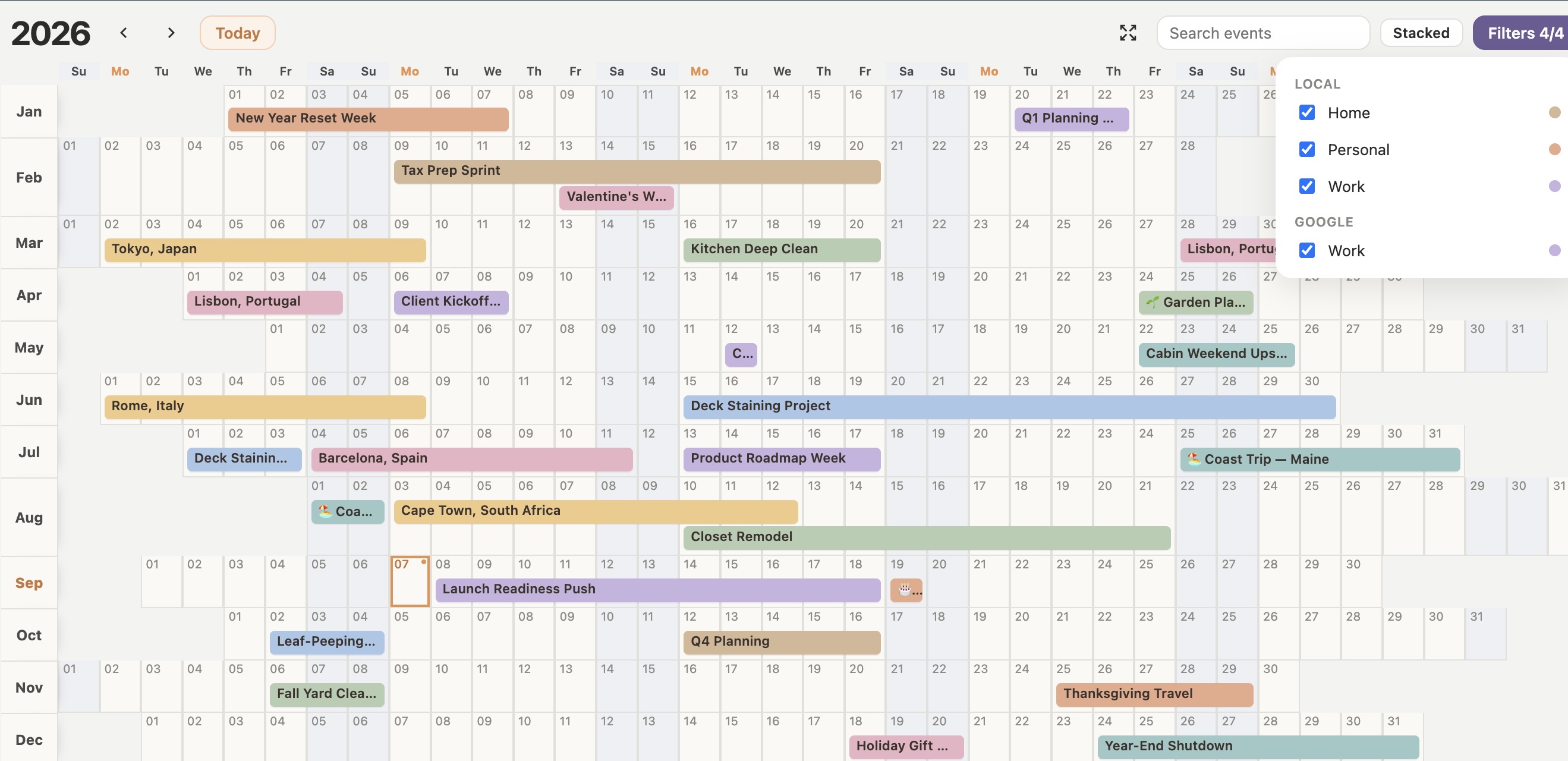
An Obsidian plugin that shows your whole year at a glance: 12 month rows, pastel event bars, Linear / Stacked / Column / Col-Stack layouts, click or drag to create notes, an event detail popover, and Google Calendar import via ICS.
Install
Community plugins (once listed)
- Open Obsidian → Settings → Community plugins.
- Turn Restricted mode off if it is on.
- Browse → search Linear Year Calendar → Install → Enable.
Manual install (from a GitHub release)
- Create
VaultFolder/.obsidian/plugins/linear-year-calendar/. - From the latest release, download these three assets into that folder:
manifest.jsonmain.jsstyles.css
- Enable Linear Year Calendar under Community plugins.
Ignore GitHub’s auto-generated Source code zip/tar — that is the whole repository, not the plugin install package. Obsidian only uses the three files above.
Open the view
Use the calendar ribbon icon, or run Open Linear Year Calendar from the command palette.
How it works
Google Calendar is the source of truth for imported events. Obsidian is for local planning.
| Kind | Folder | In Obsidian |
|---|---|---|
| Local planning | Calendar/<CalendarName>/ |
Create, edit, delete |
| Google ICS | Calendar/google/<CalendarName>/ |
View only; open the day in Google Calendar |
Click or drag creates notes in the Default calendar name folder (settings). In the create/edit modal, pick a local calendar from the dropdown, or choose Other… to name a new one (Google calendars are not listed). Changing calendar on edit moves the note into that folder. Filters group Local vs Google.
| Action | What happens |
|---|---|
| Click a day | Create a one-day local event note |
| Drag across days | Create a multi-day local event note (live range preview) |
| Click a local event bar | Detail popover (open note / edit / delete) |
| Click a Google event bar | Read-only popover; Google opens that day in Google Calendar |
| Hover an event bar | Tooltip with title, dates, day count |
| Today (next to year arrows) | Jump to the current year and center on today |
| Display | Switch Stacked / Linear / Column / Col-Stack |
| Filters | Local and Google sections; Show all when some are hidden |
| Search | Filter bars by title |
| Year arrows | Move year |
Layouts
- Linear — day 1 of every month is in the first column.
- Stacked — months are offset so Sundays (or Mondays) stack in the same columns.
- Column — months sit side by side with days top to bottom; events appear inside each month on their days.
- Col-Stack — like Column, but months are weekday-aligned so weekends line up horizontally across the year.
Event notes
Local events are Markdown notes with YAML frontmatter:
---
start: 2026-09-07
end: 2026-09-15
color: "#E7A989"
calendar: Personal
---
# Home Office Makeover

Optional description lives in the note body.
Google Calendar via ICS
- In Google Calendar, open Settings.
- Under Settings for my calendars, select a calendar.
- Open Integrate calendar.
- Copy Secret address in iCal format.
- In Obsidian: Settings → Linear Year Calendar → Add under Google calendars.
- Paste the URL, set a name and color.
- On the year view, click the refresh icon (or command Refresh ICS calendars).
All-day events only skips timed meetings when enabled. Timed Google events still import as one-day bars when that setting is off.
Imported events are written under Calendar/google/<calendar-name>/, keyed by ics-uid + start date so refreshes update instead of duplicating. Do not edit those notes in Obsidian — change them in Google and refresh.
Public ICS URLs work too (webcal / https). webcal:// is rewritten to https:// automatically.
If you previously imported into Calendar/<name>/ (without google/), refresh will write to the new path; you can delete the old ICS notes manually.
Settings
Open Settings → Linear Year Calendar.
| Setting | What it does |
|---|---|
| Events folder | Root folder for calendar notes (default Calendar). Local calendars use <folder>/<Name>/; Google imports use <folder>/google/<Name>/. |
| Default calendar name | Local calendar used when you click or drag to create an event. |
| Week starts on | Sunday or Monday — used by Stacked and Col-Stack so weekends line up. |
| Default view | Layout used when you open the year view. |
| All-day events only | When on, skip timed Google meetings on ICS refresh. |
| Google US holidays | Optional holiday feed, with a color picker. Refresh ICS after enabling. |
| Google calendars | Add, enable/disable, color, and test ICS sources. Names map to Calendar/google/<Name>/. |
Use Refresh ICS calendars (toolbar or command) after changing ICS sources. The settings page shows the last refresh time and per-calendar results when available.
Known limits
- Google / ICS events are read-only in Obsidian. Edit them in Google, then refresh.
- Timed Google events render as one-day bars (not hour blocks).
- ICS recurrence covers common Google series (including weekly
BYDAYandEXDATE). Some monthly patterns and edge cases may still land wrong or incomplete. - Recurring series are capped when expanding occurrences so a bad rule cannot flood the vault.
- The plugin reads Markdown notes under your events folder (and related vault paths) to draw the year grid.