
README file from
GithubLinear Calendar for Obsidian


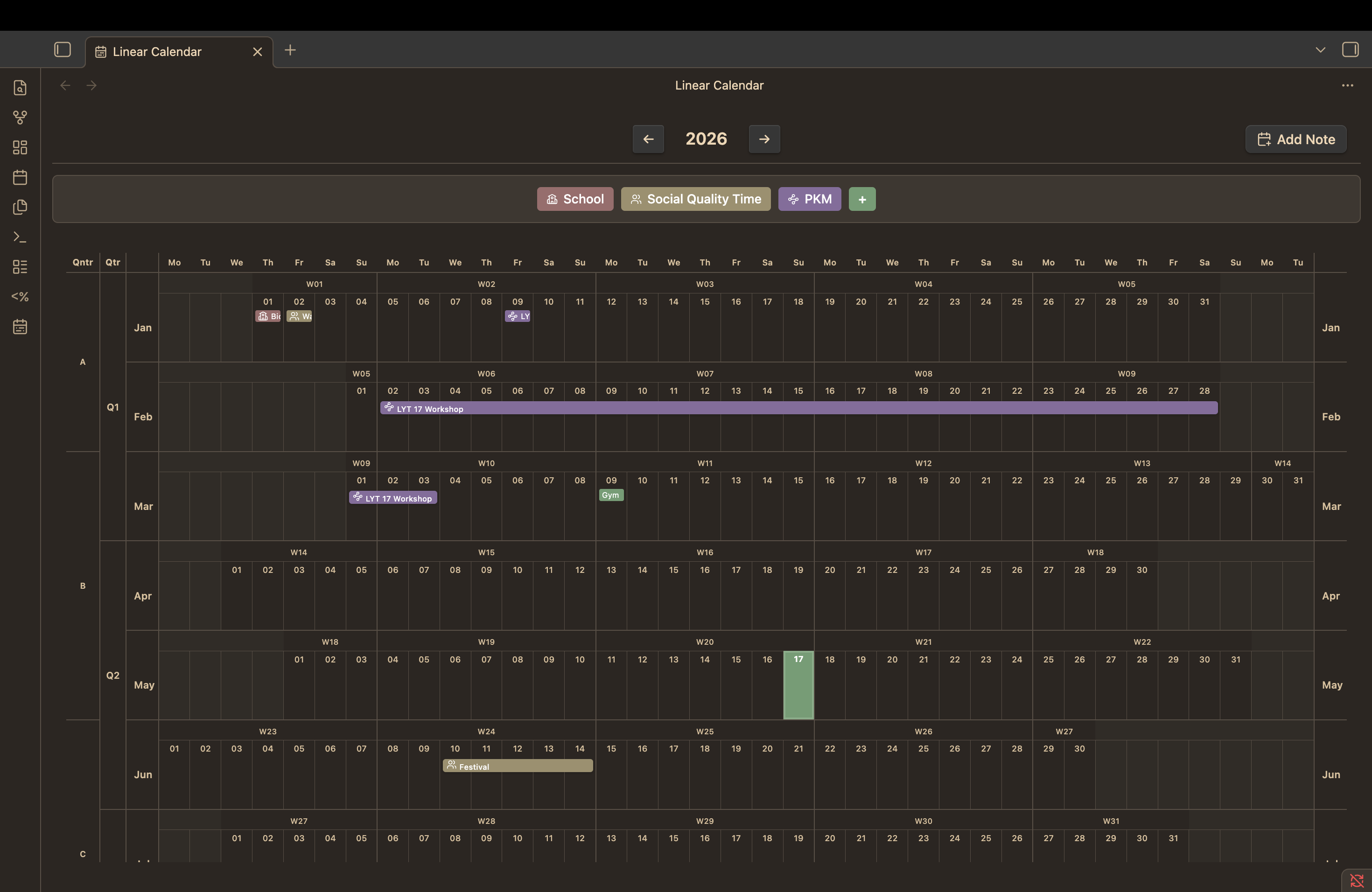
A linear calendar plugin that displays all 365 days of the year in a single view. Perfect for visualizing your notes chronologically, tracking events across time, and managing daily notes.
⚠️ Development Status
This plugin is in active development and may undergo significant changes. The core functionality—how notes are recognized and dates are extracted—will remain stable. If you use properties or dates in filenames, these will continue to work.
New features are actively being developed. If you encounter any issues or have feedback, please reach out via GitHub or via e-mail.
This plugin is being developed with the help of AI.
✨ Features
📝 Note Display
- Single-day notes: Notes appear in their respective day cells
- Multi-day events: Events spanning multiple days shown as horizontal bars
- Clickable notes: Click any note to open it instantly
- Instant tooltips: Hover over any note to see the full title immediately
- Note preview: Cmd/Ctrl + hover to see a preview of any note
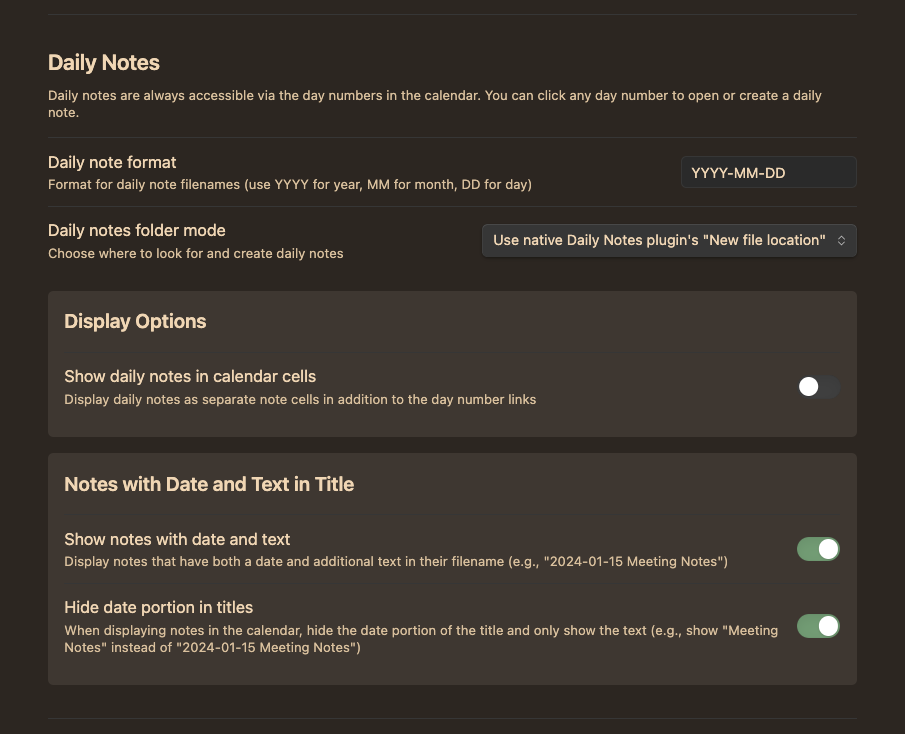
📆 Daily Notes Integration
🔍 Flexible Date Extraction
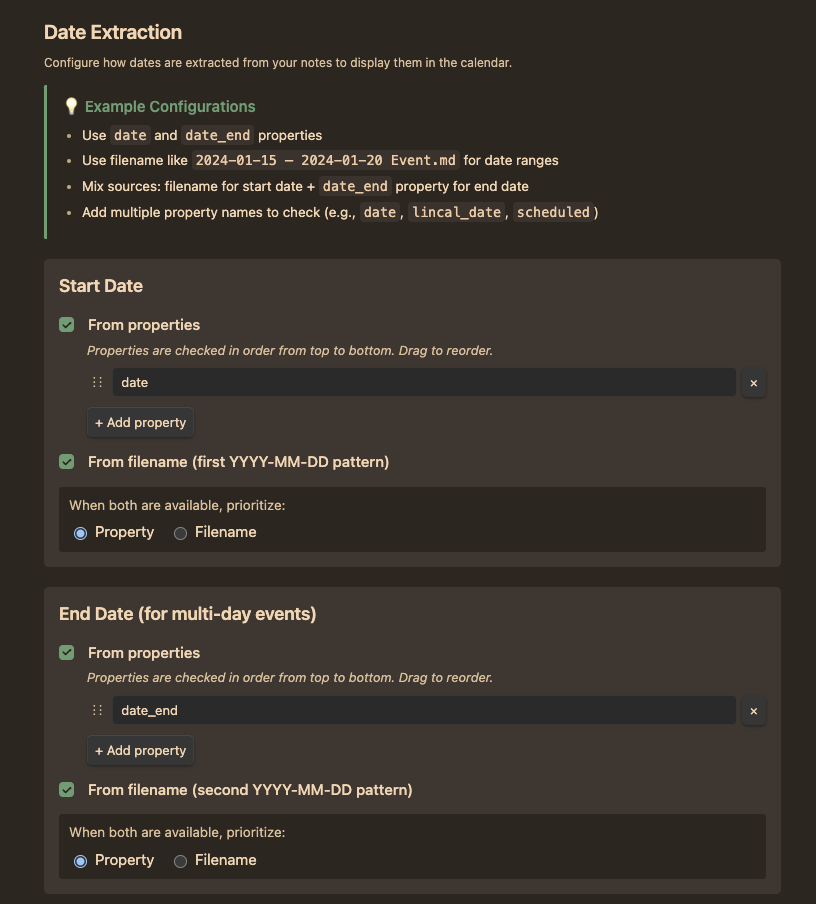
Extract dates from multiple sources with customizable priority:
Start Date Sources:
- Properties (configurable, checked in order)
- Filename (first YYYY-MM-DD pattern)
End Date Sources (for multi-day events):
- Properties (configurable, checked in order)
- Filename (second YYYY-MM-DD pattern)
Examples:
---
date: 2024-01-15
date_end: 2024-01-20
---
Or use filenames:
2024-01-15 Meeting.md→ Single-day note on Jan 152024-01-15 – 2024-01-20 Conference.md→ Multi-day event Jan 15-20
🎨 Customization Options
Calendar Appearance:
- Width modes: Fit to screen (default) or scrollable with fixed cell widths
- Configurable cell width: Set minimum cell width (20-200px) for scrollable mode
- Column alignment: Weekday mode (align by day of week) or date mode (align by date number)
- Week start day: Configure first day of week (Sunday-Saturday)
Display Options:
- Show/hide daily notes in calendar cells
- Show/hide notes with date + text in title
- Optional date hiding: Display "Meeting Notes" instead of "2024-01-15 Meeting Notes"
📝 Quick Note Creation
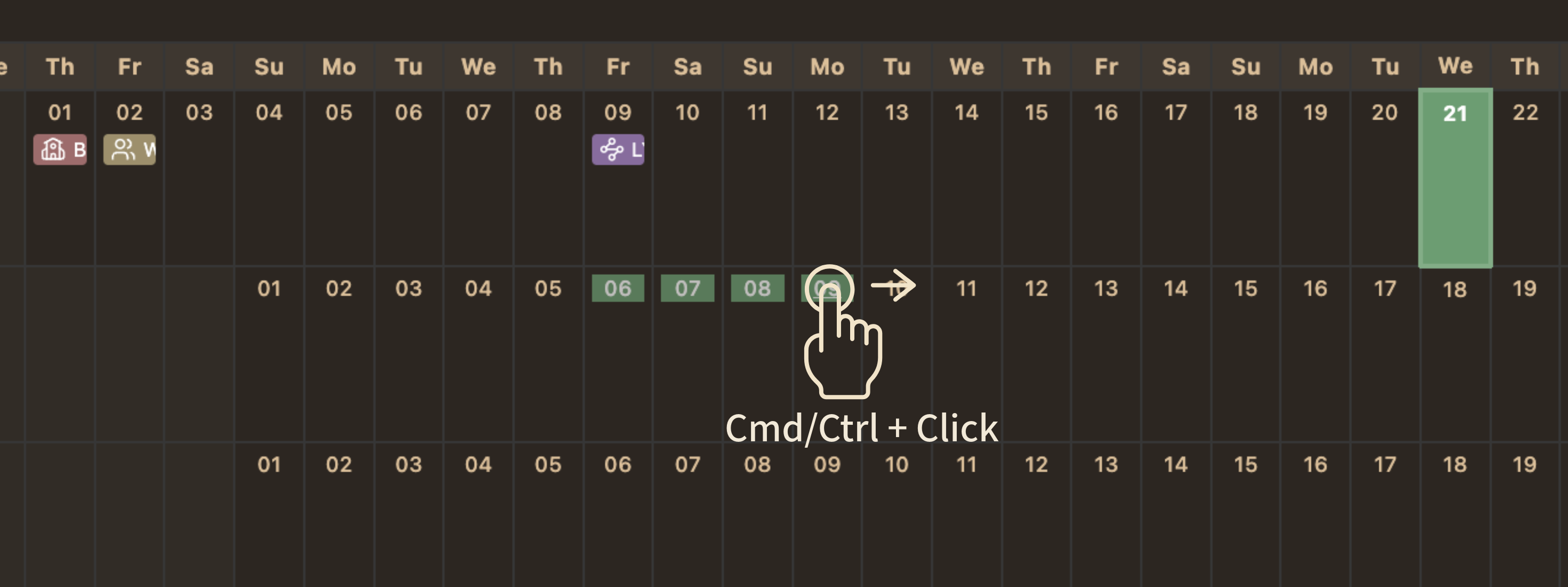
- Create notes directly from the calendar
- Click on any calendar date to create a new note, drag to make multi day entry
- Configure note title, date method, metadata and save location
- Customize default data
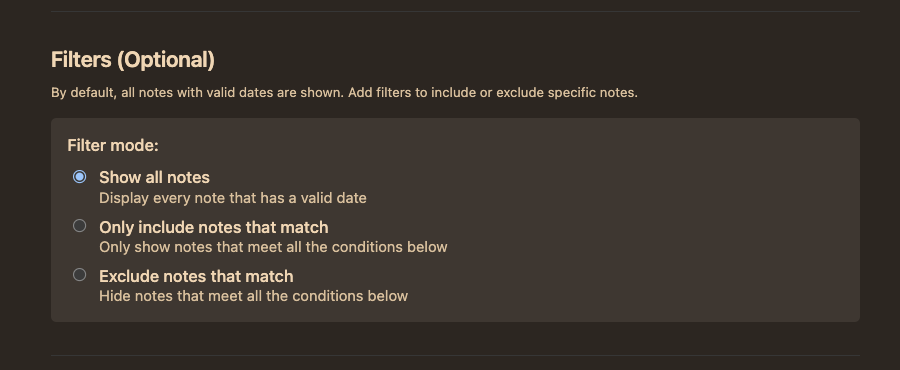
🔎 Advanced Filtering
Filter which notes appear in the calendar:
Filter Modes:
- Show all notes: Display every note with a valid date (default)
- Include mode: Only show notes matching ALL conditions
- Exclude mode: Hide notes matching ALL conditions
Available Conditions:
- File properties (name, folder, path, extension)
- Custom frontmatter properties
- Text operators: is, contains, starts with, ends with, regex
- Special operators: exists, has tag, matches date pattern
Example Use Cases:
- Only show notes in "Projects" folder
- Exclude notes tagged with #draft
- Show only notes with a specific property
🎨 Color Categories
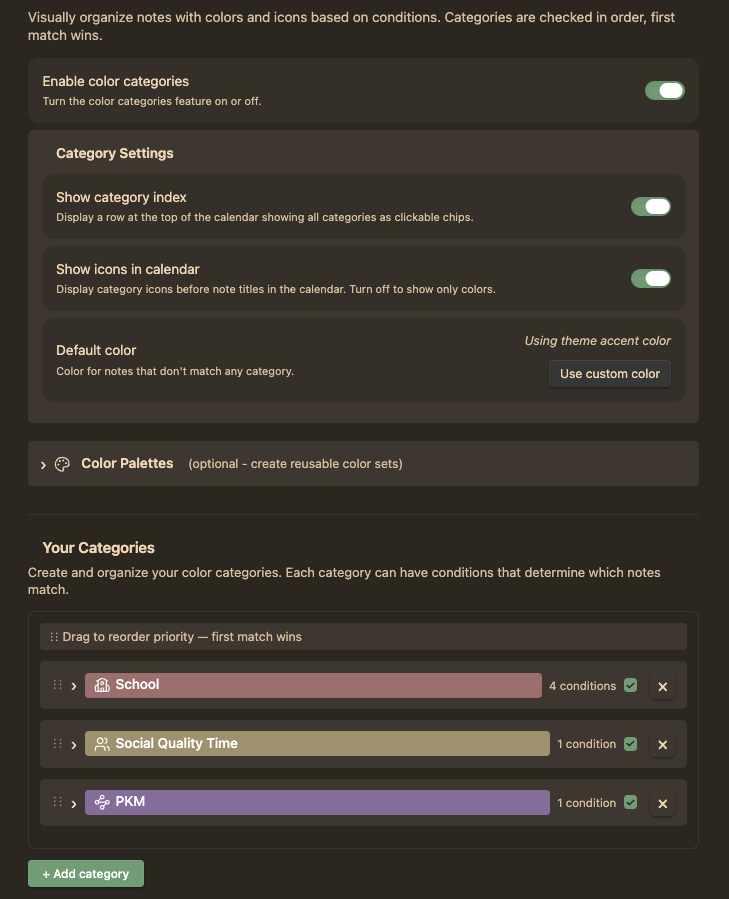
Organize and visualize your notes with custom colors and icons:
Visual Organization:
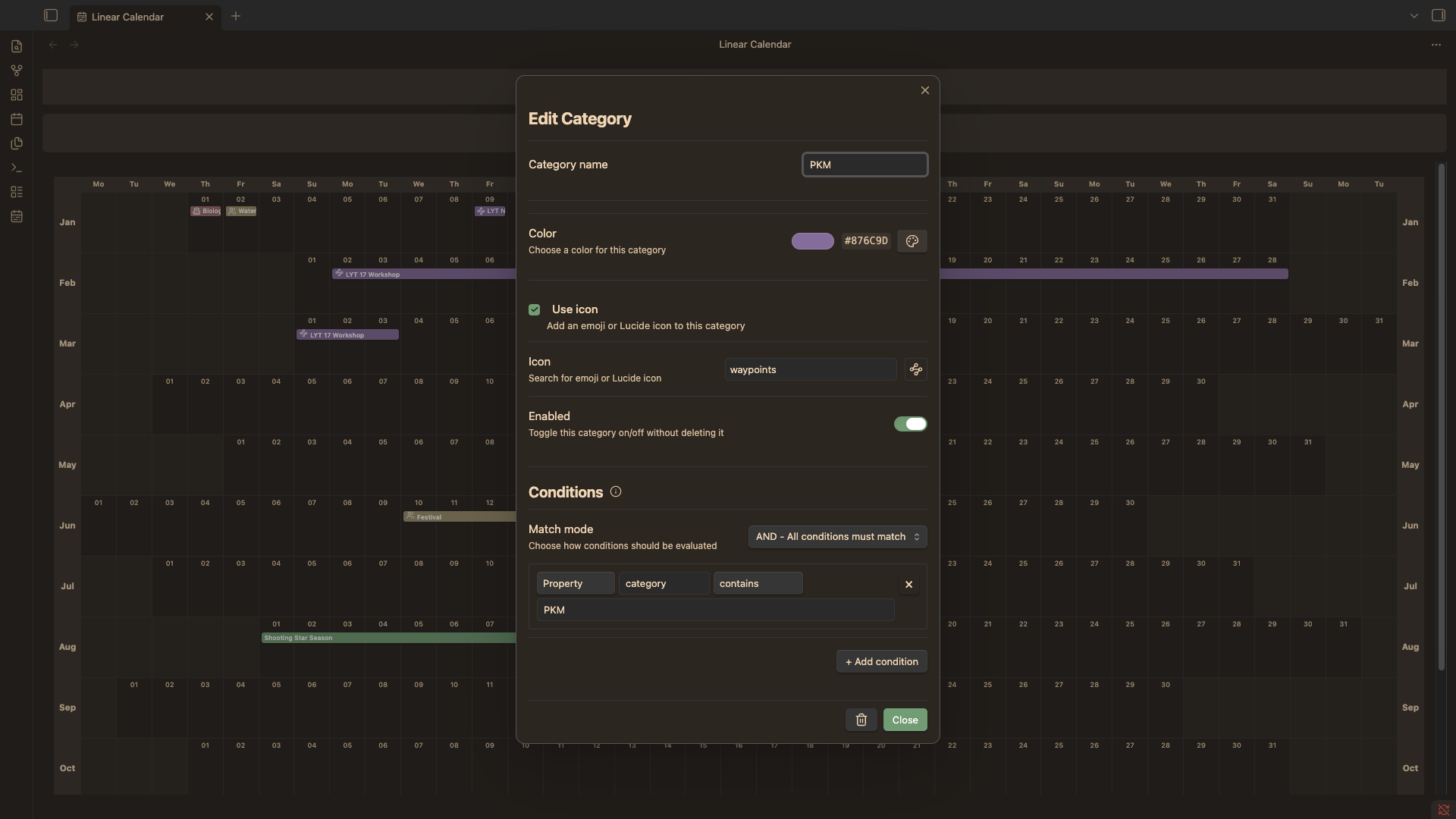
- Custom colors: Assign hex colors to categorize notes
- Optional icons: Add emoji or Lucide icons to categories
- Condition-based matching: Use the same powerful conditions as filters
- AND/OR logic: Match all conditions (AND) or any condition (OR)
- Priority system: Drag to reorder categories—first match wins
Category Index:
- Displays all categories as clickable chips at the top of the calendar
- Click any category to open the category editor
- Shows color and icon for quick visual reference
Display Options:
- Master toggle to enable/disable color categories
- Global setting to show/hide icons in calendar
- Set default color for uncategorized notes (custom or theme accent)
📥 Installation
From Obsidian Community Plugins (Recommended)
- Open Obsidian Settings → Community plugins
- Select Browse and search for "Linear Calendar"
- Select Install, then Enable
Via BRAT (Alternative)
BRAT (Beta Reviewers Auto-update Tester) is an alternative installation method. It also gives access to pre-release versions. Note that all versions prior to 0.4.3 are pre-releases and only available via BRAT or manual installation.
- Install the BRAT plugin from Obsidian's Community Plugins
- Open BRAT settings (Settings → BRAT)
- Click "Add Beta plugin"
- Enter this repository:
https://github.com/HomefulHobo/linear-calendar-plugin-obsidian - Click "Select a version"
- Choose "Latest version"
- Check "Enable after installing the plugin"
- Click "Add Plugin"
- Check if Linear Calendar is enabled in Settings → Community Plugins
Migrating from BRAT to Community Plugins? The migration is seamless — your plugin folder stays the same, just the updating method changes. Your settings are stored in your vault's plugin folder at
.obsidian/plugins/linear-calendar/data.jsonand are not affected by the switch. Simply remove the plugin in BRAT settings (this will not remove the plugin), then install it through Community Plugins. To be sure, always back up your vault before migration.
🚀 Getting Started
-
Open the calendar: Click the calendar icon in the ribbon or use the command palette (Cmd/Ctrl+P → "Open Linear Calendar")
-
Configure date extraction: Go to Settings → Linear Calendar → Date Extraction
- Add property names like
date,lincal_date, orscheduled - Enable filename extraction if you use dates in filenames
- Set priority if using both sources
- Add property names like
-
Add notes to your calendar:
- Use frontmatter properties:
--- date: 2024-01-15 --- - Or include dates in filenames:
2024-01-15 Meeting.md
- Use frontmatter properties:
-
Create multi-day events:
- Add an end date property:
--- date: 2024-01-15 date_end: 2024-01-20 --- - Or use two dates in filename:
2024-01-15 – 2024-01-20 Conference.md
- Add an end date property:
-
Customize appearance: Adjust calendar width, cell size, and display options in settings
🤝 Contributing
Contributions are welcome! Please feel free to email me.
💚 Support
If you find this plugin helpful, consider:
- ⭐ Starring the repository
- 🐛 Reporting bugs or requesting features
- 📢 Sharing it with others