
README file from
GithubEnglish · 简体中文
Lark Knowledge AI
A local alternative to enterprise knowledge-QA products like Feishu/Lark — free, unmetered, and entirely on your own machine. Ask your Obsidian vault in natural language. Semantic and keyword search over notes and PDFs, answers with clickable citations, nothing ever leaves your computer.
The experience this is built for: hit a shortcut, a search box appears, type "what have I written about X" — no opening a sidebar, no picking files by hand first.
Screenshots
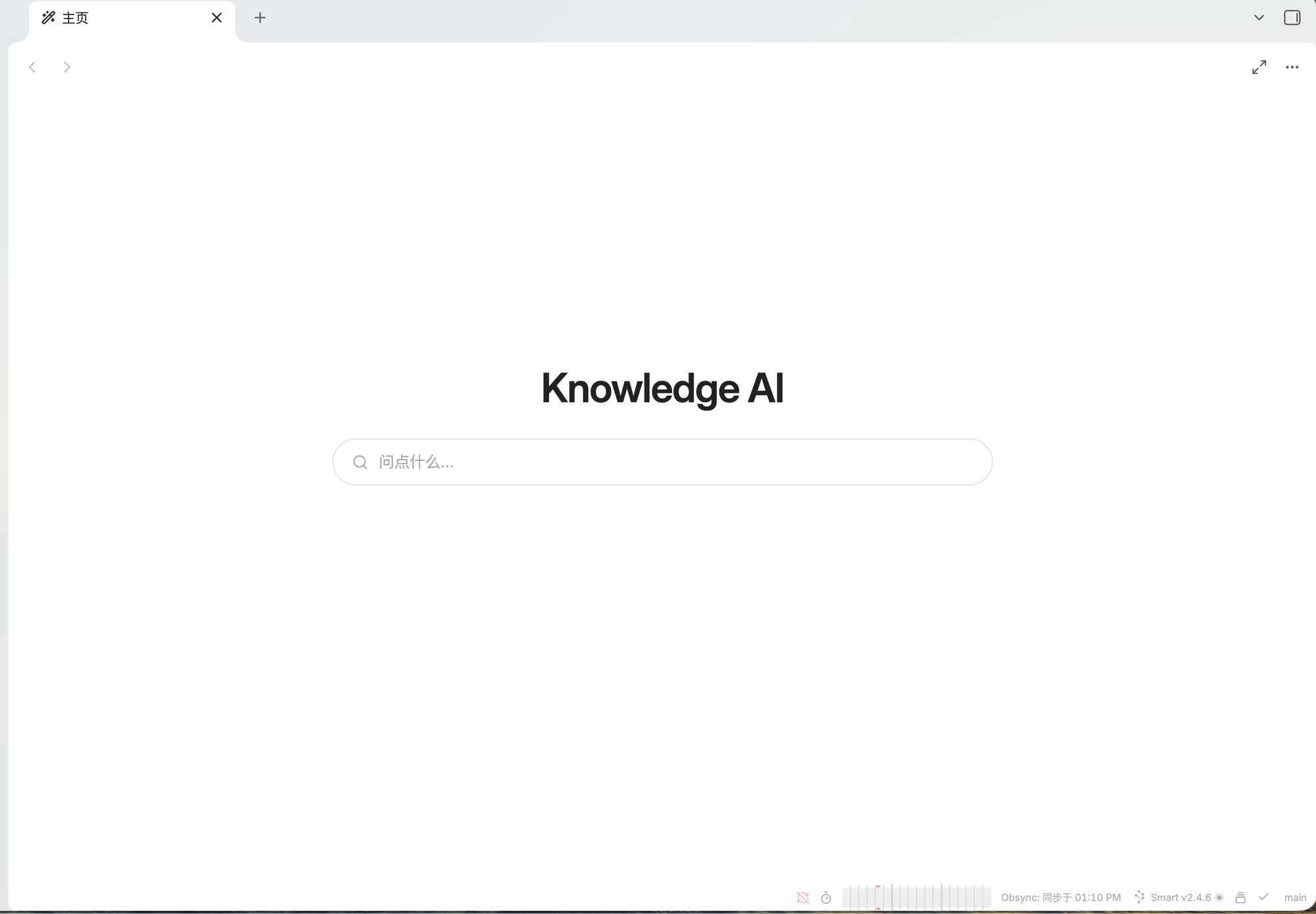
Home — takes over new tabs. A centered search box; click it or just start typing.
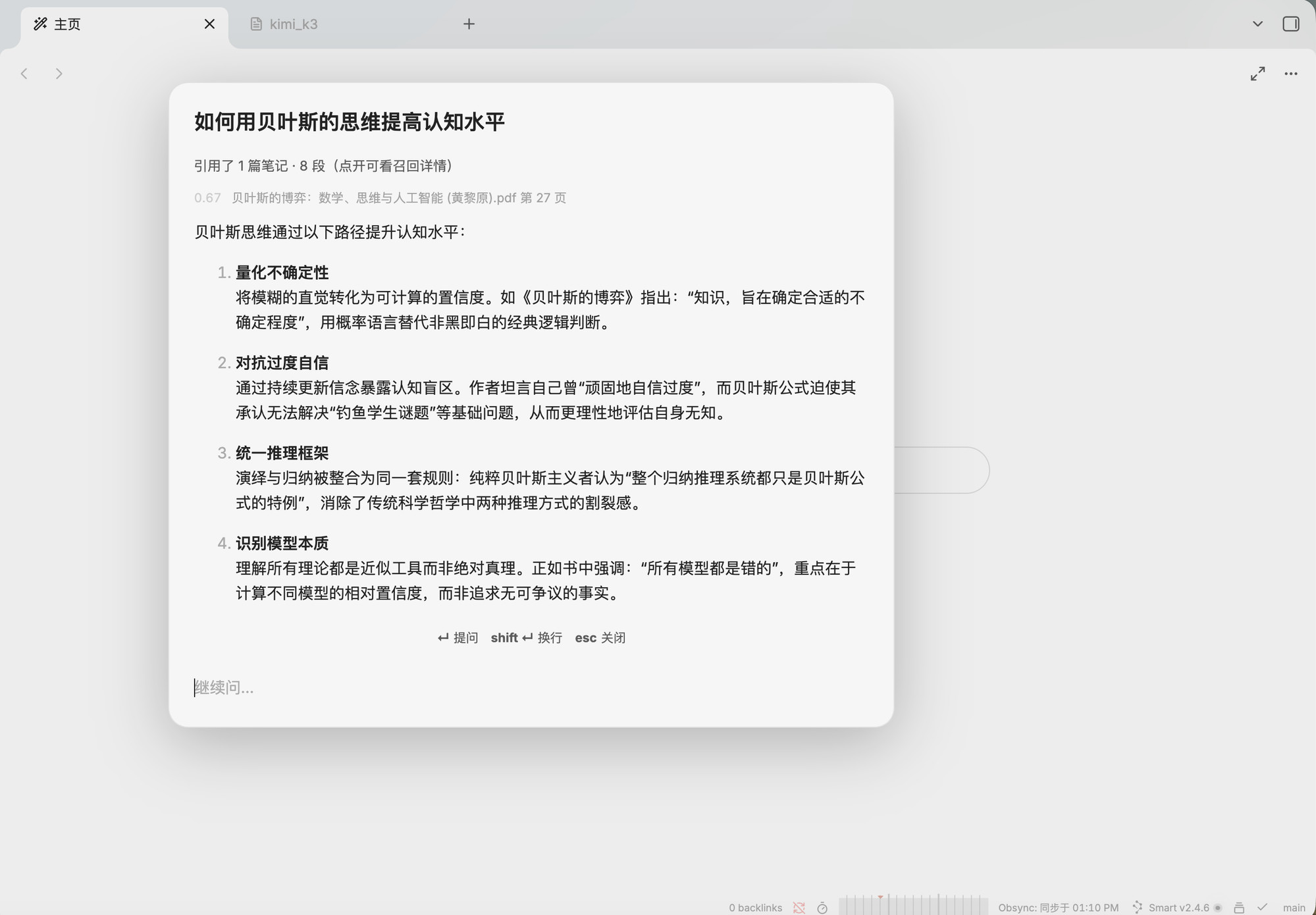
Ask — a shortcut opens the centered modal. Answers stream in with clickable sources at the end.
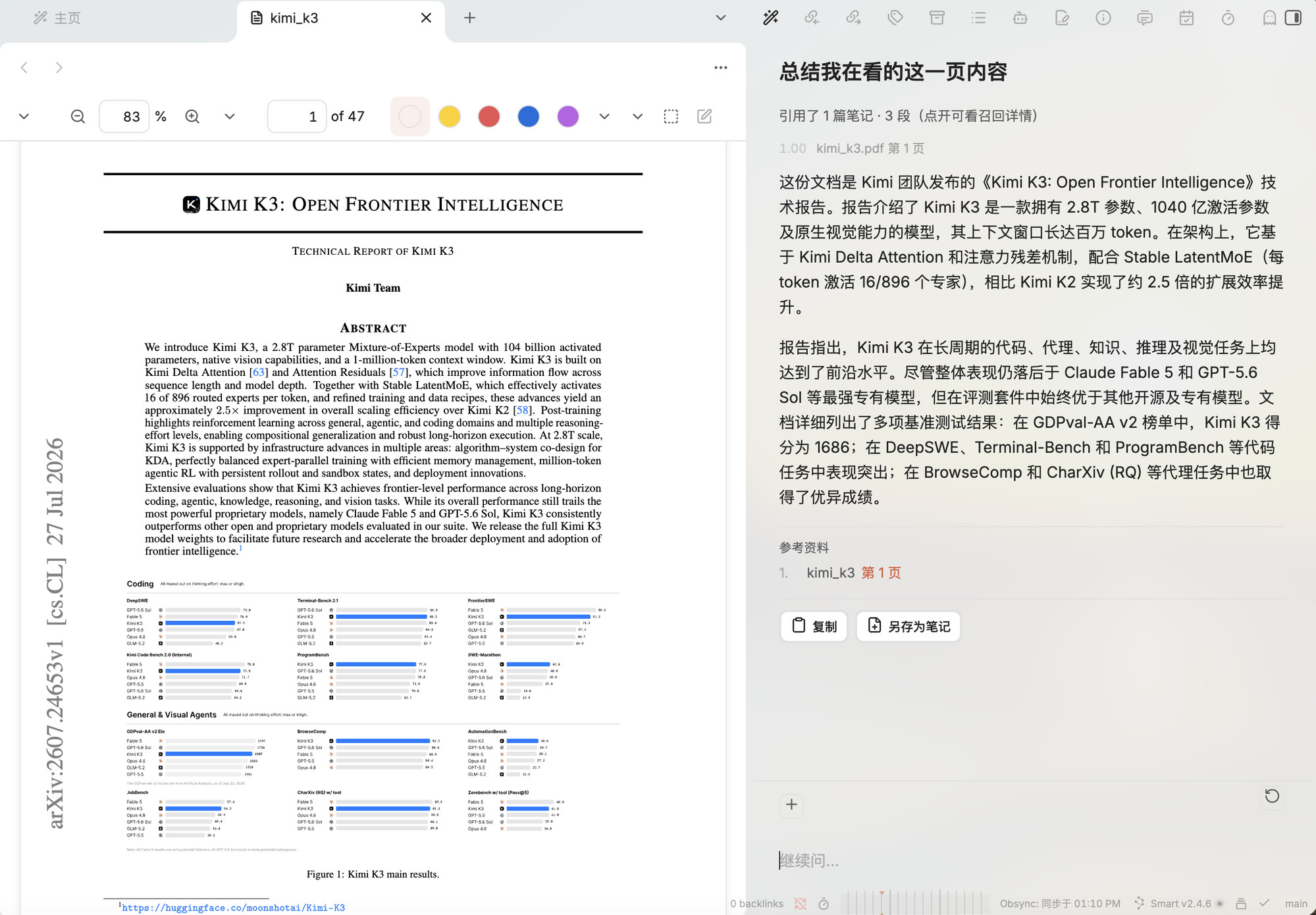
Read and ask side by side — the right pane stays open. Asking "summarise the page I'm on" reads only the PDF page you're currently viewing, and the citation links back to it.
Contents
- What it does
- Installation
- Building the index
- Usage
- Settings reference
- FAQ
- Privacy and network
- How it compares
- Disclosures
What it does
Ask
- Hybrid retrieval — semantic and keyword search, over Markdown notes and PDFs
- Every answer ends with references; click one to jump to the exact line or PDF page
- Follow-ups like "expand on the second point" are rewritten into standalone queries before searching
- Paste screenshots straight into the question box
Three surfaces, one conversation
- Centered modal (the main entry — ask and go)
- Right sidebar (persistent, for reading and asking side by side)
- Center pane (comfortable for long conversations)
Conversations move freely between all three, and can take over new tabs as a home page.
It knows what you're looking at
- "What is this paper about?" → scoped to the file you have open
- "What's on this page?" → scoped to the PDF page you're currently on
- "What did I write last week?" → filtered by file modification time
- Or click
+to pick specific files yourself
Rewrite
- Select a passage → right-click → Rewrite selection → six presets, or write your own instruction
- The result is shown as a line-level diff; nothing is written until you confirm
Indexing
- Incremental — only changed files are reprocessed
- Automatic — watches the vault and updates itself (can be turned off)
- PDF text extraction is cached, so rebuilds don't re-parse PDFs
- Optional: describe images with a vision model so pictures become searchable
Installation
In a hurry? If you use Claude Code, Codex or a similar CLI agent, just hand it this README and let it do the install — see Method 2.
1. Obsidian
Download from obsidian.md. Requires 1.5.0 or newer.
This plugin is isDesktopOnly — desktop only (macOS / Windows / Linux). It will not run on mobile.
2. Ollama
Ollama runs the models locally. Download from ollama.com/download.
After installing it runs as a background service on http://localhost:11434. Verify:
ollama --version
3. Pull the models
You need two kinds: an embedding model (for the index — required) and a chat model (for answers).
Embedding model (required)
ollama pull bge-m3
bge-m3 · ~1.2 GB · 1024 dimensions · multilingual
If your vault contains any non-English content, use this one. It is the best multilingual embedding model that runs locally today. An English-only vault can use the smaller nomic-embed-text (274 MB) instead — but note that switching embedding models invalidates every existing vector and forces a full rebuild.
Chat model
Apple Silicon users, read this. Ollama ships -mlx variants of these models that use Apple's native MLX backend. Measured at roughly 1.5× faster than the equivalent GGUF at the same size, with better grounding too. If an MLX build exists, use it.
| Model | Size | Decode speed* | Best for |
|---|---|---|---|
qwen3.5:4b-mlx |
4.0 GB | ~62 tok/s | Tight on RAM, or you want instant answers |
qwen3.5:9b-mlx |
8.9 GB | ~38 tok/s | Recommended — best balance |
gemma4:e4b-mlx |
8.8 GB | — | A different flavour, worth comparing |
* Measured on an M4 Pro (14-core CPU / 20-core GPU / 24 GB unified memory). Treat as relative, not absolute.
# Recommended
ollama pull qwen3.5:9b-mlx

# If the machine is tight on memory
ollama pull qwen3.5:4b-mlx

# To compare a different model family
ollama pull gemma4:e4b-mlx
Intel Mac / Windows / Linux: MLX is Apple-only. Drop the -mlx suffix; everything else is identical:
ollama pull qwen3.5:9b
All sizes and quantisations: qwen3.5 tags · gemma4 tags
Which matters more for speed, parameter count or quantisation? Measured answer: quantisation. At the same 9B, 4-bit is 1.5× faster than 8-bit; going from 4B to 9B only costs 1.65× (not the 2.25× the parameter ratio would suggest). With enough RAM, prefer a bigger model at lower precision over a smaller one at higher precision.
Vision model (optional — only if you want to ask about images)
To ask questions about screenshots you need a model that can see. Note: Ollama's MLX backend cannot currently receive images — the model gets a placeholder and will confidently tell you it can't see anything. So the vision model must be a GGUF build (i.e. without the -mlx suffix).
ollama pull gemma4:e4b
The plugin has a separate "Vision model" setting so it can differ from your chat model — text quality and vision rarely come in the same package. After setting it, hit Test: capability tags reported by models are unreliable, so verify for real.
4. Install the plugin
Method 1: From the community directory
Open it directly in Obsidian:
obsidian://show-plugin?id=lark-knowledge-ai
Or find it yourself: Settings → Community plugins → Browse → search for Lark Knowledge AI → Install → Enable.
Updates arrive through Obsidian like any other community plugin.
Method 2: Hand this README to an AI agent
If you use Claude Code, Codex or similar, just say:
Install Lark Knowledge AI for me following this README (attach this file)
Everything except the install click — Obsidian, Ollama, the models, the config — can be done for you. The equivalent commands, if you'd rather run them yourself:
# 1. Obsidian and Ollama
brew install --cask obsidian
brew install ollama
ollama serve &                       # macOS: start the service after installing

# 2. Models (embedding required; pick a chat model by available RAM)
ollama pull bge-m3
ollama pull qwen3.5:9b-mlx           # 16 GB RAM or more
# ollama pull qwen3.5:4b-mlx         # under 16 GB
#   Not on Apple Silicon? Drop the -mlx suffix.

# 3. Install the plugin — easiest is to open this in Obsidian:
#    obsidian://show-plugin?id=lark-knowledge-ai
#    Obsidian has no CLI for installing plugins, so this one click is on you.

# 4. Optional: preset the chat model instead of picking it in settings
VAULT="$HOME/Documents/MyVault"
DIR="$VAULT/.obsidian/plugins/lark-knowledge-ai"
mkdir -p "$DIR"
cat > "$DIR/data.json" <<'JSON'
{ "chatModel": "qwen3.5:9b-mlx" }
JSON
The one step an agent cannot do: open Obsidian → Settings → Community plugins → enable Lark Knowledge AI. Obsidian exposes no CLI switch for this; you have to click it.
Once enabled you don't need to build the index manually — autoIndex is on by default, so the first file change kicks it off within 15 seconds. To start immediately, use the Build index button in settings.
Why is the config a single line? Settings are
defaults + data.jsonmerged, so you only write what you want to change. The endpoint (localhost:11434/v1), embedding model (bge-m3) and auto-indexing defaults are already correct.
Memory guide
Choosing a chat model is mostly about RAM, not CPU:
| RAM | Recommendation |
|---|---|
| 8 GB | qwen3.5:4b-mlx only, and turn off "Index PDFs" |
| 16 GB | 4b is comfortable, 9b is tight alongside other apps |
| 24 GB+ | 9b is comfortable |
A 9B model plus its context cache measures over 10 GB in practice. When RAM runs short macOS starts swapping — the symptom is "it works but is unbearably slow", not an error. Don't force it.
5. First-run setup
Open Settings → Lark Knowledge AI:
- Endpoint URL — leave as
http://localhost:11434/v1 - Chat model — the dropdown lists what you've installed; pick one
- Hit Test — you should see connection, time-to-first-token and tokens/sec
- Embedding model — defaults to
bge-m3; hit its Test too
All four green means you're ready to index.
Building the index
The plugin turns your vault into a searchable vector index before it can answer anything.
The first build
Settings → Index status → Build index.
Progress shows in the status bar (Indexing 42/318). You can ignore it and keep using Obsidian.
How long? Depends on vault size. Rough orders of magnitude:
| Vault | Approximate time |
|---|---|
| A few hundred notes, no PDFs | 1–3 minutes |
| Plus a few dozen PDFs | 10–20 minutes |
| Hundreds of PDFs (including textbooks) | 30+ minutes |
PDFs dominate — a several-hundred-page book becomes thousands of chunks. You can turn off "Index PDFs" first, get notes working, then enable it.
After that
Incremental updates happen automatically. Add, edit or delete files and the index updates itself after a 15-second debounce, touching only what changed — unchanged files are never re-embedded.
If you turn off "Auto-index", use the Update index button in settings instead.
When a rebuild is needed
Only two situations:
- You changed the embedding model — vectors from different models aren't comparable
- You suspect the index is broken — results are obviously wrong
The Rebuild button wipes and re-runs everything. PDF text extraction is cached, so rebuilds don't re-parse PDFs — much faster than the first run.
Usage
Asking
| Action | Result |
|---|---|
| A hotkey you assign | Open the centered modal (none is bound by default — see below) |
| Click the ribbon icon | Same |
Command palette → Lark Knowledge AI: Ask |
Same |
Type and press Enter. Answers stream in, with references at the end.
Enter to ask · Shift + Enter for a newline · Esc to stop generating (press again to close)
No hotkey ships by default. Bind one under Settings → Hotkeys → search
Lark Knowledge AI.
Narrowing the search
These phrasings are recognised automatically:
| You ask | What happens |
|---|---|
| "What is this paper about?" | Searches only the file you have open |
| "What's on this page?" | Reads only the current PDF page |
| "What did I write last week?" | Only files modified in the last two weeks |
| "What have I read in the last three months?" | Time-filtered |
You can also be explicit: click + above the input in the side or center pane and pick one or more files — every question then searches only those. The file list is ordered by most recently opened.
Panes
- Command palette →
Open in right pane/Open in center pane - Open in pane below an answer moves the whole conversation over
- The icon in the pane header moves it between right and center
- ↺ next to the input clears the conversation (your file selection is kept)
Conversations are saved with the Obsidian workspace — collapsing the sidebar or restarting won't lose them.
Rewriting notes
Select some text, then:
- Right-click → Rewrite selection, or
- Command palette →
Lark Knowledge AI: Rewrite selection
Six presets (tighter / clearer / more formal / key points / expand / to English), or write your own instruction.
The result is shown as a line-level diff — struck-through red is the original, green is new. Nothing touches your note until you click Replace selection.
Asking about images
Cmd/Ctrl + Va screenshot into the input- Drag an image file into the modal
- Or click a thumbnail of an image embedded in the current note
Images are downscaled to 1024px on the long edge before sending — vision models bill by image tile, and an un-resized Retina screenshot can fill the entire context on its own.
Home page
Command palette → Open home, or enable "Replace new tab with home" in settings.
The home page is a centered search box — click it (or just start typing) to open the ask modal. A button in the header toggles "minimal mode", which leaves only the title and the box.
If you also use Beautitab, Home tab or similar, both will fight over the same empty tab. Enable only one.
Settings reference
Model
| Setting | Notes |
|---|---|
| Endpoint URL | Any OpenAI-compatible endpoint. Ollama is http://localhost:11434/v1 |
| Chat model | Dropdown lists models available on the endpoint |
| Vision model | Used when a question includes images; falls back to the chat model if blank |
| API key | Only needed for cloud endpoints; leave blank for local Ollama |
Language
| Setting | Notes |
|---|---|
| Interface language | Follows your Obsidian setting by default |
| Answer language | Follows the language you asked in by default |
Index
| Setting | Default | Notes |
|---|---|---|
| Vault-grounded answers | On | On: answer strictly from your notes, with citations. Off: notes are optional context and the model may answer freely |
| Scope | Whole vault | Restrict indexing to specific folders |
| Index PDFs | On | PDFs dominate first-build time |
| Index image content | Off | Describe each image with the vision model. ~10s per image — test the vision model first |
| Embedding model | bge-m3 |
⚠️ Changing this invalidates every vector and forces a full rebuild |
| Embedding endpoint | Follows main | Set separately if chat runs in the cloud but embeddings stay local |
| Storage location | Outside the vault | Defaults to the OS app-data directory so it isn't synced |
| Auto-index | On | Incremental update on file changes (15s debounce) |
Advanced
| Setting | Default | Notes |
|---|---|---|
| Passages to retrieve | 8 | Raising it noticeably costs context and time |
| Similarity threshold | 0.5 | Passages below this score are discarded |
About the threshold: 0.5 is where the measurements land — genuinely relevant passages usually score above 0.60, while completely unrelated content still reaches 0.35–0.49. Dropping to 0.3 feeds the model irrelevant material.
One exception: cross-language retrieval scores systematically lower. A Chinese question matching a French original may only reach the low 0.50s. If your vault has foreign-language books that never surface, try 0.45.
Interface
| Setting | Default | Notes |
|---|---|---|
| Show ribbon icon | On | The launcher icon in the left ribbon |
| Replace new tab with home | Off | Conflicts with Beautitab and similar — enable only one |
FAQ
Test says it can't connect
Check Ollama is running: ollama list in a terminal should list your models. On macOS you may need to launch the Ollama app once after installing.
It says nothing relevant was found, but I know it's there
Three possibilities:
- The index isn't built or is still running — check Index status in settings
- Similarity too low — phrase the question closer to your own wording, or lower the threshold
- Unsupported file type — only
.mdand.pdfare indexed
A PDF yields no text
Scanned PDFs are images and need OCR, which this plugin does not do. The Test button in settings will tell you which file failed and why.
Answers are slow
Time to first token goes into two places: retrieval (1–2s) and model prefill (grows with how much material is sent). You can:
- Use a smaller model (
qwen3.5:4bis ~1.6× faster than9b) - On Apple Silicon prefer the
-mlxvariants (~1.5× faster than equivalent GGUF) - Lower "Passages to retrieve"
Error: context window is only 4096 tokens
GGUF models pulled straight from HuggingFace get Ollama's 4096 default. The plugin detects this and retries, but if it keeps happening, switch to a model from Ollama's official library.
The model says it can't see my image
Ollama's MLX backend doesn't support image input. Set "Vision model" separately to a GGUF model (no -mlx suffix) and hit Test to verify.
How much disk does the index use?
Roughly 4 MB per 1000 chunks. It lives outside the vault in the OS app-data directory by default, so Obsidian Sync and git never see it. The location is configurable.
Privacy and network
Everything stays on your machine.
The plugin only talks to the endpoint you configure. By default that's http://localhost:11434 — Ollama on your own computer. Note content, PDF text, questions and answers never leave the machine.
If you point the endpoint at a cloud provider, your note content goes to that provider. That's your choice; the plugin makes no hidden requests.
On local file access: vault files are read through Obsidian's Vault API. The index is written outside the vault (OS app-data directory) on purpose — it's a machine-local build artifact, tens of megabytes, and putting it in the vault means Obsidian Sync and git carry it around. That part uses Node's fs, which is why the plugin is marked isDesktopOnly.
On streaming: answers stream back over Node's http (Obsidian's requestUrl doesn't support streaming, and fetch in the renderer is subject to CORS). Requests go only to your configured endpoint.
How it compares
| This plugin | Feishu/Lark Knowledge QA | Copilot for Obsidian | Claudian | Claude Code / Codex | |
|---|---|---|---|---|---|
| Form factor | Obsidian plugin | Cloud service | Obsidian plugin | Obsidian plugin | Terminal CLI |
| How you invoke it | ✅ Centered search box | ✅ Centered search box | ❌ Sidebar only | ❌ Sidebar only | Terminal |
| Data stays local | ✅ Fully local | ❌ Cloud | ⚠️ Depends on config | ❌ Cloud | ❌ Cloud |
| Model choice | ✅ Any OpenAI-compatible endpoint | ❌ Fixed | ✅ Many providers + local | ⚠️ Coding agents only | ⚠️ Vendor-locked |
| Use your own fine-tune | ✅ | ❌ | ✅ | ❌ | ❌ |
| Live file editing | ⚠️ Rewrites need confirmation | ❌ Read-only | ⚠️ Partial | ✅ Fully agentic | ✅ Fully agentic |
| Retrieval | Semantic + keyword | Semantic (cloud) | Semantic + keyword | No index — greps and reads files | Same |
| Citations | ✅ Click to jump to line/page | ✅ | ✅ | ⚠️ Model's own claim | ⚠️ Model's own claim |
| Works offline | ✅ | ❌ | ⚠️ Only with a local model | ❌ | ❌ |
| Ongoing cost | 0 | Subscription | 0 or API fees | API fees | API fees |
Dimension by dimension
How you invoke it
This is the reason the plugin exists.
Feishu's knowledge QA puts a prominent search box front and centre — you ask without first working out which document to read. This plugin brings that into Obsidian: one shortcut, a centered box, type the question. Same muscle memory as Cmd+O for the Quick Switcher.
Obsidian AI plugins are overwhelmingly sidebar-shaped: open the right panel, chat in it, often after telling it which files to read. Verified in code: Copilot (3.3.3) and Claudian (2.0.41) register only sidebar views — no modal entry point at all.
Sidebars are good for long conversations and bad for asking one quick thing: you have to make room on screen before you can start thinking. This plugin offers all three shapes, but the modal is the default and the point.
Data stays local
This plugin talks only to localhost by default. Feishu, Claudian and Claude Code / Codex must send content to a cloud model to work at all — not a flaw, just what they are.
Copilot for Obsidian gets a ⚠️ because it supports both: point it at OpenAI/Anthropic and it's cloud; point it at local Ollama and it's fully local. Your call.
Model choice
This plugin targets "any OpenAI-compatible endpoint", so local Ollama, mlx_lm.server, a self-hosted inference server or a cloud API all work. Copilot is similarly open.
Feishu uses its own model with no user choice. Claude Code and Codex are tied to Anthropic and OpenAI respectively; Claudian wraps those two and inherits the same constraint.
Use your own fine-tune
Strictly speaking, none of these train models for you. The real difference is whether you can bring a model you trained.
This plugin and Copilot can — LoRA-tune a 4B model, serve it behind an OpenAI-compatible endpoint, put the URL in settings. Cloud products can't do this at all.
Live file editing
The biggest difference, and the one worth thinking through.
- Claude Code / Codex / Claudian are agents: they decide which file to open, which lines to change, and write to disk. Most capable, but you have to watch them, and mistakes mean reaching for git.
- This plugin is deliberately semi-automatic: it only edits the text you selected, shows a line-level diff, and writes nothing until you confirm. The blast radius is bounded; the cost of a bad suggestion is clicking Cancel.
- Feishu's knowledge QA is read-only.
This is a trade-off, not a ranking. Want AI to restructure a whole folder of notes? This plugin can't. Want to safely tighten one paragraph? The agent approach is overkill.
Retrieval
This plugin, Feishu and Copilot all build vector indexes. This plugin and Copilot both also do hybrid retrieval — a keyword pass running alongside the semantic one, then fused.
That second pass matters: semantic search has a blind spot for rare proper nouns (acronyms, model numbers, surnames). Ask "what is XYZ" and you may be told there's nothing in your vault when there are several passages. A wrong negative is more dangerous than a mediocre answer, because there's nothing to tip the user off.
Claude Code / Codex / Claudian build no index — the agent greps and reads files itself. Upside: no preprocessing, always current. Downside: conceptual questions are hard to hit, because your note might say "work in five-minute blocks" without ever using the word "focus".
Citations
References here are generated by the program from the passages actually used, not written by the model — in testing, models omitted sources two times in three and sometimes invented them. Clicking a reference jumps to the exact line in a note or page in a PDF.
Agent-style tools state their sources inside the answer text, so accuracy depends on the model.
Which should you use
| If you… | Then |
|---|---|
| Handle sensitive material that can't go to the cloud | This plugin, or Copilot with a local model |
| Want AI to restructure notes at scale | Claudian / Claude Code |
| Work in a team and don't want to configure anything | A cloud service like Feishu |
| Want the most feature-complete Obsidian AI plugin | Copilot — this plugin is narrower on purpose (QA + citations) |
| Have your own fine-tuned model to use | This plugin, or Copilot |
| Just want to hit a key and ask one question | This plugin |
Notes: Feishu's behaviour varies by version and deployment; the table reflects its public form. Copilot and Claudian details come from the versions current at the time of writing (Copilot 3.3.3 / Claudian 2.0.41). Everyone iterates fast — verify against what you actually have.
Disclosures
Per Obsidian's developer policies, two things need stating explicitly:
Network use — fully offline by default.
The plugin's only outbound destination is the endpoint you configure in settings.
The default, http://localhost:11434, is a loopback address (127.0.0.1) —
traffic stays inside the operating system and never touches a network interface.
Once installed, it works with networking switched off entirely: indexing, asking
and rewriting need no connection.
Internet is only needed to install — downloading Obsidian, Ollama and the models. Once.
No telemetry, no ads, no self-update mechanism. localhost is the only address in the source.
The one exception: if you deliberately point the endpoint at a cloud provider (OpenAI, say), your note content goes to that provider. The plugin won't stop you, but that is your explicit choice.
File access outside the vault — the vector index is written outside your
Obsidian vault (by default the OS app-data directory, e.g.
~/Library/Application Support/knowledge-ai/ on macOS). The location is configurable.
Why not inside the vault: the index is a machine-local build artifact that grows to
tens or hundreds of megabytes. Putting it in .obsidian/ means Obsidian Sync,
obsidian-git and friends carry it around — wasted bandwidth for something that has to
be recomputed on another machine anyway. That part uses Node's fs, which is why the
plugin is marked isDesktopOnly.
Everything else — reading and writing files inside your vault — goes through Obsidian's Vault API.
License
MIT