
README file from
Github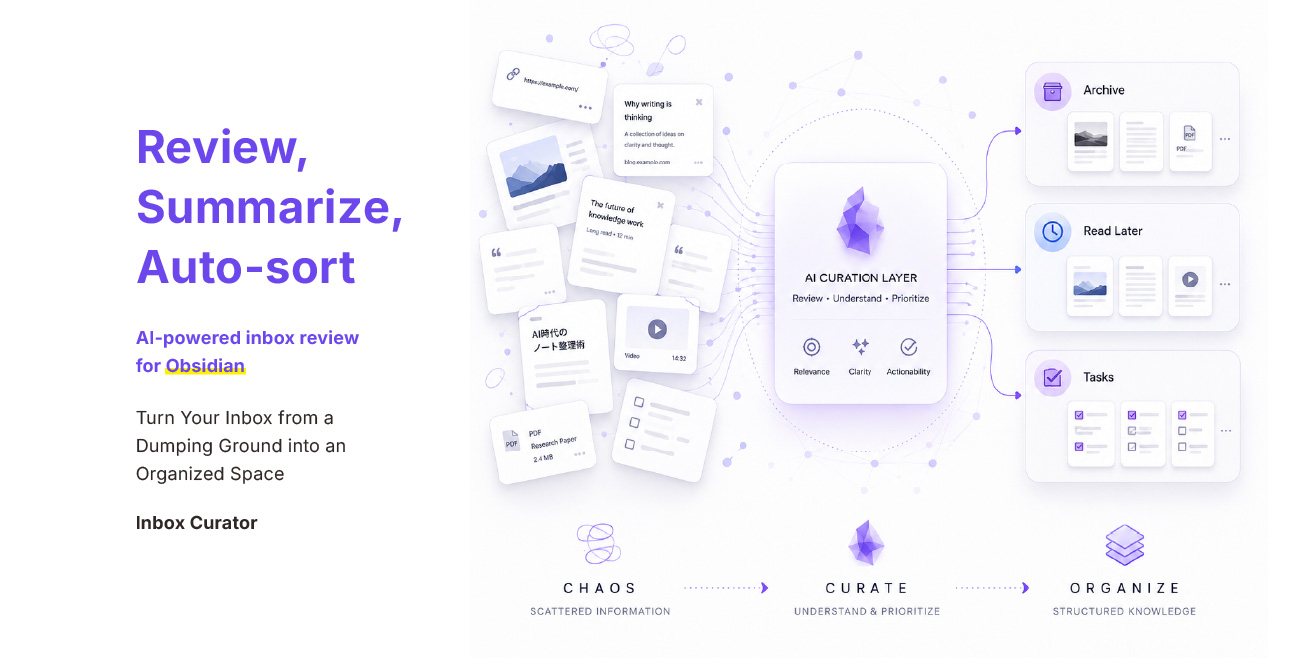
Inbox Curator — Auto-sort your Inbox
AI-powered note review and auto-sort plugin for Obsidian. Automatically reviews, summarizes, and organizes notes in your inbox folder using LLM APIs (OpenAI, Gemini, or Anthropic).
Whether your inbox is filled with saved web articles, raw AI chat logs, rough quick notes, or simple URL links, Inbox Curator helps you process them in bulk — then auto-sorts them into Archive, Read Later, or Tasks.
- Plugin ID:
kzyiym-inbox-curator - Version:
1.2.0 - Min Obsidian Version:
1.11.4 - Author: kzyiym
- License: MIT
Privacy Summary
Inbox Curator runs locally inside your Obsidian vault.
When AI review is enabled, selected note content and enabled attachment context (images, PDF text) are sent directly from your device to your configured AI provider (OpenAI, Gemini, or Anthropic). The developer does not receive, proxy, store, or monitor your notes, API keys, or usage data.
The plugin core contains no telemetry. Optional external pages (FAQ, Ko-fi, analytics) are separate from the plugin core and are disclosed in External Service Disclosures below.
API keys are stored using Obsidian's SecretStorage when available, falling back to in-memory session-only storage.
Safety Summary
Inbox Curator is designed to be reversible and conservative.
- Notes are never deleted automatically.
- Delete candidates are suggestions only.
- Auto-sort can be disabled entirely.
- Review only mode disables all action execution.
- Recent auto-sort runs can be undone.
- Tasks require higher confidence (High) than Archive or Read Later (Medium or High).
- Test with a small folder before enabling bulk processing or auto-sort.
For details, see Auto-sort Safety below.
Known Limitations
- AI-generated reviews may be incomplete or inaccurate.
- AI-generated summaries can be vague or, rarely, invert the author's claim; the model output is passed through unchanged. Use
Inbox Curator: Review current note (diagnostic capture)to inspect a single review's exact prompt, raw response, and normalized result. - URL extraction may fail on paywalled, script-heavy, or blocked pages.
- PDF text extraction is experimental (first 5 pages, up to 10,000 characters).
- Image review requires a multimodal-capable model and is limited to 3 images (1 MB each).
- External AI API usage may incur provider costs.
- Large notes or attachments may be truncated or skipped to stay within context and payload limits.
Features
- AI Note Review: Sends note content to a configurable AI provider and receives structured JSON verdicts with scores, summaries, credibility assessments, tags, and action recommendations.
- Reading Decision: Each review starts with a reading decision —
Read the source,Summary is enough,Reference when needed, orHold— with a one-sentence, article-specific reason. This is separate from the filing action and does not change auto-sort behavior. - Batch Processing: Processes multiple files sequentially with configurable limits and rate limiting to prevent API token exhaustion.
- Review Queue Monitor: Inspect pending, running, and failed reviews in one panel. Pause/resume the queue (in-flight API requests continue), cancel individual pending jobs, and retry failed notes with their original processing conditions. Failure rows show a classified reason only; details stay in the logs.
- URL Fetching & Article Extraction: Detects URL-only notes, fetches HTML metadata (og:title, description), and extracts readable article text.
- Attachment Awareness: Detects linked attachments (images, audio, PDF, etc.). Supports sending images to multimodal models (OpenAI, Gemini, Anthropic) for visual review (up to 3 images, max 1MB payload per image). Features optional temporary in-memory resizing/compression for larger source files (up to 10MB) to fit within this 1MB limit without modifying original Vault files.
- Experimental PDF Text Extraction: Reads local PDF attachments (first 5 pages, up to 10,000 chars) using Obsidian's built-in PDF.js.
- Auto-sort Actions: Optionally auto-move files based on AI recommendations (Archive, Read Later, Task). Delete candidates are suggested only and require manual approval before being moved to quarantine.
- Action Allowlist & Confidence Thresholds: Choose which actions are allowed to run, and set a minimum confidence per action for auto-execution. Reliability checks still apply on top.
- Action Review Panel (Dry-run & Approval): Preview what auto-sort would do, then select and apply only the actions you approve. A single panel covers dry-run preview, approval, and selective execution.
- Undo Auto-sort: Recent auto-sort runs can be reverted with the "Undo last auto-sort run" command.
- Automatic Watching: Watches the configured folder for file changes with configurable debouncing. Polling fallback for missed events.
- Deduplication: Uses
ai_review_source_hashin frontmatter to skip already-reviewed notes whose content hasn't changed. - i18n Support: English and Japanese UI. Output language is configurable (auto-detect, force Japanese, force English, or match note language).
- Custom Review Prompt: Up to 3000 characters of additional instructions for the AI review.
- Secure API Key Storage: Uses Obsidian's native
SecretStorageAPI. Falls back to in-memory session-only storage.
Requirements
An account and API key from one of the following AI providers:
- OpenAI (or any OpenAI-compatible endpoint)
- Google Gemini (Native Gemini API)
- Anthropic Claude (Native Anthropic API)
[!IMPORTANT] This plugin calls external AI APIs, which may incur usage costs depending on your provider's pricing plan.
External Service Disclosures
In compliance with the Obsidian Community Plugin Guidelines, here is the full disclosure regarding network connection, data storage, and privacy for Inbox Curator:
- Network Connections & External Services:
- AI Provider APIs: Note contents, Base64-encoded image payloads, or experimental PDF texts are sent directly from your local device to your configured AI provider endpoint (OpenAI, Gemini, or Anthropic). No intermediary servers are involved.
- URL Article Fetching: If a note consists only of a URL, the plugin directly fetches the raw HTML from the target web server to parse og:metadata and article text locally on your device.
- Ko-fi Widget (External Donation Service): Loaded strictly on the local FAQ page (
site/index.html) via an iframe fromhttps://ko-fi.comto display optional developer donation options. If blocked or declined, a safe HTTPS direct text link is provided as a fallback. The plugin's core functions are fully available without any donation. - Google Analytics 4 (GA4) (External Analytics - FAQ Page Only): The local help/FAQ page (
site/index.html) utilizes Google Analytics (tracking IDG-H0NMPE813V) strictly for collecting anonymous traffic statistics (page views, language, and theme choices) to improve documentation clarity.- Opt-In Basis (Disabled by Default): Tracking is strictly opt-in and disabled by default. No scripts are loaded or data sent unless you explicitly consent via the toast banner shown on your first visit, or enable it using the toggle checkbox in the Privacy section. You can revoke permission at any time.
- No Impact on Usage: Declining or blocking Google Analytics has zero impact on the functionality of the FAQ page or the plugin itself; all features remain 100% available. No note contents, credentials, or runtime telemetry from the plugin are ever transmitted.
- Account Requirements: You must possess a developer account and API key from OpenAI, Gemini, or Anthropic to configure reviews. The plugin itself requires no registration or subscription.
- Server-side Telemetry: The plugin core is 100% telemetry-free. The developer does not collect, monitor, store, or transmit any analytical data, usage statistics, note contents, or error logs outside of your vault. The optional FAQ page (
site/index.html) is the only exception, which uses Google Analytics 4 for anonymous traffic statistics on an opt-in basis (disabled by default). - Vault Access Limits: The plugin interacts exclusively with files and directories located inside your Obsidian Vault (primarily within the configured Watched Folder). It utilizes Obsidian's standard
app.vaultAPI and does not access any data or files on your system outside of your vault. - Data & Credentials Storage:
- API Keys: Stored securely using Obsidian's native
SecretStorageAPI. They are never written todata.jsonor synchronized across devices. If unavailable, keys are kept temporarily in-memory during the session. - Review Logs: Review verdicts are written strictly as local Markdown files (
*.ai-review.md) in your vault.
- API Keys: Stored securely using Obsidian's native
- Support & Developer Contact: Maintained by Kazuya Iyama / antidot (https://antidot.jp). Detailed troubleshooting and usage steps are maintained separately in our FAQ & Help Document.
Image Optimization for AI Review
When image reading is enabled, Inbox Curator can temporarily resize large image attachments in memory before sending them to the selected AI provider. This reduces skipped images while keeping the original Vault files unchanged. No external compression service is used. This feature only applies to JPEG, PNG, and WebP images, and does not apply to PDFs or videos.
Installation
Via Obsidian Community Plugins (Recommended)
- Open Obsidian Settings > Community plugins > Browse.
- Search for
Inbox Curator. - Click Install, then Enable.
Manual Installation
- Download
main.js,manifest.json,styles.cssfrom the latest release. - Create
<vault>/.obsidian/plugins/kzyiym-inbox-curator/. - Copy the files into that folder.
- Enable the plugin in Settings > Community plugins.
Ideal Workflow: Clip from Browser, Auto-Process in Obsidian
This plugin pairs perfectly with Obsidian Web Clipper — the official browser extension for clipping web pages directly into your vault.
- Clip: Browse any article, documentation, or post. Click the Web Clipper extension in your browser, select your Inbox folder as the destination, and clip it into Obsidian.
- Auto-Review: With Automatic Watching and Auto-review on Create enabled in Inbox Curator settings, every clipped note is automatically queued for AI review the moment it lands in your Inbox — no manual intervention needed.
- Auto-Organize: Enable the Archive, Read Later, and Task auto-sort actions you trust. Delete candidates remain pending for manual review and quarantine.
[!TIP] This clip → auto-review → auto-organize pipeline is the intended workflow. Set it up once and let the plugin handle your daily reading intake.
Quick Start
- Configure API Key: Go to Settings > Inbox Curator, select your Provider, enter your API Key, and click Test Connection.
- Set Up Folders:
- Watched Folder: Where notes to curate live (e.g.,
Inbox). - Review Output Folder: Where AI-generated reviews are saved (e.g.,
AI Reviews).
- Watched Folder: Where notes to curate live (e.g.,
- Run Review:
Inbox Curator: Review current note— review the active note.Inbox Curator: Process watched folder— batch-review all unprocessed notes.
[!WARNING] Test with 1–2 notes in a small folder before bulk operations or enabling auto-execution.
Commands
| Command ID | Display Name | Description |
|---|---|---|
review-current-note |
Review current note | AI-review the currently active note |
review-current-note-diagnostics |
Review current note (diagnostic capture) | Capture the exact prompt and raw response for the active note (writes no review note, no auto-sort; asks for confirmation first) |
cleanup-review-diagnostics |
Delete diagnostic capture files | Confirm and delete only review-*.json files under .inbox-curator/diagnostics/ |
process-watched-folder |
Process watched folder | Batch-review all unprocessed notes in the watched folder |
execute-proposed-action |
Execute proposed action for current note | Execute the AI-recommended action on the active note |
undo-last-auto-sort |
Undo last auto-sort run | Revert the most recent auto-sort run |
cleanup-processing-markers |
Clean up processing markers | Remove stale 🤖 prefix markers from reviewed files |
review-selected-notes-as-collection |
Review selected notes as a collection | Cross-note analysis of selected notes |
review-folder-as-collection |
Review folder as a collection | Cross-note analysis of a folder's contents |
open-action-review-panel |
Open action review panel | Review proposed actions for watched-folder notes and apply the ones you approve |
open-queue-monitor |
Open review queue monitor | View pending, running, and failed reviews; pause/resume, cancel pending jobs, and retry failed notes |
dry-run-auto-sort |
Dry-run auto-sort (preview) | Preview what auto-sort would do without applying any changes |
Review Queue Monitor
Inbox Curator: Open review queue monitor shows the in-memory review queue: how many notes are pending and running, and which notes failed. Running jobs are listed but cannot be cancelled — their API request is already in flight. Pending jobs can be cancelled individually. Pause queue stops new jobs from starting until you resume; it does not interrupt in-flight API requests.
Failed notes can be retried. A retry re-runs the review with the note's original processing conditions, so a watched-folder job may auto-sort again (subject to the existing confidence, allowlist, and prompt-injection checks). Retrying skips the API call when the note no longer exists or is already reviewed (ai_review_source_hash matches). Failure rows show only a classified reason (for example rate limit, timeout, invalid response); full details remain in .inbox-curator/logs/.
The queue is in-memory only. Closing Obsidian discards pending and failed entries; already-reviewed notes are not re-run on restart.
Settings
Folders & Scope
| Setting | Default | Description |
|---|---|---|
| Watched Folder | Inbox |
Folder monitored for curation |
| Review Output Folder | AI Reviews |
Target folder for AI review notes |
| Suggested Folder Base Path | (empty) | Parent path for AI-suggested archive paths |
| Delete Candidate Folder | Delete Candidates |
Destination folder used when you manually execute a delete_candidate recommendation. Delete candidates are never auto-executed. |
| Max Notes per Run | 10 |
Limits batch run size (1–100) |
| Max Concurrent Reviews | 1 |
Concurrent review jobs (1–8, Advanced) |
Request Pacing (Advanced)
| Setting | Default | Description |
|---|---|---|
| Requests per Minute | 10 |
API rate limit (1–60) |
| Delay Between Requests | 1000 ms |
Pause between API calls (0–60000) |
| Request Timeout | 60000 ms |
API call timeout (1000–300000) |
Automation
| Setting | Default | Description |
|---|---|---|
| Automatic Watching | OFF | Watch folder for file changes |
| Auto-review on Create | OFF | Review on file creation |
| Auto-review on Modify | OFF | Review on file modification |
| Watch Debounce | 1500 ms |
Debounce interval for file events |
| Polling Fallback | OFF | Periodic sweep fallback |
| Polling Interval | 30000 ms |
Polling frequency |
| Show Processing Marker | OFF | Prefix 🤖 to filenames during processing |
Auto-sort Actions
| Setting | Default | Description |
|---|---|---|
| Archive | OFF | Auto-executes when confidence meets its threshold (default Medium or higher) |
| Read Later | OFF | Auto-executes when confidence meets its threshold (default Medium or higher) |
| Tasks | OFF | Auto-executes when confidence meets its threshold (default High only) |
| Delete Candidates | — | Suggested only. Never moved automatically. |
Each auto-sort action has a Minimum confidence to auto-execute dropdown (Low or higher / Medium or higher / High only). Reliability checks still apply on top of the confidence threshold, and every automatic action remains blocked when prompt injection risk is detected.
Action Allowlist
| Setting | Default | Description |
|---|---|---|
| Allow Archive | ON | Permit the Archive action to be executed |
| Allow Read Later | ON | Permit the Read Later action to be executed |
| Allow Task | ON | Permit the Task action to be executed |
| Allow Delete Candidate | ON | Permit moving delete candidates to the quarantine folder (manual apply only) |
Disabled actions are still reviewed and shown in the action review panel, but are never auto-executed or applied.
Action Review Panel
Use Open action review panel to see every watched-folder note that carries a proposed action, with its action, confidence, reliability, whether it would auto-execute (and why not), and the resolved destination. Select the notes you approve and apply them in one step. Dry-run auto-sort (preview) opens the same panel read-only to preview auto-sort outcomes without making changes. Review only mode also forces the panel to be read-only. Applied moves, including Delete Candidate quarantine moves, are recorded to auto-sort history and can be reverted with Undo last auto-sort run.
Auto-sort Folders
| Setting | Default | Description |
|---|---|---|
| Read Later Folder | Read Later |
Destination for read_later actions |
| Task Folder | Tasks |
Destination for task actions |
Review Behavior
| Setting | Default | Description |
|---|---|---|
| Review Mode | Advanced |
Advanced (structured JSON) / Auto-sort (plain-text) / Review only (no actions) |
| Custom Review Prompt | (empty) | Up to 3000 characters of additional AI instructions. You can also list your interests or current tasks; they are used mainly for the reading decision. |
Context Budget
| Setting | Default | Description |
|---|---|---|
| Budget Preset | standard |
small (8K) / standard (32K) / large (64K) / custom |
| Custom Max Context Tokens | 32000 |
For custom preset — total context window |
| Custom Max Input Tokens | 20000 |
For custom preset — max input content |
| Custom Max Output Tokens | 4096 |
For custom preset — max output tokens |
| Custom Safety Margin | 3000 |
For custom preset — reserved headroom |
Collection Review
| Setting | Default | Description |
|---|---|---|
| Collection Review Output Folder | Collection Reviews |
Target folder for collection review notes |
| Use Existing Reviews First | ON | Reuse existing individual review notes to save API costs |
| Include Excerpt When Needed | ON | Include note excerpts if no individual review exists |
| Max Notes | 30 |
Maximum number of notes to analyze in a collection (2–100) |
| Max Excerpt Characters | 2000 |
Truncation limit for note excerpts (100–10000) |
Context Menu
| Setting | Default | Description |
|---|---|---|
| Enable Context Menu | ON | Enable right-click context menu options |
| Review Current Note | ON | Show "Review current note" |
| Process Watched Folder | ON | Show "Process watched folder" |
| Execute Proposed Action | ON | Show "Execute proposed action" on .md files |
| Review Selected as Collection | ON | Show "Review selected notes as a collection" on multiple selections |
| Review Folder as Collection | ON | Show "Review folder as a collection" |
| Execute Selected Actions | ON | Show "Execute selected proposed actions" on multiple selections |
| Review Each Selected Note | ON | Show "Review each selected note" on multiple selections |
| Clean Up Processing Markers | OFF | Show "Clean up processing markers" |
| Undo Last Auto-Sort Run | OFF | Show "Undo last auto-sort run" |
Logging
| Setting | Default | Description |
|---|---|---|
| Log Level | errors |
Off / Errors only / Operations (structured JSONL) |
URL Extraction
| Setting | Default | Description |
|---|---|---|
| Fetch URL Metadata | ON | Fetch og:title, description, etc. |
| Extract URL Article Text | ON | Extract readable article content |
| Max Extracted Characters | 12000 |
Truncation limit (Advanced) |
Attachments & Media
| Setting | Default | Description |
|---|---|---|
| Read Images | OFF | Send images to multimodal AI |
| Optimize Images Before Sending | OFF | Resize/recompress large images to fit 1MB limit |
| Read Videos | OFF | Detect video attachments (Advanced) |
| Extract PDF Text (experimental) | OFF | Extract PDF text via PDF.js |
AI Provider
| Setting | Description |
|---|---|
| Provider | OpenAI Compatible / Gemini Native / Anthropic Native |
| Endpoint URL | Customizable for OpenAI-compatible or advanced mode |
| Model | Model name for the selected provider |
| Instructions & Output Language | Match Obsidian language (Default) / Auto-detect / Japanese / English / Same language as the note |
| API Key | Managed via SecretStorage (masked input, save/delete buttons) |
| Test Connection | Validate API key, endpoint, and model availability |
Endpoint security (OpenAI-compatible). Remote endpoints must use HTTPS. Plain HTTP is permitted only for literal loopback addresses (localhost, 127.0.0.0/8, ::1); with a local HTTP endpoint your API key is sent unencrypted to the local process, so use it only on a machine you trust. Endpoint URLs containing credentials (user:password@) are rejected, and OpenAI-compatible requests never follow redirects, so an endpoint cannot bounce your API key or note content to another host.
ChatGPT (Codex CLI) provider (optional, off by default). Runs your locally installed codex CLI with your ChatGPT login — no API key is stored or used, and API-key authentication is refused. Enabling it requires an explicit consent notice: the CLI runs as a local process and may read files outside your vault. Each review runs from a temporary directory outside the vault with --ephemeral --ignore-user-config --sandbox read-only --skip-git-repo-check --disable plugins --disable apps --disable hooks, and the note content is passed only on stdin (never in command-line arguments or logs). The provider is text-only: image attachments and PDF text extraction are disabled. Background/automatic runs are off unless you enable them separately in settings. Obsidian must be able to find codex on its PATH or you must set an absolute path in settings. On Windows, codex.exe or the npm codex.cmd shim is used (codex.ps1 is not supported as the CLI path); .cmd shims run through cmd.exe, so the Codex model setting and temp folder path must not contain " or %.
Architecture Overview
Trigger (command / file event / polling)
  → ReviewQueue (async, concurrent, deduplicated)
    → ReviewPipeline (orchestrator):
        1. Read note content & parse frontmatter
        2. Detect URL-only notes → fetch HTML → extract article
        3. Detect attachments (images, PDF, etc.)
        4. Build AI prompt with full context
        5. Call provider API (OpenAI / Gemini / Anthropic)
        6. Parse & validate JSON response
        7. Map to domain model (ReviewResult)
        8. Write review output note (*.ai-review.md)
        9. Upsert frontmatter (ai_review_* fields)
        10. Auto-execute action (if configured)
The queue is in-memory only — persistence is handled via frontmatter hashes (ai_review_source_hash) on each note, avoiding restart-induced re-execution.
File Structure
main.ts                       # Plugin entry point (root, not src/)
src/
├── commands.ts                # Command registration
├── settings.ts                # Settings tab UI
├── types.ts                   # Domain model types
├── secrets.ts                 # SecretStorage API key management
├── reviewPipeline.ts          # Core review orchestration
├── collectionReview.ts        # Cross-note collection analysis
├── reviewResultMapper.ts      # AI response → ReviewResult
├── reviewResultValidator.ts   # Schema validation
├── reviewNormalizer.ts        # Simple-mode parsing & action normalization
├── reviewWriter.ts            # Review note generation
├── providerClient.ts          # Provider abstraction layer
├── providerErrorClassifier.ts # Provider error classification and mapping
├── openAiCompatible.ts        # OpenAI-compatible API client
├── gemini.ts                  # Google Gemini API client
├── anthropic.ts               # Anthropic Claude API client
├── urlExtraction.ts           # URL fetch & article extraction
├── attachmentContext.ts       # Attachment detection
├── actionLayer.ts             # Action execution
├── actionConfirmationModal.ts # Confirmation modal for destructive actions
├── actionReviewModal.ts       # Action review / dry-run modal
├── queueMonitorModal.ts       # Review queue monitor modal
├── undoAutoSort.ts            # Undo last auto-sort run
├── frontmatter.ts             # Frontmatter read/write
├── connectionTest.ts          # API connection tester
├── processingNotice.ts        # Persistent notice display
├── queue/
│   ├── queueTypes.ts          # Queue data types
│   ├── job.ts                 # Job creation
│   ├── reviewQueue.ts         # Async job queue
│   ├── queueFailureReason.ts  # Classified, display-safe failure reasons
│   ├── rateLimiter.ts         # Rate limiting
│   └── retry.ts               # Exponential backoff
├── i18n/
│   ├── index.ts               # Locale detection
│   └── locales/
│       ├── en.ts              # English translations
│       └── ja.ts              # Japanese translations
├── utils/
│   ├── contentFilter.ts       # Context budget & content filtering
│   ├── autoSortHistory.ts     # Auto-sort history persistence
│   ├── promptInjection.ts     # Prompt injection signal detection
│   ├── logFiles.ts            # Shared log file utilities
│   ├── errorLog.ts            # Error logging & file writing
│   ├── operationLog.ts        # Structured operation logging (JSONL)
│   ├── folder.ts              # Folder creation & validation
│   ├── pdf.ts                 # PDF text extraction
│   └── imageOptimization.ts   # Image resize/recompress
└── types/
    └── obsidian-extra.d.ts    # Obsidian API type augmentations
Development
# Install dependencies
pnpm install

# Type-check
pnpm check

# Build
pnpm build

# Watch mode
pnpm dev

# Run tests
pnpm test
Project Status
The current review, action approval, and reversible auto-sort foundation is implemented.
Planned work is prioritized as:
- Reuse existing Vault folder and tag vocabulary, with folder/tag pickers.
- Add related-note discovery, link suggestions, and similar-note grouping.
See GitHub Issues for public tracking.
Auto-sort Safety
Inbox Curator is designed to automate your inbox, not just summarize it. It can automatically move notes to Archive, Read Later, or Tasks when the AI review is reliable enough.
To keep automation reversible:
- It never deletes notes automatically.
- Delete candidates are suggested only. Applying them moves notes to a quarantine folder (they are never deleted), and applying delete candidates to multiple selected notes asks for confirmation listing each target before anything moves; cancelling moves nothing.
- Auto-sort actions are recorded in
.inbox-curator/auto-sort-history.json. - Recent auto-sort runs can be undone with the
Inbox Curator: Undo last auto-sort runcommand. - Tasks require higher confidence (High) than Archive or Read Later (Medium or High).
- All automatic actions are blocked when prompt injection risk is detected in the final review input, including fetched article text and extracted PDF text. Image review is also treated as untrusted for automatic actions because embedded text cannot be reliably pre-scanned.
- Automatic archive stays inside your suggested folder base path. When an automatic archive runs, the destination must be the configured base folder or a folder below it; if the base path is empty or invalid, or the AI-suggested folder falls outside it, the automatic archive is skipped (no silent move elsewhere). Manual actions are not constrained by this rule.
- For stricter safety, use Review only mode (Settings → Review Behavior → Review mode → Review only), which disables automatic and manual action execution.
FAQ
What is Inbox Curator?
Inbox Curator is an Obsidian plugin that uses AI (LLM APIs) to review, summarize, and auto-sort notes in your Inbox folder. It helps you process saved web articles, AI chat logs, quick notes, and URL links in bulk.
Which AI providers are supported?
OpenAI (and OpenAI-compatible endpoints), Google Gemini (native API), and Anthropic Claude (native API). You need an API key from one of these providers.
Will Inbox Curator delete my notes automatically?
No. Inbox Curator never deletes notes automatically. Delete candidates are suggestions only and remain in place until you approve the action manually. Manual execution moves the note to the configured quarantine folder (Delete Candidates); it does not permanently delete the note.
Can I undo auto-sorting?
Yes. Recent auto-sort runs can be undone with the command:
Inbox Curator: Undo last auto-sort run
Recorded move actions (Archive, Read Later, Task, suggested folder, Delete Candidates) can be restored. If the moved note is missing, that item is skipped; if the original path is occupied, the note is restored with a (restored) suffix.
How can I review proposed actions before applying them?
Run Inbox Curator: Open action review panel. The panel shows the proposed action, confidence, reliability, auto-execution decision, reason, and resolved destination for watched-folder notes. Select only the actions you approve.
Use Inbox Curator: Dry-run auto-sort (preview) for a read-only preview. Review only mode also makes the panel read-only and blocks manual action commands.
Why are Archive and Read Later executed with Medium confidence?
Archive and Read Later are reversible, low-risk organization actions. Tasks require High confidence because they can influence user behavior and priorities.
What are the review modes?
- Standard (Advanced): Full structured AI review with scores, summaries, credibility assessments, tags, and action recommendations.
- Simple (Auto-sort): Lightweight parsing focused on action classification only — ideal for auto-sorting.
- Safe (Review only): Generates review output but disables automatic and manual action execution. The action review panel remains available as a read-only preview.
How are API keys stored?
API keys are stored securely using Obsidian's native SecretStorage API. They are never written to data.json or synced. If SecretStorage is unavailable, keys are kept in-memory for the session only.
Does the plugin collect telemetry?
No. The plugin core is 100% telemetry-free. The developer does not collect, monitor, or transmit any usage data, note contents, or error logs. The optional external FAQ page (https://inbox-curator.antidot.jp/) uses Google Analytics on an opt-in basis (disabled by default) — see External Service Disclosures.
What does the processing marker (🤖) do?
When enabled in settings, a 🤖 prefix is added to filenames while review is in progress. This is a visual indicator only and is automatically removed when processing completes. It is disabled by default because it may cause sync conflicts in vaults synchronized with third-party services.
Can I review multiple notes at once?
Yes. You can:
- Process the entire watched folder with
Inbox Curator: Process watched folder. - Select multiple notes in the file explorer and choose context menu options like "Review selected notes as a collection" or "Review each selected note".
Collection review sends summaries of multiple notes to the AI together for cross-note analysis. Individual note review processes each note separately.
Can I review images and attachments?
Yes, when image reading is enabled (Settings → Attachments). The plugin can send up to 3 images (max 1 MB each) to multimodal AI models for visual review. Optional in-memory image optimization accepts source images up to 10 MB and temporarily compresses them for AI review without modifying your original files. PDF text extraction is also available (experimental, first 5 pages, up to 10,000 characters).
What happens with URL-only notes?
When a note contains only a URL, manual review can fetch the page's metadata (title, description, OG tags) and optionally extract the readable article text. Background watcher and polling jobs do not fetch remote URLs, which prevents an untrusted note from triggering network requests without user interaction. Static HTML works best; single-page applications (SPAs) that require JavaScript may yield incomplete results.
What is prompt injection detection?
The plugin scans the final text sent for review, including fetched article text and extracted PDF text, for signals that attempt to manipulate the AI review prompt. When detected, every automatic action is blocked. Image inputs are also treated as untrusted for automatic actions because prompt-like text inside an image cannot be reliably scanned before model execution.
You can use Safe mode (Review only) for maximum protection.
How does rate limiting work?
You can configure Requests per minute and Delay between requests in settings to control API usage. Combined with Max notes per run (1-100) and Max concurrent reviews (1-8), this prevents API rate-limit errors and manages costs.
Does the plugin work on mobile?
No. Inbox Curator is desktop-only. The plugin manifest specifies isDesktopOnly: true.
What is collection review?
Collection review analyzes a group of notes together, identifying themes, patterns, and relationships across notes. It can use existing individual reviews first (configurable) and include note excerpts when needed. Collection review output is saved to a separate configurable folder.
Can I customize the review prompt?
Yes. You can add up to 3,000 characters of custom instructions in Settings → Review Behavior → Additional Review Instructions. This lets you tailor the AI review to your specific needs (e.g., focus on technical accuracy, prioritize certain topics, add domain-specific criteria). You can also list your interests or current tasks; the AI uses them mainly for the reading decision, and an article outside those interests is not automatically treated as low value.
Why was a note skipped without an AI review?
If a note has no readable body content, or it is a URL-only note whose content could not be fetched, the plugin skips the AI call entirely and does not sort the note. This avoids spending API calls on empty input. Short but valid notes (brief announcements, short news) are still reviewed. Skipped notes are logged, and a notice is shown.
How do I capture a diagnostic of a single review?
Run Inbox Curator: Review current note (diagnostic capture) on the active note. Because the saved prompt and raw response may include note contents or attachment context, Inbox Curator first shows a confirmation explaining what is saved, exactly where (.inbox-curator/diagnostics/, which is git-ignored), and that masking is best-effort (API keys, bearer tokens, and data URLs are redacted, but other note text is not). After you confirm, one review request runs and the exact system/user prompt, raw AI response, and normalized result are saved to a local diagnostic file. It does not write or overwrite a review note, does not update the source note, and does not run any auto-sort action. To remove diagnostic files, run Inbox Curator: Delete diagnostic capture files; it asks for confirmation and deletes only review-*.json files under .inbox-curator/diagnostics/, leaving other internal files untouched.
How does deduplication work?
After a review, the plugin writes an ai_review_source_hash to the note's frontmatter. On subsequent scans, if the note content hasn't changed (hash matches), the note is skipped. This prevents re-reviewing unchanged notes.
What happens if a review fails?
Failed reviews are logged to rotating error log files in .inbox-curator/logs/. The queue continues processing remaining notes. You can configure log levels (off, errors, operations) in settings. Operation logs provide detailed execution traces for debugging.
Are my notes sent to the developer?
No. Note content, images, and PDF text are sent directly from your device to your configured AI provider (OpenAI, Gemini, or Anthropic). No intermediary servers are involved. The developer cannot access your notes or API keys.
FAQ & Help Document
We provide a comprehensive, interactive, and multi-language (English/Japanese) FAQ page to help you with common questions, troubleshoot issues, and understand plugin behaviors:
👉 Open FAQ Document (Supports real-time search, category filtering, theme toggle, and accordion toggles)
Note: The FAQ document is a supplementary helper document and does not constitute official product support. It is verified for Obsidian v1.11.4+ and Plugin v1.2.0+.
Feedback & Support
If you encounter any issues, have feature requests, or want to share your thoughts:
- For GitHub users: Please open an issue on GitHub Issues or start a discussion in GitHub Discussions.
- For non-GitHub users: If you do not have a GitHub account or are unfamiliar with GitHub, you can submit your bugs or suggestions using our Feedback & Support Form (Tally) (No account required).
- Support the developer: If you find this plugin useful, consider supporting development via Ko-fi (External Donation Service).