
README file from
Github

Kkongkkongi
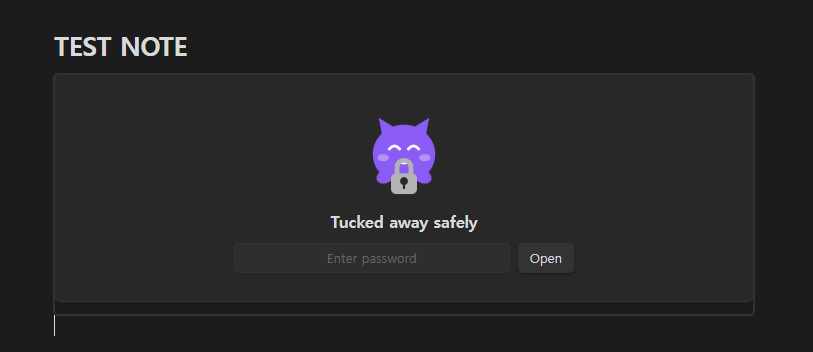
Encrypt a note and unlock it right where it sits. A little character hugs a padlock while your note is locked, and hands it back when you enter the password.
Why this exists
Some "lock" plugins only cover the screen — the .md file stays in plaintext, so opening it in any text editor reveals everything.
Kkongkkongi encrypts the content that gets written to disk. Open a locked note in Notepad and you see ciphertext.
Features
- Real encryption — AES-256-GCM, key derived with scrypt
- Inline unlock — no modal; the content unfolds inside the note
- Locks itself again — on leaving the note, losing window focus, or after a timeout
- Plaintext never hits disk — decrypted content lives only in the DOM
- Tamper detection — a damaged ciphertext fails the GCM auth tag check
- Theme aware — the character follows your light/dark theme
- English and Korean — the interface follows Obsidian's language, or pin one in the settings
How it looks
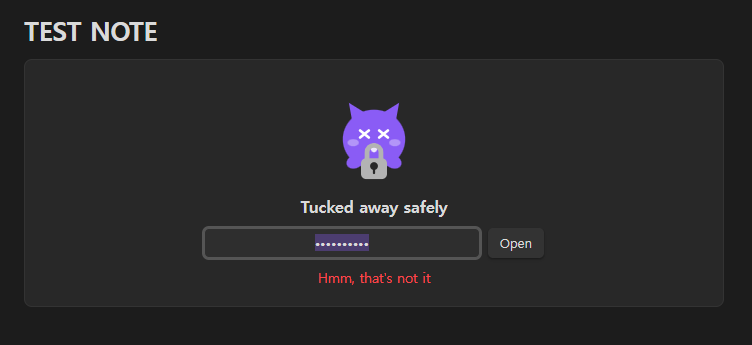
Get the password wrong and the character is startled — it shakes, then settles back.
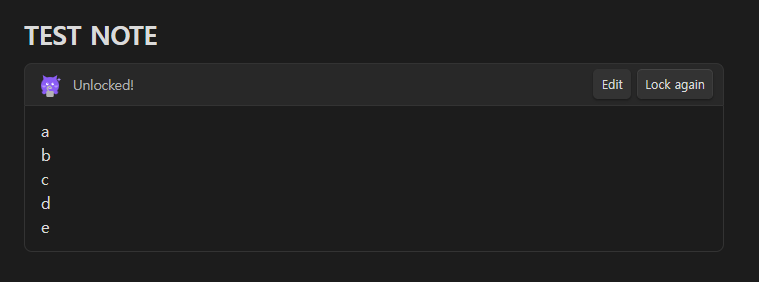
Get it right and the note unfolds in place, fully rendered as markdown.
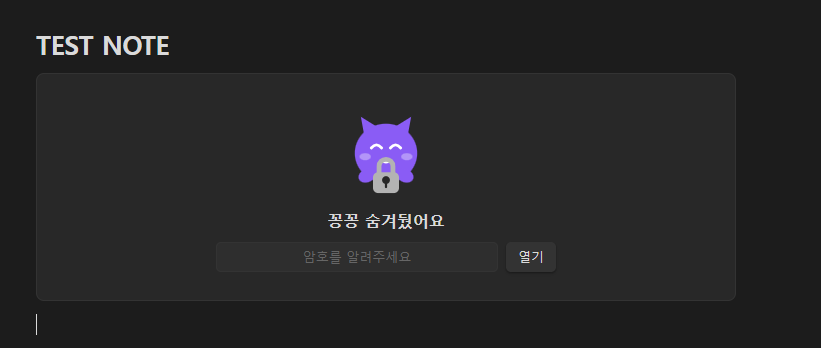
The same note with Obsidian set to Korean:
Usage
Command palette (Ctrl/Cmd + P):
| Command | What it does |
|---|---|
| Lock this note | Asks for a password twice, then encrypts the note |
| Remove lock permanently | Writes the content back as plaintext |
| Lock everything that is open | Immediately re-locks any unlocked block |
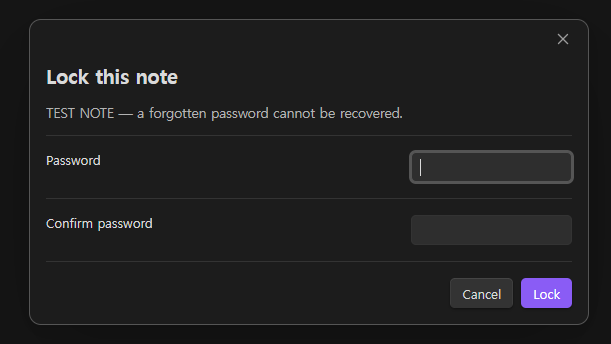
After locking, opening that note shows the character asking for a password. Enter it and the content renders as markdown. Move to another note and it locks again.
Settings
| Setting | Default |
|---|---|
| Language | Follow Obsidian |
| Show the character | On |
| Lock when leaving the note | On |
| Lock when the window loses focus | On |
| Auto-lock after (seconds) | 0 (off) |
Storage format
A locked note is stored like this:
```kkong-v1
{"v":1,"salt":"...","iv":"...","tag":"...","data":"..."}
```
| Cipher | AES-256-GCM |
| Key derivation | scrypt (N=32768, r=8, p=1), 32-byte key |
| salt | 16 bytes, regenerated on every lock |
| IV | 12 bytes, regenerated on every lock |
| Auth tag | 16 bytes |
Only standard primitives from Node's built-in crypto module. No home-grown cryptography.
Caveats
[!WARNING] A forgotten password cannot be recovered. There is no recovery path by design. Back up important notes before locking them.
- Encrypted notes are excluded from content search and the graph view — the file only holds ciphertext.
- Source mode shows the ciphertext. Content unfolds in Reading view and Live Preview.
- Uses Node's
crypto, so it is desktop only. - This does not protect the disk itself. Pair it with BitLocker, FileVault or Cryptomator if you are worried about a stolen device.
Installation
Community plugins
Settings → Community plugins → Browse → search Kkongkkongi → Install → Enable
Manual
- Download
manifest.json,main.jsandstyles.cssfrom Releases - Put them in
<vault>/.obsidian/plugins/kkongkkongi/ - Restart Obsidian and enable the plugin
Development
No build step — main.js is plain CommonJS and runs as written.
node --check main.js     # syntax
node test/test.js        # tests: crypto, format, i18n, state transitions, character
Adding a language: add a table to LOCALES in main.js keyed by the two-letter code, and add the option to the language dropdown. The test suite checks that every locale has the same keys and the same placeholders.
License
MIT