
README file from
GithubKindle Calibre Sync
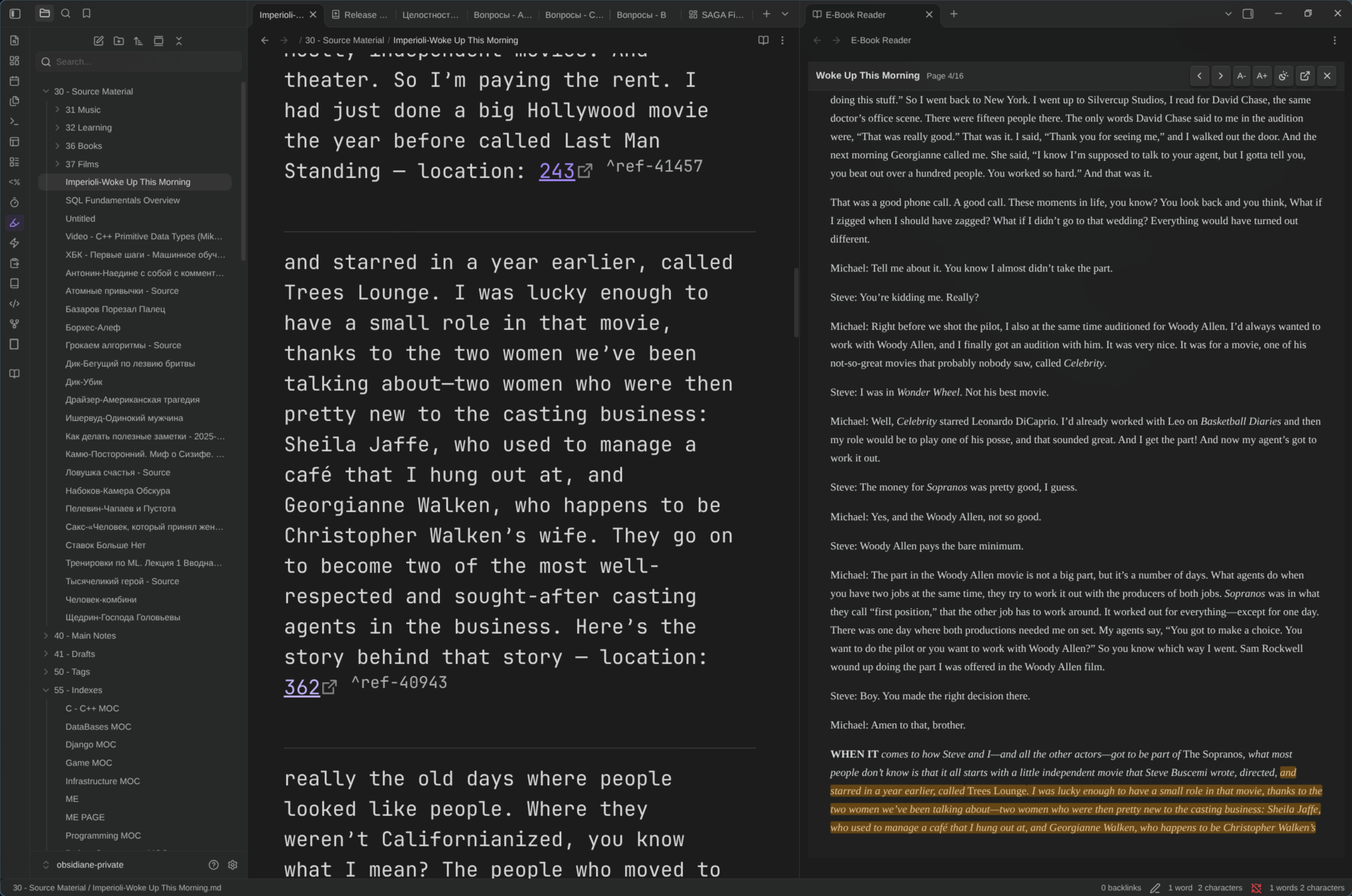
Desktop Obsidian plugin for syncing Kindle highlights and personal notes into your Obsidian vault and Calibre library, with an embedded side-by-side EPUB reader.
Supports legacy Kindle USB drives (My Clippings.txt), modern MTP Kindle firmware (ksdk_annotation_v1.db + .kfx), Kindle Desktop / Mobile Notebook HTML exports (.html via Notebook -> Export), and offline syncing via local files and cached snapshots — without Python.
How It Works
Connect your Kindle (or save .html exports from Kindle for Mac / PC) and trigger sync from the left ribbon (Sync Kindle highlights with Calibre) or Command Palette:
- Detect Kindle sources: Checks connected USB Mass Storage Kindles, MTP Kindles, Kindle Notebook
.htmlexport folders, configured local paths, and cached snapshots, or prompts you to select.txt,.db, or.htmlfiles manually. - Parse, clean & merge highlights: Extracts highlights and attached notes from
My Clippings.txt,ksdk_annotation_v1.db(resolving KFX locations in TypeScript), and Kindle.htmlexports. Progressive typing/edit logs recorded by Kindle on the same location are collapsed to the latest edit and merged without duplicates. - Prepare EPUBs in Calibre: Matches books in Calibre's
metadata.db. Matched books without an.epubcopy are queued and converted automatically viaebook-convert, then registered inmetadata.db. - Index CFIs & inject annotations: Calculates exact EPUB CFI coordinates in memory (
sql.js-fts5+jszip) and optionally writes annotations back into Calibre'smetadata.db. - Update vault notes: Resolves your highlights folder (by existing
kindle-title/kindle-bookIdfrontmatter orKindle Highlights/), createsAuthor-Title.mdnotes, repairs previously stacked edit-log notes, and appends unseen highlights with deep links ([location](calibre://view-book/.../EPUB?open_at=epubcfi(...))). - Read side-by-side: Clicking any location link opens the book directly in a split
ePub.jspane scrolled to the exact quote.
Supported Kindle Sources
| Firmware / Mode | Source Files | Transport / Fallback |
|---|---|---|
| Legacy USB Mass Storage | documents/My Clippings.txt |
Linux (/run/media, /media, /mnt), macOS (/Volumes), Windows (D:–Z:) |
| Modern MTP Firmware (including Scribe / recent Kindles) | system/ksdk/.annotations/*/ksdk_annotation_v1.db + .kfx |
Linux GVFS (gvfs-mtp) / gio, Calibre MTP driver (calibre-debug), or libmtp |
| Kindle Desktop / Mobile App (macOS, Windows, iOS/Android) | Notebook .html files (Notebook -> Export) |
Multi-file import command (Import Kindle Desktop / App export (.html)) or auto-scanned export folder (Kindle Exports/) |
| Mixed / Transitioning Devices | My Clippings.txt + ksdk_annotation_v1.db + .html |
Automatically merged and deduplicated with personal notes preserved |
| Offline / Kindle Disconnected | Local My Clippings.txt, .html + ksdk_annotation_v1.cache.db |
Configured paths, ~/, ~/Documents, ~/Downloads, ~/Desktop, vault root, and plugin cache |
Each live USB/MTP sync saves a local snapshot of ksdk_annotation_v1.db as .obsidian/plugins/kindle-calibre-sync/ksdk_annotation_v1.cache.db so later syncs continue working when the Kindle is unplugged.
Automatic EPUB Queue & Reader
- Sync-time conversion queue: Books matched in Calibre without an EPUB format are automatically converted via Calibre's
ebook-convertCLI (.fb2,.fb2.zip,.azw3,.mobi,.rtf,.docx,.html,.htm,.xhtml,.txt,.odt,.lit,.prc,.kfx), registered underEPUBinmetadata.db, and indexed before Markdown links are generated. - On-demand link recovery: Clicking an old
search:or non-EPUB deep-link converts or picks up the EPUB with single-flight deduplication, indexes all highlights in memory anddata.json, upgrades the note's links in place, registersEPUBinmetadata.db, and opens the reader on that quote. - Side-by-side reader controls: Light / Dark / Sepia themes, font scaling (
A-/A+), arrow-key page navigation, active amber highlight + passive yellow highlights across the book, and an Open in Calibre button.
Close desktop Calibre while syncing or converting so SQLite does not hold a lock on
metadata.db. Ifmetadata.dbis busy, Markdown updates and reading still complete and a non-fatal warning notice is shown.
Installation
- Community Plugins: In Obsidian go to Settings → Community plugins → Browse, search for Kindle Calibre Sync, install, and enable.
- BRAT: Add
divohub/kindle-calibre-syncin the BRAT plugin settings. - Manual: Download
main.js,manifest.json, andstyles.cssfrom Releases into<vault>/.obsidian/plugins/kindle-calibre-sync/.
Requirements
- Desktop Obsidian
>= 1.0.0(isDesktopOnly: true). - A Calibre library containing
metadata.db(auto-detected from Calibre config or~/Calibre Library,~/Documents/Calibre Library). - Optional: Calibre's
ebook-convertCLI onPATH/ standard install location for automatic conversion of non-EPUB formats. - Optional for MTP on modern Kindle firmware: GVFS/GIO (
gvfs-mtp),libmtp, or Calibre'scalibre-debugCLI.
Settings
All fields are optional; leave them blank to use automatic detection:
- Calibre library path: Custom folder containing Calibre
metadata.db. - Highlights folder: Vault folder for book notes (auto-detects existing folders with
kindle-titleorkindle-bookIdfrontmatter, otherwise defaults toKindle Highlights). - Legacy clippings file path: Explicit
My Clippings.txtpath used when no Kindle is attached. - Kindle annotation DB path (
ksdk_annotation_v1.db): Explicit path to an offlineksdk_annotation_v1.dbor cached DB copy. - Kindle Notebook HTML path or folder: Optional
.htmlfile or folder containingNotebook -> Exportfiles saved from Kindle for Mac / PC (also auto-scans<vault>/Kindle Exportsand~/Documents/Kindle Exports). - Inject highlights into Calibre: Toggle writing highlights and personal notes into Calibre's
metadata.db. - Open reader side-by-side: Toggle opening
calibre://view-book/...links inside Obsidian's embedded reader instead of forwarding to the OS handler.
Legacy Python CLI
For headless automation without Obsidian open, the repository retains the standalone Python CLI scripts (kindle_sync.py, clippings_parser.py, calibre_adapter.py, obsidian_exporter.py):
pip install -r requirements.txt
python3 kindle_sync.py --watch
{
  "vault_path": "/path/to/your/ObsidianVault",
  "highlights_folder": "Kindle Highlights",
  "calibre_library_path": "~/Calibre Library",
  "calibre_library_id": "Calibre_Library",
  "clippings_file_relpath": "documents/My Clippings.txt",
  "inject_calibre_annotations": true
}