
README file from
GithubKeepSydian
Connect Obsidian to Google Keep & sync on demand or set and forget.
If, like me, you use Google Keep alongside Obsidian, this plugin is for you. Obsidian's one-time Google Takeout import gets tedious for anything more than a once-off migration.




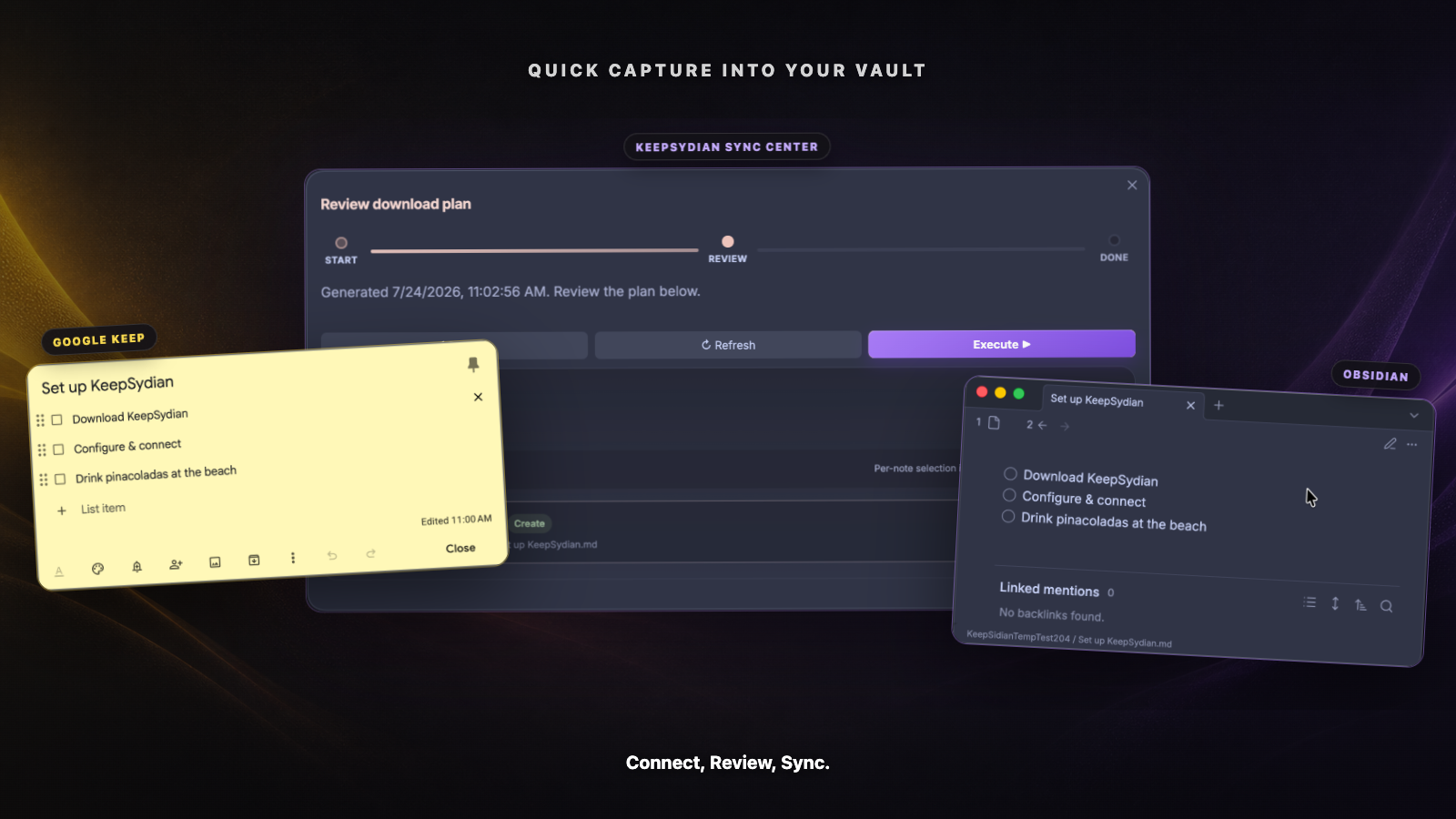
Google Keep is great for getting an idea down fast, especially on the go.
When you want that note incorporated into your knowledge workflow, KeepSydian copies it into Obsidian and keeps the two versions connected. For manual syncing, KeepSydian provides a review center, so you can see and approve any changes before the plugin writes to your vault. Or, you can set it and forget it, and let KeepSydian run in the background.
Install KeepSydian | Unlock supporter features | See how it works
Move quick captures into Obsidian
AI reuse in the local implementation branch
AI title and tag suggestions are kept in a vault-local ledger. Repeated syncs, date-range changes, credential refreshes and releases reuse accepted results. Relevant content or prompt changes can request a new result. Prefix changes and lower tag limits use the same raw tags. Review preparation does no AI work; a missing suggestion is requested only when its note is selected for execution.
Official versioned release routes share one stable service identity, so upgrading the plugin keeps cache entries, ownership and uncertain-attempt guards. Accounts and unrelated/custom backend endpoints remain isolated. Existing nonempty ledgers from unreleased URL-keyed builds are preserved and block new AI work until their history can be reviewed safely; the client never clears them to retry. Public beta.7 predates this ledger format.
Existing titles and tags start as manual. Saved AI settings do not start tag
generation for previously imported notes. A default-off choice in each download
can admit selected notes to tag generation; those notes then reuse accepted
results until relevant content changes. Existing titles stay manual.
The plugin protects edited titles, keeps deliberately removed AI tags removed,
and preserves manual tags. Competing
Keep and Obsidian field edits hold uploads until those fields are resolved.
Resolving a title conflict keeps unresolved tag conflicts. Title updates accept
quoted keys and scalar blocks; unsafe title or tag YAML alias changes stop before
a note write. Failed folder scans stop AI admission. A later manual import also
clears admission granted only by an abandoned preview.
Folder patterns search the fixed ancestor before the first variable, including
older date/title folders. A variable in the first segment requires a vault-root
scan. Admission and destination lookup read the same identity scope; a cold
metadata cache cannot create another copy of a linked note.
Duplicate identities, unreadable candidates and invalid frontmatter stop imports
before generation or note writes, even with AI off. Repair the affected files and
retry. A present GoogleKeepUrl must contain one supported Google Keep note URL;
lists, objects, empty values, other types, invalid URLs and conflicting aliases
stop the scan. A note with no identity property remains a legitimate unlinked
note. Discovery, AI admission and destination lookup use the same validated URL.
Identity validation also precedes the one-time frontmatter casing migration.
That migration preserves equivalent aliases when the canonical key already
exists. It only considers documents made of independently parseable single-line
root properties, then verifies that parsed data changes only by the intended key
renames. Original delimiter, newline and body bytes are retained. Multiline,
ambiguous or unsupported structures remain byte-for-byte unchanged, keeping the
supported legacy aliases without repeat migration scans.
A cached suggestion still requires admission before it can be applied to
an existing manual note; a fresh tag choice can reuse that result without a new
provider call. Files beginning with a byte-order marker are held; save them as
UTF-8 without BOM before retrying, because title/tag writers do not consistently
support that format yet.
The ledger also guards uncertain requests so losing a reply cannot cause an
automatic repeat charge. A failed larger-tag request keeps its earlier result.
Native transports can resend a POST internally. Each paid batch therefore first
gets a server process capability, then saves its local guard and sends one bound
operation. The matching server replays completed duplicates or holds uncertain
ones. Failed capability preflight can be retried without a paid-attempt guard.
After a paid POST, the client never refreshes the capability automatically.
Server restarts or requests reaching a different worker fail closed; production
routing availability must be validated before release. The bounded server replay
memory is separate from durable reuse in the vault.
This local branch needs the matching server contract. It has no automatic cache expiry or regeneration on model-default changes. It has no explicit retry/reset UI yet. Missing or damaged initialized metadata stops AI work. After an unconfirmed upload, AI work pauses until a reviewed upload produces a confirmed source receipt. This conservative recovery can require manual conflict resolution; it does not infer ownership from an ambiguous remote snapshot. The main ledger is limited to 8 MiB. A separate application journal is limited to 256 KiB and holds at most 15 note receipts before a checked snapshot checkpoint. Both files must stay together when the vault is backed up or restored. Interrupted writes either recover a confirmed receipt or stop AI work; this does not promise power-loss atomicity from the vault adapter. Simultaneous apps or separate devices do not have a shared durable claim. These files contain private titles, labels and outputs; keep them under the vault's normal protection. Installed desktop/mobile UAT and any release remain separate approval steps.
I built KeepSydian because I use Keep for quick capture and Obsidian for everything else.
KeepSydian manages the handoff seamlessly. With a few clicks, you can:
- Download Google Keep notes into a folder you choose, text, images and all, while preserving checklists and tags.
- Review and approve the exact creates, updates, conflicts, and skips before you commit.
- Keep attachments in a local
media/directory and optionally display imported images in your notes. - Run download syncs in the background every 24 hours (or at shorter intervals if you're a supporter).
- Track each sync in a dated activity log inside your vault.
A Google Takeout import is great for that one-time migration, but if both sides keep changing, KeepSydian can help you stay in sync.
How it works
- Capture a note in Google Keep.
- Open Sync now in Obsidian. KeepSydian builds a plan and shows proposed changes.
- Review the plan, choose Execute, and continue working in Obsidian.
Supporters can also upload eligible notes to Google Keep or run an experimental two-way sync. Two-way sync runs a separate download review followed by an upload from the updated local vault.
Free and supporter features
Downloads and 24-hour background syncing are free. Supporters can access features that cost more to run or need more hands-on support.
| Feature | Free | Supporter |
|---|---|---|
| Download active Google Keep notes & attachments | Yes | Yes |
| Review manual changes before execution | Yes | Yes |
| Background download sync every 24 hours | Yes | Yes |
| Custom background sync interval | Yes | |
| Choose individual notes from a review plan | Yes | |
| Filters for text, color, pinned, and archived notes | Yes | |
| Smart titles and auto-tags | Yes | |
| Upload and two-way sync, currently experimental | Yes | |
| Two-way background sync | Yes | |
| Priority support and early access | Yes |
Support KeepSydian monthly or annually. Active supporters can manage billing from Settings > KeepSydian > Exclusive features for project supporters.
Install and sync
1. Install the plugin
Install KeepSydian from the Obsidian community plugin store.
You can also:
- Install through BRAT.
- Clone this repository into
{vault}/.obsidian/plugins/keepsidian.
After installation, enable KeepSydian under Settings > Community plugins, then open its settings.
2. Retrieve your Google Keep token
On desktop, choose Retrieve token with helper. KeepSydian asks before downloading the open-source token helper from GitHub Releases, then reuses the installed helper until an update is needed. If you prefer, you can follow the manual Keep-It-Markdown instructions and paste the token yourself.
On mobile, the retrieval helper is not available. Retrieve a token on desktop and transfer it to your phone using a
method you trust. You can also paste a short-lived oauth2_4... token and let the KeepSydian server exchange it.
3. Choose where your notes are saved
Choose a save location in the settings. New installs default to /KeepSydian. You can customize the
folder and filename patterns with values such as {title}, {now.year}, {now.month}, and {note.date}.
Then run Sync now from the command palette, ribbon, or status bar.
The sync review center
The Sync Center shows planned changes for your approval.
- Sync now opens the Sync Center and immediately builds a download plan.
- Open sync center lets you choose Download, Upload, or Two-way sync first.
- Download plans can start from the last successful sync, all dates, or a custom date.
- The review groups changes by status and action, with the exact affected notes shown below.
- During execution, the review screen, notices, and status bar show sync progress.
Smart title and tag suggestions use one request per note when both are enabled on the updated server. Failed suggestions appear in review; you can still import the original note. Suggested tags are added alongside existing manual tags. Restricting tags to existing tags uses the vault's tag list, preserved while a paused download resumes.
(Deprecated) There are legacy download, upload, and two-way commands, which are a hold-over from older versions.
They open the same sync center flow, and will be removed in future versions.
Privacy and data handling
Your Google Keep token is stored on your device. When your Obsidian version supports Secret Storage, KeepSydian uses it.
KeepSydian sends your email, token, and the note data needed for the requested sync to its server. The server uses Keep-It-Markdown to connect to Google Keep, discards the credentials after the request, and does not log or store your credentials or notes.
This server lets you use KeepSydian without installing and maintaining a local Python environment.
After installation or an upgrade, KeepSydian may show one local feedback invitation for that plugin version. The survey is not loaded and no survey event is sent unless you select Give feedback. That action opens the external KeepSydian user feedback survey in Google Forms. Survey responses and any optional email address are handled by the form, not stored in your vault or returned to the plugin.
Sync details
Conflicts
If both copies changed since the last sync, KeepSydian tries to merge their bodies while preserving the existing
frontmatter. If the merge cannot be completed safely, the incoming note is saved as a separate
-conflict-<timestamp>.md file. Conflict timestamps use hyphens instead of colons
so the filenames work on Windows. If a copy already exists, a numbered suffix
preserves both copies. Unresolved originals and conflict copies are excluded from
that attempt's upload; resolve the competing content before expecting a no-op sync.
New note and media filenames use a shared portable component policy. Source titles are retained when a generated filename differs; a later user rename remains a local title edit. Existing linked notes stay at their current paths. Unsafe configured folders are rejected for review instead of being silently redirected or renamed. Filename allocation accounts for case and Unicode-normalization equivalents and leaves room for extensions and collision suffixes.
Attachments
- Downloaded attachments are stored in the sync folder's
media/directory. - When a media basename already contains different bytes, a separate version is allocated and generated embeds use that filename. Existing bytes are preserved; this can retain older media versions until the user chooses to clean them up.
- The Display imported images in notes option in plugin settings adds Obsidian image embeds while keeping the files
in
media/. - Upload scans notes under the configured save location for attachments referenced from
media/. - Missing files are skipped and recorded in the sync log.
- Media uploads are not supported by the experimental two-way workflow.
Frontmatter
KeepSydian adds these frontmatter fields to match each Markdown file with its Google Keep note:
GoogleKeepUrlGoogleKeepCreatedDateGoogleKeepUpdatedDateKeepSydianLastSyncedDate
Mobile
KeepSydian works on Obsidian mobile. Once the token is in place, you can capture notes in Google Keep from a phone or watch, then download them into your Obsidian vault from your phone.
The desktop token helper is the only part of setup that is not available on mobile.
Frequently asked questions
Why not use Google Takeout?
Takeout is a good fit for a one-time migration. KeepSydian adds repeat downloads, incremental sync dates, reviewable plans, conflict handling, and supporter uploads back to Google Keep.
Is two-way sync safe?
Two-way sync is experimental and available to supporters. It is disabled until you acknowledge the backup advisory and opt in. Back up your vault before enabling it.
Does KeepSydian replace Obsidian Sync?
No. Obsidian Sync moves your vault between devices. KeepSydian connects a chosen folder in that vault with Google Keep.
Why did KeepSidian become KeepSydian?
Obsidian's plugin naming guidelines no longer allow new plugin names ending in -sidian. The spelling changed so the
plugin could remain in the official directory. Only the spelling changed.
Help shape KeepSydian
Found a bug or have an idea? Open an issue.
You can also complete the KeepSydian user feedback survey.