
README file from
GithubKanban Plus++
本项目基于 community-archive/obsidian-kanban 进行修改与扩展。 感谢原项目优秀的开源工作!
This project is modified and extended from community-archive/obsidian-kanban. Thanks to the original project for the excellent open-source work!
📖 项目简介 / Overview
Kanban Plus++ 是一个适用于 Obsidian 的 Markdown 看板插件。它以普通 Markdown 文件保存看板内容,支持看板、列表和表格视图,并在原有看板体验上扩展了完成列自动流转、来源追踪、取消归档、卡片时间记录、时间排序和列样式自定义等能力。
Kanban Plus++ is a Markdown-backed Kanban plugin for Obsidian. It stores boards as regular Markdown files, supports board, list, and table views, and extends the original Kanban workflow with automatic complete-list movement, source tracking, unarchive support, card time records, time-based sorting, and per-list styling.
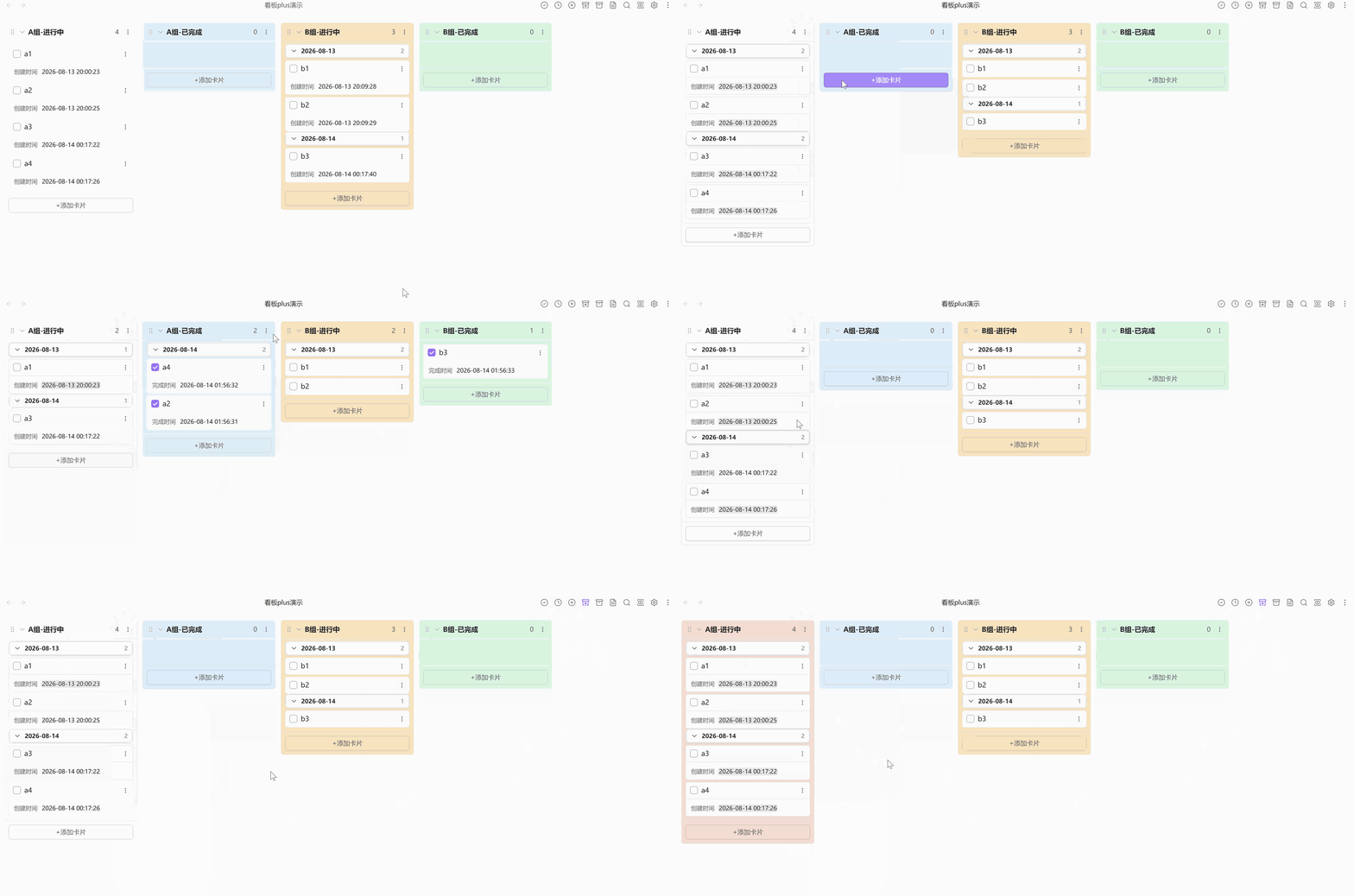
👀 预览 / Preview
约 2 MB 文件大小的 GIF 动态预览图,请耐心等待加载。
The preview is an approximately 2 MB GIF file. Please wait patiently while it loads.
✨ 新增功能 / New Features
| 功能 | 描述 | 默认值 |
|---|---|---|
| 中英文界面 | 看板界面和设置页支持 English / 中文切换。 | 自动 (跟随系统);非中文环境使用 English |
| 完成列自动流转 | 可将某个列标记为完成列,点击卡片复选框后自动移动到默认完成列。 | 未设置默认完成列;若仅有一个完成列则自动使用该完成列 |
| 默认完成列按来源列设置 | 非完成列可以分别选择默认完成列,并可从列菜单中清除默认完成列;配置按稳定列 ID 保存。 | 未设置 |
| 取消完成返回来源列 | 完成任务时会记录来源列和原位置,取消完成后尽量返回来源列。 | 始终启用 |
| 统一卡片持久化记录 | 卡片创建时间、完成时间、完成来源和归档来源统一保存到 cards 配置,替代旧的分散记录字段。 |
始终启用 |
| 归档卡片显隐按钮 | 看板顶部可显示/隐藏已归档卡片,便于在看板视图中查看归档内容。 | 开启 |
| 归档来源记录与取消归档 | 归档卡片会记录来源列、来源位置和归档时间,并可从归档区执行取消归档。 | 始终启用 |
| 卡片创建时间 | 新卡片会记录创建时间,并可自定义创建时间显示格式。 | 格式 YYYY-MM-DD HH:mm;非完成列显示开启 |
| 卡片完成时间 | 卡片进入完成列时会记录完成时间,并可自定义完成时间显示格式。 | 格式 YYYY-MM-DD HH:mm;完成列显示开启 |
| 时间显示快捷按钮 | 看板顶部可一键显示/隐藏所有列的创建时间或完成时间。 | 两个按钮均开启 |
| 完成列时间显示控制 | 可全局或按列控制完成列中创建时间、完成时间的显示。 | 创建时间关闭;完成时间开启 |
| 列内排序规则 | 列菜单支持按卡片文本、日期、标签、创建时间、完成时间和内联元数据排序,并持久化排序规则。 | 非完成列手动排序;完成列默认按完成时间降序 |
| 手动排序完成列的入队位置 | 当完成列使用拖拽排序时,可设置通过复选框完成的卡片插入列头部或尾部。 | 头部 |
| 卡片时间分组与折叠 | 列菜单可按创建日期或完成日期对卡片分组,分组标题显示数量并支持折叠/展开。 | 全局分组开关开启;每列默认不分组 |
| 自定义列背景色 | 编辑列时可为单个列设置背景色,支持 #RGB、#RRGGBB、rgb() 和 rgba()。 |
未设置 |
| 列配置持久化 | 列折叠、默认完成列、背景色、分组方式、排序规则和时间显示配置统一保存到 lanes 配置。 |
始终启用 |
| Feature | Description | Default |
|---|---|---|
| Bilingual UI | Switch the board UI and settings page between English and Chinese. | Auto (follow system); English outside Chinese locales |
| Automatic complete-list movement | Mark a list as complete and move cards there automatically when their checkbox is checked. | No default complete list; a single complete list is used directly |
| Source-specific default complete lists | Incomplete lists can choose and clear their own default complete list from the list menu; settings are stored by stable list ID. | Not configured |
| Return to source on uncomplete | Source list and original position are recorded when tasks are completed, so uncompleted cards can return to their source list. | Always enabled |
| Unified card persistence | Card created time, completed time, completion source, and archive source are stored in cards, replacing older split fields. |
Always enabled |
| Archive visibility button | Toggle archived cards from the board header to inspect archived content in the board view. | On |
| Archive source tracking and unarchive | Archived cards remember their source list, source position, and archived time, and can be unarchived from the archive area. | Always enabled |
| Card created time | New cards record their created time, with a configurable display format. | YYYY-MM-DD HH:mm; shown in incomplete lists |
| Card completed time | Cards record their completed time when moved into a complete list, with a configurable display format. | YYYY-MM-DD HH:mm; shown in complete lists |
| Time display header buttons | Board header buttons can show or hide created times and completed times across all lists. | Both buttons on |
| Complete-list time display controls | Control created-time and completed-time visibility globally or per list for complete lists. | Created time off; completed time on |
| Per-list sort rules | List menus can sort by card text, date, tags, created time, completed time, and inline metadata, with persisted sort rules. | Incomplete lists manual; complete lists completed-time descending |
| Manual complete-list insertion position | When a complete list uses manual order, cards completed by checkbox can be inserted at the beginning or end. | Prepend |
| Card time grouping and folding | List menus can group cards by created date or completed date, with count headers that can be collapsed or expanded. | Global grouping toggles on; no per-list grouping by default |
| Custom list background color | Set a background color for each list while editing it; supports #RGB, #RRGGBB, rgb(), and rgba(). |
Not configured |
| Persisted list settings | List collapse, default complete list, background color, grouping, sorting, and time display preferences are stored in lanes. |
Always enabled |
📦 安装 / Installation
从 Obsidian 社区插件安装 / From Obsidian Community Plugins
- 打开 Obsidian -> 设置 -> 第三方插件。
- 点击 浏览,搜索 Kanban Plus++。
- 点击 安装,然后 启用。
- Open Obsidian -> Settings -> Community plugins.
- Click Browse and search for Kanban Plus++.
- Click Install, then Enable.
从 GitHub Releases 安装 / From GitHub Releases
- 从最新 release 下载
main.js、styles.css和manifest.json。 - 放入
<vault>/.obsidian/plugins/kanban-plus-xzhi。 - 重启 Obsidian,在 设置 -> 第三方插件 中启用 Kanban Plus++。
- Download
main.js,styles.css, andmanifest.jsonfrom the latest release. - Place them in
<vault>/.obsidian/plugins/kanban-plus-xzhi. - Restart Obsidian, then enable Kanban Plus++ from Settings -> Community plugins.
🚀 使用 / Usage
- 启用插件后,创建新的 Kanban 看板,或将空白笔记转换为看板。
- 在看板中添加列和卡片;需要自动完成流转时,将目标列设置为完成列,并在来源列菜单中选择默认完成列。
- 点击卡片复选框可将卡片移动到默认完成列;取消完成时,卡片会尽量返回记录的来源列。
- 使用看板顶部按钮切换归档卡片显示,并在归档区对卡片执行取消归档。
- 在插件设置中调整语言、完成卡片放置方式、日期/时间格式、创建时间显示、完成列创建时间显示、列宽、看板头部按钮和其他显示选项。
- 双击列标题进入列编辑区域,可为单个列设置背景色,或将该列标记为完成列。
- Enable the plugin, then create a new Kanban board or convert an empty note into a board.
- Add lists and cards. For automatic completion workflows, mark a target list as complete and choose the default complete list from the source list menu.
- Check a card checkbox to move it to the default complete list; unchecking it will try to restore the card to its recorded source list.
- Use the board header button to show or hide archived cards, and unarchive cards from the archive area when needed.
- Open the plugin settings to adjust language, completed-card placement, date/time formats, created-time display, created-time display in complete lists, list width, board header buttons, and other display options.
- Double-click a list title to open list editing controls, where you can set a per-list background color or mark the list as complete.