
README file from
Github
K-Plex
K-Plex makes filename search and the current note’s Obsidian-known relationships available while indexing continues. Later starts reuse the local graph cache; full validation can take longer on large vaults.
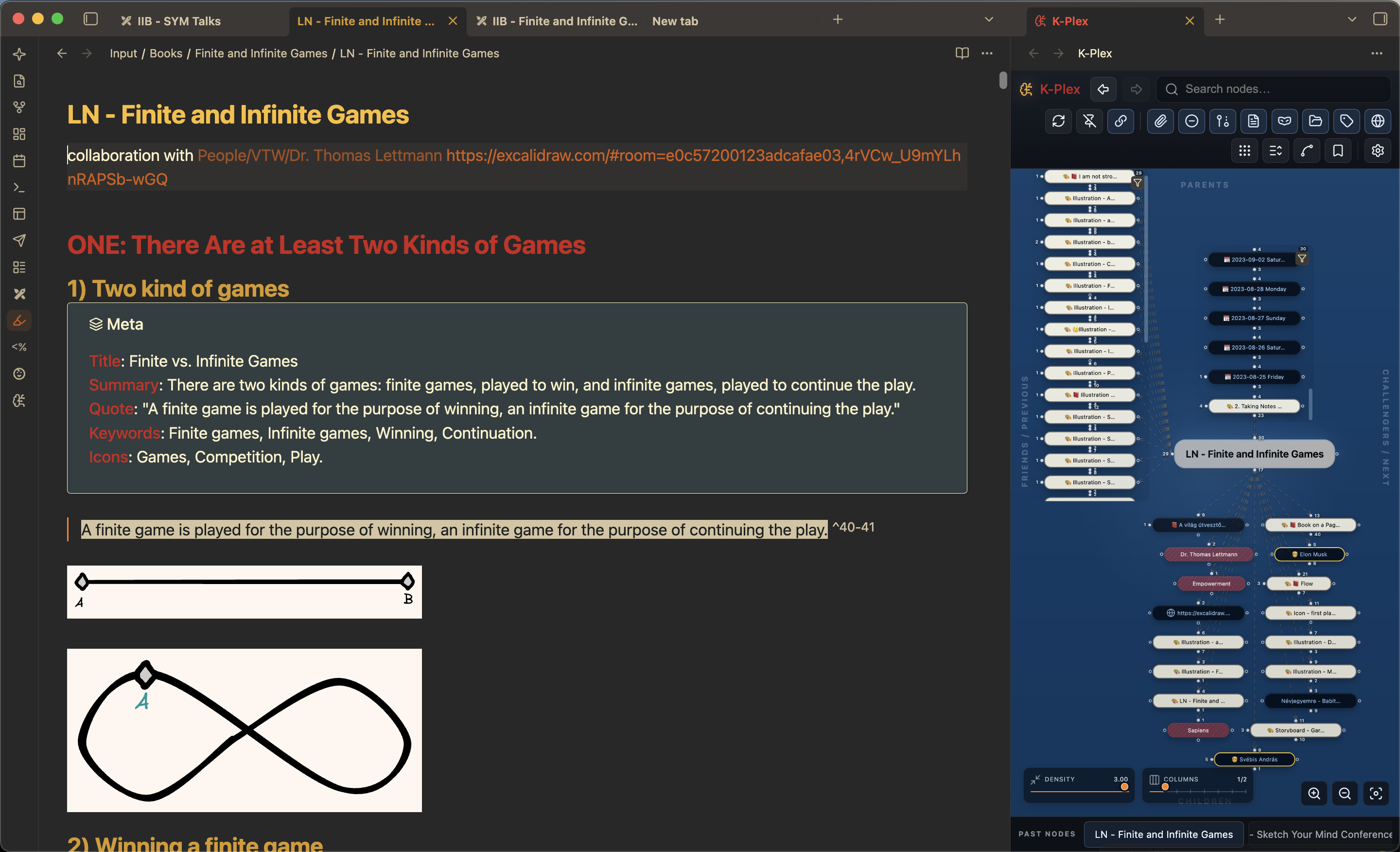
K-Plex (Knowledge Plex) is a spatial knowledge navigator for Obsidian. It keeps one note at the center and places related notes in predictable directions, so position carries meaning instead of constantly changing like a force-directed graph.
K-Plex is inspired by the navigation model of TheBrain. It provides a relationship-oriented way to explore your knowledge, with its own interface and indexing system. Excalidraw and Dataview are not required.
K-Plex is designed for people who want to move through their notes rather than stare at an entire vault at once: follow a parent, compare challengers, see siblings, open a related document beside the graph, expand a note into sections, or temporarily reshape the Plex with Graph Lenses.
Warning: K-Plex is a new plugin and is still undergoing real-world testing. Bugs and unexpected behavior are possible. Before using K-Plex to create or modify relationships between important notes, I strongly recommend trying it first on a small set of test notes. As with any plugin that can modify your vault, keep a current backup of your data.
Why K-Plex?
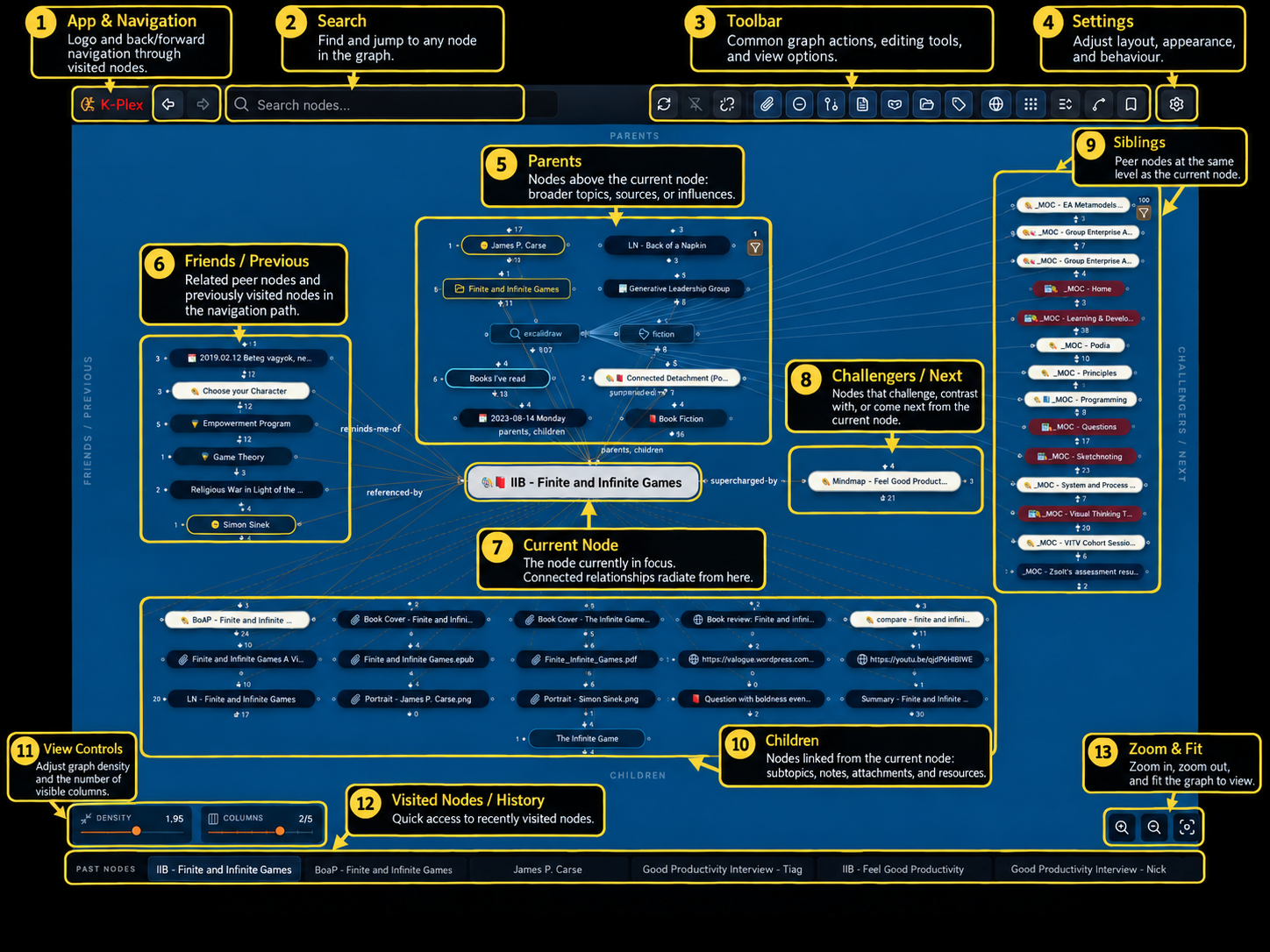
Large graph views can quickly become dense and hard to navigate. K-Plex takes a different approach: it shows a structured Plex around the current note and keeps relationship directions stable.
That makes the graph useful as a working surface:
| Relationship | Position |
|---|---|
| Parents | above |
| Children | below |
| Friends / Previous | left |
| Challengers / Next | right |
| Siblings | separate peripheral area |
The same relationship keeps the same spatial meaning as you move from note to note. You can therefore build a mental map of your knowledge without depending on a force simulation.
Requirements
- Obsidian 1.13.0 or newer
- Desktop, tablet or mobile
- Desktop if you want to use Obsidian pop-out windows
K-Plex uses its own plugin ID, so you can keep ExcaliBrain installed while migrating your settings.
Getting started
- Install and enable K-Plex.
- Open it from the ribbon or run Open K-Plex from the Command Palette.
- Allow the first index to complete. On later starts K-Plex restores its cached index and becomes usable much faster.
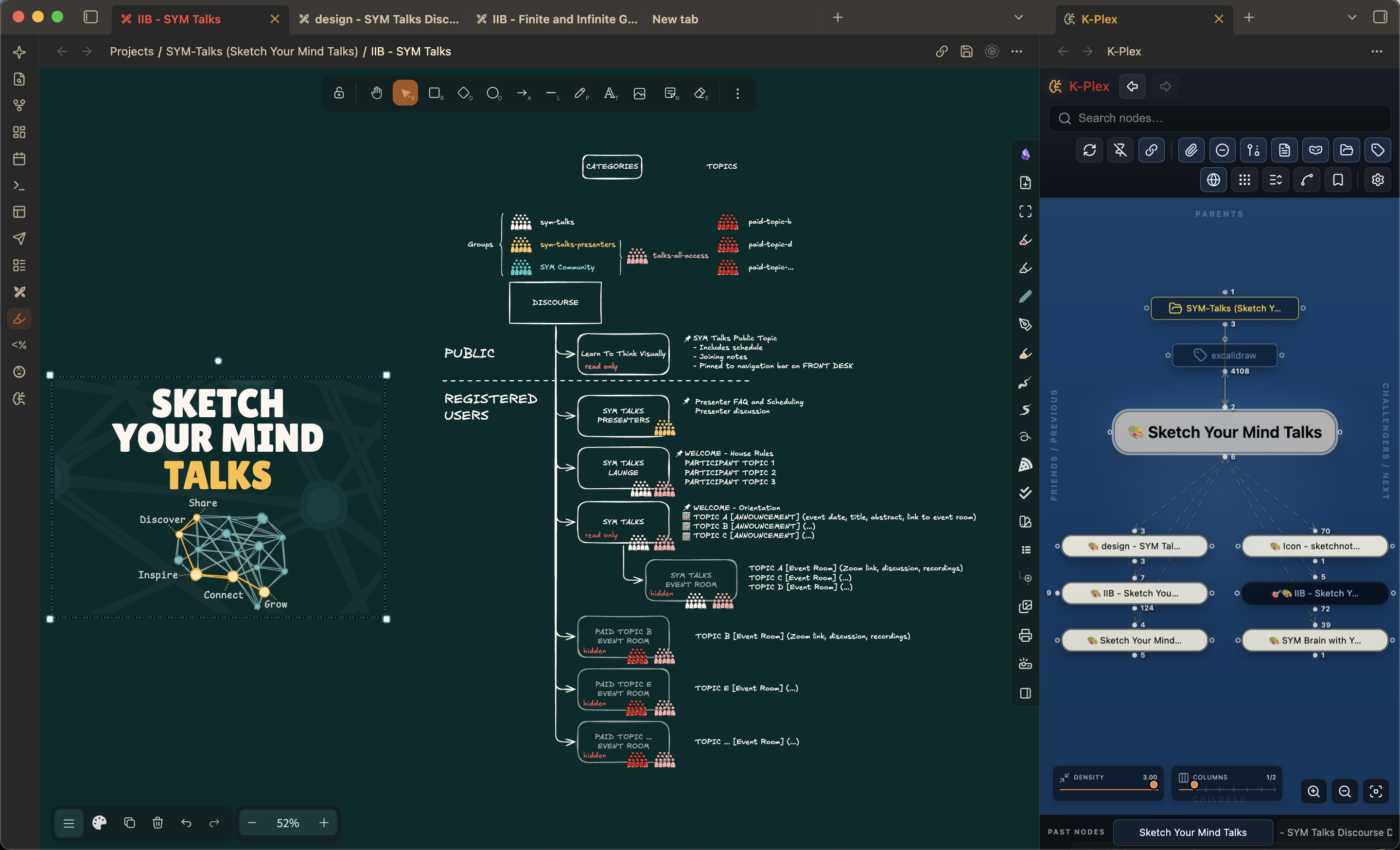
- Click a note in the Plex to make it the new center.
- Use the four relationship areas around the center to explore or build your knowledge structure.
Useful commands include:
- Open K-Plex
- Focus active note in K-Plex
- Open K-Plex in side panel
- Open K-Plex in pop-out window (desktop)
- Rebuild K-Plex index
- Add parent / child / friend / challenger
On phones, K-Plex opens naturally in the side panel. Tablets can use either a normal K-Plex tab or the side panel.
Navigating the Plex
- Single-click / tap a node to make it the center.
- Double-click a file-backed node to open it in Obsidian.
- Double-clicking a URL opens it in the browser.
- Double-clicking an unresolved link can create the missing Markdown note. Placeholders carry only the unresolved note name; their real folder/path is assigned when the file is created.
- Folder and tag nodes can also become the center.
- Drag empty graph space to pan and use the mouse wheel or pinch gesture to zoom.
- Long-press on touch devices opens the same context menus available with right-click on desktop.
- Clicking or touching empty graph space clears temporary node, gate and connector highlights.
- Use Fit graph whenever you want to bring the visible Plex back into view.
K-Plex uses positional animation when navigating: notes that exist in both scenes visibly move to their new location, while new notes enter from the direction of their relationship. Animation speed can be changed in Settings → K-Plex → Plex behavior, including turning it off completely.
Fullscreen and Zen mode
Use Maximize beside Fit to screen to cover the Obsidian workspace with K-Plex on desktop. Minimize restores the original pane and surrounding workspace. This stays inside Obsidian’s window.
Use Expand to enter Zen mode, hiding K-Plex’s top toolbar, pins and bottom history. Shrink restores them. Zen mode also works on tablets and phones. Both modes are independent, and the bottom-right graph controls remain available. They preserve zoom, pan and selection; use Fit to screen when you want to reframe the graph.
An unclaimed Escape with the graph focused exits Zen first, then fullscreen. Search queries, connection sessions and native editors, menus and dialogs retain their own Escape behavior. Fullscreen exits when you switch to another native pane or close the view. These modes last only for the current view session.
Search, history and pins
The toolbar search box searches the whole Vault, including orphan attachments, Canvas files and indexed URLs. It matches display names, file names, aliases, paths and URL substrings using fuzzy matching. Exact and prefix matches rank above looser matches.
Display names are configurable in Settings → K-Plex → Visual styling → Canvas & labels → Name fields. Enter a comma-separated precedence list such as title, aliases, backup_names. K-Plex uses the first non-empty text/list value and falls back to the file name. The default is aliases, which preserves the previous alias-rendering behavior.
For longer titles, open Settings → K-Plex → Visual styling → Node styling → Node appearance. Increase Maximum label length and Maximum node width, and adjust Maximum central node width separately. Horizontal density affects the displayed character limit. Enable Wrap node labels for two-line labels with consistent regular row heights; Past nodes also uses a taller two-line row. Long history titles keep their beginning visible and truncate on the right.
Keyboard shortcuts while K-Plex has focus:
- Up / Down — move through search results
- Enter — activate the selected result
- Escape — close the result list
- Alt/Option+/ — focus Vault search
Select the graph itself to use graph shortcuts. Arrow keys highlight displayed nodes; Alt/Option+arrow jumps to another area. Cross sections at arrow-key boundaries lets plain arrows leave an area when its edge is reached. It starts enabled in a new vault and remains off when upgrading existing settings. Enter brings a highlighted neighbor to the center; on the central file it opens Rename. Ctrl/Cmd+Up / Down / Left / Right creates a parent, child, friend or challenger from the Plex center.
Graph shortcuts work while the graph has focus, including when the Editor node is enabled. Search fields, editors, buttons and dialogs retain their own editing and navigation keys. Ctrl/Cmd+Shift+G focuses the graph and Ctrl/Cmd+Shift+E focuses its existing embedded or Sidecar editor. Alt/Option+/ focuses Vault search from the canvas. In an editor, Ctrl/Cmd+F remains the editor's Find command.
Type while the graph has focus to select displayed nodes by their labels across all areas. Matching ignores case and uses the exact phrase you type; nodes stay visible. Each added character selects the next match. Tab moves to the next match, Shift+Tab to the previous one, Backspace edits the phrase and Escape clears it. This does not change Vault search or the Plex center. A saved custom letter shortcut still runs its assigned action.
Open the K-Plex command palette with Alt/Option+. on the graph, or use Alt/Option+? for a read-only keyboard shortcut reference. The palette provides keyboard routes to node opening, relationship creation and inspection, section folding, pins, history and view controls. Additional graph defaults are:
| Shortcut | Action |
|---|---|
| Alt/Option+0 | Select the center |
| Alt/Option+R | Rename the selected node, or the center when nothing is selected |
| Ctrl/Cmd+Enter | Center the selected note and ensure its sidecar is open |
| Alt/Option+P | Pin or unpin the selected node, or the center |
| Alt/Option+B / Alt/Option+H | Open the complete pins / history picker |
| Backspace / Shift+Backspace | Move back / forward in Plex history when no typing search is active |
| Alt/Option+C | Connect the selected node, or the center, to an existing node |
| Alt/Option+M | Open the selected node's context menu, or the center's |
Manage these choices under Settings → K-Plex → Actions and shortcuts. Search by action name or use the keyboard icon to search by a shortcut. The All, Assigned, Assigned by me, Unassigned and Conflicts filters narrow the list. Add up to four local shortcuts per action, choose character/key or physical key position, and remove or restore bindings. Recording starts with physical matching so Option/Alt combinations work even when they produce accents. Changing the matching mode resumes recording automatically. Changes save immediately. These settings also appear in Obsidian’s settings search. You can turn off character shortcuts while keeping modified chords and arrows. Use Ctrl/Cmd+Shift+G to focus the graph and Ctrl/Cmd+Shift+E to focus its associated editor. Existing assignments and explicit disables survive upgrades. Reset a saved shortcut to adopt its new default; a new default that conflicts with your assignment stays unbound.
Red shortcut bubbles and the red Conflicts filter identify overlaps with another K-Plex action. Conflicting shortcuts stay saved; neither assignment is removed automatically. Names appear beneath each setting: red text identifies other K-Plex actions, and warning-colored text identifies Obsidian commands that also use the shortcut. A globe marks an Obsidian overlap. Ambiguous local shortcuts run neither action until you change or remove an assignment. Physical-key overlaps that depend on your keyboard layout are marked as possible. An Obsidian assignment for the same K-Plex action uses an information icon.
Publication is separate from local shortcuts. Published actions appear in Obsidian's Command Palette and can receive global shortcuts under Settings → Hotkeys. Turning publication off leaves the local action available. Existing Add child, Add parent, Add friend and Add challenger commands operate on the Plex center even when another note's editor has focus. Actions explicitly named selected node require a selected graph node.
Press Ctrl/Cmd+F, or select the magnifier in the upper-right corner of the Plex, to Find in Plex. This separate field searches displayed node names and ontology labels in the current Plex and reveals matches in scrollable areas. Select its Include paths button to also search file paths. Matching a note does not highlight its surrounding links. It has no results dropdown and does not change the central node or navigation history. Enter moves to the next match, Shift+Enter moves to the previous match, and Escape clears and closes Find. Select Filter matching notes, beside Include paths, to keep nodes whose labels contain the Find text and reflow the layout around the center. The center remains visible. Select the button again to turn it off and restore the previous Quick Filter and layout. Changing the Find text and selecting the button replaces the temporary filter. Manual edits in Filters and lenses take ownership of that filter.
K-Plex also keeps a Past nodes history for back/forward navigation. Drag a relationship gate onto a history entry or pinned note to connect using that gate’s relationship type; the entry lights up while you hover. Dragging a node’s body onto history or a pinned note offers a choice of relationship type. Pins are separate from history and are useful for keeping a small number of important nodes available as stable shortcuts.
Select Editor node to expand a file or URL inside the central node. Images fit both dimensions without cropping. The editor’s Open menu button provides the same opening destinations as the node context menu. Maximizing the editor temporarily hides Find and preserves its query. Webpages use a desktop webview with browser authentication, or an iframe on Obsidian mobile. YouTube and Vimeo links use embedded players; YouTube Shorts use a portrait frame. Expanding a URL loads that website, which receives normal browser requests and may store its own cookies.
Creating and editing relationships
K-Plex lets you create Parent, Child, Friend, Challenger, Previous and Next relationships directly from the Plex. You can start from a gate, use the Command Palette, or use node/connector context menus.
The relationship dialog provides:
- fuzzy search for existing notes;
- fuzzy search for ontology fields, with a dropdown button to browse the full list even when the field is empty;
- creation of new Markdown notes;
- optional Excalidraw note creation when Excalidraw is installed;
- remembered ontology choices for each relationship type;
- remembered Markdown/Excalidraw create action, including Ctrl/Cmd+Enter;
- filename validation and duplicate-name checking;
- an Open for editing toggle for new notes;
- explicit completion choices: return, create another, follow or edit;
- a Placeholder action that creates only the unresolved relationship and no file.
The dialog names its captured origin. Navigating the Plex elsewhere while it is open does not change that origin. Ctrl/Cmd+Enter submits; Ctrl/Cmd+Shift+Enter creates or connects another node while keeping the same origin and ontology. If a suggestion list is open, accept or dismiss that suggestion first.
Choose Return to keep the origin and return to the invoking control, Create another to clear the name for another entry, Follow node to center the result, or Edit note to open its supported editor. The default choice honors Open for editing for newly created files. Placeholders and URLs can be followed but do not open as editable notes.
Saved notes and relationships update the Plex without waiting for a full indexing cycle. If a save succeeds while the Plex update remains pending, the dialog offers a targeted refresh and prevents duplicate submission. If note creation finishes only partly, use its recovery controls to link or open the file that already exists. Placeholder nodes are stored as name-only unresolved links until they are materialized. With Use configured behavior selected and Open for editing enabled, the new note becomes the center and opens in the companion Sidecar in Obsidian's normal Markdown editor, ready for writing.
When folder nodes are visible, drag outward from a folder's Child gate to create a new Markdown note (or Excalidraw drawing when available) directly in that folder. The folder location itself supplies the file-tree relationship, so K-Plex does not create a separate note-to-note link. Ctrl/Cmd+Enter uses the same remembered Markdown/Excalidraw default as the normal create-child workflow, and folder creation never offers a placeholder because an unresolved placeholder has no physical folder yet. Dropping a regular note gate onto a folder remains available as a secondary file-only shortcut.
Drag a file from Obsidian onto the central node to navigate to it. Drop it into a Parent, Friend, Challenger or Child area to open the linking dialog with that relationship type. The area for a valid relationship drop lights up while you drag.
You can also drag an existing related node to another relationship area to reclassify it. K-Plex updates the graph immediately while the underlying note change is written. When K-Plex needs to create a new YAML/document property for a relationship, it adds that property at the bottom of the property list.
Connection details and unlinking
A visible connection may come from YAML properties, body fields, ordinary links, folder/tag structure, URLs, dates, or other supported sources. A single connection can also be supported by several different source occurrences.
Deleting notes and placeholders
Right-click a Markdown-backed node or unresolved placeholder and choose Delete note… / Delete placeholder…. The first time you use this workflow, K-Plex explains the behavior and asks whether file deletions should always require confirmation. That preference is also available under Settings → K-Plex → Plex behavior → Navigation & interaction.
Deleting a Markdown file keeps the same graph node alive as a ghost, including when that node is currently in the center. Deleting the active center never navigates K-Plex away merely because the backing file disappeared. K-Plex automatically removes references stored in note properties. Links and inline relationship fields in Markdown content are never rewritten automatically; when they remain, K-Plex opens a Remaining references window with navigation buttons so you can review and remove those sources yourself. Once a non-active placeholder has no remaining references, K-Plex removes it from the graph. Files are sent through Obsidian's normal trash workflow.
Right-click a connector to access two related workflows:
- Connection details… explains why K-Plex resolved the relationship the way it did, shows the active ontology, deduplicates repeated evidence that points to the same physical source location, and lets you jump to each exact source occurrence. You can add another ontology without rewriting or removing existing body/property sources; for an inferred relationship, Specify ontology… adds its first explicit ontology.
- Unlink connection removes a single unambiguous editable property source directly. If several sources contribute to the edge, K-Plex opens Connection details rather than guessing which source you intended to remove.
Go to source opens the real Markdown note at the relevant location, using the Sidecar when it is available. Continue editing there with Obsidian's normal editor, wikilinks, suggestions and hotkeys. The source Markdown files remain the source of truth; K-Plex does not create a separate database of edge notes.
Quick Filter and Graph Lenses
K-Plex offers two levels of filtering.
Quick Filter
Use the funnel button for fast, temporary filtering. Drag the Filters and lenses heading to move the panel; closing and reopening it returns it beside the funnel. Filter by:
- keyword;
- tag;
- note type.
Keyword matching includes title, path, alias and relationship definition.
Graph Lenses
Graph Lenses are reusable filters and styling rules for the Plex. They work only on the currently visible K-Plex neighborhood; they do not turn K-Plex into an arbitrary whole-vault graph query tool.
A lens can match three kinds of things:
- Notes — for example tags, note properties, paths or note types.
- Relationships — for example Parent/Child/Friend/Challenger roles or a custom relationship property such as
working-on. - Relationship evidence — the specific source that caused a relationship to exist, such as a particular property field.
A lens can then:
- Show matching items;
- Hide matching items;
- Style matching notes or connectors without hiding anything.
The default lens editor is a visual builder inspired by Obsidian Bases: choose a field, operator and value rather than writing query syntax. Relevant values are suggested where possible.
For example, to show only connections created with a working-on relationship property:
Relationship → Show matching → Relationship property → is → working-on
Saved lenses have an eye control, so you can turn them on and off without deleting them. Multiple lenses can be active together.
Keep layout or Reflow
At the top of the filter panel you can choose how filtered results are displayed:
- Keep layout — hide nonmatching elements but leave surviving nodes in their original positions.
- Reflow — lay out the surviving relationships as though they were the only items in the Plex.
Keep layout is useful when you want to preserve spatial context. Reflow is useful when a large Plex is reduced to a small focused subset.
When a visibility filter is active, gate counts can show shown/total, such as 2/12, so you can still see that hidden relationships exist.
Styling with lenses
Style lenses use the same matching rules as filters. Depending on scope, they can change node fill/border/text appearance or connector color, width, line style and label presentation.
This makes it possible to create temporary visual perspectives without changing your notes. For example, you might highlight all working-on relationships, dim a category of notes, or emphasize relationships backed by a specific ontology field.
For a detailed walkthrough, see Graph Lenses.
Expand a Markdown note into sections
A Markdown note can be expanded from the center into its heading hierarchy. This gives you a temporary document outline directly inside the Plex without permanently adding headings to the vault graph.
- Heading levels become a foldable tree.
- Relationships found inside a section attach to that section.
- YAML/frontmatter and content before the first heading stay attached to the central note.
- Folded sections project hidden descendant relationships onto the nearest visible section while retaining their original source for explanation.
- Double-click / tap a section to open the source note at that heading.
- Use Fold all sections and Unfold all sections for larger documents.
This is useful when a single long Markdown file contains several ideas or relationship-rich sections that you want to explore without permanently splitting the document into separate notes.
Expanded relationship view
Expanded view can show children beneath visible first-level nodes, giving you one additional layer of context without turning the Plex into an arbitrary-depth graph.
Expanded children are intentionally smaller and more subdued. Larger child groups scroll locally so the overall Plex remains readable.
Companion sidecar
K-Plex can create a dedicated normal Obsidian note pane beside the graph as a companion sidecar. Existing neighboring tabs are never taken over or closed by Sidecar actions.
The sidecar:
- can be placed left, right, above or below K-Plex;
- follows the current K-Plex center;
- uses normal Obsidian Markdown reading/editing views;
- supports plugin-owned file views such as Excalidraw;
- can be folded so the document temporarily gets more space;
- can be detached and turned back into an ordinary independent Obsidian pane.
The small Sidecar control lives on the corresponding edge of K-Plex. If you close the Sidecar, the control stays on that edge so you always know where to reopen it. K-Plex remembers the last Sidecar position; if you have never positioned it before, the configured default side is used.
When you move an open Sidecar, K-Plex preserves the combined screen area occupied by K-Plex and the Sidecar instead of gradually giving that space to other tab groups. On restart, Obsidian restores the workspace layout itself; K-Plex does not open another pane. It reconnects to the already-restored document tab-group on the same side where the Sidecar was last positioned and remembers the actual document/URL that Sidecar was showing. For example, a Sidecar remembered on the right reconnects only to the adjacent right-hand group, not to a note below or to the left. During the first few seconds of workspace hydration K-Plex also ignores Obsidian's transient “most recent tab” ordering so the graph center and Sidecar are not redirected to the first restored tab. If that edge is genuinely ambiguous, K-Plex leaves the restored workspace untouched rather than adding or taking over a pane.
Closing K-Plex does not close the document you were reading.
Note-tab synchronization
K-Plex can be:
- independent from note tabs;
- linked to the most recently used note tab;
- pinned to one fixed note tab.
There are also one-shot actions to send the current K-Plex note to the most recent note tab, bring the most recent note tab into K-Plex, or Show linked/pinned tab. The last action activates the actual linked tab and briefly outlines the entire note pane using the active Obsidian theme’s warning color, so it is easy to identify.
Layout and appearance
K-Plex gives the major relationship regions their own space limits, so large Parents, Children, Friends, Challengers and Siblings areas can scroll independently instead of stretching the entire graph.
You can configure:
- parent and child column counts;
- separate height limits for the main relationship regions;
- maximum nodes per zone;
- horizontal and vertical density independently;
- straight or curved connectors;
- arrowheads and relationship labels;
- animation speed;
- visibility of attachments, folders, tags, URLs, unresolved links, inferred relationships and other node types;
- Note type styling.
Select Configure Plex layout in the bottom-left to show or hide the layout controls. They start hidden. The controls show Horizontal and Vertical density, plus exact Parents and Children column counts. Font size scales node labels while preserving role and custom-style proportions. Node width sets the maximum regular-node width, and Wrap node labels enables two-line labels. These typography controls share the global settings under Visual styling → Node styling → Node appearance. Higher density packs that axis more closely; horizontal density also shortens labels. Parent rows allow up to three columns and child rows up to seven. Friends, challengers, and siblings follow the parent area’s width: horizontal density 3 brings adjacent areas together, while 4 permits a small overlap of their margins. Changing child columns does not move these side areas horizontally. Expanded descendants follow narrower child-column settings, with a maximum of three columns and two visible rows. Compact view tightens spacing without changing node padding, and Minimum link length adjusts the spacing target in Settings → K-Plex → Plex behavior.
Desktop, tablet, mobile, sidepanel and pop-out views can keep different density/column profiles, so a compact mobile layout does not have to change your desktop arrangement.
Images in nodes
K-Plex can use a note property or Dataview-style inline field to give a node a visual thumbnail. The default fields are:
thumbnail:: [[image.jpg]]
node-image:: [[image.jpg]]
- thumbnail shows a small image before the normal node label.
- node-image replaces the visible label with a compact image while keeping the node's normal graph footprint and accessible file identity.
Images stay deliberately small so they do not make the Plex expand. On desktop, hover the image for a larger preview with its original aspect ratio. The property names can be changed in Settings → K-Plex → Visual styling → Node styling.
An image referenced only through the thumbnail/node-image fields is treated as presentation metadata, so it is not also shown as an inferred child. If the same image is linked independently through normal content or another ontology, it remains a normal graph node as well.
Image attachments such as JPG, PNG, GIF, WebP and SVG files can also be shown directly as nodes. Choose whether attachment nodes display file name, thumbnail + file name (default), or image only in the same settings section.
Property-value node styling
One Markdown property selects a note's persistent visual style. By default that Node style property is Note type, but you can point it at another YAML or Dataview-style inline property in Settings → K-Plex → Visual styling → Node styling.
Use Node styles to assign icon, background, text, border and font size to individual values of that property. The editor suggests values already found in the index as well as vault tags, and its Lucide icon field searches Obsidian's live icon registry. A leading # in a style value is normalized away, so #project and project address the same logical style.
Imported ExcaliBrain primaryTagField data is retained for compatibility, but it is not exposed as a second K-Plex style selector. Explicit property-value styles take precedence over the generic central/sibling appearance, so a styled note keeps its custom colors when it becomes the center of the Plex.
Graph Lenses complement property-value styles when you want temporary, context-specific styling rather than a permanent visual identity.
Mobile and touch
K-Plex has explicit touch interaction rather than relying on desktop mouse events translated by the browser.
- one-finger pan;
- two-finger pinch zoom;
- tap navigation;
- long-press context menus;
- touch-safe relationship dragging.
Phone and tablet layouts can use their own density and column settings.
Large vaults and startup behavior
K-Plex is designed to remain practical on large real-world vaults.
Filename/path Find in vault and the current note’s Obsidian-known relationships become available while indexing continues. A compatible graph cache restores navigation before background source validation and provenance finish. Body URLs and sibling expansion may appear later. Relationship edits prepare their selected endpoints when needed; navigation, creation and visible note changes take priority over background work.
A note’s membership in a large tag or folder does not require loading every sibling before the note opens. A ≥ gate count shows the relationships prepared so far; more may become available as that node’s neighborhood loads.
While you work, changes are handled incrementally: editing one note does not normally require K-Plex to rebuild the entire vault. If every K-Plex tab or side panel is hidden, automatic indexing pauses and K-Plex coalesces the pending changes; showing a K-Plex surface catches up once. Background updates also preserve your current camera and scroll position rather than repeatedly recentering the graph.
Version 0.0.3 substantially improved startup performance, incremental updates, large-vault behavior, iPad stability, mobile/touch interaction, graph animation, relationship editing, section expansion, provenance/explanation, sidecar behavior and search/navigation. These improvements form the foundation for the newer Graph Lens workflow.
If graph data ever appears stale, use the toolbar refresh button or run Rebuild K-Plex index.
Ontology and legacy settings migration
K-Plex understands configurable relationship field names for:
- Parent
- Child
- Friend / Jump
- Challenger
- Previous
- Next
- Hidden
It supports YAML/frontmatter relationships and compatible Dataview-style body fields without requiring the Dataview plugin.
If classic ExcaliBrain is installed and running, K-Plex can import its ontology and graph, node and link styling. You can also use Import ExcaliBrain settings manually from Settings → K-Plex → Compatibility. Importing does not change K-Plex's navigation, workspace, editor or keyboard preferences. Plugin CSS and command aliases are not imported; assign shortcuts to the K-Plex commands directly.
K-Plex and classic ExcaliBrain can coexist while you migrate.
Settings
K-Plex settings are organized into:
Sibling relative size (30–85%) is under Plex behavior → Layout & sizing. Cross-link opacity and connector appearance are under Visual styling → Link styling. Note-tab synchronization is intentionally controlled from the live K-Plex toolbar rather than duplicated in Settings.
- Plex behavior — navigation, layout, visibility, animation and relationship behavior
- Ontology — separate pages for relationship fields, editor suggestions and discovered/unassigned vault properties
- Visual styling — canvas options plus dedicated Node styling and Link styling pages
- Sidecar — companion-pane behavior and Markdown mode
- Compatibility — ExcaliBrain settings import
Help, issues and contributing
If you find a bug, have a feature request, or want to suggest an improvement, please use the K-Plex GitHub repository:
- Repository: https://github.com/zsviczian/kplex
- Issues: https://github.com/zsviczian/kplex/issues
Contributions are welcome, including bug fixes, documentation improvements, testing and code contributions. See CONTRIBUTING.md before preparing a pull request.
Community discussion and announcements are also available through the Sketch Your Mind Community.
Support development
K-Plex is developed independently. If it is useful to you and you would like to support continued development, you can do so here: