
README file from
GithubJust Simple Slides
A minimalist visual editor for Markdown presentations in Obsidian.
Your slides inherit the look of your Obsidian theme: its colors, fonts, and background.
Markdown Slides can put a note on a screen. That alone is not enough to build a serious presentation.
PowerPoint is the best tool for slide design. But for developing the content — writing, structuring ideas, and revising the story — working inside slide objects gets in the way.
Markdown is the perfect format for content: plain text, easy to edit, easy to reuse, and yours to keep. What was missing was a visual editor for working with that content as a presentation.
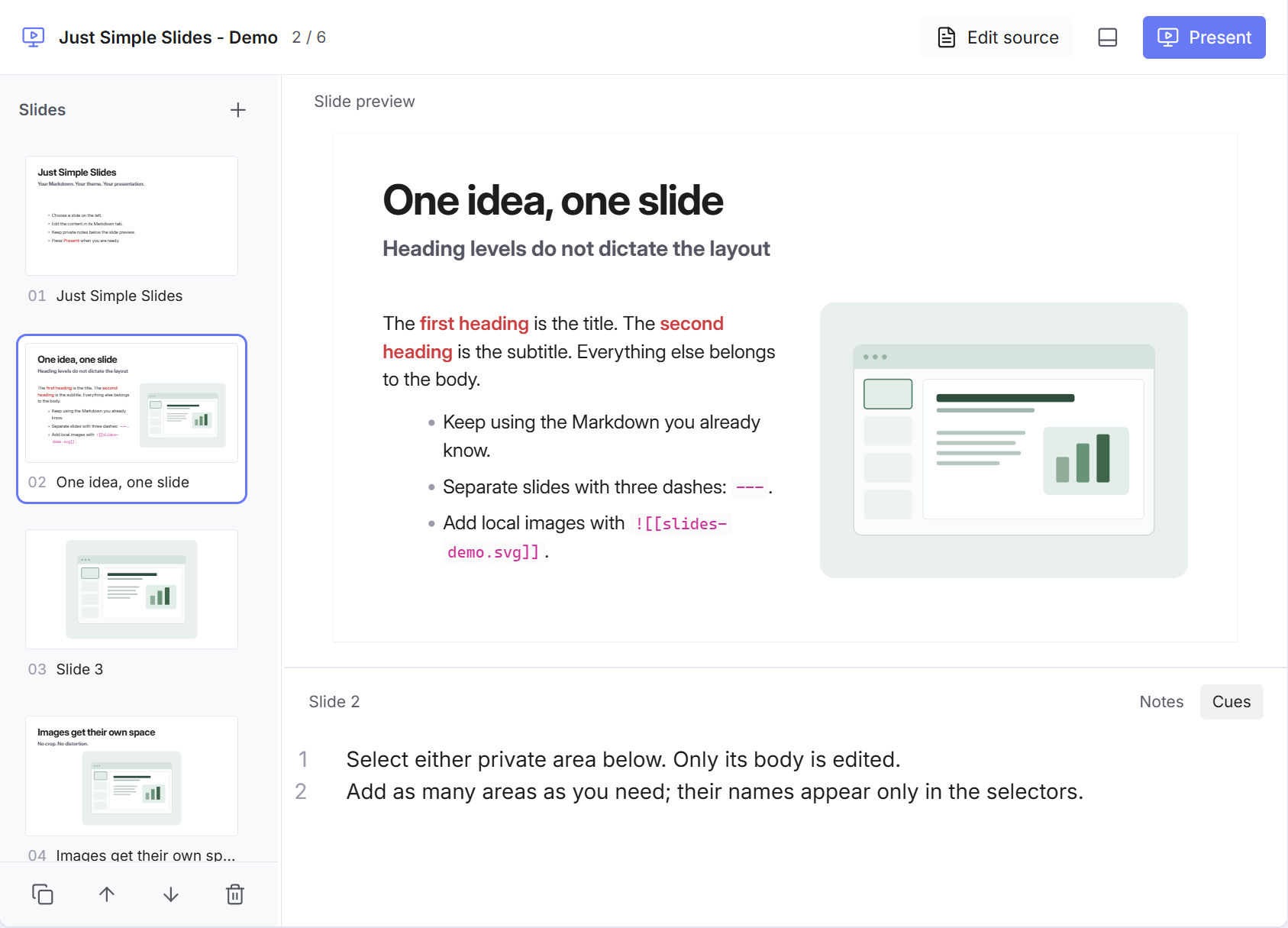
Just Simple Slides fills that gap. See the slides, reorder the story, and keep private notes below the preview. Make small title/subtitle changes directly in the slide editor; edit the full content in Obsidian's native Markdown editor, which stays open in its own tab. Both views share the same ordinary Markdown file. The layout adjusts automatically.
Download the latest release · Installation · Slide sorter · Edit titles and subtitles · Normalize headings · Markdown format · Mermaid diagrams
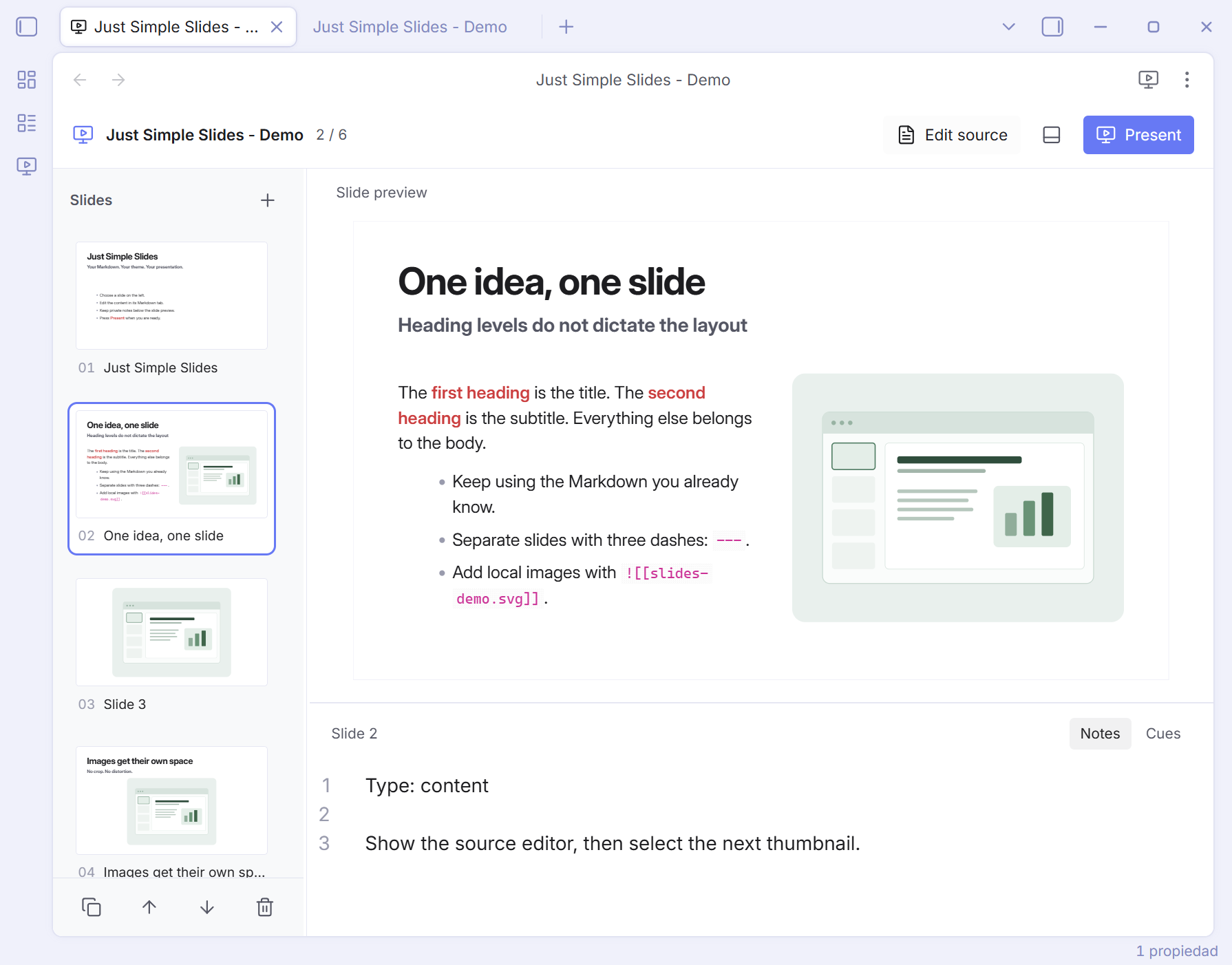
Start here
- Open a Markdown note.
- Run Just Simple Slides: Edit as slides, click the presentation ribbon icon, or right-click the note and choose Edit as slides. The first invocation opens a slide tab, keeping your Markdown editor, selection, and undo history in place. Further invocations for that file focus the existing slide tab, including in another window or after restoring the workspace. Start presentation reuses it too.
- Pick a thumbnail on the left. Click Edit source to focus the existing Markdown editor at that slide, including in another Obsidian window. If the note was closed, a new Markdown tab opens. Select a private
[!slide]area below the preview to edit its notes. You can also move or split the tabs using Obsidian's normal window controls. - Click Present, press F5, or run Just Simple Slides: Start presentation.
- Press Esc to return to the same slide. Close the Just Simple Slides tab with its native × or Ctrl/Cmd+W when finished; your Markdown tab stays open.
Use Just Simple Slides: Create presentation for a new file. New, duplicate, move up/down, and delete controls are beside the thumbnail rail. Ctrl/Cmd+Z undoes edits and slide operations, including after selecting another slide; Ctrl/Cmd+Shift+Z or Ctrl+Y redoes them.
In the normal slide editor, Right / Down selects the next slide and Left / Up selects the previous one. The preview receives keyboard focus when you open the slide view or return from the sorter. While editing notes, arrows move the text cursor as usual; click the slide preview to resume slide navigation. Area selectors and panel dividers keep their own arrow-key controls.
Drag a thumbnail above or below another to reorder slides. An accent line marks the drop position, and the rail scrolls near its edges. The moved slide stays selected; the Markdown file updates automatically, including its private notes. A reorder is one undo step. Dropping outside the rail cancels the move.
Drag the divider beside the thumbnails to change their width. Drag the divider above the lower editor to change its height. Double-click a divider to reset it, or focus it and use the arrow keys. Panel sizes and the selected private area are remembered.
See the whole presentation
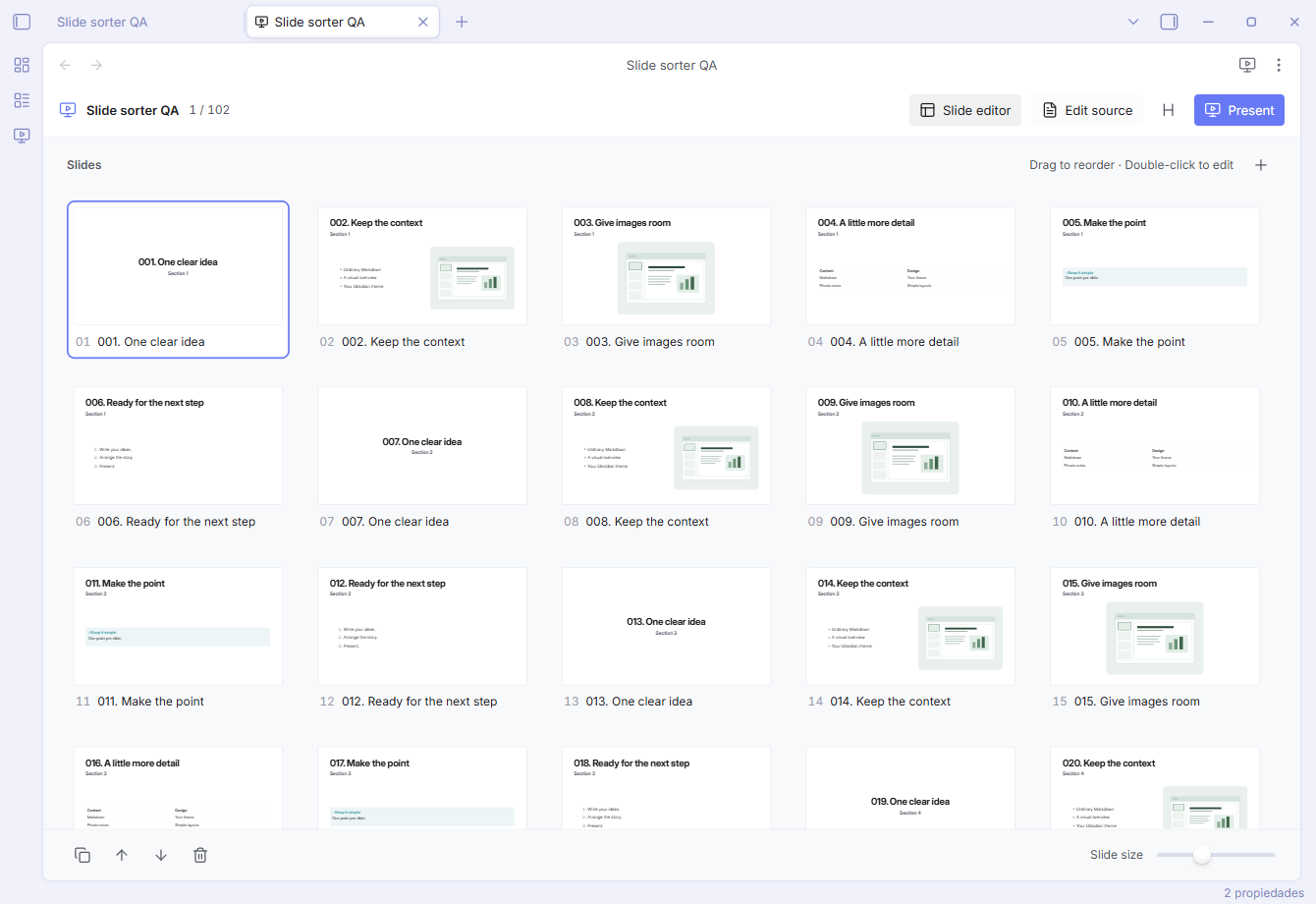
Click Slide sorter in the toolbar to expand the thumbnails into a grid, like PowerPoint's slide sorter. Use the Slide size slider at the bottom to fit more slides on screen or make them easier to read. The grid adjusts to the pane width; the thumbnail size is remembered.
Previews rescale as you switch views or change thumbnail size, including in floating windows.
Drag a card before or after another to change the order. The accent line marks the insertion point, including between rows. Hold near the top or bottom edge to scroll through a long presentation. The full slide moves with all its images and private areas, and the Markdown updates immediately. Ctrl/Cmd+Z undoes one move; redo works too. Dropping outside the grid or pressing Esc during a drag cancels it.
Click a card to select it. Double-click, press Enter or Esc, or click Slide editor to return to that slide's editor. Switching views keeps the selection, private-area editor, panel sizes, and undo history. Edit source and Present work from the grid too. The sorter also works in floating Obsidian windows.
Use Left/Right to select adjacent slides, Up/Down to move by a visible grid row, and Home/End for the first or last slide. Hold Ctrl/Cmd with these keys to move the selected slide instead. Add, duplicate, move, and delete controls remain at the bottom. Nearby previews render as needed so large decks do not render every slide at once.
Edit titles and subtitles
Small heading changes stay in Slide editor. Double-click the title or subtitle in the preview, or click the small pencil beside Slide preview. Its two-item menu offers Edit title / Edit subtitle, or Add when that heading is absent. Only one single-line field opens at a time.
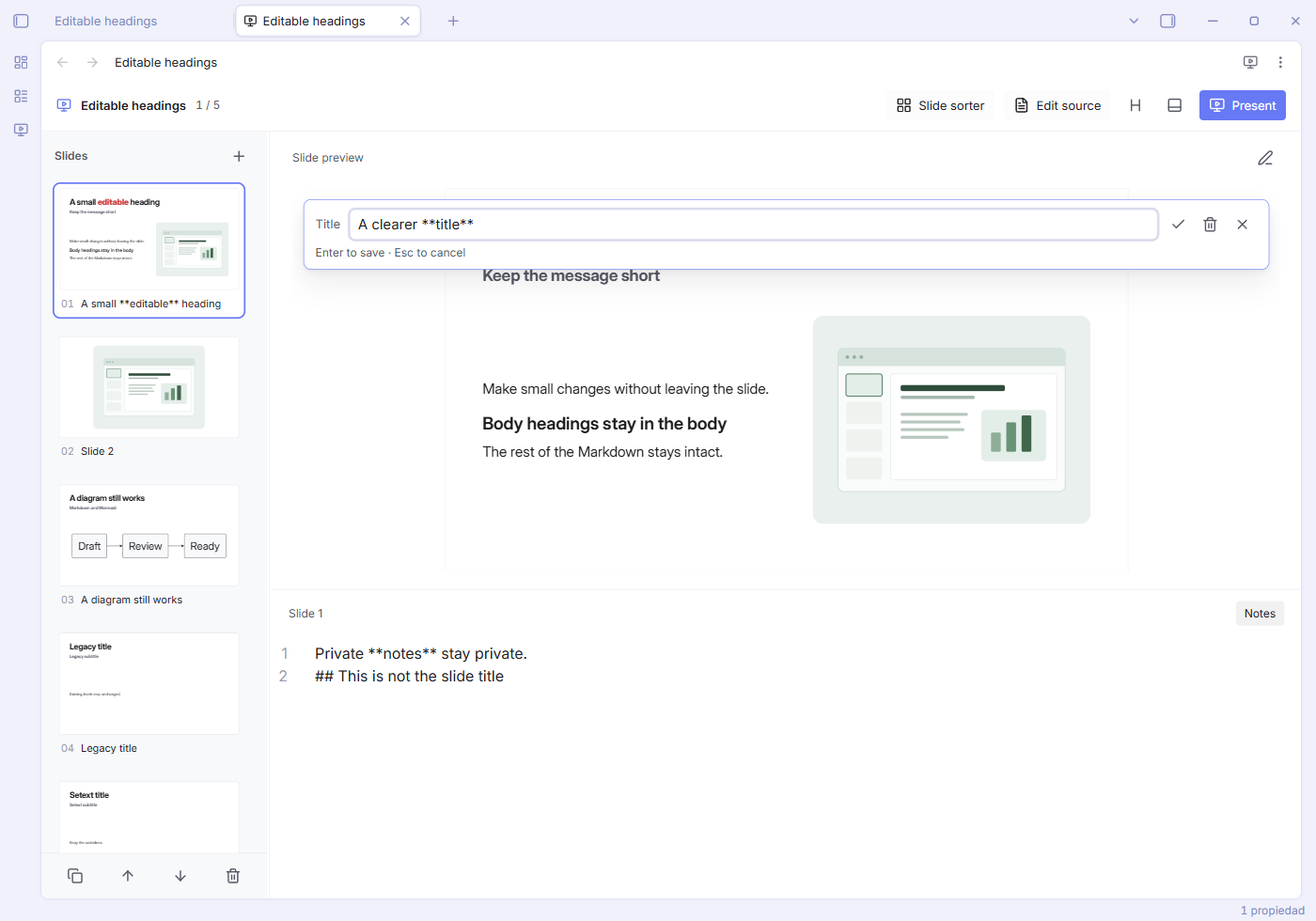
- Enter, Ctrl/Cmd+S, or the checkmark confirms the change. Esc or the cross cancels it. Typing alone does not change the file.
- The trash button removes that heading; confirming an empty field does the same. Title and subtitle are independent: removing either leaves the other in its original role and keeps later headings in the body. The pencil lets you add either one again.
- Ctrl/Cmd+Z undoes a confirmed edit, addition or removal in one step. Inside the field it undoes typing; cursor keys edit the text and F5 does not start the player.
The field accepts inline Markdown such as **bold** and links. Existing heading levels, spacing and Setext underlines are retained; new titles use ## and new subtitles use ###. Only the selected heading changes. Body text, media, Mermaid, private notes, frontmatter and the separate presentation title remain outside this editor. Thumbnails and the native Markdown tab update together. Sorter thumbnails and the presentation remain read-only. Headers supplied as raw HTML or by another postprocessor retain their existing appearance; the pencil offers Edit headings in source when their source cannot be mapped safely.
To prevent another heading from moving into a removed slot, deletion leaves a small invisible HTML comment, <!-- just-simple-slides:empty-heading -->, at that position. Restoring the heading replaces the comment. Keep these comments when editing the source to retain independent missing titles/subtitles; no sidecar or custom file format is involved.
Confirm or cancel before leaving the slide; switching slides/views or closing the tab discards an unconfirmed field. If the source changes while a field is open, saving is refused with a short message and the draft stays available to copy. Cancel and reopen to read the latest source.
Also checked in dark mode, with only a subtitle, and in a narrow floating window.


Normalize headings
This is a file-wide editing command. Applying it rewrites the heading levels across every slide in the current Markdown file, regardless of which slide is selected. It also adds or updates a separate presentation title. The changes are saved to your original note and appear in Obsidian's native Markdown editor.
- Click Normalize headings, the H icon in the toolbar, from either the slide editor or the slide sorter.
- Set Presentation title. The dialog proposes the existing presentation title, or the file name when there is none.
- Click Normalize headings in the dialog to apply the changes to the whole file. Cancel leaves the file unchanged.
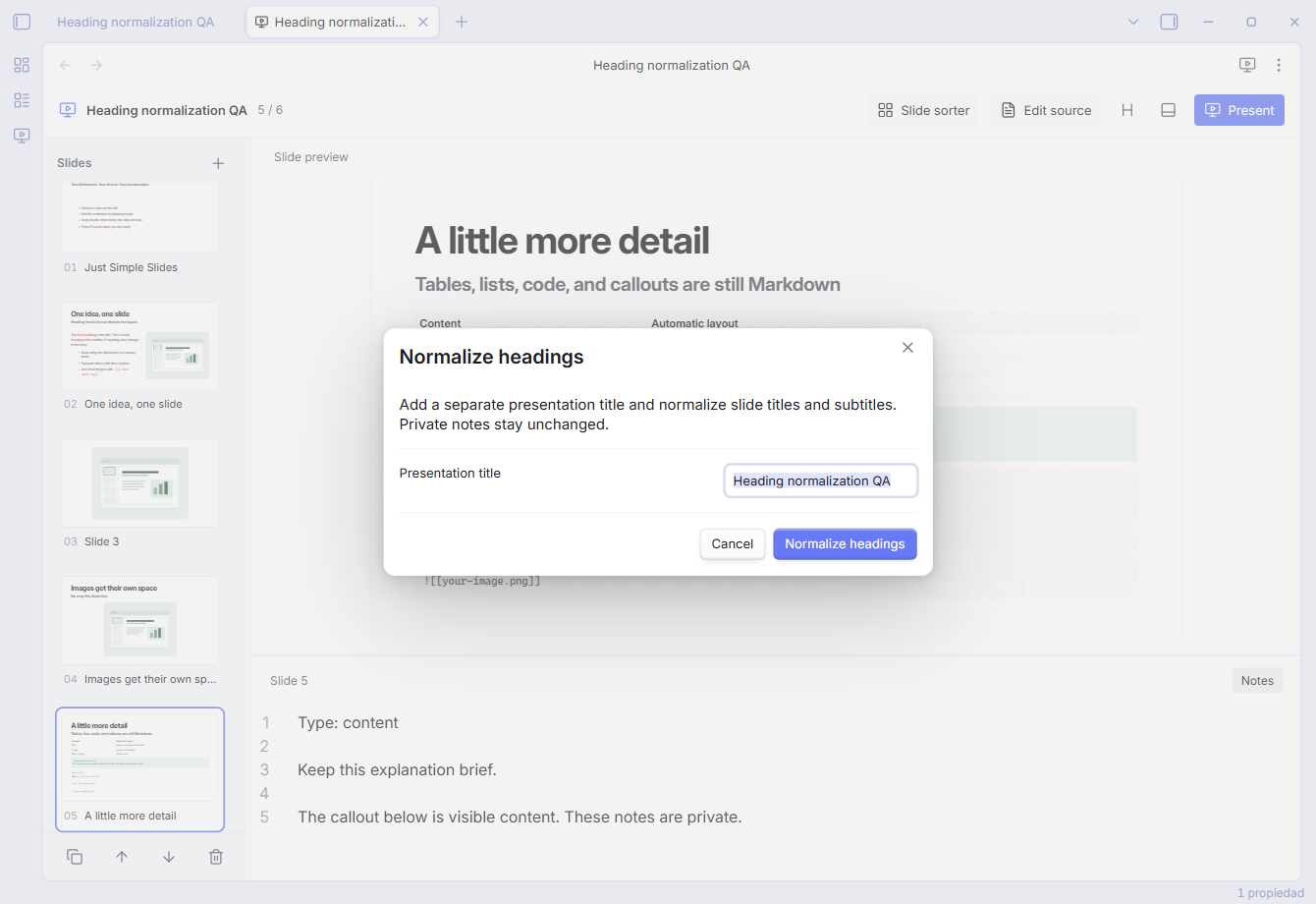
The resulting outline uses:
- One independent H1 for the presentation, outside the slides.
- H2 for each slide's title, when present.
- H3 for its subtitle, when present. Independently removed slots stay empty.
- Later body headings use H4–H6, keeping their relative depth where Markdown's six levels allow it.
Ctrl/Cmd+Z undoes the entire operation in one step; redo works too. Repeating normalization with the same title makes no further changes or extra undo step. Applying a different presentation title updates the existing H1.
Normalization targets top-level slide headings. Private [!slide] areas, headings nested in quotes or lists, code examples, HTML blocks, math, comments, images, and frontmatter stay unchanged. The slide count, selected slide, and private-area selection are preserved. Slides without headings get no invented title. Setext headings (underlined with = or -) are converted to # syntax.
The independent title is ordinary Markdown, identified by a small HTML comment so an existing title-only cover is never mistaken for metadata:
<!-- just-simple-slides:title -->
# My presentation

## First slide

### Optional subtitle

Slide content.

---

## Next slide
Keep the marker above the presentation heading at the start of the note, after any frontmatter, when editing it in the native source. Blank lines are allowed. The title appears in the Markdown outline and stays outside slide previews and presentation mode. Reordering, adding, duplicating, and deleting slides preserve it. This structure is optional: notes without it keep working unchanged, at any heading levels.
Markdown format
> [!slide] Notes
> Type: content
>
> Presenter notes: introduce the idea, then pause.

### My slide title

###### Optional subtitle

Some **Markdown** text.

![[image.png]]

---

![[another-image.png]]
- A line containing
---separates slides, outside fenced code or HTML comments. A standard YAML block at the start remains frontmatter. - The first top-level Markdown heading, at any level, becomes the title. The second becomes the subtitle. Later headings stay in the body. A heading is optional; removed slots retain their position so another heading is never promoted by deletion.
- Text alone uses the available width. Standalone images alone appear large and centered. Text and standalone images share two columns. Multiple standalone images form a grid.
- Local Obsidian image embeds and standard Markdown images use Obsidian's Markdown renderer. Inline images inside rich blocks stay in their original block.
- Images preserve their complete aspect ratio. Text and long titles shrink to fit the fixed 16:9 slide. Dense content remains visible but can become small; the editor identifies dense slides.
- Lists, tables, code, callouts, math, and other Markdown rendered by Obsidian remain content. Preview task checkboxes are read-only.
- Edits retain the original file's frontmatter and untouched slide content. When the native editor saves, its newline convention applies. There is no sidecar format or conversion.
Mermaid diagrams
Write a standard Mermaid fence in the slide, alongside ordinary text and existing images:
## Review before publishing

- Keep the explanation in Markdown.

```mermaid
flowchart LR
  Draft --> Review --> Ready
```

![[illustration.png]]
Pele is optional and supplied by Obsidian. Just Simple Slides does not install, download or bundle Pele and keeps its minimum Obsidian version at 1.7.2. After Obsidian's public diagram loader resolves, the plugin checks whether the host exposes the required Pele capabilities. If it does, slides use that engine; otherwise the original Markdown goes through Obsidian's usual renderer, without requiring an update or blocking the presentation. Obsidian 1.15 includes Pele; older versions retain their existing diagram behavior and permissions. Syntax support follows the engine supplied by your installed Obsidian. See Pele's syntax compatibility.
Rendering uses local Obsidian resources and needs no CDN or Internet connection. The host's optional window.pele runtime is checked defensively because it is not declared in the public TypeScript API. If that integration point changes, the plugin falls back to native Markdown rendering. This does not change Obsidian's native editor or its own diagram renderer.
With host Pele available, diagrams are visual resources. A title and diagram use the full visual region; text and diagrams share columns. Multiple visuals use a grid, with diagrams beside text taking the full width of the visual column to keep labels readable. Images keep their existing rendering. See the mixed demo for a flow, sequence, XY chart, multiple diagrams, a literal code example, and a deliberate syntax error. The layout and interaction details below apply to this optional Pele renderer; the native fallback retains Obsidian's own behavior.
Diagram layout uses the slide's logical 1600 × 900 canvas. Thumbnails, floating windows, the editor and the player scale that same layout, preserving the author's direction. Labels use the theme's text font for both measurement and display; font loads and changes trigger measurement again. Colors follow the theme, with contrast-adjusted chart series. Explicit colors written inside a diagram stay the author's choice.
Syntax errors show a message and source position when available, without stopping the rest of the presentation or retaining the previous diagram. Fences and diagram-internal YAML stay inside their slide. Presenter notes remain private, including Mermaid fences inside [!slide] callouts. Viewing never rewrites the source.
Zoom is deliberately disabled on slide surfaces, preserving the player's keyboard navigation and read-only controls. Diagram links and diagram-internal images are disabled; ordinary Markdown images and videos keep working. Custom icon and math resolvers are not included. Very large diagrams can still become small: the existing dense-slide indicator helps identify slides to split. Mermaid introduced later by a separate embed or another Markdown postprocessor is handled by that component, rather than intercepted from this slide's source.
Private slide areas
An optional Obsidian callout creates a private editing area:
> [!slide] Notes
> Type: content
>
> Presenter notes: introduce the idea, then pause.

# My slide

This is visible content.

> [!slide] Cues
> Two minutes. Ask the audience a question.
We recommend keeping the slide type and presenter notes together in one area, as above. This is a convention: the plugin does not interpret the name, type, or any other field. Write any Markdown you need. The name, body, type, and entire callout are all optional. A slide can have no private areas or as many as you want.
The lower editor contains only private areas: one selector for each [!slide] callout in that slide, in source order. A callout's optional name appears only in its selector, apart from the Markdown source. Unnamed areas use Area 1, Area 2, and so on; repeated names remain separate selectors. Use Left/Right, Home, or End on the selectors to switch areas. The row scrolls when needed.
Private notes use a small plain Markdown editor, so formatting markers such as **bold** stay visible. Use Edit source to work in Obsidian's native editor with Live Preview.
If the slide has no private areas, click Create slide notes in the lower panel. It appends an empty > [!slide] Slide notes callout at the end of the selected slide, leaving a blank line before the next ---. The new Slide notes area opens with keyboard focus, ready to write. The same change appears in the original Markdown note and other open slide tabs. Ctrl/Cmd+Z undoes creation in one step. The button appears only while that slide has no [!slide] callouts; existing areas keep their usual selectors.
Selecting a private area edits only its body, without the quote markers or header. The editor uses Obsidian's configured text font and size. Switching areas leaves the file unchanged; edits appear in the original Markdown tab and save to the same file. Clearing a body keeps the empty callout. Add, rename, or remove areas in the native Markdown editor; selectors update as you type. Put a blank line between separate callouts, following normal Obsidian Markdown.
You can move the slide view into a floating Obsidian window for another monitor. Private areas remain editable there, including after switching slides, resizing the window, or returning from fullscreen.
Every [!slide] callout stays out of the preview, thumbnails, and presentation, including folded callouts. Its name never becomes a slide title or a layout instruction. All other callout types remain visible. New slides include one suggested Notes area; existing notes work unchanged, and existing callout titles are simply selector names.
Export to PDF
In desktop Obsidian, open a slide deck and click Export. The PDF is saved beside the Markdown note with one 16:9 page per slide. Each export uses the current slide content and theme. If the filename is taken, the plugin creates a numbered copy.
Local images and diagrams must finish rendering before export. If a resource fails or takes too long, Obsidian shows an error and leaves the note and existing PDFs intact. PDF export is available on desktop. On mobile, you can still edit and present slides.
Presenting
Right / Down / Space / Enter / Page Down advances. Left / Up / Backspace / Page Up goes back. Home / End jumps to the first/last slide. Click an empty part of the slide to advance. Navigation and exit buttons remain available below the slide. The player attempts native fullscreen and falls back to an app-filling overlay when the WebView does not support it.
Slides use a 0.70-second Fade: the next slide dissolves over the previous one, keeping your Obsidian theme throughout. This is the only transition and has no settings. The first slide appears immediately; the system's reduced-motion preference disables the fade.
A subtle 2px progress bar along the bottom shows your position in the deck. It fills smoothly as you advance and moves back when you revisit a slide, reaching full width on the last slide. It uses your theme's accent at low opacity and follows reduced motion. Progress is based on slide position, not elapsed time.
Your Obsidian theme
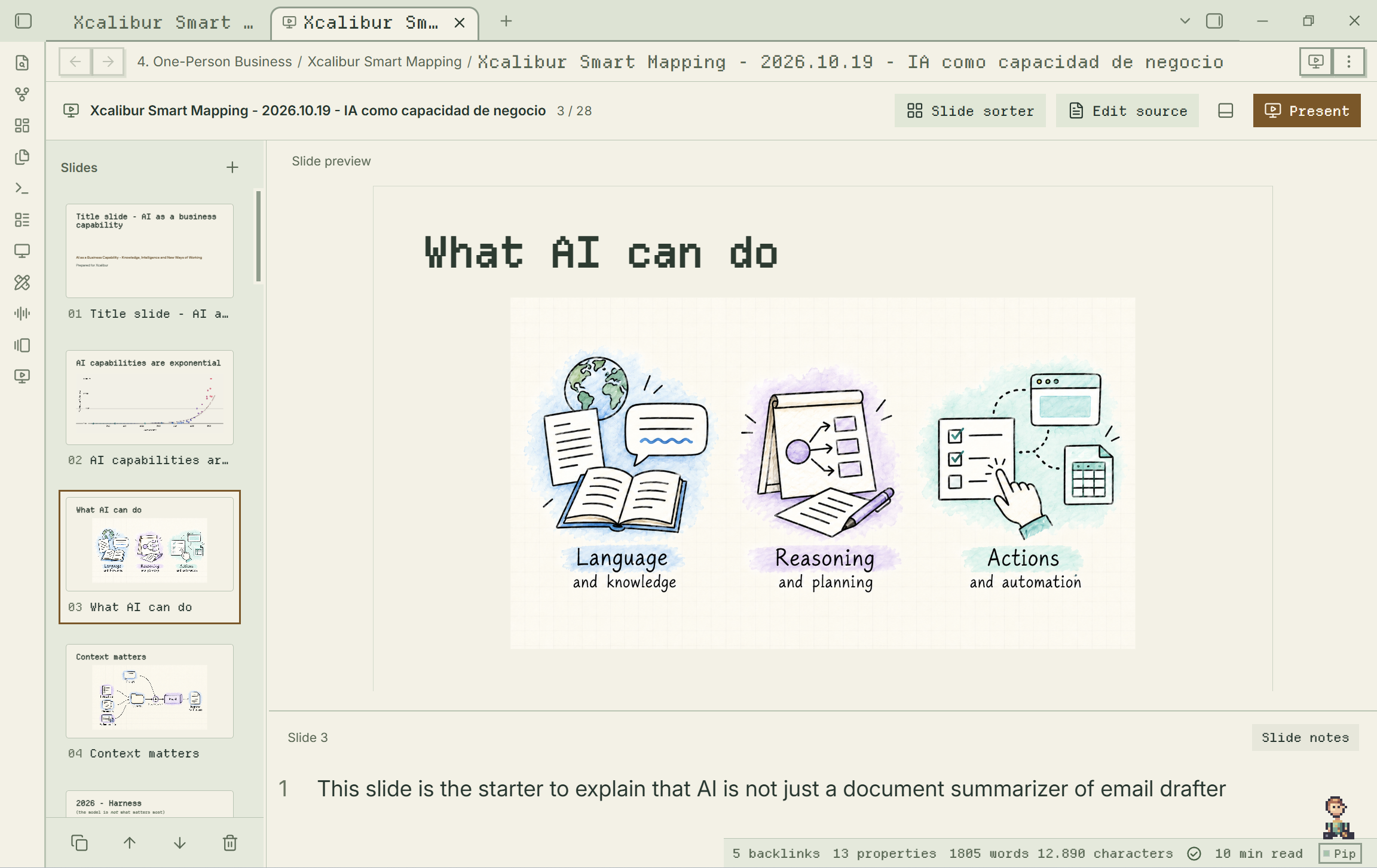
Just Simple Slides inherits the background, text colors, accent colors, and fonts of your active Obsidian theme. The editor, thumbnails, slide previews, and presentation mode follow that appearance, in light or dark mode. Change your theme in Obsidian and your slides follow.
The screenshot below shows the slide editor with a custom Obsidian theme: the typography, colors, panels, and controls belong to the same visual environment as the rest of the vault.
Installation
Requires Obsidian 1.7.2 or later.
- Download
main.js,manifest.json, andstyles.cssfrom the latest release. - Put all three files into
<vault>/.obsidian/plugins/just-simple-slides/. - Reload Obsidian and enable Just Simple Slides in Settings → Community plugins.
The plugin is published on GitHub and is not yet listed in Obsidian's Community Plugins directory. From 0.1.6, releases contain only the three files Obsidian installs. Each file is built and signed with GitHub artifact attestations; verify a download with gh attestation verify main.js --repo DavidHurtadoAI/just-simple-slides (and likewise for the other files).
Copy a Markdown example from demo/ and demo/slides-demo.svg to a vault to try it. The original example has six slides; Pele diagrams.md demonstrates mixed media and Mermaid.
Minimal by design
The priority today is editing a Markdown file as a presentation: seeing the slides, shaping the content, arranging their order, and keeping private notes nearby.
Presentation mode currently has one restrained transition: Fade. Future improvements to animations and transitions will follow the same minimalist approach: a small set of useful controls, sensible defaults, and your content at the center.
Development
npm run check runs the official Obsidian ESLint rules, CSS checks for Chromium 114 and !important, unit tests, strict TypeScript, and release packaging. Warnings fail the check. Version tags trigger the build, provenance attestation, and publication workflow.
npm ci
npm run check
node scripts/install.mjs /path/to/vault
Uses the Obsidian TextFileView API for file lifecycle, CodeMirror for private callout bodies, and Obsidian's Markdown renderer and component lifecycle for previews. While the native Markdown editor is open, it owns saving and receives minimal text replacements that preserve its undo history. All open slide tabs share the current content. The same measured layout renders the main preview, visible thumbnails, and player. Thumbnails render lazily. No web service, telemetry, presentation framework, or runtime download is required.
Heading normalization uses the bundled Lezer Markdown parser to identify headings without rewriting nested content. Its license and those of its bundled dependencies are included in main.js and THIRD_PARTY_NOTICES.md.
The public Obsidian API does not provide an embeddable native editor restricted to a document fragment. The private-area editor uses the same CodeMirror engine and Obsidian typography; full native Live Preview, autocomplete, and Markdown editing remain available in the original note tab. Export and a separate presenter window are outside this version. Arbitrary third-party interactive embeds may impose their own layout or focus behavior.
See VALIDATION.md for the local test results and platform coverage.