README file from
GithubJournal Mode
Because digital journaling should be more playful. 📝
journal-mode in a plugin for Obsidian that adds analog-journal inspired expressiveness into your notes with syntax that doesn't get in the way of reading.

Key Features
- Add animated text, color, and digital washi "tape" to decorate your notes.
- Works in both edit and read mode, so that you can enjoy your styling notes while still in the flow of typing.
- Works on desktop and mobile.
- Built with pure CSS and Javascript. No external assets needed!
- Uses a minimal style markup that doesn't make your notes hard to read in text editors or other apps the way that HTML can.
- Adds a fun and joyful twist to writing digital notes that takes advantage of things that paper could never do!
Customize!
You don't need to build/compile this plugin to add your own customizations.
It's built to be extended!
See the rest of this README for details, or check out the commented styles.css file.
Usage
Text Decoration
Animate Text
Use this format to animate bits of text:
{shiver: Look out, it's Monday!}
Available Animations:
| tag | effect |
|---|---|
| shiver | a slow, looming jitter |
| shake | a more intense shake |
| rage | super speed, angry vibration |
| shock | poping, jolting letters |
| wave | a joyful, smooth bounce |
Colorize Text
Use this format to colorize specific letters or words:
The afternoon sky was so {blue: clear}.
Default Colors
| name | color code |
|---|---|
| red | #c0392b |
| orange | #ca6a2e |
| gold | #b8902b |
| green | #3f7d4f |
| sea | #2f7e7e |
| blue | #3a6ea5 |
| violet | #7a5ba6 |
| gray | #6b6b6b |
Defining Your Colors
Open the options menu and go to Community plugins > Journal Mode to view the configuration options.
In the Palette section you can define as many color aliases as you want.
Rainbow Text
{rainbow:} is a special reserved color word.
Any text marked as rainbow will apply all of your palette colors, one at a time in order, to give a custom rainbow effect.
Sparkling Text
Use this format to add a sparkle effect:
What a {sparkle: great idea} to make your journal delightful!
Everything!
You can combine tags to add more effects at once.
The order of the tags doesn't matter, unless you specify multiple colors. The last color in the tags will win.
The price of RAM is {shake red: terrifying} these days!
Washi Tape Dividers
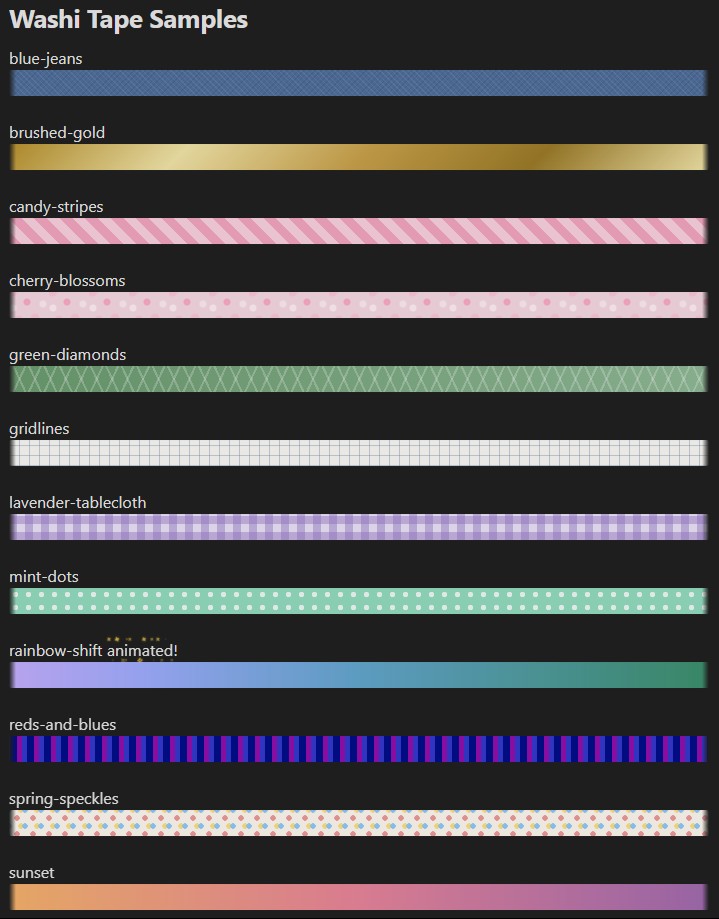
This feature allows you to break up your writing with decorative dividers inspired by physical washi tapes.
Insert one from the command ribbon (Ctrl+P) → Journal Mode: Insert washi divider, then pick a tape name.
It adds a small code block into your note:
```washi
brushed-gold
```
If you prefer, you can also just type the code block by hand. This creates the same result as using the picker.
Adding Your Own Tape
A tape is just a custom CSS rule named .jm-washi--<id>, where <id> is the name you type in the block.
The picker automatically finds every .jm-washi--<id> rule in your loaded CSS snippets.
The styles included in the base in styles.css are just a starter kit I created for you. Please use them as a building block and do so much more!
- Add your CSS rule as a snippet (see additional info below)
- Apply the tape by using a
```washiblock or by picking it from the command ribbon. No need to restart or reload.
A Note on Tape IDs: Use lowercase letters, numbers, and hyphens (e.g. sunset-glow). The picker turns the id into a display name automatically (sunset-glow → "Sunset glow").
Keeping your Tape Designs Safe
You can paste your rule into the plugin's styles.css, but updating or removing the plugin will destroy your custom designs so it's not reccomended!
Instead use an Obsidian CSS snippet, which belongs to your vault and survives updates:
- Go to
Settings→Appearance→CSS snippets. - Click the folder icon to open your snippets folder (
.obsidian/snippets/) and create a file, e.g.my-washi-tapes.css. - Paste your
.jm-washi--<id>rule into it and save. - Back in Obsidian, click the reload icon next to CSS snippets and toggle your snippet on.
Your tape now shows up in the Insert washi divider picker and works just like the ones that come with Journal Mode — no rebuild or reload required.
Default Washi Tape Samples